# Install the SourceLoop tracking pixel
Add the SourceLoop tracking script to your site in three steps. Once installed, every visitor's source, journey, and conversion gets captured automatically.
Source: https://sourceloop.ai/help/install-the-tracking-pixel/
Updated: 2026-05-28
---
This guide walks you through adding the SourceLoop tracking pixel to your site. Once installed, SourceLoop captures every visitor's source, journey, and any conversion (form submission, meeting, chat, payment) they trigger.
Three steps, around five minutes. Works on every CMS, every framework, every static-site generator.
## Before you start
You'll need:
- A **SourceLoop account** ([sign up here](/help/how-to-sign-up-for-sourceloop/) if you don't have one yet)
- **Access to your site's `` HTML** (or a tag manager like GTM)
- A **published page** to test against once it's live
## Step 1: Copy the tracking snippet
1. Sign in to [SourceLoop](https://app.sourceloop.ai/).
2. In the left sidebar, open **Setup -> Tracking code**.
3. Copy the snippet shown on the page.
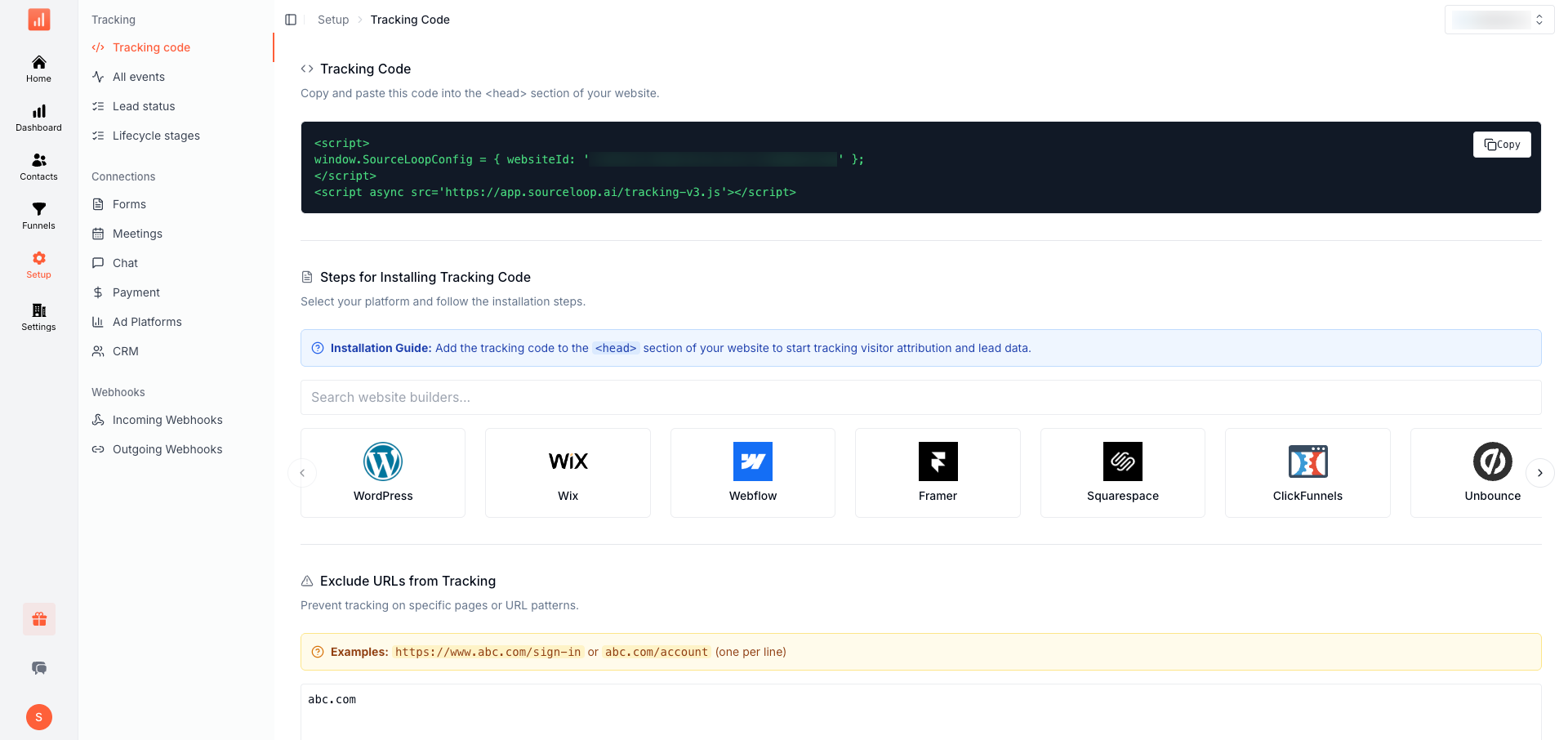
The snippet looks like this:
```html
```
The `websiteId` is unique to your workspace and is filled in automatically when you copy from the app. Don't share the snippet publicly, anyone who has it could send fake events to your account.
> **Running multiple sites under one workspace?**
> Switch the active website in the top-left workspace switcher before you copy. The snippet is scoped to whichever website is currently selected.
## Step 2: Paste it into your site's ``
Add the snippet inside `` on every page. The exact location depends on your stack:
- **Webflow**: Project Settings -> Custom Code -> Head Code
- **WordPress**: Use the "Insert Headers and Footers" plugin (or "WPCode"), or paste into your active theme's `header.php` just before ``
- **Next.js / Nuxt / Remix**: Paste into the root layout file's `` (e.g., `app/layout.tsx`, `nuxt.config.ts`)
- **Astro**: Add to the global layout's `` (e.g., `src/layouts/BaseLayout.astro`)
- **Shopify**: Online Store -> Themes -> Actions -> Edit Code -> `theme.liquid`, paste before ``
- **BigCommerce**: Storefront -> Script Manager -> Create a script, set placement to `` on All Pages
- **Wix**: Settings -> Custom Code -> Add Custom Code, placement ``, apply site-wide
- **Squarespace**: Settings -> Advanced -> Code Injection -> Header
- **Framer**: Site Settings -> General -> Custom Code -> Start of `` tag
- **Google Tag Manager**: New Tag -> Custom HTML -> paste the snippet, trigger on All Pages
- **Plain HTML / custom build**: Paste directly into your site template's ``
> **Consent management platforms can block the script**
> If you use OneTrust, Cookiebot, Iubenda, or any other consent banner that blocks scripts until consent is given, make sure SourceLoop is allowlisted in the analytics category. Otherwise the snippet only fires for users who accept cookies, and you'll miss attribution for everyone else.
## Step 3: Deploy and reload
Push the change live, then open your site in an **incognito window** (regular browsers may cache the old version of the page without the new snippet).
That's it. Visitors hitting your site from this point on are being tracked by SourceLoop, source, journey, and any conversions they trigger.
## Verify it's working
Want to make sure the script is firing correctly? Head to [Verify the tracking pixel is installed](/help/verify-tracking-is-working/) for the two-minute check.
If you're stuck, email us at hello@sourceloop.ai with your domain and we'll take a look.
## Frequently Asked Questions
### Where exactly does the script go?
Inside the `` tag of every page you want to track. Put it before any other analytics scripts so SourceLoop loads first.
### Does the script slow down my site?
The tracker is under 8KB gzipped and loads async, so it has no measurable impact on Core Web Vitals. SourceLoop also pre-connects to `app.sourceloop.ai`, which shaves another ~80ms off the handshake.
### What if I'm using Google Tag Manager?
Create a Custom HTML tag, paste the snippet, and set the trigger to "All Pages". Make sure the tag fires before any consent management platform that might block scripts.
### Do I need to install the script on every page?
Yes, on every page you want SourceLoop to track. Site-wide install in `` is the simplest path, every CMS and framework supports it. Forms, meetings, chats, and payments only get attributed on pages where the snippet is loaded.
### My site uses a strict Content Security Policy. Will SourceLoop be blocked?
If your CSP doesn't already allow `app.sourceloop.ai`, the browser will block the script. Add `app.sourceloop.ai` to your `script-src` and `connect-src` directives. The browser console will show a CSP violation if this is the cause.
### I have multiple websites under one SourceLoop workspace. Do I install the same snippet on all of them?
No. Each website in SourceLoop gets its own `websiteId`. Switch the active website in the dashboard before copying the snippet, the snippet shown is scoped to that specific website.