

Not sure where your leads are coming from in NetHunt CRM?
You’re not alone. Most marketing teams struggle with lead source blindness.
They know leads are coming in, but they have no idea which campaigns or channels are driving conversions.
Without proper UTM tracking, you are flying blind regarding marketing ROI.
The good news? There’s a simple, no-code solution that can solve this problem in minutes.
How to Track UTM Parameters in NetHunt CRM
- Install SourceLoop.ai on Your Website
- Add UTM Parameters to Every Marketing Link
- SourceLoop Automatically Captures and Stores Lead Data
- Add Hidden Fields to Your Lead Forms (Optional)
- Sync UTM Data with NetHunt CRM
1. Install SourceLoop.ai on Your Website
To start tracking UTM parameters in NetHunt CRM, you need a tool that captures and stores lead source data automatically. SourceLoop is designed specifically for this purpose.
Setting up SourceLoop takes just a few minutes:
- Create a free account at SourceLoop.ai
- Copy the tracking script provided after signup
- Add this snippet to the
<head>section of your website or through your tag manager
Once installed, SourceLoop automatically tracks UTM parameters from every visitor, whether they arrive from Google Ads, LinkedIn campaigns, email newsletters, or other marketing channels.

Example scenario: Let’s say you run a digital marketing agency promoting a free SEO audit. A potential client searches “website SEO audit” on Google, clicks your ad, and lands on:
https://youragency.com/free-audit?utm_source=google&utm_medium=cpc&utm_campaign=seo-audit&utm_term=website_auditSourceLoop captures this complete attribution data:
- Channel: Paid Search
- Source: Google (from utm_source=google)
- Campaign: seo-audit (identifies your specific campaign)
- Search Term: website_audit (shows what they were looking for)
- Landing Page: The exact page that converted them
2. Add UTM Parameters to Every Marketing Link
For UTM tracking to work in NetHunt CRM, every marketing link needs proper UTM tags. These parameters tell you how visitors found your website.
UTM parameters are just tags you add to your URLs that identify the traffic source. When someone clicks a properly tagged link, SourceLoop captures that information and stores it until they convert.
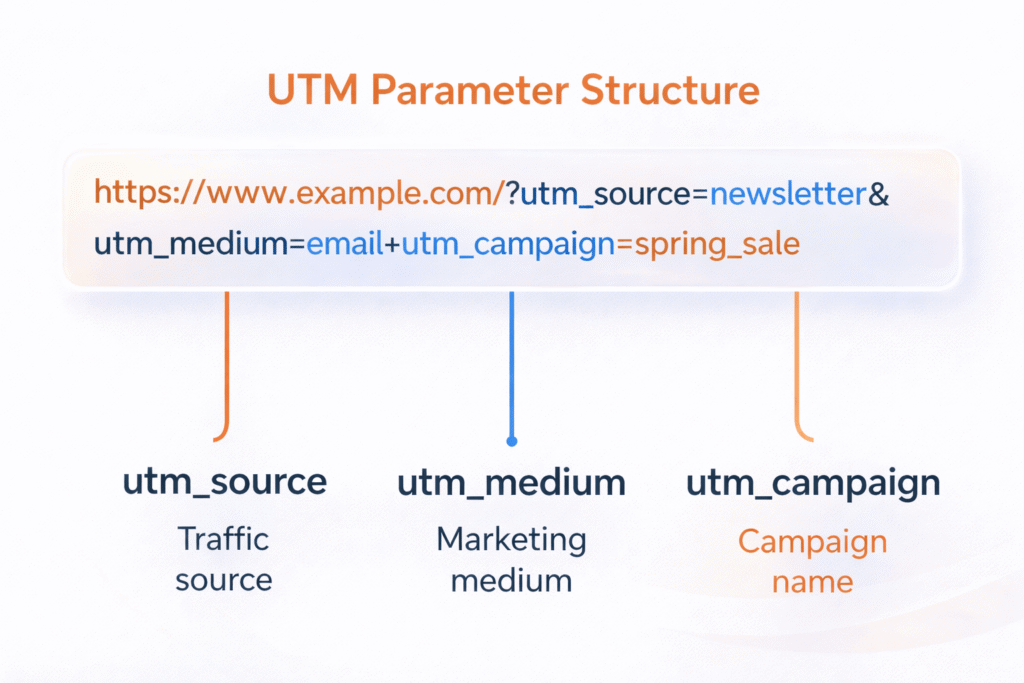
UTM-Tagged URL Examples:
For Google Search Ads:
https://yoursite.com/demo?utm_source=google&utm_medium=cpc&utm_campaign=demo_signup_q1For LinkedIn Sponsored Content:
https://yoursite.com/whitepaper?utm_source=linkedin&utm_medium=social&utm_campaign=thought_leadershipFor Email Newsletter:
https://yoursite.com/blog?utm_source=newsletter&utm_medium=email&utm_campaign=weekly_digestPro tip: Use consistent naming conventions across campaigns. This makes reporting much easier later in NetHunt CRM.
According to Google’s official UTM guidelines, proper parameter structure is crucial for accurate attribution tracking.
3. SourceLoop Automatically Captures and Stores Lead Data
Here’s where the magic happens. Once SourceLoop is installed and your links are tagged, the system automatically captures every lead submission along with their complete attribution history.
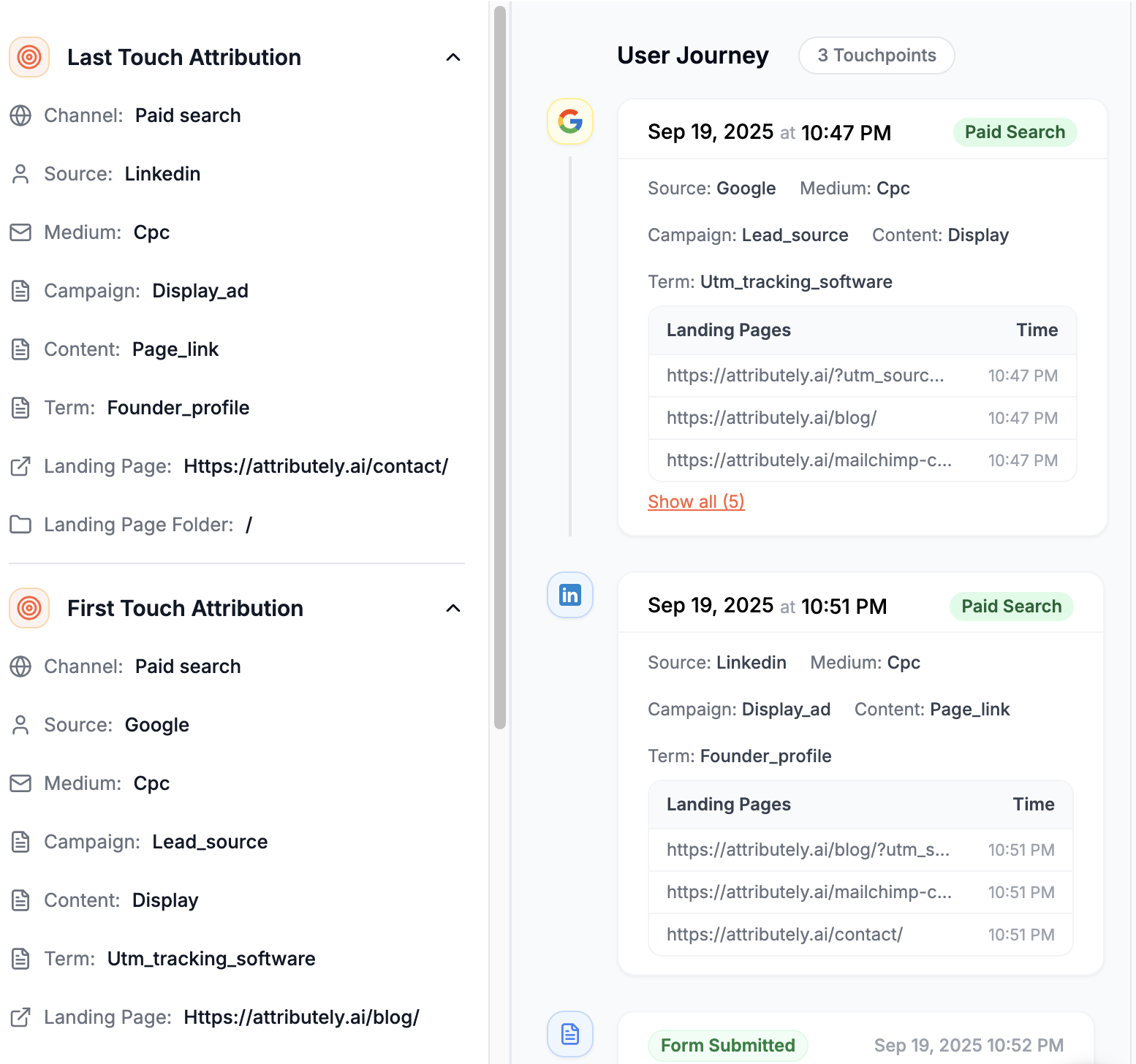
SourceLoop works with 100+ popular tools, including:
- Contact Forms: Gravity Forms, Contact Form 7, Webflow Forms
- Chat Widgets: Intercom, Drift, Zendesk
- Meeting Schedulers: Calendly, Acuity
- Landing Page Builders: Unbounce, Leadpages, Framer
No configuration required. As long as the tracking script is on your site, SourceLoop will:
- Detect every form submission or chat conversation
- Match it with the visitor’s attribution data
- Store everything in your SourceLoop dashboard
Real-world example: A visitor discovers your agency through a LinkedIn ad about conversion rate optimization. They browse your site for 10 minutes, then fill out your contact form. SourceLoop connects that form submission to the original LinkedIn campaign—even though they may have visited other pages first.
4. Add Hidden Fields to Your Lead Forms (Optional)
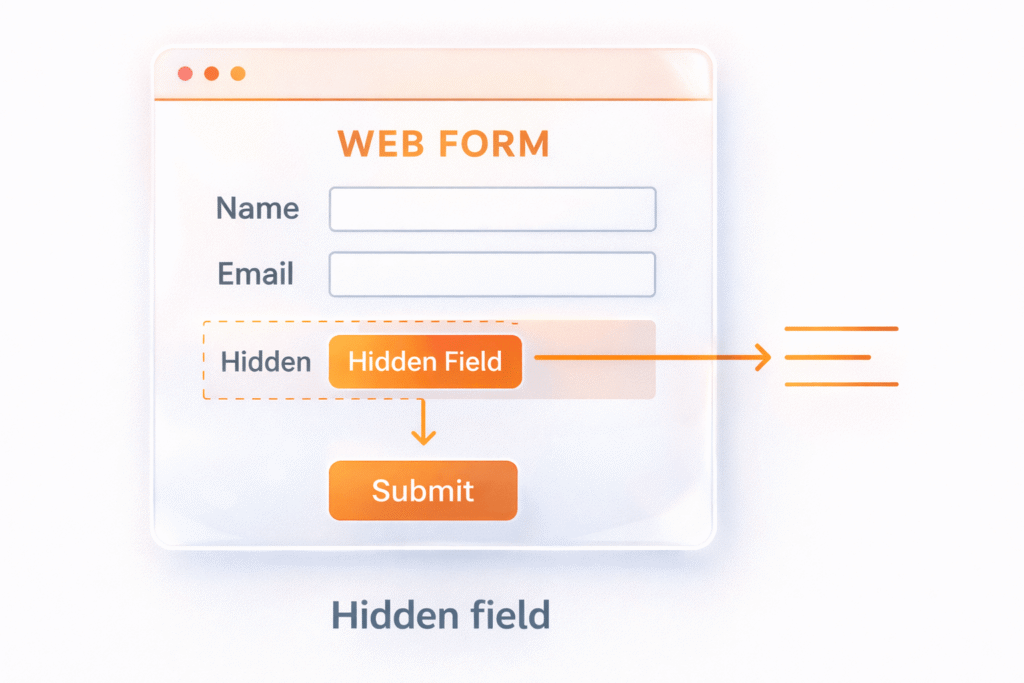
Want attribution data to appear directly in your form submissions? SourceLoop supports hidden fields that automatically populate with tracking utm parameters.
Most form builders allow hidden fields easily. Visitors can’t see these fields, but when they submit the form, SourceLoop’s captured data flows through automatically.
Recommended hidden field names:
channel(e.g., “Paid Search,” “Social Media”)attribution_source(e.g., “google,” “linkedin”)attribution_medium(e.g., “cpc,” “email”)attribution_campaign(e.g., “q1_lead_gen”)attribution_term(e.g., “marketing_automation”)landingpage(the page they first visited)
Bonus: First-Touch Attribution
Many businesses want to know not just the last click, but how someone originally discovered them. SourceLoop tracks this too with additional fields:
first_channel(their very first visit source)first_source(where they originally came from)first_campaign(the campaign that first brought them)firstseen(date of initial discovery)
This is especially valuable for longer sales cycles where prospects research for weeks before converting.
5. Sync UTM Data with NetHunt CRM
The final step is getting this rich attribution data into NetHunt CRM where your sales team can use it.
SourceLoop offers multiple sync options:
Option 1: Direct Webhook IntegrationSet up a webhook in SourceLoop that automatically sends new lead data to NetHunt CRM. This typically takes under 5 minutes to configure and ensures real-time data flow.
Option 2: Automation ToolsUse platforms like Zapier or Make to connect SourceLoop with NetHunt CRM. These tools offer pre-built templates that map attribution fields automatically.
Option 3: CSV ExportFor smaller volumes, export lead data from SourceLoop and import it into NetHunt CRM manually. This works well for weekly or monthly reporting cycles.
Once synced, every lead record in NetHunt CRM will include complete attribution data—source, campaign, landing page, and more.
What You Can Do with UTM Data in NetHunt CRM
Now that you’re capturing utm parameters in NetHunt CRM, here’s how this data transforms your marketing and sales operations:
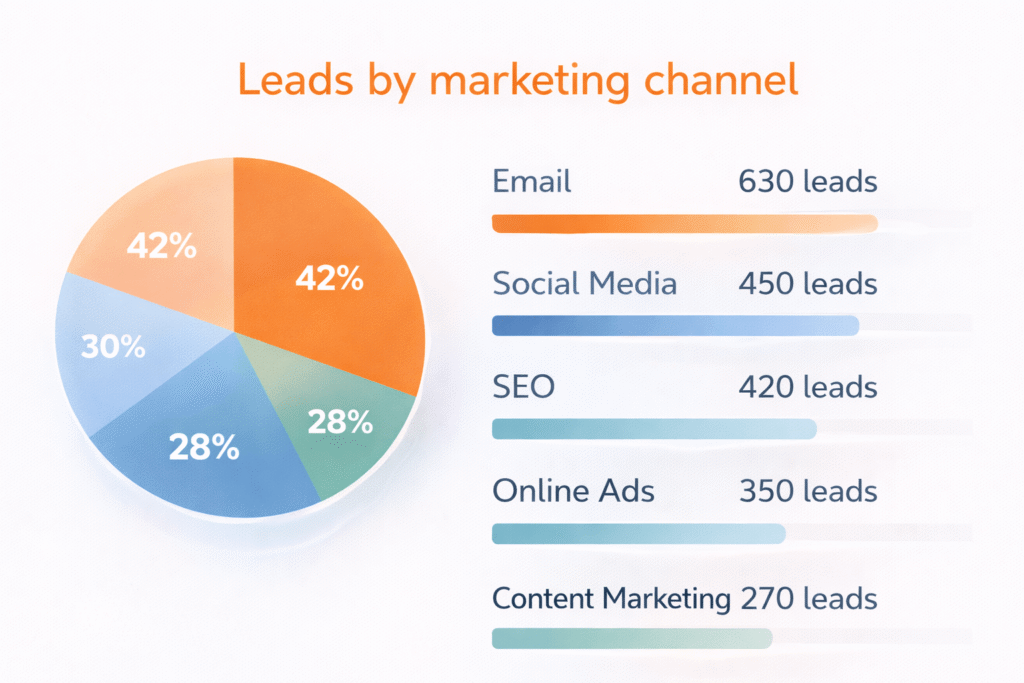
1. Identify Your Best Performing Marketing Channels
Stop guessing which campaigns work. With UTM data in NetHunt CRM, you can see exactly which channels drive the highest-quality leads.
Example comparison:
- Facebook Ads: 150 leads, 3% conversion rate, $2,000 average deal size
- Google Ads: 75 leads, 12% conversion rate, $5,500 average deal size
- Email campaigns: 45 leads, 18% conversion rate, $3,200 average deal size
This data reveals that while Facebook generates more volume, Google and email deliver much better quality. You can shift budget accordingly.
2. Segment Leads by Campaign for Targeted Follow-Up
Generic follow-up emails get ignored. But when your sales team knows exactly which campaign brought in each lead, they can craft personalized outreach that references the prospect’s specific interests.
NetHunt CRM segmentation examples:
- Leads from “Enterprise Software Demo” campaign get assigned to senior sales reps
- “Small Business Toolkit” leads receive automated nurture sequences
- Webinar attendees get follow-up emails with related resources
3. Automate Lead Assignment Based on Source
Use NetHunt CRM’s automation features to route leads based on their utm parameters:
- Geographic campaigns: Route local Google Ads leads to regional sales reps
- Product-specific campaigns: Send enterprise leads to senior account executives
- Channel-based routing: Assign high-intent search leads to your best closers
Setup example: Create a NetHunt CRM workflow that automatically assigns leads with utm_campaign=enterprise_demo to your enterprise sales team with high priority.
4. Create Campaign ROI Reports
NetHunt CRM’s reporting features become much more powerful when combined with UTM data. You can create custom reports showing:
- Revenue generated by campaign
- Cost per acquisition by channel
- Customer lifetime value by traffic source
- Conversion rates across different UTM parameters
Sample ROI calculation:
- Google Ads spend: $5,000/month
- Leads generated: 85
- Closed deals: 12
- Average deal size: $4,200
- Revenue: $50,400
- ROI: 908%
5. Calculate Customer Lifetime Value by Channel
Once you have historical data, analyze which acquisition channels bring the most valuable long-term customers.
Example insights:
- Webinar attendees: $15,000 average lifetime value
- Organic search visitors: $8,500 average lifetime value
- Social media followers: $3,200 average lifetime value

