

Marketing teams spend a lot of money driving traffic to landing pages, webinars, and demos.
Google Ads, LinkedIn campaigns, email nurtures, partner promotions, and content syndication all compete for budget.
But here is the uncomfortable truth.
Many teams using Marketo still cannot clearly answer which campaigns actually create qualified leads, pipeline, or revenue.
Campaign data gets lost, overwritten, or never reaches downstream systems.
This guide shows how to correctly track and capture UTM parameters in Marketo in simple steps.
Why Native UTM Tracking in Marketo Falls Short
Marketo can capture UTMs from URLs, but it has limitations that affect attribution accuracy.
Common issues include:
- UTMs are lost when users navigate across multiple pages
- UTMs are overwritten on repeat visits
- Marketo forms only capture UTMs at submission time
- Cross domain tracking is complex to maintain
- Attribution breaks when users return days later
As a result, marketing teams see inflated performance for last touch channels like branded search or direct traffic.
This is why many teams rely on an external attribution layer before data reaches Marketo.
How to Track UTM Parameters in Marketo CRM
- Marketo does not reliably persist UTM parameters across multiple visits
- Add UTM parameters to all marketing links such as ads, emails, and social posts
- Use a website tracking tool like SourceLoop to capture UTMs on the first visit
- Store UTM data across sessions until a lead converts
- Sync captured UTM data into Marketo lead fields
5 Steps to Track UTM Parameters in Marketo CRM
Here’s how to capture utm parameters in Marketo CRM and create a complete attribution system:
Step 1: Install a UTM Tracking Layer on Your Website
To track UTM parameters correctly in Marketo, you need to capture attribution data as soon as a visitor lands on your site.
This tracking layer should sit outside Marketo and persist data independently.
SourceLoop is built for this purpose.
Once installed, SourceLoop captures UTM parameters, referrer data, and landing pages automatically and stores them in the visitor’s browser.
This ensures that attribution data is preserved even if the visitor:
- Navigates multiple pages
- Leaves and returns later
- Converts days or weeks after first touch

Installation typically involves adding a single tracking script to your website header or tag manager.
Step 2: Add UTM Parameters to All Marketing Links
UTM tracking only works if your links are tagged consistently.
Every inbound campaign should include UTM parameters, including:
- Paid ads
- Email campaigns
- Social posts
- Partner promotions
- Webinar links
Example UTM tagged URL:
https://yourcompany.com/demo?utm_source=linkedin&utm_medium=paid_social&utm_campaign=enterprise_demo
Google’s free Campaign URL Builder helps standardize this process.
Keep naming conventions consistent. This is critical for reporting inside Marketo.
Step 3: SourceLoop Automatically Captures Leads
Once tracking is live and UTMs are in place, SourceLoop begins capturing lead data automatically.
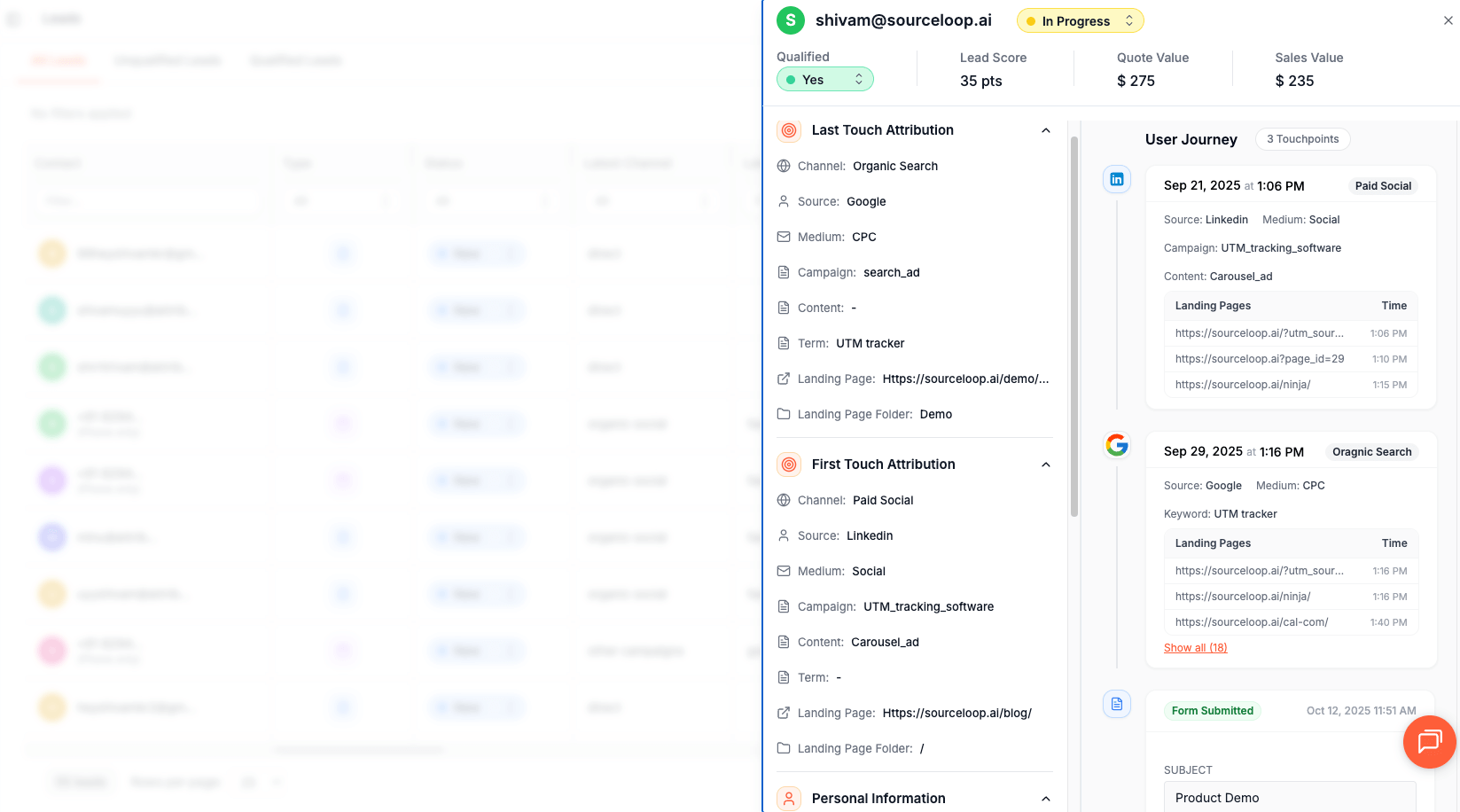
When a visitor submits a Marketo form, books a meeting, or engages through a supported lead capture tool, SourceLoop links the conversion back to the original campaign.
SourceLoop supports most modern lead capture methods, including:
- Website contact forms
- Marketo forms and embedded forms
- Meeting schedulers like Calendly
- Chat and conversational tools
- Landing page builders
When a lead converts, SourceLoop:
- Retrieves stored UTM and referrer data
- Associates the lead with its full marketing journey
- Displays attribution data inside the SourceLoop dashboard
This works without adding hidden fields or custom scripts for supported tools.
Step 4: Sync UTM Data into Marketo
After capturing attribution data, the next step is syncing it into Marketo.
UTM data is typically mapped to custom lead fields such as:
- Original UTM Source
- Original UTM Medium
- Original UTM Campaign
- First Landing Page
- Referrer
SourceLoop can send this data into Marketo using:
- API based integrations
- Automation tools like Zapier or Make
- CSV imports for batch updates
Once synced, UTM data becomes available for Marketo programs, smart lists, scoring rules, and reporting.
What You Can Do with UTM Data in Marketo
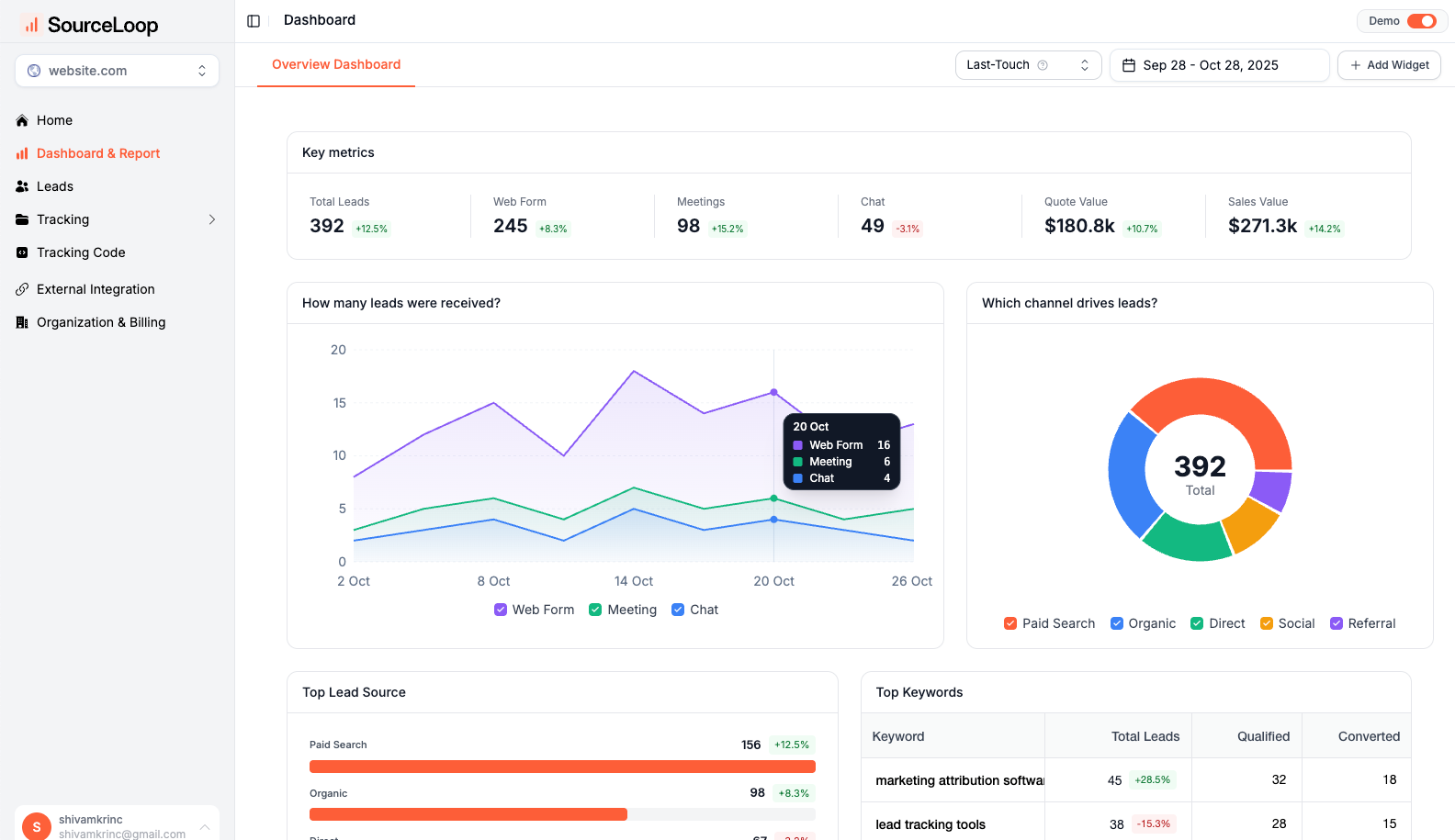
Proper UTM tracking unlocks insights that basic Marketo reporting cannot provide.
1. Creating Smart Lists Based on UTM Data
Build targeted segments using utm criteria:
High-Intent Paid Search Leads:
- UTM Source: google
- UTM Medium: cpc
- UTM Campaign: contains “demo”
Email Subscriber Engagement:
- UTM Source: newsletter
- UTM Medium: email
- Last 30 days
Smart lists enable precise lead nurturing based on original traffic source and campaign context.
Read more:
2. Building Attribution Reports
Marketo’s Revenue Cycle Analytics provides powerful attribution reporting:
First-Touch Attribution Reports:
- Shows initial campaign that brought leads
- Measures top-of-funnel campaign performance
- Identifies brand awareness drivers
Multi-Touch Attribution Reports:
- Credits multiple touchpoints in buyer journey
- Reveals campaign interaction patterns
- Optimizes cross-channel campaign coordination
3. Measure True Marketing ROI

UTM data makes it possible to measure campaign performance at the revenue level, instead of just counting clicks or form submissions.
When you link UTM parameters to opportunities and closed deals, you can calculate true return on investment for each campaign. This gives you a clear picture of which marketing efforts are generating revenue, not just activity.
For example, you can answer questions like:
- Which Google Ads campaigns actually produce revenue?
- Are email nurture series leading to high-value opportunities?
- Does social media spend result in closed business?
Frequently Asked Questions About Tracking UTM Parameters in Marketo CRM
Can Marketo track UTM parameters natively?
Marketo can capture UTM parameters from URLs, but it does not reliably persist them across multiple visits or sessions. If a visitor returns later or converts on a different page, the original UTM data is often lost or overwritten.
Why do UTM parameters get lost in Marketo?
UTM parameters are usually only captured at the moment a Marketo form is submitted. If a visitor browses multiple pages, returns days later, or converts after several sessions, Marketo may attribute the lead to the last visit instead of the original campaign.
How can I persist UTM data across multiple visits?
To persist UTM data, you need a tracking layer that stores attribution data in the visitor’s browser when they first land on your site. That data must remain available until the visitor converts. This is typically done using cookies or local storage, which is why many teams use an external attribution tool before data enters Marketo.
Why should Marketo users consider SourceLoop for UTM tracking?
SourceLoop captures UTM parameters at the first visit, persists them across sessions, and syncs clean attribution data into Marketo. This prevents source overwrites and ensures campaigns are measured accurately. It allows Marketo to focus on automation and nurturing while SourceLoop handles attribution persistence.

