

Are you unsure where your leads are coming from in Pipeliner CRM? You’re not alone.
Studies show that 79% of marketing leads never convert to sales. This often happens because sales teams do not know which campaigns generated quality prospects.
Without proper UTM tracking, you cannot see how your campaigns are performing.
You may know that you received 50 leads this month, but which marketing channels actually generated revenue? This guide will show you how to capture UTM parameters in Pipeliner CRM using a simple, no-code method.
Let’s get your lead attribution sorted in under 30 minutes.
How to Track UTM Parameters in Pipeliner CRM
- Install SourceLoop’s tracking script on your website.
- Add UTM parameters to all marketing links (ads, email, social, partners).
- SourceLoop automatically captures and persists UTM data for every visitor.
- When a visitor submits a form, books a meeting, or converts, attribution data is attached to the lead.
- Sync the UTM data into Pipeliner CRM via webhook, Zapier/Make, or CSV import.
5 Easy Steps to Track UTM Parameters in Pipeliner CRM
Here are 5 straightforward steps to capture UTM parameters in Pipeliner CRM without any technical complexity:
1. Install SourceLoop.ai on Your Website
To start tracking UTM parameters in Pipeliner CRM, you need a tool that captures visitor data before they convert. SourceLoop does this automatically:
- Create a free account at SourceLoop.ai
- Copy your tracking script from the dashboard after signup
- Add the script to your website’s
<head>section or tag manager
Once installed, SourceLoop automatically captures UTM parameters from every URL visit, whether visitors come from Google Ads, LinkedIn campaigns, email newsletters, or partner websites.
Example in action:
Let’s say you run marketing for a SaaS company. You launch a campaign targeting small business owners with accounting software needs. A prospect searches “best accounting software for restaurants” and clicks your Google ad:
https://yourcompany.com/demo?utm_source=google&utm_medium=cpc&utm_campaign=restaurant_accounting&utm_term=accounting_software_restaurantsSourceLoop captures:
- Channel: Paid Search
- Source: Google (from
utm_source=google) - Campaign: restaurant_accounting
- Search Term: accounting_software_restaurants
- Landing Page: /demo
- Visit Date: Complete timestamp
This data remains with the visitor, even if they browse multiple pages before converting.
2. Add UTM Parameters to Every Marketing Link

For tracking UTM parameters to work effectively, every marketing link must have proper UTM tags. These simple parameters indicate how someone discovered your website.
UTM Parameter Structure:
utm_source: Where traffic came from (google, linkedin, newsletter)utm_medium: Marketing medium (cpc, email, social, organic)utm_campaign: Specific campaign nameutm_term: Keywords (for paid search)utm_content: Ad variation (for A/B testing)
Real UTM Examples:
For Google Search Ads:
https://yoursite.com/pricing?utm_source=google&utm_medium=cpc&utm_campaign=q2_growth&utm_term=crm_softwareFor LinkedIn Sponsored Content:
https://yoursite.com/whitepaper?utm_source=linkedin&utm_medium=paid&utm_campaign=lead_gen_b2bFor Email Newsletter:
https://yoursite.com/blog/new-features?utm_source=newsletter&utm_medium=email&utm_campaign=march_updatePro tip: Use Google’s Campaign URL Builder to create properly formatted UTM links quickly.
3. SourceLoop Automatically Displays Leads in Your Leads Manager
This is where the real value is created. SourceLoop works with 100+ lead capture tools out of the box—including:
- Calendly
- HubSpot forms
- Webflow
- Gravity Forms
- Contact Form 7
No configuration required. As long as SourceLoop is installed, it will automatically:
- Capture every lead submission
- Match leads with their true attribution data
- Display complete visitor journey in your Leads Manager
When someone fills out your contact form, you will see not only their name and email, but also:
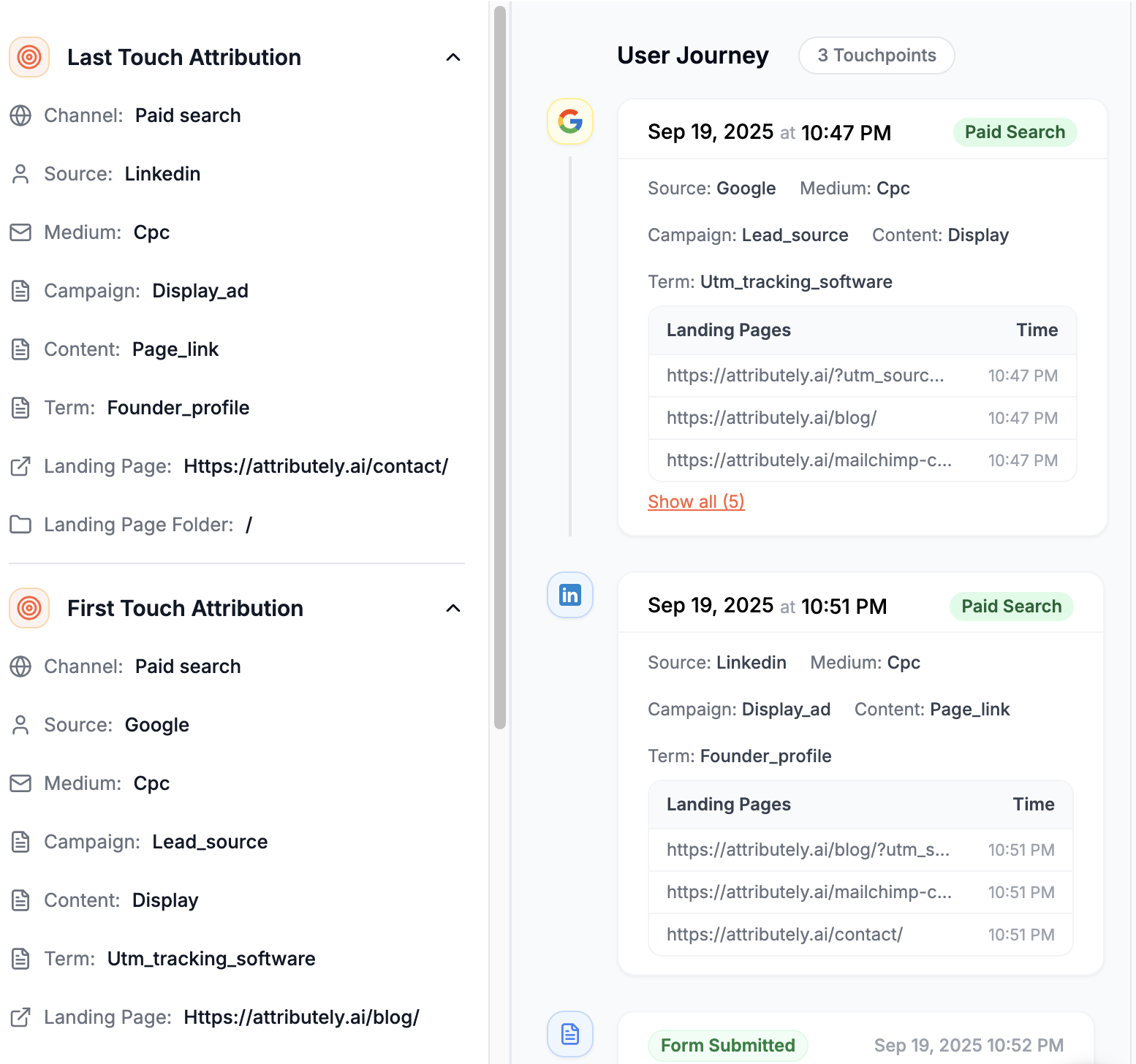
- Which campaign brought them to your site
- What they searched for (if from paid search)
- Which pages they visited before converting
- When they first discovered your company
This eliminates the guesswork from lead qualification and helps sales teams prioritize follow-ups.
4. Add Hidden Fields to Your Lead Form (Optional)
Want attribution data to appear directly in your form submissions? SourceLoop supports hidden fields that capture UTM data automatically.
Most form builders (Webflow, Gravity Forms, Calendly) allow hidden fields easily. Visitors never see these fields, but the data flows through with every submission.
Recommended hidden fields:
channel(Paid Search, Organic Social, etc.)attribution_source(google, linkedin, facebook)attribution_medium(cpc, organic, email)attribution_campaign(your campaign name)attribution_term(search keywords)landingpage(first page visited)lastseen(most recent visit date)
Capture First-Touch Attribution:
Many leads don’t convert on their first visit. Someone might discover you through a LinkedIn ad but convert weeks later via direct traffic. To track the original source, add these first-touch fields:
firstseen(initial visit date)first_channel(original traffic type)first_source(original utm_source)first_campaign(original campaign)
This prevents valuable attribution data from being lost to “direct traffic.”
5. Automatically Sync UTM Data with Pipeliner CRM
The final step connects your lead data with Pipeliner CRM. SourceLoop offers multiple sync options:
Option 1: Webhook Integration
- Set up SourceLoop’s outbound webhook
- Configure webhook URL in your Pipeliner CRM settings
- New leads automatically appear in Pipeliner with full attribution data
Option 2: Zapier/Make Integration
- Connect SourceLoop to Pipeliner via Zapier or Make
- Create automated workflows that sync lead data
- Add custom field mapping for UTM parameters
Option 3: CSV Export
- Export leads with attribution data from SourceLoop
- Import into Pipeliner CRM manually (good for testing)
Setup typically takes 5-10 minutes. Once configured, every new lead includes complete campaign attribution automatically.
What You Can Do with UTM Data in Pipeliner CRM
Now that utm tracking for Pipeliner is active, here’s how to leverage this data for better sales and marketing results:
1. Identify Which Marketing Channels Actually Work

Stop guessing which campaigns drive revenue. UTM data reveals the quality behind lead quantity.
Example scenario: Your marketing team runs three campaigns:
- Facebook Ads: 85 leads, $12,000 revenue
- Google Ads: 45 leads, $28,000 revenue
- Email Newsletter: 20 leads, $15,000 revenue
Without attribution, Facebook looks like the winner (most leads). With UTM tracking, Google Ads shows the highest ROI per lead.
Create custom reports in Pipeliner showing:
- Revenue by traffic source
- Conversion rates by campaign
- Customer acquisition cost by channel
- Average deal size by lead source
2. Group Leads by Campaign for Targeted Follow-Up
Generic follow-up emails convert poorly. UTM data enables personalized outreach based on what prospects already know about your company.
Smart segmentation examples:
- Leads from your “Enterprise Security” campaign get enterprise-focused follow-ups
- Webinar attendees receive related case studies
- Free trial users get onboarding assistance
Sales reps can reference specific campaigns: “Thanks for downloading our ROI calculator from the LinkedIn campaign—here’s how similar companies improved their metrics.”
This relevance dramatically improves response rates and shortens sales cycles as reported by Forrester.
3. Route Leads to the Right Sales Rep Automatically
Use UTM parameters to assign leads intelligently based on campaign type, company size, or geographic location.
Automatic routing rules:
- Enterprise campaign leads → Senior sales reps
- SMB campaign leads → Inside sales team
- Regional Google Ads → Local sales territories
- Partner referrals → Channel manager
This ensures prospects connect with the most qualified rep immediately, improving conversion rates and customer experience.
4. Create Reports to Track Campaign ROI
Pipeliner CRM’s reporting features combined with UTM data provide powerful campaign insights.
Key reports to build:
- Campaign Performance Dashboard: Leads, opportunities, and revenue by UTM campaign
- Channel Attribution Report: ROI comparison across all marketing channels
- Sales Cycle Analysis: Time-to-close by lead source
- Lead Quality Scoring: Conversion rates by traffic type
5. Understand Customer Lifetime Value by Channel
Long-term success requires understanding which channels attract the most valuable customers, not just the most leads.
CLV analysis by source:
- Organic search customers: $25,000 average lifetime value
- Paid social customers: $8,000 average lifetime value
- Referral customers: $35,000 average lifetime value
This data guides budget allocation toward channels that drive sustainable growth, not just short-term lead volume.
Conclusion
Tracking UTM parameters in Pipeliner CRM transforms guesswork into data-driven marketing decisions. With SourceLoop’s automated approach, you can implement comprehensive lead attribution in under 30 minutes without technical expertise.
The result? Clear visibility into which campaigns drive revenue, better lead qualification for sales teams, and marketing budgets allocated to channels that actually work.
Ready to stop losing attribution data? Start your free SourceLoop trial and connect your first campaign to Pipeliner CRM today. Your sales team will thank you for the qualified leads, and your marketing team will thank you for the clear ROI data.

