

Are you unsure which marketing campaigns are generating leads in Salesmate CRM?
Without UTM tracking, you cannot see which of your Google ads, social media posts, or email campaigns are effective according to HubSpot.
In this guide, we will explain how to track UTM parameters in Salesmate CRM using SourceLoop, a tool that automatically captures attribution data. You will finally understand which channels generate your best leads.
How to Track UTM Parameters in Salesmate CRM
- Add the SourceLoop JavaScript tracking snippet across your website.
- Append UTM parameters to all inbound marketing URLs (ads, email, social, partners)
- SourceLoop captures, normalizes, and persists UTM data for each visitor session
- On form submission, meeting booking, or chat initiation, attribution metadata is bound to the lead record
- Export and sync attribution data to Salesmate CRM via webhook integration, Zapier/Make automation, or CSV import
4 Easy Steps to Track UTM Parameters in Salesmate CRM
Here’s how to capture UTM parameters in Salesmate CRM easily:
1. Install SourceLoop.ai on Your Website
To start tracking the sources of your leads, install SourceLoop on your website:
- Create a free account at SourceLoop.ai
- After signup, you’ll receive a tracking script
- Add this snippet to the
<head>section of your website or tag manager

Once added, SourceLoop automatically captures UTM parameters from every URL visit—no matter if the visitor came from paid ads, social media, partner websites, or anywhere else.
Example scenario:
Let’s say you run marketing for a SaaS company offering project management software.
You launch a multi-channel campaign promoting a free 14-day trial for small businesses.
A user searches “best project management tools,” sees your Google ad, and clicks this link:
https://www.yourapp.com/free-trial?utm_source=google&utm_medium=cpc&utm_campaign=pm-tools-trial&utm_term=project_management_toolsSourceLoop will capture:
- Channel: Paid Search
- Attribution_Source: Google (from utm_source=google)
- Attribution_Medium: pm-tools-trial (identifies the specific campaign)
- Attribution_Campaign: project_management_tools (the search term that triggered your ad)
- Landing Page: https://www.yourapp.com/free-trial
- Landing Page Folder: trial
- Last Seen: Current timestamp
This data is stored in a cookie and follows the visitor throughout their journey on your site.
2. Add UTM Parameters to Every Marketing Link
To ensure attribution works, every link in your marketing campaigns must have UTM parameters attached.
UTM parameters are simple tags that tell you how someone discovered your website. When your links are tagged correctly, SourceLoop captures the source data and transfers it into your lead form when a visitor converts.
Essential UTM Parameters to Track:
| Parameter | Purpose | Example |
|---|---|---|
| utm_source | Traffic source | google, facebook, newsletter |
| utm_medium | Marketing medium | cpc, email, social, organic |
| utm_campaign | Specific campaign | spring_sale, webinar_promo |
| utm_term | Keyword (for paid search) | project_management, crm_software |
| utm_content | Ad variation | red_button, headline_a |
Examples of properly tagged URLs:
For a Google Search Ad:
https://yourwebsite.com/demo?utm_source=google&utm_medium=cpc&utm_campaign=demo_signup_q2&utm_term=salesmate_alternativeFor a LinkedIn Sponsored Post:
https://yourwebsite.com/webinar?utm_source=linkedin&utm_medium=paid&utm_campaign=sales_automation_webinar&utm_content=video_adFor a Monthly Email Newsletter:
https://yourwebsite.com/blog?utm_source=newsletter&utm_medium=email&utm_campaign=may_digest&utm_content=feature_announcementPro tip: Use Google’s Campaign URL Builder to create consistent UTM-tagged URLs for all your campaigns.
3. Add Hidden Fields to Your Lead Form
Forms like demo requests, contact pages, or gated content downloads are how you capture inbound leads. To track where those leads originated, add hidden fields to your forms that capture UTM data.
Most form builders (Gravity Forms, Typeform, Webflow) let you add hidden fields easily. These fields aren’t visible to users, but when someone clicks “Submit,” the attribution data collected by SourceLoop gets sent along with their contact information.
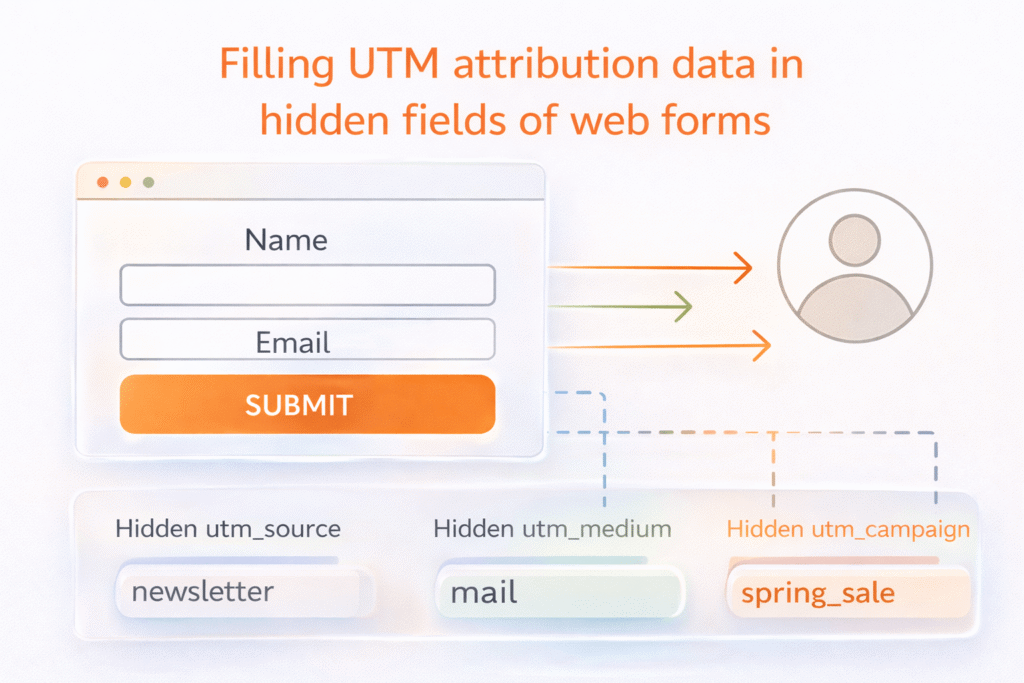
Recommended hidden fields that SourceLoop supports:
channel– The traffic channel (Paid Search, Organic Social, Direct, etc.)attribution_source– Usually the utm_source (google, facebook, newsletter)attribution_medium– Usually the utm_campaign nameattribution_campaign– Usually the utm_term or utm_contentlandingpage– The first page they visitedlandingpagefolder– Useful for content categorizationlastseen– Timestamp of their most recent visit
Optional: Capture first-touch attribution data
Many leads don’t convert on their first visit. They might discover you through a LinkedIn ad, return later via Google search, and finally convert through direct traffic.
If you only track the last visit, that lead appears as “Direct Traffic”—but you’d miss the true acquisition channel: LinkedIn Ads.
Add these extra hidden fields to track the very first time a user visited your site:
firstseen– When they first discovered your websitefirst_channel– Their original traffic channelfirst_source– Original utm_sourcefirst_medium– Original utm_campaignfirst_campaign– Original utm_term/contentfirst_landingpage– The first page they ever visitedfirst_landingpagefolder– Original content category
4. Automatically Sync UTM Data with Salesmate CRM
When someone submits a form on your site, SourceLoop sends the UTM and attribution data along with their contact details directly into Salesmate CRM.
How this data flows into Salesmate CRM depends on your form setup:
Using Salesmate’s built-in forms:
- Map the hidden fields directly to custom fields in Salesmate
- The data flows automatically when leads submit forms
Using third-party forms:
- Connect your form to Salesmate using Zapier or Make.com
- Set up field mapping to ensure UTM data reaches the right CRM fields
Using custom forms:
- Set up a webhook to push form data and UTM parameters straight into Salesmate in real-time
- Use Salesmate’s API documentation for custom integrations
Once configured, every new lead in Salesmate will include complete attribution data showing exactly how they found your business.
What You Can Do with UTM Data in Salesmate CRM
Now that UTM tracking flows into your CRM, here’s how to leverage this attribution data:

1. Know Which Marketing Channels Actually Work
Instead of guessing which campaigns drive results, you’ll have concrete data showing lead quality by source.
Example comparison:
| Channel | Leads | Customers | Conversion Rate | Avg Deal Size |
|---|---|---|---|---|
| Facebook Ads | 120 | 8 | 6.7% | $2,400 |
| Email Newsletter | 45 | 18 | 40% | $4,200 |
| Google Ads | 89 | 22 | 24.7% | $3,800 |
| LinkedIn Ads | 34 | 12 | 35.3% | $5,600 |
This data reveals that while Facebook generates the most leads, LinkedIn produces the highest-value customers.
2. Group Leads by Campaign or Source for Targeted Follow-Up
With UTM data in Salesmate, you can segment leads based on their acquisition source and create targeted follow-up sequences.
Smart segmentation examples:
- Webinar attendees: Follow up with session recordings and related resources
- Free trial users: Send onboarding tips and feature tutorials
- Pricing page visitors: Offer personalized demos or discount codes
- Competitor comparison readers: Share case studies and migration guides
Instead of generic follow-up emails, your sales team can craft messages that reference what the lead has already seen or expressed interest in.
Example personalized outreach:“Hi Sarah, thanks for downloading our project management comparison guide from our LinkedIn campaign. I noticed you were specifically interested in Gantt chart features—would you like to see how our visual timeline works with your current workflow?”
Read More:
3. Route Leads to the Right Sales Rep Automatically
UTM data enables intelligent lead routing based on campaign source, product interest, or geographic targeting.
Automated routing rules:
- Enterprise campaigns → Senior sales reps
- SMB-focused ads → Inside sales team
- Geographic campaigns → Regional representatives
- Product-specific content → Specialized product experts
Salesforce research shows that companies with automated lead routing see 30% faster response times and 14% higher conversion rates.
4. Create Simple Reports to Track Campaign ROI
Once UTM fields populate in Salesmate, build reports that show marketing performance and return on investment.
Essential reports to create:
- Leads by source: Which channels generate the most leads
- Revenue by campaign: Which specific campaigns drive actual sales
- Conversion rate by traffic type: How organic vs. paid vs. referral traffic converts
- Customer lifetime value by acquisition source: Long-term value of different channels
Sample ROI calculation:
- Google Ads spend: $5,000/month
- Leads generated: 89
- Customers acquired: 22
- Average deal size: $3,800
- Total revenue: $83,600
- ROI: 1,572%
5. Understand Customer Lifetime Value by Channel
After closing deals and tracking customer revenue in Salesmate, compare customer value by acquisition source to optimize budget allocation.
Example LTV analysis:
| Acquisition Channel | Avg Deal Size | Retention Rate | Annual LTV |
|---|---|---|---|
| Organic Search | $3,200 | 85% | $12,800 |
| Paid Search | $3,800 | 78% | $11,856 |
| Email Marketing | $4,200 | 92% | $15,456 |
| Social Media | $2,400 | 65% | $6,240 |
This analysis reveals that email marketing not only brings higher-value deals but also more loyal customers, making it your most valuable acquisition channel.
Conclusion
Tracking UTM parameters in Salesmate CRM doesn’t have to be complicated.
With SourceLoop handling the technical setup, you can implement complete attribution tracking in four simple steps: install the tracking script, add UTM parameters to your campaigns, include hidden fields in your forms, and sync everything with Salesmate.
Once live, you’ll finally know which marketing channels drive your best leads, route prospects to the right sales reps, and measure true campaign ROI. No more guessing which campaigns work—you’ll have concrete data showing exactly where your customers come from.
Ready to see which marketing efforts actually drive revenue? Start your free SourceLoop trial today and connect your first campaign to Salesmate CRM in under 10 minutes.

