

Not sure where your leads are coming from in Streak CRM? You’re not alone.
Without proper UTM tracking, you cannot easily determine which marketing campaigns are driving qualified leads. This creates a blind spot that can cost businesses thousands of dollars in wasted ad spend and missed opportunities.
How to Track UTM Parameters in Streak CRM
- Add the SourceLoop JavaScript tracking snippet across your website.
- Append UTM parameters to all inbound marketing URLs (ads, email, social, partners)
- SourceLoop captures, normalizes, and persists UTM data for each visitor session
- On form submission, meeting booking, or chat initiation, attribution metadata is bound to the lead record
- Export and sync attribution data to Streak CRM via webhook integration, Zapier/Make automation, or CSV import
5 Easy Steps to Track UTM Parameters in Streak CRM
Here are the exact steps to capture UTM parameters and sync them with your Streak CRM:
Step 1: Install SourceLoop.ai on Your Website
To start tracking UTM parameters in Streak CRM, you need a tool that captures visitor data before they convert. SourceLoop is the easiest solution:
Setup Process:
- Create a free account at SourceLoop.ai
- Copy the tracking script from your dashboard
- Add the snippet to your website’s
<head>section or tag manager
Once installed, SourceLoop automatically captures UTM parameters from every URL visit, including:
- Google Ads
- LinkedIn campaigns
- Email newsletters
- Partner websites

Real Example:
Let’s say you run marketing for a SaaS company launching a new project management tool. A potential customer searches “best project management software,” clicks your Google Ad, and lands on:
https://yourcompany.com/demo?utm_source=google&utm_medium=cpc&utm_campaign=pm_software&utm_term=best_project_managementSourceLoop captures:
- Channel: Paid Search
- Source: Google (from utm_source=google)
- Campaign: pm_software
- Search Term: best_project_management
- Landing Page: /demo
- First Visit: March 15, 2025
This data stays with the visitor even if they browse multiple pages before converting.
Step 2: Add UTM Parameters to Every Marketing Link
For UTM tracking to work, every marketing link needs proper UTM tags. These simple parameters show you exactly how someone found your website:
utm_source: The platform (google, facebook, newsletter)utm_medium: The marketing medium (cpc, email, social)utm_campaign: Your specific campaign nameutm_term: Keywords for paid searchutm_content: For A/B testing ad variations
Channel-Specific Examples:
Google Ads Campaign:
https://yoursite.com/pricing?utm_source=google&utm_medium=cpc&utm_campaign=pricing_page_q1&utm_term=crm_pricingLinkedIn Sponsored Content:
https://yoursite.com/whitepaper?utm_source=linkedin&utm_medium=paid_social&utm_campaign=lead_gen_whitepaperEmail Newsletter:
https://yoursite.com/blog/new-features?utm_source=newsletter&utm_medium=email&utm_campaign=march_product_updatePartner Referral:
https://yoursite.com/signup?utm_source=partner_xyz&utm_medium=referral&utm_campaign=integration_launchUse Google’s Campaign URL Builder to create consistent UTM tags across all campaigns.
Step 3: SourceLoop Automatically Captures Lead Data
Once your tracking script is live, SourceLoop works behind the scenes to capture UTM parameters for every visitor. The best part is that it automatically integrates with over 100 lead capture tools.
Supported Tools Include:
- Contact forms (Gravity Forms, Contact Form 7, Webflow)
- Live chat widgets (Intercom, Drift, Crisp)
- Meeting schedulers (Calendly, Acuity, Chili Piper)
- Landing page builders (Unbounce, Leadpages)
How It Works:
When a visitor fills out your contact form, SourceLoop automatically adds their attribution data to the submission. No manual setup required.
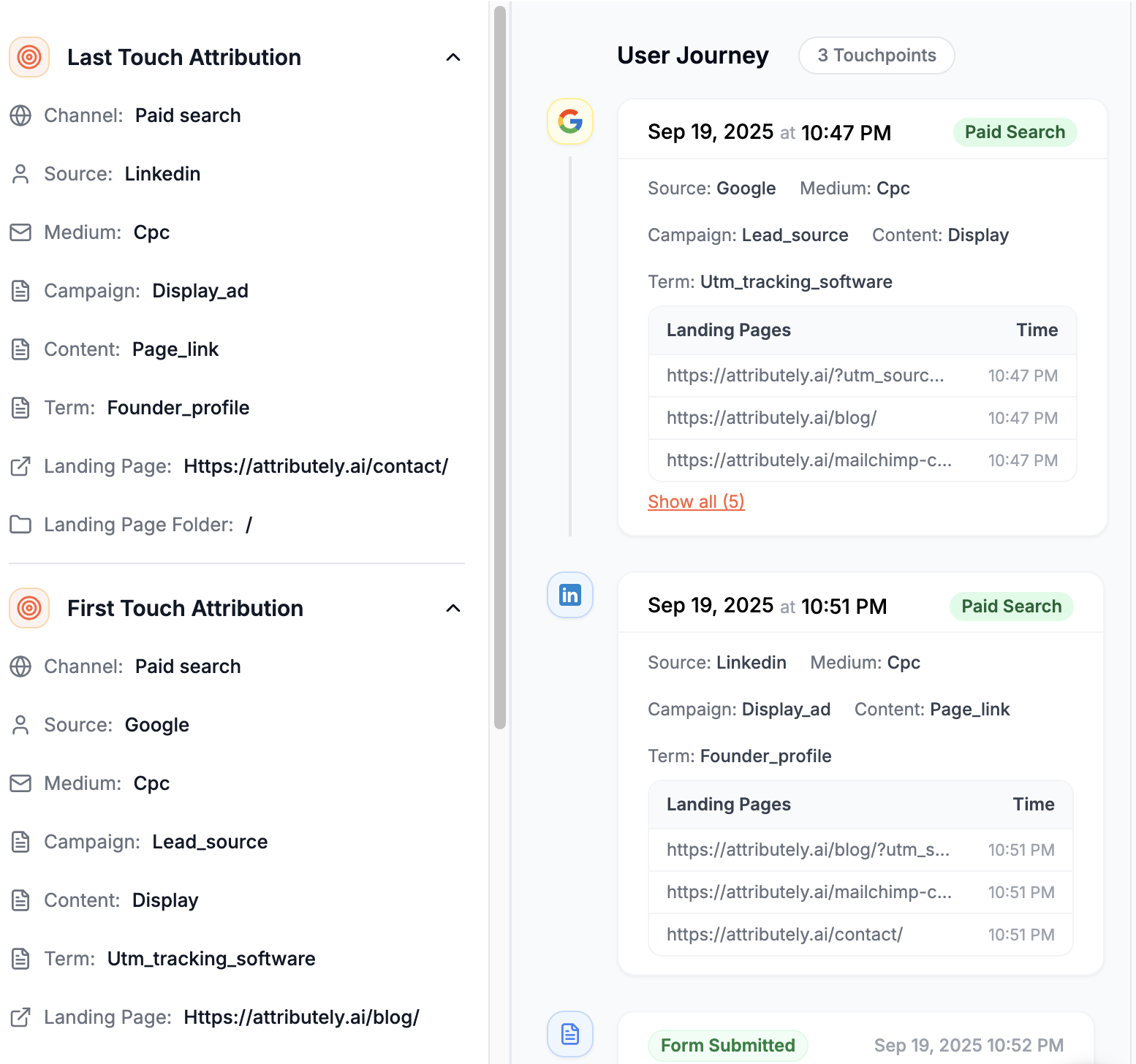
Example Lead Capture
A visitor from your LinkedIn campaign fills out a demo request form. SourceLoop captures:
| Field | Value |
|---|---|
| Name | Sarah Johnson |
| sarah@techstartup.com | |
| Company | TechStartup Inc |
| Source | |
| Medium | Paid Social |
| Campaign | Q1_Demo_Campaign |
| Landing Page | /request-demo |
| First Visit | March 10, 2026 |
This complete picture shows up in your SourceLoop dashboard immediately.
Step 4: Add Hidden Fields to Your Lead Forms (Optional)
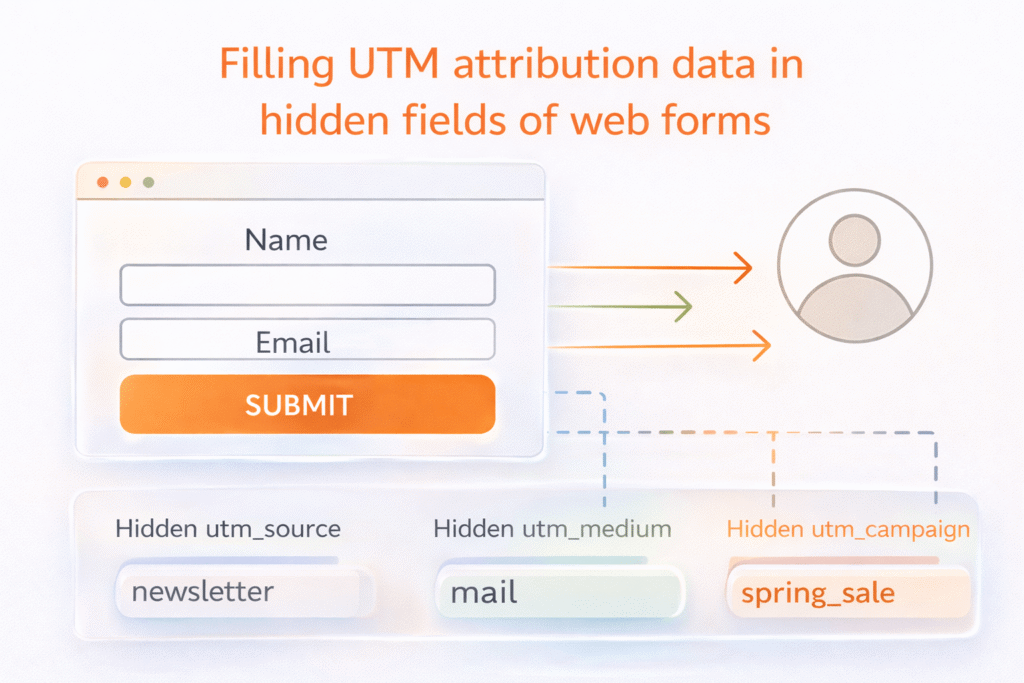
For advanced tracking UTM parameters, you can add hidden fields to capture attribution data directly in your form submissions. This ensures the data flows into any system connected to your forms.
Recommended Hidden Fields:
Current Visit Attribution:
channel– The marketing channel (Paid Search, Social, Email)attribution_source– Traffic source (google, facebook, newsletter)attribution_medium– Medium type (cpc, social, email)attribution_campaign– Campaign identifierattribution_term– Search keywordslandingpage– First page visitedlastseen– Most recent visit date
First-Touch Attribution (Advanced):
first_channel– How they originally discovered youfirst_source– Original traffic sourcefirst_medium– Original mediumfirst_campaign– First campaign that brought themfirst_landingpage– Very first page they visitedfirstseen– Initial discovery date
Pro Tip: First-touch attribution is crucial for understanding true lead acquisition costs. A lead might convert from a direct visit today, but they actually discovered you through a LinkedIn ad three weeks ago.
Implementation Example:
In your HTML form, add hidden input fields:
<input type="hidden" name="attribution_source" value="">
<input type="hidden" name="attribution_campaign" value="">
<input type="hidden" name="channel" value="">
SourceLoop automatically populates these fields when someone submits the form.
Step 5: Sync UTM Data with Streak CRM
The final step is getting your enriched lead data into Streak CRM. There are several ways to accomplish this:
Method 1: Direct Integration (Recommended)
SourceLoop offers direct CRM integrations for popular platforms. Check if Streak CRM is supported in their integration library.
Method 2: Webhook Automation
Set up a webhook in SourceLoop to automatically send lead data to Streak:
- In SourceLoop, go to Integrations > Webhooks
- Add your Streak CRM webhook URL
- Configure which fields to send
- Test the connection with a sample lead
Method 3: CSV Export & Import
For smaller volumes, export leads from SourceLoop and import them into Streak:
- Export leads from SourceLoop dashboard
- Format the CSV with Streak’s required columns
- Import through Streak’s bulk import feature
- Map attribution fields to custom properties
What You Can Do with UTM Data in Streak CRM
Once UTM tracking is flowing into your CRM, you can make data-driven decisions that directly impact revenue:

1. Identify High-Performing Marketing Channels
Stop guessing which campaigns work. With proper attribution data, you can see exactly which channels drive quality leads.
Example Analysis:
| Channel | Leads | Customers | Conversion Rate | Cost Per Lead | Revenue |
|---|---|---|---|---|---|
| Google Ads | 150 | 12 | 8% | $45 | $24,000 |
| 80 | 15 | 19% | $65 | $45,000 | |
| 200 | 8 | 4% | $5 | $16,000 |
This data reveals that LinkedIn generates fewer leads but higher-quality prospects with better conversion rates. You might shift budget from email to LinkedIn campaigns.
2. Segment Leads by Campaign for Targeted Follow-Up
Generic follow-up emails convert poorly. With UTM data in Streak, you can personalize outreach based on how leads discovered you.
Smart Segmentation Examples:
- Webinar Attendees: “Thanks for joining our automation webinar. Here’s the exclusive tool we mentioned…”
- Pricing Page Visitors: “I noticed you were checking out our pricing. Let me show you which plan fits your needs…”
- Blog Readers: “Since you enjoyed our content marketing guide, you might like this advanced strategy…”
Read More:
3. Route Leads to Right Sales Reps Automatically
Use UTM data to automatically assign leads based on their source or campaign type:
Routing Rules Examples:
- Enterprise campaign leads → Senior sales reps
- Small business ads → Inside sales team
- Partner referrals → Channel manager
- Free trial signups → Customer success team
This ensures faster response times and more relevant conversations.
4. Create Campaign ROI Reports
Track the complete customer journey from click to close. With UTM data in Streak, you can build reports showing:
Key Metrics to Track:
- Cost per lead by channel
- Customer acquisition cost (CAC) by campaign
- Revenue attribution by source
- Lifetime value by acquisition channel
- Time to close by traffic type
Sample ROI Report:
| Campaign | Spend | Leads | Customers | Revenue | ROI |
|---|---|---|---|---|---|
| Q1 Google Ads | $5,000 | 100 | 8 | $32,000 | 540% |
| LinkedIn Sponsored | $3,000 | 45 | 9 | $45,000 | 1400% |
| Facebook Ads | $2,000 | 80 | 3 | $12,000 | 500% |
This data helps you double down on high-performing campaigns and pause underperforming ones.
5. Calculate Customer Lifetime Value by Channel
Understanding which channels bring the most valuable customers helps optimize long-term marketing strategy.
Analysis Example:
After tracking customers for 12 months, you discover:
- Webinar leads have an average LTV of $15,000
- Paid search leads average $8,000 LTV
- Social media leads average $4,500 LTV
This insight might justify spending more to acquire webinar attendees, even if the initial cost per lead is higher.
Conclusion
Tracking UTM parameters in Streak CRM doesn’t have to be complicated. With SourceLoop’s automated capture and proper UTM tagging, you can finally see which marketing efforts drive real results.
The key is starting simple: install the tracking script, add UTM parameters to your campaigns, and let the data flow into your CRM automatically. Once you have attribution data, you can make smarter budget decisions, improve lead follow-up, and prove marketing ROI.
Ready to stop guessing where your leads come from? Start your free SourceLoop trial and begin tracking UTM parameters in Streak CRM today.

