

Not sure which marketing campaigns are driving leads in TeamLeader CRM?
Without proper UTM tracking, you’re flying blind when it comes to understanding your marketing ROI.
The challenge is that TeamLeader CRM doesn’t have native UTM parameter tracking built-in. But there’s a simple solution that doesn’t require any technical skills.
In this guide, we’ll show you exactly how to track UTM parameters in TeamLeader CRM using SourceLoop—a no-code tool that captures lead attribution data automatically and syncs it with your CRM.
How to Track UTM Parameters in TeamLeader CRM
- Buildxact CRM does not natively track UTM parameters
- Add UTM parameters to all marketing links such as ads, emails, and referral links
- Install SourceLoop on your website to capture UTM data at the first visit
- SourceLoop automatically captures leads from supported forms and quote requests
- UTM data is stored across multiple visits until a lead converts
- Sync captured leads and attribution data into Buildxact CRM
5 Easy Steps to Capture UTM Parameters in TeamLeader CRM
Here’s how to set up UTM tracking for TeamLeader CRM in just a few minutes:
1. Install SourceLoop.ai on Your Website
The first step is getting SourceLoop installed on your website to start capturing visitor attribution data:

- Create a free account at SourceLoop
- After signup, you’ll receive a tracking script
- Add this snippet to the
<head>section of your website or through Google Tag Manager
Once installed, SourceLoop automatically captures UTM parameters from every URL visit—whether visitors come from Google Ads, Facebook campaigns, email newsletters, or partner websites.
Example Scenario:
Let’s say you run a marketing agency and launch a campaign promoting website audits for small businesses. A potential client searches “improve website speed,” clicks your Google ad, and visits:
https://youragency.com/audit?utm_source=google&utm_medium=cpc&utm_campaign=sme-audit&utm_term=website_speedSourceLoop captures:
- Channel: Paid Search
- Attribution Source: Google (from utm_source=google)
- Attribution Campaign: sme-audit (identifies the specific campaign)
- Attribution Term: website_speed (the search term that triggered your ad)
- Landing Page: The exact page that convinced them to take action
2. Add UTM Parameters to Every Marketing Link
For attribution tracking to work, all your marketing links need proper UTM parameters. These are simple tags added to URLs that identify traffic sources.
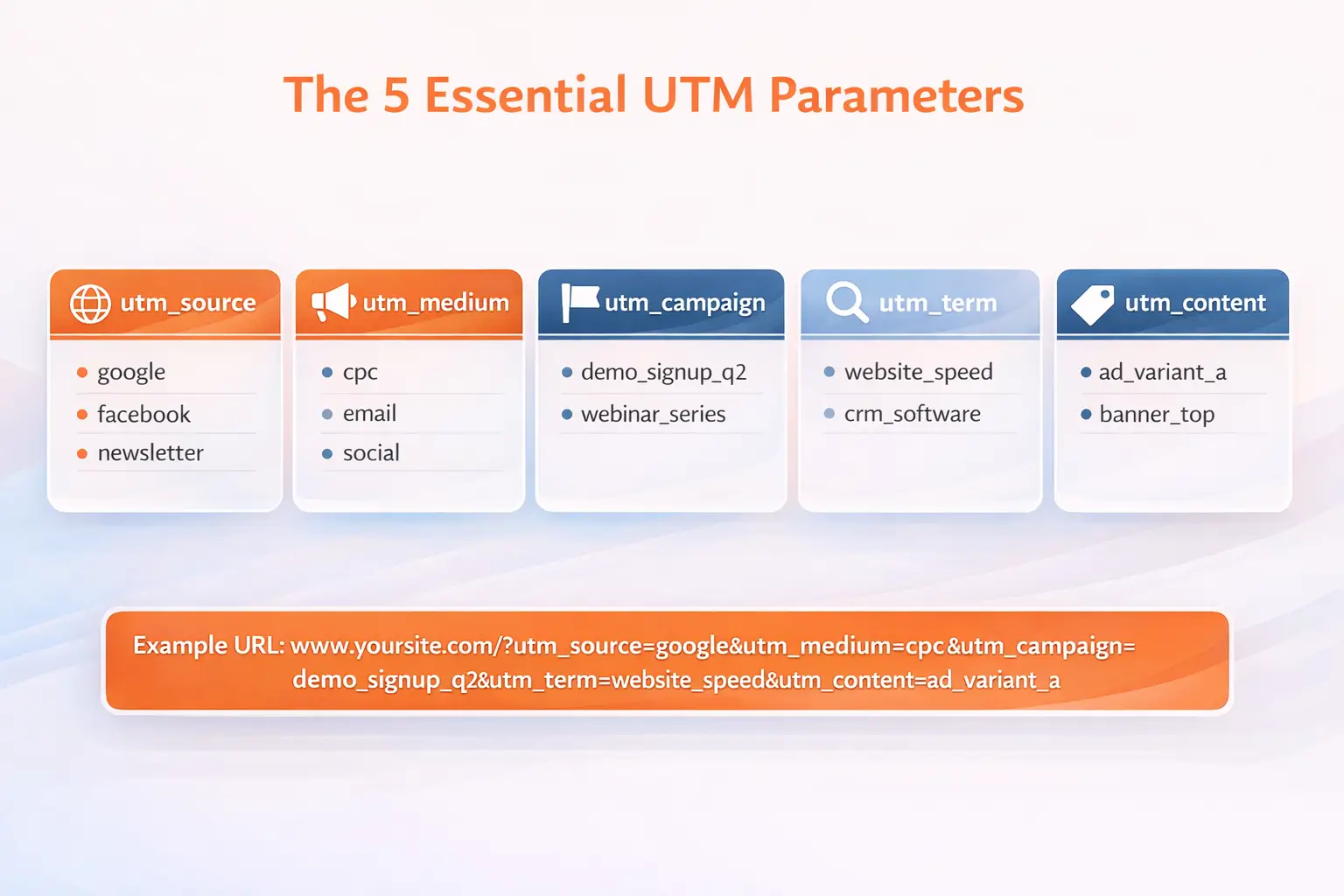
According to Google’s documentation, UTM parameters consist of 5 key pieces: source, medium, campaign name, term, and content. This standardized approach ensures accurate attribution across all your marketing efforts.
Essential UTM Parameters:
utm_source: Identifies the source (google, facebook, newsletter)utm_medium: Identifies the medium (cpc, email, social)utm_campaign: Identifies the campaign nameutm_term: Identifies paid search keywords (optional)utm_content: Identifies specific ad content (optional)
UTM-Tagged URL Examples:
For Google Search Ads:
https://yourwebsite.com/demo?utm_source=google&utm_medium=cpc&utm_campaign=demo_signup_q2For LinkedIn Sponsored Posts:
https://yourwebsite.com/webinar?utm_source=linkedin&utm_medium=paid&utm_campaign=webinar_seriesFor Email Newsletter:
https://yourwebsite.com/blog?utm_source=newsletter&utm_medium=email&utm_campaign=may_digestPro Tip: Use Google’s Campaign URL Builder to create properly formatted UTM links without errors.
3. SourceLoop Automatically Captures Lead Attribution Data
Once SourceLoop is installed and your links are tagged with UTM parameters, the magic happens automatically. You don’t need to configure anything special.
SourceLoop works with 100+ lead capture tools out of the box, including:
- Contact Form 7
- Gravity Forms
- Webflow Forms
- Calendly
- Typeform
- HubSpot Forms
- and 100 others…
When someone fills out a form on your website, SourceLoop automatically:
- Captures the lead submission
- Detects the visitor’s true attribution source
- Stores complete attribution data in your SourceLoop dashboard
- Prepares data for CRM sync
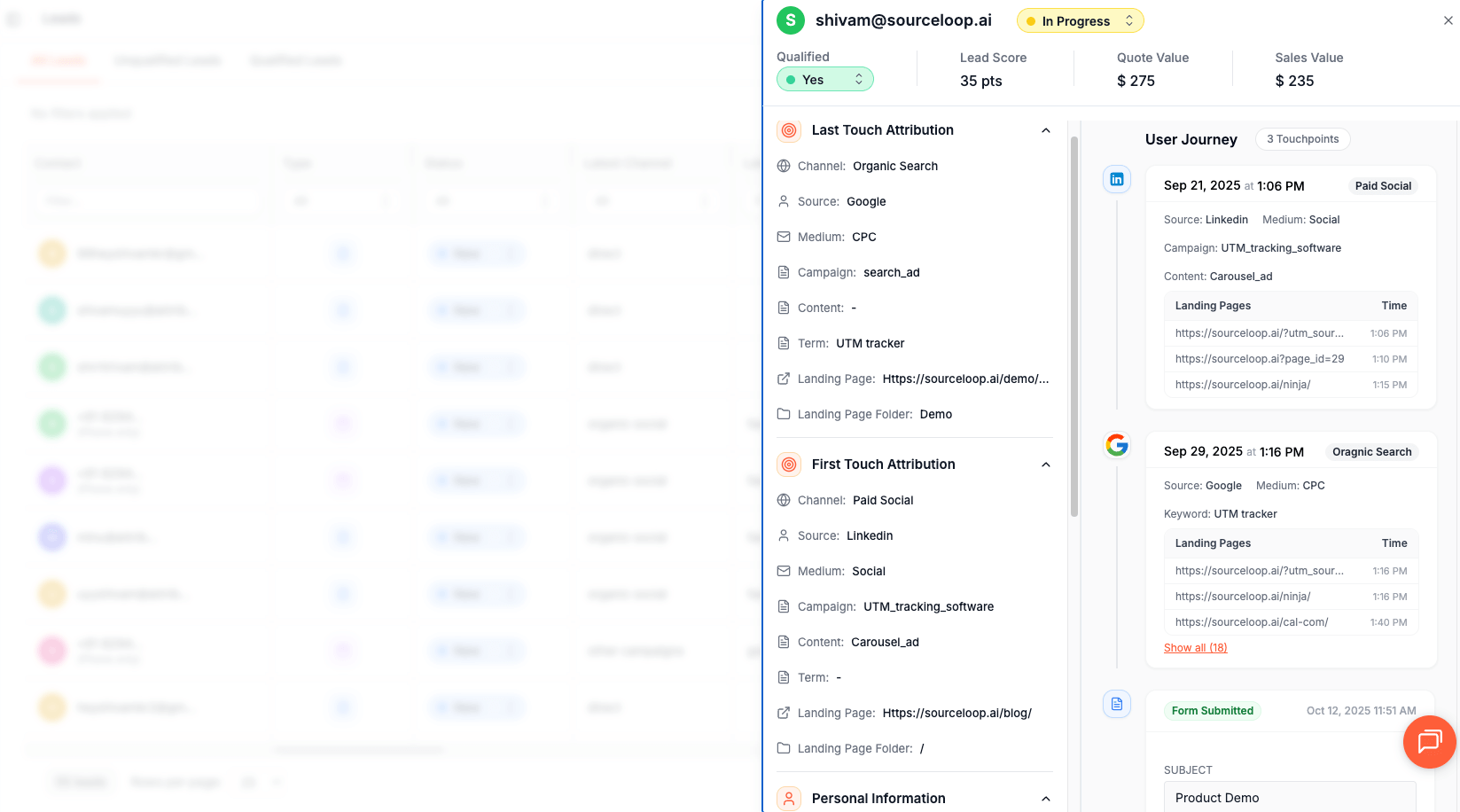
The system tracks both last-touch and first-touch attribution, so you can see not just the final interaction before conversion, but also how leads originally discovered your business.
4. Add Hidden Fields to Your Lead Forms (Optional)
To capture UTM data directly in your form submissions, add hidden fields to your lead capture forms. Most form builders like Webflow, Gravity Forms, and Calendly support hidden fields.
Recommended Hidden Field Names:
channelattribution_sourceattribution_mediumattribution_campaignattribution_termlandingpagelandingpagefolderlastseen
First-Touch Attribution Fields (Optional):
firstseenfirst_channelfirst_sourcefirst_mediumfirst_campaignfirst_termfirst_landingpage
These hidden fields aren’t visible to users but automatically populate with attribution data when someone submits your form.
5. Automatically Sync UTM Data with TeamLeader CRM
The final step is getting your attribution data into TeamLeader CRM. Since TeamLeader doesn’t have native UTM tracking, you’ll use SourceLoop’s integration capabilities.
Integration Options:
- SourceLoop Webhook Integration: Set up a webhook in SourceLoop that automatically sends new lead data to TeamLeader CRM
- Zapier Integration: Use Zapier to connect SourceLoop with TeamLeader CRM
- Make.com Integration: Use Make.com for more advanced automation workflows
The setup takes less than 5 minutes and requires no coding skills. Once connected, every new lead automatically flows into TeamLeader with complete attribution data attached.
What You Can Do with UTM Data in TeamLeader CRM
Now that UTM tracking is active and flowing into your CRM, here’s how to leverage this data:
1. Identify Your Best Performing Marketing Channels
Without UTM tracking, all leads look the same in your CRM. With proper attribution, you can see which channels drive quality leads versus just volume.
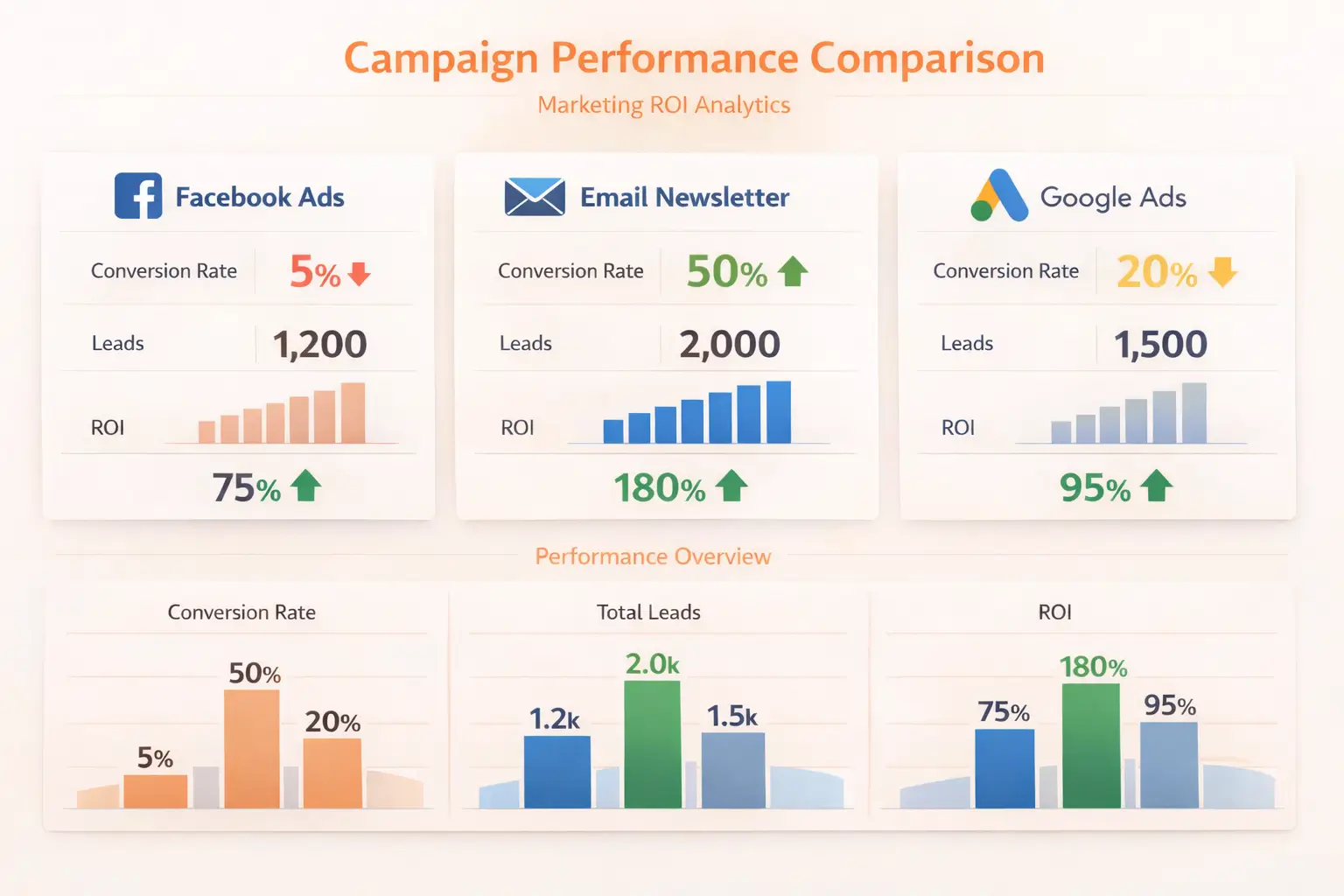
Example Analysis:
- 40 leads from Facebook Ads, 5% conversion rate
- 12 leads from email newsletters, 50% conversion rate
- 25 leads from Google Ads, 20% conversion rate
This data reveals that while Facebook generates more leads, email newsletters produce higher-quality prospects who are more likely to convert.
2. Create Targeted Follow-Up Campaigns by Source
UTM data enables personalized follow-up based on how leads discovered your business. Instead of generic outreach, you can craft messages that reference their specific journey.
Targeted Follow-Up Examples:
- Webinar attendees: “Thanks for joining our product demo—here’s the exclusive early access link”
- Google Ad clicks: “Since you searched for [keyword], you’ll love this case study”
- Social media leads: “We noticed you came from LinkedIn—here’s content specifically for [industry] professionals”
3. Route Leads to the Right Sales Rep Automatically
UTM data can trigger automatic lead assignment in TeamLeader CRM based on campaign source or content.
Smart Routing Examples:
- Enterprise campaign leads → Senior sales team
- Local Google Ads → Regional representatives
- Product demo requests → Technical sales specialists
- Pricing page visitors → Closing specialists
This ensures leads get relevant, timely follow-up from the most qualified team member.
4. Build Campaign ROI Reports in TeamLeader
With UTM data in your CRM, you can create reports that show actual marketing ROI, not just lead volume.
Key Reports to Build:
- Leads by Source: Which channels generate the most prospects
- Revenue by Campaign: Which campaigns drive actual sales
- Cost per Acquisition: Marketing spend divided by customers acquired
- Customer Lifetime Value by Channel: Long-term value of different traffic sources
Important: Track both lead quantity and lead quality. A channel that generates fewer leads but higher conversion rates often delivers better ROI.
5. Calculate Customer Lifetime Value by Acquisition Channel
Once you have closed deals in TeamLeader with attribution data, you can analyze customer value by acquisition source.
Example Analysis:
- Webinar leads: Average $8,000 annual contract value
- Social media leads: Average $1,500 annual contract value
- Referral leads: Average $12,000 annual contract value
This insight helps you allocate marketing budget to channels that attract high-value customers, not just high-volume traffic.
Read more:
Final Thoughts on Tracking UTM in TeamLeader CRM
Tracking UTM parameters in TeamLeader CRM doesn’t have to be complicated. With SourceLoop, you can set up complete lead attribution tracking in under 15 minutes—no coding required.
Start by installing SourceLoop on your website, add UTM parameters to your marketing links, and connect the data to TeamLeader CRM via webhook or Zapier. You’ll immediately see which marketing campaigns are driving real results, not just traffic.
Try SourceLoop for free and start tracking UTM parameters in TeamLeader CRM today.

