
How to Track UTM Parameters in WS form
Follow 4 simple steps to capture UTM parameters in WS form and and uncover the true source of every lead
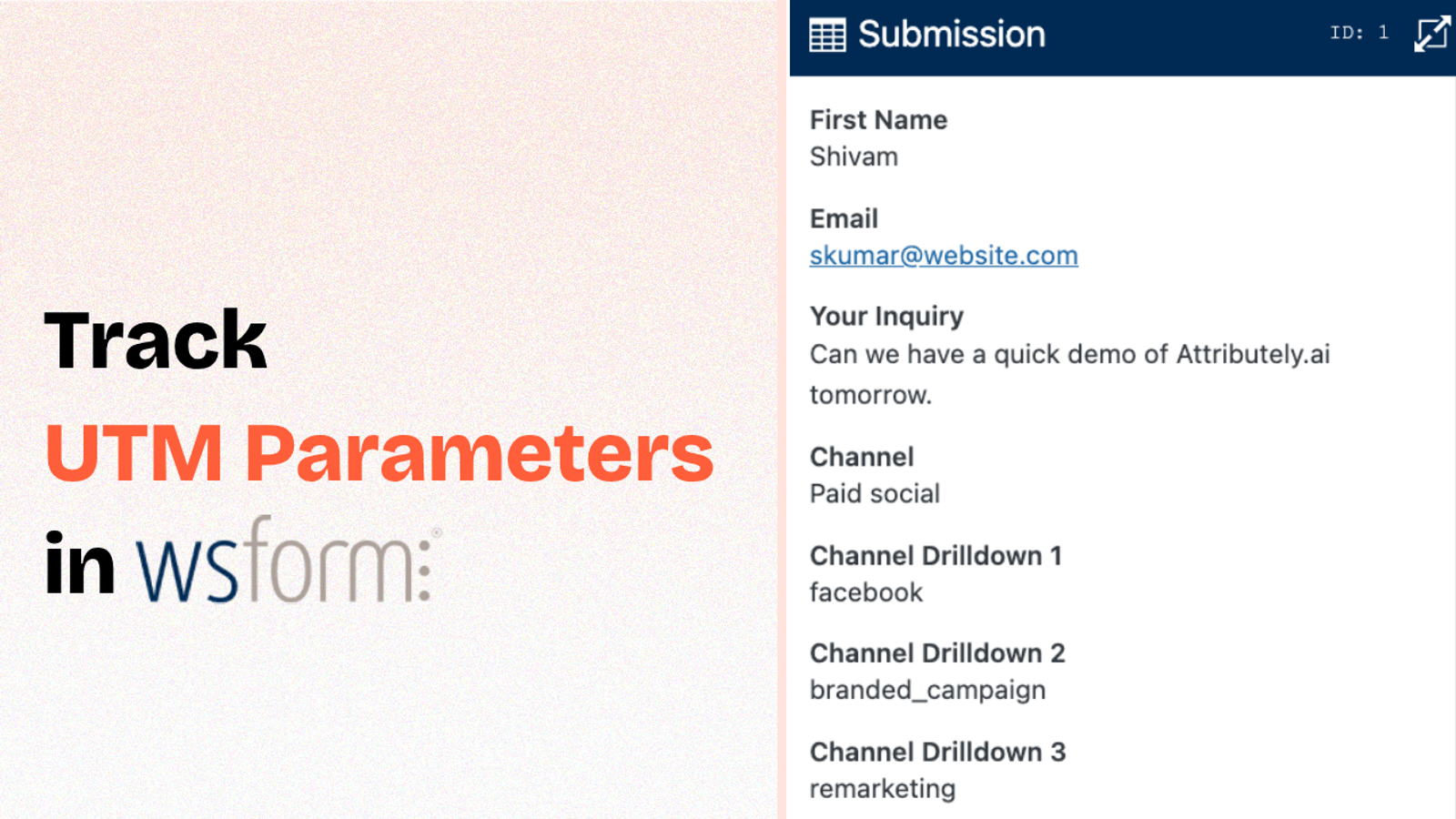
Table of contents
If you are running marketing activities across different channel and using UTM parameters to track performance, you’ll want to capture those parameters when someone submits a WS form on your website.
Unfortunately, WS Forms don’t have a default solution for easily tracking UTM Parameters.
In this guide, we’ll walk you through 4 simple steps to track UTM parameters in WS form using SourceLoop.ai.
Let’s dive in.
5 Easy Steps to Track UTM Parameters in WS form
Here are 4 simple steps to capture UTM parameters in WS form:
1. Add SourceLoop on Your Website

Head over to SourceLoop.ai and create your free account.
Get you unique website tracking code and paste it inside the <head> section of your website.
Most website builders like WordPress, Webflow, Wix, etc., let you easily add custom code snippets to the site header. Alternatively, you can also use Google Tag Manager to add it across all pages.
Once installed, SourceLoop.ai begins tracking how each visitor lands on your site—capturing UTM parameters and storing them in browser cookies.
The best part? It doesn’t just capture raw UTM values. It uses its intelligence to organize that data into easy-to-understand marketing attributes.
Example:
Let’s say you’re running a Facebook ad campaign for Nike, promoting a new line of running shoes.
A user clicks on the ad, which takes them to your landing page. SourceLoop.ai will capture and organize the visit information like this:
- Last Seen = June 14, 2025
- Channel = Paid Social
- Channel Drilldown 1 = Facebook
- Channel Drilldown 2 = Sponsored Post
- Channel Drilldown 3 = New Running Shoes Launch
- Landing Page = www.nike.com/new-running-shoes
- Landing Page Folder = new-running-shoes
2. Add UTM Parameters to Your Links

Now that SourceLoop.ai is tracking your website visitors, it’s time to ensure that it get the right data to capture for every visitor.
So, open your marketing campaigns—whether it’s Google Ads, TikTok Ads, Meta Ads , LinkedIn Ads, or even email newsletters—and ensure that all the URLs pointing to your website include UTM parameters.
These parameters act like labels, telling SourceLoop.ai where the visitor came from and why they clicked.
Example of a link with UTM parameters:
https://website.com?utm_source=paid_search&utm_medium=Bing&utm_campaign=prime_day
When someone clicks this link, SourceLoop will pick up these tags and automatically organize the marketing attributes.
Resources:
- How to add UTM parameters in Google Ads
- How to add UTM parameters in Facebook Ads
- How to add UTM parameters in LinkedIn Ads
- How to add UTM parameters in TikTok Ads
3. SourceLoop Automatically Capture the full UTM journey
SourceLoop.ai records UTM tags and page visits every time someone comes to your site. We save that first-party visit data so a visitor’s path is preserved across sessions.
When a visitor fills a form or books a meeting, SourceLoop links those stored visits to their lead profile and shows the complete attribution record in the Lead Manager.
Open any lead to see a clear timeline: the first marketing touch and UTM details, each return visit with pages and timestamps, and the final conversion event.
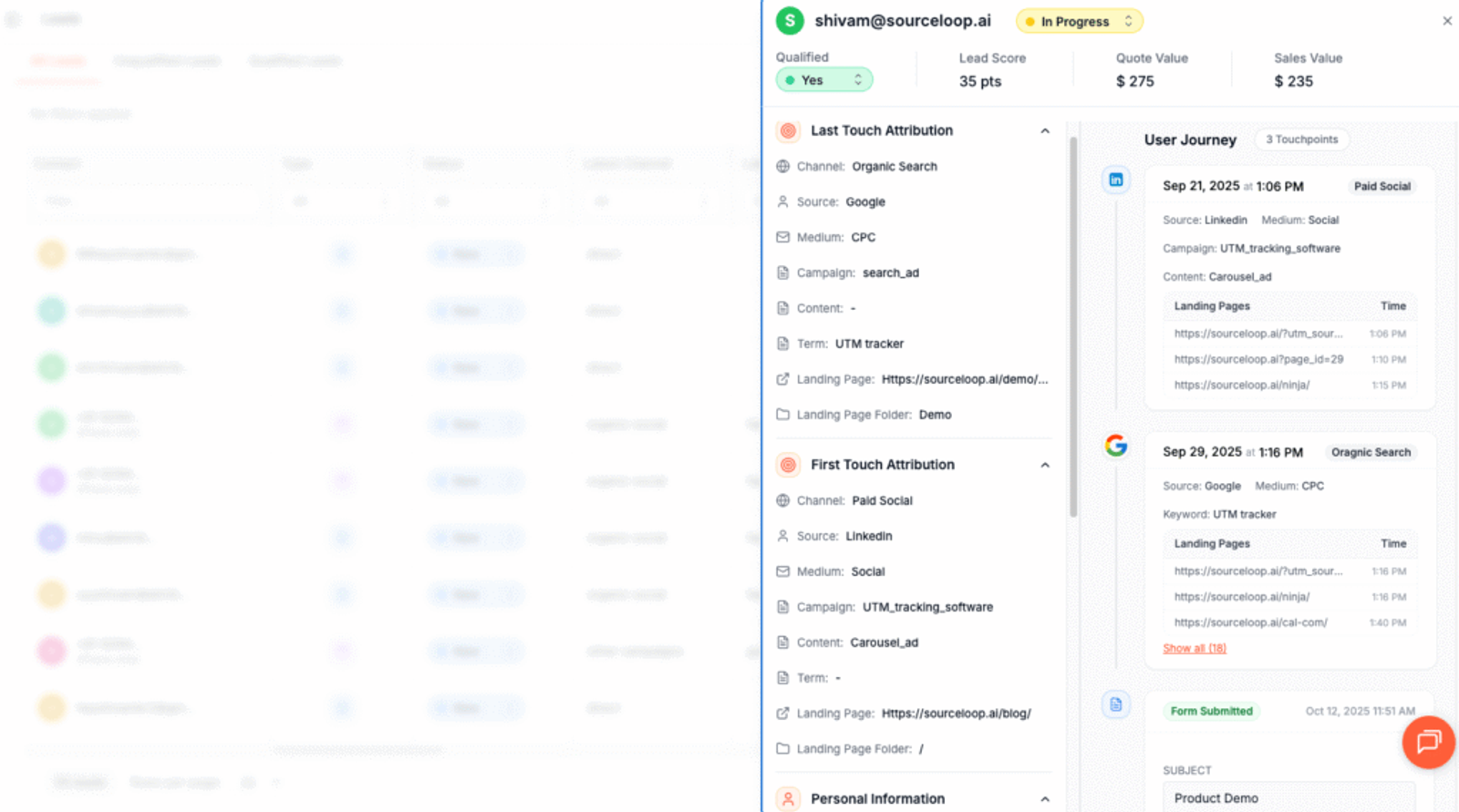
This makes it easy to understand which campaigns actually began the relationship and which ones influenced conversion.
Additional Tutorials:
- Track UTM Parameters in Involve.me Form
- Capture UTM Parameters in QuestionScout
- Set up UTM tracking in Typeform
4. Add Hidden Fields to Your Form (Optional)
If you’d like to record a lead’s UTM parameters directly inside your lead form, you can do this by adding hidden fields and mapping them to the recommended values.
These hidden fields are not visible to website visito but will automatically capture and submit attribution data when a form is filled out.
To get started;
- Drag and drop 7 “short-text” fields from the right sidebar to your form.
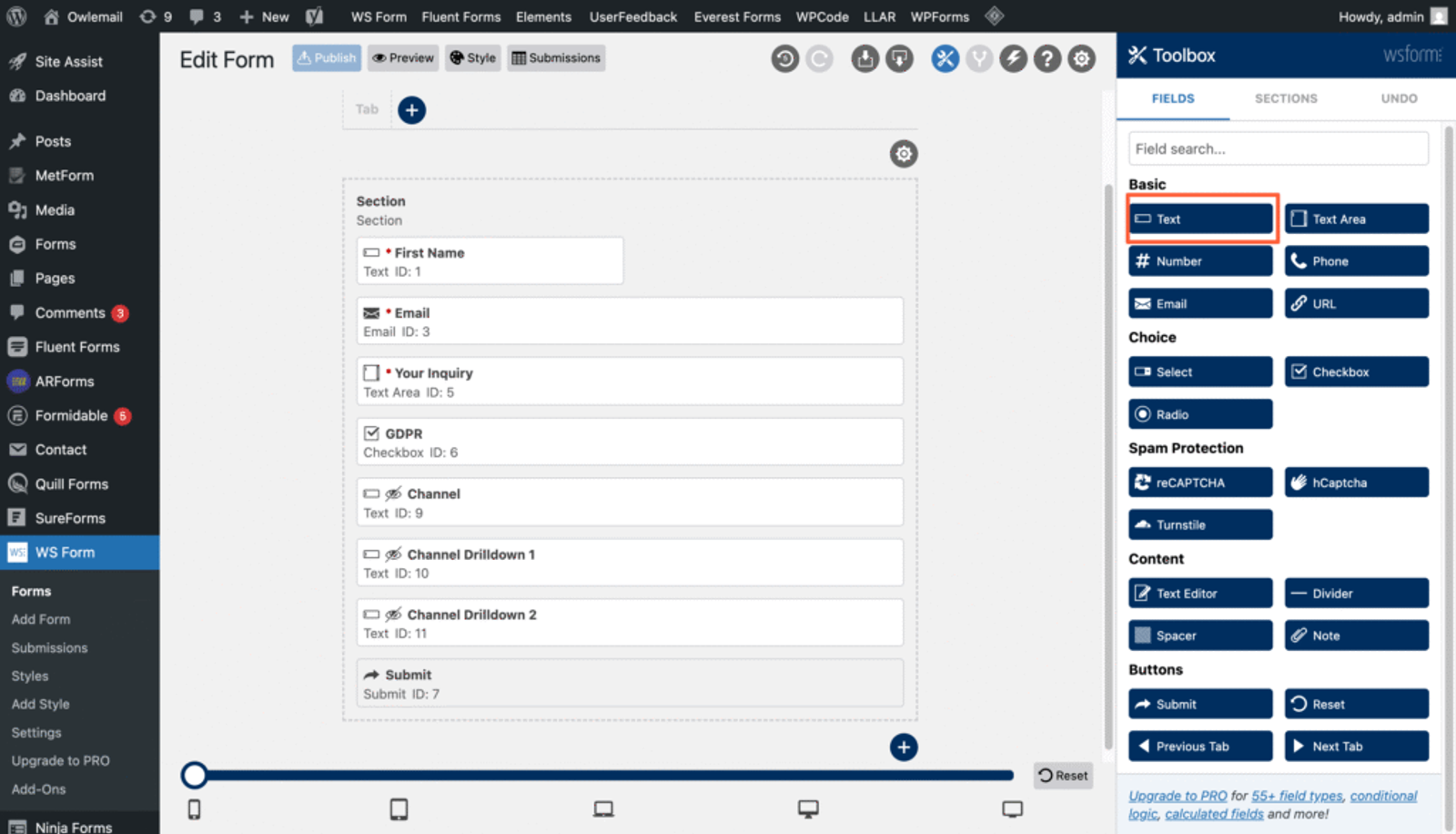
- Click on each text field to open its settings.
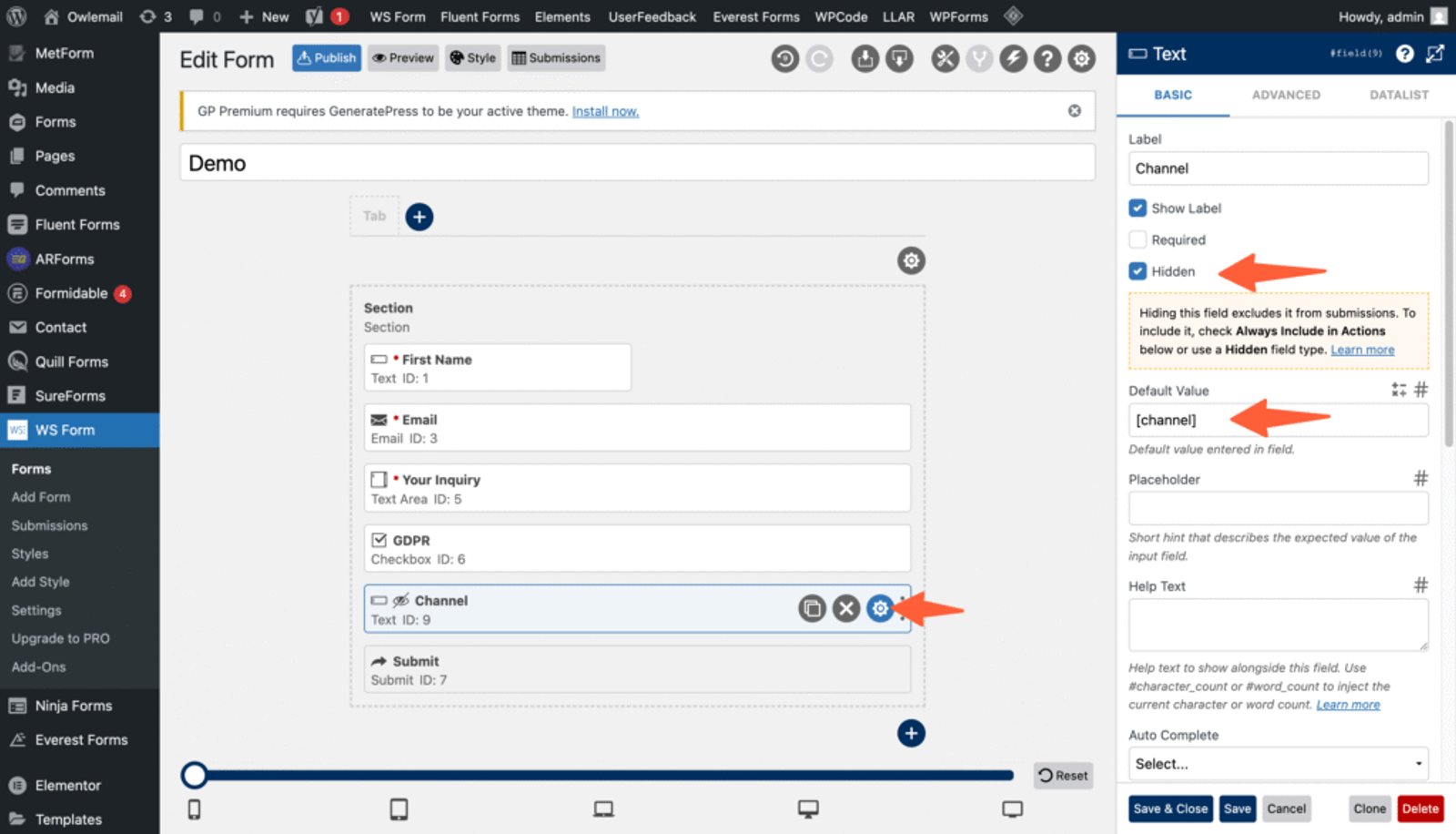
- In the settings panel on the right:
- Set the Label to the recommended value (see below).
- Set the Default Value (see below).
- Tick the “Hidden” checkbox to hide the field from the user.
- Click “save”.
Recommended Hidden Fields
These fields help capture the latest visit information from SourceLoop.ai:
- [channel]
- [attribution_source]
- [attribution_medium]
- [attribution_campaign]
- [attribution_term]
- [landingpage]
- [landingpagefolder]
- [lastseen]
Optional: Track First-Touch Attribution (Recommended for B2B)
If you’re in B2B or offer high-consideration products, users often visit multiple times before converting. To get full-funnel attribution, you can also track how they landed on your website for the first time.
Add these additional 7 hidden fields with the following default values:
- [first_channel]
- [first_source]
- [first_medium]
- [first_campaign]
- [first_term]
- [first_landingpage]
- [first_landingpagefolder]
- [first_seen]
SourceLoop.ai stores this data in a cookie with a 6-month expiration, allowing you to track both first and latest visit sources throughout a lead’s journey.
5. UTM Parameters Are Passed for Each Form Submission
Once you’ve configured the hidden fields, SourceLoop will do the rest.
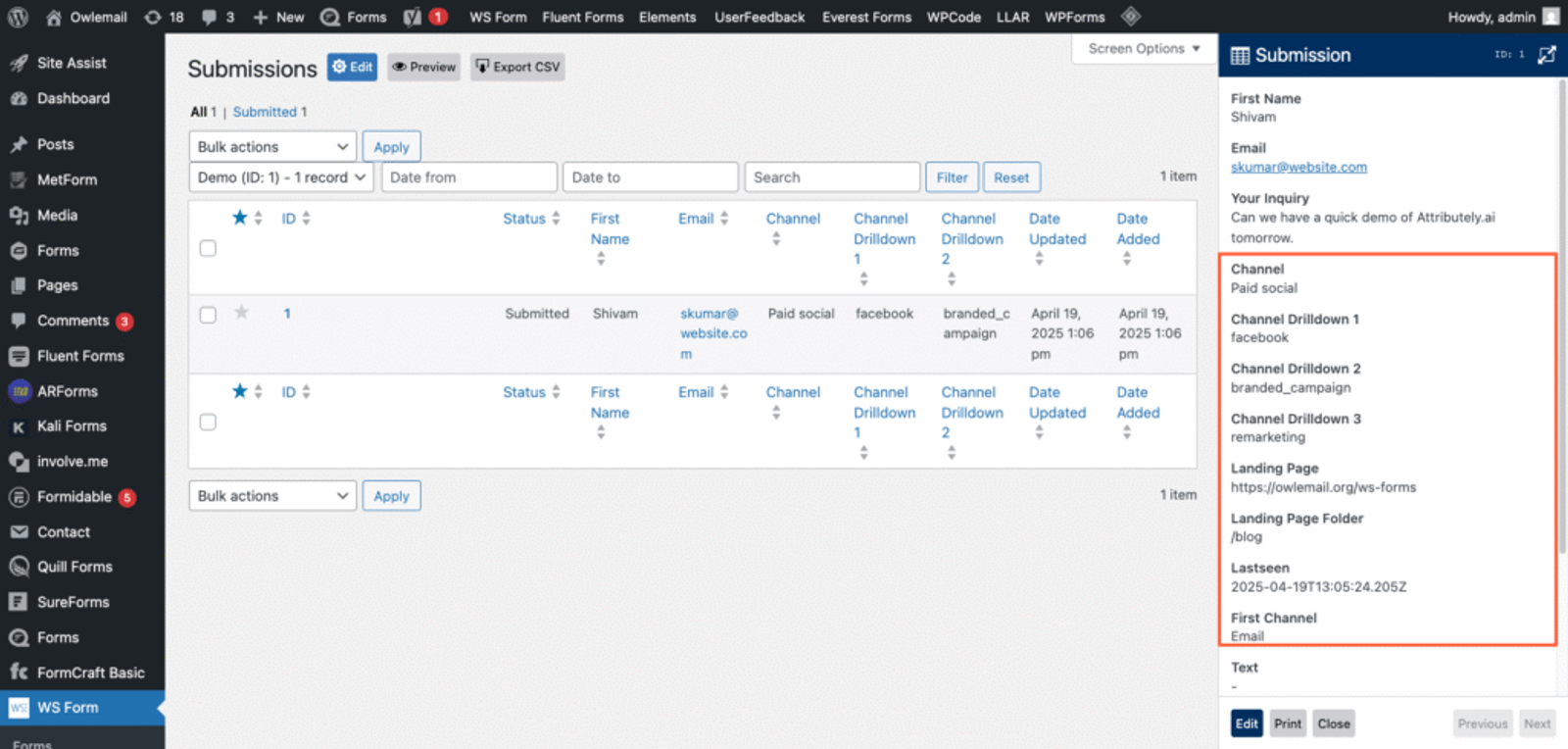
When a user fills a form, their stored UTM data gets automatically inserted into the hidden fields of your form.
You can simply navigate to the submission section of WS Form to find the UTM information each form submission.
Receive Form Submissions via Email:
WS Form automatically sends a notification to your WordPress admin email whenever a new lead is submitted. This email includes all lead details along with their UTM information, so you can easily track attribution.
Sync Lead Attribution Data with Your Marketing or CRM Tool:
If you’re a paid WS Form user, you can connect it to automation tools like Zapier. This allows you to integrate WS Form with virtually any CRM or analytics platform. You can then set up automations to automatically create new contacts or reports in your CRM with the full attribution data.




 Paid Social


