
How to Track UTM Parameters in Microsoft Dynamics 365
Microsoft Dynamics 365 UTM tracking made easy. Follow these 4 easy steps to know the source of every contact inside your CRM.
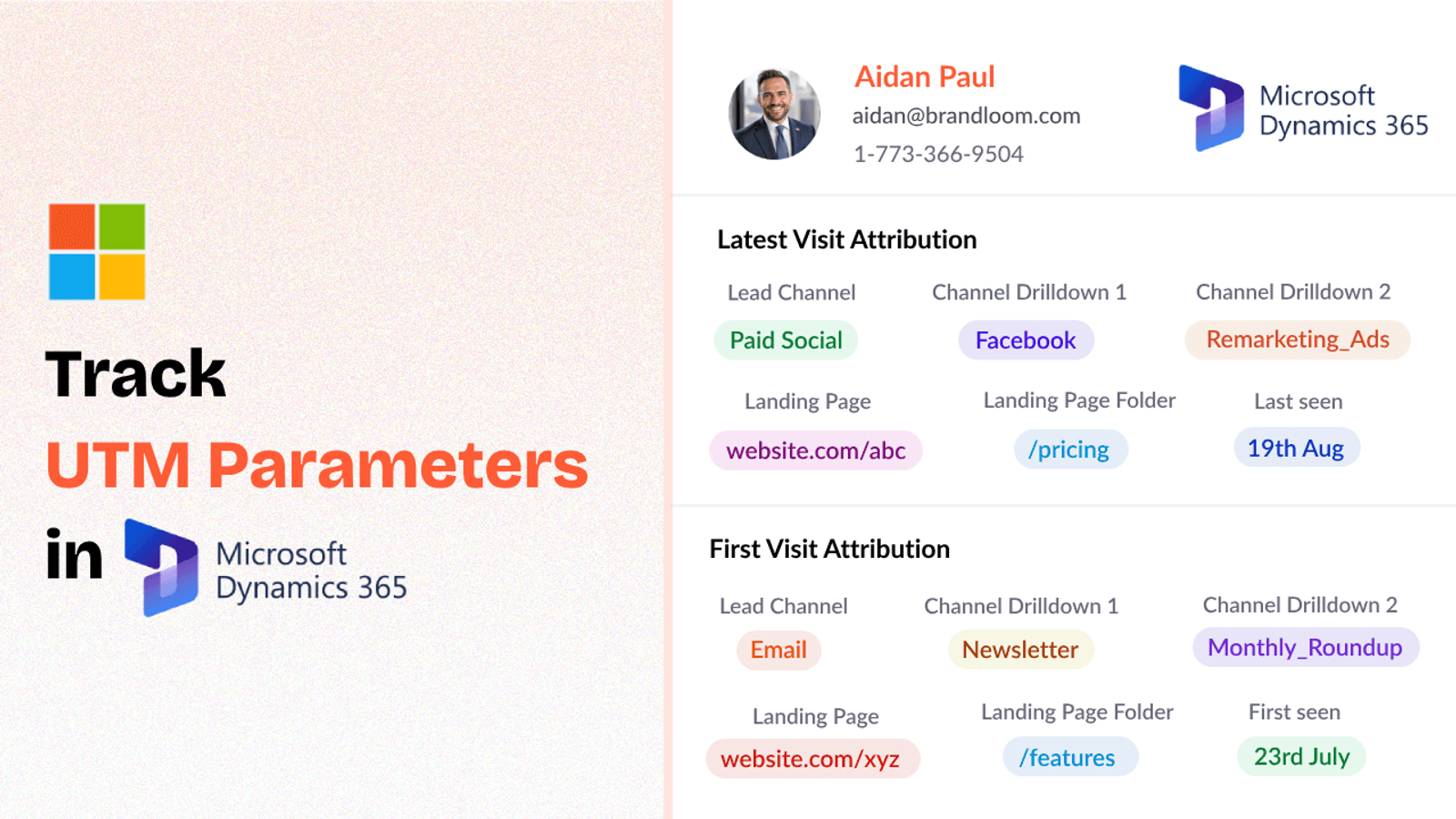
Table of contents
If you’re running campaigns but struggling to track where your leads are coming from inside Microsoft Dynamics 365, you’re not alone.
CRM systems don’t natively capture UTM parameters out of the box, making it hard to attribute leads to individual marketing campaigns.
The good news?
With SourceLoop.ai, you can easily capture and track UTM parameters in Dynamics 365.
Let’s jump in!
4 Easy Steps to Track UTM Parameters in Microsoft Dynamics 365
Here are 4 simple steps to capture UTM parameters in Microsoft Dynamics 365:
1. Add SourceLoop on Your Website

First, you’ll need to install SourceLoop.ai on your website.
SourceLoop is a lightweight script that captures visitor attribution data, including UTM parameters, and holds onto it until a form is submitted.
Example:
Let’s say Tesla is running an Instagram Story ad promoting their new Cybertruck.
When a user swipes up on the ad visit Tesla website, SourceLoop organize & store UTM data like this:
- Channel = Social
- Channel Drilldown 1 = Instagram
- Channel Drilldown 2 = Cybertruck Launch Campaign
- Channel Drilldown 3 = Story Ad
- Landing Page = www.tesla.com/cybertruck
- Landing Page Folder = cybertruck
- Last Seen = April 29, 2025
2. Add UTM Parameters to Your Links

Next, make sure your marketing campaigns are correctly tagged with UTM parameters.
Whether it’s an email, Google Ad, social media post, or guest blog post — every link pointing to your website should include UTM parameters like ut_source, utm_medium, utm_campaign, utm_term, utm_content, etc.
Example of a link with UTM parameters:
https://yoursite.com/quiz?utm_source=facebook&utm_medium=paid&utm_campaign=summer_sale
Resources:
- How to add UTM parameters in Google Ads
- How to add URL parameters to Meta ads
- How to setup UTM Codes for LinkedIn Ads
- How to add UTMs to your TikTok ads
3. Add Hidden Fields to Your Lead Form
Once SourceLoop is collecting UTM data, you’ll need to pass it into your forms and sync with your CRM.
So, edit your lead capture forms in Dynamics 365 or your integrated form tool and add hidden input fields for each UTM parameter you want to track,
Here are the hidden fields you should add:
- channel
- channeldrilldown1
- channeldrilldown2
- channeldrilldown3
- landingpage
- landingpagefolder
- lastseen
This setup ensures that when someone fills out a form, all their UTM tracking information gets captured without them needing to see or interact with it.
Optional: Capture First-Touch Attribution Too (Highly Recommended for B2B)
If you sell B2B products or services where a user can visit your website multiple times before converting, it’s also a good idea to track first-touch attribution.
Here are 7 other.hidden fields you can set up to receive the attribution data for the first time the user visited your website:
- first_channel
- first_channeldrilldown1
- first_channeldrilldown2
- first_channeldrilldown3
- first_landingpage
- first_landingpagefolder
- firstseen
4. Watch UTM Data Flow Seamlessly Into Microsoft Dynamics 365
That’s it.
As leads submit the lead forms, the captured UTM parameters will be passed along with the lead data into Microsoft Dynamics 365.
You’ll be able to see precisely how each lead found you — down to the source, campaign, medium, and even keywords — all within your CRM.
When you begin to capture UTM parameters within Dynamics 365, an entire new set of insights and actions becomes available to your sales and marketing teams.
Here’s what you can do:
Build Smarter Reports and Dashboards:
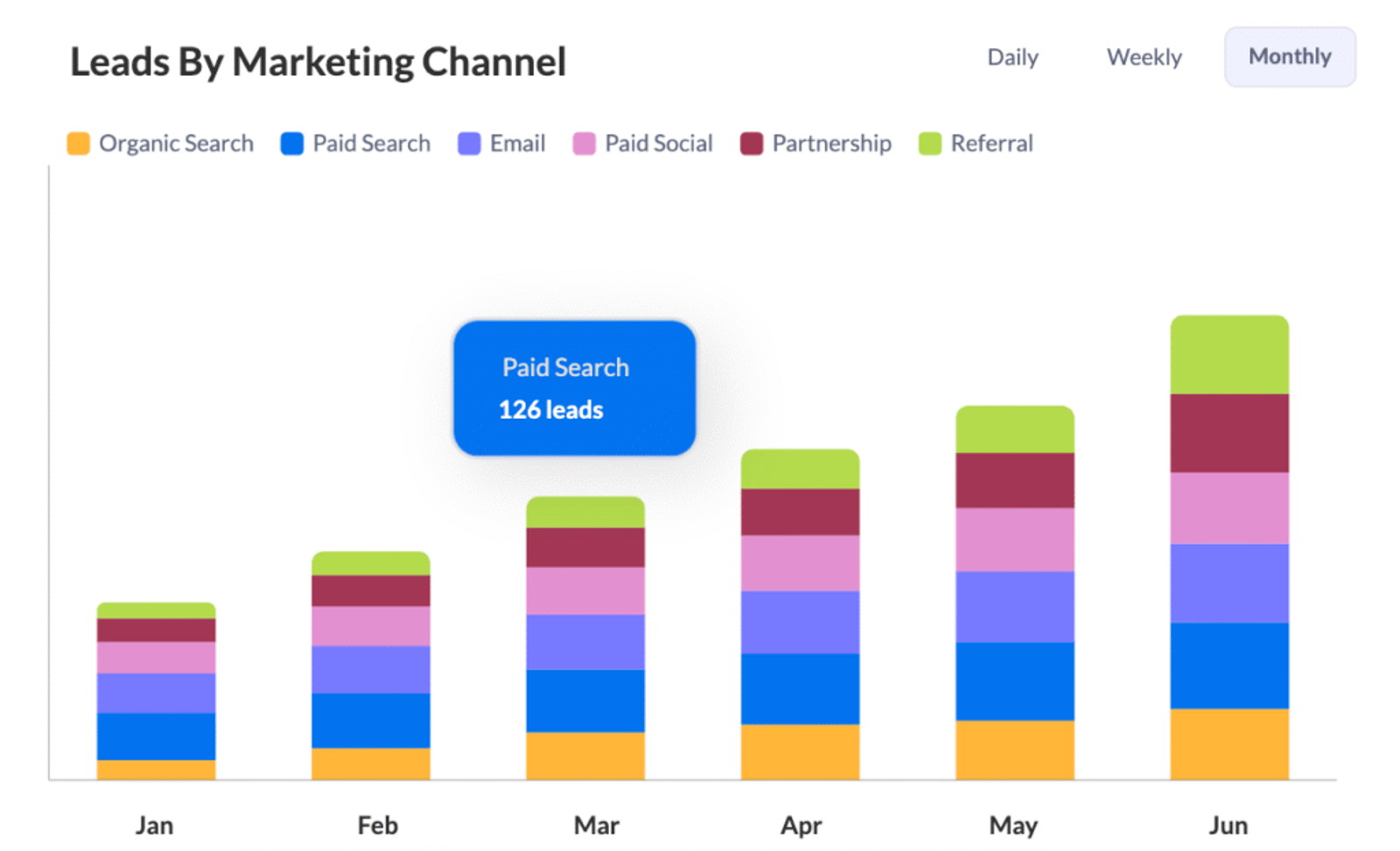
Create rich CRM reports and dashboards that segment leads, opportunities, and revenue by UTM parameters — no more guessing which marketing activities are really paying off.
Track Campaign Performance:
See precisely which campaigns, channels, and ads generate the most qualified leads and revenue.
Optimize Marketing Spend:
Since you know which sources (e.g., Google Ads, LinkedIn, Email Newsletters) produce the highest-converting leads, you can allocate your marketing budget more wisely.
Improve Lead Scoring and Routing:
Qualify leads by their lead source or marketing campaign that drove them to it. Let’s say the target webinar-led lead would get more points compared to a banner advertisement with an unsubscribed campaign.
Personalize Sales Follow-ups:
Give your sales team context. Knowing that a lead came from a specific ad or keyword can help personalize outreach and conversations, making them more relevant and effective.
Measure True ROI of Marketing Investment:
Get past vanity metrics (such as clicks and impressions) and track the true business value of each campaign by connecting UTM-tagged leads through to closed deals.




 Paid Social


