
How to Track UTM Parameters in Maximizer CRM
Maximizer CRM UTM tracking made easy: 4 simple steps to uncover what fuels your sales pipeline
Table of contents
Are you missing UTM parameters for your leads in Maximizer CRM?
Then you’re likely falling behind in understanding which marketing campaigns are fueling your sales pipeline.
In this guide, we’ll show you how to track UTM data in Maximizer CRM—so you can finally connect the dots between your marketing efforts and your leads.
Let’s get started!
4 Easy Steps to Track UTM Parameters in Maximizer CRM
Here are 4 simple steps to capture UTM parameters in Maximizer CRM:
1. Install SourceLoop.ai on Your Website

To begin tracking where leads come from, install SourceLoop on your website:
- Create a free account at SourceLoop.ai.
- Grab your unique tracking script.
- Paste it into the
<head>section of your website
Once added, SourceLoop automatically captures UTM parameters from the URL your website visitors use to reach your site.
So whether they come from paid ads, social media, a partner website, or anywhere else, SourceLoop will capture everything.
Example:
Let’s say a user clicks a Google Ad for a free trial of your SaaS tool. The link contains:
utm_source=google&utm_medium=cpc&utm_campaign=trial-offer&utm_term=sales_software
SourceLoop will capture:
- Channel: Paid Search
- Channel Drilldown 1: Google
- Channel Drilldown 2: trial-offer
- Channel Drilldown 3: sales_software
- Landing Page: www.yoursite.com/signup
- Landing Page Folder: home
- Last Seen: April 27, 2025
2. Add UTM Parameters to Every Marketing Link

To make attribution actually work, your URLs need to have UTM parameters.
UTM parameters are nothing but simple tags you append to your links that contains information about the marketing campaign.
When you tag links correctly, SourceLoop captures the source, stores it in a cookie, and passes it to your lead form when someone converts.
Examples of UTM-Tagged URLs
For a Google Search Ad:
https://yourwebsite.com/demo?utm_source=google&utm_medium=cpc&utm_campaign=demo_signup_q2
For a LinkedIn Sponsored Post:
https://yourwebsite.com/webinar?utm_source=linkedin&utm_medium=paid&utm_campaign=webinar
For a Monthly Email Newsletter:
https://yourwebsite.com/blog?utm_source=newsletter&utm_medium=email&utm_campaign=may_digest
Resources: How to Create & Use UTM Tracking URLs
3. Add Hidden Fields to Your Lead Form
Forms are where leads are captured—whether it’s for demo requests, contact submissions, or newsletter signups.
To make sure you also capture UTM data at this point, you’ll need to add a few hidden fields to your form.
Hidden fields are not visible to users, but they automatically collect and submit attribution data captured by SourceLoop in the background.
Recommended hidden fields value that SourceLoop.ai supports:
channelchanneldrilldown1channeldrilldown2channeldrilldown3landingpagelandingpagefolderlastseen
Optional: Capture First-Touch Attribution & Find How a Lead First Discovered Your Website
A user may visit your website multiple times through different marketing campaigns before they submit a lead form or book a meeting.
For example:
- A user discovers you via a TikTok ad
- Returns a few days later via a Facebook post
- Then finally fills out your demo request form after reading a blog.
If you only track the last-touch, that lead looks like it came from email—but you miss that TikTok introduced them to your brand.
SourceLoop solves this by letting you capture first-touch data too. Just add extra hidden fields like:
firstseenfirst_channelfirst_channeldrilldown1first_channeldrilldown2first_channeldrilldown3first_landingpagefirst_landingpagefolder
4. Automatically Sync UTM Data with Maximizer CRM
That’s it.
When a user submits a form on your site, SourceLoop automatically passes the captured UTM and attribution data alongside the user’s contact details.
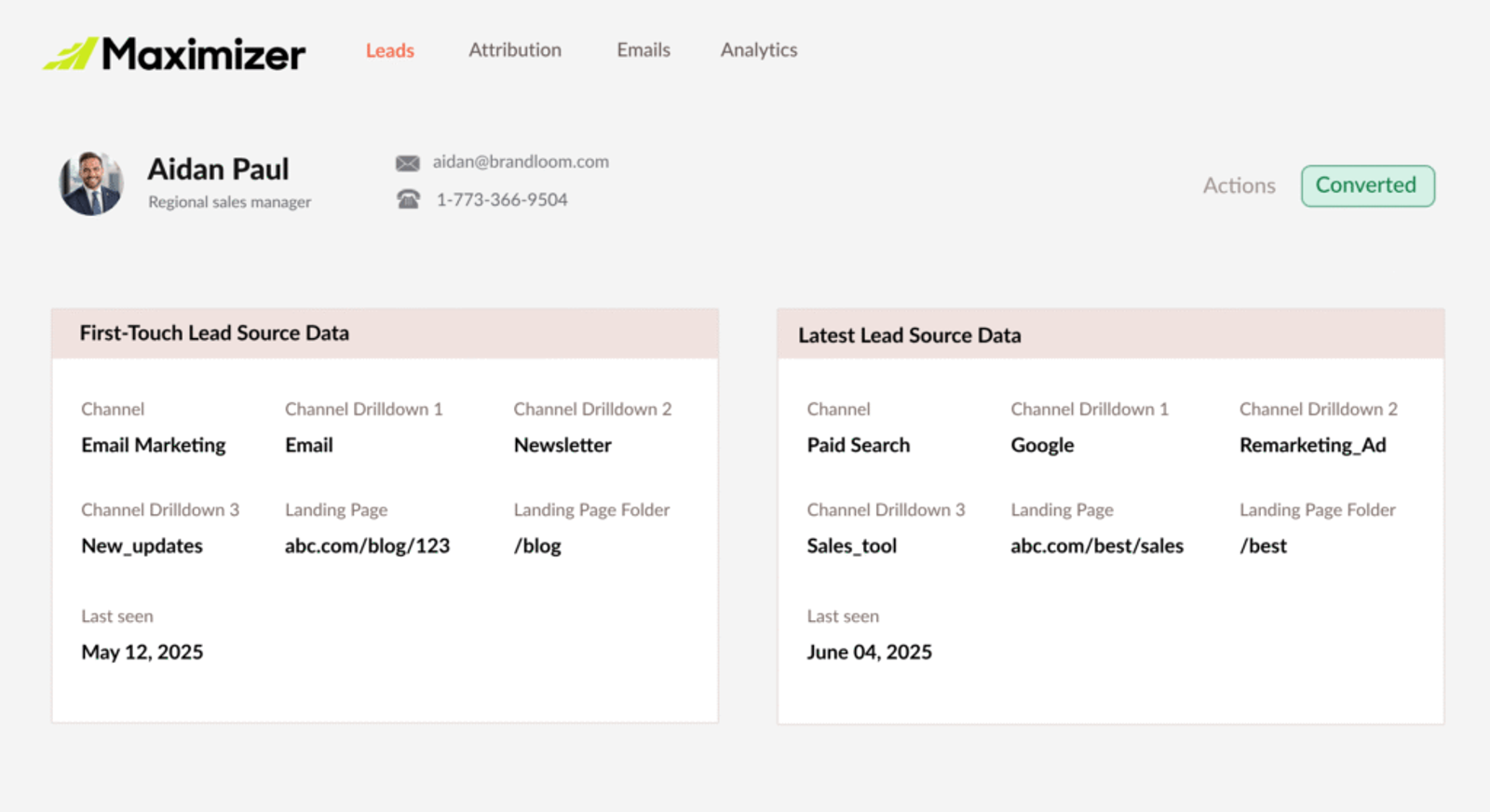
Depending on how your forms are connected to Maximizer CRM, the data can be synced in one of three ways:
- Via third-party form tools (e.g., Gravity Forms, Typeform, Webflow) using Zapier or Make.com
- Through a webhook integration that pushes data to your CRM endpoint in real time
What You Can Do with UTM Data in Maximizer CRM
Now that UTM tracking is live and flowing into your CRM, here’s what you can do:
1. Know Which Marketing Channels Actually Work
Let’s say you’re running campaigns on:
- Facebook Ads
- Email Newsletters
- Google Search Ads
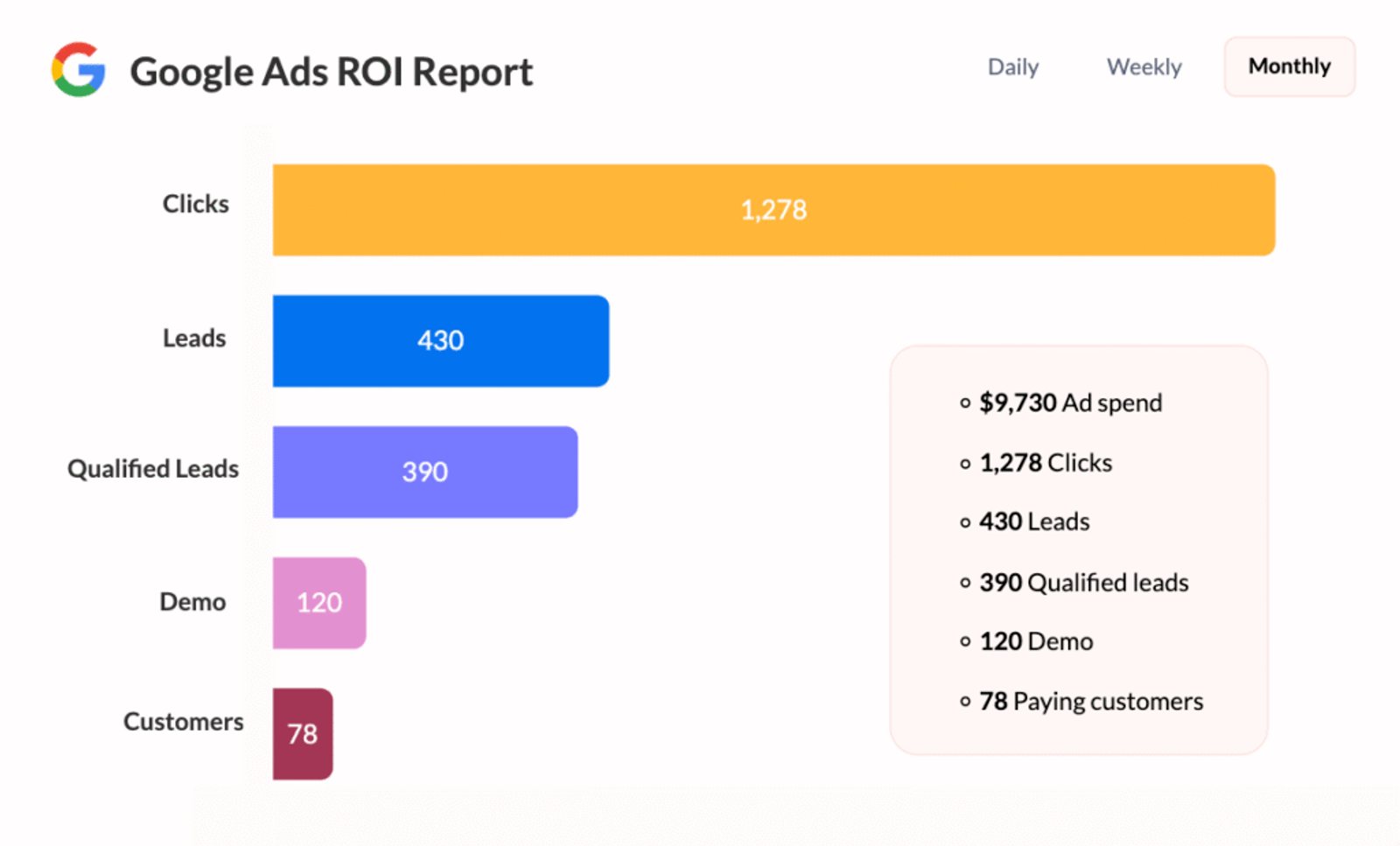
If you’re just looking at form fills, they might all look the same. But UTM data shows the quality behind the quantity.
For example:
- 40 leads came from Facebook, but only 2 became customers
- 12 leads came from newsletters, and 6 converted
2. Use UTM Data to Personalize Your Follow-Ups
With UTM tracking, you’re no longer guessing how a lead discovered you.
Which means you can segment leads by their discovery. For instance, you can list individuals who:
- Clicked on your launch campaign
- Joined via a referral
- Signed up after a webinar
Finally, rather than blasting the same email to all, you can make your follow-up more relevant to what they’ve already interacted with.
Example: “Thanks for attending our April webinar! Here’s the next step we covered in the session.”
3. Route Leads to the Right Sales Rep Automatically
If your company has several sales reps or regional teams, UTM data can automate lead routing.
Example:
- Leads from LinkedIn Ads advertising your business strategy are routed to your Enterprise Sales team.
- Leads from local Google Ads campaigns get routed to regional reps.
It enables a quicker and more relevant followup which translates to better conversion rate and improved lead experience.
4. Create Simple Reports to Monitor Campaign ROI
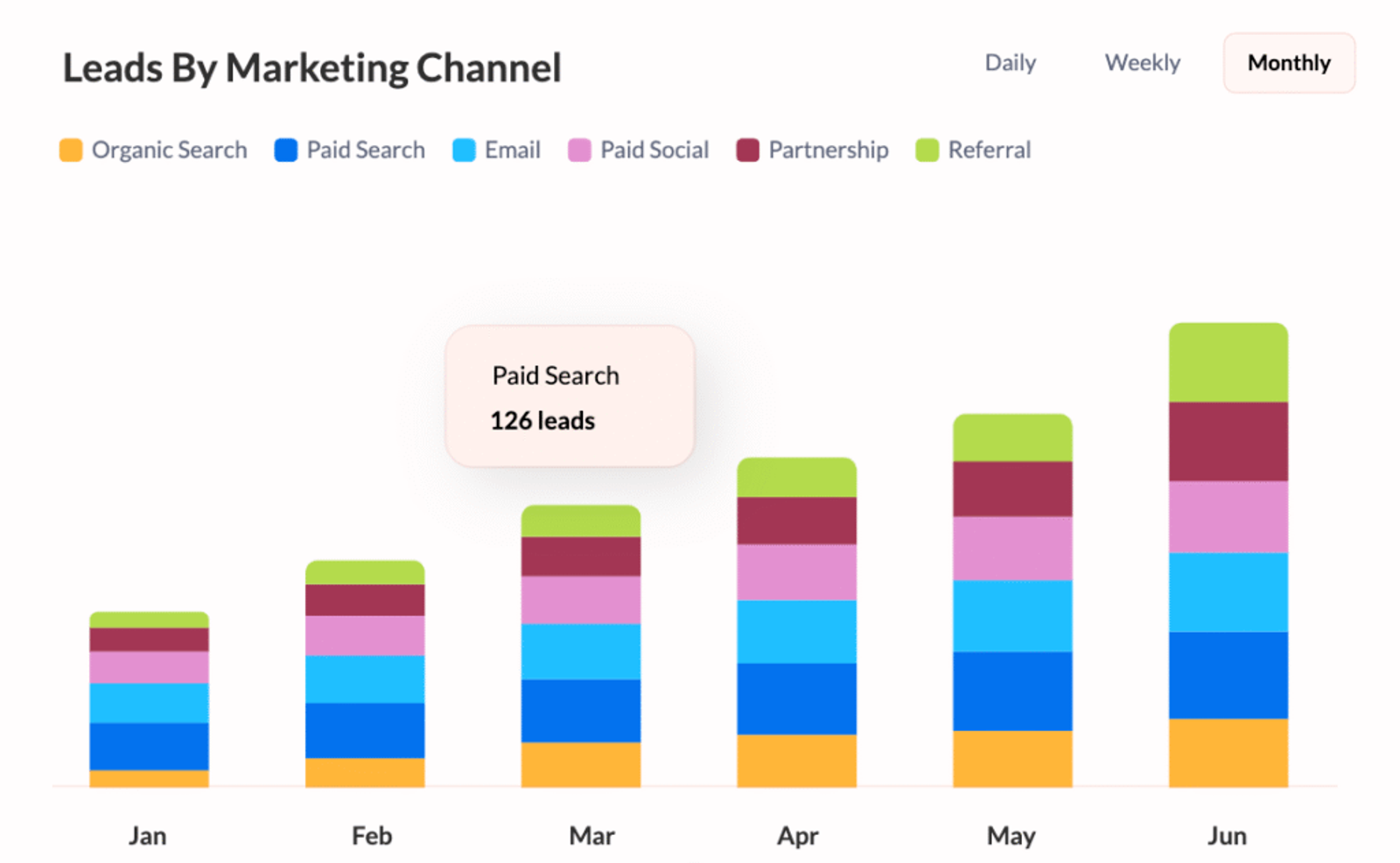
No need to be an analyst. With UTM fields within Maximizer, you can create simple reports such as:
- Leads by source
- Revenue by campaign
- Conversion rate by traffic type (e.g., organic, paid, referral)
5. Understand Customer Lifetime Value by Channel
Once you close deals and have customer revenue data in Maximizer, you can compare customer value by acquisition source.
Example:
- Customers from webinars spend $5,000/year
- Customers from Instagram spend $500/year
This can be one of the best way to understand the predicted lifetime value of each marketing dollar you spend on a campaign.



 Paid Social


