
How to Track UTM Parameters in JetFormBuilder
Follow 4 easy steps to capture UTM parameters in JetFormBuilder and track where each leads & customers come from
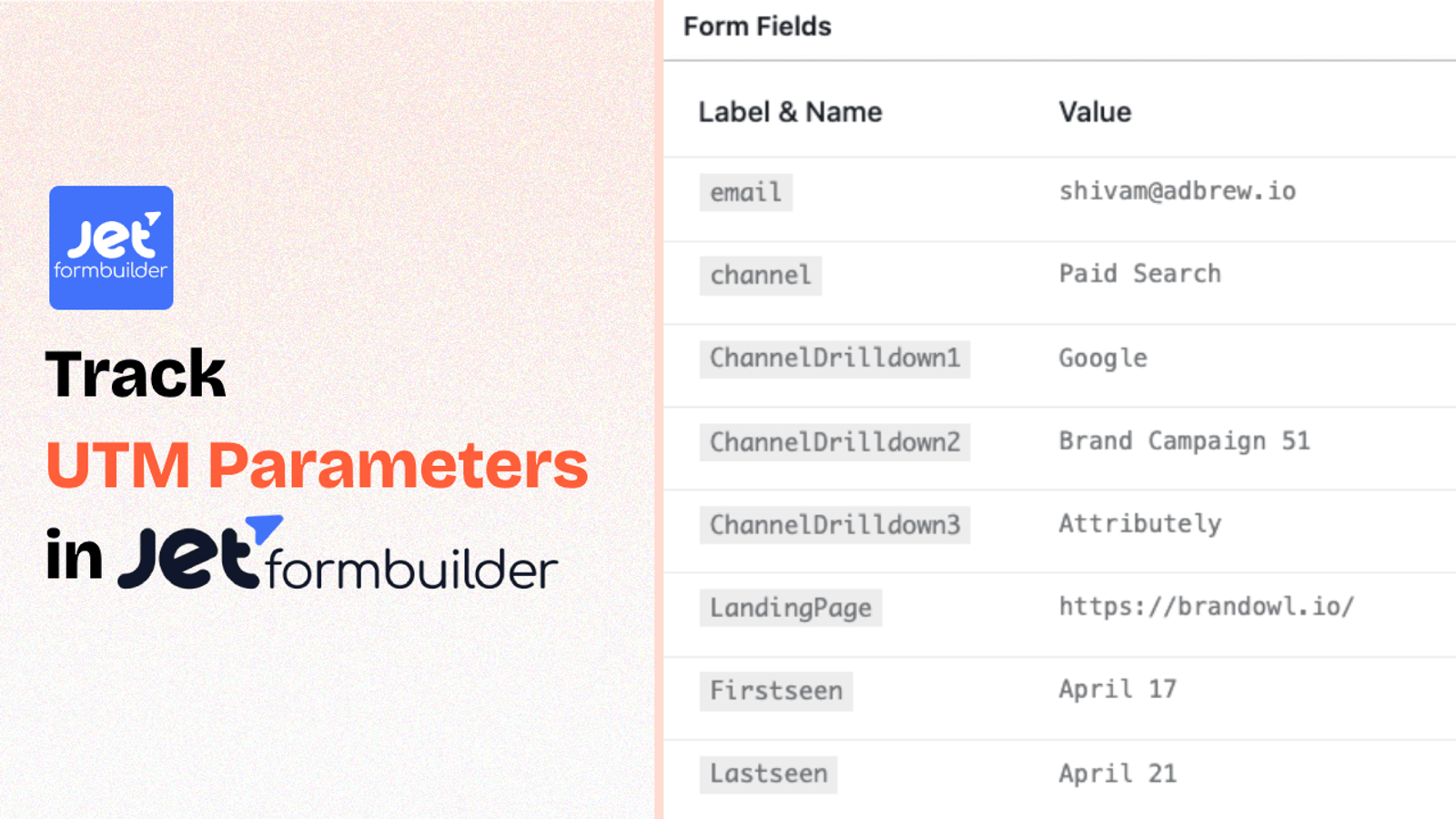
Table of contents
Are you having trouble capturing UTM parameters in JetFormBuilder and keeping track of where each lead is coming from?
While JetFormBuilder provides a way to capture URL query variables in hidden fields, that is usually not enough.
Most of the time, users visit your website with UTM parameters, but they may browse through different pages before submitting the lead form. As a result, the query parameters get lost when they finally submit the form.
Fortunately, there are tools like SourceLoop.ai that solve this issue.
In this guide, we’ll walk you through a step-by-step process to track UTM parameters in JetFormBuilder using SourceLoop.ai.
Let’s dive in.
5 Easy Steps to Track UTM Parameters in JetFormBuilder
Here are four simple steps to capture UTM parameters in JetFormBuilder:
1. Install SourceLoop on Your Website

Start by creating your SourceLoop.ai account and adding the unique SourceLoop tracking code to your website.
SourceLoop.ai is a simple tool that captures information about how a visitor arrives on your website (including any UTM parameters present in the URL, the referring website, landing page, etc.), stores it in the user’s browser local storage, and passes it along when the user submits a form.
For each website visitor, it categorizes UTM queries into easy-to-understand marketing attributes.
Example:
Let’s say Airbnb is using SourceLoop.ai, and a user clicks on one of their TikTok ads.
SourceLoop.ai will capture and organize the user’s visit information like this:
- Channel = Paid Social
- Source = TikTok
- Medium = Infleuncer Campaign
- Campaign = Hotels in London
- Landing Page = www.airbnb.com/hotels/london-united-kingdom
- Landing Page Folder = hotels
- Last Seen = Aug 29, 2025
2. Add UTM Parameters to Your Links

Next, you need to add UTM tags to your performance marketing ads, such as Google Ads, Meta Ads, TikTok Ads, LinkedIn Ads, and more. All these platforms offer an easy way to dynamically add UTM tags to URLs.
Apart from ads, you should also add UTM tags to any other links shared in sales emails, social media posts, YouTube, etc. This ensures that all visitors landing on your website have descriptive context about their source.
Here’s what a link with UTM parameters looks like:
https://website.com?utm_source=paid_search&utm_medium=Bing&utm_campaign=prime_offer
Resources:
3. SourceLoop.ai Automatically Captures UTM Data
Each time a user visits your website, AttributeLink tracks their lead source and page views.
When they submit a form or book a meeting, SourceLoop collects all their attribution data and displays it in the built-in Lead Manager dashboard.
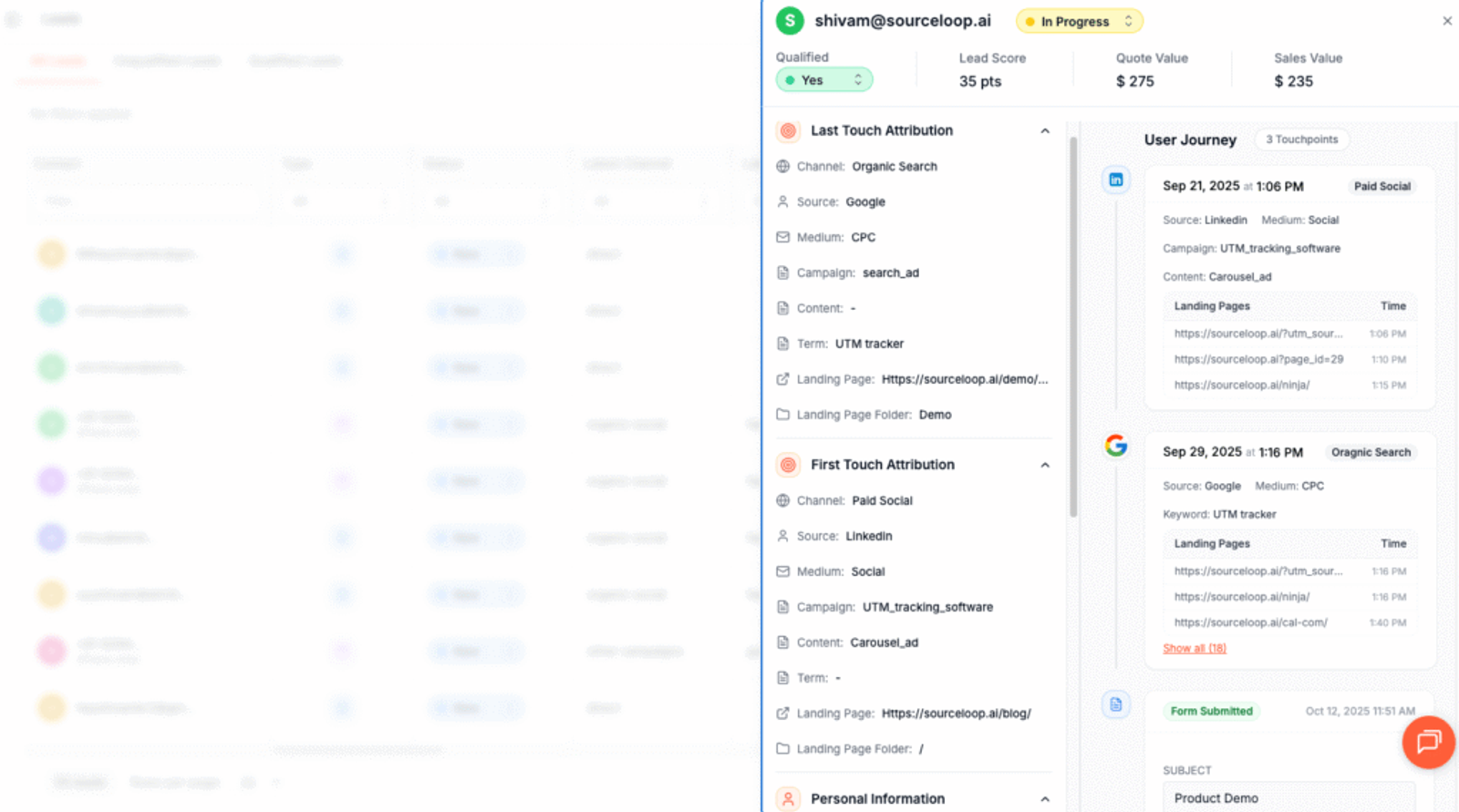
From there, you can view their entire journey. You can see which marketing channel brought them to your site on their first visit, the subsequent visits they made, and the specific pages they viewed along the way.
More Tutorials:
- How to Track UTM Parameters in Gravity Forms
- Step-by-Step Guide to Track UTM Parameters in FluentForm
- How to Track UTM Parameters in MetForm
4. Add Hidden Fields to Your Forms (optional)
If you also want to capture UTM value directly within your form submissions, you can do that by adding hidden fields to your form.
These hidden fields won’t be visible to your visitors, but tools like SourceLoop.ai can use them to dynamically pass UTM and other marketing attribute data before form submission.
Adding hidden fields in JetFormBuilder is super easy.
Next, you need to add a few hidden fields to all of your JetFormBuilder forms.
These hidden fields won’t be visible to your visitors, but tools like SourceLoop.ai can use them to dynamically pass UTM and other marketing attribute data before form submission.
Adding hidden fields in JetFormBuilder is super easy.
- Open your form and click on the “Add New Block” button inside the Gutenberg editor.
- Choose the “Hidden Fields” block, and it will be added to the end of your form.
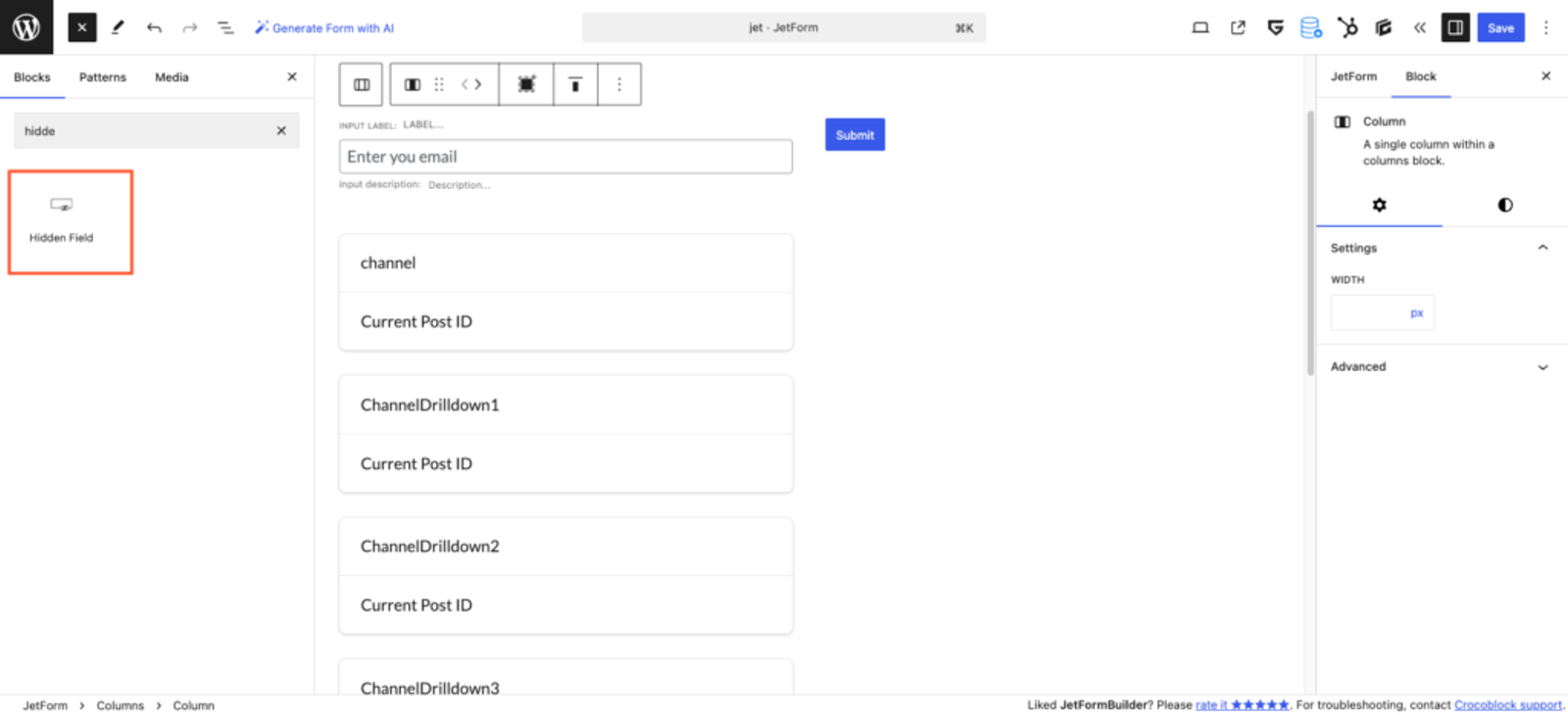
- Click on the block to edit the hidden field’s default value according to SourceLoop.ai’s recommendations.
- Toggle on the Rendered in the HTML option and leave Return raw value untoggled.
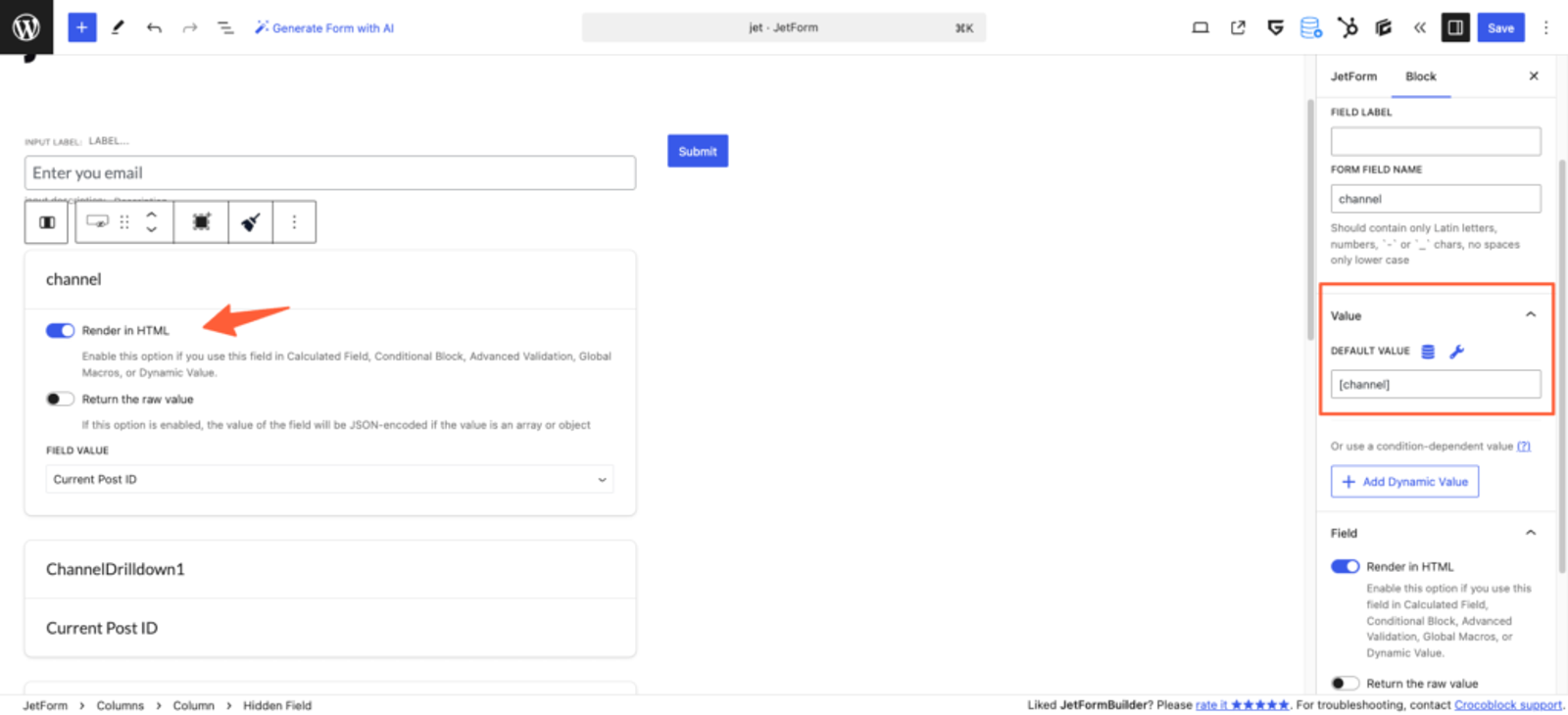
Ideally, you should add seven hidden fields with the following default values that SourceLoop.ai will use to pass lead attribution data:
channelattribution_sourceattribution_attribution_attribution_termlandingpagelandingpagefolderlastseen
If a lead visits your website multiple times before filling out the form, you can also add additional hidden fields to capture their first visit details.
SourceLoop.ai stores both the first and latest visit data for each lead.
first_channelfirst_sourcefirst_mediumfirst_campaignfirst_termfirst_landingpagefirst_landingpagefolder- firstseen
5. UTM Parameters Are Passed for Each JetFormBuilder Submission
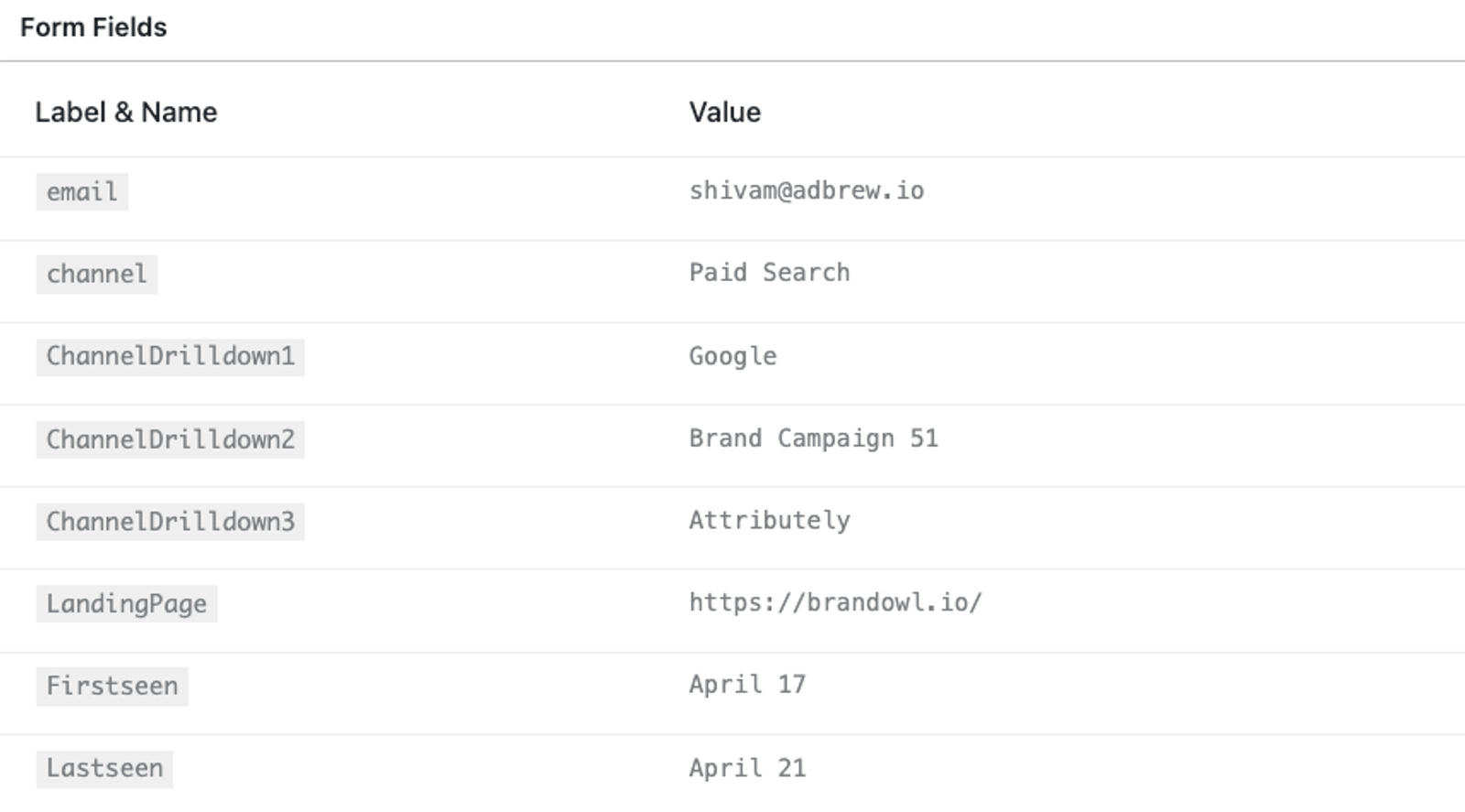
Finally, when a user submits a JetFormBuilder form on your WordPress website, SourceLoop.ai will automatically pass the lead attribution (UTM) data in their form submission.
Once you receive a new form submission, you can:
- View it inside JetFormBuilder – Navigate to the “Form Records” section of JetFormBuilder to see all your leads along with their tracked UTM data.
- Send it to an Email Marketing Tool – JetFormBuilder integrates with email marketing tools like ConvertKit, Moosend, MailPoet, and MailerLite. If you’ve integrated your email marketing tool, you can directly add leads with their marketing attribution data to your contact list.
- Sync data with HubSpot – If you have connected the HubSpot integration, you can sync your lead attribution data for each contact in HubSpot CRM.
More Tutorials:




 Paid Social


