
How to Track UTM Parameters in MetForm
Follow 4 easy steps to track UTM parameters in MetForm and track where each leads & customers come from
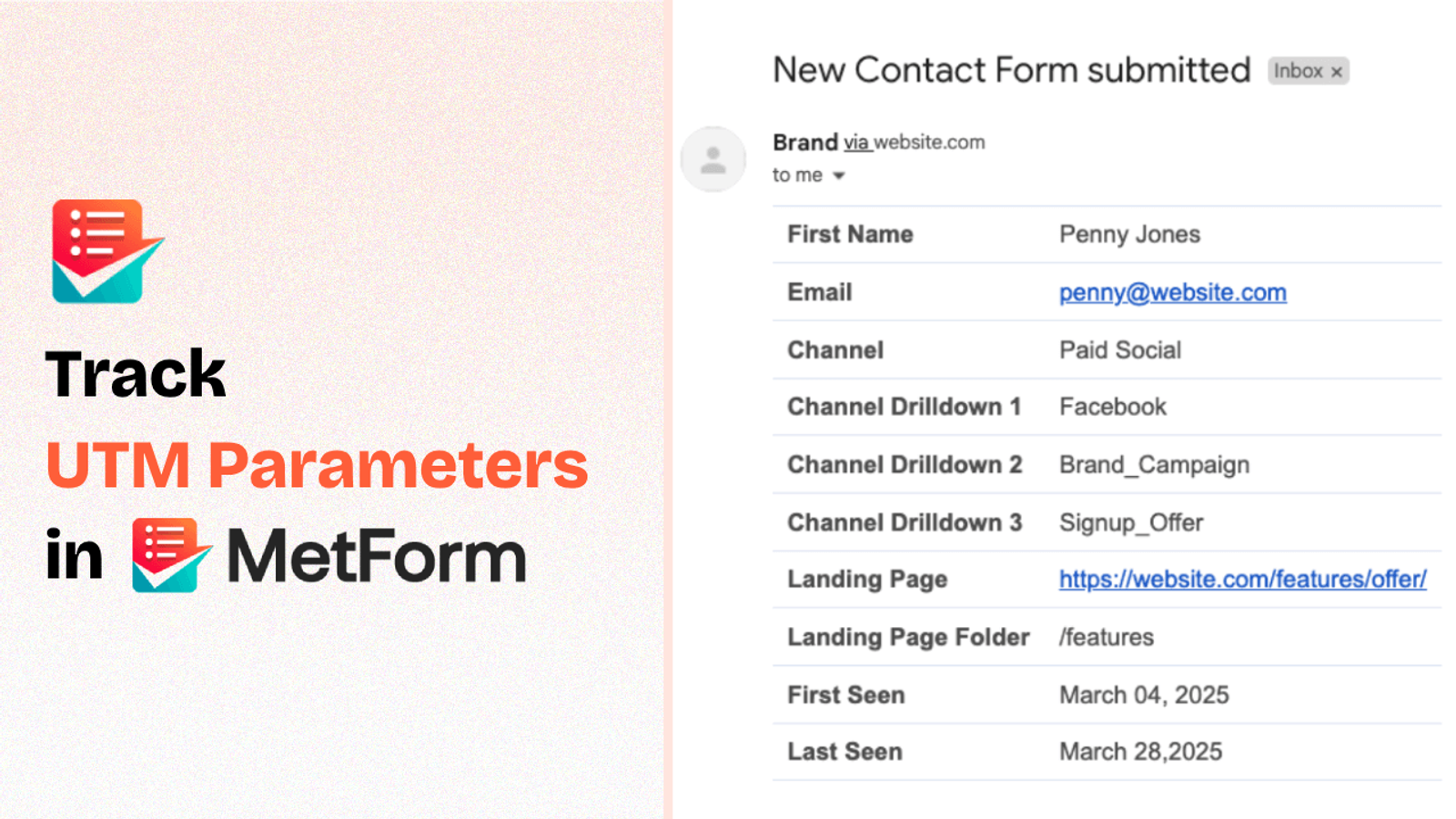
Table of contents
Capturing UTM parameters in MetForm can be challenging, especially if you don’t know how to code.
Fortunately, tools like SourceLoop.ai provide a plug-and-play, no-code solution for MetForm UTM tracking.
In this guide, we’ll walk you through a step-by-step process to capture UTM parameters in MetForm using SourceLoop.ai.
Let’s dive in.
5 Easy Steps to Track UTM Parameters in MetForm
Here are four simple steps to capture UTM parameters in MetForm:
1. Install SourceLoop on Your Website

Sign up for SourceLoop.ai to get your unique tracking script, which you need to paste into the <head> section of your website.
If you’re unsure how to add a script to your website’s header, use the WordPress plugin Insert Headers & Footers to insert the SourceLoop tracking script.
SourceLoop.ai is a no-code tool that captures visitor information—such as UTM parameters, the referring website, landing page, and device—stores it in the user’s browser, and passes it along when they submit a form.
For each visitor, it categorizes UTM parameters into easy-to-understand marketing attributes.
Example:
Let’s say Airbnb is using SourceLoop.ai, and a user clicks on one of their TikTok ads.
SourceLoop.ai will capture and organize the user’s visit information like this:
- Channel = Paid Social
- Channel Drilldown 1 = TikTok
- Channel Drilldown 2 = Infleuncer Campaign
- Channel Drilldown 3 = Hotels in London
- Landing Page = www.airbnb.com/hotels/london-united-kingdom
- Landing Page Folder = hotels
- Last Seen = Aug 29, 2025
2. Add UTM Parameters to Your Links

Next, add UTM tags to all the links users may click to visit your website.
Platforms like Google Ads and Meta Ads provide templates to create dynamic UTM tags in ad links.
For links shared via email, social media, or blog posts, use any free UTM link builder to create your link.
Here’s an example of a UTM-tagged link:
https://website.com?utm_source=paid_search&utm_medium=Bing&utm_campaign=prime_offer
Resources:
3. SourceLoop.ai Automatically Captures UTM Data
SourceLoop.ai tracks every visitor to your website, quietly recording their UTM parameters and page views across sessions.
When a user submits a form or books a meeting, all of this data is linked to their profile and displayed in the Lead Manager dashboard.
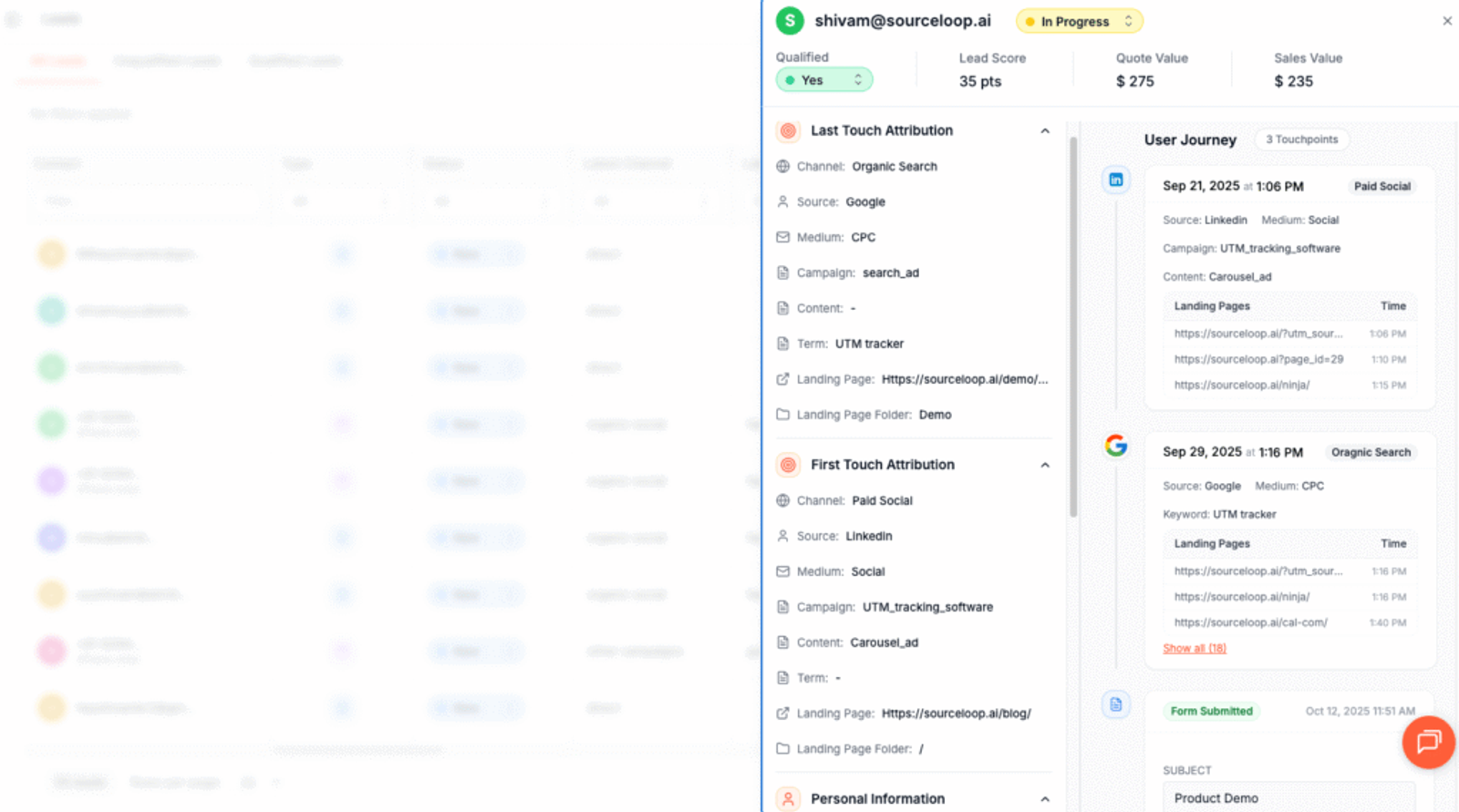
From there, you can see the full journey: which marketing channel brought them in initially, any repeat visits, and the pages they explored along the way.
This gives you clear insight into your campaigns and lets you understand exactly how leads engage with your site before converting.
More Tutorials:
- Step-by-Step Guide to Track UTM Parameters in Fluent Form
- Capture UTM parameters in Hubpsot Form
- How to Capture UTM Data with Tally.so
4. Add Hidden Fields to Your Forms (Optional)
You can also capture UTM data in your MetForm form submissions by adding hidden fields to the form.
These fields won’t be visible to users, but SourceLoop.ai can dynamically pass UTM attributes before form submission.
Adding hidden fields in MetForm is simple:
Assign default values suggested by SourceLoop.ai.
Drag and drop hidden text fields at the end of your form.
Ideally, you should add seven hidden fields with the following default values that SourceLoop.ai will use to pass lead attribution data:
channelattribution_sourceattribution_attribution_attribution_termlandingpagelandingpagefolderlastseen
If a lead visits your website multiple times before filling out the form, you can also add additional hidden fields to capture their first visit details.
SourceLoop.ai stores both the first and latest visit data for each lead.
first_channelfirst_sourcefirst_mediumfirst_campaignfirst_termfirst_landingpagefirst_landingpagefolder- firstseen
5. UTM Parameters Are Passed for Each MetForm Submission
When a user submits a MetForm form, SourceLoop.ai automatically passes the stored UTM data along with their submission.
Where to View UTM Data:
- Inside MetForm – Navigate to the Entries section to see leads with their tracked UTM data.
- In Google Sheets – MetForm integrates with Google Sheets. Enter your Google Client ID and secret key to automatically receive lead submissions in Sheets.
- Sync with CRM – MetForm integrates with CRMs like HubSpot and Zoho, allowing you to get lead attribution data directly inside your CRM.
- Automate with Zapier or N8N – Use automation tools to connect MetForm with other platforms and receive lead submissions automatically.
- Create Marketing Reports – Once you have detailed lead data, you can generate reports and charts to track marketing channel performance and ROI.
More Tutorials:




 Paid Social


