
How to Track UTM Parameters in Outreach CRM (5 Easy Steps)
Capture UTM parameters in Outreach CRM with SourceLoop to boost campaign ROI, and automate attribution tracking.
Table of contents
- 1. Install SourceLoop.ai on Your Website
- 2. Add UTM Parameters to Every Marketing Link
- 3. SourceLoop Automatically Displays Leads in Your Leads Manager
- 4. Add Hidden Fields to Your Lead Form (Optional)
- 5. Automatically Sync UTM Data with Outreach CRM
- What You Can Do with UTM Data in Outreach CRM?
- 1. Know Which Marketing Channels Actually Work
- 2. Group Leads by Campaign or Source for Targeted Follow-Up
- 3. Route Leads to the Right Sales Rep Automatically
- 4. Create Simple Reports to Track Campaign ROI
- 5. Understand Customer Lifetime Value by Channel
- Conclusion
Not sure where your leads are coming from in Outreach CRM?
Without UTM tracking, you cannot easily identify which marketing efforts are driving qualified prospects into your sales pipeline.
In this guide, we’ll show you how to track UTM parameters in Outreach CRM using a no-code tool like SourceLoop, so you can see exactly what’s bringing in your best leads.
Let’s get started.
Here are 4 simple steps to capture UTM parameters in Outreach CRM:
1. Install SourceLoop.ai on Your Website
To start tracking where your leads come from, install SourceLoop on your website:
- Create a free account at SourceLoop.ai
- After signup, you’ll receive a tracking script
- Just add this snippet to the
<head>section of your website or tag manager
Once added, SourceLoop automatically captures UTM parameters from every URL visit, whether the visitor came from paid ads, social media, partner websites, or other sources.
Example:
Let’s say you work in marketing for a web design agency. You launch a multi-channel campaign to promote a free website audit for small businesses.
A user searches “how to improve website speed,” sees your Google ad, and clicks this link:
https://www.youragency.com/free-audit?utm_source=google&utm_medium=cpc&utm_campaign=sme-audit&utm_term=website_speed
SourceLoop will capture:
- Channel: Paid Search (this visit came from a paid search campaign)
- Attribution_Source: Google (from utm_source=google)
- Attribution_Campaign: sme-audit (identifies the specific campaign promoting audits)
- Attribution_Term: website_speed (tells you what the user was searching for)
- Landing Page: https://www.youragency.com/free-audit
- Landing Page Folder: audit (useful for reporting on content categories)
- Last Seen: May 13, 2026
2. Add UTM Parameters to Every Marketing Link
To make attribution work, the links people use to visit your site need to have UTM parameters. UTM parameters are simple tags that you add to your site links that tell you how someone discovered your website.
When your links are tagged correctly, SourceLoop captures that source, stores it in a cookie, and passes it into your lead form when someone converts.
Examples of UTM-Tagged URLs:
For a Google Search Ad: https://yourwebsite.com/demo?utm_source=google&utm_medium=cpc&utm_campaign=demo_signup_q2
For a LinkedIn Sponsored Post: https://yourwebsite.com/webinar?utm_source=linkedin&utm_medium=paid&utm_campaign=webinar
For a Monthly Email Newsletter: https://yourwebsite.com/blog?utm_source=newsletter&utm_medium=email&utm_campaign=may_digest
Pro Tip: Use Google’s Campaign URL Builder to create consistent UTM parameters across all your campaigns.
3. SourceLoop Automatically Displays Leads in Your Leads Manager
You should already be using a lead-capture method, such as a website form, chat widget, or meeting scheduling tool on your site,
The good news is that SourceLoop supports 100+ lead form, chat, and meeting tools out of the box, including Calendly, Contact Form 7, Webflow Forms, Framer, Gravity Forms, and more.
You don’t need to configure anything. As long as the SourceLoop tracking script is installed on your website, it will automatically:
- Capture every lead submission
- Detect the lead’s true source and attribution data
- Display the complete information inside your Leads Manager page
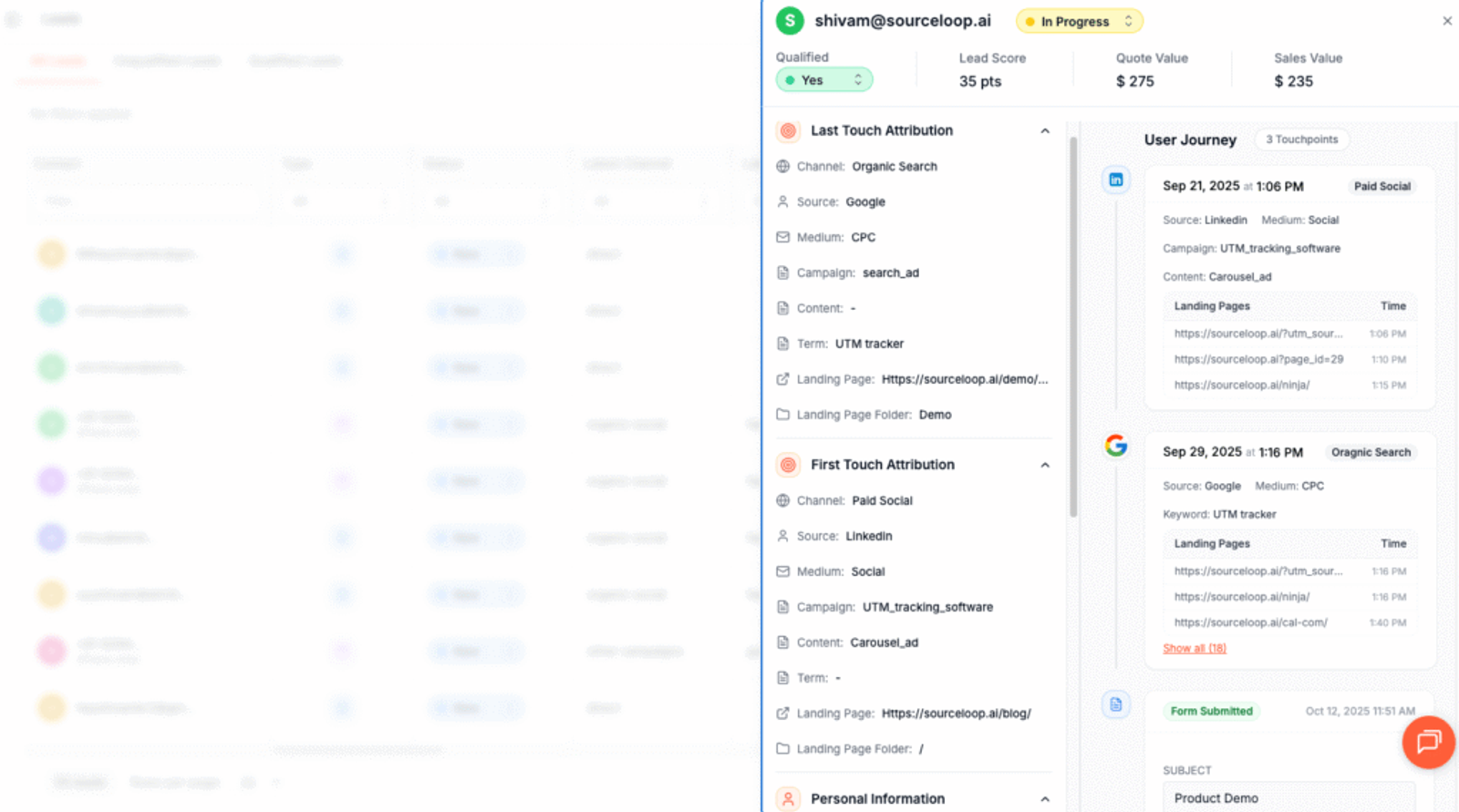
Everything just works—no manual mapping or integrations required.
4. Add Hidden Fields to Your Lead Form (Optional)
If you want attribution data to appear directly in your form submissions (for example, in Webflow, Gravity Forms, or Calendly fields), SourceLoop supports this as well.
Most form builders let you add hidden fields easily. These fields aren’t visible to users, but when someone clicks “Submit,” the data collected by SourceLoop is sent along with the form.
Recommended hidden fields that SourceLoop.ai supports:
- channel
- attribution_source
- attribution_medium
- attribution_campaign
- attribution_term
- landingpage
- landingpagefolder
- lastseen
Optional: Capture First-Touch Attribution
Let’s say a user submits a contact form today, but they actually discovered you two weeks ago through an industry webinar ad on LinkedIn. If you only track the last visit, that contact appears to be “Direct Traffic”—but you’d be missing the true acquisition channel: LinkedIn Ads.
You can add these extra hidden fields to track the very first time a user visited your site:
- firstseen
- first_channel
- first_source
- first_medium
- first_campaign
- first_term
- first_landingpage
- first_landingpagefolder
Read more:
- Track UTM Parameters in GoHighLevel
- Track UTM Parameters in Apptivo CRM
- How to Track UTM Parameters in Nimble CRM
- How to Track UTM Parameters in Monday CRM
5. Automatically Sync UTM Data with Outreach CRM
Once you have lead source data inside SourceLoop’s lead manager, you can easily send it to your CRM. How this data gets into Outreach CRM depends on your setup:
Use SourceLoop Outbound Webhook:
If your CRM offers direct webhook features or you use tools like Zapier or Make, set it up in SourceLoop and it will automatically send new lead information via webhook to sync with Outreach CRM.
This setup takes less than a few minutes to complete.
What You Can Do with UTM Data in Outreach CRM?
Now that UTM tracking is live and flowing into your CRM, here’s what you can do:
1. Know Which Marketing Channels Actually Work
Let’s say you’re running campaigns on:
- Facebook Ads
- Email Newsletters
- Google Search Ads
If you’re just looking at form fills, they might all look the same. But UTM data shows the quality behind the quantity.
For example:
- 40 leads came from Facebook, but only 2 became customers
- 12 leads came from newsletters, and 6 converted
According to HubSpot’s State of Marketing report, companies that track UTM parameters see 20% higher conversion rates because they can focus budget on high-performing channels.
2. Group Leads by Campaign or Source for Targeted Follow-Up
Let’s say you’re launching a new product. With UTM data in your CRM, you can filter and follow up with only the leads who:
- Clicked on your product launch ad
- Attended a specific webinar
- Came through a referral program
Instead of sending generic follow-up emails, your team can craft messages that speak directly to what the lead has already seen or shown interest in.
Example: “Thanks for attending our April webinar — here’s an exclusive early access link to the product you previewed.”
3. Route Leads to the Right Sales Rep Automatically
If your business has multiple sales reps or regional teams, UTM data can help automate lead assignment.
Example:
- Leads from LinkedIn Ads promoting your enterprise plan get assigned to your Enterprise Sales team
- Leads from local Google Ads campaigns get routed to regional reps
This allows faster and more relevant follow-up, which can translate into higher conversion rates and better lead experience.
4. Create Simple Reports to Track Campaign ROI
You don’t need to be a data analyst. Once UTM fields are inside Outreach CRM, you can build basic reports like:
Report TypeWhat It ShowsBusiness ImpactLeads by SourceWhich channels generate most leadsBudget allocation decisionsRevenue by CampaignWhich campaigns drive actual salesCampaign optimizationConversion Rate by Traffic TypeQuality of organic vs paid trafficChannel strategy refinement
Research from Salesforce shows that companies using detailed lead source tracking see 37% higher close rates.
5. Understand Customer Lifetime Value by Channel
Once you close deals and have customer revenue data in Outreach CRM, you can compare customer value by acquisition source.
Example:
- Customers from webinars spend $8,000/year
- Customers from Instagram spend $1,500/year
Multi-Touch Attribution
While last-click attribution tells you the final touchpoint before conversion, multi-touch attribution gives credit to all interactions in the customer journey.
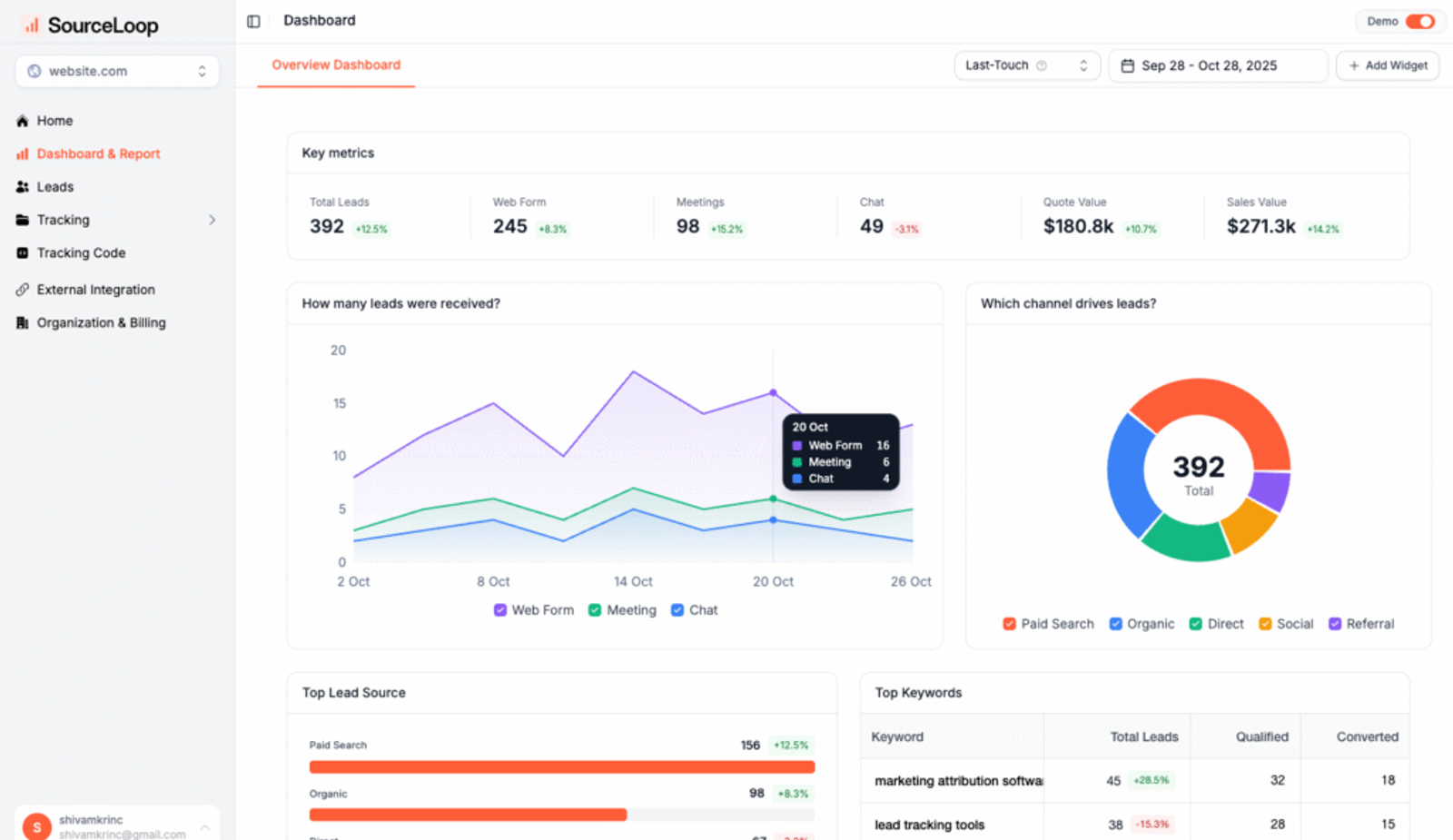
SourceLoop’s first-touch and last-touch tracking helps you understand:
- First-touch: How customers initially discover you
- Last-touch: What finally convinces them to convert
Campaign Performance Benchmarking
Track these key metrics to optimize your UTM tracking for Outreach CRM:
- Lead-to-customer conversion rate by source
- Average deal size by campaign
- Sales cycle length by channel
- Customer acquisition cost (CAC) by medium
According to Marketo’s research, companies that track detailed attribution data see 18% higher revenue growth year-over-year.
Conclusion
Tracking UTM parameters in Outreach CRM doesn’t have to be complicated. With SourceLoop’s no-code solution, you can capture utm parameters automatically and sync them directly to your CRM in just four simple steps.
The result? Clear visibility into which marketing efforts drive your best leads, better lead routing, and data-driven decisions that improve your ROI. Start with the basic setup, then expand to advanced attribution tracking as your needs grow.
Ready to see where your leads really come from? Try SourceLoop for free and start tracking utm parameters in Outreach CRM today.




 Paid Social


