
How to Track UTM Parameters in Happyforms
Follow 4 easy steps to capture UTM parameters in Happyforms and track where each leads & customers come from
Table of contents
Are you having trouble capturing UTM parameters in Happyforms so that you can track where each lead is coming from?
Unfortunately, Happyforms doesn’t have a built-in feature for UTM tracking.
However, in this guide, we’ll walk you through a step-by-step process to track UTM parameters in Happyforms using SourceLoop.ai.
Let’s dive in.
4 Easy Steps to Track UTM Parameters in Happyforms
Here are four simple steps to capture UTM parameters in Happyforms:
1. Install SourceLoop on Your Website

First, create your SourceLoop.ai account and add the SourceLoop tracking code to the <head> section of your website.
SourceLoop.ai is a simple tool that captures information about how a visitor arrives on your website (including any UTM parameters present in the URL, the referring site, etc.), stores it in the user’s browser cookies, and passes it along when the user submits a form.
For each website visitor, it categorizes UTM tags into easy-to-understand marketing attributes.
Example:
Let’s say Airbnb is using SourceLoop.ai, and a user clicks on one of their Facebook ads.
SourceLoop.ai will capture and organize the user’s visit information like this:
- Channel = Paid Social
- Channel Drilldown 1 = Facebook
- Channel Drilldown 2 = Infleuncer Campaign
- Channel Drilldown 3 = Hotels in London
- Landing Page = www.airbnb.com/hotels/london-united-kingdom
- Landing Page Folder = hotels
- Last Seen = Aug 29, 2025
2. Add UTM Parameters to Your Links

Next, you need to add UTM tags to your performance marketing ads, such as Google Ads, Meta Ads, TikTok Ads, LinkedIn Ads, and more. All these platforms offer features to dynamically add UTM tags to your URLs.
Apart from ads, you should also add UTM tags to other marketing channel links, such as sales emails, social media posts, YouTube, etc. This ensures that all visitors landing on your website have descriptive context about their source.
Here’s what a link with UTM parameters looks like:
https://website.com?utm_source=paid_search&utm_medium=Bing&utm_campaign=prime_offer
Resources:
3. Add Hidden Fields to Your Forms
Next, you need to add a few hidden fields to all of your forms.
These hidden fields won’t be visible to your visitors, but SourceLoop.ai will use them to pass UTM and other marketing attribute data before form submission.
Adding hidden fields in Happyforms is super easy.
- Open your form and click on the “Add New Field” button.
- Choose the “Hidden Fields” block, and it will be added to the end of your form.
- Click on the block to edit the hidden field’s default value according to SourceLoop.ai’s recommendations.
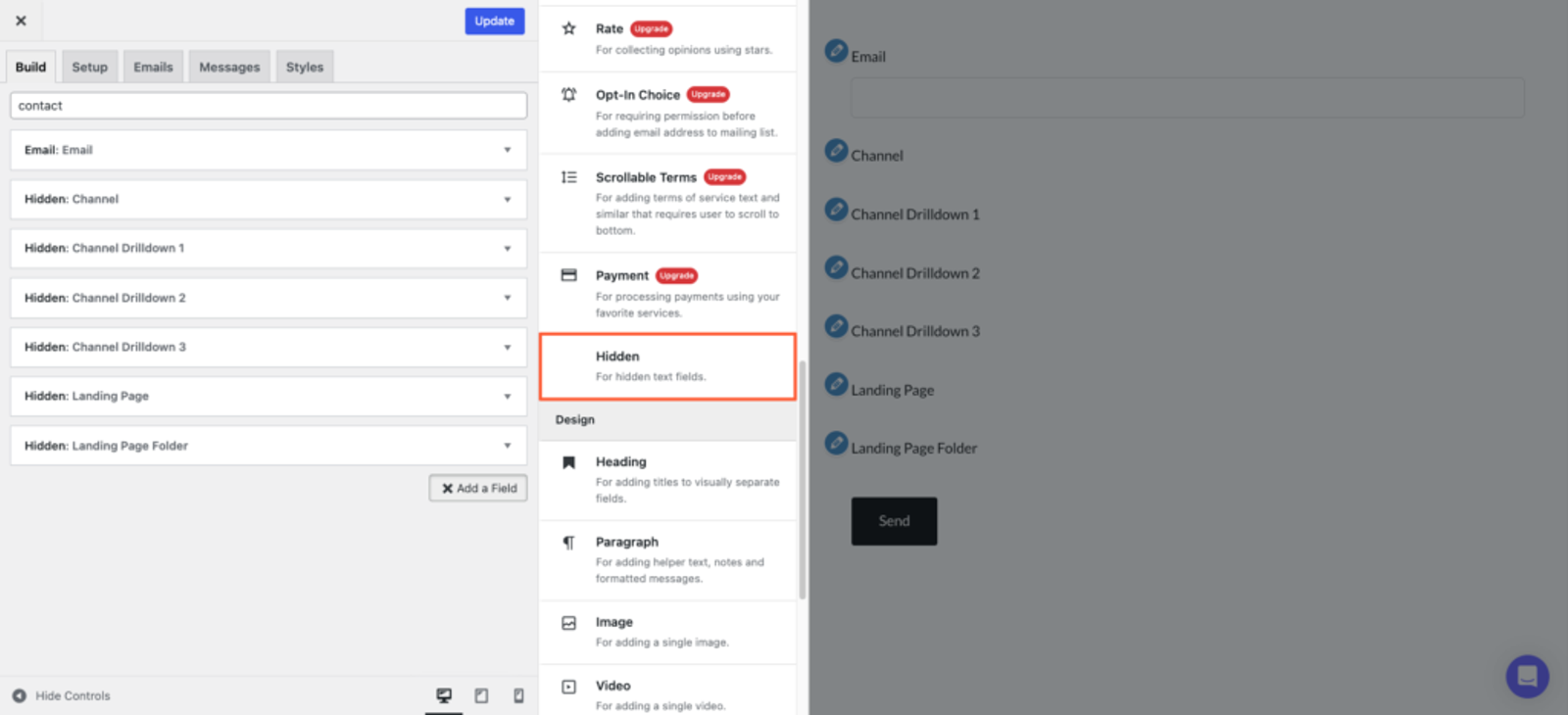
Ideally, you should add seven hidden fields with the following default values that SourceLoop.ai will use to pass lead attribution data:
channelchanneldrilldown1channeldrilldown2channeldrilldown3landingpagelandingpagefolderlastseen
If a lead visits your website multiple times before filling out the form, you can also add additional hidden fields to capture their first visit details.
SourceLoop.ai stores both the first and latest visit data for each lead.
firstseenfirst_channelfirst_channeldrilldown1first_channeldrilldown2first_channeldrilldown3first_landingpagefirst_landingpagefolder
More Tutorials:
- How to Track UTM Parameters in Gravity Forms
- How to Capture UTM Data with JetFormBuilder
- Step-by-Step Guide to Track UTM Parameters in FluentForm
4. UTM Parameters Are Passed for Each Happyforms Submission
Finally, when a user submits a Happyforms form on your WordPress website, SourceLoop.ai will automatically pass the lead attribution (UTM) data in their form submission.
Once you receive a new form submission, you can:
- View it inside Happyforms – Navigate to the Submissions section of Happyforms to see the lead along with their tracked UTM data.
- Send it to an Email Marketing Tool – Happyforms integrates with email marketing tools like ConvertKit, AWeber, Constant Contact, Mailchimp, MailerLite, and SendGrid. If you’ve integrated your email marketing tool, you can directly add leads with their marketing attribution data.
- Set up automation with Zapier – Since Happyforms’ built-in integrations are limited, you can use Zapier or Make.com to send lead attribution data to your CRM or analytics tool. This allows you to generate robust lead attribution reports and charts to understand the ROI of different marketing campaigns.
More Tutorials:




 Paid Social


