
How to Track UTM Parameters in Kali Forms
Kali Forms UTM tracking made easy, follow these 4 easy steps to uncover the source of every lead.
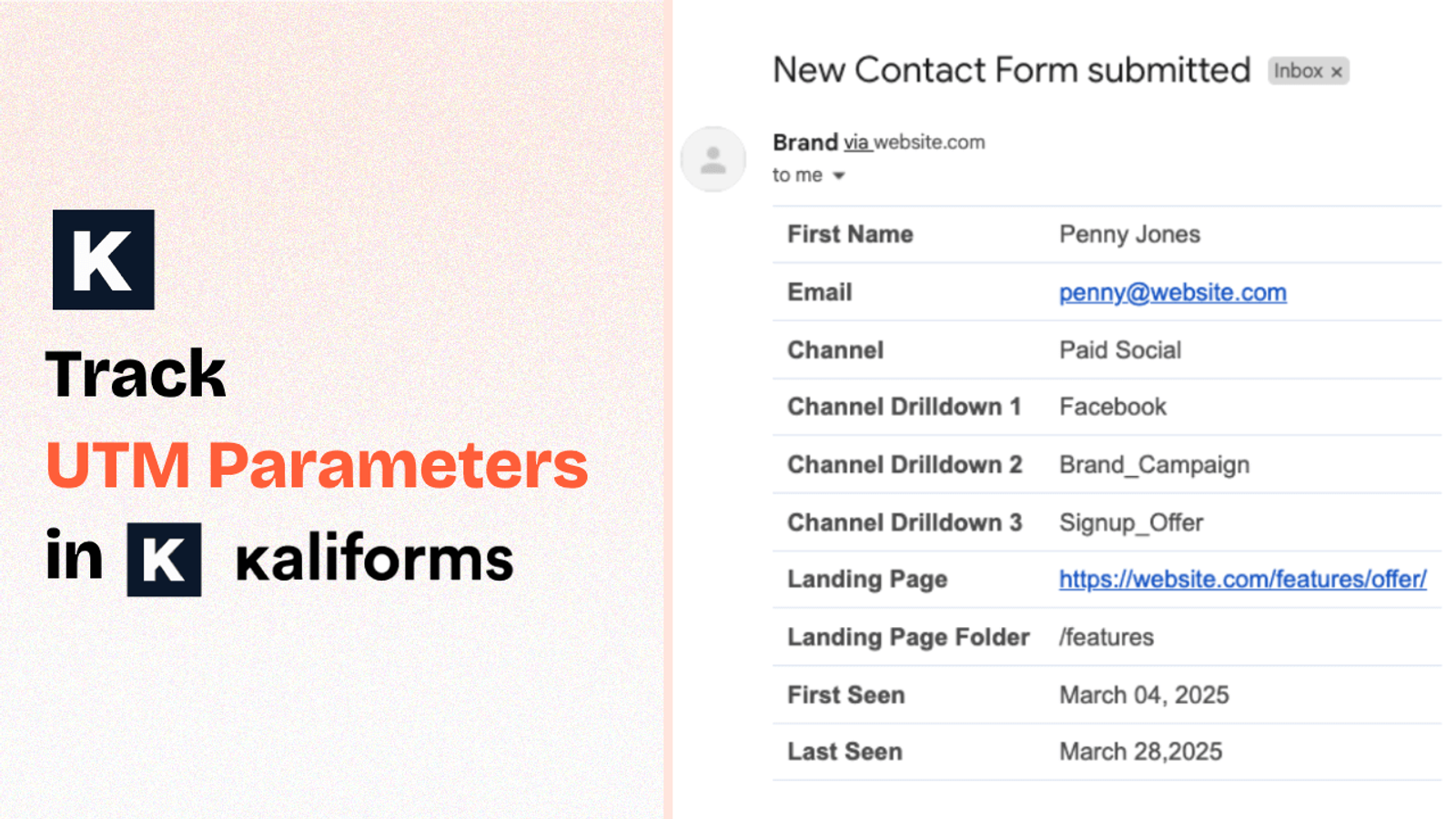
Table of contents
You’re driving traffic to your website through ads, email campaigns, social media posts, and using UTM parameters to track it all.
But when someone fills out your Kali Form, you’re left wondering:
Where did this lead come from?
That’s because Kali Forms doesn’t capture UTM parameters by default, leaving you without the visibility needed to tie leads back to specific campaigns or sources.
In this guide, we’ll walk you through how to track UTM parameters in Kali Forms using SourceLoop.ai, so you always know exactly which channel, campaign, or ad drove each lead.
5 Easy Steps to Track UTM Parameters in Kali Forms
Here are 4 simple steps to capture UTM parameters in Kali Forms:
1. Add SourceLoop on Your Website

Go to SourceLoop.ai and create your free trial account.
Once signed in, you’ll get a small snippet of tracking code to add to the <head> section of your WordPress website.
This allows SourceLoop.ai to track each visitor’s UTM parameters (and more) and store that information in their browser cookies.
The best part? Instead of just saving the raw UTM string, SourceLoop.ai uses its intelligence and organizes them into clean, usable data like this:
Example:
Let’s say Airbnb is using SourceLoop.ai, and a user clicks on one of their Google Search ads while looking for vacation rentals in Italy.
SourceLoop.ai will capture and organize the user’s visit information like this:
- Channel = Paid Search
- Channel Drilldown 1 = Google
- Channel Drilldown 2 = Search Ad
- Channel Drilldown 3 = Italy Summer Rentals
- Landing Page = www.airbnb.com/s/italy
- Landing Page Folder = search
- Last Seen = Apr 14, 2025
2. Add UTM Parameters to Your Links

With SourceLoop.ai now tracking UTMs, the next step is making sure your traffic sources actually include them.
Open your Google Ads, Facebook Ads, email campaigns, or wherever you’re sending traffic from and ensure that the links pointing to your site are tagged with the right UTM parameters.
Example of a link with UTM parameters:
https://yoursite.com/quiz?utm_source=facebook&utm_medium=paid&utm_campaign=summer_sale
TIP: You can add UTM tags are not just meant for ads, you can add it to other marketing channels like email CTAs, social media bios, influencer stories, podcast show notes, and more.
Resources:
- How to add UTM parameters in Google Ads
- How to add UTM parameters in Facebook Ads
- How to add UTM parameters in LinkedIn Ads
- How to add UTM parameters in TikTok Ads
3. See the Full Journey for Every Lead
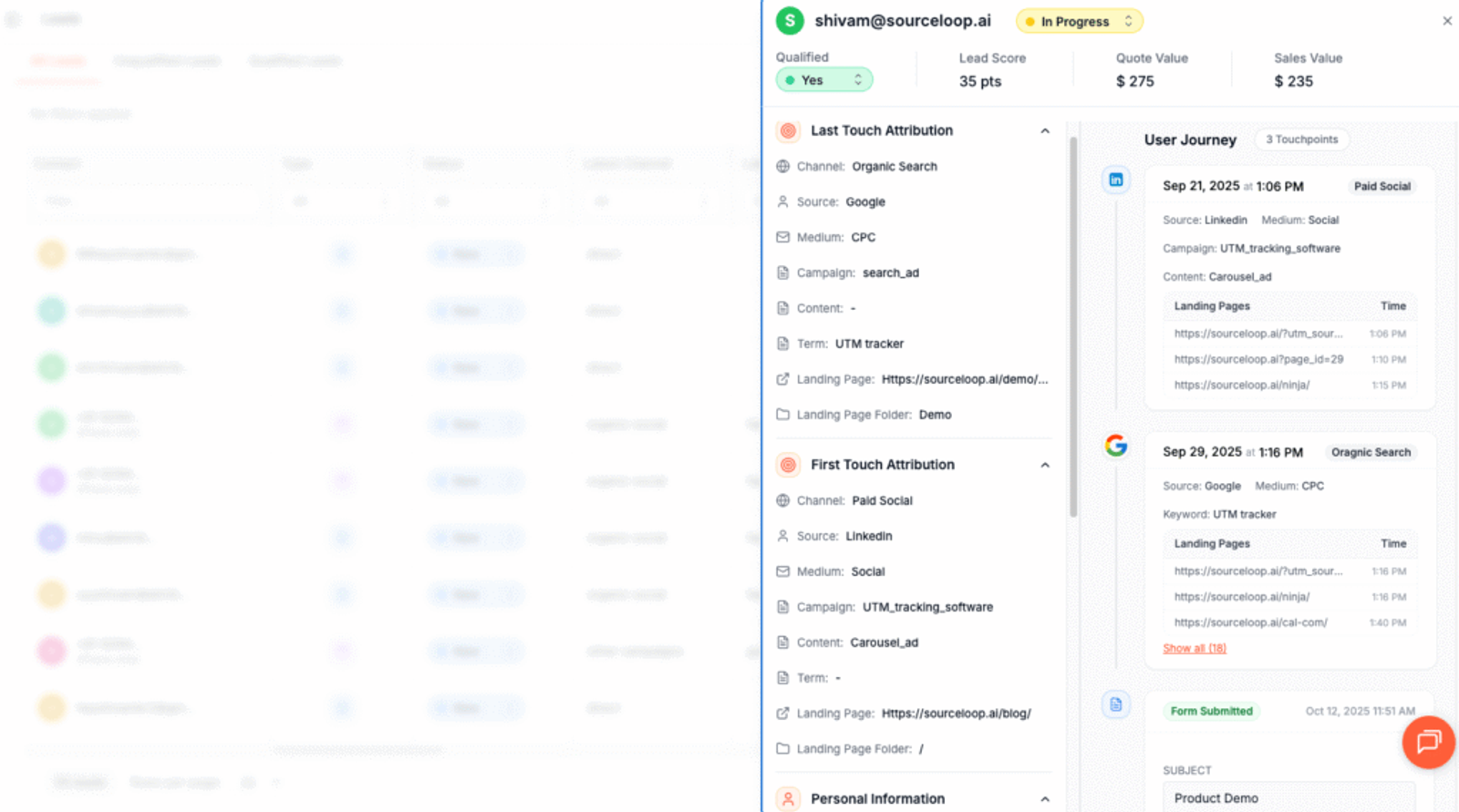
Every time someone visits your site, SourceLoop.ai quietly records their UTM tags and page views across sessions. That tracking builds a timeline of how each visitor discovered and moved around your site.
When the visitor fills a form or books a meeting, we stitch those sessions together and attach the complete history to their lead record in the Lead Manager. Conversion becomes a replayable story, not a single data point.
Open the Lead Manager and you’ll see a clear, chronological timeline: first touch and full UTM values, each return visit with timestamps, the pages they viewed, and the event that triggered the conversion.
You can view first-touch, last-touch, or the full multi-touch path at a glance.
Additional Tutorials:
4. Add Hidden Fields to Your Form (Optional)
You can also log UTM parameters directly from your lead form. Simply include hidden fields with the suggested values, and every submission will carry its attribution data.
Hidden fields are not visible to your website visitors, but SourceLoop can detect them in the background while the user is filling out the form and replace the default values with the actual user’s UTM data.
Adding hidden fields in Kali Forms is easy:
- Log in to your WordPress dashboard and open the Kali Form you’re using to collect leads.
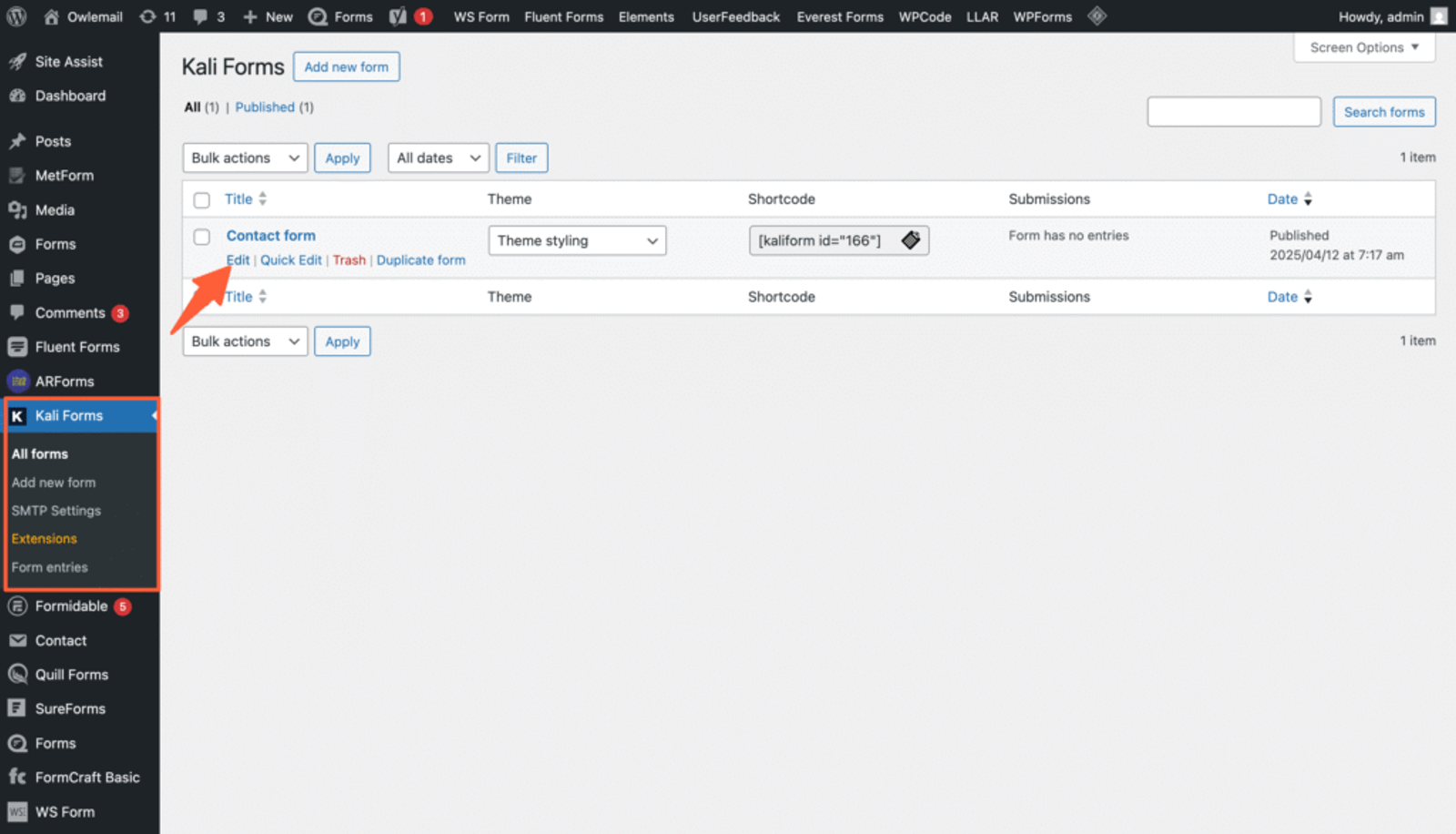
- Drag and drop 7 hidden fields from the left menu into your form.
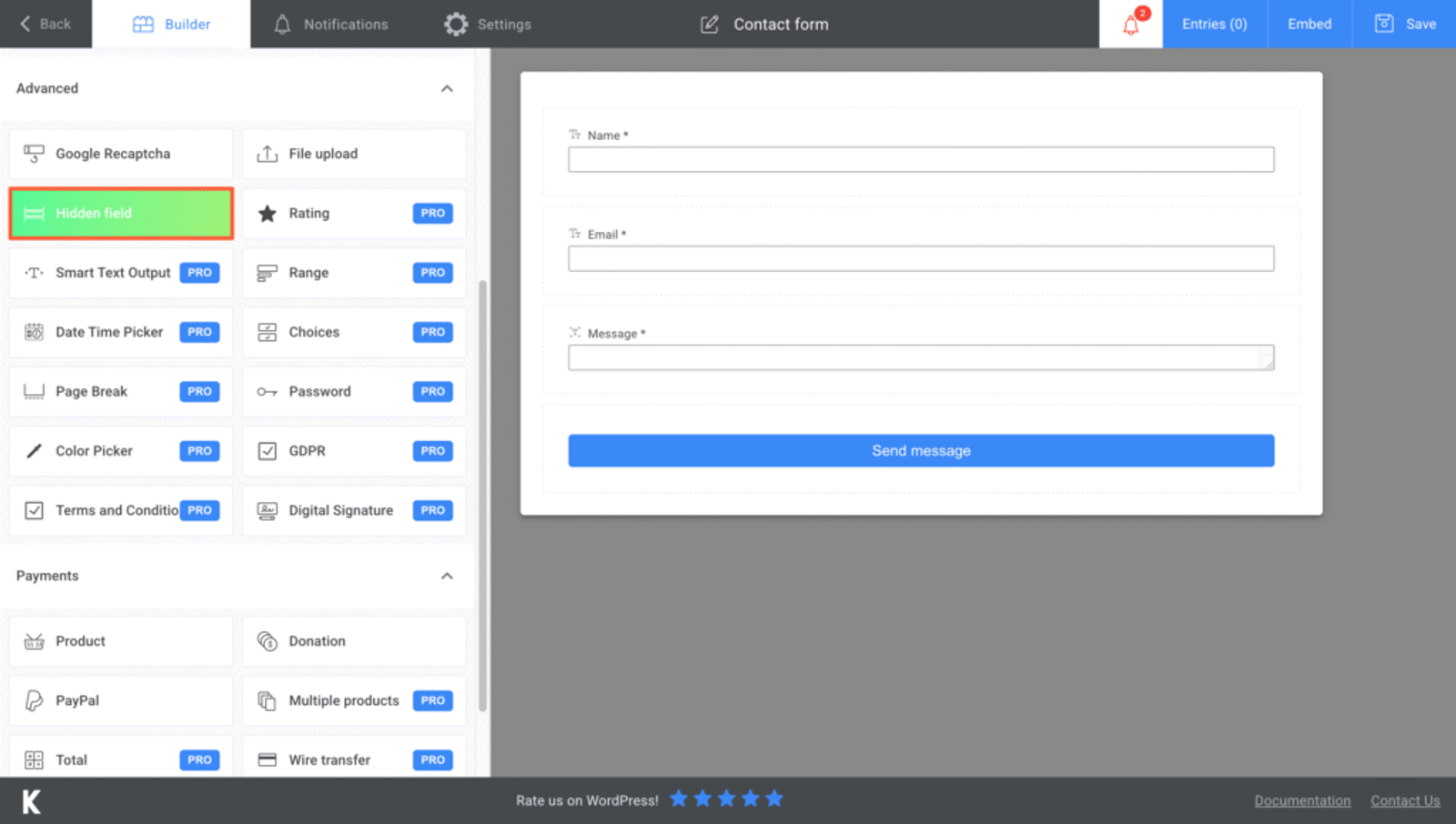
- Click on each field to open its settings on the left, and set the default value to the recommended values below:
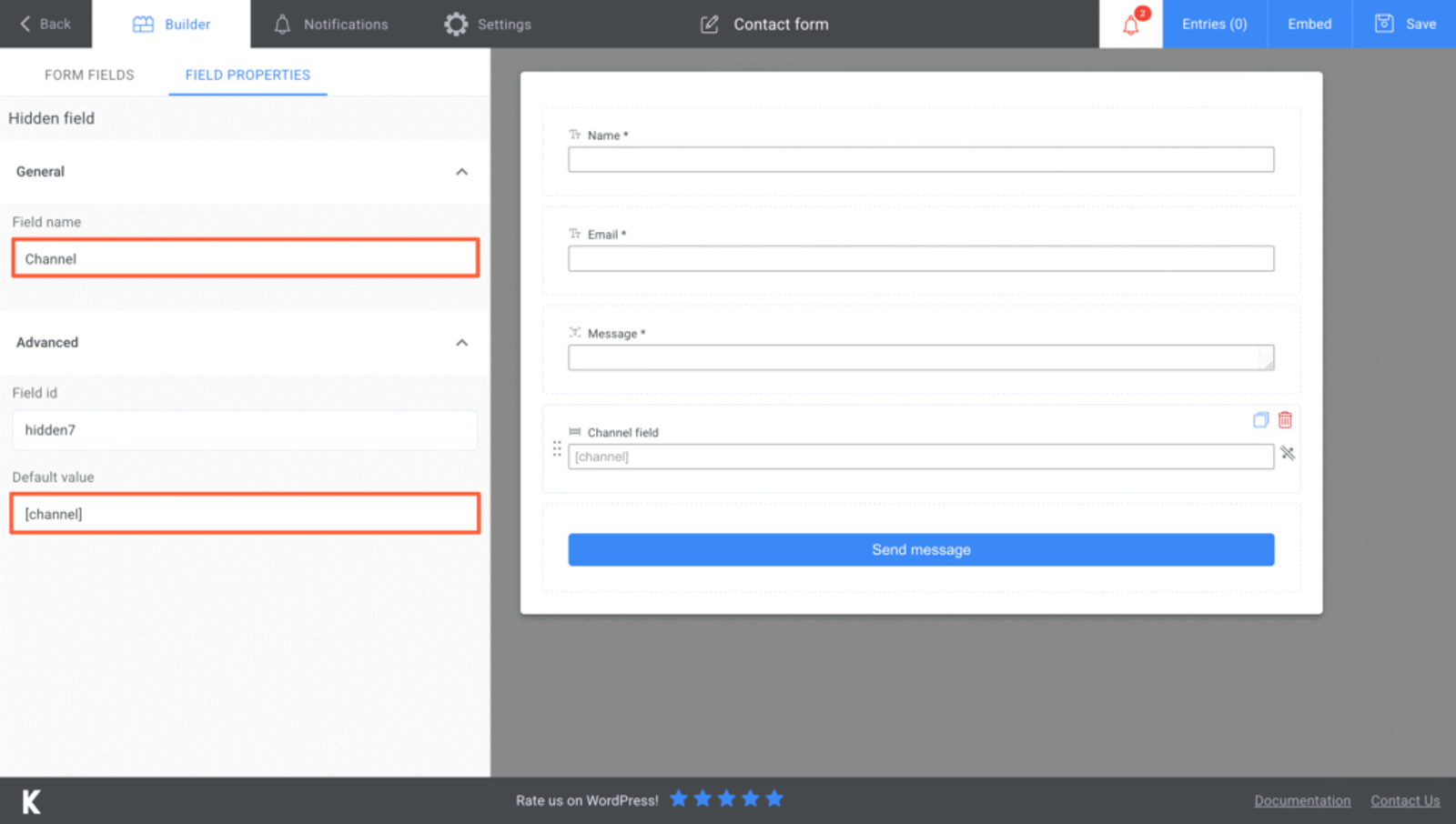
- [channel]
- [attribution_source]
- [attribution_medium]
- [attribution_campaign]
- [attribution_term]
- [landingpage]
- [landingpagefolder]
- [lastseen]
Optional: Track First-Touch Attribution (Highly Recommended for B2B)
If you’re in a B2B business or selling high-consideration products, it’s likely that your leads will visit your website multiple time before filling the lead form.
So, simply knowing where a lead came from at the time of conversion may not give you the full picture.
To truly understand which channels and campaigns are contributing to initial interest, it’s crucial to track the very first point of contact that led a visitor to your website.
Here are 7 additional hidden fields you can configure to get the attribution data of the user’s first visit to your website in the past 6 months.
- [first_channel]
- [first_source]
- [first_medium]
- [first_campaign]
- [first_term]
- [first_landingpage]
- [first_landingpagefolder]
- [first_seen]
5. UTM Parameters Are Automatically Collected in Kali Forms Submission
Once you’ve added and configured the hidden fields, SourceLoop automatically takes care of the rest.
Whenever a user submits the form, SourceLoop passes their UTM and attribution data into the hidden fields—capturing details like the traffic source, campaign, and landing page.
To view this data:
- Go to your WordPress dashboard
- Open Kali Forms → Entries
- Select the form and you’ll see all the attribution data saved with each lead
You can now create detailed reports to track where each of your leads comes from—whether it’s Google Ads, TikTok Ads, social media, organic search, or anywhere else.
So, rather than relying on guesswork, you’ll have a clear picture of which channel, marketing campaign, or even individual ad is driving high-quality leads.
This allows you to:
- Double down on the marketing activities that are performing well
- Cut back or optimize campaigns that aren’t delivering results
- Share attribution insights with your team or clients
- Make smarter decisions on where to allocate your budget
More Guides:



 Paid Social


