
How to Track UTM Parameters in MightyForms
Follow 4 easy steps to capture UTM parameters in MightyForms and and uncover the true source of every lead
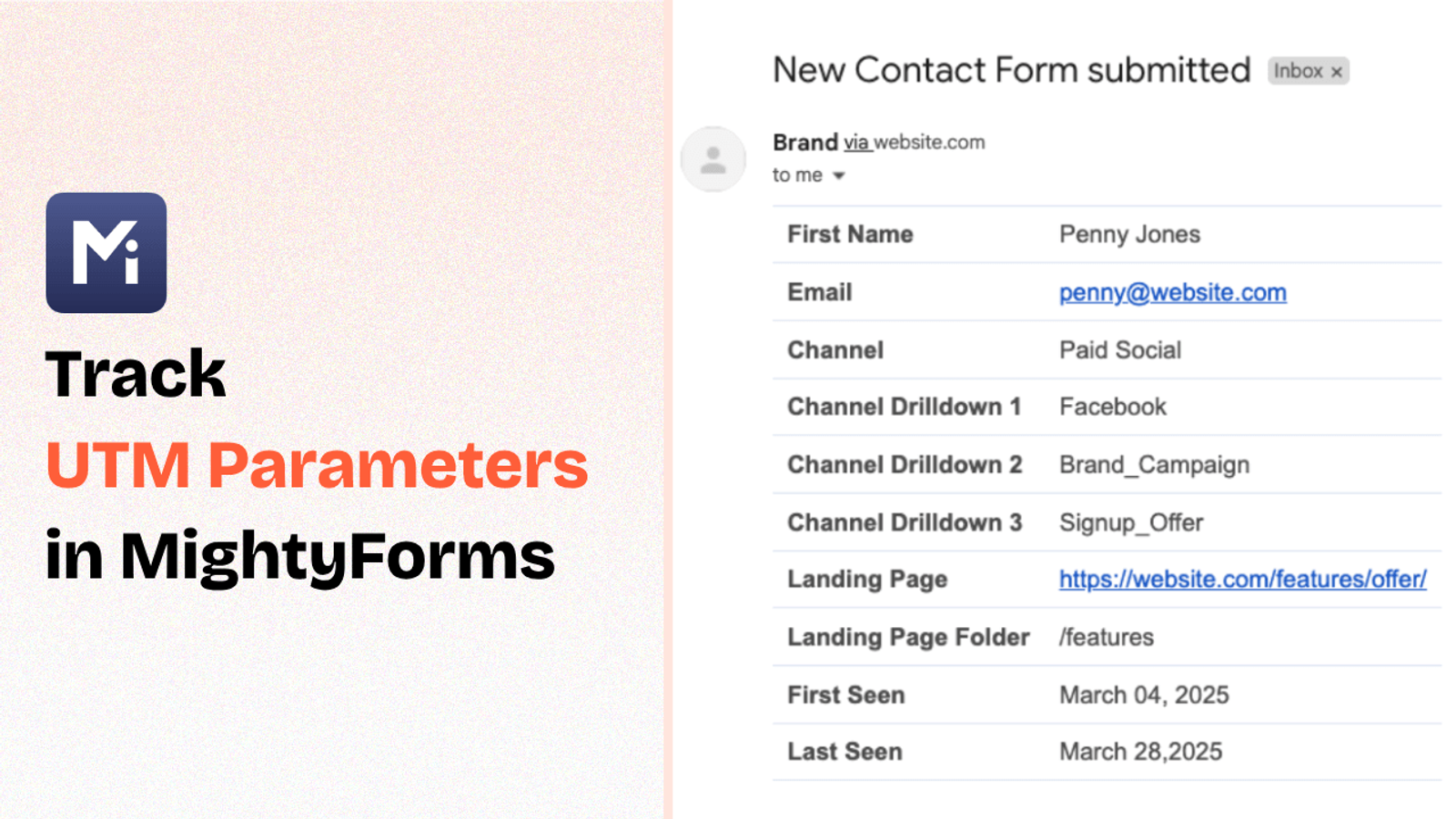
Table of contents
Are you running marketing campaigns and using UTM parameters to track campaign performance?
Then you probably want to know exactly where your leads are coming from when someone fills out a form on your website.
But here’s the catch:
MightyForms doesn’t track UTM parameters by default.
But the good news? You can easily set it up using a tool called SourceLoop.
Here’s a simple step-by-step guide to help you track UTM parameters in MightyForms using SourceLoop.ai.
5 Easy Steps to Track UTM Parameters in MightyForms
Here are 4 simple steps to capture UTM parameters in MightyForms:
1. Add SourceLoop on Your Website

Start by creating your free SourceLoop.ai account.
Get your unique website tracking script and paste it into the <head> section of your website.
Most CMS like WordPress, Webflow, Wix, SquareSpace, etc., allow you to easily add custom code to site header within a few clicks.
Once installed, SourceLoop will:
- Track how each visitor lands on your website
- Automatically organize user’s UTM values into clear, marketing-friendly attributes
- Store organized marketing attributes in user’s browser cookie
Example:
Let’s say you’re running a Facebook ad campaign for Nike, promoting a new line of running shoes.
A user clicks on the ad, which takes them to your landing page. SourceLoop.ai will capture and organize the visit information like this:
- Channel = Paid Social
- Channel Drilldown 1 = Facebook
- Channel Drilldown 2 = Sponsored Post
- Channel Drilldown 3 = New Running Shoes Launch
- Landing Page = www.nike.com/new-running-shoes
- Landing Page Folder = new-running-shoes
- Last Seen = June 14, 2025
2. Add UTM Parameters to Your Links

Now that SourceLoop.ai is monitoring your website visitor, it’s time to ensure that it get the right data to capture for every visitor.
So, open your marketing campaign across different channels like Google Ads, Meta Ads, LinkedIn, TikTok, email newsletters, etc and ensure that the URLs pointing to your site include UTM parameters.
These parameters work like tracking tags, helping SourceLoop identify how each user discovered your website.
Example of a link with UTM parameters:
https://website.com?utm_source=paid_search&utm_medium=Bing&utm_campaign=prime_day
Resources:
- How to add UTM parameters in Google Ads
- How to add UTM parameters in Facebook Ads
- How to add UTM parameters in LinkedIn Ads
- How to add UTM parameters in TikTok Ads
3. SourceLoop Automatically Capture the full UTM journey
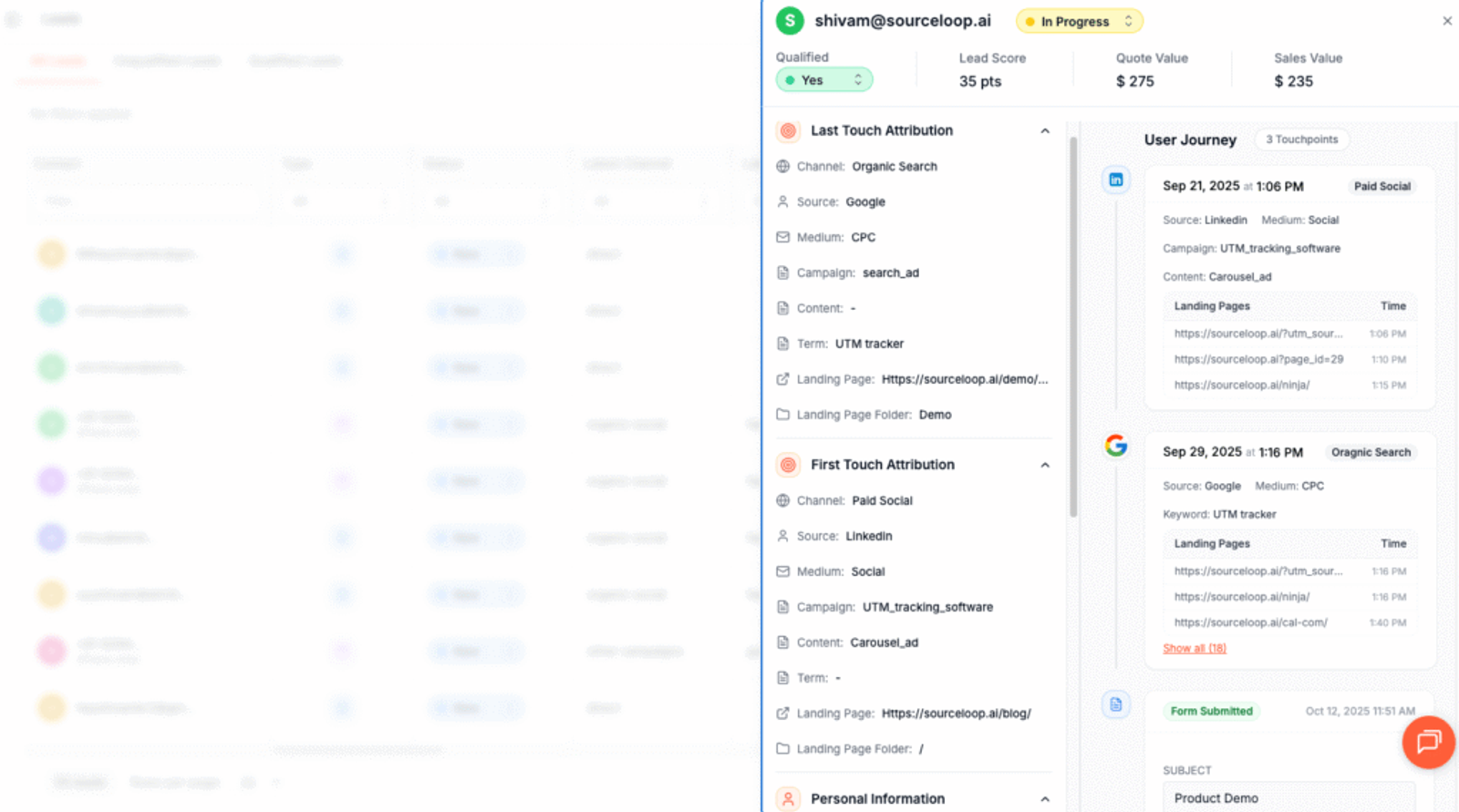
SourceLoop.ai quietly tracks UTM tags and page views every time someone visits your site. It ties those visits together across sessions so you get the full picture, not scattered data points.
When the visitor fills a form or books a meeting, SourceLoop attaches that history to their lead profile and surfaces it in the Lead Manager. You can instantly replay a lead’s journey: the first marketing touch, return visits, and the exact pages they saw.
Additional Tutorials:
- Track UTM Parameters in Involve.me Form
- Capture UTM Parameters in QuestionScout
- Set up UTM tracking in Typeform
4. Add Hidden Fileds to Your Form (Optional)
Next, add a few hidden fields in MightyForms to capture the UTM data stored in the visitor’s browser cookies.
These hidden fields are not visible to website visitor but they’ll automatically be filled by SourceLoop.ai with UTM values when the form is submitted.
To get started;
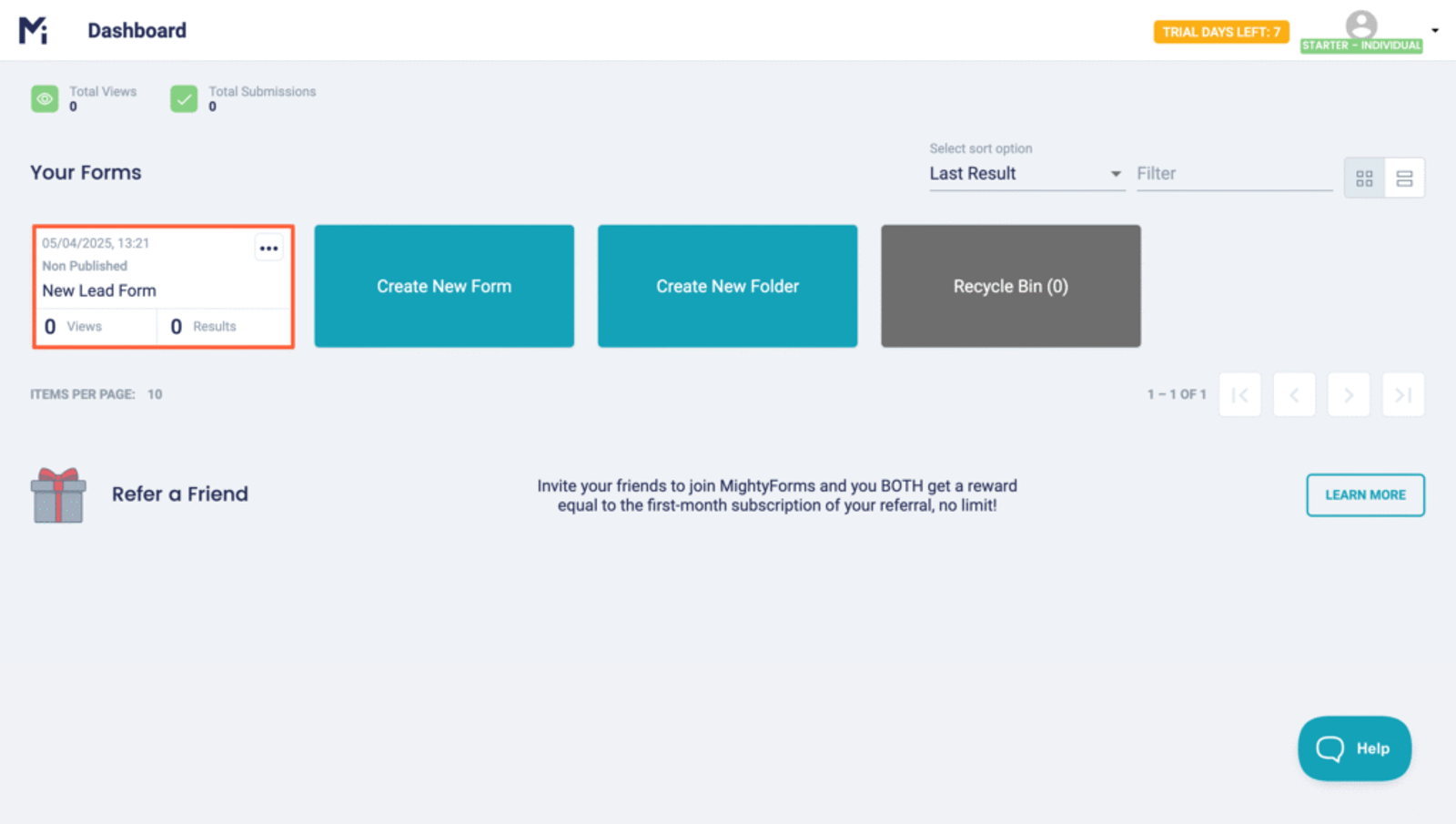
- Start by logging into your MightyForm dashboard and selecting the lead form where you’d like SourceLoop.ai to track attribution data.
- Click and drag the 7 “input” field from the left sidebar into your form to capture full set of UTM attribution data.
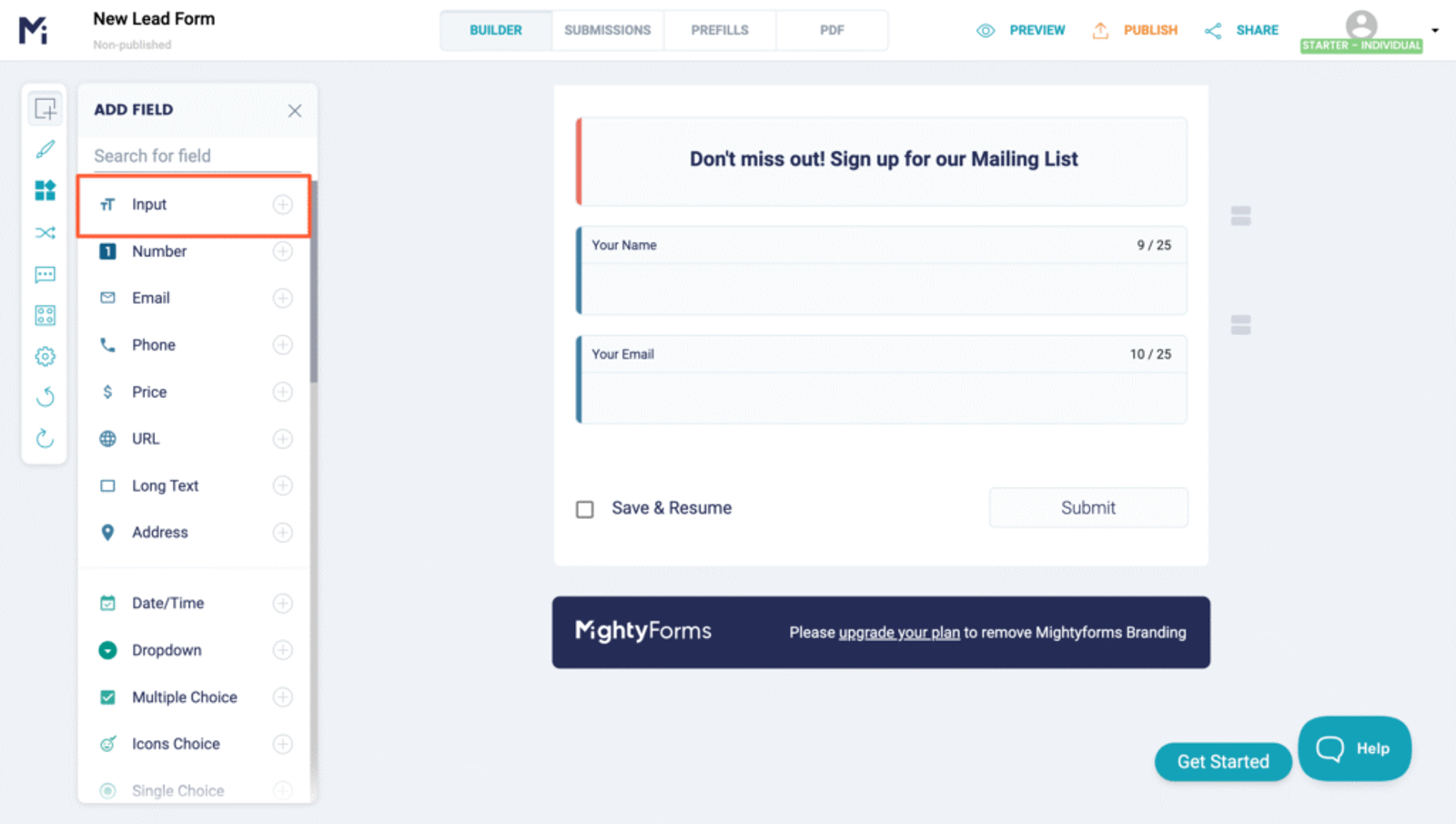
After adding the fields, configure them so that:
- They remain hidden to visitors.
- SourceLoop.ai can correctly pass attribution data to each one.
To configure:
- Click on each hidden field to bring up its settings on the right panel and toggle the “Hidden” option.
- Finally, assign the recommended default values that SourceLoop.ai can identify.
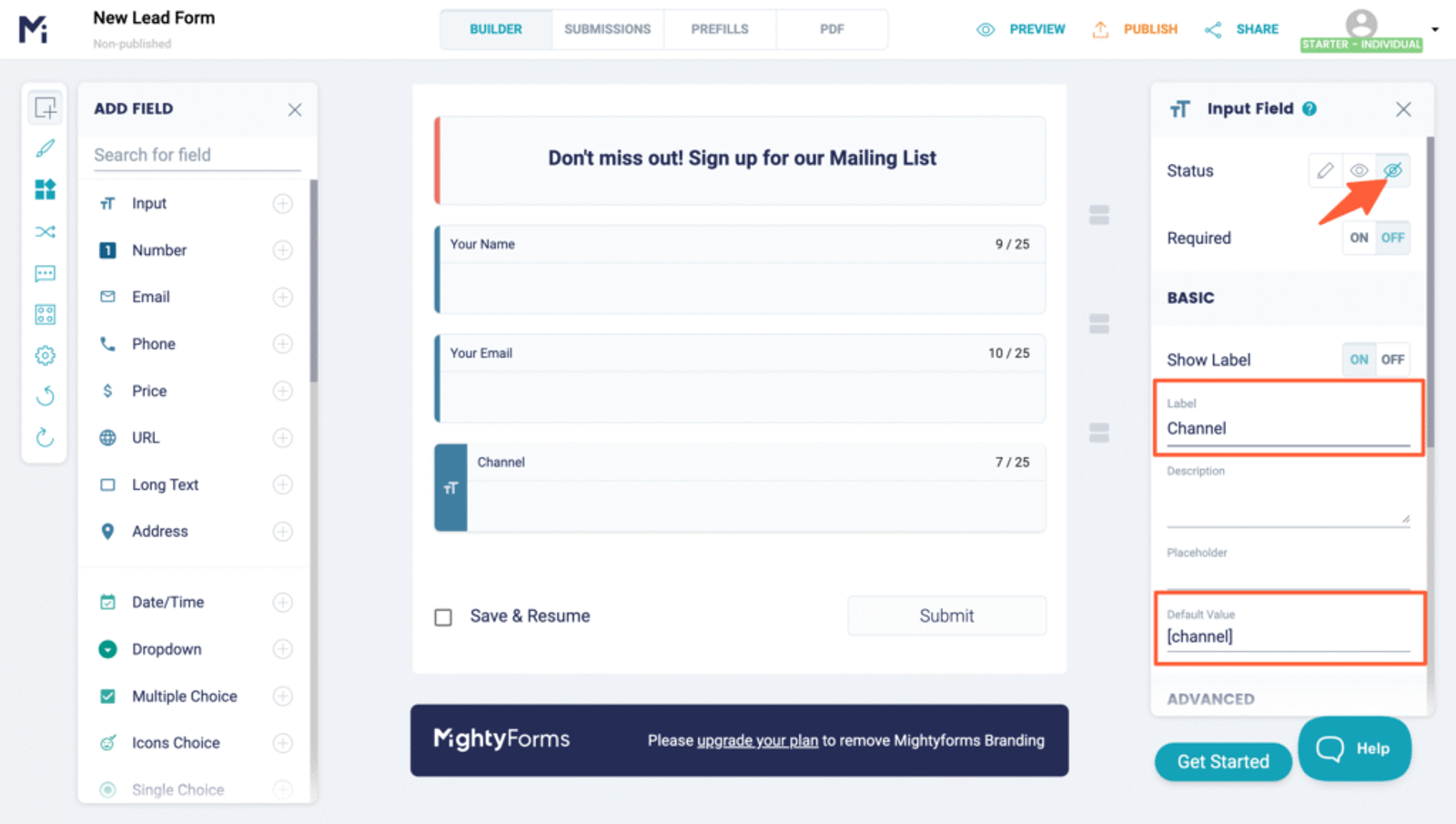
Recommended Hidden Fields Default Values:
These fields help capture the latest visit information from SourceLoop.ai:
- [channel]
- [attribution_source]
- [attribution_medium]
- [attribution_campaign]
- [attribution_term]
- [landingpage]
- [landingpagefolder]
- [lastseen]
Optional: Track First-Touch Attribution (Recommended for B2B Business)
If you’re in B2B or offer high-consideration products, users often visit multiple times before converting. To get full-funnel attribution, you can also track how they landed on your website for the first time.
Add these additional 7 hidden fields with the following default values:
- [first_channel]
- [first_source]
- [first_medium]
- [first_campaign]
- [first_term]
- [first_landingpage]
- [first_landingpagefolder]
- [first_seen]
SourceLoop.ai stores a users attribution data in their cookie for up to 6-months, allowing you to track both first and latest visit sources throughout a lead’s journey.
5. UTM Parameters Are Automatically Passed for Each Form Submission
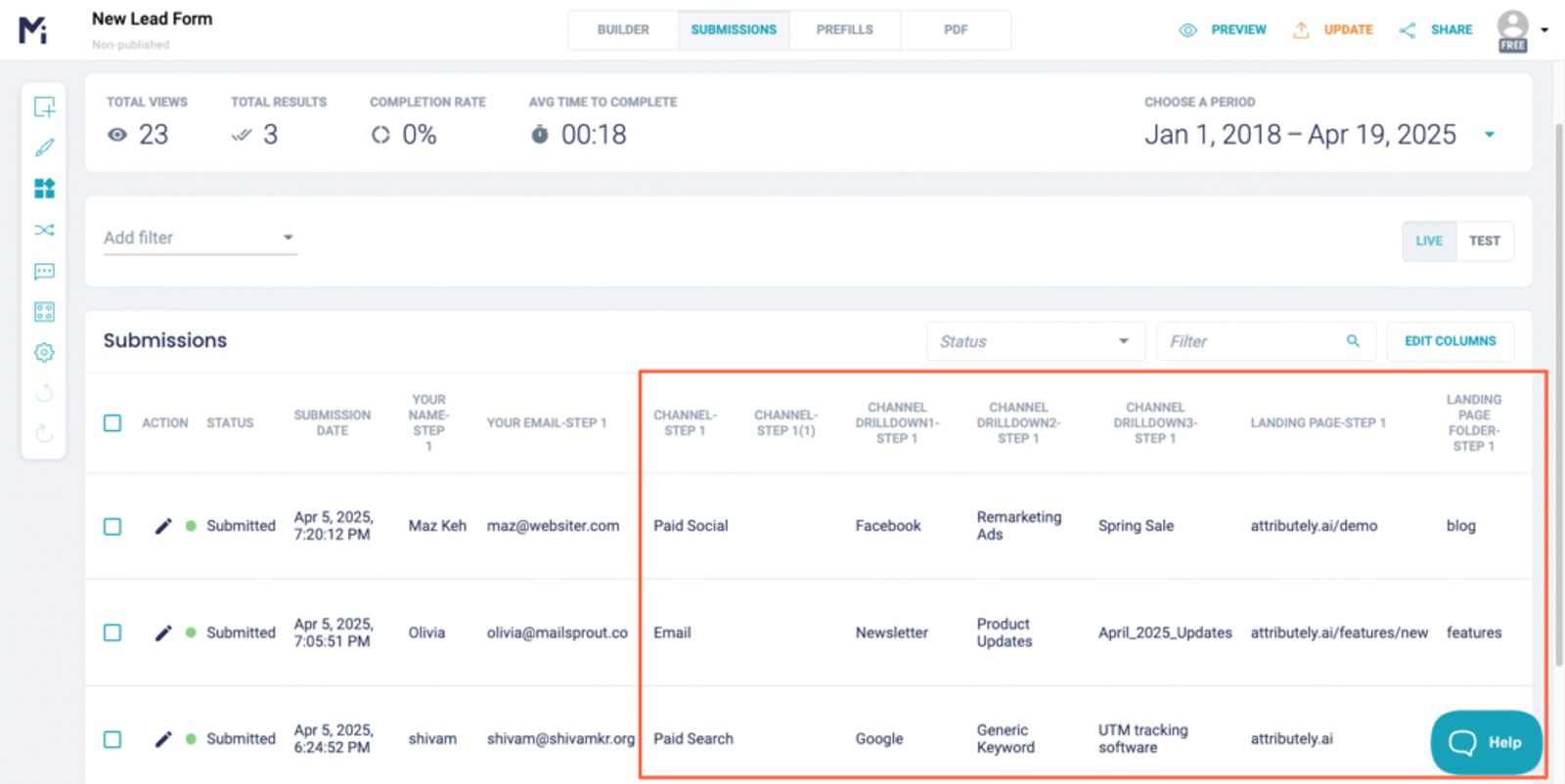
Now, whenever someone submits a form, their UTM and attribution data will automatically be populated into the hidden fields of your form.
- View UTM Data in Submissions
Go to the Submission section in MightyForms, and you’ll see the UTM details alongside the rest of the form data for each form submission.
- Create leads report:
MightyForm has a direct integration with Google Sheets, which means you can track each lead and their UTM data in a spreadsheet, and create charts and reports to measure the effectiveness of your marketing campaigns.
- Automate with Zapier
Zapier supports MightyForms, which you can use to connect MightyForms with your preferred email marketing tool and CRM to update contacts with lead attribution or run email campaigns based on lead attribution data.
More Resources:




 Paid Social


