
How to Track UTM Parameters in Ninja Forms
Follow 4 easy steps to capture UTM parameters in Ninja Forms and track where each leads & customers come from
Table of contents
Capturing UTM parameters in Ninja Forms can be challenging, especially if you don’t know how to write JavaScript code.
So, how about an easy plug-and-play solution for Ninja Forms UTM tracking?
In this guide, we’ll walk you through a step-by-step process to track UTM parameters in Ninja Forms using SourceLoop.ai so you always know exactly where your leads are coming from.
Let’s dive in.
5 Easy Steps to Track UTM Parameters in Ninja Forms
Here are four simple steps to capture UTM parameters in Ninja Forms:
1. Install SourceLoop on Your Website

Start by signing up for SourceLoop.ai and adding the unique SourceLoop tracking code to your website.
SourceLoop.ai is a simple tool that captures information about how a visitor arrives on your website (including any UTM parameters present in the URL, the referring site, their device, etc.), stores it in the user’s browser cookies, and passes it along when the user submits a form on your website.
For each visit, based on UTM parameters and other available tracking information, it organizes the data into easy-to-understand marketing attributes.
Example:
Let’s say Airbnb is using SourceLoop.ai, and a user clicks on one of their Facebook ads.
SourceLoop.ai will capture and organize the user’s visit information like this:
- Channel = Paid Social
- Source = Facebook
- Medium = Infleuncer Campaign
- Campaign = Hotels in London
- Landing Page = www.airbnb.com/hotels/london-united-kingdom
- Landing Page Folder = hotels
- Last Seen = Aug 29, 2025
2. Add UTM Parameters to Your Links

Next, add UTM tags to your different marketing campaigns—Google Ads, Meta Ads, TikTok Ads, LinkedIn Ads, etc.
All these platforms offer simple ways to add UTM tags to the website link used in the campaign.
Not just ads—you should ideally use UTM tags in every link pointing to your site, such as links in email newsletters, social media posts, etc.
Here’s what a link with UTM parameters looks like:
https://website.com?utm_source=paid_search&utm_medium=Bing&utm_campaign=prime_offer
Resources:
3. SourceLoop.ai Automatically Captures UTM Data
Each time a user visits your website, AttributeLink tracks their lead source and page views.
When they submit a form or book a meeting, SourceLoop collects all their attribution data and displays it in the built-in Lead Manager dashboard.
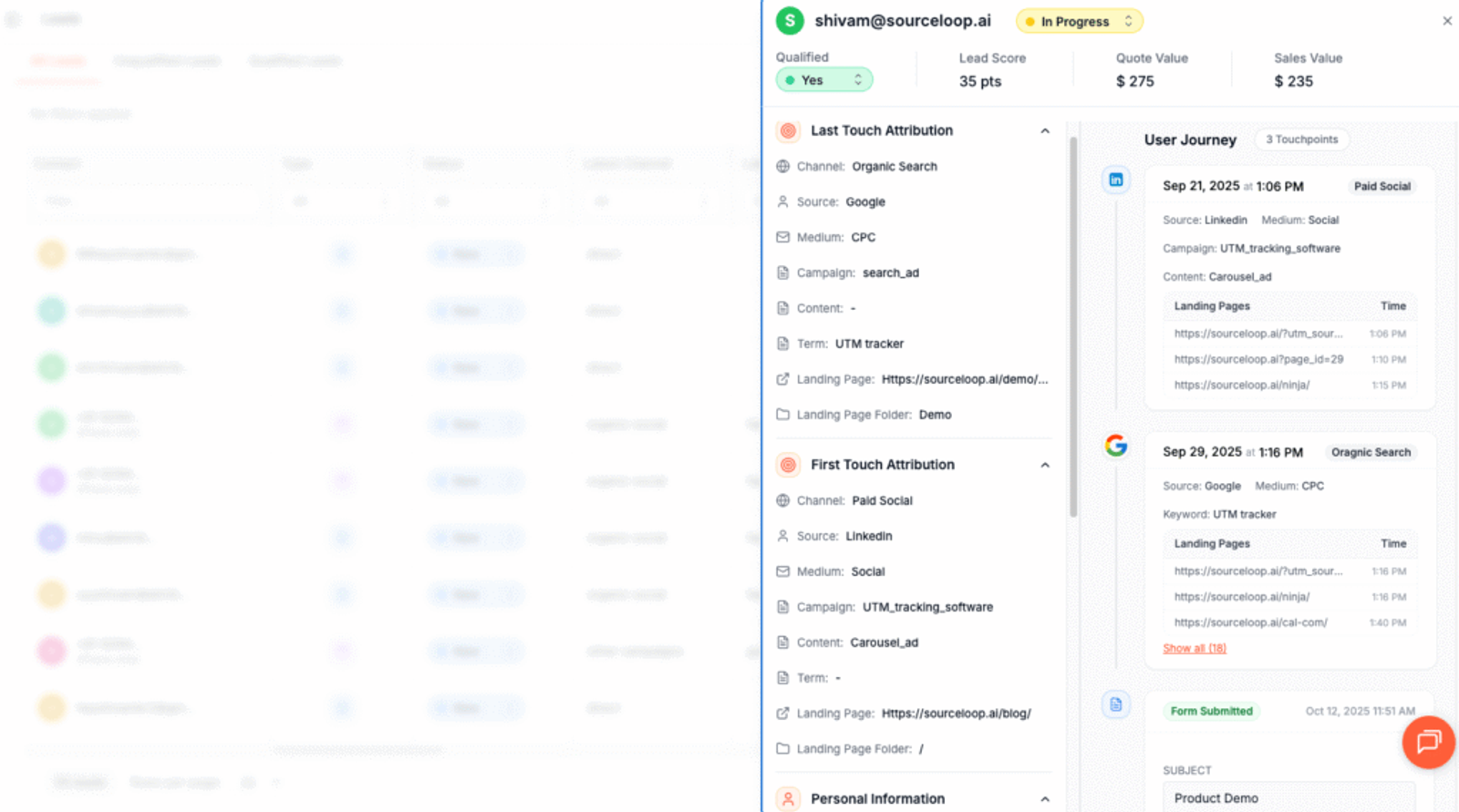
From there, you can view their entire journey. You can see which marketing channel brought them to your site on their first visit, the subsequent visits they made, and the specific pages they viewed along the way.
More Tutorials:
4. Add Hidden Fields to Your Forms (Optional)
If you also want to capture UTM data directly within your form submissions, you can do that by adding hidden fields to your form.
These hidden fields won’t be visible to your website visitors, but SourceLoop.ai will use them to pass UTM and other marketing attribute data for form submissions.
Adding hidden fields in Ninja Forms is super easy.
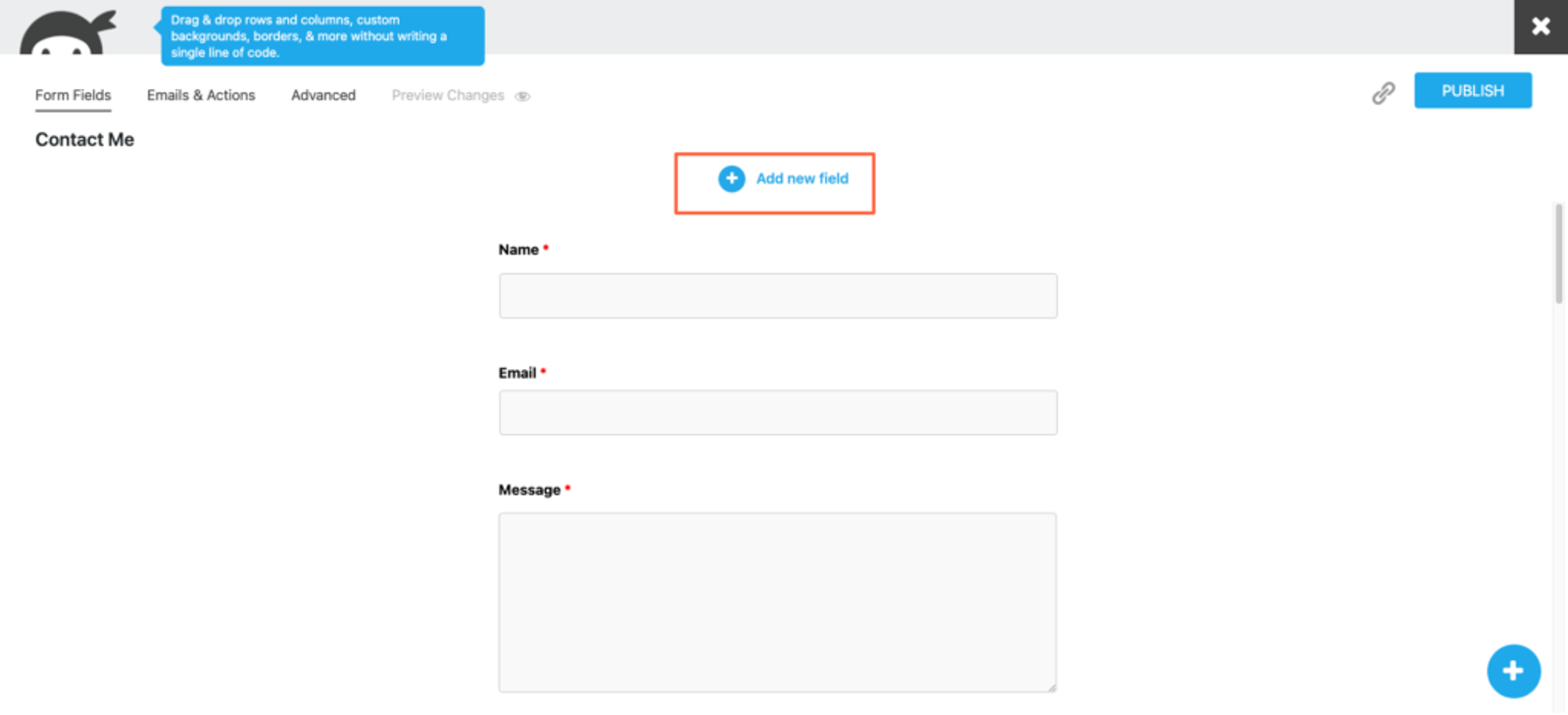
Simply open your form and click on the “Add New Field” button.
Click on “Hidden Fields” under the miscellaneous section, and a hidden field will be added to the end of your form. You can click on it to edit its default text value.
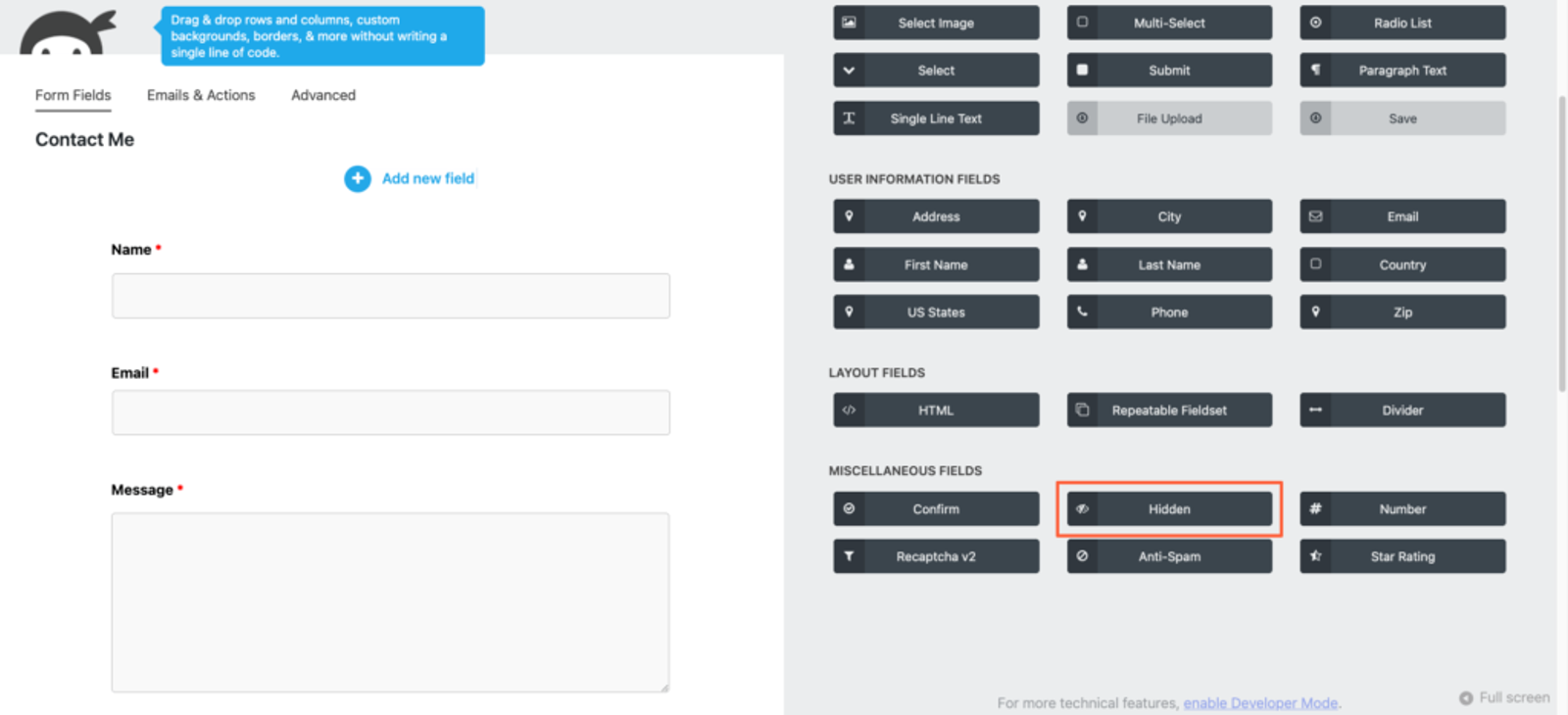
You should add seven hidden fields with the following default values that SourceLoop.ai will use to write different lead attribution data:
channelattribution_sourceattribution_attribution_attribution_termlandingpagelandingpagefolderlastseen
If your lead visits your website multiple times between first discovering it and filling out the lead form, you can also use the following additional hidden fields to capture information about their first visit.
SourceLoop.ai stores both the first visit and the latest visit of each lead.
first_channelfirst_sourcefirst_mediumfirst_campaignfirst_termfirst_landingpagefirst_landingpagefolder- firstseen
5. UTM Parameters Are Passed for Each Ninja Forms Submission
Finally, when a user visits a page with an embedded Ninja Form, SourceLoop.ai identifies the hidden fields with default values and replaces them with lead attribution data in the background so that you can see it when the user submits the form.
Once you have received a new form submission, you can:
- View it inside Ninja Forms – Navigate to the Submission section of Ninja Forms, choose the relevant form, and view the lead along with their tracked UTM content.
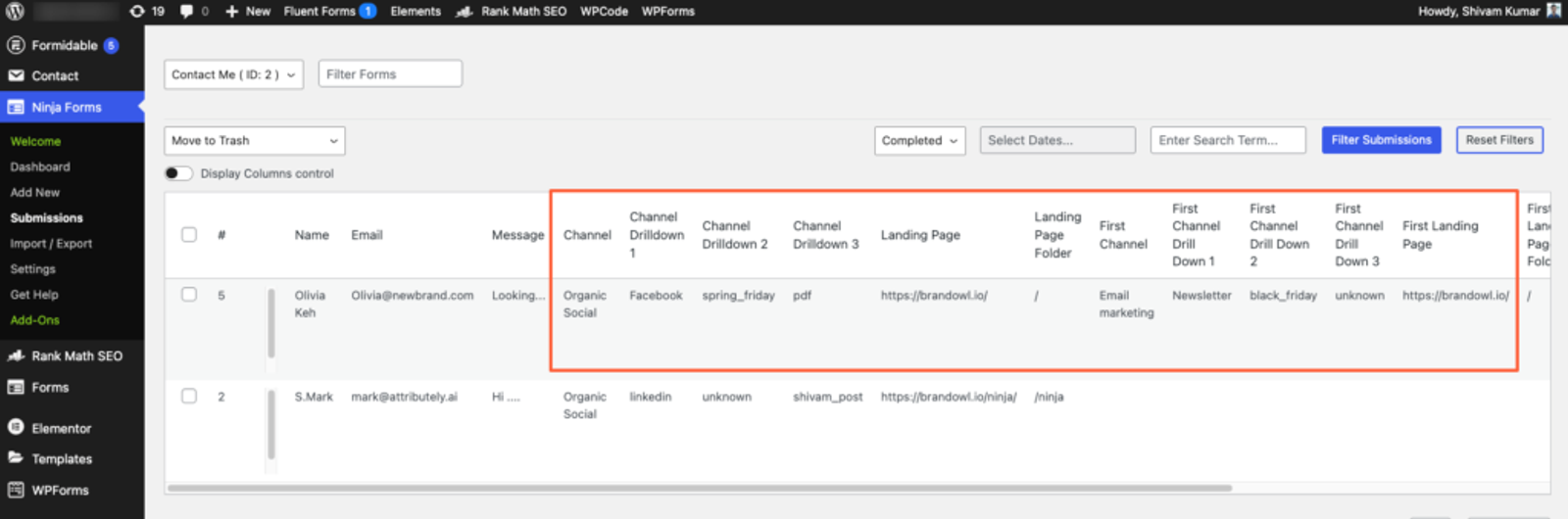
- Send it to an Email Marketing Tool – Ninja Forms integrates with email marketing tools like ConvertKit, AWeber, Constant Contact, and Mailchimp. If you have integrated your email marketing tool, you can build a more robust subscriber list based on lead attributes.
- Sync it with your CRM – Ninja Forms provides add-ons for popular CRMs like HubSpot, Insightly, Pipedrive, Capsule, Zoho, and Salesforce, allowing you to sync your lead attribution data with your CRM.
- Set up automation with Zapier – If Ninja Forms doesn’t have an add-on for your preferred platform, simply use a tool like Zapier to connect Ninja Forms with over 10,000+ tools and get the lead report where you need it.
More Tutorials:




 Paid Social


