
How to Track ROAS in Google Analytics [2026 Guide]
Learn How to Track ROAS in Google Analytics correctly, from revenue setup and cost imports to attribution and custom ROAS reports in GA4.
Table of contents
- Can Google Analytics Track ROAS?
- How to Track ROAS in Google Analytics 4
- Step 1: Set up GA4 on your website
- Step 2: Track your advertising campaigns
- Step 3: Track revenue correctly
- Step 4: Mark important events as key events
- Step 5: Connect Google Ads to GA4
- Step 6: Open the Advertising reports
- Step 7: Choose an attribution model
- How to Track ROAS for B2B Leads
- Track B2B ROAS With SourceLoop
- How SourceLoop Calculates Revenue-Based ROAS
- Final Thoughts
Tracking ROAS in Google Analytics helps you see how much revenue your ads generate compared with what you spend. GA4 can track Google Ads performance, revenue, and attribution, but B2B businesses may need extra tracking to connect leads and CRM revenue to the original campaign.
Can Google Analytics Track ROAS?
Yes. GA4 includes a Return on Ad Spend metric in its advertising and Google Ads reporting.
Google defines ROAS as the total revenue earned for every dollar spent on advertising. When Google Ads is linked to GA4, Google Analytics can automatically receive Google Ads cost data and combine it with revenue data.
GA4 can also import campaign cost data from advertising platforms outside Google. Google calls this campaign data import, which was previously called cost data import. This allows you to compare advertising costs with revenue and key events across different marketing campaigns.
However, there is an important difference between tracking ecommerce ROAS and tracking revenue from leads or sales pipelines.
If someone clicks a Google Ad, buys a $100 product, and GA4 records the purchase, calculating ROAS is fairly simple.
But imagine this:
Google Ad → Website → Demo → Sales Call → Opportunity → Closed-Won Deal
The real revenue may happen days or months after the original ad click.
That is where basic GA4 ROAS tracking can become limiting.
How to Track ROAS in Google Analytics 4
Step 1: Set up GA4 on your website
First, make sure Google Analytics 4 is installed correctly on your website.
GA4 needs to collect your website traffic, campaigns, events, and conversions before it can help you measure advertising performance.
You can install GA4 directly using the Google tag or through Google Tag Manager.
Once GA4 is installed, check your traffic acquisition reports to make sure visits are being attributed to the correct source, medium, and campaign. GA4's traffic acquisition report includes dimensions such as source, medium, campaign, sessions, users, and key events.
Step 2: Track your advertising campaigns
Your campaigns need to be identifiable in GA4.
For Google Ads, linking your Google Ads account with GA4 is one of the most important steps.
When Google Ads and GA4 are linked, GA4 can receive Google Ads information such as clicks and advertising cost. Google says Ads cost is automatically populated when Google Ads is linked to Analytics.
For other advertising platforms, use consistent UTM parameters and, where supported, import campaign cost data into GA4.
For example:
utm_source=linkedin
utm_medium=paid_social
utm_campaign=q3_product_launch
This helps GA4 understand where traffic came from and which campaign generated it.
Step 3: Track revenue correctly
ROAS is only useful if your revenue data is accurate.
For an ecommerce website, GA4 can track purchase revenue through the recommended ecommerce events.
For example:
view_itemadd_to_cartbegin_checkoutpurchase
The purchase event should include the transaction value and currency.
Google notes that purchase data needs both value and currency parameters for revenue to appear correctly in the relevant GA4 reports.
For example, if someone buys a $500 product:
Revenue = $500
If your campaign spent $100:
ROAS = $500 ÷ $100 = 5x
Step 4: Mark important events as key events
Not every event should be treated as a conversion.
A page view is useful for understanding traffic, but it does not necessarily represent business value.
Depending on your business, important events could include:
- Purchase
- Demo request
- Lead form submission
- Free trial
- Signup
- Contact request
- Appointment booking
- Phone call
GA4 allows you to mark important events as key events.
Google's advertising reports can then use these key events to help you understand which campaigns and channels are contributing to important actions.
Step 5: Connect Google Ads to GA4
If Google Ads is your main advertising channel, connect it directly to GA4.
Once connected, GA4 can show Google Ads performance alongside Analytics data.
You can then review metrics such as:
- Ads clicks
- Ads cost
- Cost per click
- Key events
- Return on ad spend
- Revenue
Google's current Google Ads campaigns report includes these metrics when the accounts are linked correctly.
This is one of the easiest ways to start tracking ROAS in Google Analytics.
Step 6: Open the Advertising reports
In GA4, go to:
Advertising → Attribution
Google provides attribution reports that help you understand how different ads, clicks, and channels contributed to important actions.
You can also use the Attribution paths report.
This report shows the different paths users take before completing a key event. It can show touchpoints, revenue, time taken to convert, and the number of touchpoints in the journey.
This is useful because a customer does not always convert after the first ad click.
For example:
Google Ads → Organic Search → LinkedIn → Google Ads → Purchase
Looking only at the final interaction can hide the role played by the earlier channels.
Step 7: Choose an attribution model
GA4 currently provides attribution options including:
- Data-driven attribution
- Paid and organic last click
- Google paid channels last click
Google recommends data-driven attribution for paid and organic channels when applicable. It uses your property's data to estimate how different interactions contribute to key events.
This matters when calculating ROAS because your result can change depending on how revenue is assigned to marketing touchpoints.
For example, one model might give most credit to the final Google Ads click, while another may distribute credit across several interactions.
So when comparing ROAS, always know which attribution model you are using.
How to Track ROAS for B2B Leads
This is where things become more difficult.
Suppose a company spends $10,000 on Google Ads and generates 100 leads.
GA4 might tell you that the campaign generated:
100 form submissions
But that does not tell you whether those leads became customers.
Imagine the actual funnel is:
100 leads → 30 qualified leads → 15 opportunities → 5 customers → $50,000 revenue
Your real ROAS is based on the $50,000 in revenue, not simply the number of form submissions.
This is why B2B companies often need to connect website attribution with their CRM.
Track B2B ROAS With SourceLoop
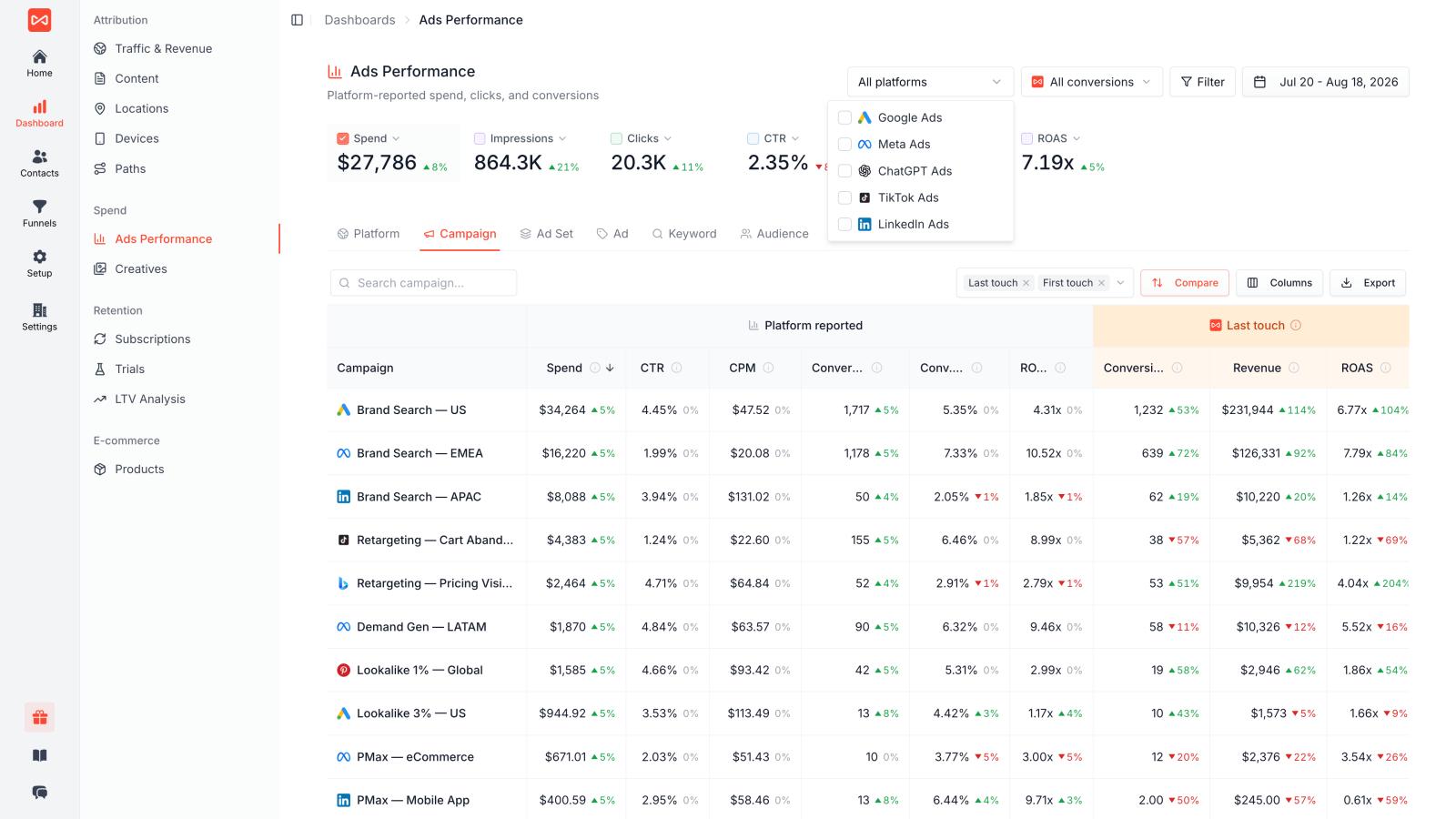
SourceLoop adds a revenue attribution layer on top of your marketing data.
Instead of stopping at a form submission, SourceLoop can connect the customer journey from the first marketing interaction through CRM stages and closed-won revenue. It supports sources including Google Ads, Meta, LinkedIn, TikTok, GA4, HubSpot, Salesforce, Pipedrive, Stripe, and other data sources.
For example:
Google Ads → Website → Demo Request → MQL → SQL → Opportunity → Closed Won
You can then see which campaigns generated actual pipeline and revenue.
SourceLoop also supports different attribution models, including first-touch, last-touch, and multi-touch models, so you can compare how different attribution methods affect your ROAS.
This is particularly useful for companies where the customer journey takes weeks or months.
How SourceLoop Calculates Revenue-Based ROAS
The basic idea is simple:
Revenue ROAS = Attributed revenue ÷ Ad spend
But the important part is how you determine attributed revenue.
For example:
Google Ads spend = $20,000
Closed-won revenue attributed to Google Ads = $80,000
ROAS = $80,000 ÷ $20,000 = 4x
SourceLoop can also connect recurring revenue data for SaaS businesses. Its SaaS attribution setup supports subscription and payment data from platforms such as Stripe, Paddle, Polar, Chargebee, and Lemon Squeezy, allowing marketing performance to be connected to MRR, ARR, and LTV.
That gives you a more useful question than:
Which campaign generated the most leads?
You can ask:
Which campaign generated the most revenue?
Final Thoughts
Google Analytics 4 is a useful starting point for tracking ROAS. Once Google Ads is connected and revenue is being recorded correctly, GA4 can show advertising cost, revenue, ROAS, key events, and attribution paths.
For ecommerce businesses, this may be enough for many use cases.
For B2B and SaaS companies, however, the real value often happens after the website conversion. A form submission can become a qualified lead, opportunity, customer, and eventually a large revenue account.
That is where SourceLoop can complement GA4 by connecting marketing touchpoints with CRM stages, closed-won revenue, subscriptions, and customer value. It can also report ROAS across channels and campaigns using the same first-party attribution dataset.
The goal is not simply to know which ads generated clicks.
It is to know which marketing spend generated revenue.
Frequently asked questions
-
FAQs
-
Can Google Analytics track ROAS?
Yes. GA4 can report Return on Ad Spend when advertising cost and revenue data are available. Google Ads cost data can be automatically populated after linking Google Ads with GA4.
-
What is the ROAS formula?
ROAS = Revenue ÷ Ad Spend
If you spend $2,000 and generate $8,000 in revenue, your ROAS is 4x.
-
Does GA4 track Google Ads ROAS?
Yes. When Google Ads is linked to GA4, Google Analytics can report Google Ads cost, revenue, and ROAS.
-
Can GA4 track Meta Ads ROAS?
GA4 can track Meta traffic and conversions, but you need to make sure campaign cost data is available if you want GA4 to calculate ROAS. Google provides campaign data import for bringing advertising cost data from non-Google campaigns into Analytics.
-
Can I track B2B ROAS in Google Analytics?
Yes, but it can be difficult if your revenue happens inside a CRM after the original website conversion. For more complete B2B revenue attribution, connect GA4 and your CRM or use a marketing attribution platform such as SourceLoop.
-
What is the difference between ROAS and ROI?
ROAS compares advertising revenue with advertising spend. ROI is a broader profitability measure that can include other business costs.
-
What is the best attribution model for ROAS?
There is no single model that works for every business. GA4 currently supports data-driven attribution and last-click options for its attribution reporting.
-
Can SourceLoop track ROAS?
Yes. SourceLoop can connect ad spend with attributed revenue and report ROAS by channel and campaign. It can also connect marketing touchpoints with CRM revenue and subscription data.
-
Can SourceLoop work with GA4?
Yes. SourceLoop supports GA4 as one of its marketing data sources and can combine website attribution with advertising, CRM, and revenue data.



 Paid Social


