
How to Track Google Ads Lead in Salesforce: 2026 Setup Guide
How to Track Google Ads Lead in Salesforce. Learn how to track Google Ads leads in Salesforce step-by-step. Fix the legacy integration, sync GCLID, and close
Tracking a Google Ads lead in Salesforce is now a manual offline conversion task rather than an automatic sync, and the legacy integration was deprecated on May 31, 2025. In 2026, the active setup uses Google Ads Data Manager to import conversion outcomes from Salesforce, with timely uploads and reliable GCLID capture keeping the attribution chain intact.
You may be looking at a Salesforce pipeline full of qualified leads while Google Ads still reports only form submissions. A sales representative changes a lead to an opportunity, an opportunity becomes closed won, and the advertising account never receives that outcome. The campaign appears to generate activity, but nobody can confidently connect the original click to the revenue event.
I've fixed this handshake more than once. The failure usually isn't in one dramatic system outage. It's a missing click ID, an old conversion action, an unmaintained CSV process, or a migration that stopped halfway through. The practical answer is to rebuild the connection around Google's current Salesforce workflow, preserve the identifier at form submission, and send offline conversion records before Google's attribution window closes.
Table of Contents
- Why the Google Ads Salesforce Integration Changed in 2026
- Setting Up the Salesforce Conversion Action in Google Ads
- Capturing GCLID in Salesforce for Attribution
- Syncing Offline Conversions from Salesforce to Google
- Troubleshooting Missing Lead Attribution
- Automating Lead Sync with Multi-Touch Attribution
Why the Google Ads Salesforce Integration Changed in 2026
Older setup guides can be actively misleading now. Google Ads states that the legacy Salesforce integration is no longer supported beginning May 31, 2025, and directs advertisers toward the newer Salesforce flow in Data Manager. The old instructions may still show a Salesforce connection inside a familiar integration area, but following them won't restore a supported data path. See Google's documentation on migrating from the legacy Salesforce integration before changing a live account.
The infrastructure change matters because Salesforce and Google Ads hold different parts of the customer journey. Salesforce records lead status, qualification, opportunity stage, and sales outcome. Google Ads records the click and uses imported conversion events to understand which advertising interactions produced business value. If the return path disappears, sales teams can continue updating Salesforce while Google Ads remains blind to those outcomes.
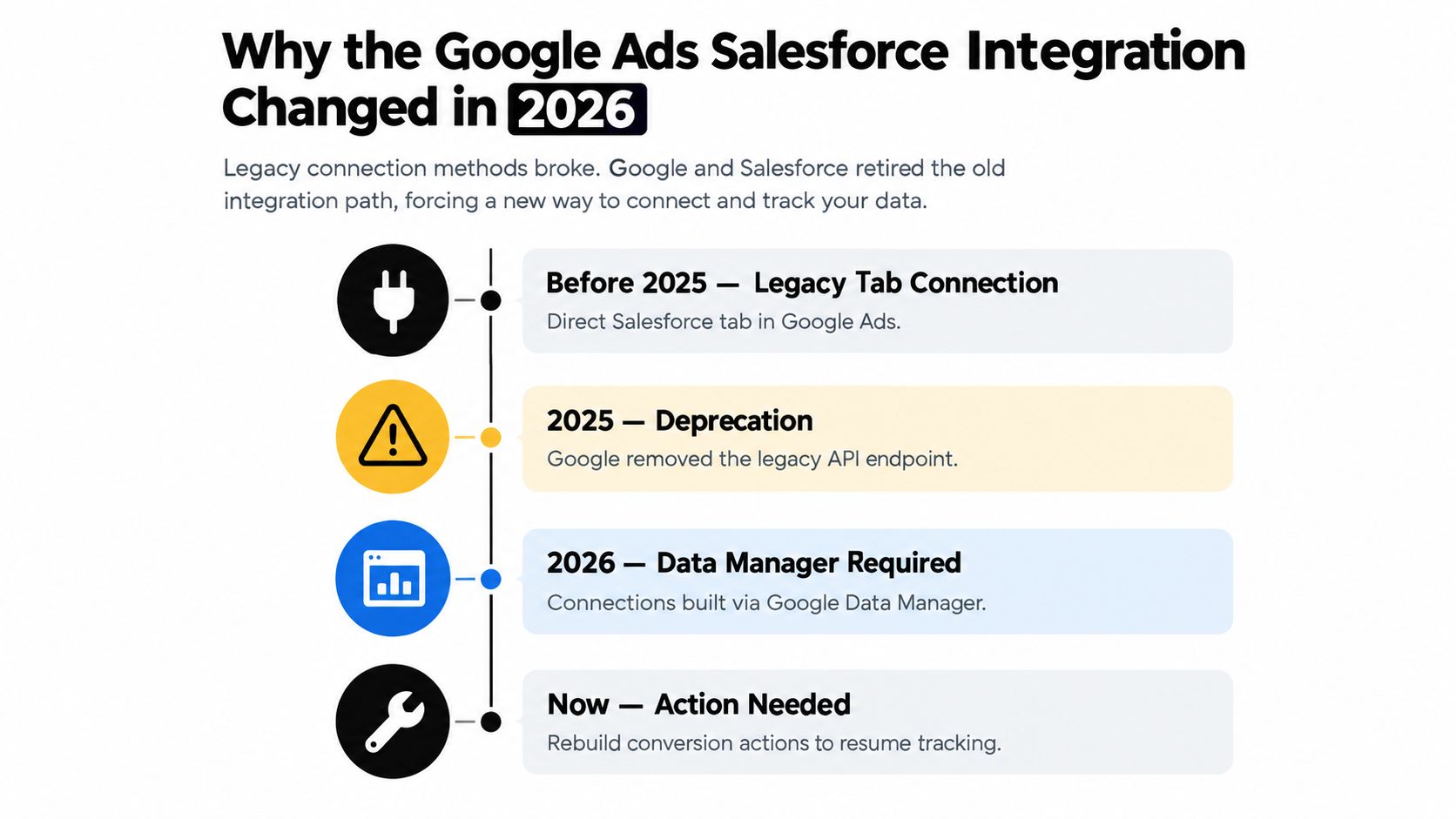
The current operating model
The supported model is no longer a simple automatic connector. It's a conversion import workflow:
- A person clicks a Google ad.
- The website captures the GCLID, or Google Click ID.
- The form passes that identifier into Salesforce.
- The sales team updates the Salesforce record.
- Marketing or RevOps exports qualified conversion records.
- Google Ads imports those offline outcomes through Data Manager.
That workflow introduces ownership questions that the legacy setup often concealed. Someone must confirm that the form stores the identifier, Salesforce preserves it through lead conversion, and uploads happen frequently enough to avoid attribution loss.
Practical rule: Treat the migration as a data-flow audit, not as a screen-by-screen connector replacement.
A useful audit should document the existing conversion actions, Salesforce fields, form implementation, lead conversion mapping, export logic, and upload owner. Teams that need a broader framework for connecting marketing systems can also review data integration strategies from Magnitude, especially when deciding which system should own transformation, validation, and delivery.
The change also affects historical data. Don't assume that reconnecting Salesforce will reconstruct records that never reached Google Ads. Preserve existing reports and exports, identify the last trusted upload, and decide which Salesforce outcomes can still be attributed within Google's accepted window. Then create the new conversion actions and test them alongside the current sales process before directing budget optimization toward the imported events.
Setting Up the Salesforce Conversion Action in Google Ads
Start in the Google Ads account that owns the campaigns and conversion goals. Google's current navigation shows the setup path as Goals > Conversions > + Create conversion action > Salesforce. The exact interface can evolve, so use the current account navigation rather than an old screenshot from a legacy integration guide. Google's official Salesforce conversion import instructions describe the active path.
Create the action around a real sales outcome
Choose Salesforce as the source and configure the import around an event that your CRM can identify consistently. A name such as Salesforce Closed Won Leads is more useful than a generic label such as “Salesforce conversion,” because it tells campaign managers what the action represents.
Your conversion name should match the Salesforce status or field logic that triggers the export. If Salesforce uses an opportunity stage, define the corresponding rule clearly. If the business wants an earlier signal, use a qualified lead or sales-accepted stage only when that stage is applied consistently by the sales team.
Use the conversion category that best describes the business event. The category should not be selected to make reports look better. It should help people distinguish an initial inquiry from a qualified pipeline event or a completed sale when they review goals and bidding settings.
Configure the import deliberately
Before saving the action, settle the fields that will travel from Salesforce into Google Ads:
- Conversion name: Match the Salesforce event or stage that your export process will send.
- Conversion time: Use the time associated with the qualifying CRM event, not merely the time of the CSV upload.
- Value and currency: Map these only if Salesforce has a dependable amount and currency process.
- Primary or secondary use: Decide whether the action should guide bidding or serve only for observation during validation.
The critical trade-off is signal quality versus signal volume. A form submission arrives quickly but says little about eventual sales quality. A closed-won event is more commercially meaningful, but it arrives later and demands disciplined CRM updates and upload operations. Start with the event your team can realistically maintain, then expand only after the identifier and status logic have passed testing.
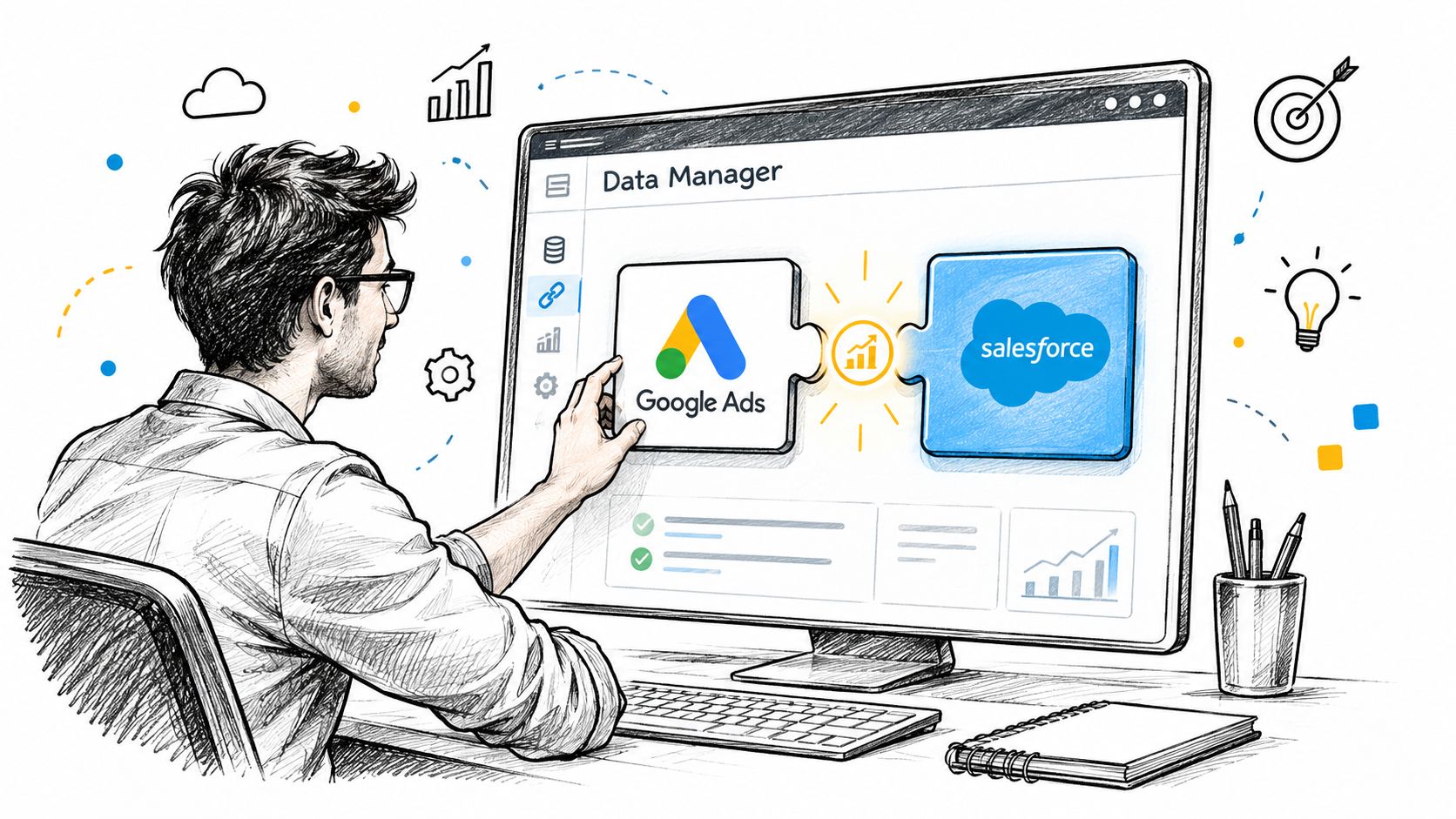
Google Ads can also use enhanced conversions for leads as a supplementary matching method. For a practical explanation of the matching options, consult this Google Ads enhanced conversions guide. It shouldn't distract from the core implementation: if your organization can capture GCLID reliably, make that identifier the primary join key and use additional matching where appropriate.
After creating the action, don't immediately make it the sole optimization target. Submit controlled test records, confirm that Salesforce produces the expected export fields, and inspect Google Ads conversion diagnostics. Only then should you change campaign goals or bidding inputs.
Capturing GCLID in Salesforce for Attribution
GCLID capture is where many otherwise polished implementations fail. Google states that if the GCLID isn't captured at the form level, Google Ads can't attribute the offline conversion to the original click. The identifier must survive the journey from the landing page to the submitted form and then into the Salesforce record, as explained in Google's enhanced conversions for leads guidance.
Store the identifier at the first conversion point
Enable auto-tagging in Google Ads so ad clicks can carry the GCLID. Your website then needs to read that parameter and place it into a hidden field on every relevant lead form. That includes forms embedded through marketing platforms, Salesforce Web-to-Lead forms, booking flows, and multi-step forms that may submit through a separate endpoint.
A durable implementation usually has these parts:
- Read the landing-page parameter. Capture the GCLID from the URL when a visitor arrives.
- Persist it during the visit. Use a first-party storage method that keeps the value available if the visitor moves to another page.
- Populate the hidden field. Write the stored value into the form before submission.
- Create a Salesforce field. Use a dedicated text field for the GCLID rather than burying it in notes or campaign comments.
- Verify the record. Inspect the created Salesforce Lead and confirm the field contains the expected value.
Don't rely on the visible URL at the moment of form completion. B2B prospects commonly visit several pages before submitting, and the final page may no longer contain the original click parameter. The form needs access to the persisted value, not just the current address bar.
Keep the join key through Salesforce
If your organization converts Leads into Contacts and Opportunities, map the GCLID field across those objects. A click ID present on the original Lead but absent from the eventual opportunity can't support a closed-won export. The same principle applies to any intermediate CRM automation that creates a new record and drops custom fields.
UTM fields are useful for reporting, but they aren't a substitute for GCLID when Google Ads needs click-level matching. Capture them for context, while treating GCLID as the required technical join key for the Google conversion workflow.
Teams using Salesforce forms can review this guide on pushing UTMs to Salesforce for field-persistence considerations. Test with a real tagged URL, submit the form, convert the lead in a sandbox or controlled record, and verify the identifier at every stage. A successful browser submission alone doesn't prove that Salesforce retained the value.
Syncing Offline Conversions from Salesforce to Google
Creating the conversion action only defines what Google Ads should accept. The business still has to deliver records from Salesforce. For teams without middleware, that generally means creating a Salesforce report or export with the fields Google requires, preparing the file in the expected format, and uploading it through Data Manager.
A workable manual process
Build the Salesforce report around the exact event that should count. A closed-won report might include the GCLID, conversion name, conversion date and time, value, and currency. A qualified-lead report would use its own status criteria and event naming. Don't export every Salesforce record and expect Google Ads to determine which rows are meaningful.
A controlled CSV workflow looks like this:
- Define eligibility: Decide which Salesforce status, stage, or field change qualifies the record.
- Select the timestamp: Use the time the qualifying event occurred in Salesforce.
- Validate the identifier: Remove rows without a usable GCLID unless you're intentionally using another supported matching method.
- Check values: Confirm that amount and currency fields follow the conversion action's configuration.
- Upload through Data Manager: Send the prepared file to the relevant Salesforce conversion action.
- Record the result: Keep an operational log of the export date, row count, rejected records, and corrective action.
The manual route is transparent and inexpensive to operate, but it depends on people remembering every step. It also creates a delay between a sales update and the advertising system receiving the signal. That delay may be acceptable for a small, stable pipeline, but it becomes risky when several people edit Salesforce or when sales cycles move quickly.
Respect the attribution window
Google states that uploads more than 90 days after the associated last click won't be imported, as documented in its offline conversion upload requirements. The same guidance recommends more frequent uploads to avoid lost attribution and reporting gaps.
That limit changes the operating requirement. A monthly or ad hoc export may leave valid sales outcomes outside the accepted window before anyone notices. Assign an owner, define a recurring schedule, and set an escalation path for failed uploads. The team should also review rejected rows rather than treating a successful file submission as proof that every record was accepted.
Choose API delivery when timing matters
An API-based process can query Salesforce for newly eligible records and submit them programmatically. It requires authentication, field mapping, error handling, duplicate protection, and monitoring, but it removes the most fragile manual steps. The right choice depends on operational complexity, not on the appeal of automation alone.
For teams documenting the technical side of the workflow, this guide to configuring Google Ads offline conversions provides a useful reference point. Whatever delivery method you choose, test rejected records, retries, and duplicate submissions before relying on the imported action for campaign optimization.
Troubleshooting Missing Lead Attribution
Missing conversions are easiest to diagnose by tracing one known Salesforce record backward. Pick a lead that definitely came from a Google campaign, then inspect each handoff instead of comparing aggregate totals. The question is not “Why are reports different?” It's “At which step did this record stop carrying the evidence Google needs?”
Check the identifier first
Open the original Salesforce Lead and inspect the GCLID field. If it's blank, the failure occurred before or during form submission. Check whether auto-tagging is enabled, whether redirects remove query parameters, whether the hidden field exists on the specific form, and whether the form script runs before submission.
If the Lead contains a GCLID but the Contact or Opportunity doesn't, inspect Salesforce lead-conversion field mapping and automation. A workflow that creates or replaces records may also discard custom attribution fields. The identifier must remain attached to the record that eventually becomes eligible for import.
If the GCLID isn't on the Salesforce record, no reporting adjustment can recreate the original click relationship.
Check the conversion rule
Next, compare the Salesforce record with the conversion action's criteria. A Salesforce stage named “Closed Won” may not be the same field or value used by the export query. Status spelling, capitalization, record type, and date filters can all exclude a record without producing an obvious user-facing error.
Review the payload or CSV row for:
- Conversion action name: It must correspond to the intended Google Ads action.
- Event date and time: It must represent the qualifying CRM event.
- GCLID formatting: It must be transferred without truncation or added characters.
- Value and currency: Both must match the action's configuration when values are used.
- Record status: Deleted, disqualified, or edited records may no longer meet the export rule.
Check freshness and diagnostics
A valid record can still disappear if the upload occurs outside Google's accepted attribution window. Review the original click timing, the Salesforce event timestamp, and the actual upload timestamp. Then inspect Google Ads diagnostics and the upload response for rejected rows rather than checking only whether the file was sent.
Build a small reconciliation view in Salesforce with the record ID, GCLID presence, qualifying status, export status, and last upload result. That turns a silent reporting gap into a queue of specific records that someone can repair.
Automating Lead Sync with Multi-Touch Attribution
Manual CSV imports are useful for proving the workflow, but they place too much responsibility on recurring human actions. A team may capture the GCLID correctly and still lose the commercial signal because nobody exports the new closed-won records, a field mapping changes, or an upload rejection goes unnoticed.
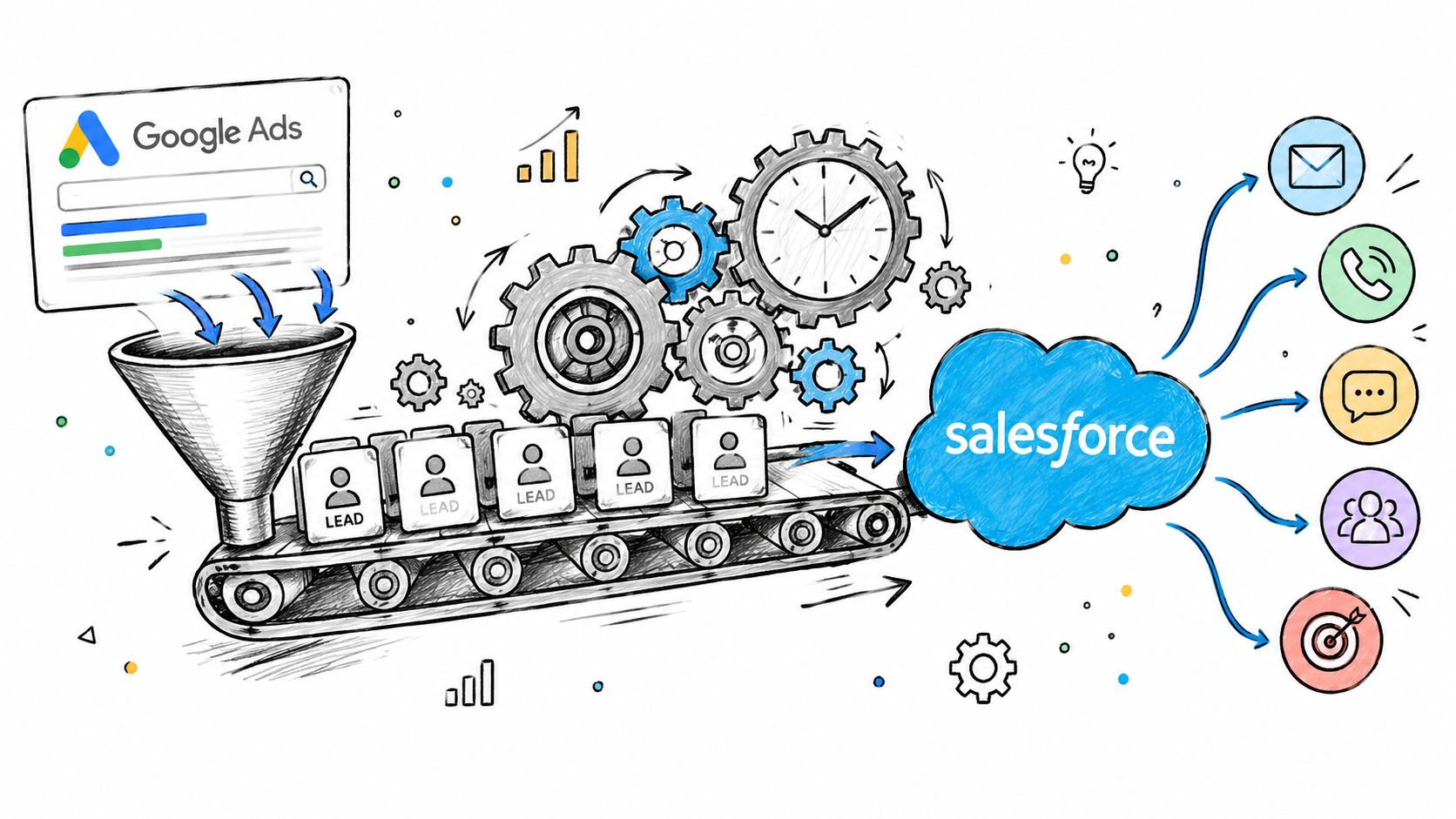
Manual imports versus an automated pipeline
A manual process gives you direct control over every row. It's easier to inspect during an initial implementation and can be appropriate when conversion volume is limited, Salesforce stages are stable, and one person owns the routine. Its weakness is operational continuity. The process can work perfectly in testing and still fail when the original operator is unavailable.
An automated pipeline handles event detection and delivery in software. It can watch for Salesforce status changes, preserve field mappings, send eligible offline conversions, and expose errors for review. That reduces repetitive work, but it adds its own responsibilities, including authentication, duplicate prevention, monitoring, and change management.
| Approach | What works well | Main trade-off |
|---|---|---|
| Manual CSV | Clear audit trail and simple initial validation | Dependent on scheduled human action |
| Salesforce automation plus API | Faster event delivery and repeatable processing | Requires technical ownership and error handling |
| Attribution middleware | Connects capture, CRM records, and ad-platform feedback | Adds another system and mapping layer |
A platform such as SourceLoop can capture journey and source data, sync mapped fields with Salesforce, and send qualified offline conversions back to Google Ads using the original GCLID. It's one option among custom Salesforce automation, an integration platform, and a managed attribution stack. Evaluate it against your requirements for field ownership, consent handling, retry behavior, and reporting rather than choosing based only on setup speed.
For teams evaluating the broader measurement model, this guide to implementing multi-touch attribution can help frame how first touch, later interactions, and CRM outcomes should coexist. Google Ads may need a specific click identifier for conversion matching, while leadership may need a wider view of the customer journey. Those are related requirements, but they aren't the same report.
Automation also doesn't eliminate the need for governance. Define which Salesforce stage triggers a conversion, who can edit that stage, how duplicate events are blocked, and who receives upload failures. Keep a test record available, review the handoff after Salesforce releases or form changes, and retain enough logging to explain why a conversion was or wasn't sent.
The strongest implementation is not the one with the most integrations. It's the one that preserves the identifier, applies a stable business rule, delivers the event within Google's accepted window, and gives a human a clear way to investigate exceptions.
Audit your current setup before the next campaign optimization cycle. Confirm that the legacy Salesforce path is no longer carrying your reporting, create the Data Manager conversion action, submit a tagged test lead, verify GCLID persistence through Salesforce, and document the recurring upload owner. If manual delivery is already creating gaps, compare an API workflow with a managed attribution platform and choose the option your team can monitor consistently.


 Paid Social


