
How to Sync Revenue and Offline Conversions in Google Ads
Create a Google Ads conversion action, then send SourceLoop's real leads, qualified leads, won deals, and payments to it with their value, so Smart Bidding learns from customers.
On this page
Google’s Smart Bidding is only as good as the conversions you give it. This guide sends the moments that matter, a qualified lead, a won deal, a paid subscription, from SourceLoop to a Google Ads conversion action, with the click that earned each one and the value you choose.
For what conversion sync can do across every platform, see the Conversion sync overview.
Before you start
- Google Ads connected to SourceLoop
- Access to the Google Ads account to create a conversion action
- An Admin or Editor role in SourceLoop
Step 1: Create a conversion action in Google Ads
- In Google Ads, open Goals, then Conversions, then click New conversion action.
- Choose Import, then CRMs, files or other sources, then Track conversions from clicks.
- Name it after the moment you will send, for example “Qualified lead” or “Won deal”.
- Set the value and count settings. One count per click suits leads; Every suits payments.
- Decide whether it is Primary (used for bidding) or Secondary (reporting only), then save.
Repeat for each moment you want to send separately.
Step 2: Create the sync in SourceLoop
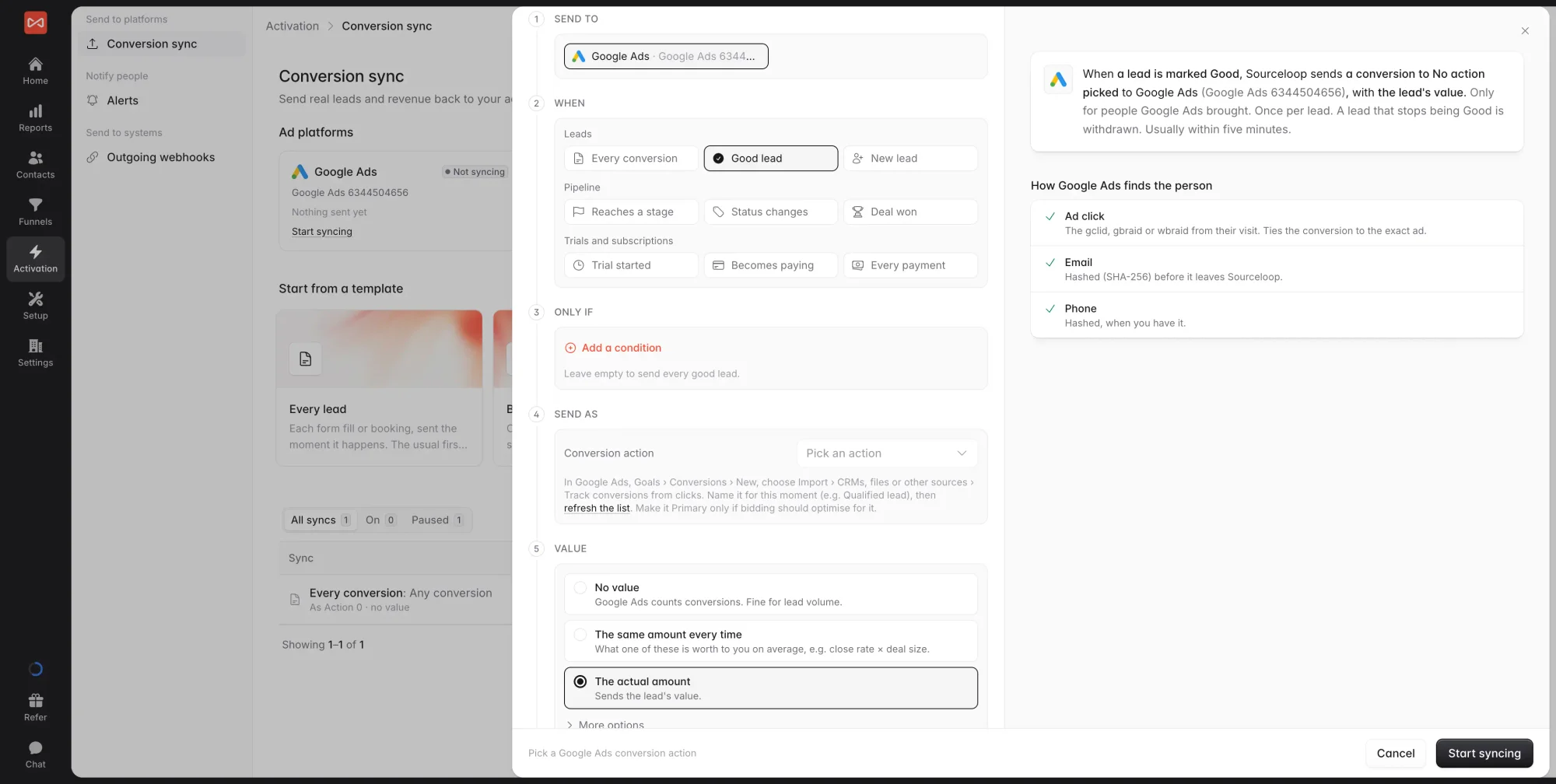
- In SourceLoop, open Activation, then Conversion sync.
- Pick a template, such as Qualified leads or Won deals with revenue, or click New sync.
- Under Send to, pick your Google Ads account.
- Under When, pick the moment, and the stages or statuses if it asks.
- Under Send as, pick the conversion action you created. If it isn’t listed yet, click refresh the list.
Step 3: Set value, who counts, and past conversions
- Under Value, choose No value, The same amount every time, or The actual amount. Value-based bidding needs a value.
- Under Who counts, keep People Google Ads brought unless you only want people with a Google click id. Choose whether to credit the Last click or First click from Google.
- Optionally turn on Send past conversions to include up to 60 days of what already happened.
- Check the preview on the right, then click Save.
Google matches each conversion by the ad click it came from. When SourceLoop has the person’s email or phone, it also sends them hashed, which helps Google match people whose click was lost.
Step 4: Check that conversions arrive
- In SourceLoop, open the sync and look at Recent sends. Each person sent is listed with what Google matched on. Anything waiting, such as a lead with no Google click or email yet, is listed too.
- In Google Ads, open Goals, then Conversions, and click your conversion action. Conversions show up a few hours after they are sent.
What’s next
- Troubleshoot missing conversions: Troubleshoot Google Ads sync
- See every moment you can send: Conversion sync overview
- Compare Google’s numbers with credited results: Ads performance report
Frequently asked questions
-
Do I need to create the conversion action in Google Ads first?
Yes. SourceLoop sends to a conversion action that already exists in your account. Create one per moment you want to send, such as "Qualified lead" or "Won deal", using Import, then CRMs, files or other sources, then Track conversions from clicks.
-
Should the conversion action be Primary or Secondary?
Primary if you want Smart Bidding to optimise for it, Secondary if you only want to report on it. A common setup is every lead as Secondary and qualified leads or won deals as Primary, so bidding chases quality.
-
Can I send revenue for value-based bidding?
Yes. In the Value step choose The actual amount to send each lead's value, deal amount, or payment. For new subscriptions you choose how many months of the revenue it added the conversion is worth.
-
How far back can Google Ads accept a conversion?
Google credits a conversion up to 90 days after the ad click, depending on the conversion action's click-through window. Conversions older than that are skipped rather than marked as failed. A new sync can also send up to 60 days of past conversions.
-
My conversion action says "Inactive" or "No recent conversions". What now?
That is normal for a new action. Google shows conversions a few hours after they arrive. Check Recent sends on the sync in SourceLoop first. If people are listed as sent, Google has them and the status will update.
-
Can I send the same moment to two conversion actions?
Yes. Create two syncs and give each its own conditions or action, for example web forms to one action and booked meetings to another.

 Paid Social


