
Google Ads Tracking Template: The Complete Setup Guide
Learn how to create, apply, and test Google Ads tracking templates with ValueTrack parameters, UTMs, and troubleshooting tips for accurate attribution.
You've got clicks coming in, but your analytics report shows incomplete campaign details, or a lead appears without a clear connection to the ad that generated it. The landing page loads, the campaign is spending, and the numbers still don't line up. The problem may be that your tracking parameters aren't being added, surviving redirects, or reaching the system where you evaluate conversions.
A Google Ads tracking template can standardize the click information attached to your ads, but it isn't a fix for every attribution gap. You need to know what it changes, how it interacts with auto-tagging and UTMs, and where to check when a click arrives without its data.
Table of Contents
- Why Your Google Ads Clicks Are Missing Data
- Understanding Final URLs and Tracking Templates
- Creating Templates at Account Campaign and Ad Group Levels
- Building Final URL Suffixes and UTM Parameters
- Testing Your Tracking Templates Like a Pro
- Handling Privacy and Consent Limitations
- Connecting Templates to Analytics and Attribution Platforms
Why Your Google Ads Clicks Are Missing Data
A familiar troubleshooting moment: the ad platform records clicks, but your analytics shows visits with missing campaign details. Or a form submission reaches your CRM without the identifier your team needs to connect it to a paid click. The landing page itself works, which makes the tracking problem harder to spot.

A tracking template is a structured way to add click-level information to an ad's landing-page URL without changing the destination page. It can pass details such as device, network, or match type to analytics and downstream systems. Google's ValueTrack documentation describes ValueTrack parameters as placeholders in braces, such as {matchtype}, which Google Ads replaces with the relevant value after a click.
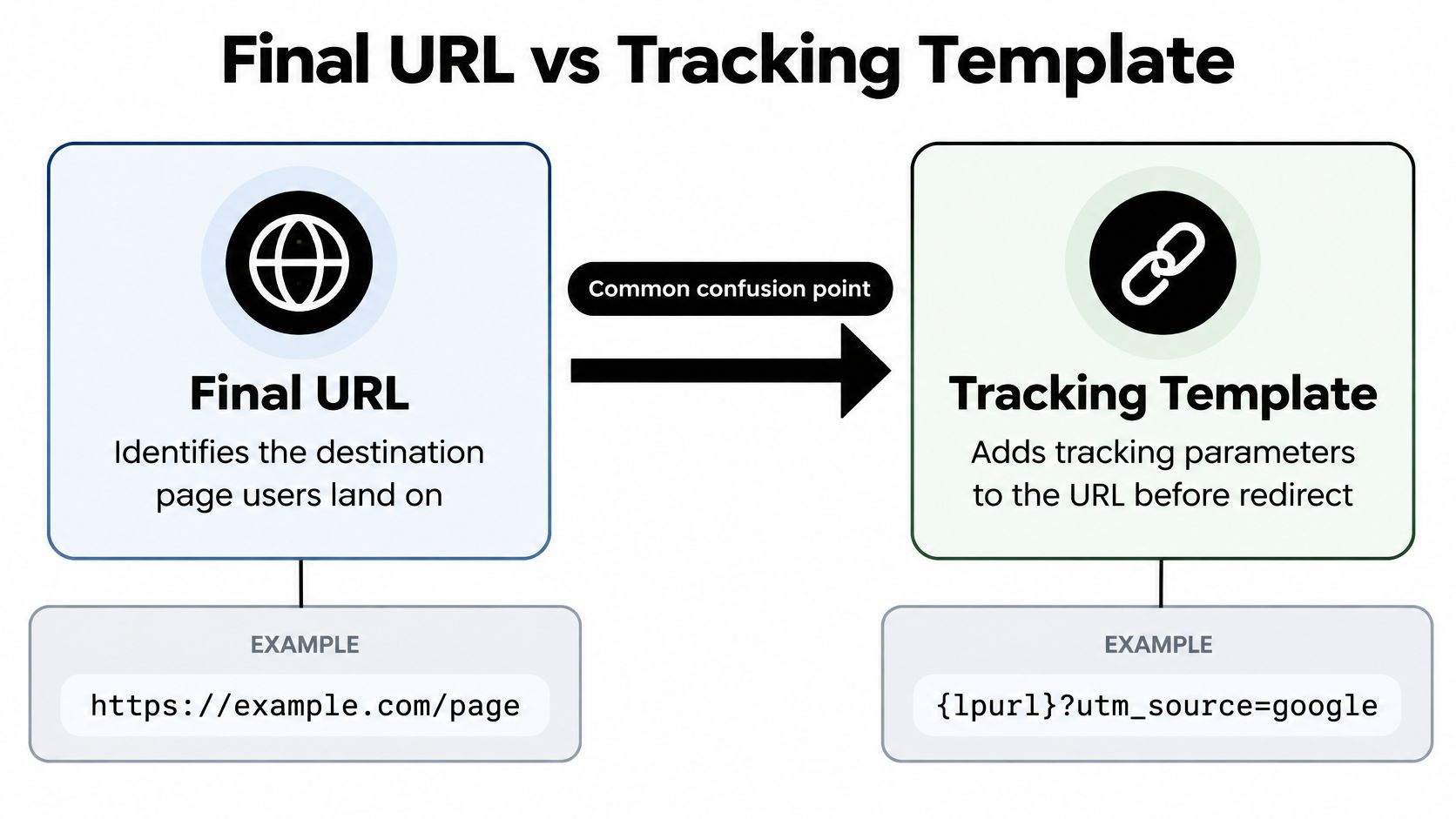
The distinction matters: the final URL tells Google Ads where to send someone; the tracking template adds tracking logic to the click URL. A template can be set at account, campaign, or ad-group scope, helping teams apply consistent metadata without editing every destination URL by hand. That's useful when a shared tracking convention needs to cover many campaigns, but lower-level settings still need careful review because they can replace broader settings.
A template also isn't a substitute for Google auto-tagging. Auto-tagging appends a Google Click Identifier (GCLID) that can connect a click with Google Ads reporting data. ValueTrack adds readable context; GCLID supports more detailed Google Ads measurement. Use both when your attribution setup can preserve and process the identifier. If you're investigating why paid traffic looks different across tools, this guide to Google Ads and Google Analytics discrepancies can help frame the diagnosis. For the conversion side of the setup, Growth 4 Trades' Google Ads conversion tracking guide is a useful companion.
Understanding Final URLs and Tracking Templates
The easiest way to avoid a broken setup is to treat the destination and its tracking instructions as separate pieces. The final URL is the page a person should reach. The tracking template adds parameters or a redirect that helps assemble the click URL before the destination loads.
What the placeholders do
ValueTrack parameters are written inside braces. Google Ads replaces them with the corresponding information for a click. For example, {matchtype}, {device}, and {network} can expose match type, device, and network data. The actual values depend on the interaction, so you're configuring a rule rather than hard-coding one value for every visit.
A basic template can look like this:
{lpurl}?matchtype={matchtype}&device={device}&network={network}
Here, {lpurl} stands for the final landing-page URL. The question mark begins the query string, and ampersands separate the additional parameters. If the final URL is ` the assembled click URL will carry the destination plus the available parameter values.
Keep the destination and measurement roles distinct
Don't put a tracking redirect in the final URL just because you need click data. Keep the landing-page destination stable, and put tracking behavior in the template field designed for that purpose. This makes later changes to tracking logic easier to manage without rewriting the destination across ads.
Auto-tagging adds another layer. With auto-tagging enabled, Google Ads appends a GCLID to ad URLs. A template can provide campaign or auction context in readable fields, while the GCLID helps connect the click to Google Ads data. They're complementary, not interchangeable. If your reporting depends on the GCLID, make sure the identifier survives the journey from the ad click through redirects and conversion capture.
Before publishing, preview the assembled URL and confirm it resolves to the intended page. A template that parses correctly but routes visitors to the wrong destination is still a failed implementation.
Creating Templates at Account Campaign and Ad Group Levels
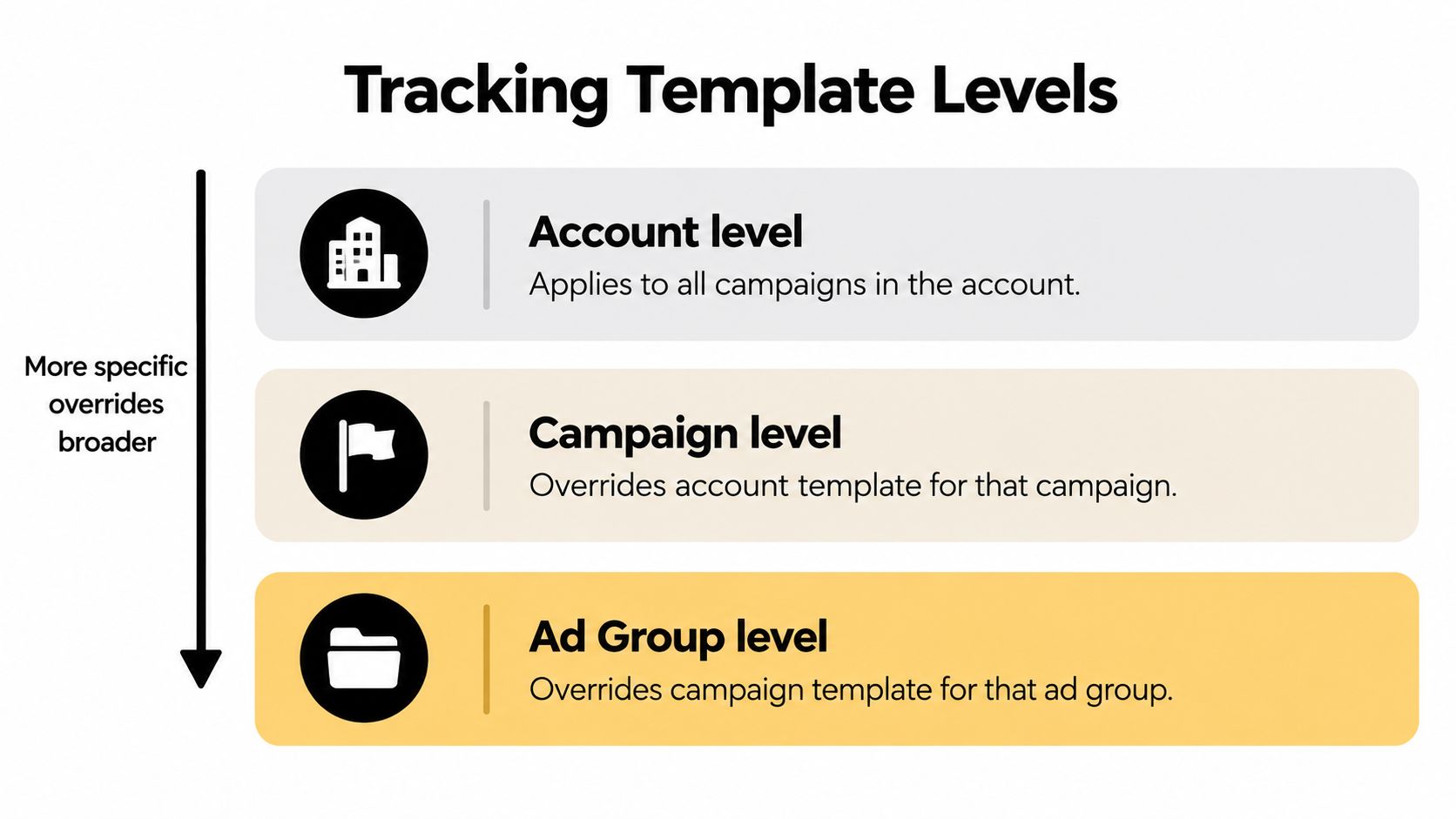
Choose a template scope based on how widely the tracking rule should apply. An account-level template is a sensible home for parameters that should be consistent across the account. A campaign-level template is appropriate when a campaign needs different tracking behavior. Use an ad-group template only when that group needs a more specific configuration.
Set the broad rule first
At account level, start with the common template structure and test it before applying exceptions. A simple configuration might be:
{lpurl}?device={device}&network={network}
This gives campaigns a shared baseline. If every campaign needs the same tracking vendor or metadata convention, central management reduces manual edits and makes future changes easier to govern. Don't add campaign-specific logic to the account rule unless it belongs everywhere.
Use narrower scopes for real exceptions
At campaign level, add or adjust the fields that differ for that campaign. For example:
{lpurl}?campaign_id={campaignid}&device={device}
At ad-group level, use a template only when a group needs its own tracking arrangement. A more specific template can override a broader one, so an ad-group setting that omits an account-level parameter may cause that parameter to disappear. Check effective settings at the level where the ad runs, not just the account default.
Custom parameters can make a template more adaptable, but they need a clear naming and ownership convention. Document what each parameter represents and who maintains it. Avoid creating multiple versions of the same information at different scopes, since that makes troubleshooting harder and can produce confusing URLs.
Google's Upgraded URLs announcement marks the shift to this model. Google announced the change in February 2015 and required advertisers to use Upgraded URLs instead of legacy destination URLs beginning July 1, 2015. The update separated final URLs from tracking templates and allowed shared templates at account, campaign, or ad-group level. Google also stated that changes to shared templates or custom parameters wouldn't reset accumulated statistics after the upgrade. The Google Ads announcement on Upgraded URLs and tracking provides the historical context.
Building Final URL Suffixes and UTM Parameters
A final URL suffix is useful when you want to append tracking parameters to the landing-page URL without putting them in the tracking template. Use it for readable values that analytics tools need, such as UTMs. Reserve the tracking template for URL assembly, redirects, and dynamic click details when that's how your implementation is designed.
A common UTM pattern is:
utm_source=google&utm_medium=cpc&utm_campaign={campaignid}
This gives analytics platforms recognizable source, medium, and campaign fields. A campaign ID is often more stable than a campaign name if names change, but choose values that fit your reporting conventions. For branded, non-branded, or shopping campaigns, the key decision is whether your analytics needs to distinguish those categories. If it does, define a consistent campaign naming or parameter scheme rather than improvising values across campaigns.
| Field | Purpose | Best Used For |
|---|---|---|
| Tracking template | Adds tracking logic, parameters, or a redirect to the click URL | ValueTrack details and shared URL handling |
| Final URL suffix | Appends readable parameters to the landing-page URL | UTMs and analytics campaign labeling |
Combine data without duplicating it
UTMs are readable metadata for analytics platforms. ValueTrack parameters expose selected click attributes, while the GCLID supports more detailed Google Ads measurement. UTMs don't replace the GCLID. If your attribution system can store and process GCLID, retain auto-tagging and use UTMs only where another reporting destination needs them.
Keep the parameter plan lean. Repeating the same campaign field in multiple places can lead to inconsistent values, and unnecessary parameters make redirects harder to inspect. Before rollout, check whether your analytics platform already receives the desired campaign data through another integration. The UTM tagging best practices guide can help your team settle on a consistent naming approach.
Testing Your Tracking Templates Like a Pro
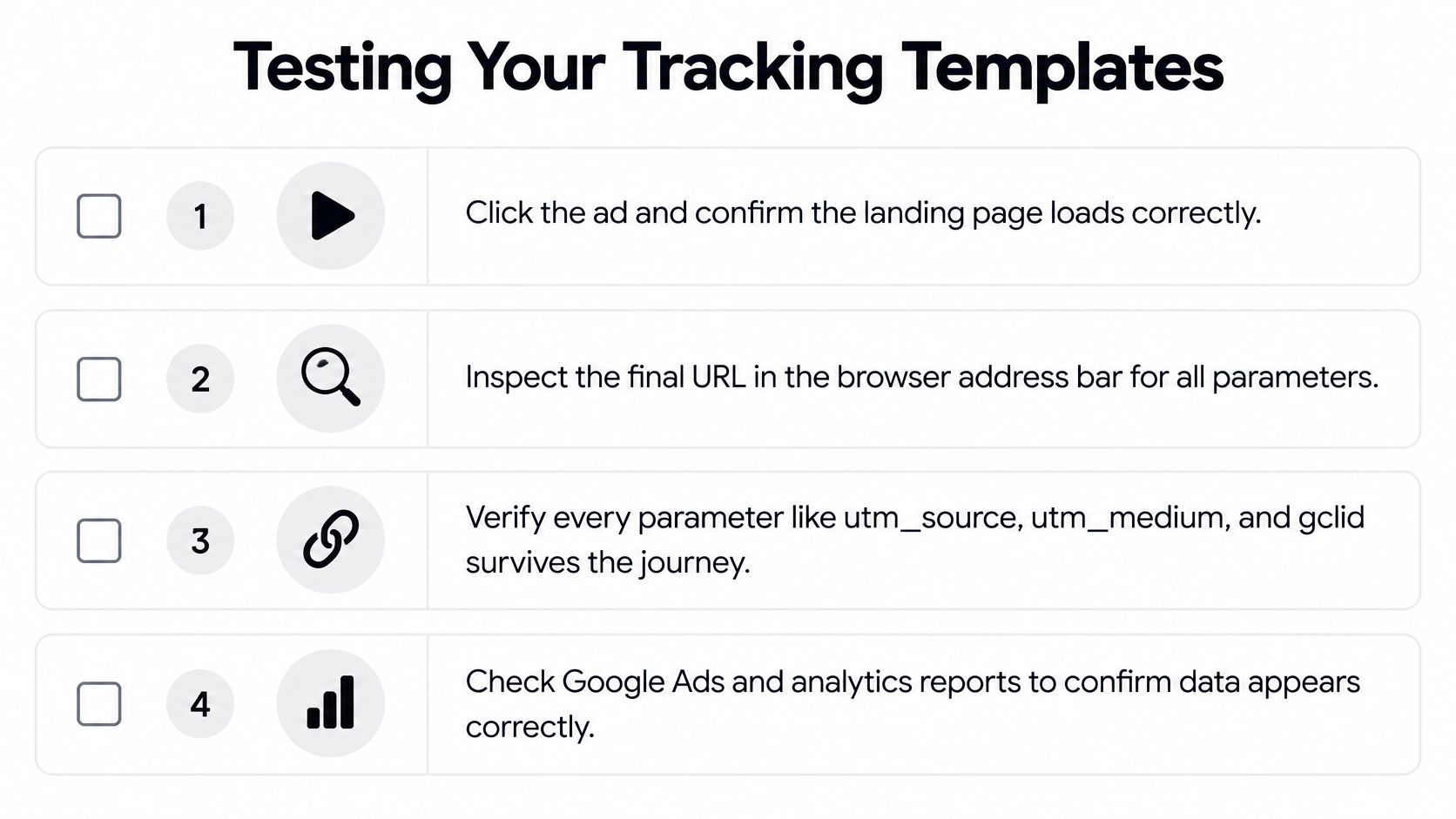
A successful landing-page load doesn't prove that tracking works. A redirect can drop parameters, a form can fail to retain identifiers, or a browser control can prevent persistence. Test the full path from ad click through conversion capture, not just the first page view.
Check the assembled click, not only the settings
Use the Google Ads template preview to catch obvious syntax and destination problems. Then run controlled tests through the routes people commonly use, including redirects and conversion forms. Google's ValueTrack mapping documentation notes an important implementation detail: {lpurl} is escaped unless it appears at the beginning of the tracking template. Redirect-based setups need to account for that behavior.
Use a QA benchmark of 100% parameter retention across your controlled test matrix, covering device types, browsers, redirect paths, and conversion forms. That benchmark is about the test cases you control, not a promise that every user's browser or consent choice will preserve every identifier. Verify that the destination loads, then inspect the address bar and browser developer tools to see which parameters remain after each redirect.
Trace the data into the conversion record
Submit a test lead and inspect the resulting CRM record. Confirm that the intended campaign fields and click identifier reach the record, rather than assuming that a visible URL parameter automatically gets stored. If your process includes a form, check its hidden fields and any server-side capture.
Test different campaign and traffic conditions so ValueTrack fields have a chance to populate as expected. When a parameter is missing, isolate the stage where it disappears: template assembly, redirect, page load, form submission, or downstream storage. Keep a record of the test route and observed values. That turns future troubleshooting into a repeatable check instead of guesswork.
Handling Privacy and Consent Limitations
A tracking template can pass information in a URL, but it can't make unavailable information available. If a browser blocks an identifier or a user hasn't consented to relevant cookies, adding more parameters won't restore the missing signal. Collecting or retaining identifiers without an appropriate legal basis can also create compliance risk.
Google's measurement guidance describes Consent Mode as using conversion modeling when users don't consent to cookies. It also describes enhanced conversions as using hashed first-party customer data, and recommends a strong consent framework in the European Economic Area and UK. Those methods don't mean every click can be deterministically connected to a person or conversion. Your measurement design should account for what can and cannot be captured under the user's consent state.
Separate the measurement layers
Keep campaign metadata in the URL where appropriate. On the site, capture first-party data only in a consent-aware way, and make the consent state part of your testing. Then use privacy-preserving feedback, such as enhanced conversions or qualified offline conversion imports, where your implementation and legal requirements support them.
This separation prevents a common mistake: treating a larger parameter string as a substitute for a consent-aware measurement plan. Test both permitted and restricted paths, and check whether your site and downstream systems behave as intended in each case. For teams working across markets, GDPR-compliant conversion tracking guidance offers a useful starting point for evaluating the broader setup.
Connecting Templates to Analytics and Attribution Platforms
Templates are only one part of attribution. The useful outcome is a reliable connection between an ad interaction and a qualified lead, signup, booking, or purchase in the systems your team uses. That requires the click data to survive the handoffs between Google Ads, the website, analytics, and your CRM.
A practical workflow starts with auto-tagging enabled when your measurement stack can handle GCLID. Preserve the identifier through redirects and forms, capture it in a first-party cookie or server-side session where permitted, and associate it with the lead or purchase record. Then import qualified offline outcomes back into the advertising platform so reporting and bidding can reflect more than an initial form submission.
Find the point where data disappears
When a lead lacks campaign context, trace the path rather than changing every template at once. Check whether the click URL contains the expected parameters, whether a redirect retains them, whether the landing page captures them, and whether the form submits them to the CRM. A successful page load only confirms that the visitor reached the page.
| Symptom | Likely cause | Fix |
|---|---|---|
| Landing page loads, but parameters are missing | A redirect drops or alters query parameters | Inspect each redirect and verify that it preserves the full query string |
| Redirected destination is malformed | {lpurl} is encoded or placed in a way the redirect service can't handle |
Test the template's {lpurl} placement and encoding with the redirect provider |
| Account parameters vanish for one ad group | A more specific template overrides the broader setting | Review the effective ad-group template and add any required parameters |
| GCLID appears in the URL but not in the CRM | The form or capture process doesn't retain the identifier | Map and test the identifier through submission and record creation |
| Attribution is incomplete for some visits | Consent or browser controls limit identifier persistence | Check consent-state behavior and use an appropriate measurement fallback |
Google's guidance notes that {lpurl} is escaped unless placed at the beginning of the tracking template. That matters when a redirect service expects a particular URL format. Test the actual assembled URL with the redirect path in place. Don't assume a template is sound because its syntax looks plausible in the settings screen.
For multi-touch reporting, the click identifier is one input among the interactions that may contribute to a conversion. Bruce and Eddy's guide to attribution modeling can help teams think through how to interpret those touchpoints. SourceLoop is one option for capturing Google Ads click identifiers, associating visits with conversions, and syncing qualified offline outcomes back to Google Ads; the key requirement remains that identifiers are captured and retained appropriately in your own measurement flow.
A dependable implementation keeps the destination stable, assigns tracking rules to the right scope, preserves GCLID where appropriate, and verifies data through the CRM or conversion record. Treat every redirect, form, and consent state as part of the tracking path, not as an unrelated technical detail.
Before your next campaign launch, audit the effective template at each level, run a test click through the actual redirect and form journey, and confirm that the resulting conversion record contains the fields your reporting depends on. Fix the first point where data disappears, then repeat the test before increasing spend.




 Paid Social


