
How to Track Outbound Links in Google Analytics
Learn how to track outbound links in Google Analytics 4 using enhanced measurement or Google Tag Manager. Step-by-step guide with setup instructions.
Table of contents
- What Are Outbound Links and Why Track Them?
- Method 1: Enable Enhanced Measurement in GA4
- How to Enable Enhanced Measurement
- What Enhanced Measurement Tracks
- Limitations of Enhanced Measurement
- Method 2: Track Outbound Links with Google Tag Manager
- Prerequisites
- Step 1: Enable Built-in Click Variables
- Step 2: Create an Outbound Link Trigger
- Step 3: Create a GA4 Event Tag
- Step 4: Test Your Setup
- Advanced Filtering Options
- How to View Outbound Link Data in GA4
- Events Report
- Exploration Reports
- Create a Custom Report
- Best Practices for Outbound Link Tracking
- Test Before You Trust
- Filter Out Noise
- Combine with UTM Parameters
- Frequently Asked Questions
- Does outbound link tracking slow down my website?
- Can I track outbound clicks on specific buttons or link classes?
- How long does it take for outbound link data to appear in GA4?
- What's the difference between enhanced measurement and GTM tracking?
- Can I track downloads and email links as outbound clicks?
- Do I need developer access to set up outbound link tracking?
- How can I connect outbound clicks to conversions?
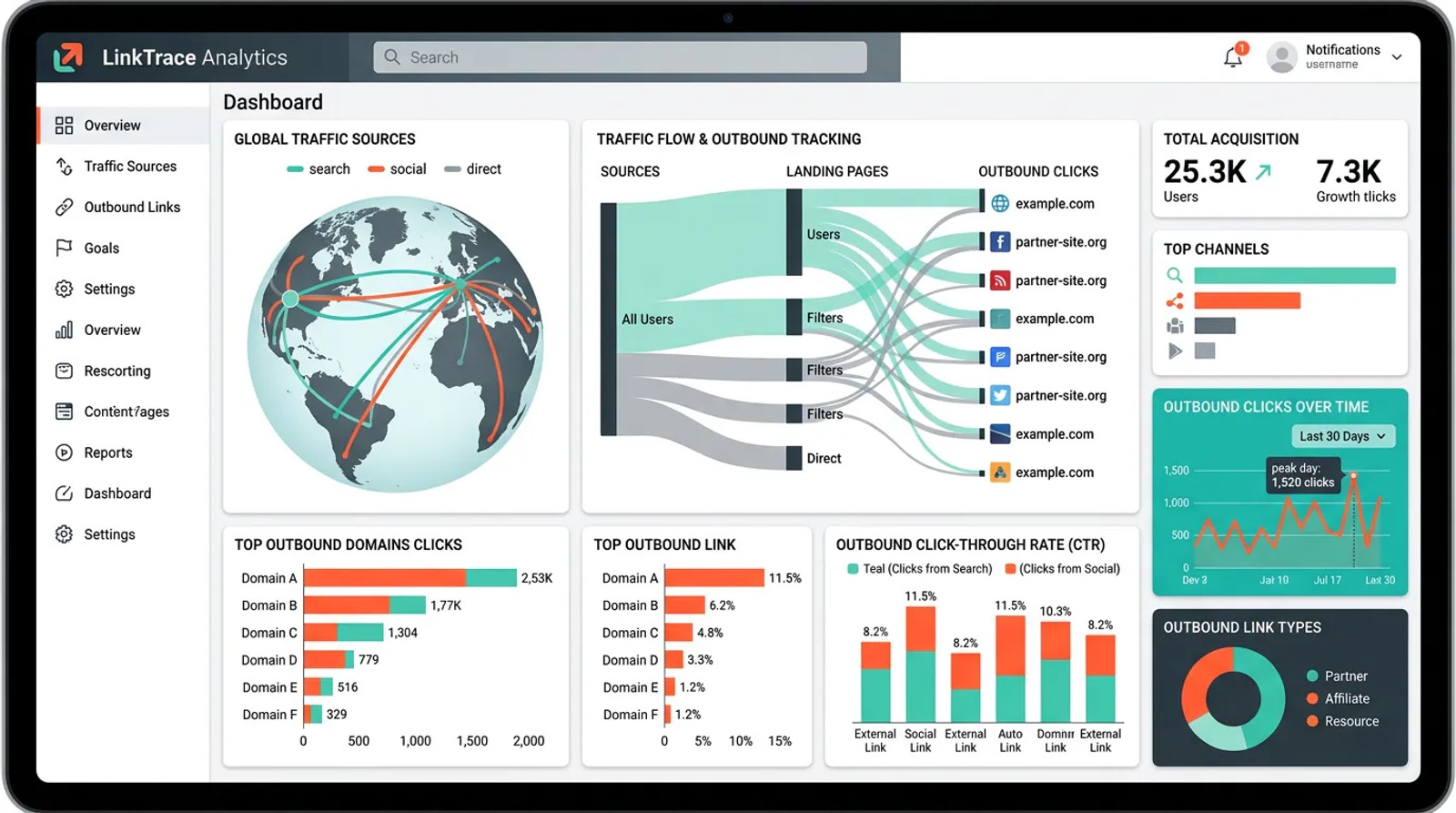
Tracking outbound links in Google Analytics 4 requires either enabling enhanced measurement (a one-click solution) or setting up custom events through Google Tag Manager for more granular control.
Both methods capture when users click links that lead to external domains, giving you visibility into which content and partnerships drive traffic away from your site.
What Are Outbound Links and Why Track Them?
Outbound links are hyperlinks that direct visitors from your website to a different domain. When someone clicks a link to a partner site, affiliate product, external resource, or social media profile, that's an outbound click.
Tracking these clicks helps you understand user behavior beyond your own site. You'll see which external resources your audience values most, how affiliate links perform, and whether partnerships drive meaningful engagement. For marketing teams, this data connects content strategy to actual user actions.
The insights matter for three reasons. First, they show which content generates engagement (even if users leave your site). Second, they validate partnership and sponsorship ROI. Third, they reveal gaps in your own content when users consistently click to external sources for information you could provide.
Method 1: Enable Enhanced Measurement in GA4
GA4's enhanced measurement feature tracks outbound clicks automatically once you toggle it on. This built-in option requires no coding and starts collecting data within minutes.
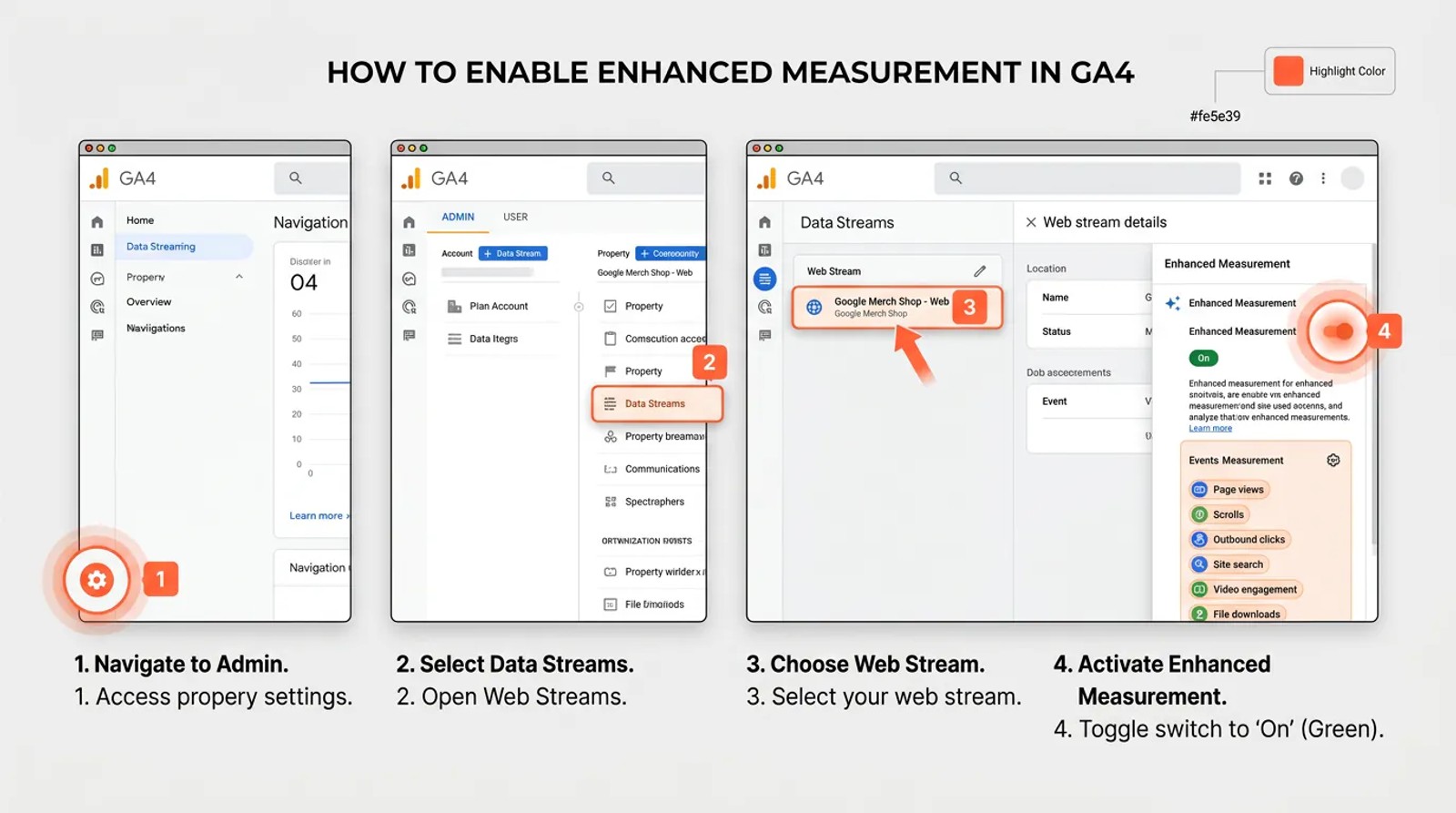
How to Enable Enhanced Measurement
- Log into your Google Analytics account and select your property
- Click Admin in the bottom-left corner
- Under the Property column, click Data Streams
- Select your web data stream
- Scroll to Enhanced measurement and click the toggle to turn it on (if it's not already enabled)
- Click the gear icon next to Enhanced measurement
- Ensure Outbound clicks is checked
- Click Save
GA4 now automatically fires a click event whenever a user clicks a link to an external domain. The event includes parameters like link_domain, link_url, and link_text.
What Enhanced Measurement Tracks
When you enable outbound click tracking, GA4 captures:
- link_domain: The destination domain (e.g., example.com)
- link_url: The full URL clicked
- link_text: The anchor text of the link
- outbound: A boolean parameter set to
true
This data appears in your GA4 reports within 24-48 hours. The method works well for most businesses that need basic outbound link visibility without custom filtering.
Limitations of Enhanced Measurement
While convenient, enhanced measurement has constraints. You can't filter which domains to track, it captures all outbound clicks. You also can't add custom parameters or modify the event structure.
If you need to exclude certain domains (like payment processors or login pages) or track specific link categories separately, you'll need the Google Tag Manager approach.
Method 2: Track Outbound Links with Google Tag Manager
Google Tag Manager (GTM) gives you complete control over outbound link tracking. You can filter by domain, add custom parameters, and segment different types of external links.
Prerequisites
You need Google Tag Manager installed on your site and your GA4 configuration tag already firing. If you haven't set up GTM yet, install the container code in your site's <head> section first.
Step 1: Enable Built-in Click Variables
GTM needs access to click data before you can track links.
- Open your GTM container
- Click Variables in the left menu
- Scroll to Built-In Variables and click Configure
- Check these boxes:
- Click Element
- Click Classes
- Click ID
- Click URL
- Click Text
- Click the X to close
These variables let GTM capture information about every click on your site.
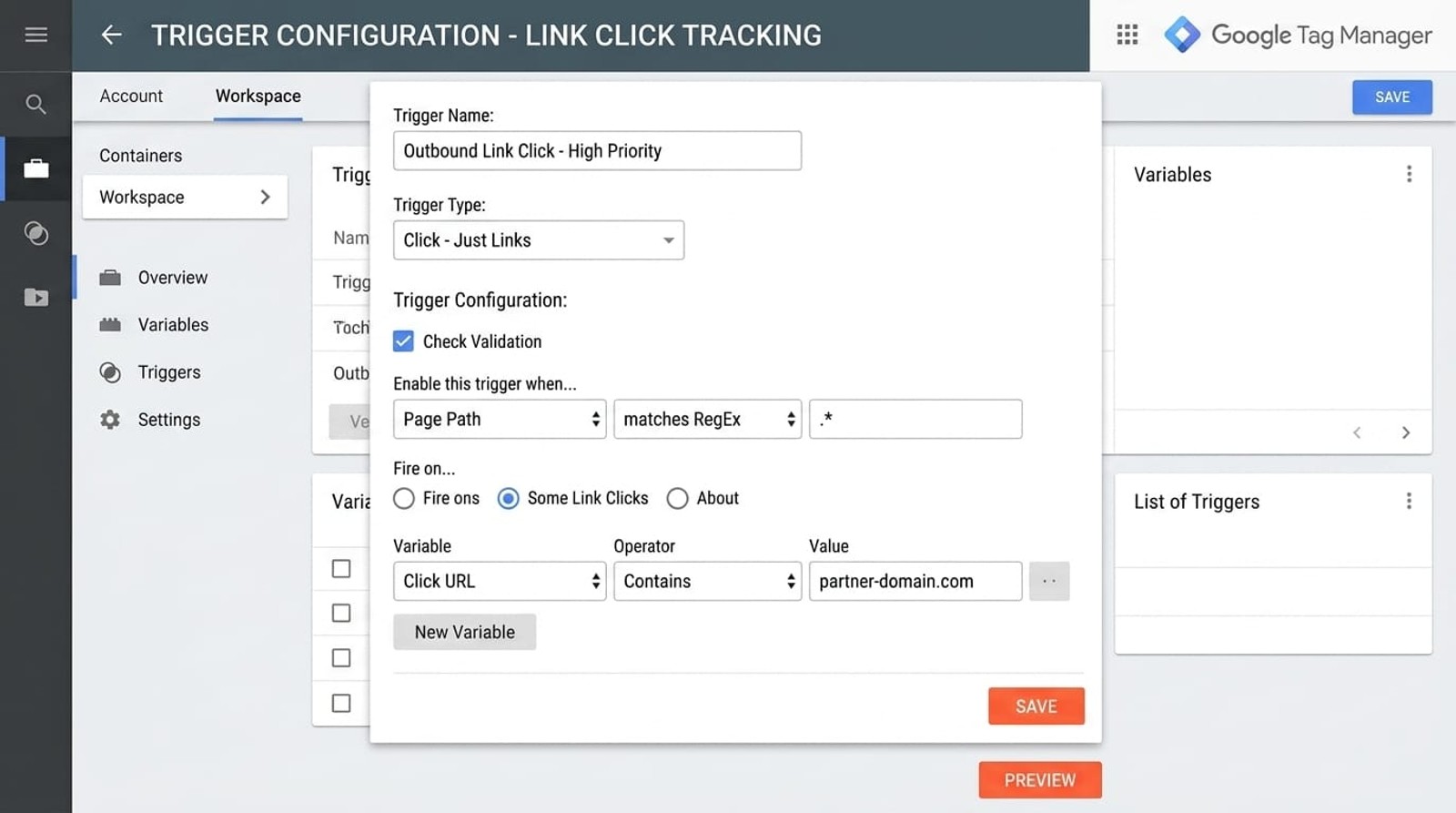
Step 2: Create an Outbound Link Trigger
This trigger fires only when users click links to external domains.
- Click Triggers in the left menu
- Click New
- Name it "Outbound Link Click"
- Click the trigger configuration box
- Choose Click - Just Links as the trigger type
- Set these options:
- Wait for Tags: Set to 2000 milliseconds (this ensures the tag fires before the user leaves)
- Check Validation: Leave unchecked
- Under This trigger fires on, select Some Link Clicks
- Create this condition:
Click URLdoes not containyourdomain.com(replace with your actual domain) - Optionally add:
Click URLdoes not containmailto:to exclude email links - Click Save
Step 3: Create a GA4 Event Tag
Now you'll create the tag that sends outbound click data to GA4.
- Click Tags in the left menu
- Click New
- Name it "GA4 - Outbound Link Click"
- Click the tag configuration box
- Choose Google Analytics: GA4 Event
- Enter your Measurement ID (found in your GA4 property settings)
- Set Event Name to
outbound_click - Under Event Parameters, add these:
- Parameter Name:
link_url| Value:{{Click URL}} - Parameter Name:
link_text| Value:{{Click Text}} - Parameter Name:
link_domain| Value:{{Page Hostname}}(or create a custom variable to extract just the domain)
- Under Triggering, select the "Outbound Link Click" trigger you created
- Click Save
Step 4: Test Your Setup
Before publishing, verify everything works correctly.
- Click Preview in GTM
- Enter your website URL and click Connect
- Navigate to a page with outbound links on your site
- Click an external link
- In the GTM debug panel, confirm the "Outbound Link Click" trigger fired
- Check that the tag sent an
outbound_clickevent with the correct parameters - If everything looks good, click Submit to publish your changes
Your outbound link tracking is now live. Data will appear in GA4 within 24 hours.
Advanced Filtering Options
GTM lets you refine which links to track. Add these conditions to your trigger to exclude specific domains:
- Exclude payment processors:
Click URLdoes not containstripe.com - Track only specific partners:
Click URLcontainspartner-site.com - Exclude authentication pages:
Click URLdoes not contain/login
You can also create separate tags for different link categories (affiliates, resources, social media) by duplicating your tag and adjusting the trigger conditions.
How to View Outbound Link Data in GA4
Once tracking is active, you can analyze outbound clicks in several GA4 reports.
Events Report
- In GA4, go to Reports > Engagement > Events
- Look for the
clickevent (if using enhanced measurement) oroutbound_click(if using GTM) - Click the event name to see details
- View parameters like
link_domainandlink_urlto see which external sites users visit
Exploration Reports
For deeper analysis, create a custom exploration:
- Go to Explore in the left menu
- Start a Free form exploration
- Add Event name as a dimension
- Filter to show only your outbound click event
- Add link_domain as a secondary dimension
- Add Event count as a metric
- Optionally segment by traffic source, device, or user demographics
This view shows which external domains receive the most clicks, helping you identify top-performing partnerships or content gaps.
Create a Custom Report
Build a saved report for regular monitoring:
- Go to Reports > Library
- Click Create new report
- Choose Detail report
- Set Event name equals your outbound event
- Add dimensions:
link_domain,link_url,page_path - Add metrics: Event count, Users
- Save and add to your navigation
You'll now have a dedicated outbound links report accessible from your main menu.
Best Practices for Outbound Link Tracking
Effective outbound link tracking goes beyond basic setup. These practices ensure you collect actionable data while respecting user privacy and site performance.
Test Before You Trust
Always verify your tracking works correctly before making business decisions. Use GTM's preview mode and GA4's DebugView to confirm events fire with the right parameters. Click several external links and check that data appears within 24 hours.
Test edge cases too. Try links that open in new tabs, links with JavaScript onclick handlers, and links in dynamic content. Not all links behave the same way.
Filter Out Noise
Not every outbound click deserves tracking. Exclude domains that don't provide business value:
- Internal subdomains (blog.yourdomain.com)
- Payment processors and checkout flows
- Authentication providers (Google login, SSO systems)
- CDNs and static resource domains
These clicks inflate your data without adding insight. Add exclusions in your GTM trigger or create a GA4 data filter to remove them from reports.
Combine with UTM Parameters
When you control the destination (like affiliate links or partner content), add UTM parameters to the link. This connects outbound clicks to downstream conversions when users return through other channels.
For example: https://partner.com/?utm_source=yoursite&utm_medium=content&utm_campaign=blog_post
If the partner site uses attribution software like SourceLoop, they can track your referral traffic and tie it to conversions, creating a complete view of the partnership's performance.
Frequently Asked Questions
Does outbound link tracking slow down my website?
Outbound link tracking adds minimal overhead when configured correctly. GA4's enhanced measurement uses the same tracking code already on your site, so it adds no extra load time. Google Tag Manager's approach introduces a brief delay (typically under 2 seconds) to ensure the tracking event fires before the user navigates away, but this delay is imperceptible in most cases. If you're concerned about performance, monitor your Core Web Vitals in Google Search Console after implementing tracking.
Can I track outbound clicks on specific buttons or link classes?
Yes, Google Tag Manager makes this possible through custom triggers. Instead of tracking all outbound links, create a trigger that fires only when the click element matches a specific CSS class or ID. For example, you might track only links with the class .affiliate-link or buttons with id="download-btn". This approach works well when you want to distinguish between different types of external links (resources vs. affiliates vs. social media) or focus on high-value partnerships.
How long does it take for outbound link data to appear in GA4?
Real-time data appears in GA4's DebugView immediately after you click a link, making it perfect for testing. Standard reports typically populate within 24-48 hours after you enable tracking. If you need to verify your setup works right away, use DebugView (found under Admin in GA4) rather than waiting for the main reports to update. Once the initial data appears, subsequent clicks show up in reports with the same 24-48 hour delay.
What's the difference between enhanced measurement and GTM tracking?
Enhanced measurement is GA4's built-in one-click solution that automatically tracks all outbound link clicks without any coding or configuration beyond toggling it on. It captures basic parameters (link URL, domain, and text) but offers no customization. Google Tag Manager provides complete control, letting you filter which domains to track, add custom parameters, segment different link types, and exclude specific URLs. Choose enhanced measurement for simplicity; use GTM when you need precision and flexibility.
Can I track downloads and email links as outbound clicks?
Downloads (PDFs, spreadsheets, software files) can be tracked through GA4's enhanced measurement using the "File downloads" option, which is separate from outbound clicks. Email links (mailto:) are technically outbound but rarely provide useful data, so most implementations exclude them. If you're using GTM, add a trigger condition that excludes mailto: and tel: links. For comprehensive tracking of all user interactions beyond your site, consider a specialized attribution tool like SourceLoop that connects form submissions, downloads, and external clicks to actual conversions.
Do I need developer access to set up outbound link tracking?
For GA4's enhanced measurement, you need admin access to your Google Analytics property but no developer skills or website code changes. You simply toggle the setting on in the GA4 interface. Google Tag Manager requires you to either be a GTM admin or have a developer install the GTM container code on your site (a one-time setup). Once GTM is installed, you can configure triggers and tags through the GTM interface without touching your website's code. Both methods are accessible to marketers and analysts without engineering backgrounds.
How can I connect outbound clicks to conversions?
Direct attribution is challenging when users leave your site, but you can connect outbound clicks to conversions using UTM parameters on your links. When you control the destination URL (like affiliate links or partner content), append UTM parameters that identify the source and campaign. If users return to your site later, GA4 will attribute their conversion to the original campaign. For partnerships where users convert on the external site, both parties need attribution tracking, tools like SourceLoop track the full journey across domains and connect your outbound clicks to partner-side conversions, making partnership ROI visible.


 Paid Social


