
How to Track UTM Parameters in Jotform
Capture UTM parameters in Jotform and track where each leads & customers come from
Table of contents
Want to track where your leads are coming from when they fill out Jotform on your website?
While Jotform does offer a built-in feature to add hidden fields with predefined values for UTM parameters from the URL, it’s not very effective for most users.
That’s because, 99% of the time, a visitor lands on your site with UTM parameters, browses different pages/blog, and only then fills out the form.
By the time they submit it, the UTM parameters are no longer in the URL—so they’re not captured.
Fortunately, tools like SourceLoop.ai are built exactly for this use case.
In this guide, we’ll walk you through the step-by-step process to track UTM parameters in Jotform using SourceLoop.ai.
Let’s dive in.
5 Easy Steps to Track UTM Parameters in Jotform
Here are four simple steps to capture UTM parameters in Jotform:
1. Install SourceLoop on Your Website

Sign up at SourceLoop.ai to get your unique tracking code and add it to the <head> section of your website.
All popular website builders—WordPress, Wix, Framer, Squarespace, Weebly, etc.—allow you to add custom tracking code to the <head> section that loads on every page.
SourceLoop.ai captures details about how a visitor landed on your website (like UTM parameters, referring sites, etc.), stores it in browser cookies, and passes it along with form submissions.
It even uses smart logic to categorize UTM tags into easy-to-understand marketing attributes.
Example:
Let’s say Airbnb is using SourceLoop.ai, and a user clicks on one of their Facebook ads.
SourceLoop.ai will capture and organize the user’s visit information like this:
- Channel = Paid Social
- Channel Drilldown 1 = Facebook
- Channel Drilldown 2 = Infleuncer Campaign
- Channel Drilldown 3 = Hotels in London
- Landing Page = www.airbnb.com/hotels/london
- Landing Page Folder = hotels
- Last Seen = March 19, 2025
2. Add UTM Parameters to Your Links

Make sure your campaign links contain UTM parameters. This lets you know exactly which ads campaigns are bringing traffic to your site.
All major ad platforms—Meta, Google, TikTok, etc.—make it easy to dynamically add UTM parameters to links.
For links you’re manually sharing (emails, newsletters, social posts, etc.), use a UTM builder to create unique links with campaign info.
Here’s what a link with UTM parameters looks like:
https://website.com?utm_source=paid_search&utm_medium=Bing&utm_campaign=prime_offer
Tip: Even if you forget to add UTM parameters, SourceLoop.ai can still identify the traffic source and channel based on referrers—so you’re covered either way.
Resources:
- How to Set Up UTM Parameters in Google Ads?
- How to Use UTM Codes to Track Your Facebook Ads
- Implementing UTM Parameter Templates on TikTok Ads
3. Track Every Lead’s Journey Automatically
SourceLoop.ai keeps track of every visitor to your website, storing their UTM information and page activity across multiple visits.
When someone submits a form or books a meeting, all of their visit history is automatically linked to their profile and made available in the Lead Manager dashboard.
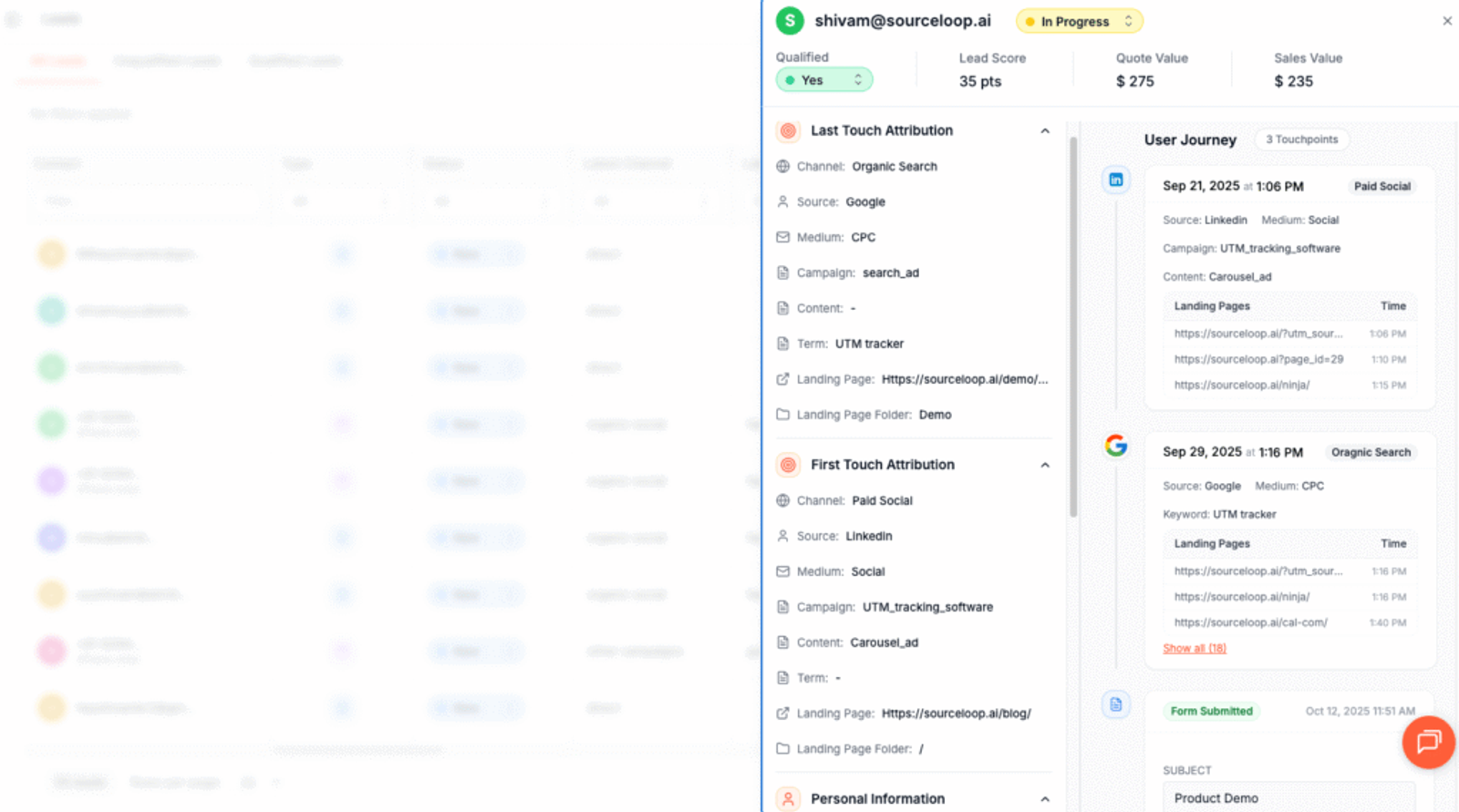
You can easily see which marketing campaign first brought them to your site, the pages they explored along the way, and any return visits.
This feature helps you understand how leads interact with your website and which campaigns are driving real results.
More Tutorials:
- Step-by-Step Guide to Track UTM Parameters in FluentForm
- How to Track UTM Parameters in MetForm
- Track UTM parameters in Elementor form
4. Add Hidden Fields to Your Forms (Optional)
You can also capture UTM data in your Zoho form submissions by adding hidden fields to the form.
These fields won’t be visible to users but will capture attribution data automatically on submission.
To add hidden fields:
1. Open your Jotform.
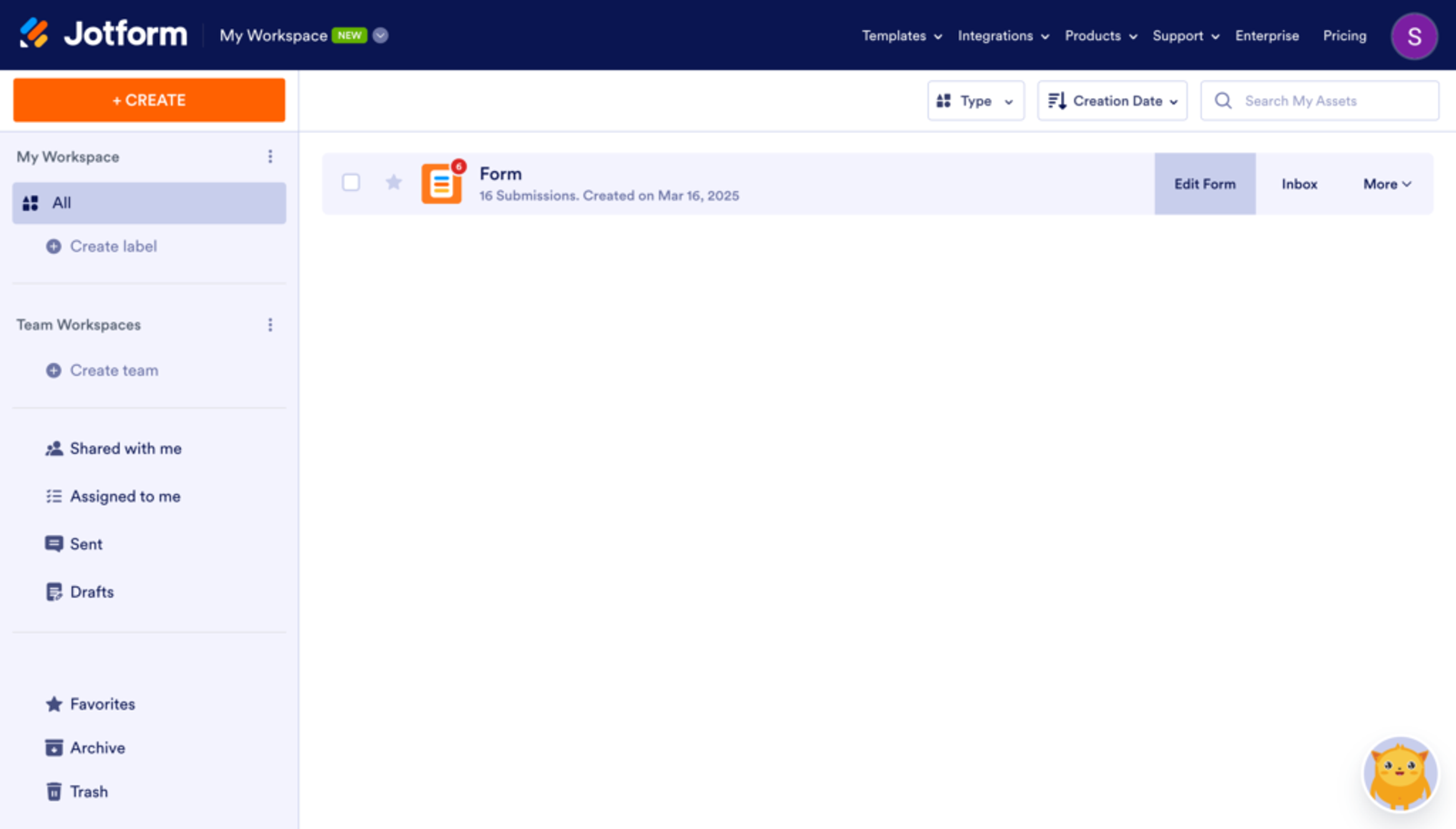
2. Drag and drop the Short Text field.
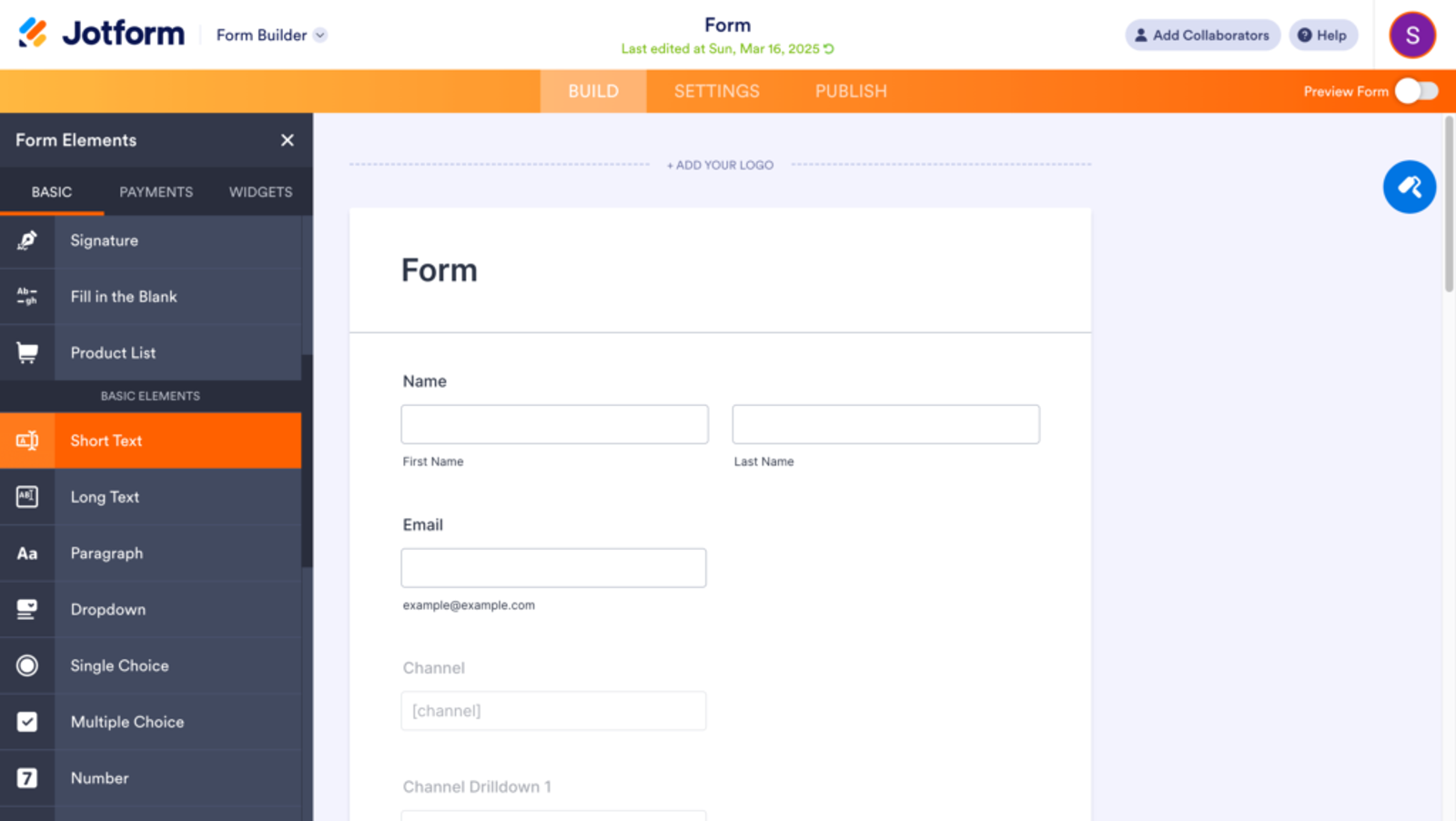
3. Select the text block and click the gear icon to open Settings.
4. Under the General tab, add a field label.
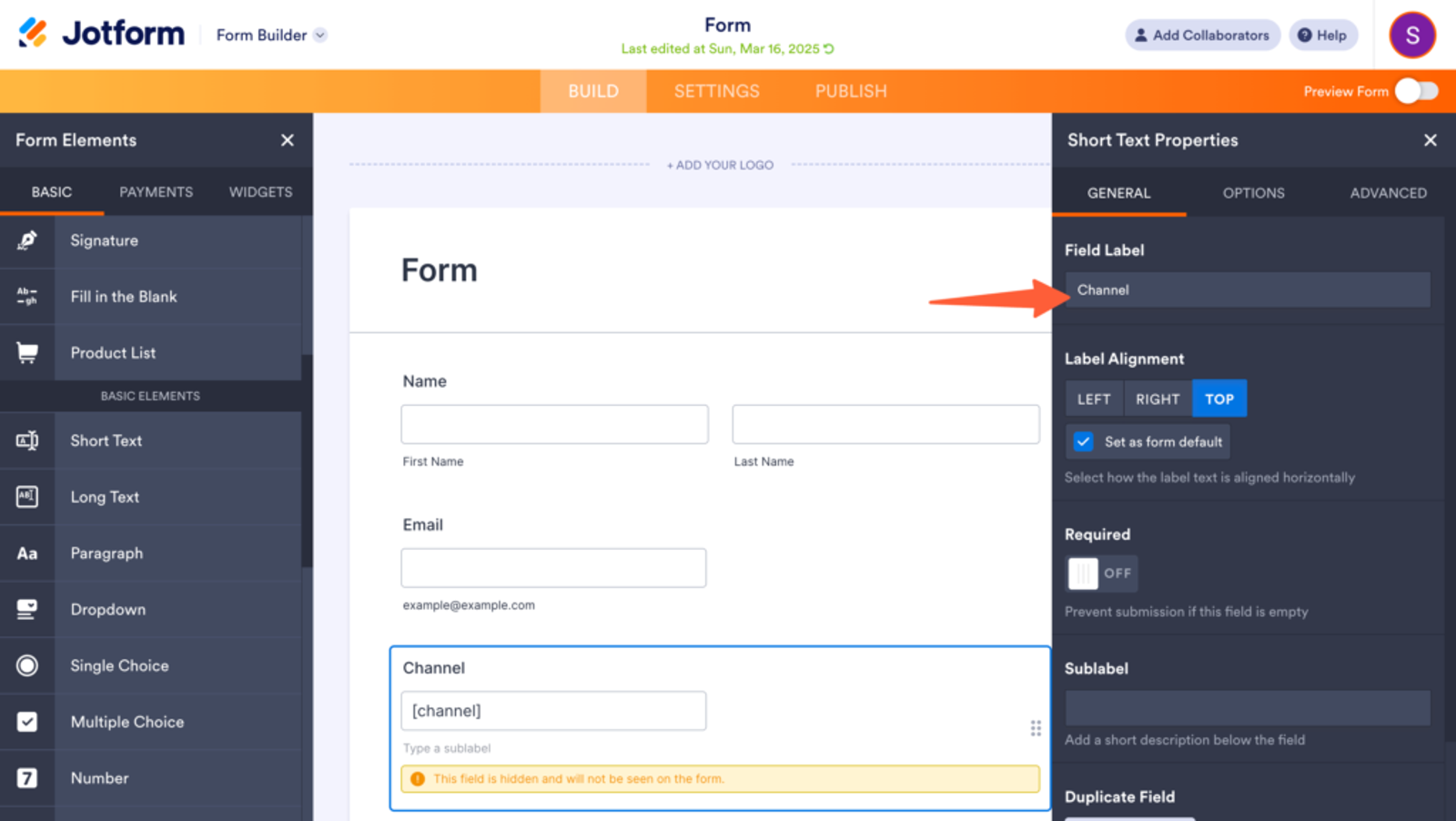
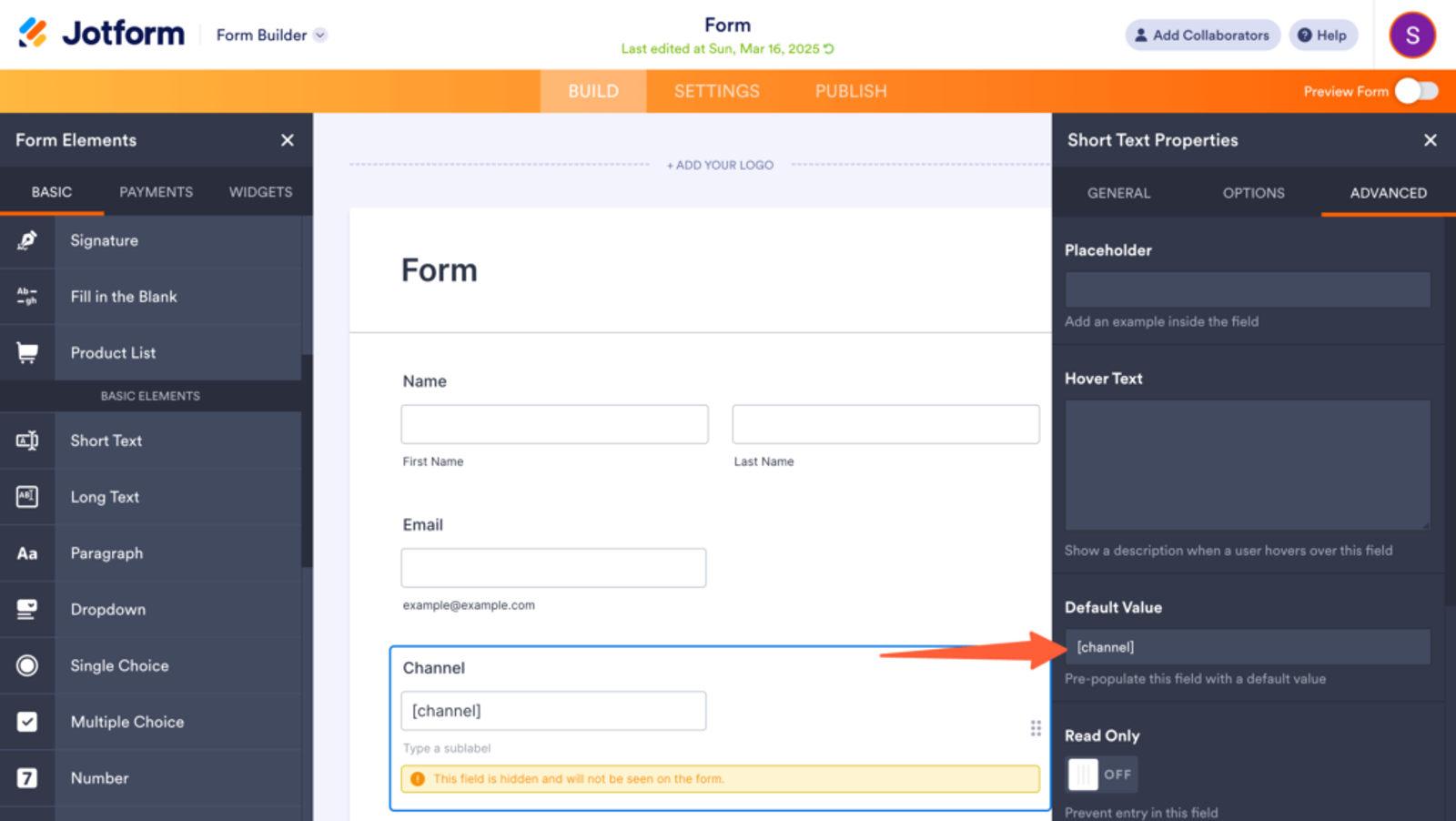
5. Under the Advanced tab:
- Set a Default Value using SourceLoop.ai tokens (e.g.,
[channel])
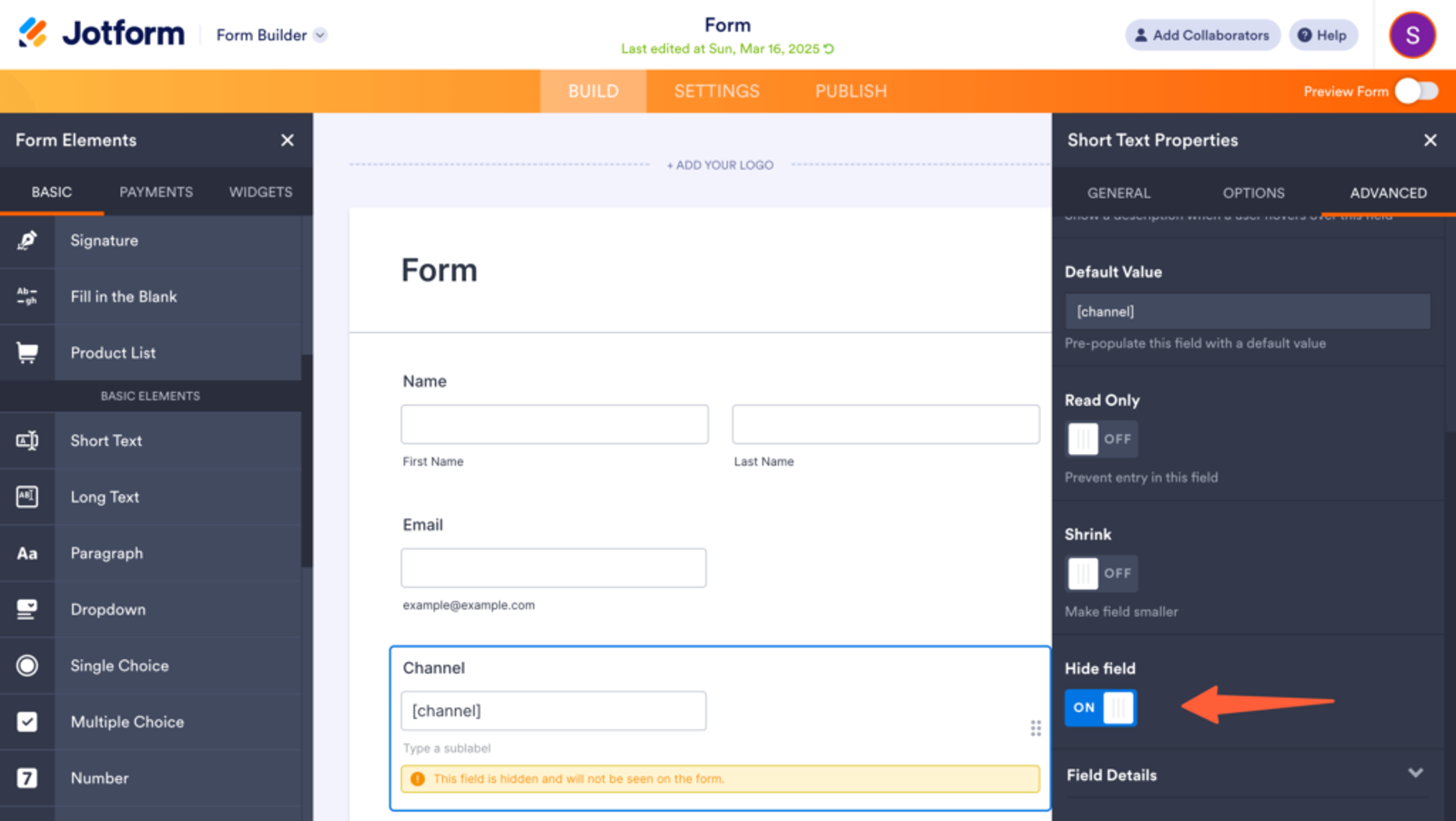
- Enable Hide Field
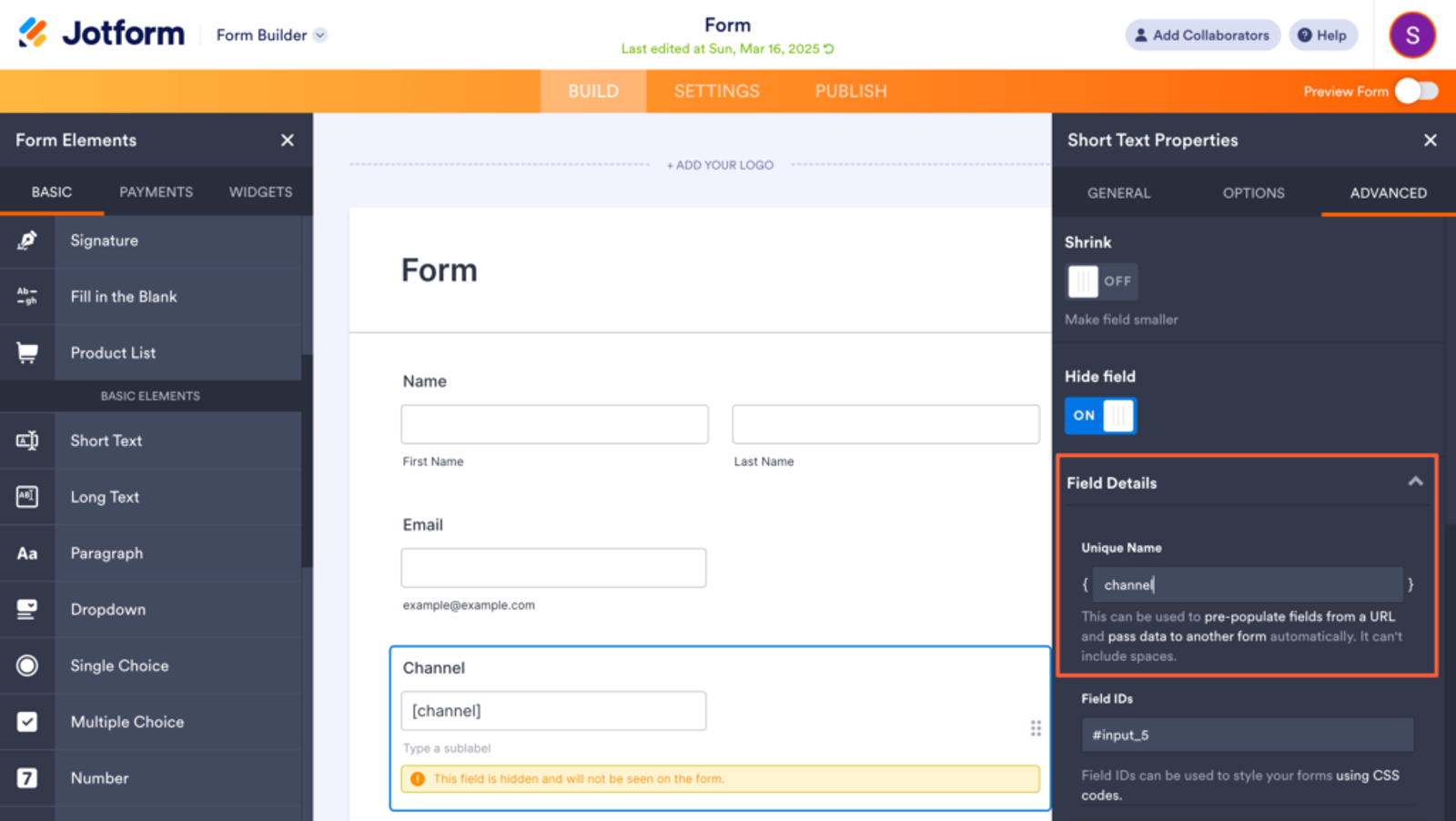
- Expand Field Details and set the Unique Name (e.g.,
channel, without brackets)
Ideally, you should add seven hidden fields with the following default values & unique name that SourceLoop.ai will use to pass lead attribution data:
channelattribution_sourceattribution_attribution_attribution_termlandingpagelandingpagefolderlastseen
If a lead visits your website multiple times before filling out the form, you can also add additional hidden fields to capture their first visit details.
SourceLoop.ai stores both the first and latest visit data for each lead.
first_channelfirst_sourcefirst_mediumfirst_campaignfirst_termfirst_landingpagefirst_landingpagefolder- firstseen
5. UTM Parameters Are Passed for Each Jotform Submission
Once this is set up, whenever someone visits your site and submits a Jotform, SourceLoop.ai will automatically pass UTM and attribution data with the form submission.
Here’s how you can use that data:
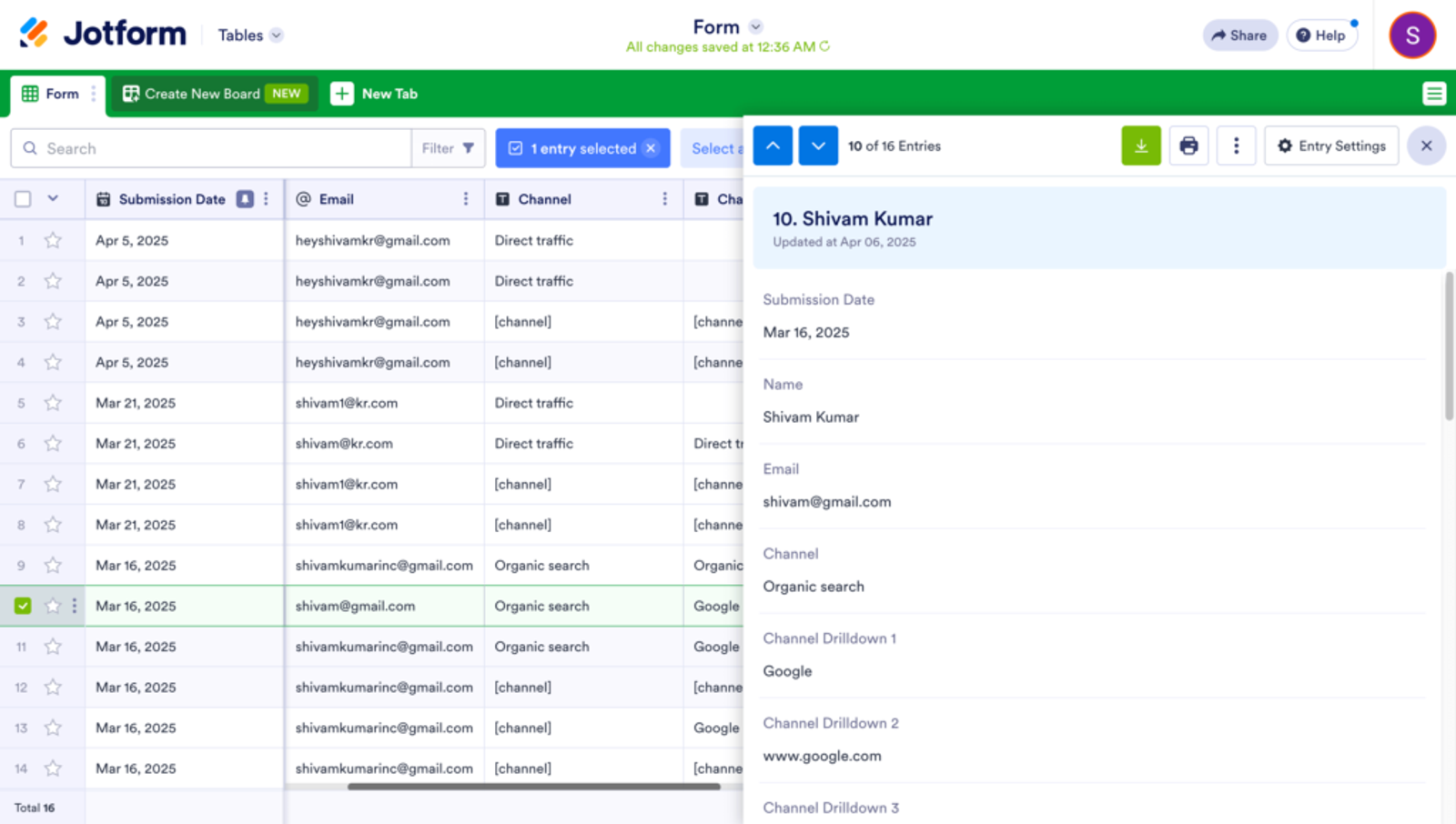
- View inside Jotform: Go to the Submissions tab to see UTM data alongside each lead.
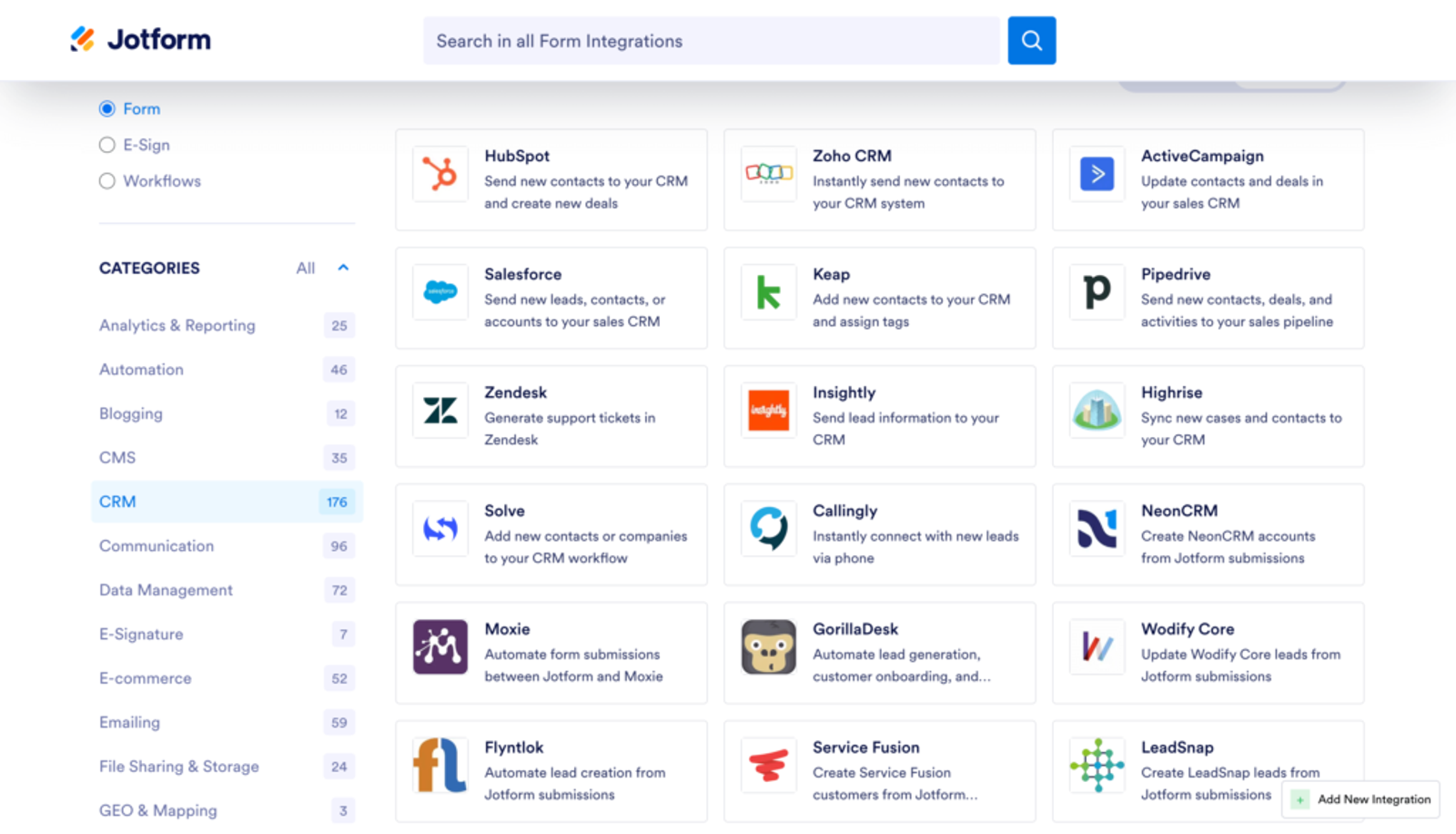
- Send it to your CRM: Jotform integrates with popular CRMs like Salesforce, HubSpot, Zoho, Pipedrive, Zendesk, and more. If your CRM is connected, all new contacts will include attribution data automatically.
- Add to your email list: Connect Jotform with tools like Mailchimp, ActiveCampaign, MailerLite, etc. Automatically add leads to your list with full attribution info so you can personalize follow-ups based on their journey.
- Create Reports: Use Google Sheets, Airtable, or Clay to store submissions and build reports showing which channels and campaigns are driving results.
More Tutorials:




 Paid Social


