
How to Track UTM Parameters in Your CRM: A Guide
Learn how to track UTM parameters in your CRM to prove marketing ROI. Our guide covers setup, first vs. last touch attribution, and building insightful reports.
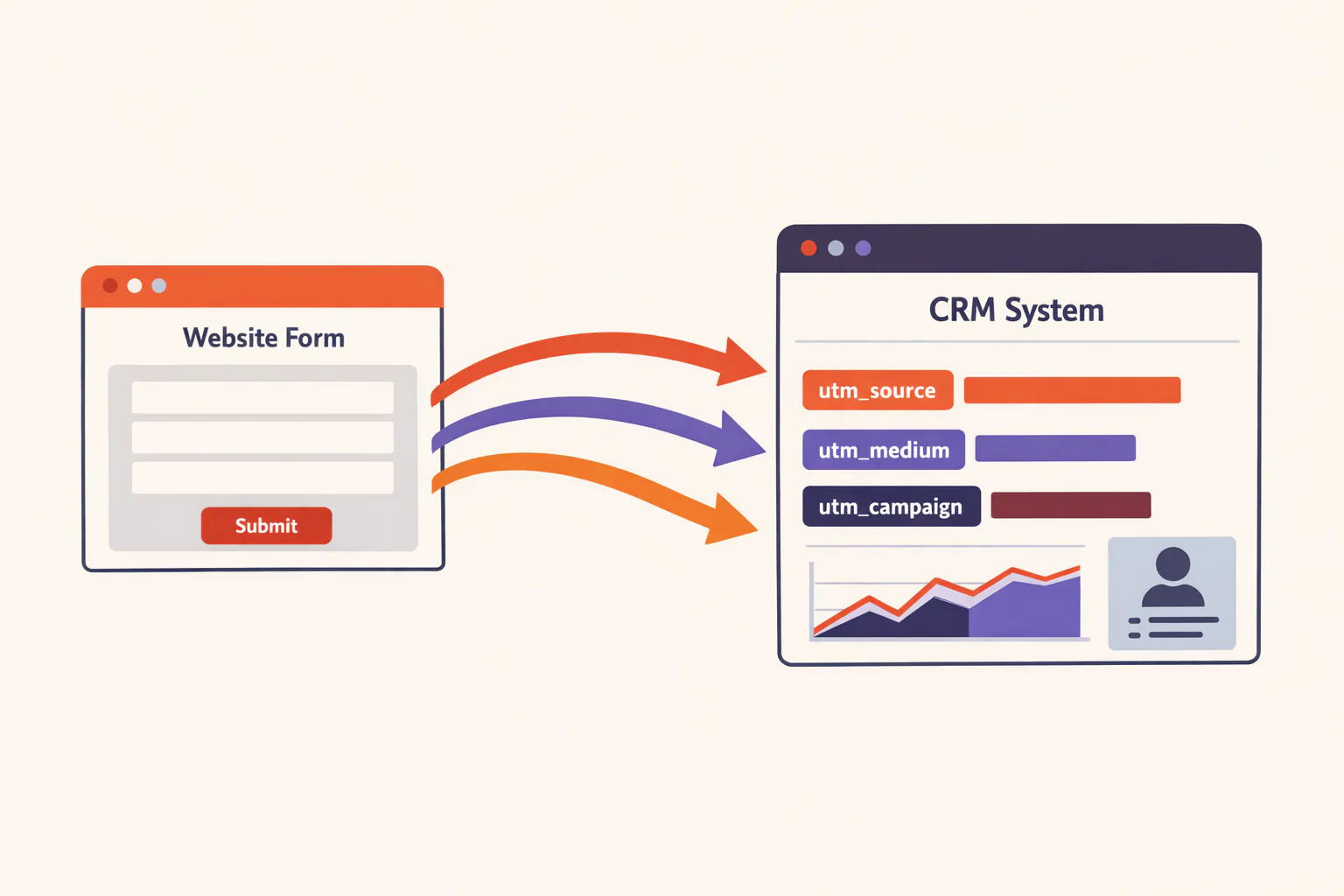
Your CRM shows 50 new leads this month, but you have no idea which marketing campaigns generated them. The UTM parameters you carefully added to every ad and email link never made it into your CRM records.
This isn't a setup error on your part.
Most CRMs simply can't capture UTM parameters on their own.
Learning how to track UTM parameters in CRM systems properly requires understanding why this gap exists and implementing the right tracking solution.
What Are UTM Parameters?
UTM (Urchin Tracking Module) parameters are tags added to the end of URLs to track where your website traffic originates. When someone clicks a link with UTM parameters, those tags tell you exactly which campaign, channel, and content brought them to your site.
The five standard UTM parameters are:
Parameter | Purpose | Example |
|---|---|---|
utm_source | Identifies the traffic source | google, facebook, newsletter |
utm_medium | Identifies the marketing medium | cpc, email, social |
utm_campaign | Identifies the specific campaign | spring_sale, webinar_2026 |
utm_term | Identifies paid search keywords | marketing+attribution |
utm_content | Differentiates similar links | sidebar_cta, header_button |
A complete UTM link looks like this:
yoursite.com/pricing?utm_source=google&utm_medium=cpc&utm_campaign=spring_sale&utm_term=crm+software
When you track these parameters in your CRM, you can see which campaigns generate not just clicks, but actual leads, customers, and revenue. This is far more valuable than the session data you see in Google Analytics, which shows website traffic but doesn't connect that traffic to closed deals.
Why CRMs Can't Track UTM Parameters Automatically
Your CRM isn't broken. It's just not designed to capture marketing attribution data from website visitors. Here's why the gap exists and why learning how to track UTM parameters in CRM requires additional tools.
1. UTM Parameters Only Live in the URL
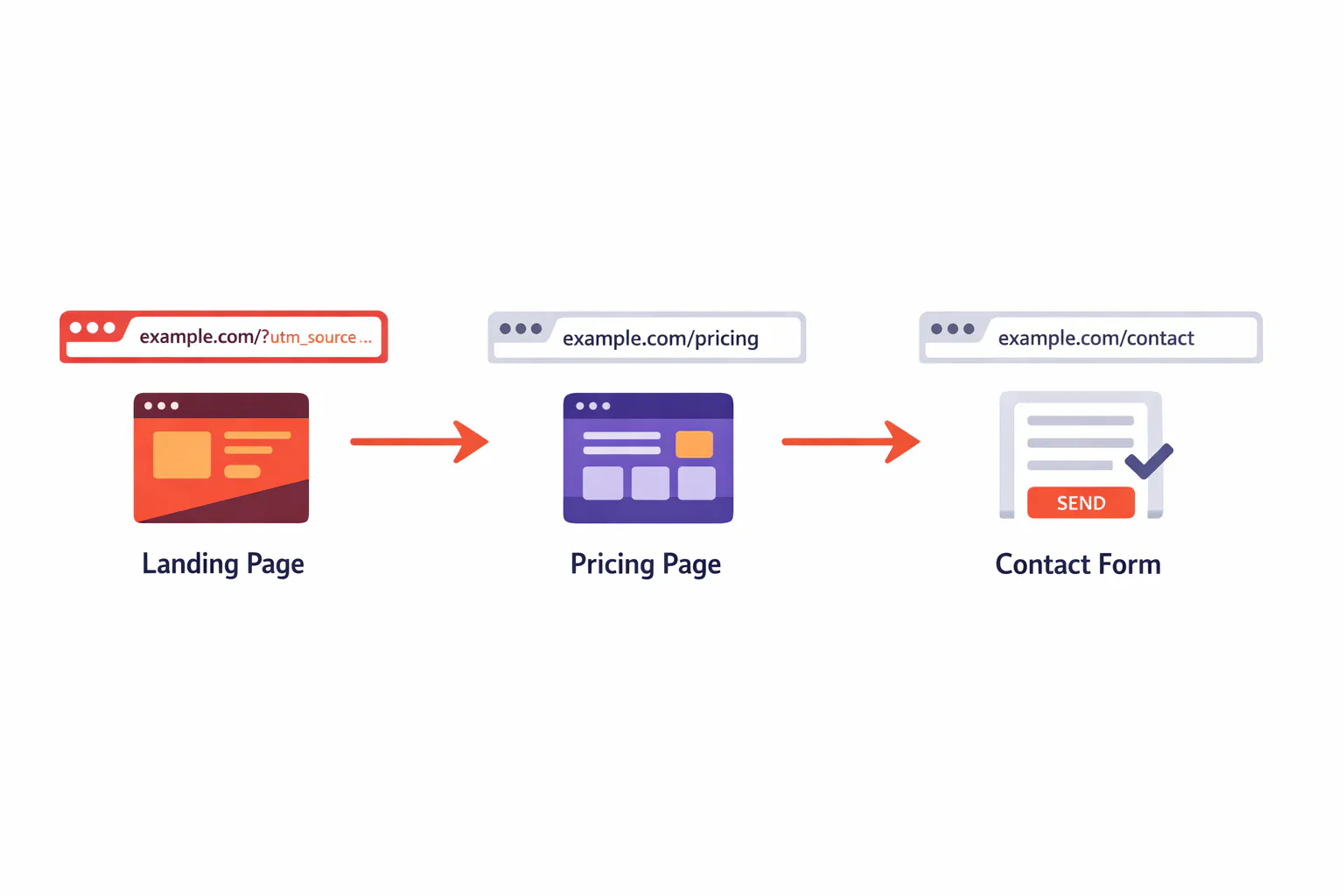
UTM parameters exist exclusively in the page URL. The moment a visitor navigates to a different page, those parameters vanish from the address bar.
Imagine this common scenario:
A visitor clicks your Google Ads campaign link with UTM parameters
They land on your homepage (UTMs are in the URL)
They click to your pricing page (UTMs are gone)
They navigate to your case studies page (still no UTMs)
They fill out your contact form (the form sees a clean URL with no parameters)
Your CRM receives the lead with no source information. The attribution data was lost at step 3.
According to research from LeadSources, this multi-page navigation problem affects the majority of B2B leads.
Most visitors browse 3-5 pages before converting, which means most UTM parameters disappear before the form submission happens. The utm_source, utm_medium, and utm_campaign data that could tell you whether a lead came from paid ads, organic search, or email marketing is simply gone.
2. CRMs Don't Have Website Tracking Built In
CRMs like HubSpot, Salesforce, Pipedrive, and Microsoft Dynamics 365 are designed to manage contacts and deals, not track website behavior. They receive data when someone submits a form or when you manually import records. They don't monitor what happens before that moment.
Without a tracking script running on your website, your CRM has no way to see:
Where visitors came from
What pages they viewed
How many sessions they had before converting
Which campaigns influenced their decision
What ads or content they clicked
The CRM only knows what you explicitly send to it through form submissions, API calls, or integrations. This is why Microsoft Dynamics 365, despite being a powerful enterprise CRM, still requires third-party tools or custom development to capture UTM data from website visitors.
3. The Subdomain and Redirect Problem
Many businesses host their main website on one domain and their forms or booking pages on a subdomain (like forms.yoursite.com or book.yoursite.com). UTM parameters don't automatically transfer across domain boundaries.
A visitor lands on yoursite.com with UTM parameters, clicks through to forms.yoursite.com, and submits. Your CRM records them as direct traffic with no source.
Similarly, 301 redirects often strip query parameters during the redirect process. If your campaign URLs redirect through multiple hops, the UTMs may never reach the landing page at all. According to Moz's technical SEO guide, improper redirect configuration is one of the most common causes of lost tracking parameters.
How Sourceloop Solves the UTM Tracking Problem
Sourceloop is built specifically to capture marketing attribution data and connect it to your CRM records. Here's how it works and why it solves the problems that native CRM tracking can't.
First-Party Tracking Captures UTMs at First Touch
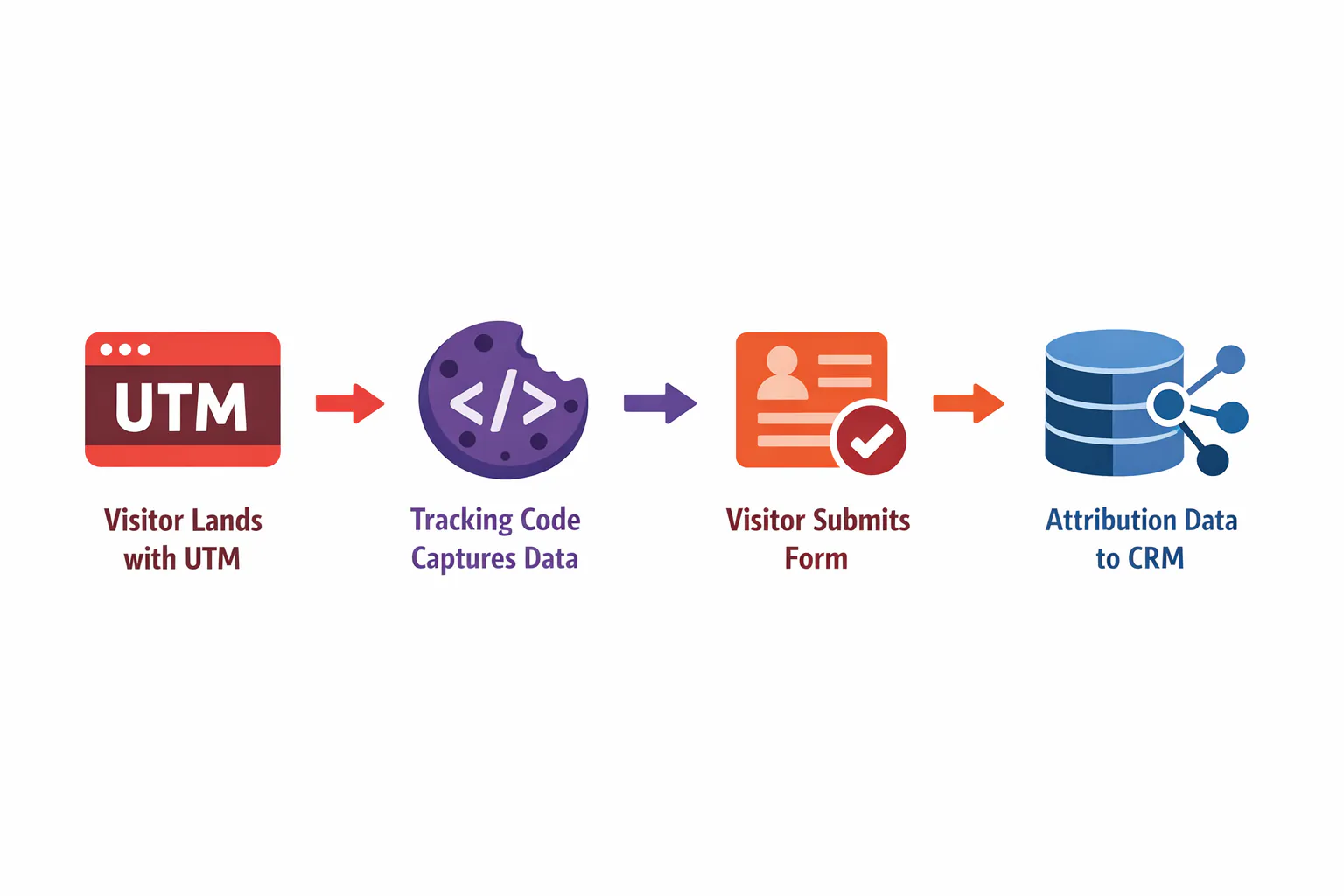
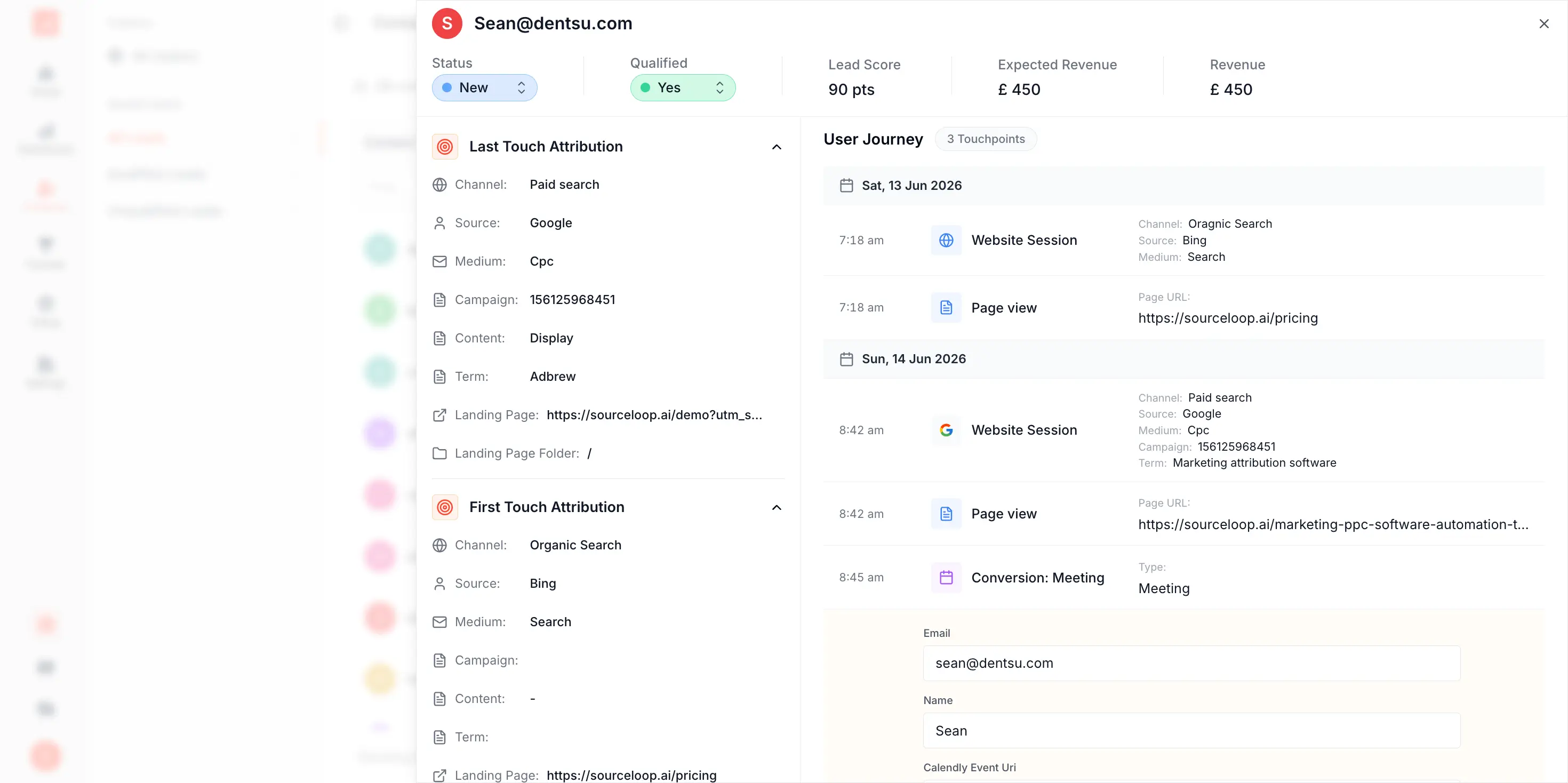
When you install Sourceloop's tracking code on your website, it immediately captures UTM parameters (and other attribution data) the moment a visitor lands on any page. This data is stored in a first-party cookie in the visitor's browser.
The cookie persists as the visitor navigates between pages, across sessions, and even if they return days later. The UTM parameters are preserved regardless of how many pages they view before converting. This solves the multi-page navigation problem that breaks most UTM tracking implementations.
Attribution Data Flows Through 100+ Conversion Points
Sourceloop integrates with over 100 form builders, meeting schedulers, live chat tools, and conversion tracking systems, including:
Any website form (Contact Form 7, Gravity Forms, Typeform, etc.)
Live chat (Intercom, Tidio, HubSpot Chat)
Call tracking platforms (CallRail, CallTrackingMetrics)
Ecommerce platforms (Shopify)
When a visitor converts through any of these channels, Sourceloop automatically attaches the stored attribution data to that conversion. The lead arrives in your CRM with complete source information, not just the UTM parameters but the entire visitor journey.
CRM Sync Writes Attribution Fields Directly into Your CRM
Sourceloop connects directly to HubSpot, Pipedrive, and Salesforce. It creates custom attribution fields in your CRM and populates them automatically for every new lead:
First touch source, medium, campaign, term, content
Latest touch source, medium, campaign, term, content
Landing page URL
Full visitor journey (every session, page, and referrer)
Lead score
Step-by-Step: How to Track UTM Parameters in Your CRM with Sourceloop
Here's the complete implementation process, from account setup to seeing attribution data in your CRM. This guide works for any CRM system, whether you're using HubSpot, Salesforce, Microsoft Dynamics 365, or any other platform.
Step 1: Create Your Sourceloop Account
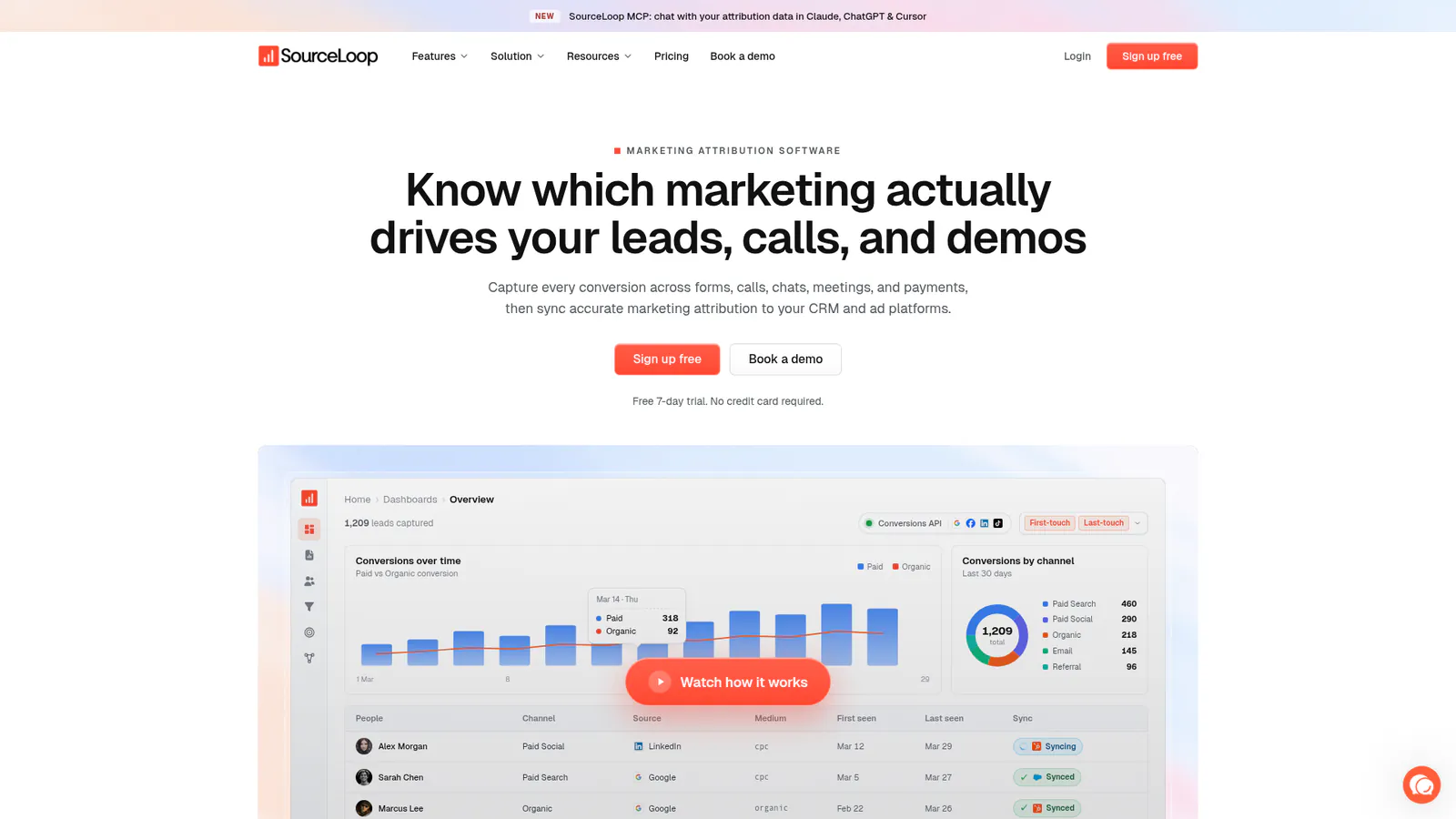
Go to sourceloop.ai and sign up for a free 7-day trial
Choose the plan that matches your traffic volume (Essential, Professional, or Agency)
Complete the account setup and verify your email
No credit card is required for the trial. You'll have full access to all features during the trial period, including CRM sync and unlimited conversion tracking.
Step 2: Install the Sourceloop Tracking Code on Your Website
Sourceloop provides a small JavaScript snippet that needs to be added to every page of your website. This code captures visitor behavior and attribution data, including all UTM parameters from inbound links.
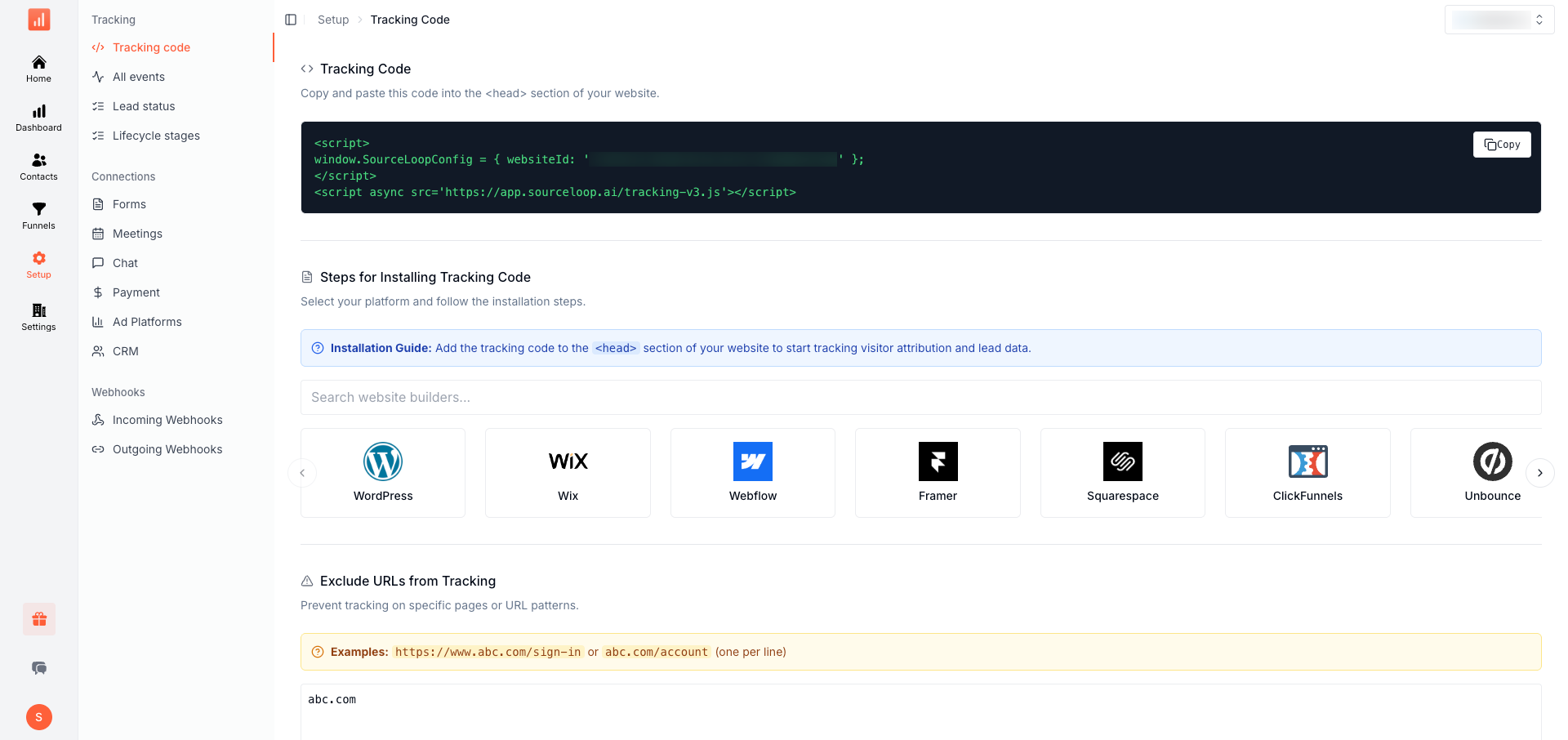
For WordPress sites:
In your Sourceloop dashboard, navigate to Settings → Installation
Copy the tracking code snippet
Install a header/footer plugin like Insert Headers and Footers
Paste the Sourceloop code in the header section
Save and verify the code appears on your site
For custom websites:
Copy the tracking code from your Sourceloop dashboard
Add it to your site's
<head>section, just before the closing</head>tagDeploy the change to your production site
Verify installation by checking the Sourceloop dashboard for incoming traffic
Step 3: Configure Your Conversion Tracking
Sourceloop needs to know which actions on your website count as conversions. This could be form submissions, meeting bookings, phone calls, or chat conversations.
For form submissions:
Sourceloop automatically detects and tracks most popular form builders without additional configuration. Supported platforms include:
If you're using a custom form or an unsupported builder, you can set up conversion tracking manually using Sourceloop's JavaScript SDK:
sourceloop.track('Lead Form Submitted', {
 email: '[email protected]',
 name: 'John Smith'
});
For meeting bookings:
If you use Calendly, Cal.com, or another scheduling tool, Sourceloop can track when meetings are booked:
Navigate to Integrations in your Sourceloop dashboard
Connect your scheduling platform
Configure which event types should be tracked as conversions
For phone calls:
If you use call tracking software like CallRail or CallTrackingMetrics:
Connect your call tracking platform in the Sourceloop integrations section
Map which call outcomes (answered, qualified, etc.) count as conversions
Sourceloop will attribute calls to the visitor's original source, including the utm_source and utm_campaign that brought them to your site
Step 4: Connect Your CRM
This is where the attribution data flows from Sourceloop into your CRM records. The process varies slightly depending on which CRM you use.
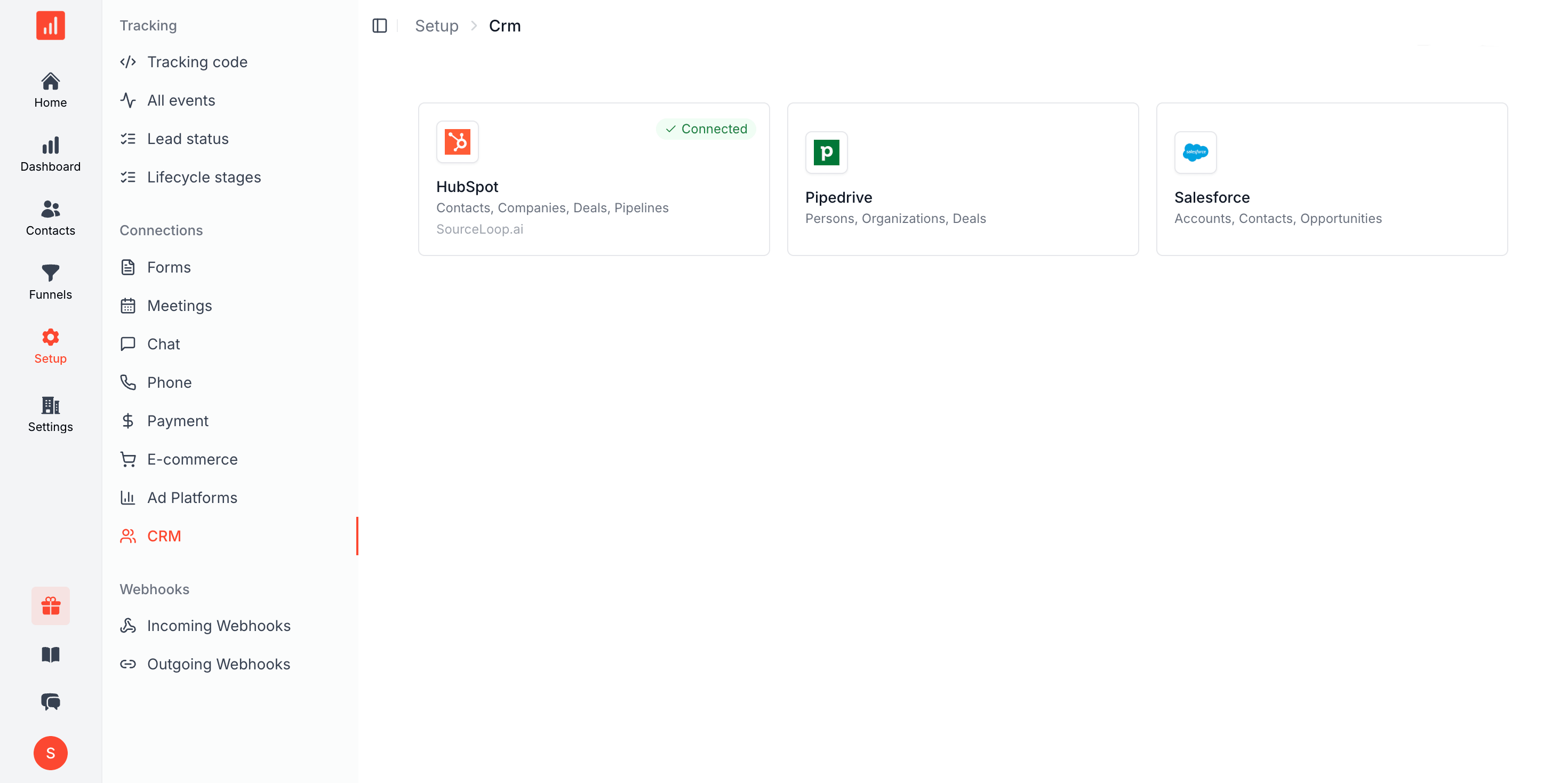
For HubSpot:
In Sourceloop, go to Integrations → CRM
Click "Connect HubSpot"
Authorize Sourceloop to access your HubSpot account
Sourceloop automatically creates custom properties for attribution data
Map your conversion events to HubSpot lifecycle stages (optional)
Once connected, every new contact in HubSpot will have fields like:
First Touch Source
First Touch Medium
First Touch Campaign
Latest Touch Source
Latest Touch Medium
Latest Touch Campaign
Landing Page
Lead Score
For Pipedrive:
Navigate to Integrations → CRM in Sourceloop
Click "Connect Pipedrive"
Enter your Pipedrive API token
Sourceloop creates custom fields in Pipedrive for attribution data
Configure which pipeline stage new leads should enter
For Salesforce:
Go to Integrations → CRM
Click "Connect Salesforce"
Authorize the connection
Sourceloop creates custom fields on Lead and Contact objects
Map your conversion events to Lead Status values
For Microsoft Dynamics 365 and other CRMs (webhook method):
If your CRM isn't directly supported, use Sourceloop's webhook integration. This is the most flexible way to track UTM parameters in CRM systems like Microsoft Dynamics 365, Zoho, or custom-built platforms:
In Sourceloop, go to Integrations → Webhooks
Create a new outgoing webhook
Enter your CRM's webhook URL (or use Zapier or Make as an intermediary)
Configure which conversion events trigger the webhook
Map the attribution data fields to your CRM's field structure
The webhook sends a JSON payload containing all attribution data:
{
 "email": "[email protected]",
 "name": "John Smith",
 "first_touch_source": "google",
 "first_touch_medium": "cpc",
 "first_touch_campaign": "spring_sale",
 "latest_touch_source": "email",
 "latest_touch_medium": "newsletter",
 "landing_page": "https://yoursite.com/pricing",
 "journey": [...]
}
Your CRM or automation platform receives this data and creates or updates the contact record accordingly. This webhook approach works with virtually any CRM that can receive HTTP POST requests, making it the universal solution for how to track UTM parameters in CRM systems.
Step 5: Verify Data is Flowing Correctly
After setup, test the complete flow to ensure UTM parameters are being captured and synced:
Clear your browser cookies
Visit your website using a URL with UTM parameters (create a test link like
yoursite.com?utm_source=test&utm_medium=email&utm_campaign=verification)Browse a few pages on your site
Submit a form or complete another conversion action
Check your CRM to verify the lead appears with correct attribution data
Example Reports You Can Run with UTM Parameters in Your CRM
Once UTM parameters are flowing into your CRM, you can build reports that connect marketing spend to actual revenue. Here are four reports that change how you allocate budget.
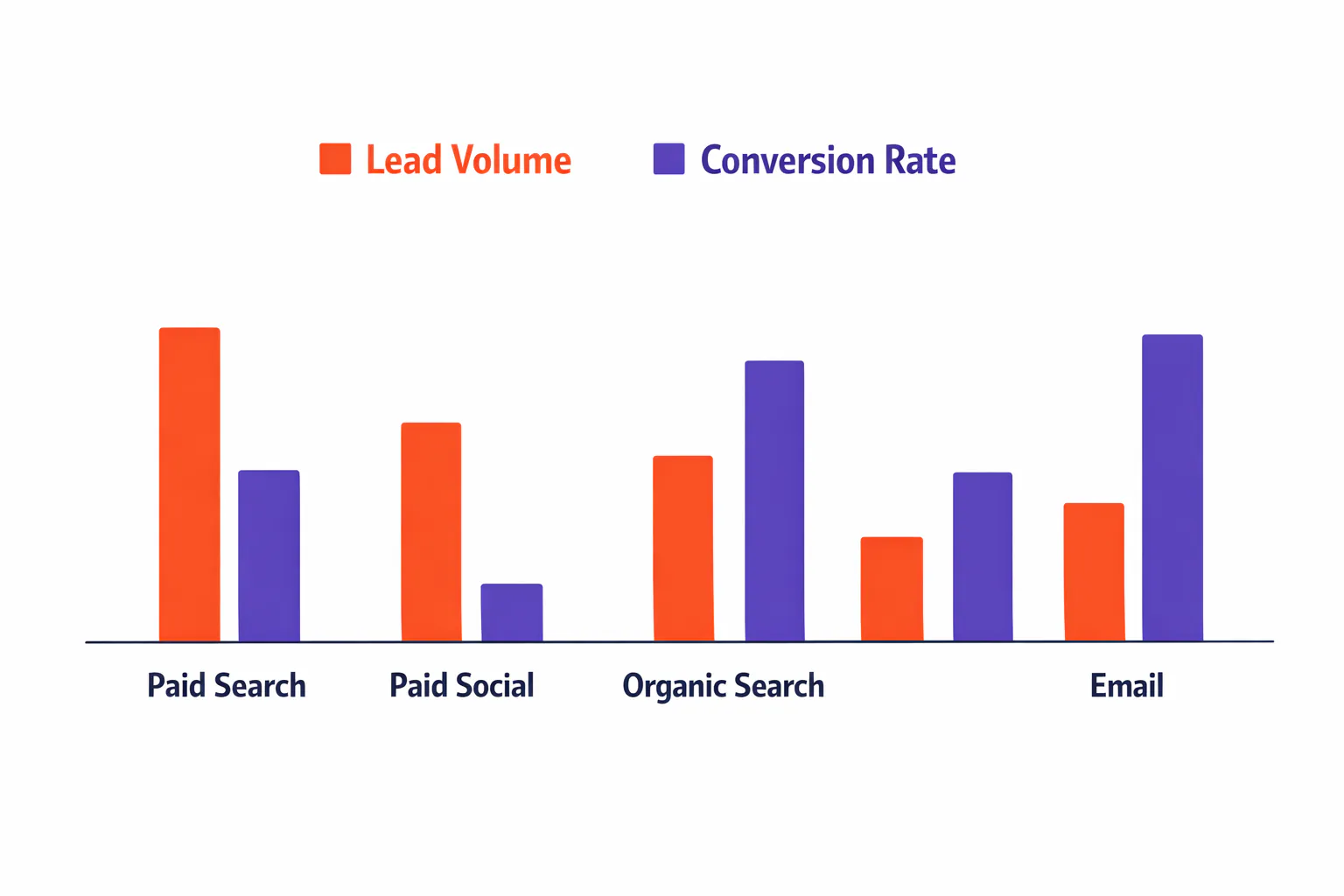
Leads by Channel
This report shows how many leads each marketing channel generated in a given period. You can build this in any CRM by grouping contacts by their First Touch Source field.
Channel | Leads | Percentage |
|---|---|---|
Paid Search | 87 | 35% |
Paid Social | 62 | 25% |
Organic Search | 45 | 18% |
31 | 12% | |
Direct | 25 | 10% |
You can see which channels are driving volume, but volume alone doesn't tell you which channels are worth the investment. According to HubSpot's State of Marketing report, 40% of marketers say proving ROI is their top challenge. This is where tracking UTM parameters in your CRM becomes essential.
Customers by Channel
This report shows how many leads from each channel actually became customers. Build this by filtering your CRM contacts to "Customer" status and grouping by First Touch Source.
Channel | Leads | Customers | Conversion Rate |
|---|---|---|---|
Paid Search | 87 | 12 | 13.8% |
Paid Social | 62 | 4 | 6.5% |
Organic Search | 45 | 9 | 20% |
31 | 7 | 22.6% | |
Direct | 25 | 5 | 20% |
Now you can see that Paid Social generates leads but converts poorly, while Email and Organic Search have higher conversion rates despite lower lead volume. This insight is only possible when you track UTM parameters in your CRM and connect them to deal outcomes.
Revenue by Campaign
This report shows total revenue generated by each specific campaign. Build this by grouping won deals by their First Touch Campaign field and summing the deal values.
Campaign | Spend | Leads | Customers | Revenue | ROAS |
|---|---|---|---|---|---|
Spring Sale - Google | $3,200 | 42 | 8 | $48,000 | 15x |
Spring Sale - Facebook | $2,800 | 38 | 2 | $12,000 | 4.3x |
Webinar Promo | $1,500 | 24 | 6 | $36,000 | 24x |
Retargeting | $900 | 15 | 4 | $24,000 | 26.7x |
This is where UTM tracking becomes powerful. You can see that your webinar campaign and retargeting efforts are dramatically outperforming your main paid campaigns, even though they generate fewer leads. This level of insight requires tracking the utm_campaign parameter all the way through to closed revenue.
Cost Per Customer by Source
This report calculates how much you're actually paying to acquire a customer from each source. Build this by dividing total ad spend by the number of customers acquired from each utm_source.
Source | Total Spend | Customers | Cost Per Customer |
|---|---|---|---|
Google Ads | $8,400 | 21 | $400 |
Facebook Ads | $6,200 | 8 | $775 |
LinkedIn Ads | $4,100 | 6 | $683 |
Email (paid) | $1,200 | 7 | $171 |
These numbers tell you where to increase spend and where to cut back. Email marketing is acquiring customers at $171 each while Facebook is costing $775 per customer. According to WordStream's advertising benchmarks, the average cost per acquisition varies dramatically by industry, making it essential to track your own data.
Frequently Asked Questions
Can I track UTM parameters without using a third-party tool?
Technically yes, but it requires significant development work. You'd need to build custom JavaScript to capture UTMs, store them in cookies, pass them through forms, and sync them to your CRM via API. For most businesses, using a purpose-built tool like Sourceloop is faster and more reliable than building a custom solution. According to Stack Overflow's developer survey, the average developer hourly rate makes custom development far more expensive than using an existing solution.
Will tracking UTM parameters slow down my website?
No. Sourceloop's tracking script is lightweight (under 15KB) and loads asynchronously, meaning it doesn't block your page from rendering. The impact on page load time is negligible, typically under 50 milliseconds. Google's PageSpeed Insights confirms that properly implemented tracking scripts have minimal impact on Core Web Vitals.
How long does Sourceloop store attribution data?
Attribution data is stored in a first-party cookie for 365 days by default. This means if a visitor first arrives from a Google Ad, browses your site, leaves, and returns three months later to convert, Sourceloop will still attribute that lead to the original Google Ad campaign. This 365-day window aligns with typical B2B sales cycles.
Can I track offline conversions?
Yes. If you track phone calls through CallRail or CallTrackingMetrics, Sourceloop can attribute those calls to the visitor's original source. For truly offline conversions (like in-person events), you can manually import leads into Sourceloop with attribution data if you capture it at the point of conversion.
Does this work with privacy regulations like GDPR?
Yes. Sourceloop uses first-party cookies on your own domain, which is compliant with GDPR when properly disclosed in your privacy policy. Sourceloop also offers a cookieless tracking mode for businesses that need to operate without any cookies at all. According to the GDPR official guidance, first-party cookies used for analytics are generally permitted with proper disclosure.
What happens if someone uses multiple devices?
Sourceloop tracks attribution per device/browser. If a visitor first arrives on mobile, then later converts on desktop, Sourceloop will attribute the conversion to the desktop session's source unless you implement cross-device identity stitching (available in Sourceloop Professional and Agency plans).
Can I see the full visitor journey, not just first and last touch?
Yes. Sourceloop captures every session, page view, referrer, and campaign interaction from first visit to conversion. You can view the complete journey timeline in the Sourceloop dashboard and optionally sync it to your CRM as a JSON field. This gives you visibility into every utm_source, utm_medium, and utm_campaign that influenced the lead.
Is it safe and legal to track where my leads come from?
Yes. Tracking lead sources using UTM parameters and first-party cookies is legal in all major jurisdictions when you:
Disclose your tracking practices in your privacy policy
Obtain consent where required (EU, California, etc.)
Use first-party tracking on your own domain
Don't collect sensitive personal data without explicit consent
Sourceloop uses first-party tracking, which means the data stays on your domain and isn't shared with third parties. This is far more privacy-friendly than third-party tracking pixels. According to privacy regulations like GDPR, first-party analytics for understanding your own website performance is considered a legitimate business interest.
How reliable is the data I'll be getting?
The data is highly reliable when properly implemented. Sourceloop captures attribution data at the first touch and stores it in a persistent cookie, which means it's not affected by:
Multi-page navigation
Session timeouts
Subdomain crossings (when configured)
Form location changes
The main factors that can affect data reliability are:
Users who block cookies entirely (typically 5-10% of traffic)
Users who clear cookies between visits
Cross-device conversions (unless you use identity stitching)
Can Google Analytics track all my marketing channels?
Google Analytics tracks website traffic and can show you which channels drive sessions and goals. However, it has limitations:
It doesn't sync data to your CRM - You can see traffic in GA, but your sales team can't see where each lead came from in the CRM
It can't track offline conversions - Phone calls, in-person meetings, and manual deals aren't captured
It doesn't connect to revenue - GA shows goal completions, but doesn't know which leads became customers or how much revenue they generated
Sourceloop complements Google Analytics by connecting the attribution data to your CRM records and closed revenue. Many businesses use both: Google Analytics for website analytics and Sourceloop for lead attribution and revenue tracking.
Start Tracking UTM Parameters in Your CRM Today
Knowing which marketing campaigns generate leads is useful. Knowing which campaigns generate customers and revenue is essential.
When you track UTM parameters in your CRM, you stop guessing about marketing performance and start making decisions based on actual customer acquisition data. You can see which channels deserve more budget, which campaigns are wasting money, and which content is driving the highest-value leads.
Sourceloop makes this connection automatic. Install the tracking code, connect your CRM, and every lead that arrives will carry complete attribution data from first touch to conversion. Whether you're using HubSpot, Salesforce, Microsoft Dynamics 365, or any other CRM, Sourceloop provides the missing link between your marketing campaigns and your revenue data.
Start your free 7-day trial and see exactly which campaigns are driving your revenue.


 Paid Social


