
How to Track Typeform Submissions as Meta Ads Conversions
Send every Typeform submission to Meta as a Lead event through the Conversions API, so Facebook and Instagram ads optimize for real leads, not clicks.
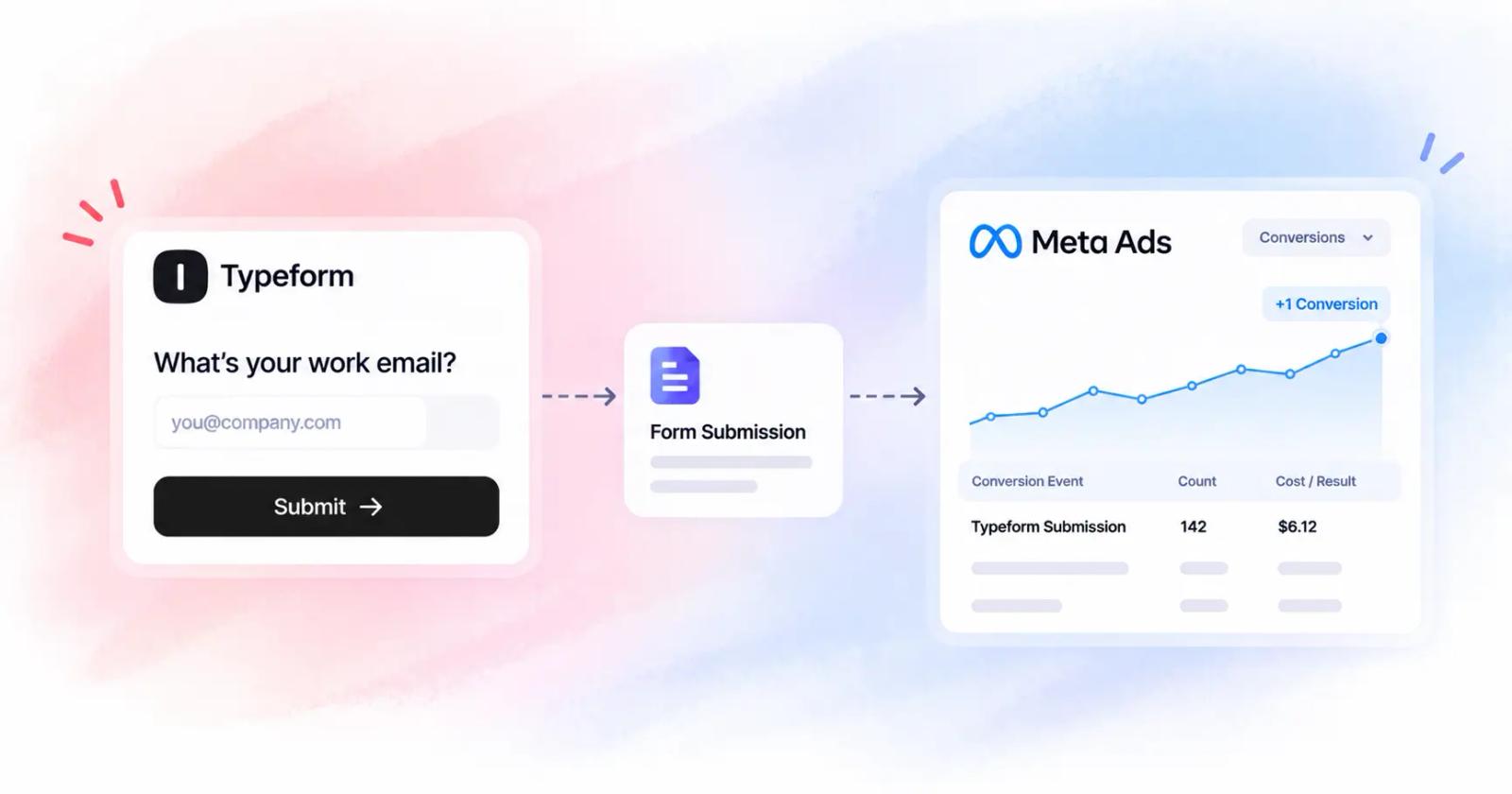
Table of contents
- Why Meta misses Typeform leads
- How it works in 30 seconds
- Quick checklist before you start
- Part 1: Get your Typeform leads into SourceLoop
- 1. Add the tracking script to your site
- 2. Add one hidden parameter to the form
- 3. Embed the form on your landing page
- 4. Connect the webhook
- Part 2: Connect Meta Ads
- 1. Link your ad account
- 2. Grab your Pixel ID
- 3. Make a token that never expires
- Part 3: Send Typeform leads to Meta
- Lead, CompleteRegistration, or something custom?
- Run a 2-minute test
- Common mistakes to avoid
- What changes after this
Here's a common story. Your Facebook ads bring in plenty of traffic. People fill in your Typeform. Your inbox fills up with leads.
But Ads Manager shows almost no conversions. So Meta keeps spending on people who click and leave, instead of people who actually fill in the form.
The problem isn't your ads. It's that Meta never hears about the leads. Let's fix that.
Why Meta misses Typeform leads
Typeform loads inside an iframe. When someone hits submit, it happens inside Typeform's frame, not on your page. Your Meta Pixel simply doesn't see it.
Add iOS privacy settings and ad blockers on top, and a big share of your real leads never reach Meta. The answer is to send each lead from a server instead of the browser. That's what Meta's Conversions API is for.
How it works in 30 seconds
- Someone clicks your Facebook or Instagram ad and lands on your site.
- SourceLoop saves the Meta click ID and cookies for that visitor.
- They fill in your Typeform. Typeform sends the response to SourceLoop by webhook.
- SourceLoop joins the response to the ad click and sends a Lead event to Meta.
Meta now knows which ad produced the lead, and its algorithm starts finding more people like them.
Quick checklist before you start
- A SourceLoop account where you're an Admin or Owner
- Typeform Basic or higher (webhooks aren't on the Free plan)
- Admin access to your Meta Business Manager
- A Meta Pixel or Dataset linked to your ad account
- A landing page where you can paste a script and embed the form
Part 1: Get your Typeform leads into SourceLoop
1. Add the tracking script to your site
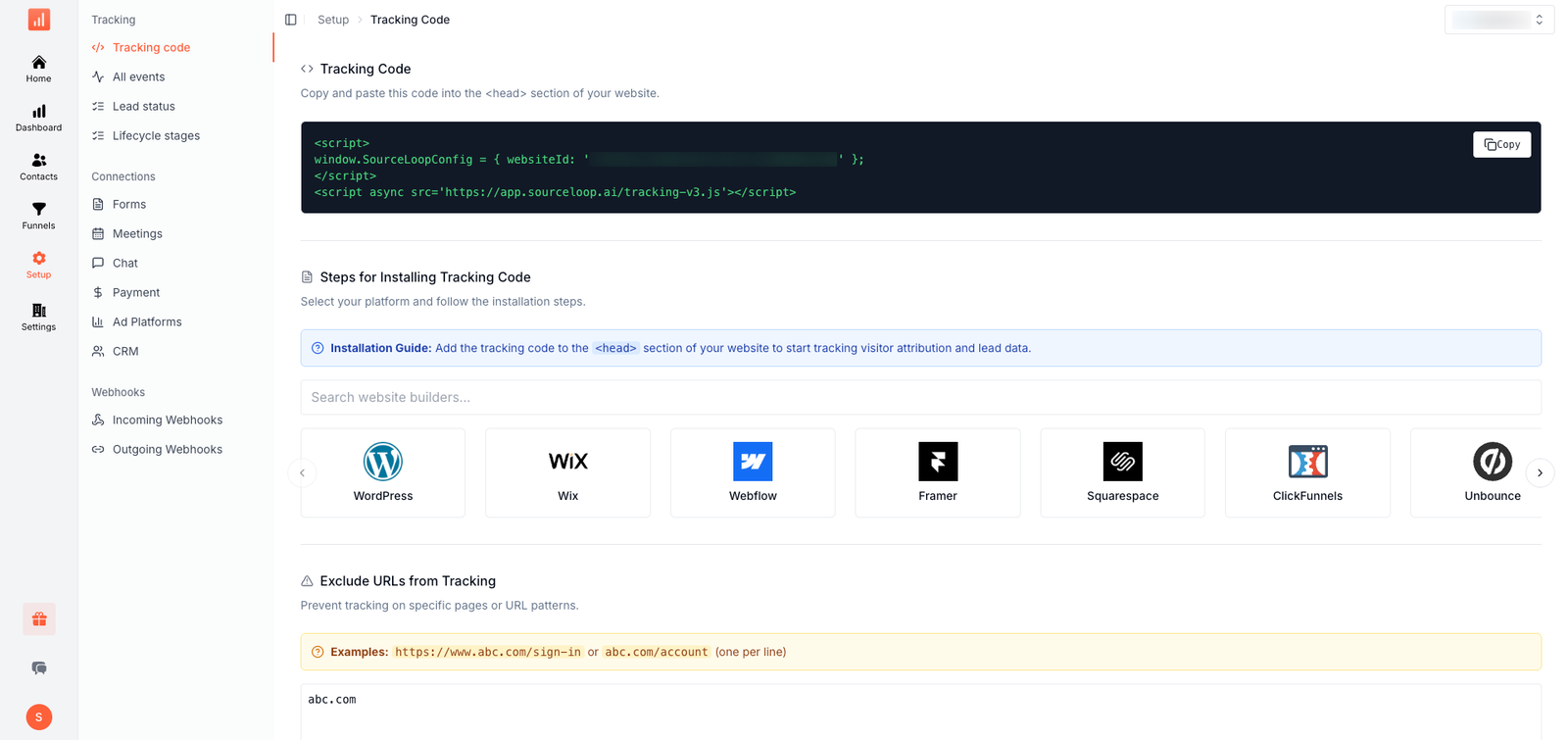
In SourceLoop, open Setup and then Tracking code. Copy the script and paste it into the head of every page. This is the piece that remembers which ad each visitor came from.
2. Add one hidden parameter to the form
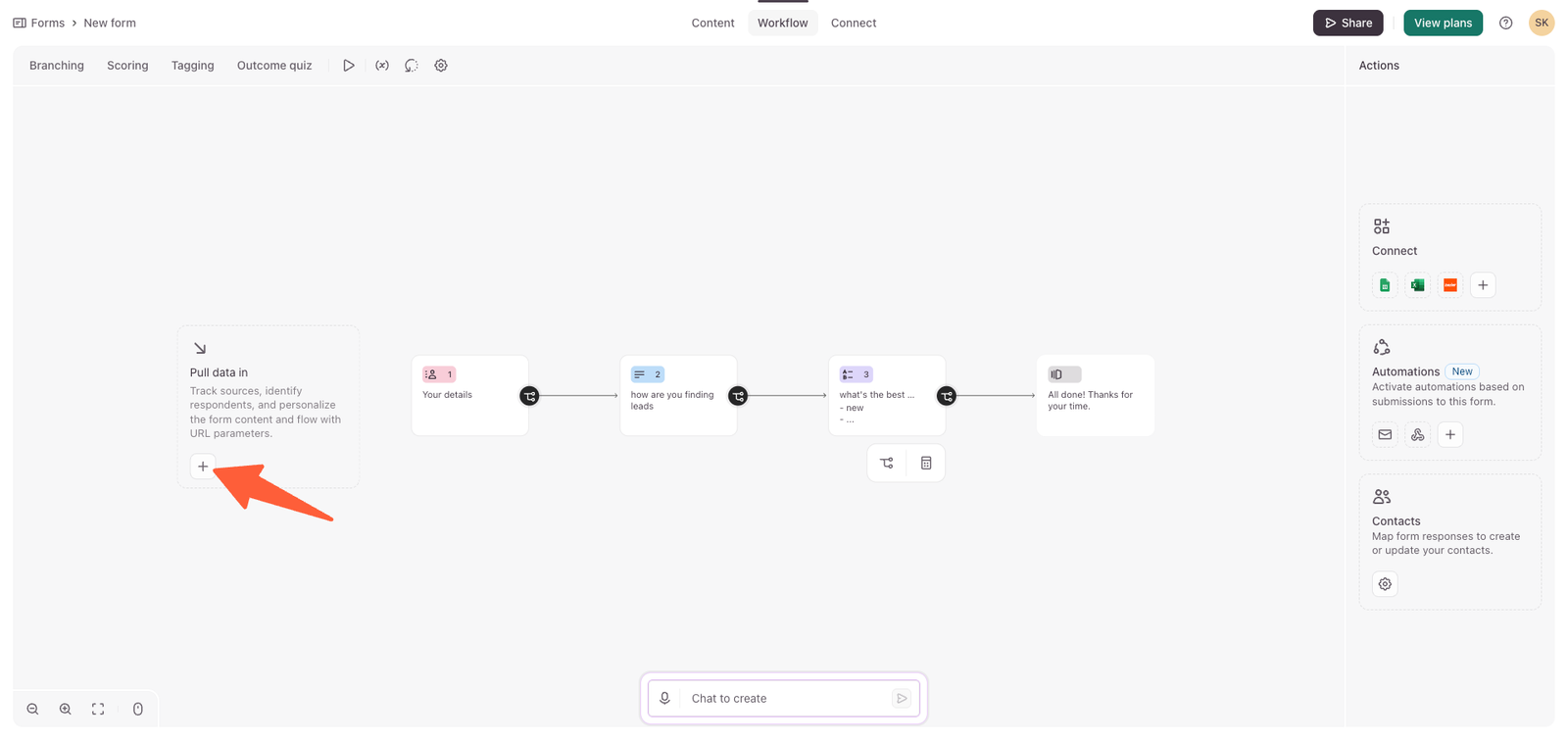
Open your form in Typeform and go to the Workflow tab. On the Pull data in card, click the plus button, then Add new parameter.
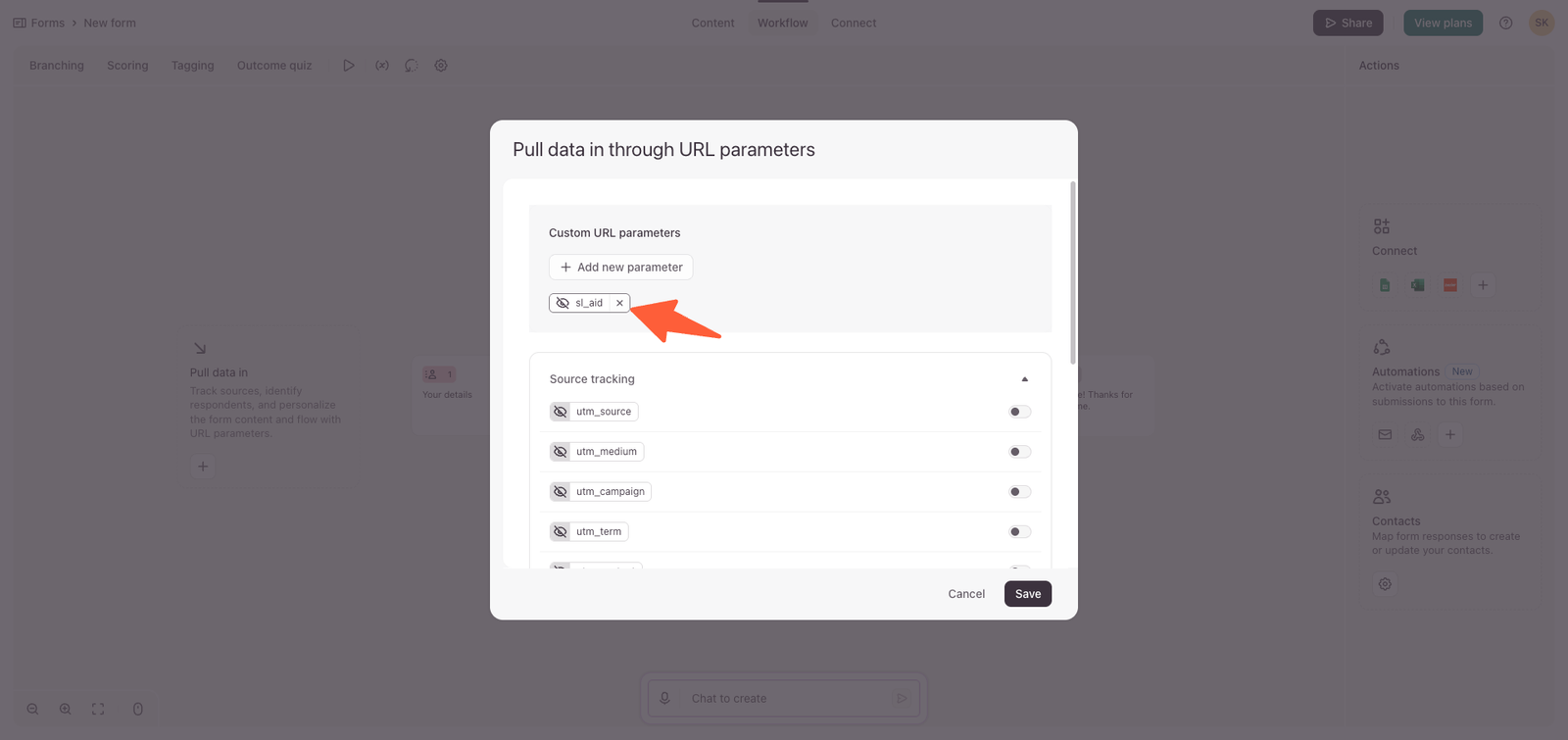
Name it sl_aid and save. You don't need anything else. SourceLoop fills in this value on its own and uses it to match the response to the visitor.
3. Embed the form on your landing page
Click Share in Typeform, choose Embed on website, pick any style, and copy the code onto the page your ads point to.
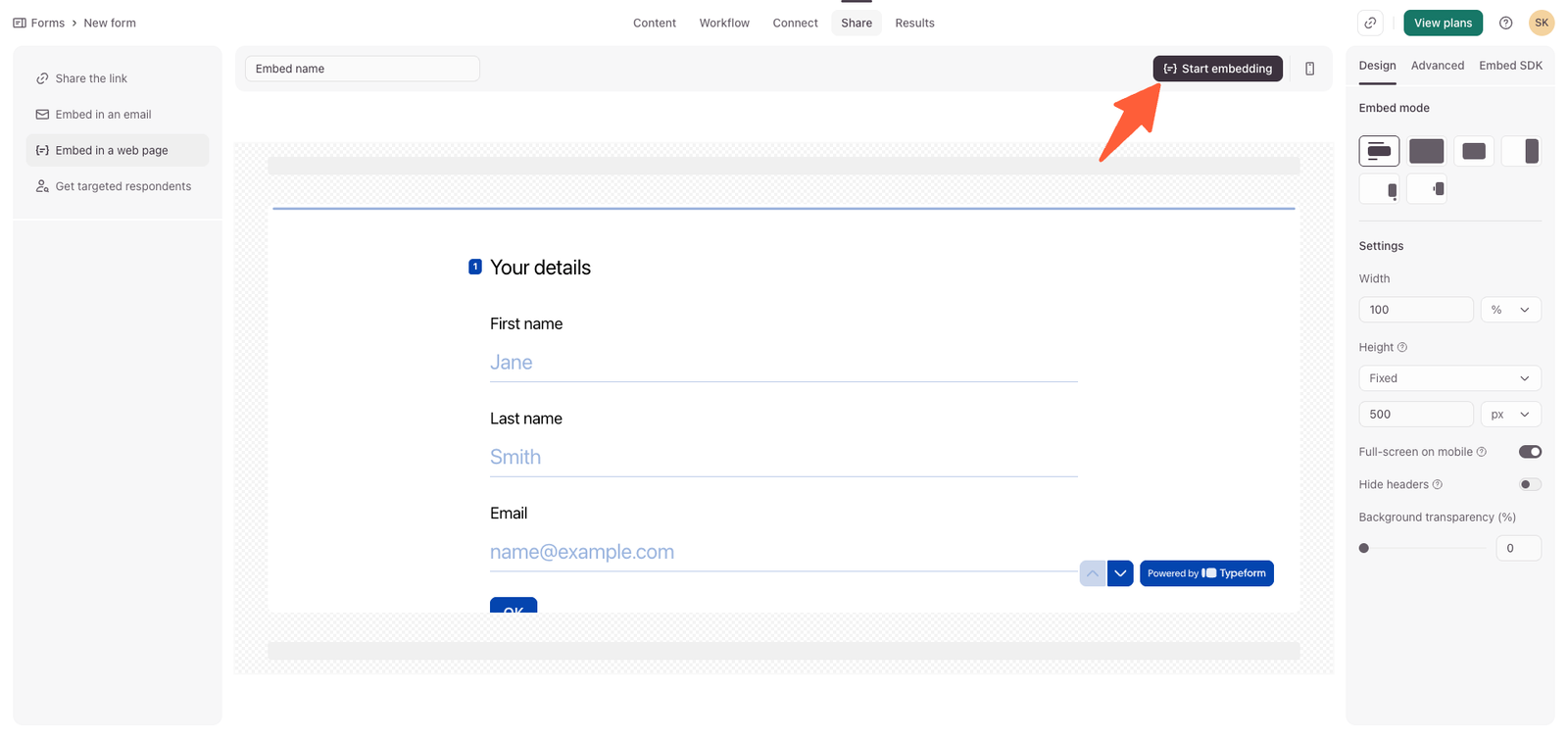
Inline, popup, slider, or full page all work the same for tracking. Just don't send ads to a plain typeform.com link, since that skips your site and the click can't be matched.
4. Connect the webhook
In SourceLoop, open Setup and then Incoming Webhooks. Copy your webhook URL.
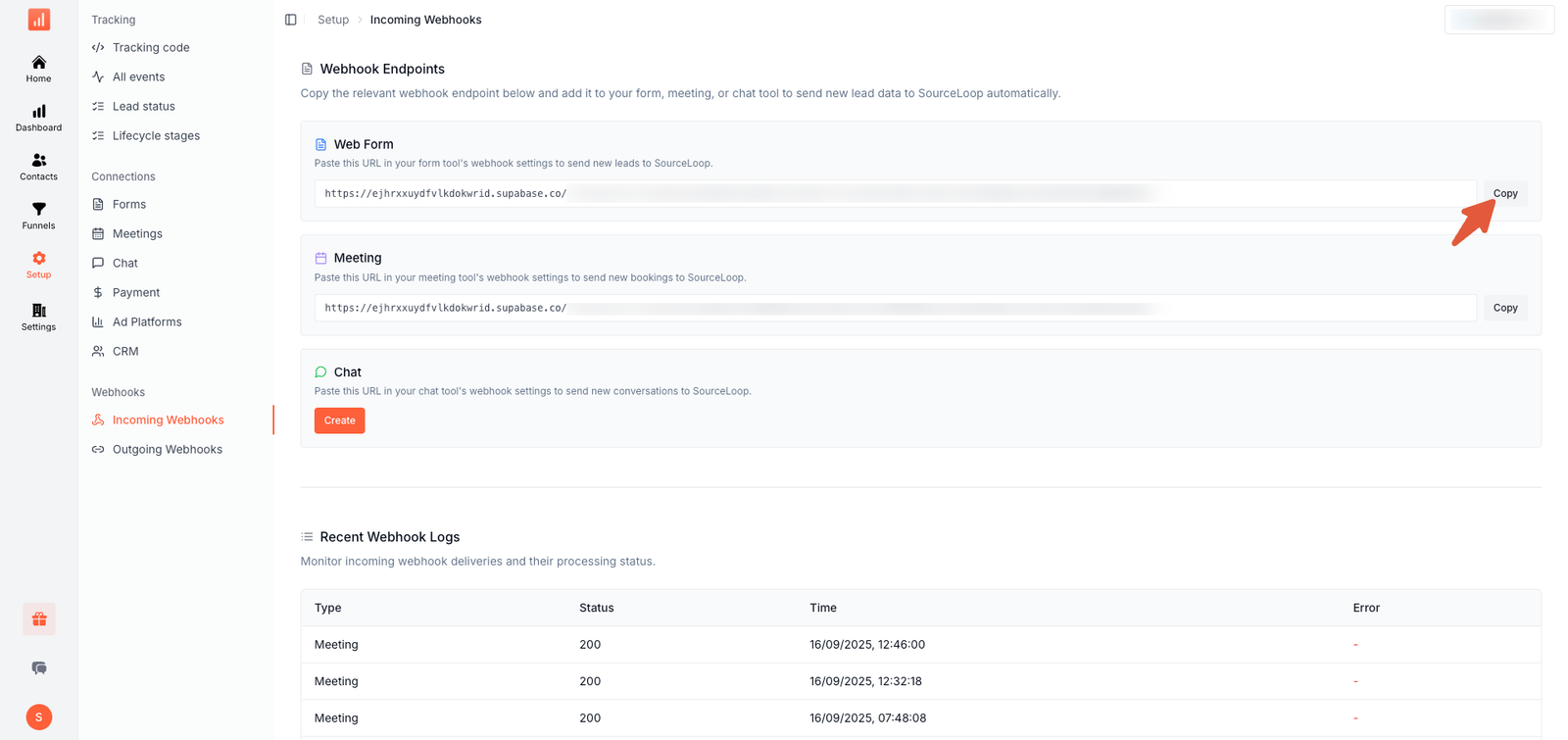
In Typeform, go to Connect, then Webhooks, click Add a webhook, paste the URL, and save.
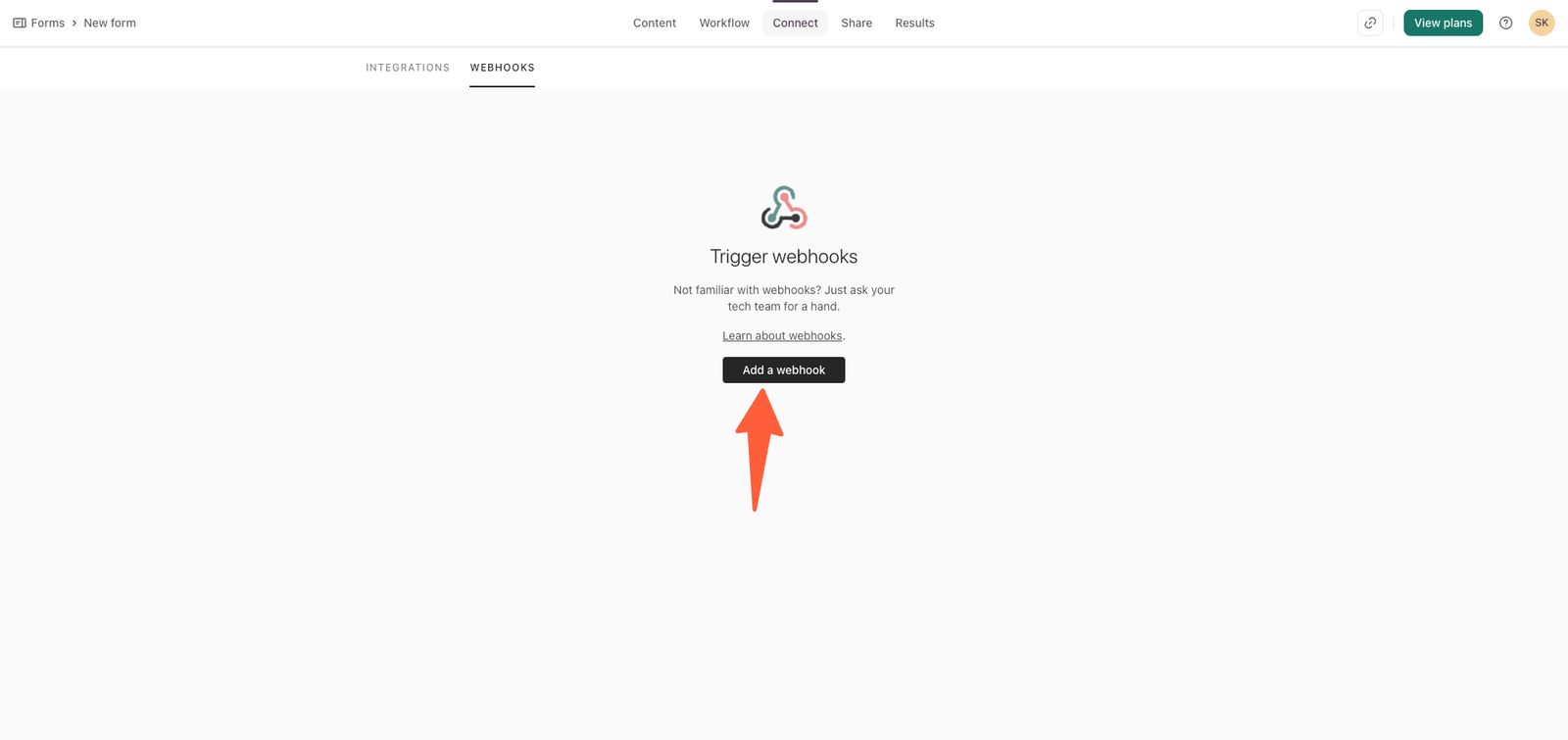
That's Part 1 done. Every new response now lands in SourceLoop with its source attached. Want every screen in detail? See the full Typeform setup guide.
Part 2: Connect Meta Ads
1. Link your ad account
In SourceLoop, open Setup and then Ad Platforms. Click Connect on the Meta Ads card and sign in with a Business Manager admin. Choose which Business and ad accounts SourceLoop can see, click Continue, then pick your ad account and click Connect this account.
2. Grab your Pixel ID
In Meta Business Suite, open Events Manager, choose your Pixel, and copy the long number on the Overview tab.
3. Make a token that never expires
Regular tokens die after 60 days, which quietly breaks tracking. A System User token doesn't. In Business Settings:
- Go to Users, then System Users, and add one called SourceLoop CAPI.
- Use Add Assets to give it Manage access to your ad account and Pixel.
- Click Generate New Token, tick ads_management, set expiry to Never, and copy it. Meta shows it only once.
Back in SourceLoop's Meta Ads drawer, paste the Pixel ID and token into CAPI configuration and click Save. When the status reads Active, Part 2 is done.
Part 3: Send Typeform leads to Meta
Still in the Meta Ads drawer, scroll to Conversion sync and click Add conversion mapping. Use these settings:
| Setting | What to choose | Why |
|---|---|---|
| Trigger event type | Conversion created | Fires the moment a new lead arrives |
| Trigger event name filter | form_submission | Sends form leads only, not meetings or payments |
| Attribution model | Last touch | Credits the ad that drove the submit |
| Meta event name | Lead | The standard event Meta uses for lead campaigns |
| Include value | Optional, fixed amount | Lets Meta weigh leads by what they're worth to you |
| Dedup window | 1440 minutes | Stops the same lead from being sent twice |
Click Save. From now on, SourceLoop sends new Typeform leads to Meta every 2 minutes, with the click ID, cookies, and a hashed email so Meta can match them well.
Lead, CompleteRegistration, or something custom?
For a contact or quote form, use Lead. For a signup or waitlist form, CompleteRegistration can fit better. Running several forms? Add one mapping per form with a custom event name, so each shows up on its own in Ads Manager.
Run a 2-minute test
Don't wait for a real lead to find out it works. In Events Manager, open Test events and copy the test code. Paste it into the Test event code field in SourceLoop's Meta drawer.
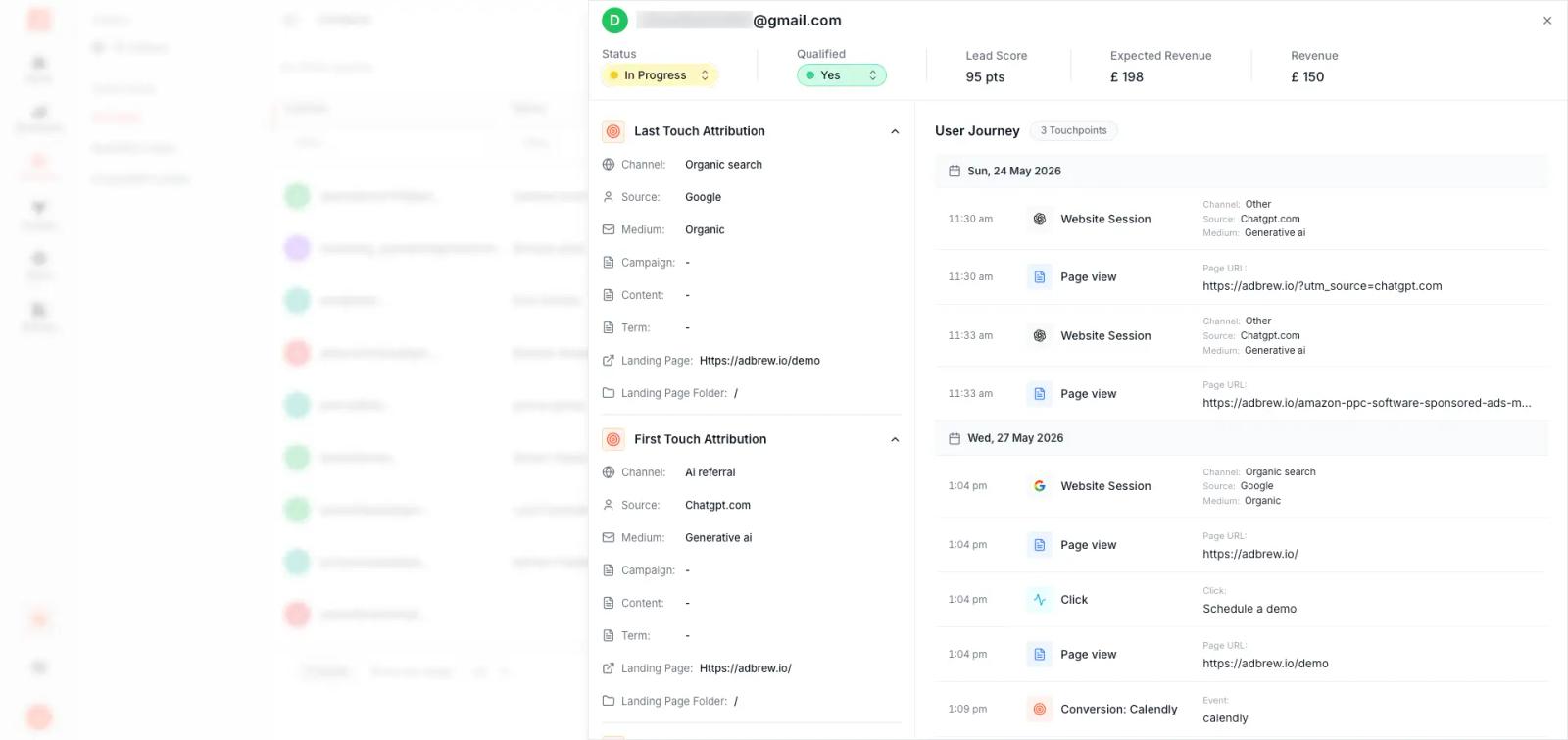
Now open your landing page in incognito with ?utm_source=test on the end, and submit the form with a real email. Within a few seconds a Lead event should appear in Test events. Once it does, remove the test code so live events count.
Your test lead also shows up in SourceLoop, with every page the visitor saw before submitting.
Common mistakes to avoid
- Sending ads to typeform.com. The visitor never touches your site, so there's no click to match. Always use a landing page with the form embedded.
- Putting the script only on the form page. If someone lands on your homepage first, you lose their ad source. Add it site-wide.
- Using a personal token. It expires in 60 days and events stop. Use a System User token.
- Forgetting to assign the Pixel. The System User must have the Pixel as an asset, or Meta rejects the events.
- Leaving the test code in. Events keep going to the test view and never reach your campaigns.
Still stuck? The Meta troubleshooting guide covers the rest.
What changes after this
Give Meta a week or two of real Lead events. Ads Manager starts showing the leads you were already getting, and the algorithm shifts budget toward the ads that bring people who fill in your form.
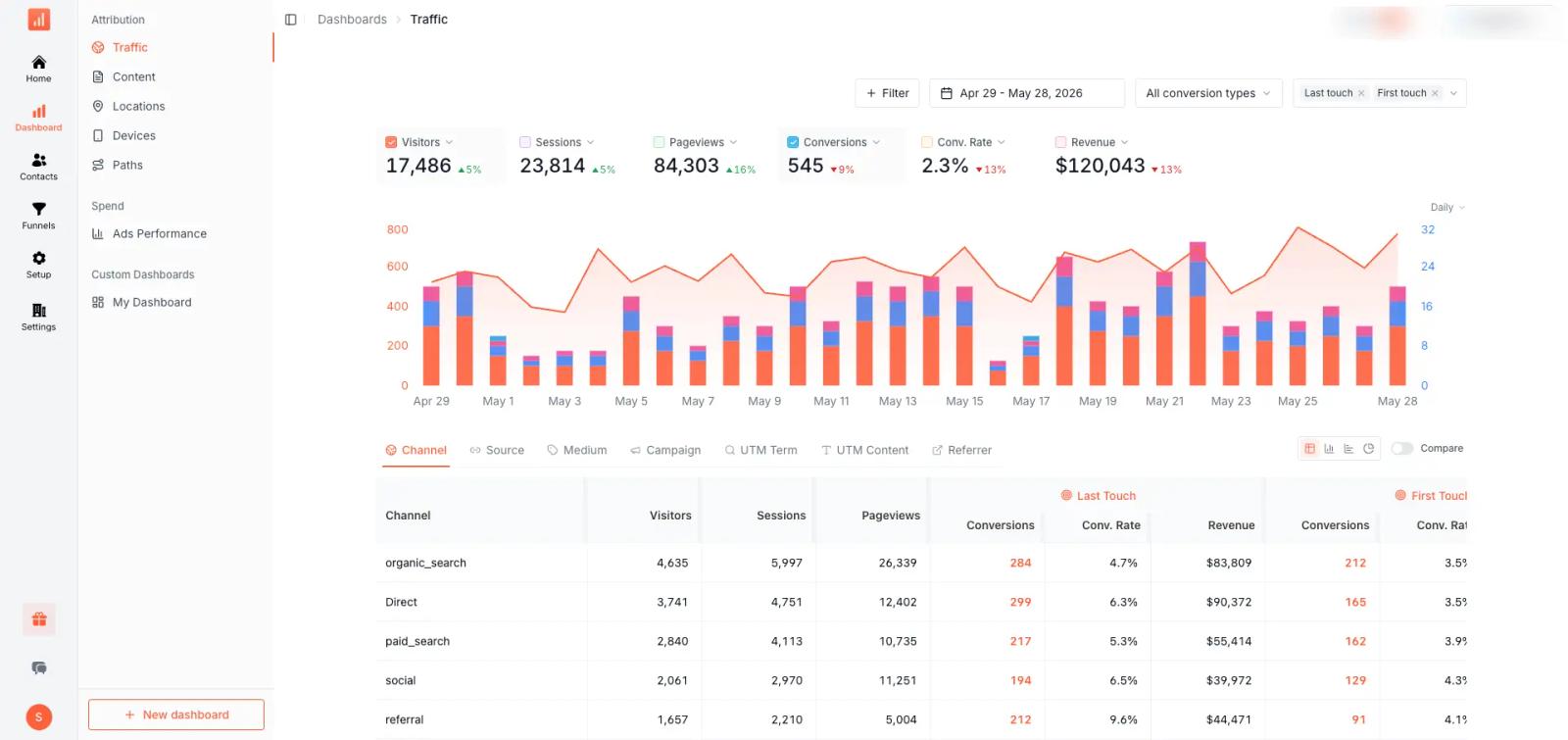
In SourceLoop, the attribution dashboard shows the same leads by campaign, so you can check Meta's numbers against your own.
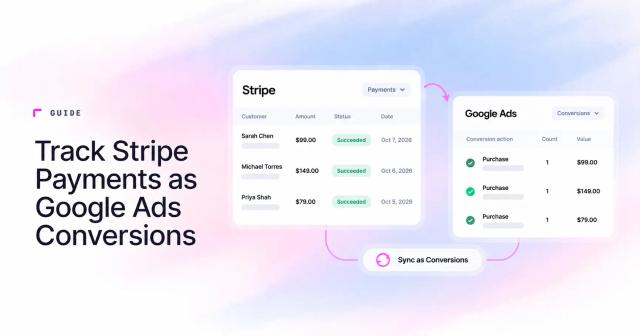
Running Google Ads too? Follow the same idea with Typeform submissions as Google Ads conversions. Booking calls instead? See Calendly bookings as Meta Ads conversions.
Try SourceLoop free for 7 days and start sending your Typeform leads to Meta today. No card needed.
Frequently asked questions
-
FAQ
-
Can't I just use Typeform's built-in Meta Pixel setting?
It's browser-based, so ad blockers and iOS privacy settings still hide many leads. Sending events server-side through the Conversions API catches the ones the browser misses.
-
Will leads be counted twice?
SourceLoop sends a stable event ID with each lead, so Meta can drop duplicates when a browser event uses the same ID. Many teams simply turn off the browser Lead event and rely on the server one.
-
Does this work for Instagram ads?
Yes. Meta Ads covers both Facebook and Instagram placements.
-
Do logic jumps or long forms cause problems?
No. Tracking only cares that the response was submitted, not how the form flows inside.
-
How fast do leads reach Meta?
SourceLoop sends new events every 2 minutes. They usually show in Events Manager within a few minutes.

 Paid Social


