
Conversion Tracking LinkedIn: Setup Steps and Fixes
Conversion tracking LinkedIn setup with the Insight Tag, offline conversions and QA checks, plus fixes for double-counted and missing conversions.
Campaign Manager says your LinkedIn ads are converting. Your CRM export tells a less convincing story: fewer leads, missing campaign names, and opportunities that sales hasn't qualified. You're left deciding whether the campaign works or the tracking makes it look that way.
LinkedIn conversion tracking produces an attribution claim, not a revenue ledger. A useful setup connects the tag, server events, and CRM records, then makes the differences visible. The objective isn't to force every system to agree. It's to know which numbers you can use for optimization, which belong in finance reporting, and which need investigation.
Table of Contents
- Attribution Settings to Decide Before You Install
- How to Install the Insight Tag and Set Conversion Rules
- Sending Offline Conversions Through the Conversions API
- How to Test and Verify Each Conversion
- Fixing Conversions That Look Wrong
- Choosing Which Data Layer to Trust
- Connect LinkedIn Conversions to Your Attribution Workflow
Attribution Settings to Decide Before You Install
Decide what earns credit before collecting events. Otherwise, you can install everything correctly and still compare incompatible numbers.
LinkedIn distinguishes post-click conversions, where someone clicks an ad and later completes your configured action, from view-through conversions, where someone sees an ad and subsequently converts without necessarily clicking, according to LinkedIn's conversion tracking guide. Keep those signals separate in reporting. A campaign that generates direct responses shouldn't look identical to one whose reported results mostly follow impressions.
Choose the window before judging performance
LinkedIn's attribution documentation describes click and view windows of 1, 7, 30, or 90 days, recommends 90-day click and view windows for most conversion types, and documents the limits summarized below.
Attribution settings and limits for LinkedIn conversions
| Setting | Options or limit | Starting point |
|---|---|---|
| Click attribution window | 1, 7, 30 or 90 days | 90 days for most B2B conversion types |
| View attribution window | 1, 7, 30 or 90 days | Match the click window where supported, but check whether standard tracking applies a 30-day cap |
| Maximum attribution for most types | 180 days, comprising a 90-day timestamp period plus a 90-day lookback | Account for event submission timing in long B2B sales cycles |
| Extended lookback for Lead, Qualified Lead, Purchase, Add to Cart, Submit Application | Up to 365 days through Conversions API or manual CSV upload | Use when supported CRM stages close months after the click |
| Attribution model | Last-touch, the most recent qualifying click or view | Record it next to every reported number |
The timestamp period and attribution lookback aren't interchangeable. Don't interpret their combined maximum as permission to select an equally long click window.
LinkedIn generally applies last-touch attribution within its framework. Its documented reporting logic also treats repeat conversions within the selected window as a single conversion for the relevant attribution calculation. That isn't necessarily how your CRM counts repeated submissions, bookings, or purchases.
Write a measurement contract
Record the conversion definition, click window, view window, attribution model, and included signals before launch. Include the event source and the CRM stage you expect it to represent.
For LinkedIn ads for lead generation, that means deciding whether success means an enquiry, a qualified lead, or an opportunity. Don't let a convenient thank-you page make that decision for you.
Reporting rule: A longer attribution window expands eligibility for credit. It doesn't prove the ad caused the outcome.
How to Install the Insight Tag and Set Conversion Rules
Start with the action you want to recognize, then implement the tracking around it. Installing a tag without defining completion conditions gives you activity data, not a dependable conversion system.
LinkedIn's conversion tracking integration documentation describes website conversion rules, server-side event delivery, and browser-plus-server deduplication. Use those components as a connected implementation rather than separate counters.
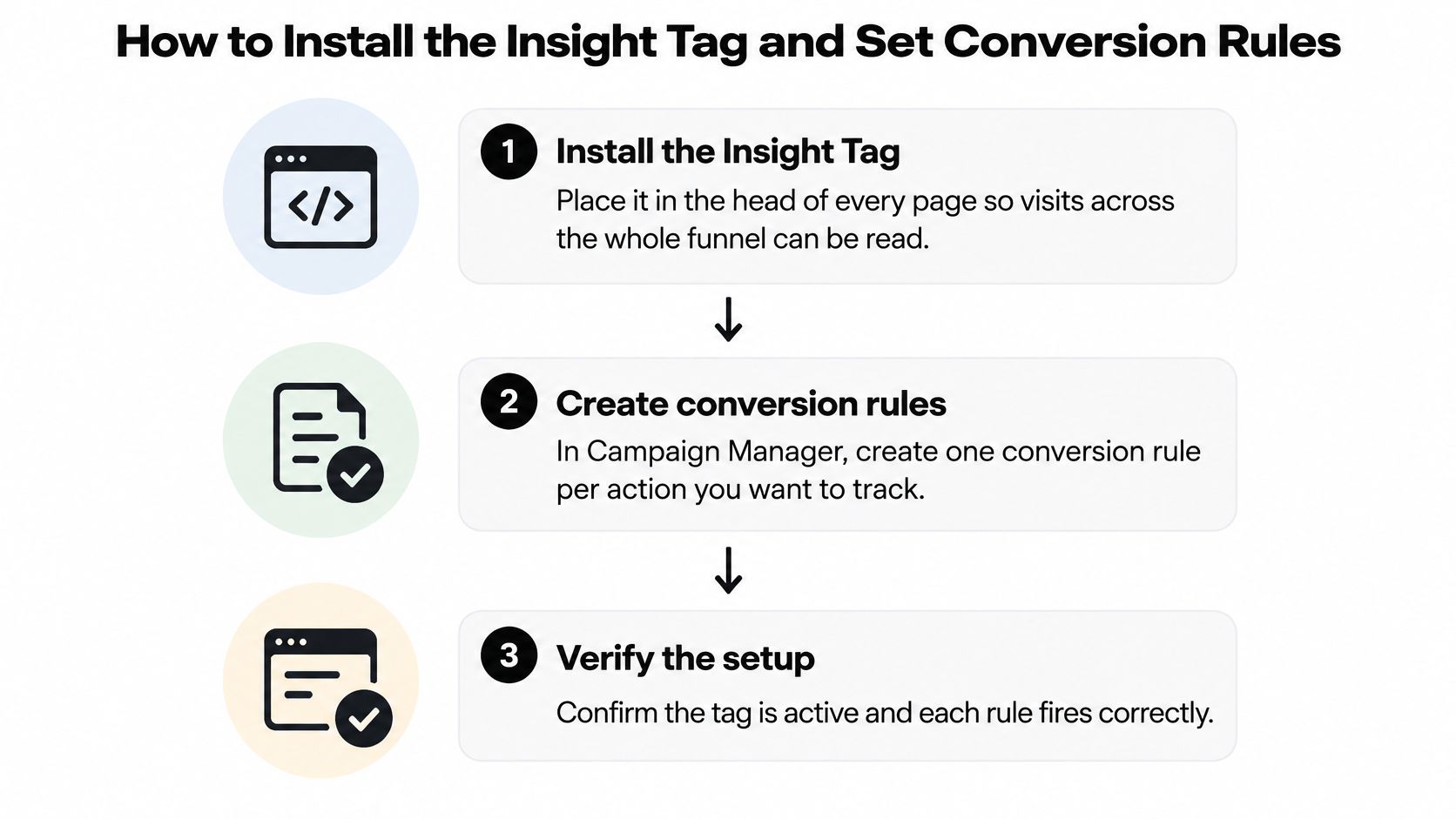
Install and configure in order
Install the Insight Tag sitewide. In Campaign Manager, locate Signals manager and the Insight Tag installation controls, then deploy through your global site template or Google Tag Manager. For a direct installation, place the snippet in the page head; avoid installing it both through the template and through a tag manager.
Create a conversion rule for each business action. Open Conversion tracking and choose the creation control for a website conversion. Use a URL-based rule for a dedicated completion page, or an event-specific rule for a successful form submission or confirmed booking.
Choose the conversion type and value. Select the type that matches the action, such as lead, sign-up, purchase, or qualified lead. Assign a monetary value only when you can defend it, and don't present an assumed lead value as booked revenue.
Verify the account and conversion method. Check the selected ad account and record its identifier alongside the conversion rule. Choose the browser-based method for the Insight Tag implementation, and retain the rule details for any later server integration.
Apply your attribution settings and campaign associations. Select the agreed click and view windows, save the rule, and associate it with the campaigns that should report against it. A correctly configured action attached to the wrong campaigns still produces a misleading report.
Test the live implementation. Publish the website or tag-manager changes, then perform the action on the production site with appropriate consent. Check the tag status and browser request before treating an empty reporting column as a campaign problem.
Use the installation flow as a deployment checklist.
Make the rule describe completion
A page-load rule isn't wrong. A page-load rule on a general landing page is wrong when you intend to measure completed enquiries. Restrict it to a completion URL that visitors reach after success.
For forms that submit without changing the URL, trigger the event on the successful response, not the submit-button click. Someone can click a button and fail validation.
Bluelight's guide to conversion tracking for roofing companies provides a useful service-business context for choosing meaningful actions. Apply the same discipline to B2B demos: distinguish an attempted contact from a completed enquiry.
A working setup has an active tag, a rule name that matches the CRM stage, and a verified completion event. An attributed conversion also requires an eligible ad interaction. A direct test visit alone doesn't establish that attribution works.
Sending Offline Conversions Through the Conversions API
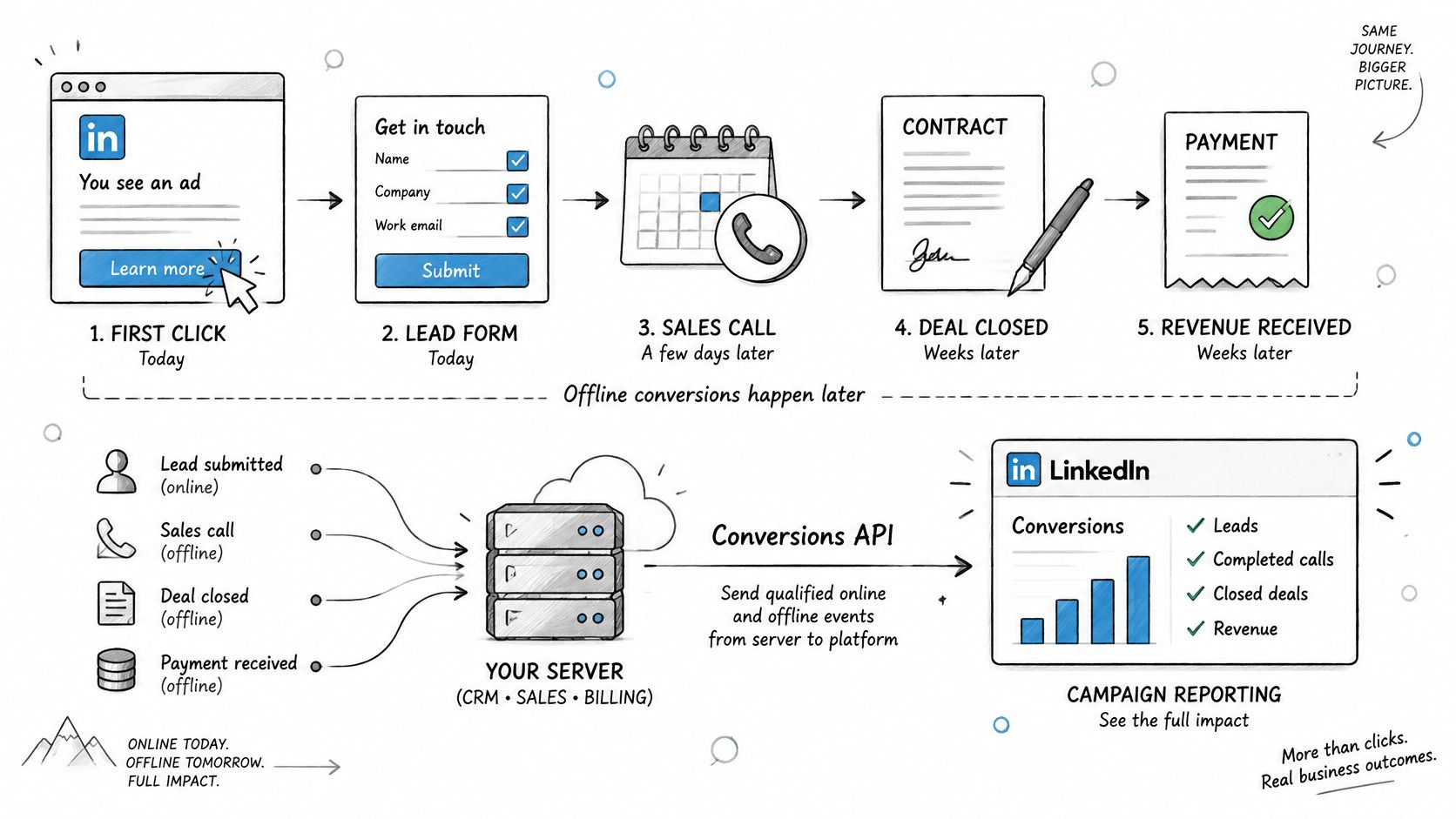
The browser can record an enquiry. It can't, by itself, tell LinkedIn that sales qualified the prospect, the buyer signed a contract, or finance recorded payment later.
Conversions API connects those downstream actions to campaign measurement. Think of it as an event-delivery connection, not an automatic guarantee of better attribution.
The browser and CRM contribute different parts of the journey.
Build a lifecycle event map
Define the CRM stages first. Agree on what makes a lead qualified, sales-qualified, or purchased. Write the entry condition for each stage so that a salesperson changing a label doesn't accidentally create a purchase event.
Map stages to LinkedIn rules. Create the appropriate conversion rule with the matching conversion type and Conversions API method. Maintain an explicit mapping between the CRM transition and destination rule.
Send permitted matching information. Prepare email addresses using the required hashing process, retain original campaign identifiers in your attribution records, and send supported matching fields in the API payload. Campaign parameters are valuable reconciliation keys, but they aren't a substitute for member-matching information.
Preserve event identity across delivery paths. Give the same business occurrence a consistent event identifier wherever the integration supports it. A retry must reuse that identity rather than create a new conversion occurrence.
Send events as close to the actual stage transition as practical. A nightly export may suit internal reporting, but delayed delivery makes campaign feedback less timely. A server-side tracking implementation should include failed-delivery logs, retry handling, and a clear owner.
Test the benefit rather than assuming it
According to Dreamdata's LinkedIn benchmark highlights, LinkedIn reported in 2025 that advertisers using Conversions API achieved a 20% reduction in cost per action compared with non-integrated advertisers. That comparison is a benchmark to test in your account, not a promised improvement or proof that the integration alone caused the difference.
Keep consent governance in the delivery design. Server-to-server transmission doesn't turn prohibited collection into permitted processing.
For an accompanying walkthrough, use the video below alongside your own integration logs.
Before enabling live delivery, confirm the connection belongs to the intended ad account. Send a controlled test event and verify its destination rule. Where browser and server paths describe the same action, check their shared identity; where they describe different lifecycle stages, keep them separate.
Send meaningful stage changes, not every CRM edit.
How to Test and Verify Each Conversion
A green tag status proves less than many teams want it to. It can indicate that LinkedIn receives site activity without proving that the correct action fires, that the server agrees, or that campaign attribution is eligible.
Keep a test record containing the action time, conversion rule, event identifier, consent state, and CRM record. That record gives the developer and paid social lead something concrete to investigate.
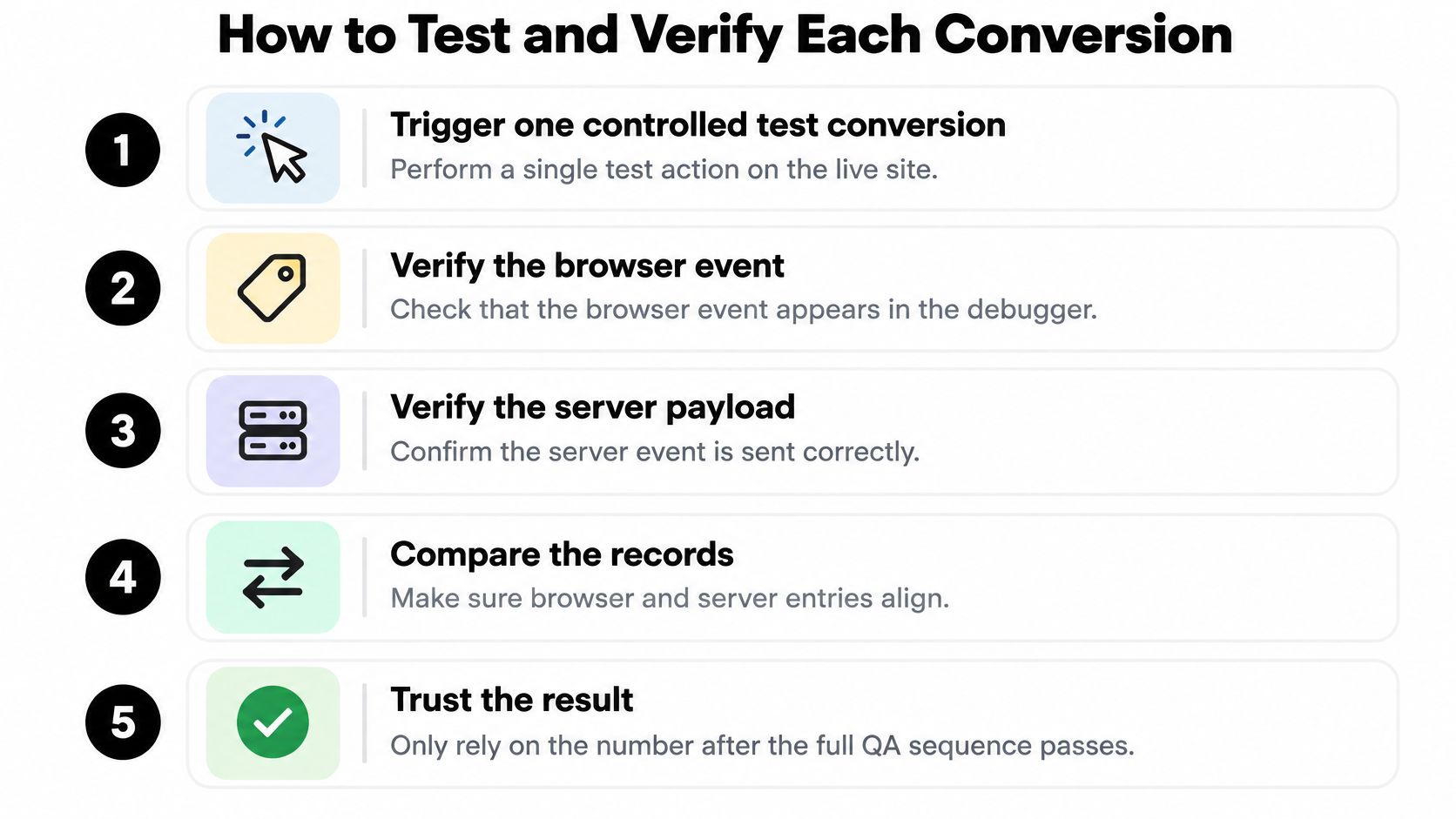
Run the full QA sequence
Trigger a controlled completion on the live site. Use a recognizable test contact and complete the actual workflow, including redirects and booking confirmation. Don't test only the button that starts it.
Inspect the browser event. Open Google Tag Manager Preview where applicable and your browser's Network panel. Confirm the conversion request follows successful completion and doesn't fire on an ordinary visit or failed validation.
Inspect the server payload. Find the corresponding event in your integration logs. Check the destination conversion rule, timestamp, supported matching fields, and event identity against the browser implementation.
Check the attributed result. For a test with an eligible campaign interaction, verify that the intended conversion appears without duplicate credit from parallel delivery. Distinguish an accepted API event from an attributed conversion, because successful transport doesn't guarantee a match.
Reconcile against the system of record. Compare LinkedIn results with CRM or payment records using matching date definitions and campaign scope. Separate the conversion date from the ad-interaction date before investigating discrepancies.
Use this checklist when signing off a release.
Recognize a pass and a fail
Say you submit a test form on Monday after a qualifying campaign click. A pass means the browser and server describe the intended action, the CRM contains the expected lead, and LinkedIn attributes the conversion under the configured rules once reporting has processed.
If the CRM instead contains duplicate leads for that visitor, inspect the form handler and webhook retries. If LinkedIn alone duplicates the result, inspect overlapping rules and browser-server event identity. Those are different failures and need different fixes.
A successful API response confirms delivery. It doesn't confirm lead quality, deduplication, or attribution.
Save the platform-to-CRM gap as a baseline, with a consistent denominator if you express it as a percentage. Watch for changes in that gap rather than expecting perfect equality. Re-run QA after landing-page edits, new forms, tag updates, booking-tool changes, or domain moves.
Fixing Conversions That Look Wrong
Start with duplicate counts and platform totals that exceed CRM totals. Both can make an account look efficient while sales receives nothing useful.
Don't immediately shorten the attribution window to make the numbers match. First establish whether you're comparing the same action, population, and reporting dates.
Diagnose the symptom before editing settings
LinkedIn conversion symptoms, causes and fixes
| Symptom | Likely cause | Fix |
|---|---|---|
| Same conversion counted twice | Insight Tag and Conversions API send the same event without shared identity | Align event identifiers and confirm the intended result; validate on the next controlled test |
| Conversions far above CRM totals | A broad page-load rule, or attributed actions compared with won deals | Restrict the completion condition and compare equivalent cohorts; window changes need a full fresh window to assess |
| No conversions after install | Missing tag, mismatched URL, or consent blocking | Check the live page, exact rule conditions, and consent behavior; inspect immediately in the browser |
| Leads counted but pipeline does not grow | Unqualified submissions are the optimization signal | Send qualified or sales-qualified stages; judge after leads have time to progress |
| Offline deals missing from LinkedIn | Late events or inadequate matching information | Inspect timestamps, matching fields, hashed email, and retained campaign identifiers; retest delivery, then assess matching |
| Totals change after a site update | A new form, page, or tag change broke the rule | Repeat QA and compare with the saved baseline; browser diagnosis can start immediately |
Separate a technical fix from a performance verdict
You can often verify a corrected trigger in the browser during the same working session. You can't use that immediate success to declare that campaign quality improved. Platform processing, matching, and lead progression require separate observation.
For zero-conversion cases, check URL conditions carefully: trailing slashes, query parameters, redirects, and embedded booking flows can all change what the rule encounters. Test with ad blockers disabled to isolate interference, but don't mistake that clean test environment for normal visitor coverage.
When consent prevents the tag from running, don't override that decision. Use permitted first-party events through the approved server integration where your governance allows them.
Change discipline: Edit a single variable, log the old and new values, and preserve the deployment date.
For attribution-setting changes, compare equivalent cohorts only after the selected window has elapsed. Otherwise, you're comparing mature results with incomplete results and calling the difference a fix.
Choosing Which Data Layer to Trust
Browser observations, consented first-party events, and platform-modeled outcomes answer different questions. Use browser requests to diagnose implementation, CRM events to represent lifecycle progress, and modeled results to understand attributed trends.
LinkedIn's privacy and Insight Tag documentation describes predictive modeling and on-device attribution with differential privacy, says the LinkedIn Ads ID is used only outside the EU, EEA, Quebec, and UK, and documents deletion of shared or pseudonymized data after 180 days. Your reporting should acknowledge those measurement boundaries.
Match the layer to the decision
Measurement layers and the jobs they serve
| Layer | Source | Trust it for | Main limit |
|---|---|---|---|
| Browser observations | Insight Tag on consented visits | Diagnosing a broken tag or rule | Misses blocked or non-consented visits |
| Consented first-party CRM events | Conversions API with supported matching fields and retained campaign identifiers | Optimizing toward qualified actions | Requires correct lifecycle mapping and deduplication |
| Platform-modeled outcomes | Predictive AI or on-device attribution | Reading trends | Cannot be audited as a member-level ledger |
| CRM revenue | Closed-won and payment records | Finance reporting | Arrives later and requires stage discipline |
The distinction is operational, not just technical.
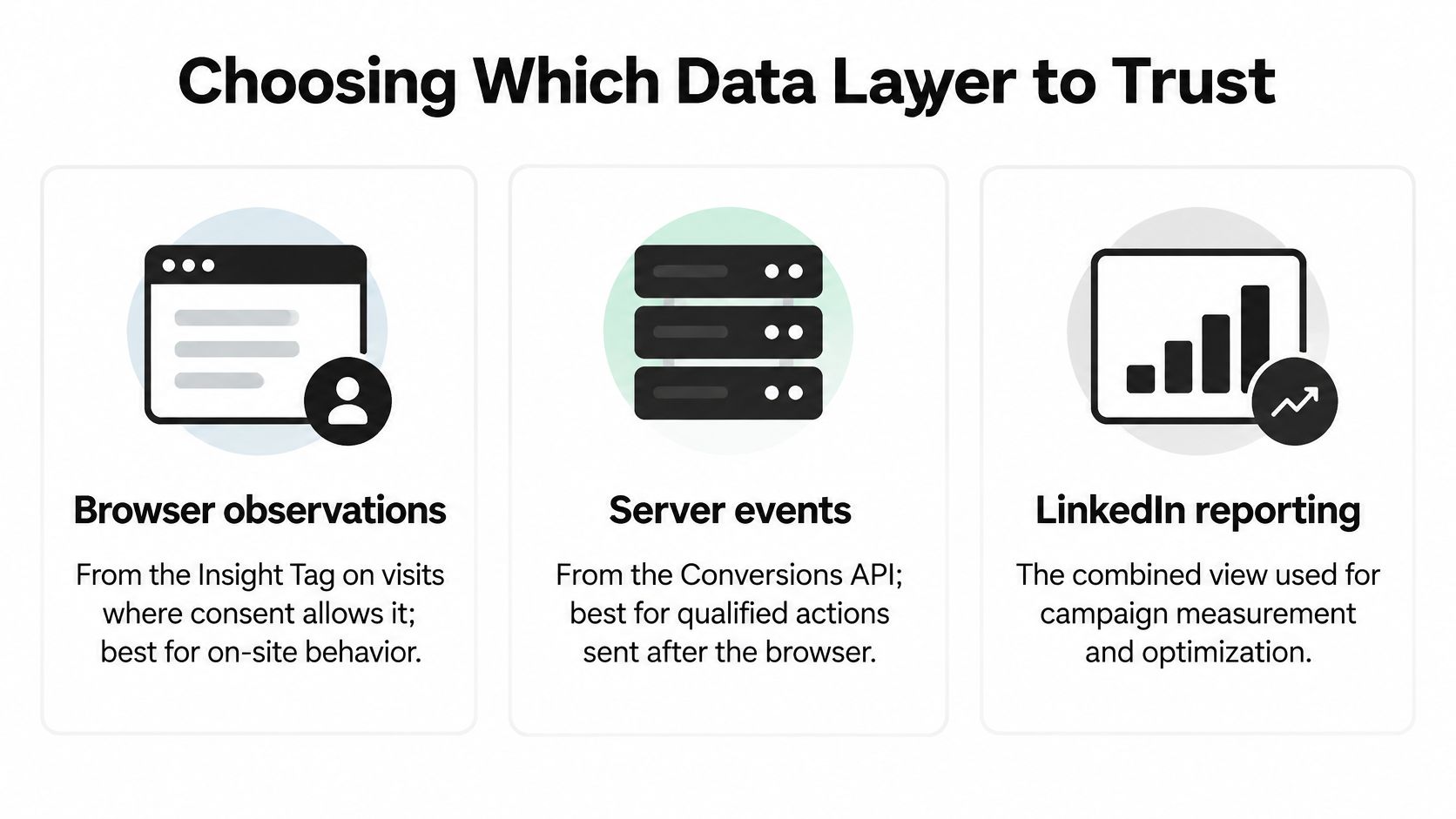
Add the attribution model and selected windows to campaign reports. For regional comparisons, include a coverage footnote rather than implying every market uses identical signals.
Server-side tracking isn't automatically more accurate. A wrong lifecycle mapping can deliver incorrect events reliably. Validate the underlying CRM transition before trusting the delivery mechanism, and present LinkedIn's attributed total alongside its stated gap from CRM records.
Connect LinkedIn Conversions to Your Attribution Workflow
Conversion tracking isn't revenue attribution. It tells you which configured outcomes qualify for platform credit, not whether LinkedIn deserves exclusive credit for the customer.
LinkedIn's announcement of its Revenue Attribution Report describes connecting advertising with influenced revenue, return on ad spend, and pipeline. Those outputs remain subject to platform attribution rules. An efficient-looking campaign can produce weak enquiries, while a campaign with modest early results can later contribute qualified opportunities.
Keep campaign context attached to the lead
Preserve LinkedIn campaign identifiers and landing-page parameters through forms, chat, and booking tools. Map utm_source to Lead Source and utm_campaign to Campaign in the CRM, then keep lifecycle transitions attached to the same record.
SourceLoop is one option for that attribution sync and CRM mapping. When someone converts through a form, chat, or booking, we attach the attribution data to the lead and push it to the CRM; qualified-stage feedback can then support the CRM-to-ad workflow.
For teams also handling account onboarding, the documentation for LinkedIn setup with OGTool can support that separate setup task. Account connection still needs its own conversion and CRM checks.
Run a campaign-level reconciliation
Use a closed-loop attribution workflow to make a budget decision:
- Select a campaign with a mature cohort. Export its platform conversions and corresponding CRM leads across the full selected attribution window.
- Compare equivalent stages. Put platform-attributed enquiries beside CRM enquiries, then show qualified pipeline and closed-won revenue separately.
- Record the gap and its explanation. Distinguish missing source data, qualification losses, overlapping attribution, and events outside the reporting scope.
- Decide whether to keep, pause, or re-target the campaign based on pipeline quality and commercial progress.
Your report should show platform conversions, CRM-matched leads, qualified opportunities, revenue, and unresolved differences. Don't hide an unexplained remainder inside a blended conversion total.
Export a mature LinkedIn campaign today, match its leads to CRM stages, and assign an owner to every unexplained gap. Keep the campaign if it creates credible pipeline, re-target it if the audience or offer needs work, and pause it if the commercial results don't justify the spend. Make that decision from reconciled outcomes, not the largest number in Campaign Manager.

 Paid Social


