
How to Track Google Ads Lead in HubSpot Correctly
Learn how to track Google Ads lead in HubSpot end-to-end, from connection to offline conversion sync and reconciling mismatched counts.
You're staring at a HubSpot contact that should've been a Google Ads lead, but the record looks thin, the source is muddy, and the sales team is already asking why the numbers don't line up. That's the usual pain point. The fix is not just connecting two tools, it's making sure the click becomes a contact, the contact becomes a lifecycle stage, and the lifecycle stage becomes something Google Ads can optimize against.
HubSpot has supported Google Ads reporting for years, and its knowledge base page for tracking and reporting on Google ads in HubSpot dates to January 20, 2022. It says you can track Google ad campaigns, ad groups, and ads directly inside HubSpot. The difference comes when you move beyond click tracking and into closed-loop conversion sync, so the platform can connect ad engagement to CRM outcomes like form submissions, lifecycle stage changes, and closed deals. HubSpot's Google Ads tracking guidance
Table of Contents
- Why Google Ads Leads Disappear Inside HubSpot
- What to Prepare Before You Connect Google Ads and HubSpot
- Connecting Google Ads to HubSpot and Syncing Offline Conversions
- What HubSpot Can and Cannot Track by Google Ad Type
- Why HubSpot and Google Ads Numbers Never Match and How to Fix It
- Keeping Your Google Ads to HubSpot Tracking Accurate Over Time
Why Google Ads Leads Disappear Inside HubSpot
A lead comes in from Google Ads, sales says they talked to the person, and HubSpot still looks like the source story is incomplete. That usually isn't a tracking failure in the narrow sense. It's a measurement failure, because the system captured a click or a form fill, but not the downstream stage that proves the lead mattered.
Clicks are easy, revenue signals are harder
HubSpot's long-standing Google Ads reporting matters because it was never meant to stop at traffic. It was designed to connect ad engagement with CRM outcomes inside the same system, which is why the newer optimization-events model is such a meaningful step. Instead of asking whether an ad generated a click, you can ask whether that click eventually became a qualified lifecycle stage or a closed deal.
That shift changes how you think about “how to track Google Ads lead in HubSpot.” A contact alone is not the finish line. A contact that can be tied to lifecycle progression is far more useful, because it gives Google Ads a conversion signal with business meaning instead of just a form-fill vanity metric.
Practical rule: if a lead can't be tied to a lifecycle stage, it's not ready for serious bidding optimization.
That's why closed-loop tracking matters. HubSpot can hold the contact record, but Google Ads needs the outcome signal back through the integration. Without that return path, you end up with a clean-looking click trail and a messy revenue trail.
What to Prepare Before You Connect Google Ads and HubSpot
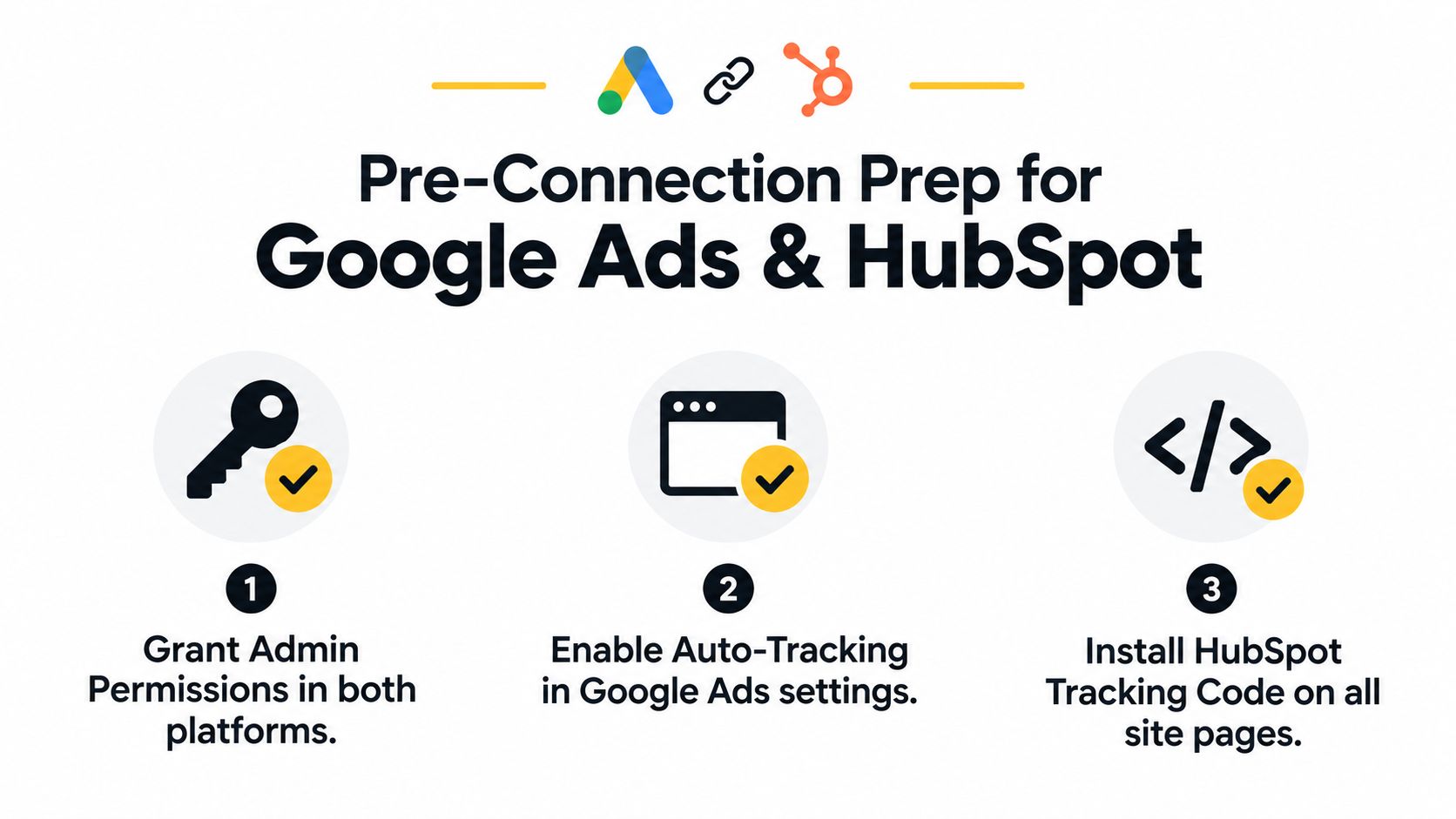
Most broken setups aren't caused by the integration itself, they're caused by bad inputs. If permissions, tracking, or lifecycle stage hygiene are sloppy, you'll still get data, just not data you can trust. A clean setup starts before you touch the connection screen.
Make the account and tracking basics boring
You need admin access in both platforms, because connection and conversion sync both depend on it. You also need HubSpot's tracking code installed across the site, since the ads workflow only helps if HubSpot can identify the visit that created the contact.
Auto-tracking needs attention too. If the ad URLs are already being rewritten by other tracking layers, HubSpot can lose its parameters before it ever has a chance to attribute the lead correctly. That's where a quick check of destination URLs, redirects, and existing campaign templates saves hours of cleanup later.
Clean up lifecycle stages before you import anything
Lifecycle stage discipline is the part teams often skip. If every lead gets pushed to the same stage too early, your offline conversion sync turns noisy fast, because Google Ads starts optimizing against bad milestones.
A simple readiness check helps:
- Admin access: confirm the connected user can manage both the Google Ads account and the HubSpot Ads tool.
- Tracking code: verify the HubSpot tracking code fires on the pages where forms, chat, or bookings live.
- Lifecycle definitions: make sure Lead, Marketing Qualified Lead, Opportunity, and Customer mean something consistent inside your CRM.
- Capture paths: verify forms and chat tools are creating contacts correctly before any offline sync starts.
If you're centralizing the rest of your CRM workflow, send lead source to your CRM is a useful companion reference for keeping source data structured from the start.
Connecting Google Ads to HubSpot and Syncing Offline Conversions
The actual connection is straightforward, but the order matters. You connect Google Ads to HubSpot, install the HubSpot tracking pixel, and then create an Ads Optimization Event so lifecycle changes can sync back into Google Ads as imported conversions from clicks. Google's guidance says HubSpot records flow through Data Manager and conversion-action import, which is the path that turns CRM stages into optimization signals. Google's offline conversion guidance for HubSpot users
The important constraint is the field logic. Google's setup guidance says HubSpot import conditions for this connection must use the Lifecycle Stage field unless you pair it with another condition using AND. If you build the condition wrong, the conversion may never fire the way you expect, even though the connection itself looks healthy.
Here's the part teams usually miss. The conversion appears in Google Ads as an imported conversion from clicks, so the value of the setup isn't just that HubSpot stores the lead. It's that Google Ads can now optimize against a later CRM outcome, such as a qualified lead, opportunity, or closed deal. That's the difference between a campaign that chases volume and a campaign that learns from revenue.
If your team manages multiple systems around the same lead path, setup integrations for your team can help you think about the connection architecture as a whole instead of treating ads sync as an isolated task.
A good internal reference for the mechanics is configure Google Ads offline conversions. After setup, don't expect immediate perfection. Sync behavior can lag, and that delay matters when someone checks the dashboard an hour after launch and assumes the import failed.
What HubSpot Can and Cannot Track by Google Ad Type
HubSpot covers most Google ad types, but coverage is not the same as full reporting depth. The easiest mistake is assuming every campaign will behave like standard search traffic. It won't, and the gaps are specific enough that you can plan around them.
| Campaign Type | Campaign Level | Ad Group / Ad / Keyword Level | Requirement |
|---|---|---|---|
| Most Google ad types | Supported for many campaigns | Varies by type | Tracking must not be overridden |
| Smart campaigns | Supported in part | Not supported at ad group, ad, or keyword level | Use them when contact attribution is enough |
| Discovery campaigns | Supported | Works only if tracking is not overridden | Keep tracking settings intact |
Use the reporting depth you actually need
HubSpot says it can track most Google ad types, but Smart campaigns don't give you ad group, ad, or keyword reporting, and Discovery campaigns only work if tracking isn't overridden. That's fine if your goal is contact attribution. It's not fine if you need keyword-level decision-making.
The practical split is simple. If you care about whether a contact came from a campaign, HubSpot reporting is enough. If you care about which exact keyword, ad group, or creative drove the lead, you need to avoid structures that strip that granularity away. That's especially true for teams that report to sales and finance from the same dashboard.
A lot of operators try to force every campaign into one reporting model, and that's where frustration starts. Use HubSpot for lifecycle attribution and CRM context. Use Google Ads for campaign mechanics when the ad type limits the detail you can see in HubSpot. HubSpot's ad type FAQ
Why HubSpot and Google Ads Numbers Never Match and How to Fix It
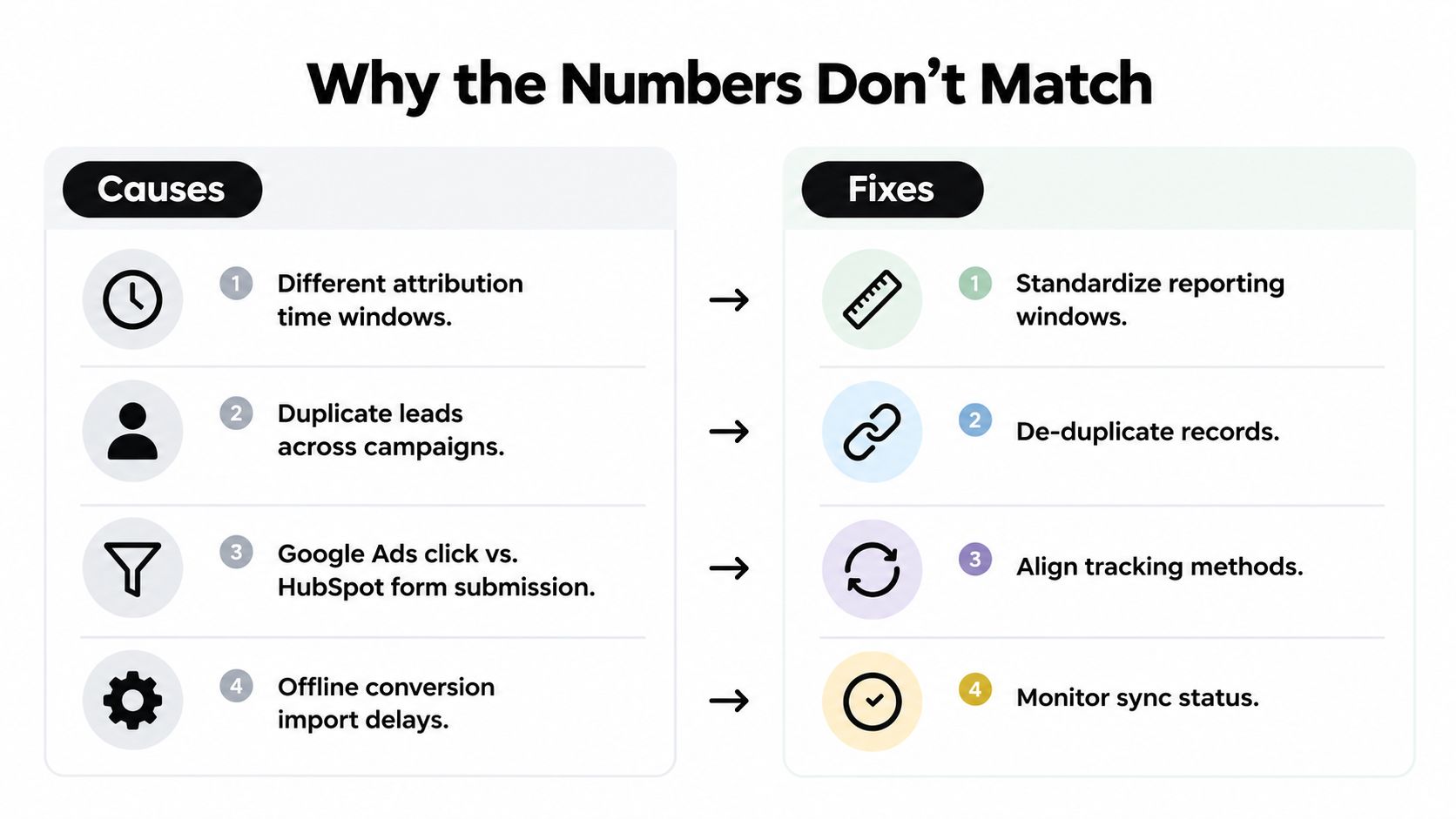
Two dashboards, two totals, one meeting where someone asks which number is real. The answer is usually both, but they're measuring different things. HubSpot community discussions keep pointing to the same causes: different attribution models, repeated form submissions by the same person, lookback-window differences, and browser privacy restrictions like ITP or ad blockers. HubSpot community discussion on stat discrepancies
Reconcile the mismatch instead of chasing a single perfect number
The first diagnosis is attribution logic. If Google Ads is giving credit one way and HubSpot is assigning source another way, your totals won't line up, even when the same person is in both systems. A good check is to compare the same date range, same conversion action, and same attribution window before anyone argues about performance.
Duplicate submissions are the next trap. One person can submit a form more than once, which can inflate contact counts in HubSpot while Google Ads still sees a different conversion pattern. De-duplicating records and reviewing repeated conversions by contact ID is the cleanest way to separate real demand from noisy engagement.
Privacy and browser restrictions complicate the picture further. ITP, ad blockers, and related browser behavior can strip or delay the identifiers that make attribution work. If the sync is also still settling, remember that some setup behaviors can take up to 48 hours to appear, so a fresh import shouldn't be judged too quickly.
For a practical attribution lens, the guide by Next Point Digital on last-click attribution is useful context when you're deciding why one system gives more credit than another.
Diagnostic habit: compare source, conversion window, and dedupe logic before you compare totals.
If you need a help desk style checklist, troubleshoot Google Ads sync gives teams a clean way to isolate whether the issue is tracking, attribution, or import delay.
Keeping Your Google Ads to HubSpot Tracking Accurate Over Time
Once the setup is live, the work doesn't stop. The connection stays useful only if field mappings stay clean, lifecycle stages stay disciplined, and the import path keeps functioning as Google and HubSpot update the integration. Google's support documentation says advertisers can import Customer Match and offline conversion data directly from HubSpot through Data Manager and conversion-action import, and that the integration remains actively maintained. Google Ads HubSpot integration support
Audit the sync like a revenue system, not a form feed
Check the Ads Optimization Event regularly, confirm lifecycle changes still map correctly, and make sure the connected account still has the right permissions. If contacts are moving in HubSpot but no longer showing up as imported conversions, the problem is usually one of those three layers.
It also helps to watch the reporting behavior after any campaign structure change. A new ad type, a renamed campaign, or a changed tracking template can alter what shows up in HubSpot versus Google Ads. That's why a monthly audit of source fields, lifecycle transitions, and imported conversion activity is worth more than a one-time setup win.
If you want a broader attribution layer on top of the native sync, SourceLoop can create custom lead source properties in HubSpot and sync attributed conversions back to ad platforms. That's one way to complement the native connection without replacing it.
The goal is still the same. Don't optimize for every form fill. Optimize for the lead that survives qualification, reaches pipeline, and turns into revenue.
If you're wiring this up now, start with one clean campaign, one trustworthy lifecycle path, and one conversion event you'd be comfortable showing to sales. Then validate the import, compare the numbers calmly, and expand from there once the workflow proves it can hold up in reporting.

 Paid Social


