
How to push UTM parameters to HubSpot
Map SourceLoop's UTM and source fields to HubSpot contact, company, and deal properties. Default mapping, custom properties, inbound vs outbound direction.
On this page
SourceLoop can create its own attribution fields on HubSpot contacts and deals in one click, or write to fields you already have. Either way, every new lead arrives with its first and latest touch, lead quality, and lead value.
This article covers the field mapping system end to end, default mapping, customising it, contact vs company vs deal mappings, and direction.
Before you start
You’ll need:
- HubSpot connected to SourceLoop (the connection must show Connected)
- HubSpot Super Admin or Account Access (to create custom properties on HubSpot’s side if you want SourceLoop to auto-create them)
- An Admin or Editor role in SourceLoop
The fields SourceLoop can push
On contacts:
- Details: name, country, city, and LinkedIn URL
- First touch: Channel, Source, Medium, Campaign, Term, Content, and Landing page
- Latest touch: the same set, for the visit they converted on
- Lead and revenue: Sourceloop Lead quality, Lead score, and Lead value
- Ad click ids from Google, Microsoft, Meta, and LinkedIn
- Your custom fields, such as Service or Budget
On deals:
- First touch and Latest touch Channel, Source, and Campaign, worked out from the people on the deal
- Sourceloop Visits before deal: how many visits the deal’s people made before it was created
- Sourceloop Journey: a link to the deal’s journey in SourceLoop
SourceLoop never changes a deal’s own name, amount, or stage. Your CRM owns those.
Creating the fields
On the Fields tab, click Create Sourceloop fields in HubSpot and SourceLoop creates every field above and maps it for you, under keys such as sourceloop_first_channel and sourceloop_latest_campaign. You don’t have to set anything up in HubSpot first.
Step 1: Open the Fields tab
- Sign in to SourceLoop.
- Open Setup -> CRM and click the HubSpot card.
- Click the Fields tab in the drawer.
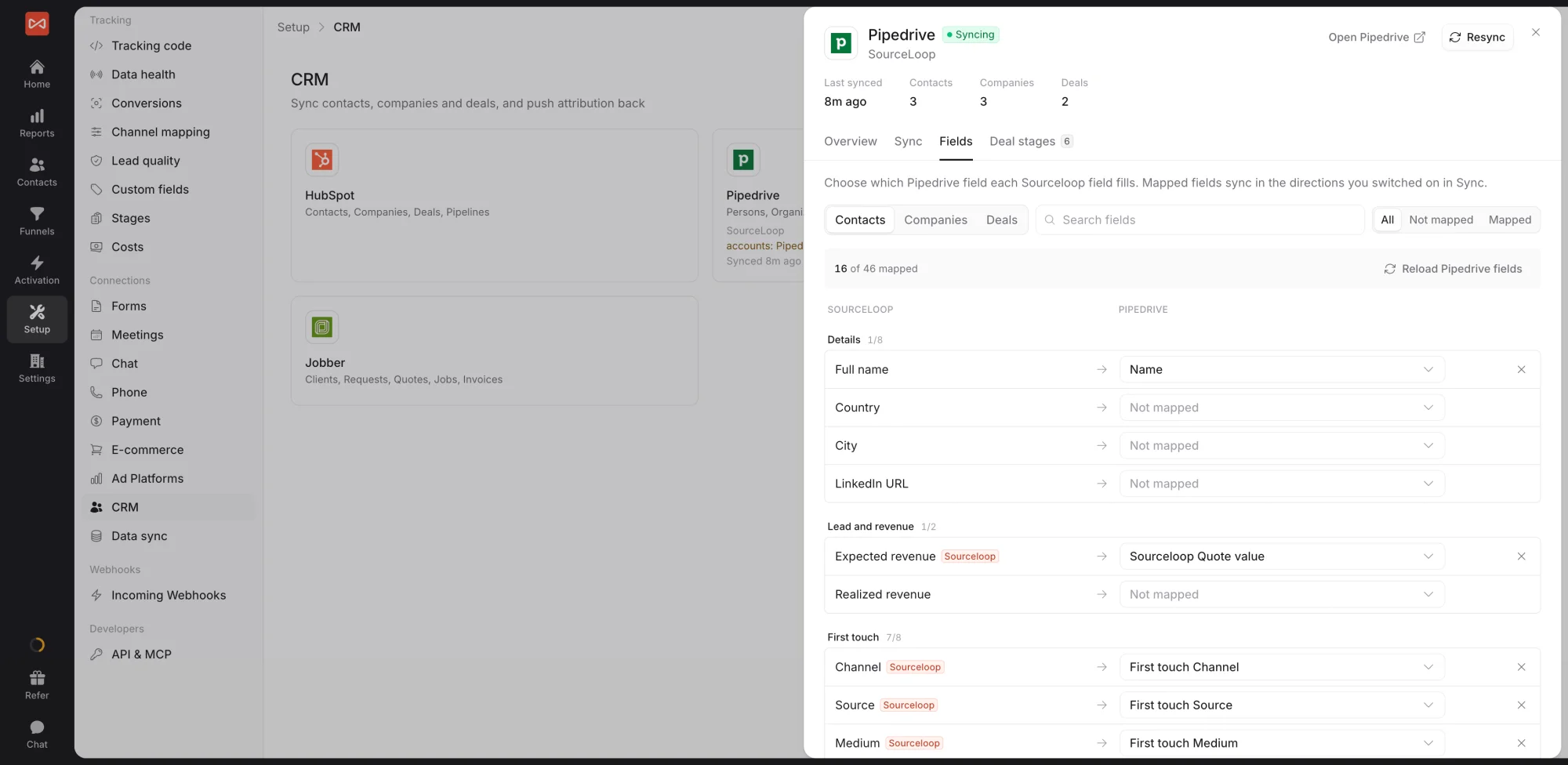
The Fields tab shows one object at a time. Use the tabs at the top to switch between Contacts, Companies, or Deals. Fields are grouped into Details, Lead and revenue, First touch, Latest touch, Ad click ids, and Custom fields, with a search box and a Not mapped filter. The count at the top shows how many fields are mapped.
Step 2: Map fields
- Use SourceLoop’s own fields: click Create N Sourceloop fields in HubSpot to create every missing field at once and map it, or create a single field from its row.
- Use your own HubSpot field: pick it in the row’s HubSpot field picker. If you just added a field in HubSpot, click Reload HubSpot fields first.
Remove a mapping with the x on its row. Mappings save as you make them, and new leads and changes reach HubSpot within minutes.
Step 3: Verify the mapping is working
- Submit a test lead on your site and wait a few minutes.
- Open the contact in HubSpot.
- Check the properties you mapped, the values should match what’s on the contact in SourceLoop’s Contacts.
If a property isn’t getting written, see the troubleshooting checklist in Troubleshoot HubSpot sync issues.
When to map to your own properties vs SourceLoop’s defaults
A simple rule of thumb:
- Map to SourceLoop defaults when HubSpot is your CRM but you don’t have UTM workflows already wired to other properties. The
sourceloop_*properties keep the marketing data cleanly namespaced. - Map to your own properties when you’ve already built HubSpot workflows, lists, or reports against your own UTM fields (e.g.,
original_utm_source,latest_utm_source). Pointing SourceLoop at those fields means your existing automation just works.
If you’re not sure, start with the defaults. You can always add custom mappings later without breaking anything.
Deals
Deal fields are part of the same Fields tab: switch the object menu to Deals. Once mapped, each deal carries the first and latest channel, source, and campaign of the people on it, so your CRM’s revenue reports can group won deals by source.
What’s next
Once your contact properties are flowing, the natural next step is mapping lifecycle stages and lead status so SourceLoop’s internal pipeline aligns with HubSpot’s. See Map SourceLoop stages to HubSpot lifecycle stages.
Frequently asked questions
-
Do I need to create custom properties in HubSpot first?
No. On the Fields tab, click Create Sourceloop fields in HubSpot and SourceLoop creates and maps every property for you, in a Sourceloop attribution group on contacts and deals.
-
Can I push UTMs to the company record, not just the contact?
Yes. Entity type 'company' is supported. Add a mapping with the entity set to 'company' and pick a HubSpot company property as the target. SourceLoop writes the company-level UTMs (aggregated from the company's contacts) on the next sync.
-
Can I map the same SourceLoop field to two HubSpot properties?
Yes. Add two mappings, same internal field, two different external fields. SourceLoop writes both on every sync.
-
What's the difference between `first_campaign` and `latest_campaign` in the SourceLoop side?
The `first_campaign` field is the UTM campaign of the visitor's very first session with you (first touch). The `latest_campaign` field is the UTM campaign of the session in which they actually converted (last touch, or "converting session"). Both are useful, last touch closes the deal, first touch shows what initially drove discovery.
-
Can I prevent SourceLoop from overwriting a HubSpot property after the initial set?
Yes. Set the field mapping's direction to **outbound only** and set the property's "write mode" to **on create**. SourceLoop populates it only on the first sync for that contact, then leaves it alone.
-
What if my HubSpot custom property has a different label than the API name?
SourceLoop's Fields tab shows both the label and the API name. Map against the API name, which is what HubSpot actually uses to identify the property. Labels can change without breaking the mapping.

 Paid Social


