
How to track lead source in HubSpot
Sync lead source, UTMs, and the full marketing journey from SourceLoop into HubSpot contact, company, and deal records. OAuth-based, 5-minute setup.
On this page
Connecting HubSpot to SourceLoop is a one-time OAuth setup that takes about five minutes. Once connected, every visitor’s source, journey, and conversion (forms, meetings, chats, payments) gets pushed into the matching HubSpot contact, with their UTM history, landing page, and the full marketing journey attached.
This guide covers the connect flow only. For what to do next, see:
- Push UTMs and lead source to HubSpot contact properties
- Map SourceLoop stages to HubSpot lifecycle stages
Why connect HubSpot to SourceLoop?
HubSpot is a brilliant CRM, but its native attribution (Marketing Hub’s Source Type field) only goes deep at the Professional and Enterprise tiers, and even then it’s a single source per contact. SourceLoop adds:
- First-touch and last-touch source on every contact, not just one
- Full UTM history (source, medium, campaign, content, term) per touchpoint
- Multi-touch attribution models (first, last, linear, position-based, time-decay)
- Pre-conversion journey (every page the visitor browsed, every session they had)
- Revenue-by-channel when you wire payments in (Stripe, Polar, etc.)
All of this sits on the HubSpot contact, company, and deal records alongside everything you already track. Your reps see source data inside the contact view; your reports group revenue by channel; your nurture flows can trigger on UTM values.
Before you start
You’ll need:
- A SourceLoop workspace with the tracking pixel installed
- A HubSpot account (any tier, including Free)
- HubSpot Super Admin or Account Access permission for the user authorising the connection
- An Admin or Editor role in SourceLoop
Step 1: Open the CRM integrations page
-
Sign in to SourceLoop.
-
Click Setup in the left sidebar.
-
Click the CRM tab inside Setup.
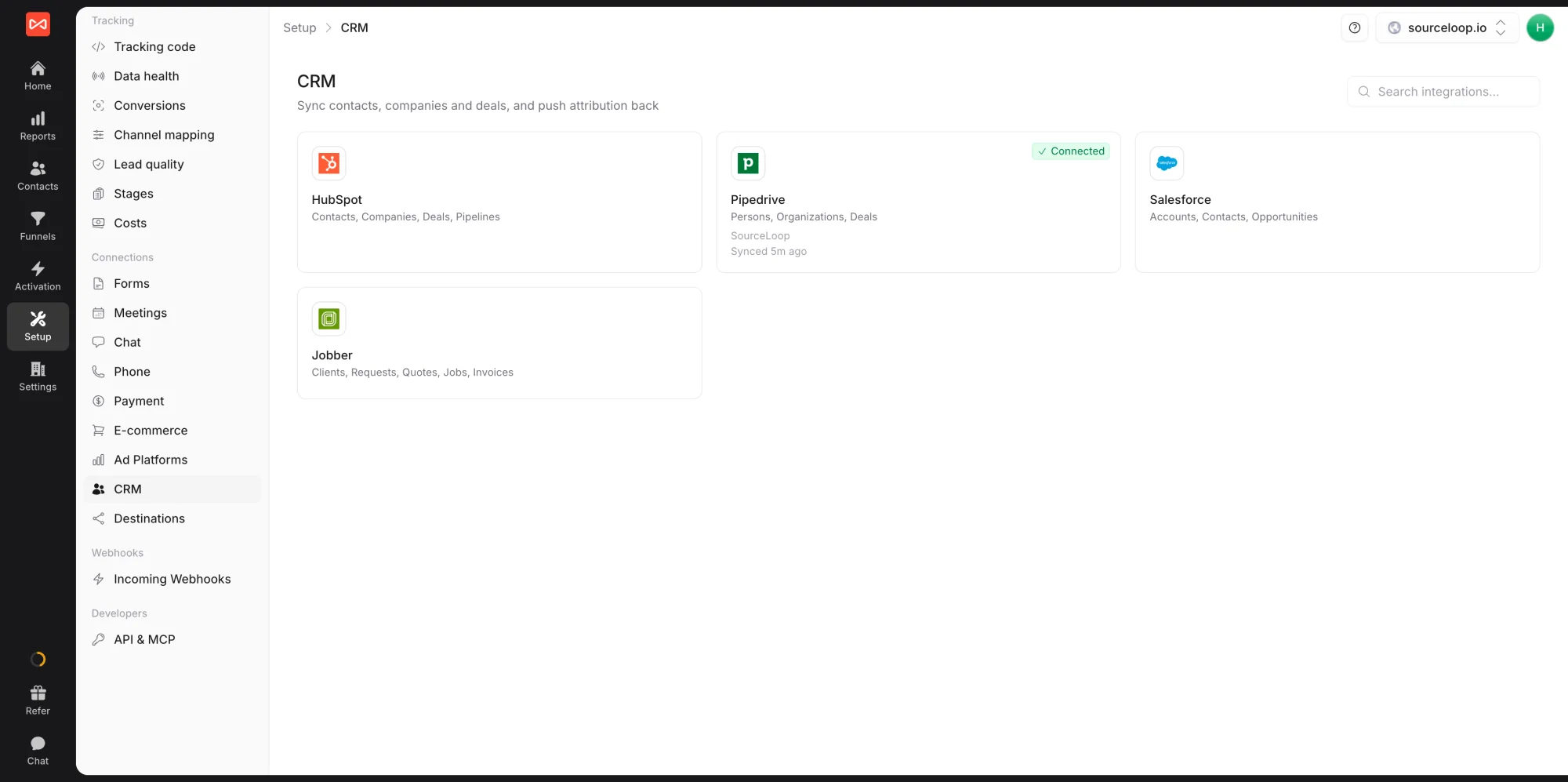
- Scroll to the HubSpot card and click Connect.
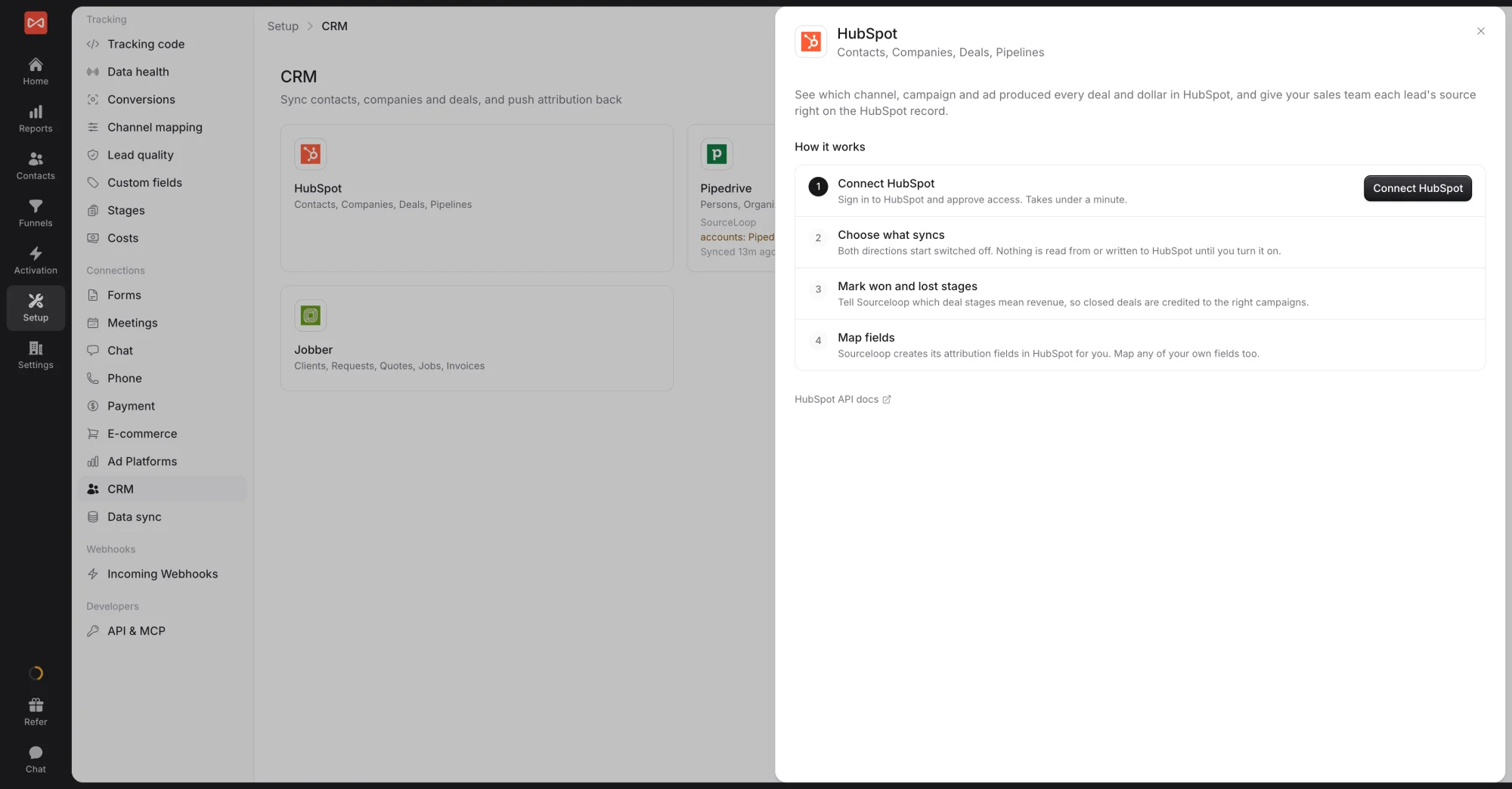
You’ll be redirected to HubSpot’s OAuth consent screen.
Step 2: Authorise SourceLoop on HubSpot’s consent screen
- Sign in to HubSpot if you aren’t already.
- Select the HubSpot account you want to connect (if you have multiple).
- Review the scopes SourceLoop is requesting (read/write on contacts, companies, deals, owners, lists, schemas, plus webhook subscriptions for chat events).
- Click Connect app.
HubSpot redirects you back to SourceLoop, the connection card now shows Connected with the date and your HubSpot portal ID.
Step 3: Choose what syncs
After connecting, the HubSpot drawer opens on the Sync tab. There is one card per direction, and both start switched off, so nothing is read from or written to HubSpot until you turn them on.
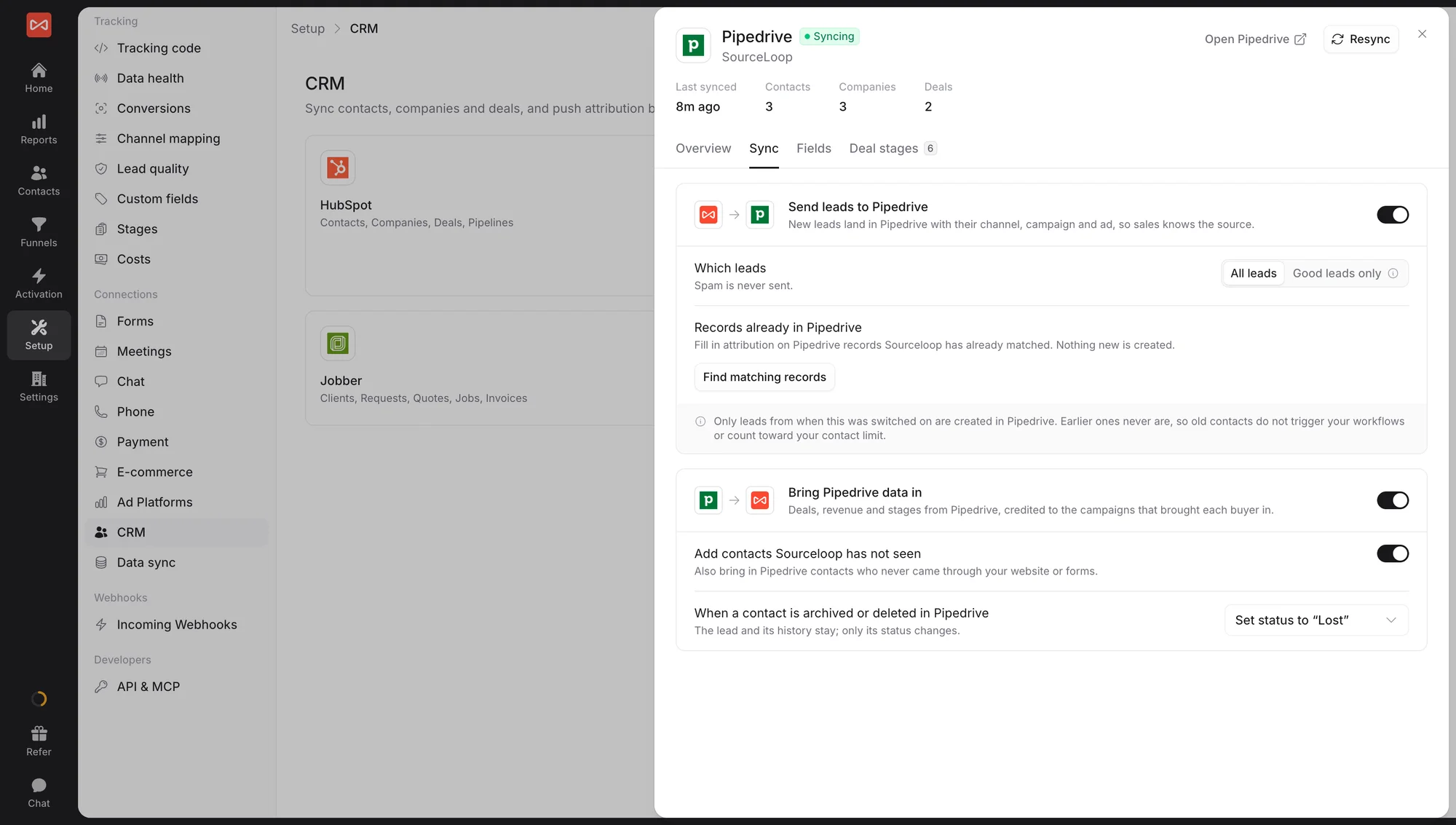
Send leads to HubSpot (SourceLoop to HubSpot):
- New leads land in HubSpot with their channel, campaign, and ad, so sales knows the source.
- Which leads: All leads, or Good leads only if you use lead quality rules. Spam is never sent.
- Records already in HubSpot: click Find matching records to fill in attribution on HubSpot contacts SourceLoop has already matched. Nothing new is created.
Only leads from the moment you switch this on are created in HubSpot. Older leads are never pushed as new contacts, so your contact count, workflows, and sequences aren’t flooded with history.
Bring HubSpot data in (HubSpot to SourceLoop):
- Deals, revenue, and stages from HubSpot, credited to the campaigns that brought each buyer.
- Add contacts Sourceloop has not seen: also bring in HubSpot contacts who never came through your website or forms.
- What happens in SourceLoop when a contact is archived or deleted in HubSpot, such as setting their status to Lost.
Step 4: Mark won and lost stages
Open the Deal stages tab and mark which stages in each pipeline mean won and lost. SourceLoop uses this to credit closed revenue to the right campaigns. A pipeline with no won stage is flagged.
Step 5: Map fields
Open the Fields tab. SourceLoop creates its own attribution properties in HubSpot for you, on contacts and on deals, such as first and latest channel, source, and campaign, lead quality, and lead value. You can also map any of your own HubSpot properties. See Push UTMs and lead source to HubSpot for the full list.
The Overview tab shows each setup step as done or not, with a button to finish anything missing.
What happens next
- The first sync brings in your pipelines, deals, and matched contacts. Large portals can take a while; it runs in the background.
- After that, changes in HubSpot reach SourceLoop as they happen, with a full check every 15 minutes, and new SourceLoop leads reach HubSpot within minutes.
- Lifecycle stage and lead status: map HubSpot’s values to SourceLoop’s under Setup -> Stages. See Map HubSpot lifecycle stages.
- On every HubSpot record, the SourceLoop panel shows the journey behind it.
- Troubleshooting: see Troubleshoot HubSpot sync issues.
What gets written to HubSpot
- On contacts: first and latest touch channel, source, medium, campaign, and landing page, ad click IDs, lead quality, lead value, and any custom fields you map
- On deals: first and latest touch channel, source, and campaign, the number of visits before the deal, and a link to the deal’s journey in SourceLoop
SourceLoop never changes a deal’s own name, amount, or stage. HubSpot owns those.
Frequently asked questions
-
Do I need HubSpot Marketing Hub Professional or Enterprise?
No. The HubSpot OAuth integration works on every HubSpot tier including Free and Starter, as long as your account has access to the contact / company / deal objects (which all tiers do). The only features that require Marketing Hub Pro+ are HubSpot's own UTM tracking, but you don't need those if you're using SourceLoop.
-
Does this sync historic leads or only new ones going forward?
History comes in, but doesn't go out as new contacts. The first sync reads your existing pipelines, deals, and matched contacts. New HubSpot contacts are only created for leads from the moment you switch on Send leads to HubSpot. To add attribution to contacts already in HubSpot, use Find matching records on the Sync tab.
-
Will SourceLoop overwrite HubSpot fields I already have populated?
No, not by default. SourceLoop writes to its own set of contact properties (the UTM and journey fields) and leaves all other fields untouched. If a field collision happens (e.g., you mapped SourceLoop's `lead_source` to HubSpot's standard "Original source"), the most recent value wins. You control the mapping on the Fields tab.
-
How often does SourceLoop sync with HubSpot?
Changes in HubSpot arrive as they happen, with a full check every 15 minutes. New SourceLoop leads reach HubSpot within minutes. The first sync after connecting can take longer for large portals.
-
Can I sync more than one HubSpot account into the same SourceLoop workspace?
One HubSpot account per SourceLoop website. If you manage multiple HubSpot portals (e.g., one per brand), create a separate website in SourceLoop for each and connect them independently.
-
Is SourceLoop a HubSpot Marketplace app?
SourceLoop uses HubSpot's standard OAuth flow (the same one Marketplace apps use). The connection is authorised through HubSpot's official screen and can be revoked any time from HubSpot's Connected Apps settings.

 Paid Social


