
How to Track Stripe Payments as Google Ads Conversions
Google sees the click and Stripe sees the payment. Here is how to connect them so Google Ads optimizes for paying customers, not signups.
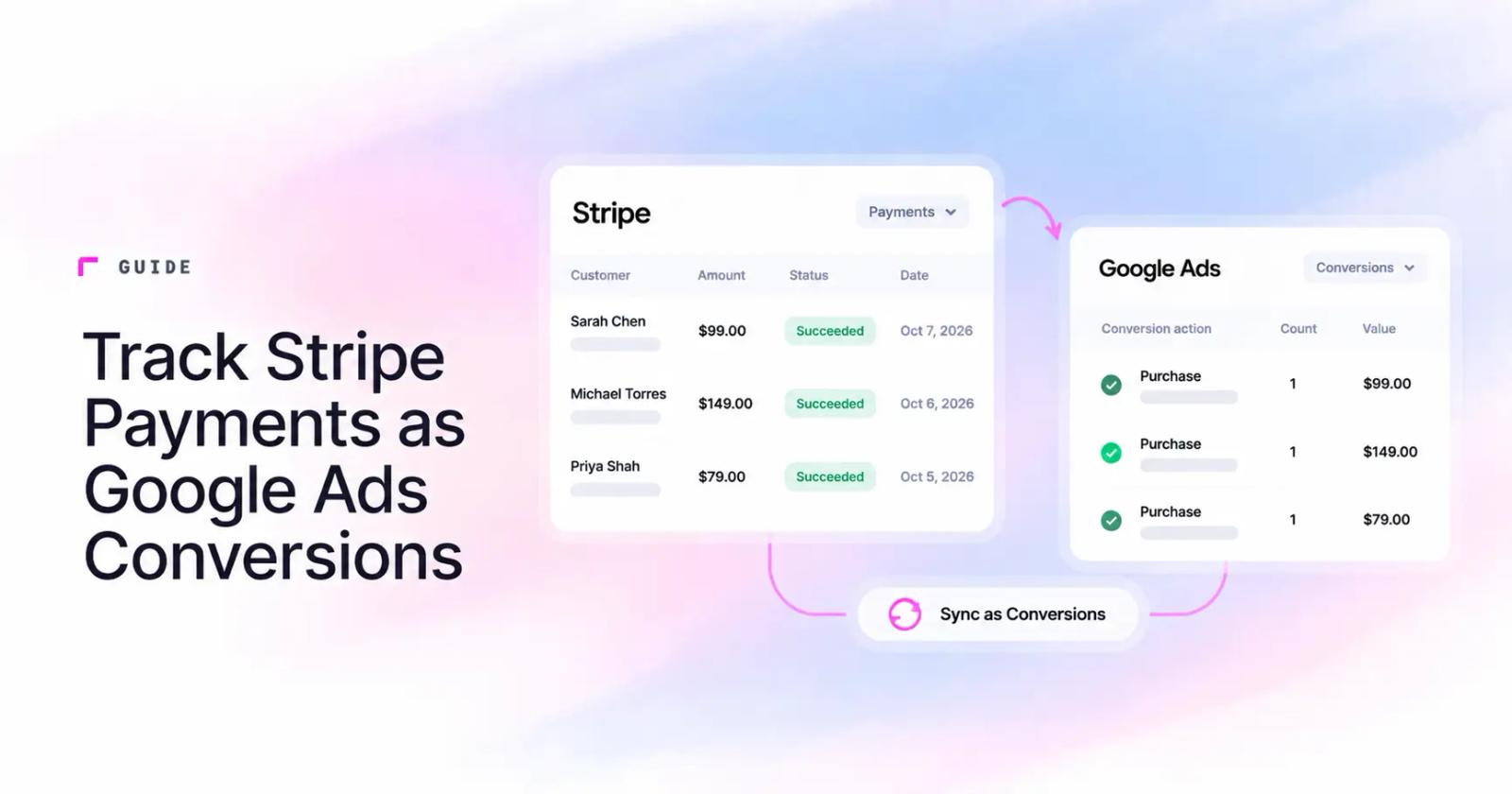
Table of contents
- Why Google Ads can't see your Stripe payments
- What you need before you start
- How to track a Stripe payment as a Google Ads conversion
- Step 1: Install the SourceLoop tracking script
- Step 2: Connect Stripe with a webhook
- Step 3: Pass SourceLoop IDs into your checkout
- Step 4: Check that Google Ads is connected
- Step 5: Create the conversion action in Google Ads
- Step 6: Map the Stripe payment to that conversion action
- Step 7: Choose what counts as a conversion
- Step 8: Run a test payment
- What changes once it's running
- Troubleshooting common problems
- Related reading
Google Ads optimizes for the conversions it can see. For most SaaS accounts that's a signup or a form fill, not a payment.
Send the Stripe payment back to Google yourself, tied to the ad click, and bidding starts to follow revenue. This guide covers the setup, and whether renewals should count too.
Why Google Ads can't see your Stripe payments
A normal Google Ads conversion fires from a tag in the visitor's browser. That works when the purchase ends on your thank-you page. Stripe breaks that in three ways:
- The visitor pays on a page hosted by Stripe, so they leave your site before the payment happens.
- Some people pay later, on another device, or after a bank verification step, and never see your thank-you page.
- Renewals have no page view at all. Stripe charges the card on day 30 and nobody opens a browser.
So the payment has to come from Stripe's side as a webhook, and it has to carry the click ID (GCLID) from the ad that started it. Google calls this an offline conversion import.
The payment tells Google how much. The click ID tells Google who to credit. You need both.
What you need before you start
- A Google Ads account with auto-tagging on, so every ad click carries a GCLID.
- A SourceLoop workspace with the tracking script installed on your site.
- Google Ads connected to SourceLoop. If you haven't done that yet, follow the connect Google Ads guide.
- Developer or owner access to your Stripe Dashboard, so you can add a webhook endpoint.
- The Admin or Owner role in SourceLoop.
How to track a Stripe payment as a Google Ads conversion
Eight steps. The first three get Stripe data into SourceLoop with the right click ID attached. The rest tell Google Ads what to do with it.
Step 1: Install the SourceLoop tracking script
Open Setup, then Tracking code in SourceLoop, copy the snippet, and paste it into the head of every page on your site. Start with the pages that lead into checkout. This is what records the GCLID the moment someone lands from an ad.
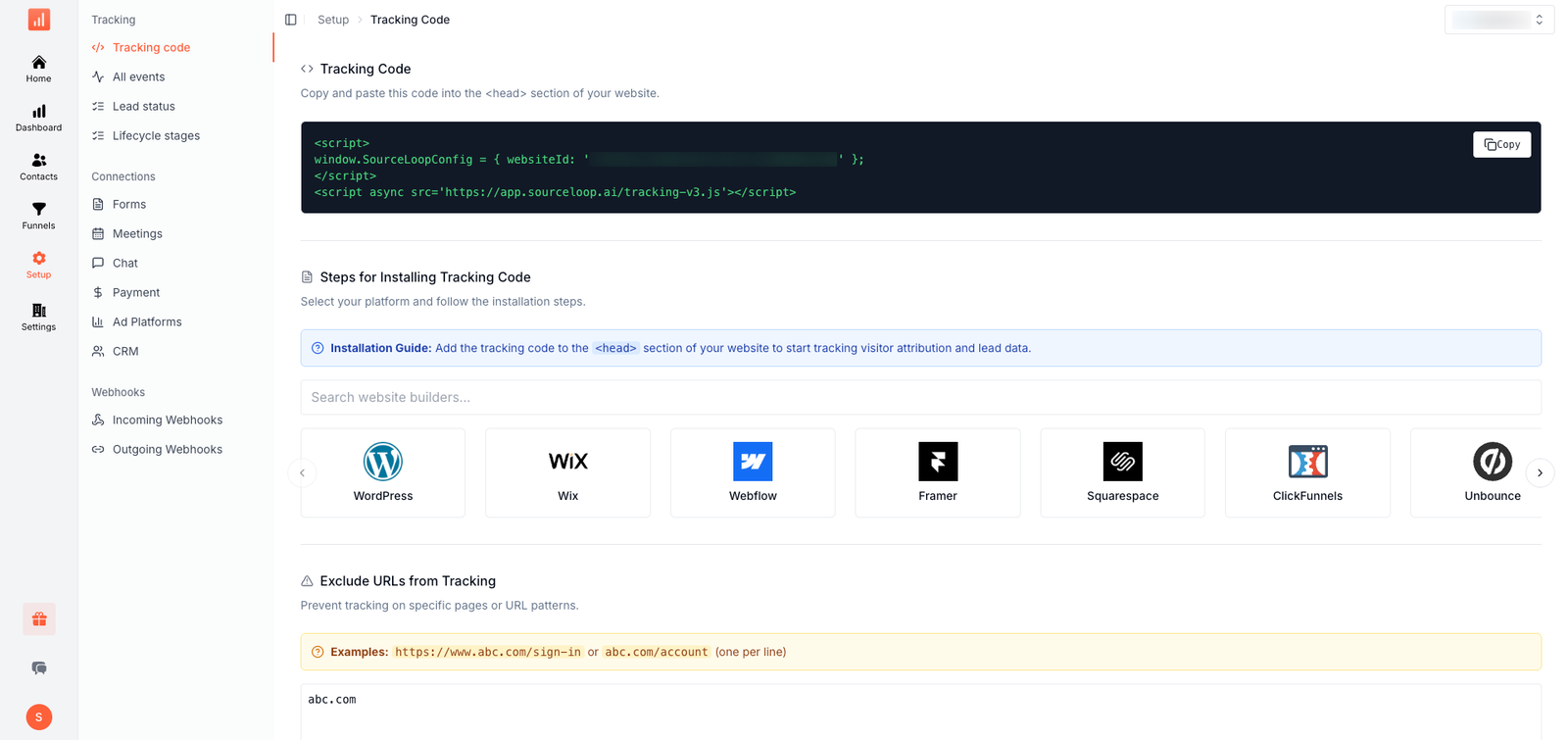
Not sure it's firing? Use the verify tracking guide to check. And if GCLID, GBRAID and WBRAID are new to you, click IDs explained covers all three.
Step 2: Connect Stripe with a webhook
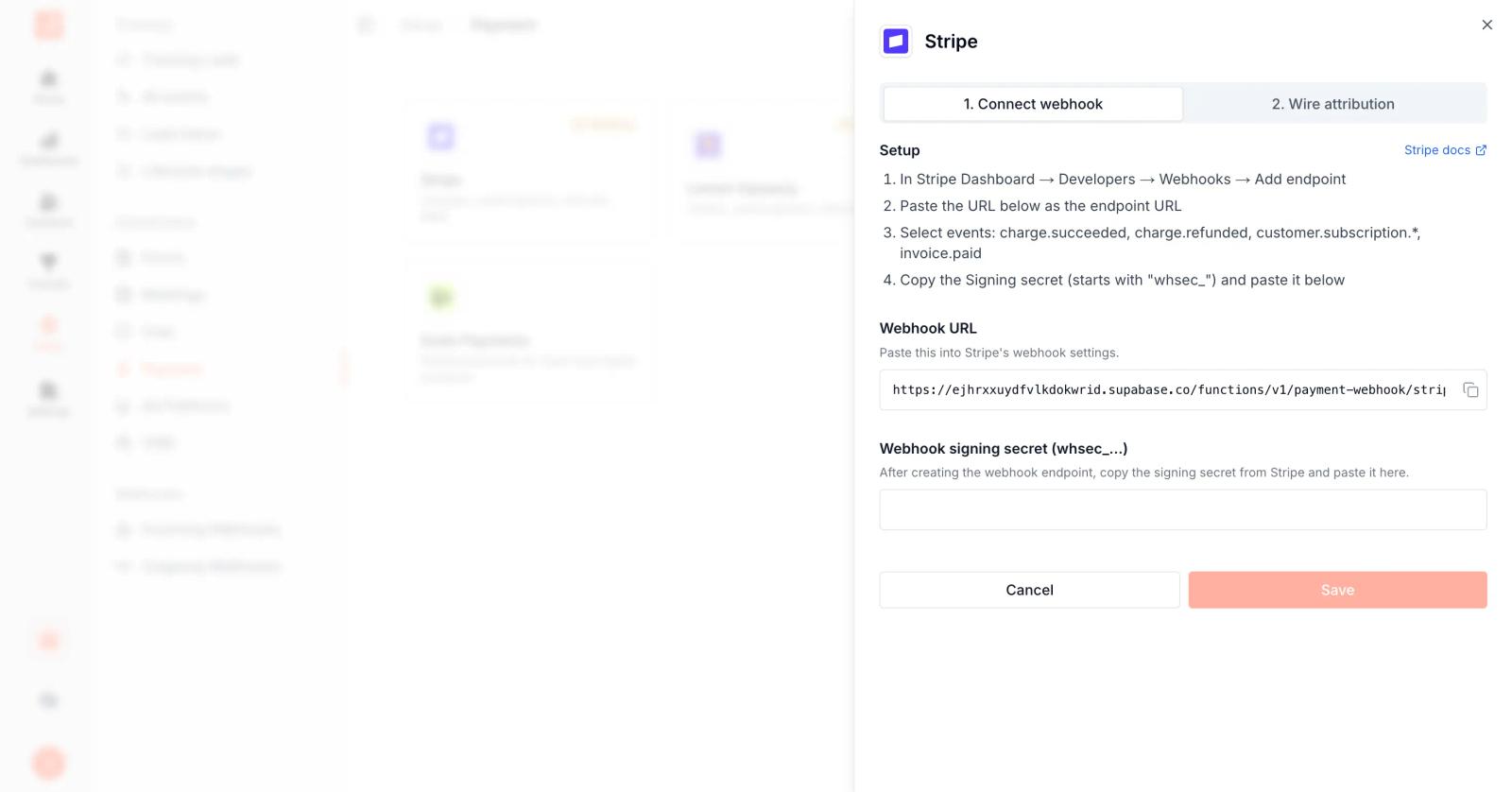
In SourceLoop, go to Setup, then Payment, and click the Stripe card. A drawer opens with the webhook URL on the first tab.
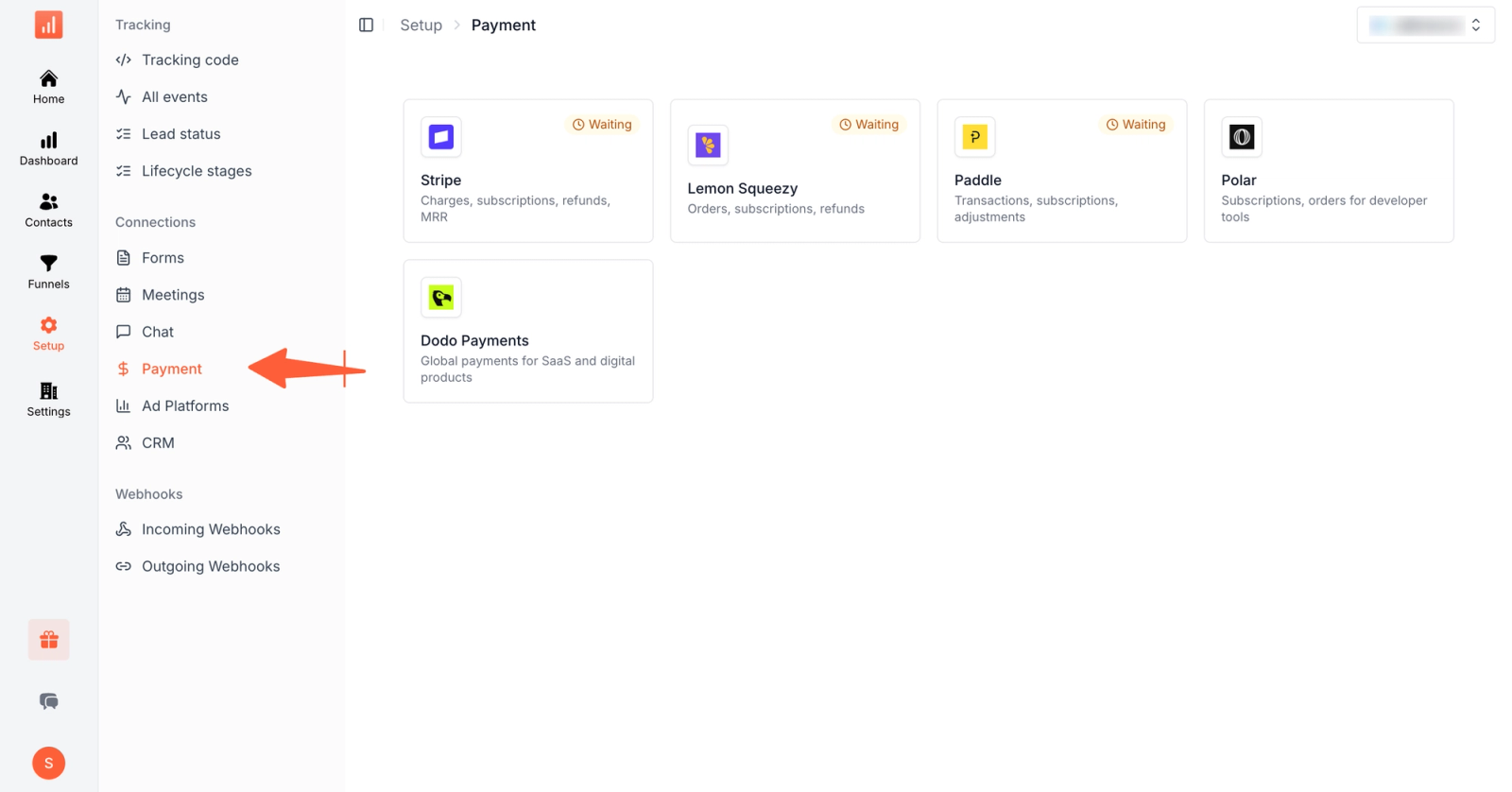
Copy that URL. In Stripe, open Developers, then Webhooks, click Add endpoint, and paste it in. For events, select these:
charge.succeededcharge.refundedcustomer.subscription.createdcustomer.subscription.updatedcustomer.subscription.deletedinvoice.paid
Save the endpoint, then reveal the signing secret on its detail page. It starts with whsec_. Paste it into the SourceLoop drawer and save. The connection shows as pending until Stripe sends its first verified event, then it turns active.
Already sending Stripe events to Zapier, HubSpot or your own app? Leave those alone. Stripe delivers each event to every endpoint separately, so SourceLoop is just one more destination. Stripe's webhook documentation covers endpoints in more detail.
Step 3: Pass SourceLoop IDs into your checkout
The webhook says a payment happened. It doesn't say which visitor paid. To connect the two, give Stripe the visitor's IDs when you create the checkout. The tracker has a helper for that:
const meta = window.sourceloop.checkoutMetadata();
// { sourceloop_anonymous_id: '...', sourceloop_id: '...' }
Send that object to your server along with the price ID, then set it as metadata when you create the Checkout Session. For subscriptions, set it on subscription_data as well:
const session = await stripe.checkout.sessions.create({
  mode: 'subscription',
  line_items: [{ price: priceId, quantity: 1 }],
  success_url: 'https://your.site/thanks',
  cancel_url: 'https://your.site/pricing',
  metadata: meta,
  subscription_data: { metadata: meta },
});
That second line matters for renewals. Stripe copies a subscription's metadata onto each invoice it creates, so every future payment still points back to the same visitor. Stripe's metadata guide explains how that works.
Using Payment Links or Payment Intents instead? The Stripe lead source tracking guide has a snippet for each. Payment Links carry less detail than Checkout Sessions, so use Sessions where you can.
Step 4: Check that Google Ads is connected
SourceLoop needs a connected Google Ads account before it can push anything. In Setup, then Ad Platforms, the Google Ads card should say Active. If it doesn't, the connect Google Ads guide walks through it.
Step 5: Create the conversion action in Google Ads
SourceLoop pushes into a conversion action that already exists, so create one in Google Ads first. Go to Tools, then Conversions, then New conversion action. Choose Import, then Other data sources, then Track conversions from clicks.
Name it something you will still recognize in six months, like SourceLoop Paid Subscription. Save it, open the action, and copy the number at the end of the URL. That is the Conversion Action ID.
Step 6: Map the Stripe payment to that conversion action
In SourceLoop, open Setup, then Ad Platforms, then Google Ads, and click Add conversion mapping. Four fields matter for Stripe:
| Field | What to choose for Stripe |
|---|---|
| Trigger event type | Realized revenue updated. It fires when a payment integration like Stripe confirms money. |
| Trigger event name filter | Leave blank to match every Stripe payment event, or enter one event name to narrow it. Step 7 covers this. |
| Attribution model | Last touch credits the session that converted. First touch credits the original source. |
| Conversion Action ID | The number you copied from Google Ads. |
Switch on Include value and set the value source to sales_value, which is the amount Stripe actually collected. Leave currency alone unless Google Ads uses a different one than your workspace. The dedup window defaults to 1440 minutes, so the same click can't push the same conversion twice in one day. Save, and SourceLoop sends matches on its next 2 minute cycle. Every field is listed in the Google Ads conversions help article.
Step 7: Choose what counts as a conversion
Should Google hear about a customer once, or every time they pay? The trigger event name filter decides, and you can add more than one mapping.
| Setup | What Google Ads receives | Works well for |
|---|---|---|
| First subscription payment only | One conversion per new customer | Target CPA bidding and most SaaS accounts |
| Every successful payment | The first payment and each renewal, while the click is under 90 days old | Short billing cycles where you want revenue based bidding (target ROAS) |
| Two mappings, two conversion actions | New subscriptions go to one action, renewals to another | Bidding on new customers while still seeing renewal revenue in reports |
We'd start with the first payment only. Three reasons:
- One paying customer is one conversion, so cost per acquisition is easy to read.
- Smart Bidding isn't asked to chase the same customer every month.
- You can add renewals later, once you trust the numbers.
If you do want both, use two actions. Then untick Include in Conversions on the renewal action in Google Ads, so it shows in reports without steering bidding.
Filter tip: type the event name exactly as SourceLoop lists it, for example stripe_charge.succeeded. A typo matches nothing, and nothing gets sent.
Renewals also have a time limit. Google keeps a GCLID for 90 days after the click, and older conversions can't be imported. Say someone clicks an ad, pays on day 5 and renews every 30 days:
- The renewals on day 35 and day 65 still match.
- The one on day 95 doesn't.
Upgrades, downgrades and refunds take care of themselves. With payments connected, SourceLoop sends an adjustment against the original conversion, so the value in Google Ads stays close to what you actually kept.
Step 8: Run a test payment
Push one payment through the whole path. Open your checkout in an incognito window, add ?utm_source=test&utm_medium=verify&utm_campaign=stripe-check to the URL, and pay. Stripe test mode works too if you point the endpoint at your test account. Then check three places:
- Contacts Hub in SourceLoop. The customer should show up with the test UTMs and a revenue event attached.
- The Sync log under Setup, Ad Platforms, Google Ads. Each push lists the GCLID, value, status and Google's response.
- Google Ads, 6 to 24 hours later. Open Tools, then Conversions, click the action, and look at Recent conversions.
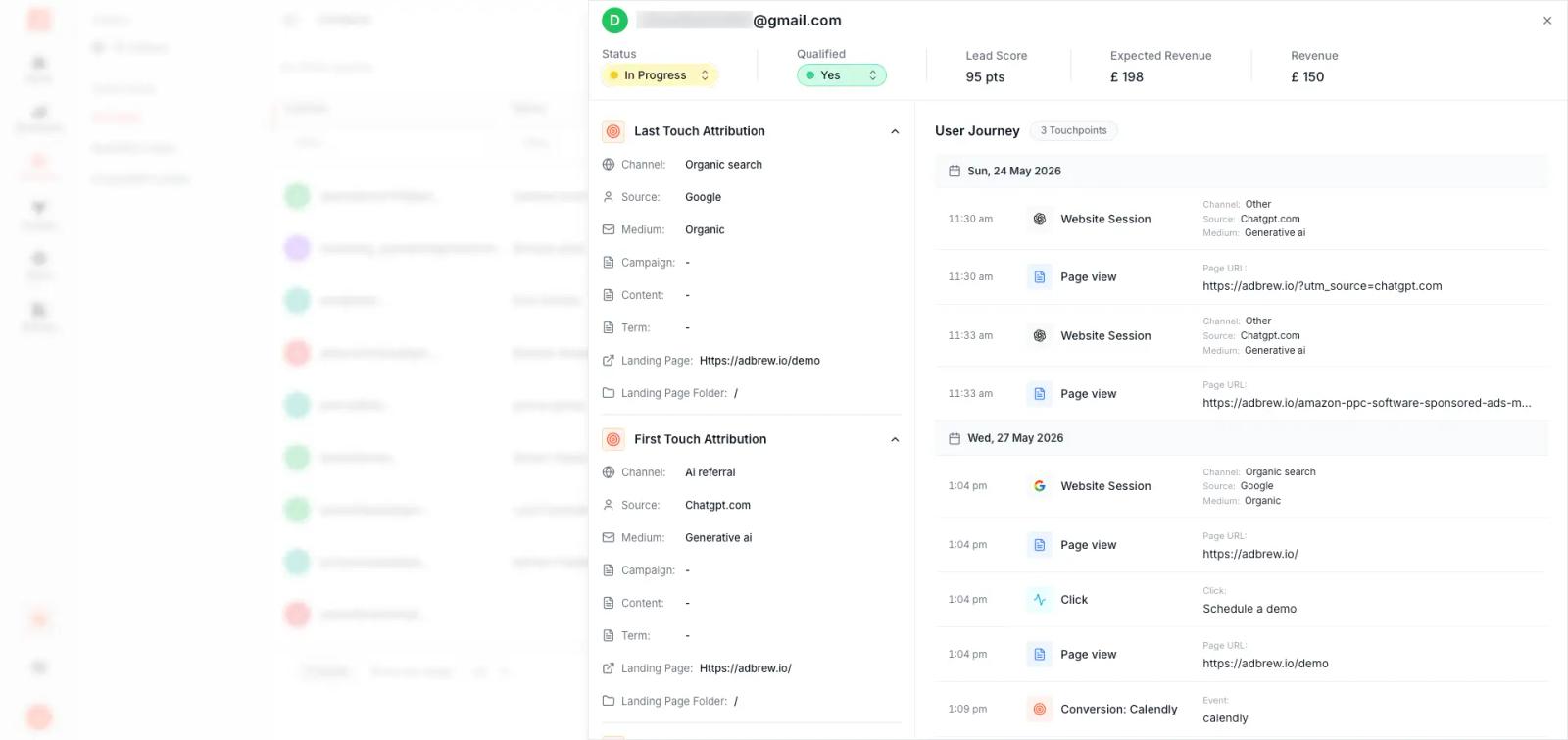
One catch. Google won't match a made up GCLID, so a test with fake UTMs proves the Stripe side only. The Google Ads side confirms itself when your first real customer from an ad pays. Until then the action may say Pending verification. That is normal for a new conversion action, and it switches to Active on its own once Google sees real conversions.
What changes once it's running
Now Google has something better to learn from. Point target CPA or target ROAS at the new conversion action and Smart Bidding starts favoring clicks that end in a payment, not just a signup. Expect the totals in Google Ads and Stripe to differ a little. Timing, currency conversion and refunds land differently in each system, so they will never match to the dollar.
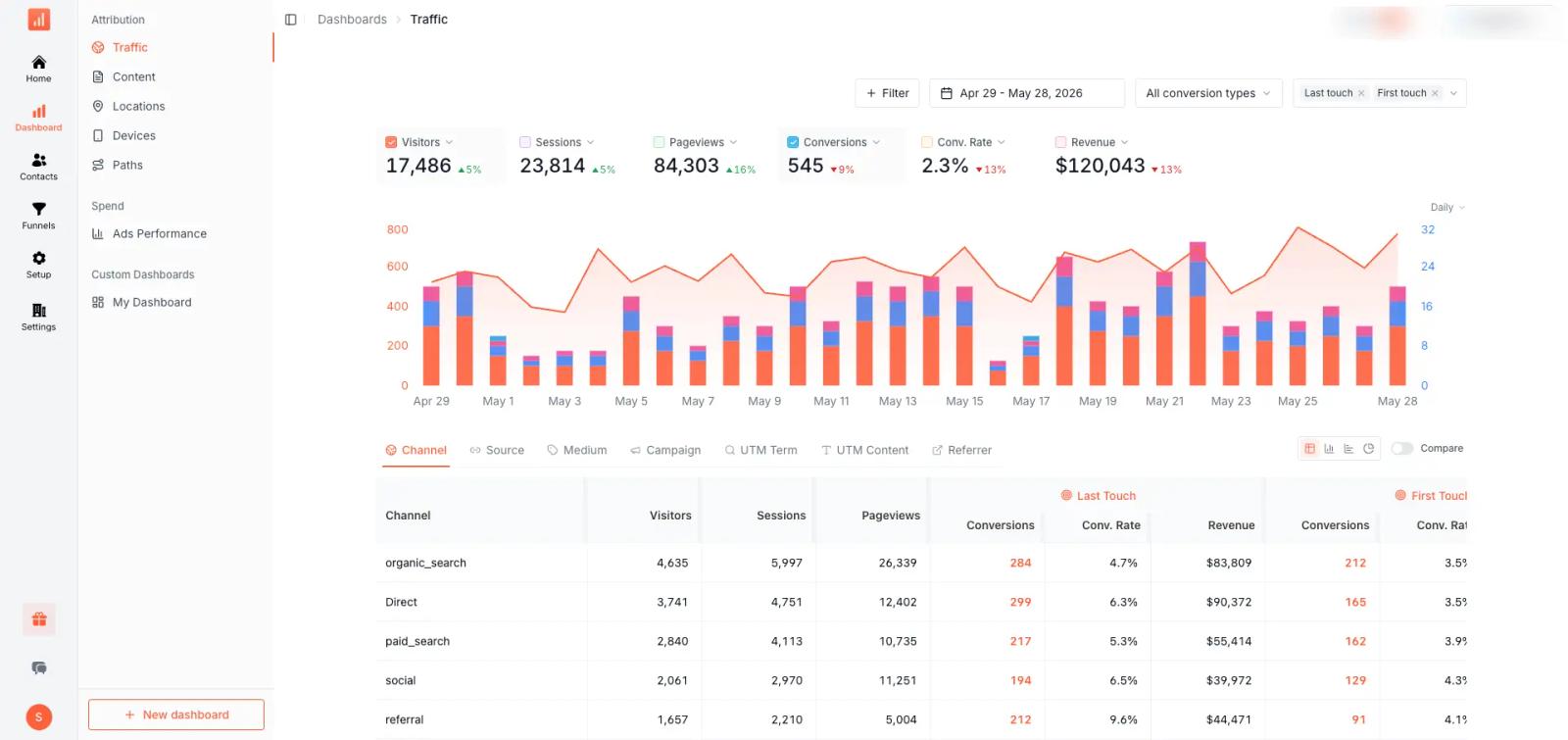
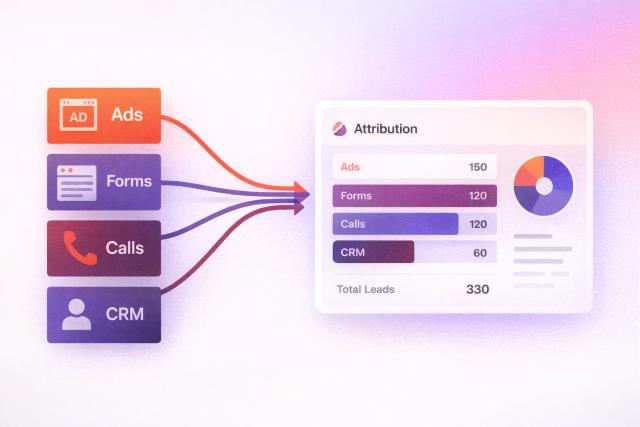
That dashboard makes a good second opinion. You can compare what Google claims against what customers actually paid, and switch attribution models to see how credit moves between first and last touch. It comes from the same payment tracking setup, and the marketing attribution feature has the model details.
Troubleshooting common problems
| What you see | Likely cause | What to do |
|---|---|---|
| Action says Pending verification | Google hasn't received real conversions yet | Wait. It turns Active by itself after the first matches. |
| Payments in SourceLoop, nothing in Google Ads | The customer never clicked a Google ad, or auto-tagging is off | Open the contact's journey. Google can only credit people who clicked one of its ads. |
| Click too old error | The GCLID is past 90 days | Send an earlier event for that customer, or send sooner. |
| Stripe payment not linked to a visitor | Checkout metadata is missing | Recheck Step 3, then look at webhook deliveries in Stripe's Developers area. |
| Conversions counted twice | Two mappings send the same event to the same action | Review the mapping list and keep one mapping per action. |
Still stuck? The Google Ads sync troubleshooting guide covers the rest.
Related reading
- Offline conversion tracking in Google Ads: complete setup guide
- Track Calendly bookings as Google Ads conversions
- Track Stripe payments as Meta Ads conversions
- What is server-side tracking
Running subscriptions and paying for Google clicks? Try SourceLoop free or book a demo and we'll help you set up the Stripe to Google Ads loop.
Frequently asked questions
-
Can I track Stripe payments in Google Ads without a tool like SourceLoop?
Yes. You need to capture the GCLID on landing, store it with the customer, receive Stripe's webhooks, and upload offline conversions through the Google Ads API or an import file. It works, but you maintain every piece. The offline conversion setup guide covers the manual route.
-
Does Google Ads count every Stripe renewal as a conversion?
Only the ones you send. A SourceLoop mapping with a blank event name filter matches every event of its type, renewals included. Add a filter to send just the first payment, or use two mappings to split new subscriptions from renewals.
-
What happens if a customer pays more than 90 days after the ad click?
Google can't match that payment to the click, so it won't be imported. The revenue still shows in SourceLoop against the original source. To keep Google informed, send an earlier event for that customer, such as the first payment.
-
How long until a Stripe payment shows up in Google Ads?
SourceLoop sends matching conversions on a 2 minute cycle. After that, Google Ads can take 6 to 24 hours to show them in your conversion columns.
-
Do refunds lower the conversion value in Google Ads?
They can. With payments connected, SourceLoop sends an adjustment against the original conversion for refunds, upgrades and downgrades, so the value in Google Ads follows what Stripe kept.
-
Does this work with Stripe Payment Links?
Yes, with lower accuracy. A Payment Link can only pass a
client_reference_id, which carries half of the matching pair. If it's missing, SourceLoop falls back to matching on the customer's email. -
What customer data gets sent to Google?
Each push includes the GCLID, conversion time, value and currency, plus hashed email and phone (SHA256) as Enhanced Conversions. That gives Google a fallback match when the click ID is missing. Check that your consent setup allows this, and see the GDPR and consent guide for how SourceLoop handles it.

 Paid Social


