
Verify the SourceLoop tracking pixel is installed
Confirm the tracking code is live, watch your own visits arrive in real time, and run an end-to-end test lead that proves leads are captured and credited to the right channel.
On this page
You’ve added the tracking code to your site. If not, start with Install the SourceLoop tracking pixel. This guide confirms three things: the code loads, visits arrive, and a lead is captured and credited to the right channel.
Step 1: Check the install
- Open Setup in the left sidebar, then Tracking code.
- Click Verify. SourceLoop checks your site for the tracking code and reports back in a few seconds.

If you installed through Google Tag Manager or another tag manager, Verify may not see the code in your page’s HTML. That’s fine: Step 2 confirms it with real visits.
Step 2: Watch your own visits arrive
- Open Setup, then Data health. The Live tab is open by default.
- Open your website in another browser tab and click around.
- Your page views appear on the Live tab within a few seconds.
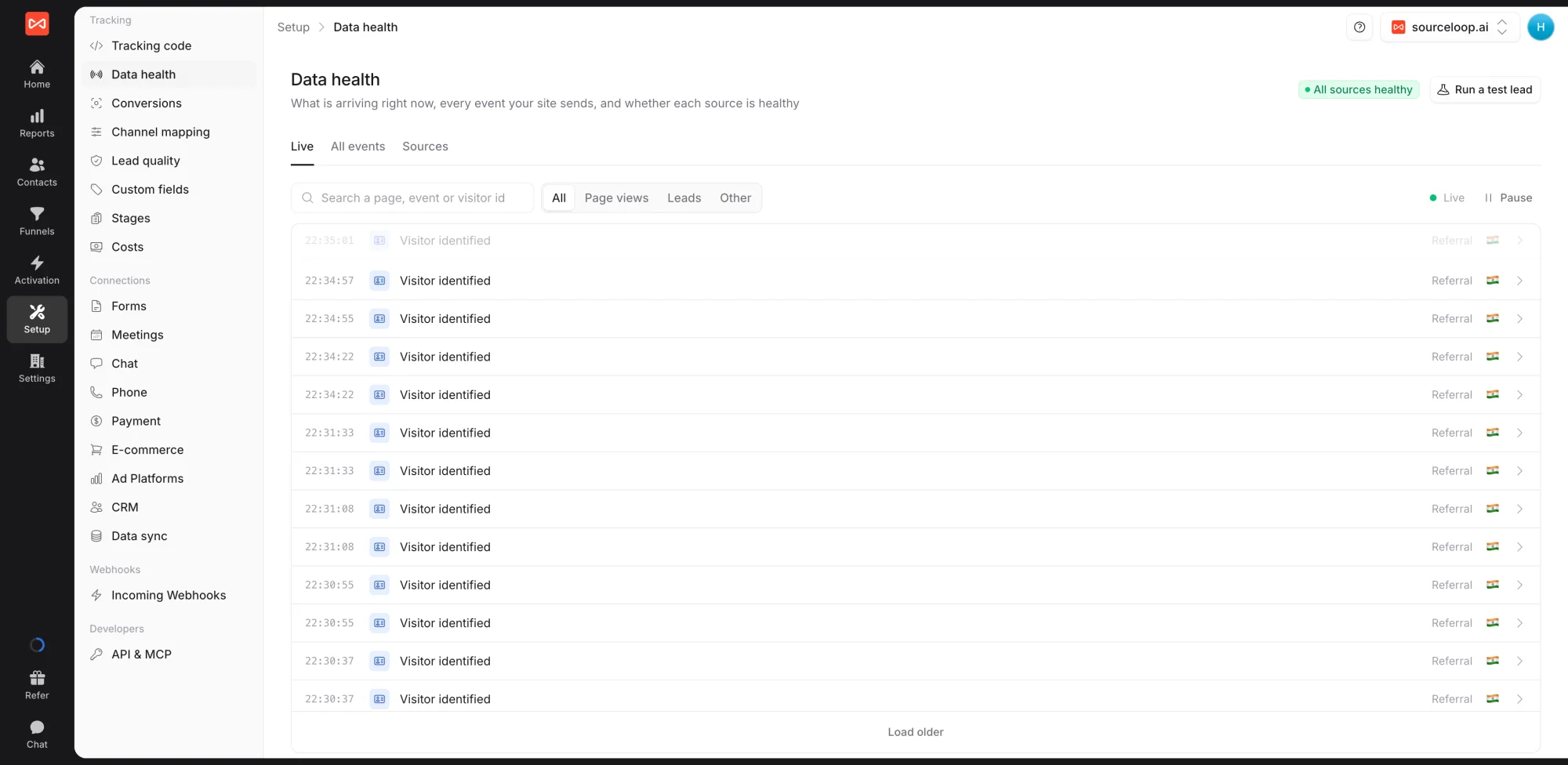
Click any row to see its page, channel, campaign, device, and country. Use Show only this visitor to follow one person, and the search box to find a page path, an event name, or a visitor.
Step 3: Run an end-to-end test lead
The test proves the whole path works: a visit from an ad, a form submission, and the lead credited to that ad’s channel.
- On Data health, click Run a test lead. You can also start it from the Getting started checklist at the bottom of the sidebar.
- Click Open my site and start. Your site opens with a test campaign link.
- Submit any form on that page with an email you can recognise.
- Back in SourceLoop, the test ticks off each stage: the visit arrives, the form is submitted, and the lead is credited. It should show Paid Search with the campaign sourceloop_test.
The test lead is marked Spam automatically, so it never reaches your reports, CRM, alerts, or ad platforms.
If a stage doesn’t complete, the test says what it saw. “No visit arrived” means the code isn’t on that page. “No form arrived” means the form wasn’t submitted on the page the link opened, or it runs on another domain and needs its own setup.
Step 4: Keep an eye on Data health
Data health also watches everything connected to your website:
- Sources lists the tracking code, leads, ad accounts, CRM, payments, incoming webhooks, and conversion syncs, each marked healthy, quiet, stale, or failing
- Issues at the top flags anything that needs you, such as a source that went quiet or a high share of results with no website visit
- All events lists every event name your site sends, with counts
If tracking still isn’t working
- Check the page source. View your page’s source and search for
t.sourceloop.ai. If the snippet isn’t there, it was pasted in the wrong template or removed by a deploy. - Check your security policy. If the browser console reports a Content Security Policy error for SourceLoop, add
t.sourceloop.aito yourscript-srcandconnect-srcdirectives. - Check your consent banner. Cookie tools such as Cookiebot or OneTrust can hold scripts until consent. Allow SourceLoop in the right category, or turn on cookieless mode on the Tracking code page.
- Purge your CDN cache if you use Cloudflare, Vercel, Netlify, or similar.
- Check the website ID. The
websiteIdin your snippet must match the website selected in SourceLoop. This is the usual cause when you manage several sites.
Still stuck? Email [email protected] with your domain and what the test reported.
What’s next
- Keep staff visits and job applications out: Exclude pages, forms, and IP addresses
- Connect the tools your leads come through: Web form tracking
- See your first channels: Traffic and Revenue report
Frequently asked questions
-
Will the test lead show up in my reports?
No. A lead from the end-to-end test is marked Spam automatically, so it stays out of reports, your CRM, alerts, and ad platforms.
-
Verify says the script is found, but no leads appear. What's wrong?
Verify only checks that the tracking code loads. Leads appear when someone submits a form, books a meeting, starts a chat, or calls. Run the end-to-end test to check a form on your site, and see the guide for your form, meeting, or chat tool if it uses another domain.
-
Verify keeps failing even though the script is on the page. Why?
The usual causes are a page behind a login, a security policy or bot blocker stopping the check, a consent banner that loads the script only after consent, or a CDN serving an older copy of the page. The Live tab on Data health is the better test, because it shows real visits whatever the check could reach.
-
Does it work with Google Tag Manager?
Yes. Data health counts the install as done as soon as a real page view arrives, so tag manager installs count even when the page's HTML doesn't contain the snippet.
-
What is the Getting started checklist in the sidebar?
A short list of setup steps at the bottom of the sidebar, checked against real data rather than ticked by hand: install the code, capture a lead credited to its channel, then optional steps such as ad accounts, costs, conversion sync, CRM, and lead quality. Click it to see what's next.

 Paid Social


