
How to track lead source in Salesforce
Push UTMs, lead source, and the full visitor journey into Salesforce Lead, Contact, Account, and Opportunity records. Sandbox and production.
On this page
- Why connect Salesforce to SourceLoop?
- Before you start
- Step 1: Open the CRM integrations page
- Step 2: Pick sandbox or production
- Step 3: Authorise SourceLoop on Salesforce
- Step 4: Choose what syncs
- Step 5: Mark won and lost stages and map fields
- Step 6 (optional): Turn on real-time updates
- What happens next
- What’s next
Salesforce is the system of record for most B2B sales teams, but Salesforce’s native attribution stops at a single LeadSource field with no multi-touch model and no historical journey. SourceLoop adds: first-touch and last-touch source on every Lead and Contact, the full UTM trail, the visitor’s pre-conversion journey, and multi-touch attribution models that respect Salesforce’s Lead → Contact → Opportunity flow.
This article covers the OAuth connect flow only. After connecting, see:
Why connect Salesforce to SourceLoop?
Salesforce ships with one LeadSource field per Lead. SourceLoop adds:
- First-touch source / medium / campaign as separate fields, so you know the original channel even after multiple touchpoints
- Last-touch (converting session) source / medium / campaign as separate fields
- Full UTM trail with content and term, not just source and medium
- Visitor journey (every page browsed pre-conversion) viewable on the Lead / Contact record
- Multi-touch attribution models (first, last, linear, position-based, time-decay)
- Revenue-by-channel when payment integrations are connected, attributed back to the original Lead
All of this sits on standard Salesforce records, so it shows up in Salesforce reports, Lightning record pages, and any workflow / process you build against it.
Before you start
You’ll need:
- A SourceLoop workspace with the tracking pixel installed
- A Salesforce org (Sales Cloud or Service Cloud; any edition)
- A Salesforce user with System Administrator profile, or Modify All Data + API Enabled permissions, to run the OAuth connect
- An Admin or Editor role in SourceLoop
Step 1: Open the CRM integrations page
-
Sign in to SourceLoop.
-
Click Setup in the left sidebar.
-
Click the CRM tab inside Setup.
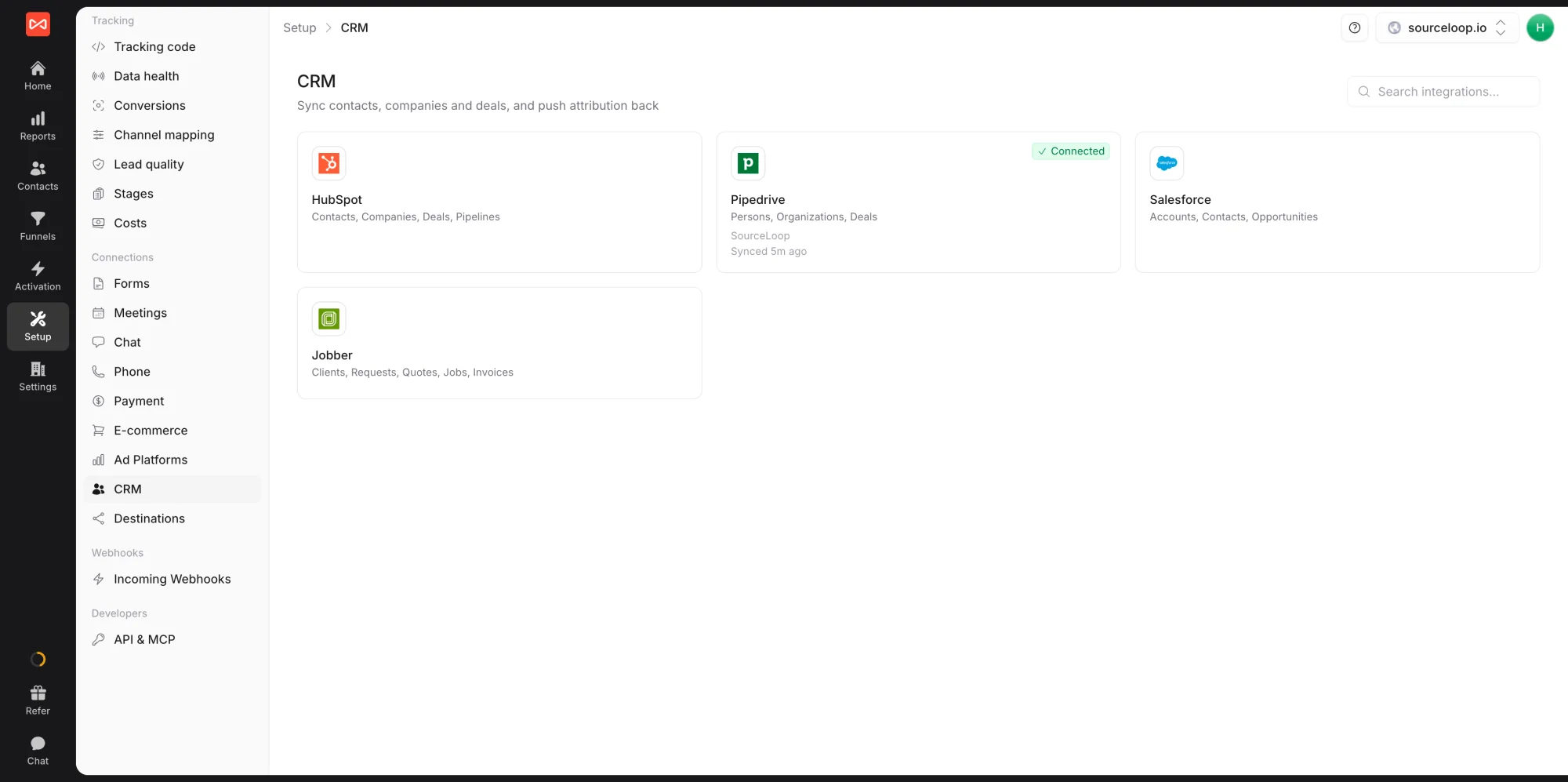
- Scroll to the Salesforce card.
Step 2: Pick sandbox or production
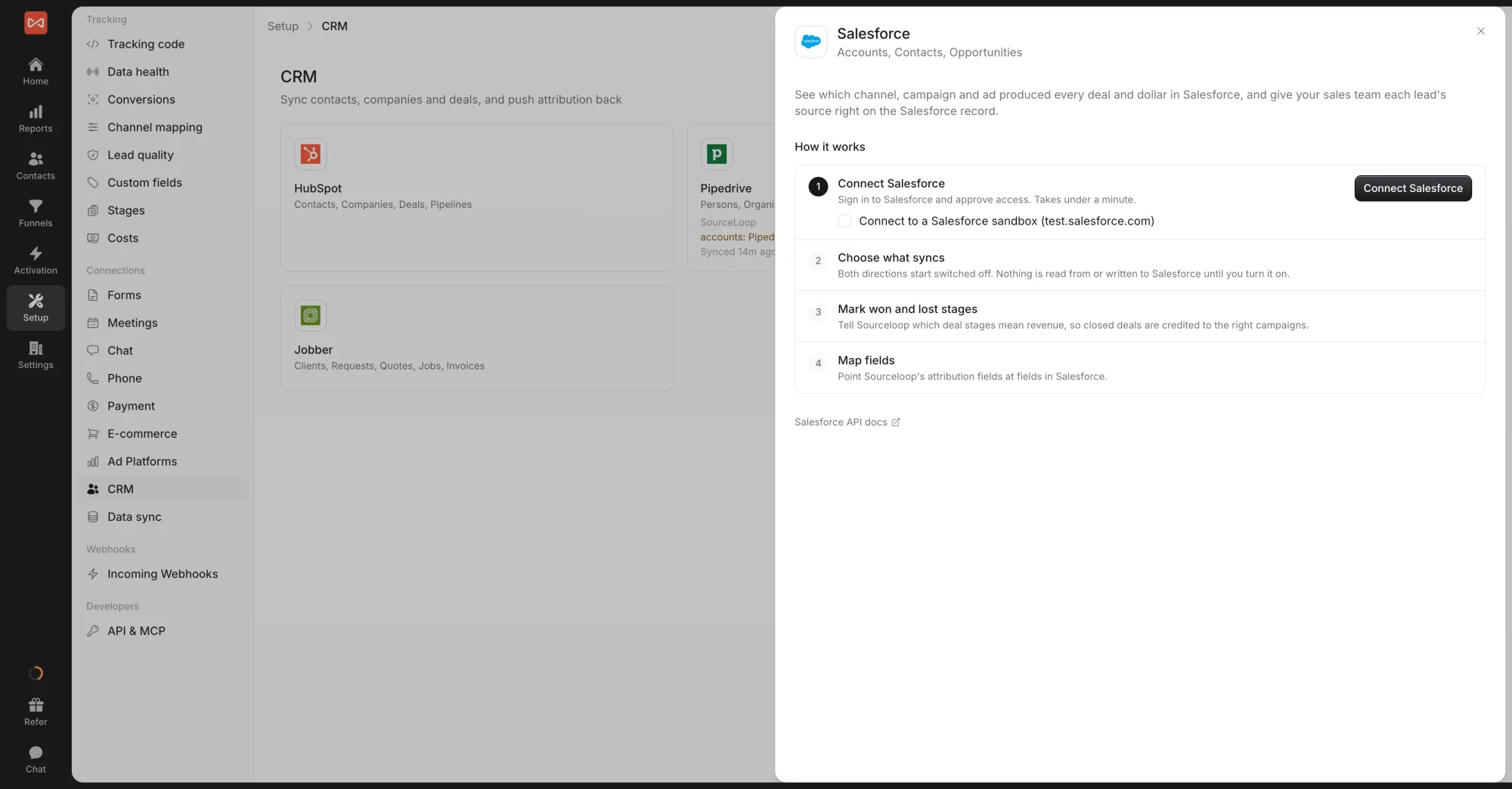
- In the Salesforce drawer, tick Connect to a Salesforce sandbox (test.salesforce.com) if you want to try it on your sandbox first. Leave it unticked for production.
- Click Connect Salesforce.
You’ll be redirected to Salesforce’s sign-in, either login.salesforce.com (production) or test.salesforce.com (sandbox).
Step 3: Authorise SourceLoop on Salesforce
- Sign in to Salesforce if you aren’t already.
- Pick the org you want to connect (if you have multiple Salesforce users).
- Review the scopes SourceLoop is requesting (API access, refresh_token, offline_access).
- Click Allow.
Salesforce redirects you back to SourceLoop. The connection card flips to Connected and shows your Salesforce instance URL (e.g., acme.my.salesforce.com).
Step 4: Choose what syncs
After connecting, the Salesforce drawer opens on the Sync tab. Each direction has its own switch, and both start switched off.
- Send leads to Salesforce: new leads arrive with their channel, campaign, and ad. Choose All leads or Good leads only. Use Find matching records to fill in attribution on records SourceLoop has already matched, without creating anything new. Only leads from the moment you switch this on are created in Salesforce.
- Bring Salesforce data in: accounts, contacts, and opportunities, with their stages and revenue, credited to the campaigns behind each buyer. Turn on Add contacts Sourceloop has not seen to bring in people who never came through your website.
Step 5: Mark won and lost stages and map fields
- On the Deal stages tab, mark which opportunity stages mean won and lost, so closed revenue is credited correctly.
- On the Fields tab, map SourceLoop’s attribution to fields in Salesforce. Salesforce doesn’t let apps create fields for you, so create the fields you want on Lead, Contact, and Opportunity first (for example “First touch channel” and “Latest touch campaign” as text fields), then map them here. See Push UTMs to Salesforce.
Step 6 (optional): Turn on real-time updates
By default, SourceLoop checks Salesforce for changes every 15 minutes. For instant updates, open Real-time updates in the drawer and set up a Salesforce Flow with an HTTP Callout that sends contact, account, and opportunity changes to the URL shown, authenticated with the bearer secret shown next to it.
What happens next
- The first sync reads your pipelines, opportunities, and matched people in the background. Large orgs take longer.
- Lead status and lifecycle stages: map Salesforce values to SourceLoop’s under Setup -> Stages. See Map Salesforce lead status.
- Troubleshooting: see Troubleshoot Salesforce sync.
What’s next
- Map attribution to your Salesforce fields: Push UTMs to Salesforce
- Map Lead Status values: Map Salesforce lead status
- Fix a sync that looks stuck: Troubleshoot Salesforce sync
Frequently asked questions
-
Do I need Salesforce Sales Cloud or Service Cloud?
Either works. SourceLoop reads and writes against standard Salesforce objects (Lead, Contact, Account, Opportunity) which exist in every edition. Marketing Cloud is not required.
-
Does this work with a Salesforce Sandbox?
Yes. Tick Connect to a Salesforce sandbox in the Salesforce drawer before connecting, and sign-in goes through test.salesforce.com instead of login.salesforce.com.
-
Will SourceLoop overwrite my existing Salesforce Lead Source field?
Only if you map SourceLoop's attribution to it. SourceLoop writes only to the Salesforce fields you map on the Fields tab, so create your own fields for it, such as First touch channel, and your existing Lead Source values stay as they are.
-
How does SourceLoop handle Lead conversion to Contact / Account / Opportunity?
Map SourceLoop's fields on both Lead and Contact, and include your fields in Salesforce's lead conversion mapping, so the values carry over when a lead converts. Opportunities get their own first and latest touch from the people on them, once you map Opportunity fields.
-
I use Lightning Experience. Does that matter?
No. SourceLoop uses the Salesforce REST and Bulk APIs, which are UI-agnostic. Both Lightning and Classic users see the same SourceLoop data on records once it's synced in.
-
Can I sync multiple Salesforce orgs?
One Salesforce org per SourceLoop website. For multiple orgs, create a separate SourceLoop website for each and connect them independently.

 Paid Social


