
How to use SourceLoop Incoming Webhooks
Send leads into SourceLoop from any form, booking, or chat tool that fires a webhook. Name the webhook, paste its URL and token into your tool, and every submission becomes a lead with its journey.
On this page
Incoming webhooks bring leads into SourceLoop from any tool that can send a webhook: a form builder on someone else’s domain, a booking tool, a chat tool, a Zapier workflow, or your own backend. Each submission becomes a lead in Contacts, with the visitor’s journey attached when it can be matched.
When to use one
Use an incoming webhook when:
- The form, booking page, or chat runs on another domain, so the tracking code on your site can’t see the submission
- You have a custom lead flow, such as your own backend or an internal tool
- A tool can send webhooks but has no card under Setup -> Forms, Meetings, or Chat
You don’t need one when the form is embedded on a page that loads the tracking code, because those submissions are captured automatically.
Step 1: Create the webhook
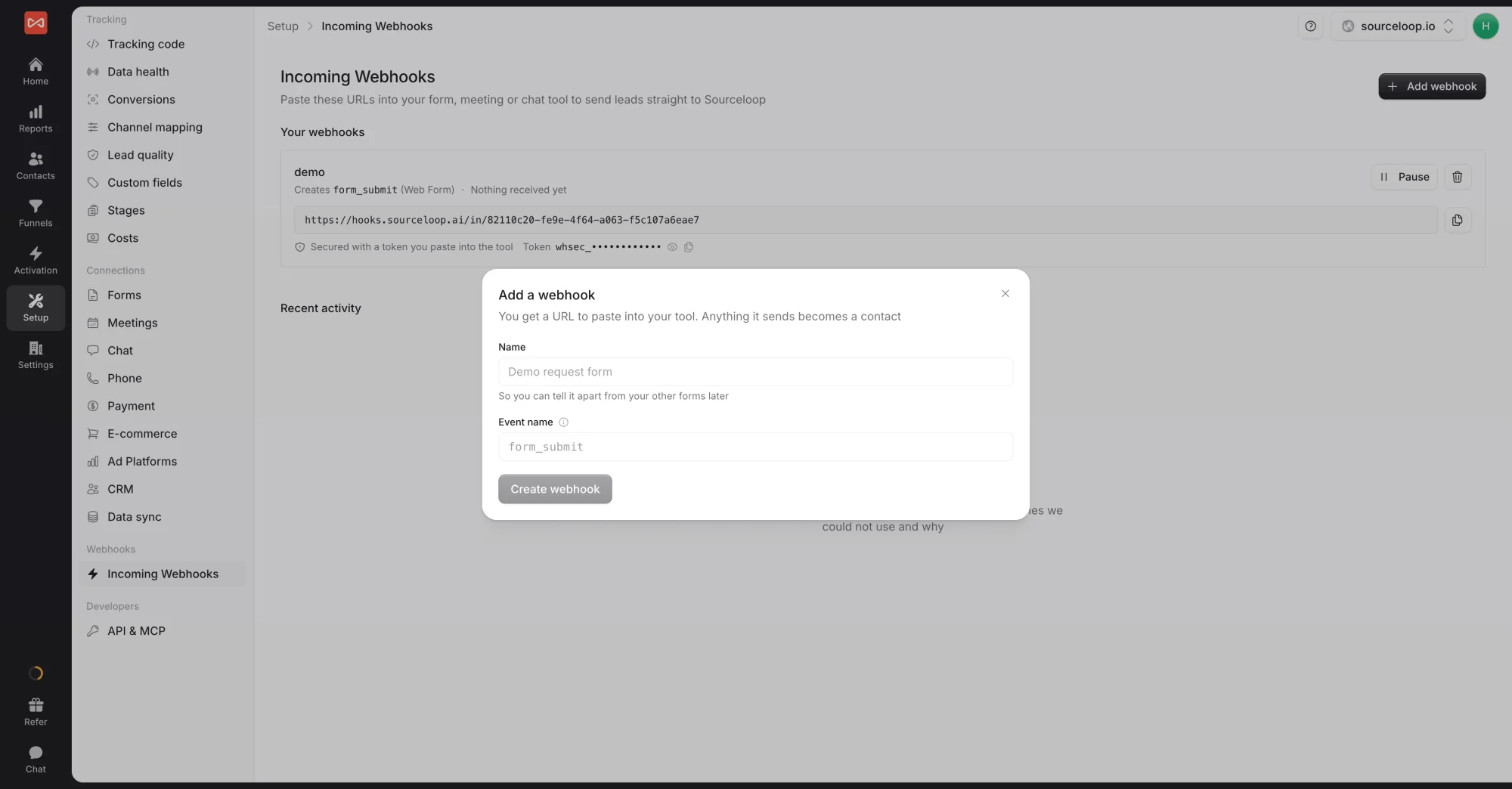
- Open Setup in the left sidebar, then Incoming Webhooks.
- Click Add webhook.
- Enter a Name, such as “Demo request form”, so you can tell your webhooks apart later.
- Enter an Event name, such as
demo_request. Leads from this webhook appear under this event in Contacts and reports. Leave the default,form_submit, if it’s an ordinary form. - Click Create webhook.
The webhook appears under Your webhooks with its URL and a Token used to prove requests come from you.
Step 2: Paste the URL and token into your tool
In your tool’s webhook or HTTP request settings:
- Paste the webhook URL and set the method to POST.
- Send the token in a header named
Sourceloop-Token. - If your tool only has a URL field and can’t add headers, add the token to the end of the URL instead:
?token=YOUR_TOKEN. - Choose the trigger that fires after the visitor has shared their details, such as form submitted or booking confirmed.
Step 3: Check the payload
You don’t need a special format. A simple body looks like this:
{
  "email": "[email protected]",
  "name": "Jane Doe",
  "phone": "+1 555 0100",
  "company": "Acme Co.",
  "submission_id": "your-unique-id",
  "sl_aid": "the value from the hidden field"
}- email, phone, name: at least one, or an
sl_aid, is needed for a lead - submission_id (or
response_id,id): lets SourceLoop ignore repeated sends of the same submission - event or conversion_type: optional, to override the webhook’s event name for one request
Common tool shapes, such as answers nested in arrays, are read without any changes.
Step 4: Send a test and watch Recent activity
Submit your form the way a visitor would, or send a request yourself:
curl -X POST 'https://hooks.sourceloop.ai/in/YOUR-WEBHOOK-ID' \
  -H 'Content-Type: application/json' \
  -H 'Sourceloop-Token: YOUR_TOKEN' \
  -d '{"email":"[email protected]","name":"Webhook Test"}'
The lead appears in Contacts within seconds. Every request also shows under Recent activity on the Incoming Webhooks page, kept for 30 days, marked as:
- accepted: a lead was created, and the tool’s own signature proved where it came from
- unverified: a lead was created. The request was accepted on its token or URL, which most tools use.
- duplicate: this submission was already received, so nothing new was created
- rejected: nothing usable was found, or the token was wrong, with the reason
- error: something went wrong on SourceLoop’s side. The payload is kept so nothing is lost.
Where the leads show up
- Contacts: each lead with its details and, when matched, its full journey. See the Contacts table.
- Reports: webhook leads count like any other conversion, by channel, source, and campaign. See the Traffic and Revenue report.
- Activation: they can trigger alerts, conversion sync, and outgoing webhooks.
What’s next
- Send leads in from Zapier or Make: Connect Zapier and Make
- Install the tracking code for full journeys: Install the tracking pixel
- See a full chat example: Track lead source in Zendesk Chat
Frequently asked questions
-
Is there a ready-made guide for my tool?
Often, yes. Open Setup -> Forms, Meetings, or Chat and click your tool's card. Its drawer walks through the setup and shows a webhook URL ready to paste. Use Setup -> Incoming Webhooks for tools without a card, or for your own code.
-
Do I also need the tracking code on my site?
For attribution, yes. The tracking code records the visits before the submission. Add a hidden field named sl_aid to your form and the webhook carries it back, so SourceLoop can attach the lead to that visitor's journey. Without it the lead is still saved, but it can only be tied to a journey if the same email or phone was seen on your site before.
-
What format does the payload need?
JSON or a standard form post. SourceLoop finds the email, phone, name, and company wherever your tool puts them, so most tools' default payload works as it is. A request needs at least an email, phone, name, or sl_aid to become a lead.
-
How do I stop duplicates when my tool retries?
Include the tool's own submission id, in a field such as submission_id, response_id, or id. A second request from the same webhook with the same id is recorded as a duplicate and creates nothing.
-
My tool keeps saying the webhook succeeded, but no lead appeared. Why?
SourceLoop answers success for every request it could read, so your tool doesn't retry for hours. The reason a request produced no lead is shown under Recent activity, for example when no email, phone, name, or sl_aid was found.
-
Can I pause a webhook?
Yes. Click Pause on the webhook. Requests sent while it is paused are acknowledged but create nothing. Click it again to resume.

 Paid Social


