
How to track lead source in 123FormBuilder
Tie every 123FormBuilder submission back to the marketing channel that produced it, with the full pre-submission journey saved on each lead.


On this page
- What SourceLoop captures from 123FormBuilder
- Before you start
- Step 1: Install the SourceLoop tracking script
- Step 2: Add the SourceLoop helper script to your form
- Step 3: Embed the form on your website
- Where to see 123FormBuilder submissions in SourceLoop
- Contacts
- Traffic and Revenue report
- Funnel reports
123FormBuilder is the form tool of choice for organizations that need serious flexibility, conditional logic, payment integrations, multi-step forms, native HIPAA-eligible plans, all without writing code. The integration with SourceLoop is unique compared to most other form builders: instead of a webhook or hidden field setup, 123FormBuilder uses a small helper script that runs inside the form itself.
Three steps, about five minutes start to finish.
What SourceLoop captures from 123FormBuilder
Every form submission ends up in SourceLoop with the visitor’s full marketing context:
- Acquisition channel plus complete UTM parameter set from the first session
- Pre-submission browsing trail, every page in chronological order
- Time on site before the form was submitted
- Visit count leading up to the conversion
- Email and name fields from the 123FormBuilder submission
- Original landing page and the URL that referred the visitor
- Source of the closing session (the one that produced the submission)
- Device, country, and browser
Before you start
You’ll need:
- A SourceLoop workspace (free trial)
- Edit access to the website where the 123FormBuilder form will be embedded
- A 123FormBuilder account with at least one form built
- Access to 123FormBuilder’s Set up -> Advanced options (varies by plan, check before starting)
Step 1: Install the SourceLoop tracking script
Sign in to SourceLoop, open Setup from the left navigation, and click the Tracking code tab. Copy the snippet displayed.

Add the snippet to the <head> of every page on your site. Especially the page where you’ll embed the 123FormBuilder form, that’s where the magic needs to happen.
Step 2: Add the SourceLoop helper script to your form
123FormBuilder needs a small helper script running inside the form to connect it to SourceLoop. Adding it takes about thirty seconds.
- Open your form in 123FormBuilder.
- Click the Set up tab at the top and choose Advanced.
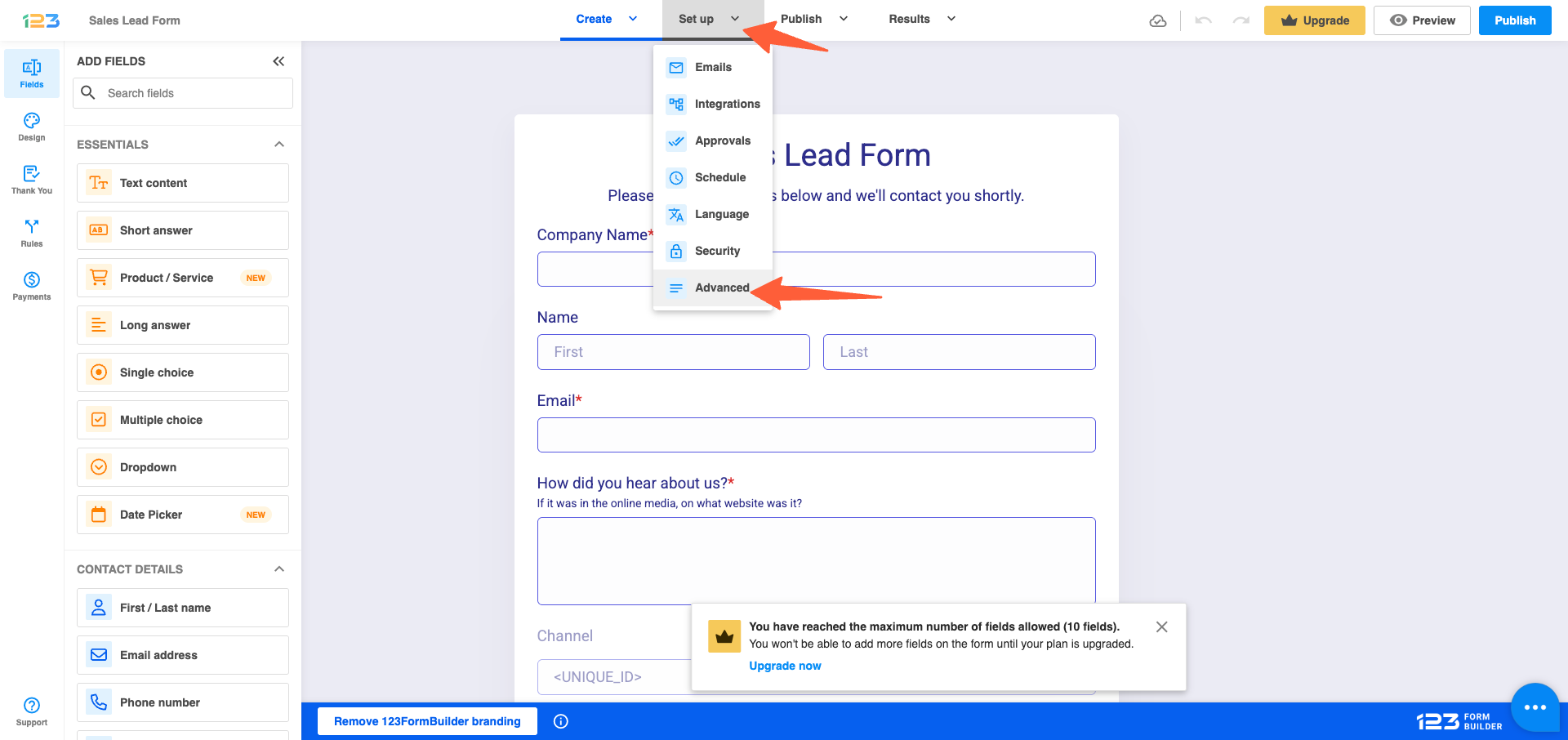
- Check the Add a JS script to your form option and paste this URL into the field:
https://app.sourceloop.ai/123formbuilder-integration.js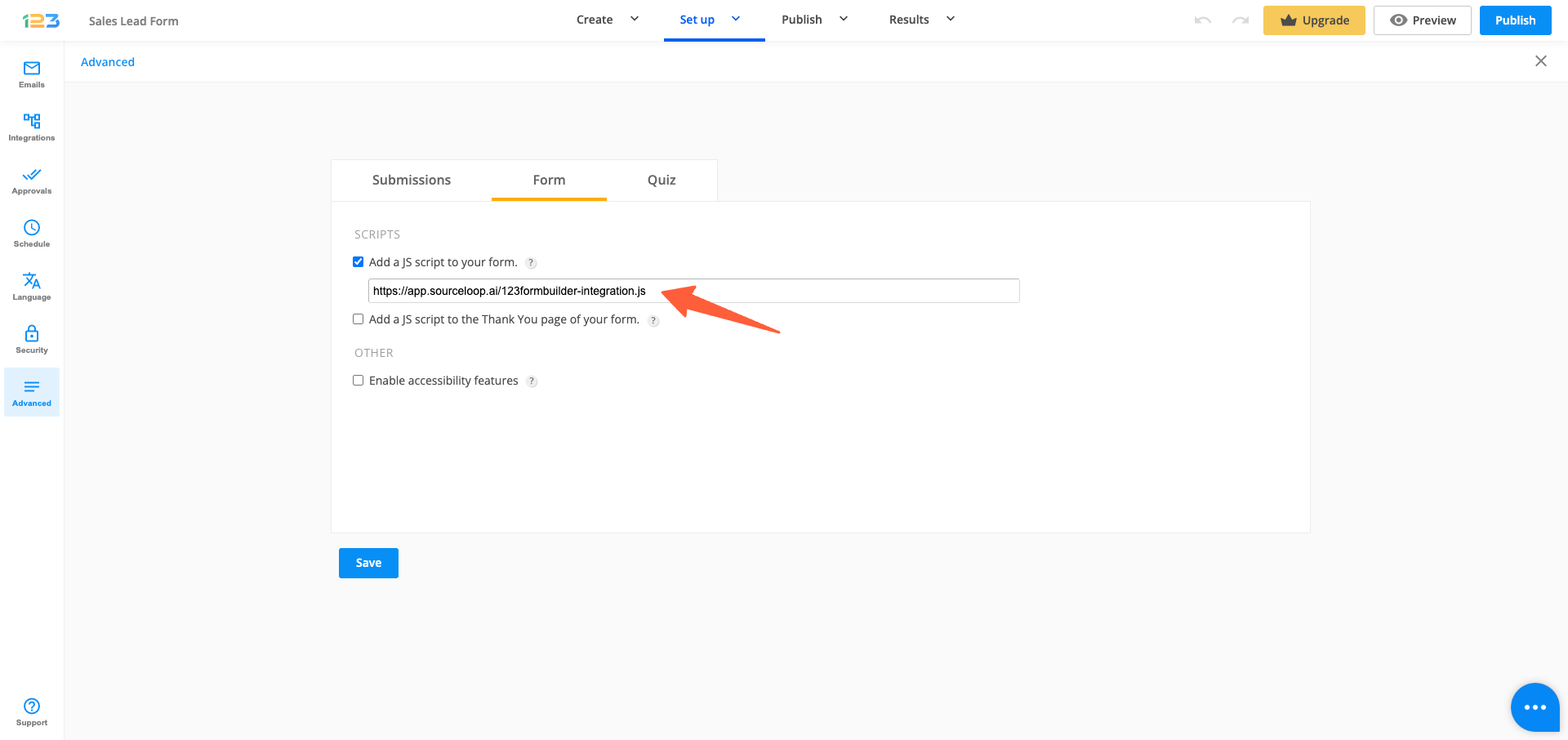
- Click Save.
That’s everything on the 123FormBuilder side. The helper script handles the rest, ferrying submission data into SourceLoop along with the visitor’s marketing context.
Step 3: Embed the form on your website
The form needs to live on a page where the SourceLoop tracking script is also running.
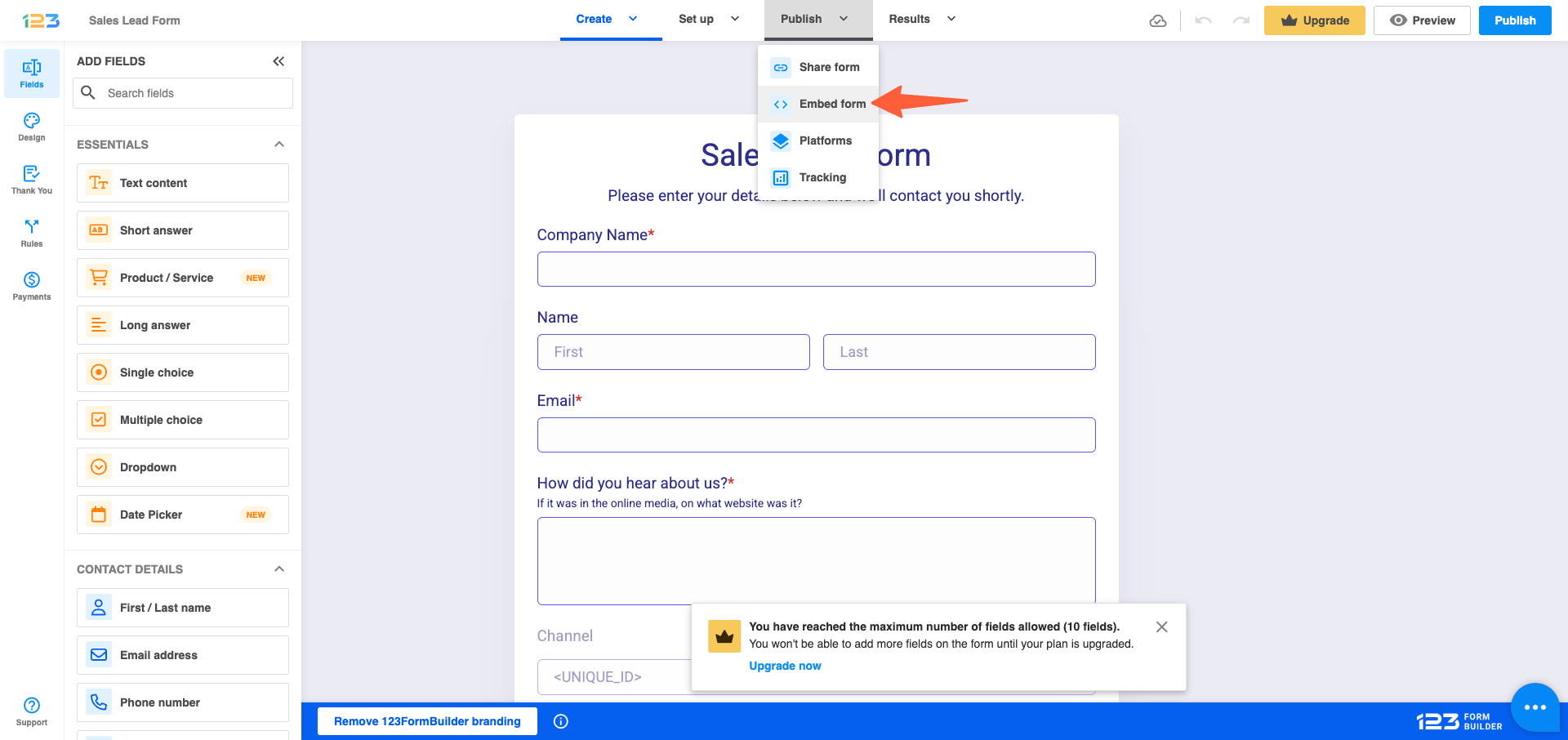
- In 123FormBuilder, click Publish and choose the Embed option.
- Copy any of the embed code options, iframe, JS, or HTML, all work the same way for attribution.
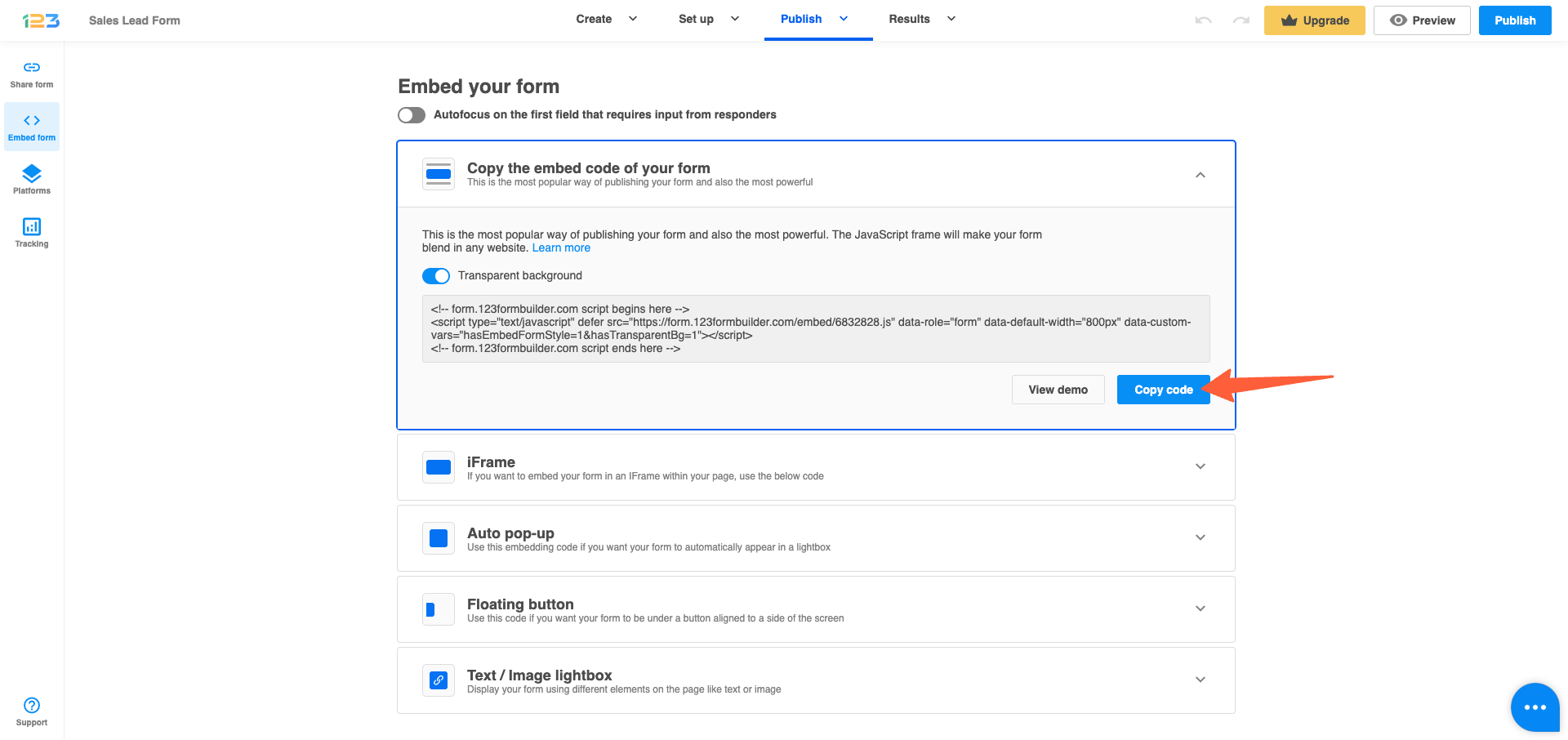
- Paste the code into your website where you want the form to appear.
With that, every form submission flows into SourceLoop with the visitor’s first/last touch, UTMs, landing pages, and click IDs all attached automatically.
Where to see 123FormBuilder submissions in SourceLoop
Once the integration is live, your form data shows up in three SourceLoop views:
Contacts
Every 123FormBuilder submission is a contact row at app.sourceloop.ai/contacts. Expand a row to see the visitor’s entire pre-submission journey: the channel they came from, the pages they read, and the sessions they took before finally filling the form.

Traffic and Revenue report
Pull up app.sourceloop.ai/reports/traffic to see your 123FormBuilder submissions grouped by source, medium, and campaign. Especially useful when you need to justify a marketing budget, the dashboard surfaces which channels convert and which only deliver clicks.

Funnel reports
Build a funnel in app.sourceloop.ai/funnels ending in a “123FormBuilder submission” step. Slice by source or landing page to find your highest-converting acquisition paths.

If paid acquisition is part of the picture, forward your 123FormBuilder submissions to Google Ads and Meta as offline conversions so the bidding algorithms optimize for completed forms instead of clicks. The conversion sync guide covers the offline-conversion setup.
Frequently asked questions
-
Does this work on the 123FormBuilder Free plan?
The JS-script step in this guide uses 123FormBuilder's Advanced settings. Confirm with your 123FormBuilder plan whether the "Add a JS script to your form" option is included, this varies by tier. The tracking script on your website itself works on every plan.
-
Why does 123FormBuilder need a helper script instead of just an embed?
123FormBuilder forms run inside an iframe that doesn't share submission events with the parent page out of the box. The small helper script you paste into 123FormBuilder bridges that gap so SourceLoop can capture submissions from your embed.
-
What if I share my 123FormBuilder direct link instead of embedding?
Submissions made through a raw `<your-handle>.123formbuilder.com` link won't carry attribution data because the visitor never lands on a page where the SourceLoop tracker is running. Embed the form on your own site for full attribution.
-
Will the helper script affect form load speed or functionality?
No. It's a small, asynchronously-loaded script that doesn't touch the form's UI or submission flow. Form completion times and conversion rates are unaffected.
-
Can I use this with 123FormBuilder's Salesforce, HubSpot, or Zapier integrations?
Yes. Your existing 123FormBuilder connectors continue to deliver submissions to their destinations. SourceLoop adds attribution data on top without conflicting with those flows.

 Paid Social


