
How to disconnect Intercom from SourceLoop
Disconnect SourceLoop from Intercom. What stops, what's retained on each side, what to clean up manually, and how to request full GDPR data removal.


On this page
- Before you start
- Step 1: Disconnect on SourceLoop’s side
- Step 2: Disconnect on Intercom’s side (recommended)
- Step 3: Decide what to do with the sourceloop_id custom attribute
- What SourceLoop retains after you disconnect
- Deleted at the moment of disconnect
- Retained for 30 days, then permanently deleted
- Retained indefinitely (until you request deletion)
- GDPR / full data removal
- Reconnecting later
- When to email support
This article covers the complete Intercom disconnect flow, what stops immediately, what data we retain, what gets left behind in Intercom, and how to request full data removal under GDPR. It exists to give you (and your data-protection officer, if you have one) a clear answer to every reasonable question about what SourceLoop does with Intercom-sourced data after you decide to disconnect.
Before you start
A clear-headed expectation about what disconnect does and doesn’t do:
- Disconnecting on SourceLoop’s side revokes the Intercom OAuth token and stops capturing conversations.
- Disconnecting on Intercom’s side removes SourceLoop from your Authorized Apps list (recommended for a clean audit trail, but optional).
- Neither action deletes data from Intercom itself, SourceLoop has never had delete permissions on your contacts or conversations, and disconnect doesn’t trigger any kind of data cleanup on Intercom’s end.
- Existing SourceLoop data stays in your workspace unless you explicitly request deletion via GDPR.
Step 1: Disconnect on SourceLoop’s side
- Sign in to SourceLoop.
- Open Setup -> Chat in the left sidebar.
- Find the Intercom card under OAuth chat integrations and click Disconnect.
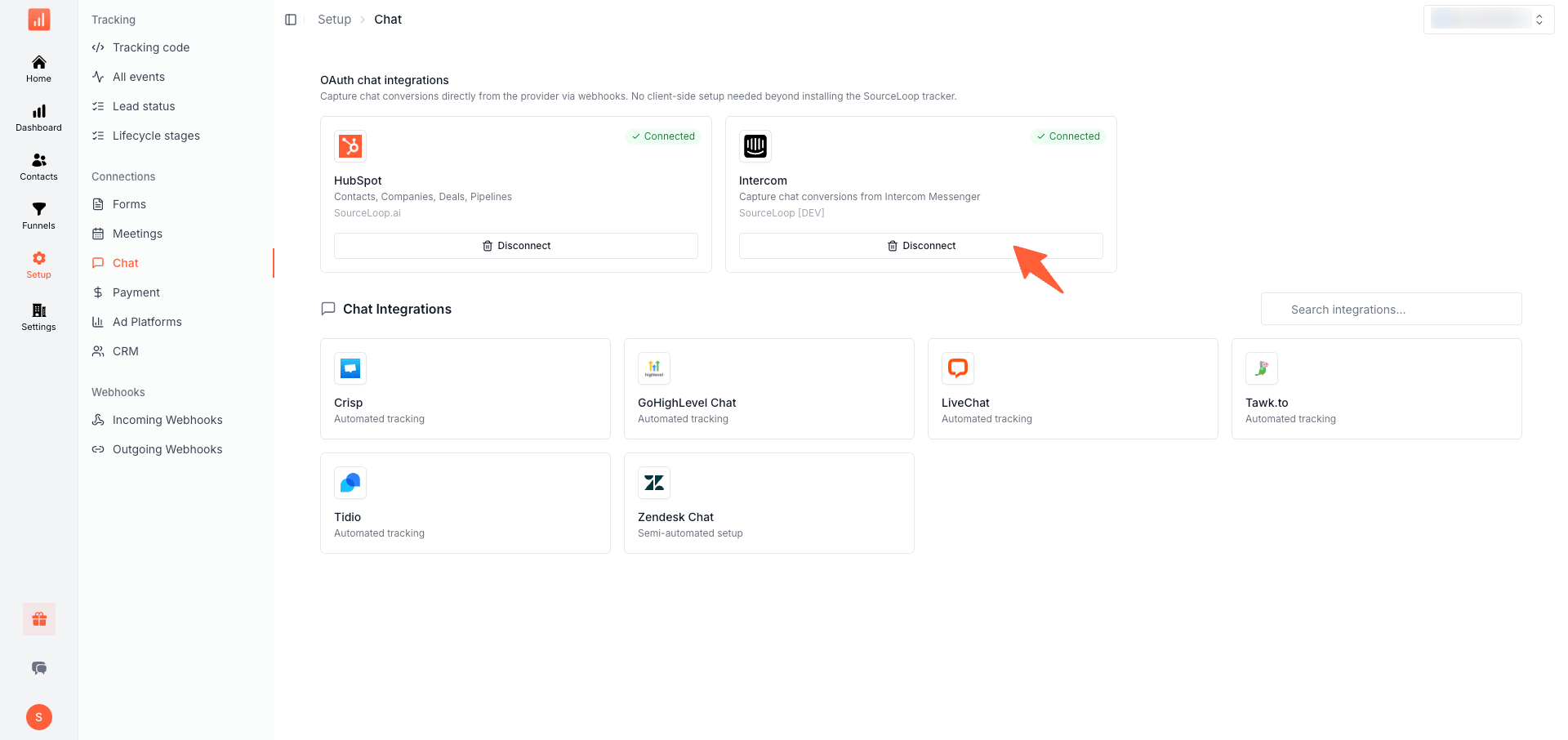
- Confirm the disconnect dialog.
The moment you confirm:
- SourceLoop revokes the OAuth access token stored in our database.
- SourceLoop ignores any further webhook events delivered for this Intercom workspace (Intercom’s app-level webhook URL is shared across every workspace that has installed our app, so the URL keeps existing, but events from this disconnected workspace are dropped with a 200 response and no further work).
- The Intercom card on the Chat tab flips to Not connected with a fresh Connect button.
No additional Intercom API calls are made by SourceLoop after this point.
Step 2: Disconnect on Intercom’s side (recommended)
This step is optional but recommended for completeness. Removing SourceLoop from your Intercom Authorized Apps list:
- Provides a paper trail in Intercom’s audit log
- Prevents accidental reconnect via a cached OAuth flow
- Is the cleanest state for GDPR / SOC2 records
- Sign in to Intercom.
- Open Settings (gear icon) -> Apps & Integrations -> Authorized apps.
- Find SourceLoop in the list.
- Click the three-dot menu and select Uninstall.
- Confirm.
Intercom revokes its end of the OAuth relationship. Even if SourceLoop had any cached token references, they’d be invalid from this moment.
Step 3: Decide what to do with the sourceloop_id custom attribute
During connect, SourceLoop created one custom data attribute on your Intercom contact model:
sourceloop_id: used by the Messenger to stitch each visitor to their pre-chat journey
After disconnect this attribute stays on your Intercom contact model, along with whatever values it last received on individual contacts. SourceLoop does not, and cannot, delete it automatically.
You have two options:
- Leave it (recommended). It doesn’t affect Intercom’s behaviour, takes no operator attention, and if you reconnect later SourceLoop picks the existing attribute back up automatically, no recreation needed.
- Delete it manually. Open Intercom Settings -> Data -> People -> Custom data, find
sourceloop_id, and archive or delete it. Note that this also clears the value stored on every contact for that field.
What SourceLoop retains after you disconnect
For transparency, here’s exactly what SourceLoop keeps on its side after an Intercom disconnect:
Deleted at the moment of disconnect
- Intercom OAuth access token (encrypted at rest)
- Webhook subscription state for this workspace (events from this workspace are now ignored)
Retained for 30 days, then permanently deleted
- The connection record (Intercom workspace id, connection-creation timestamp, last-event timestamp)
- Sync logs for the connection (operational debugging, last 30 days)
This 30-day grace window exists so that an accidental disconnect can be undone by reconnecting without losing your connection history. After 30 days, the connection record and all associated metadata are purged from our database. Reconnecting after that point creates a fresh connection record.
Retained indefinitely (until you request deletion)
- Chat conversions captured from Intercom. Once captured, these conversion records are part of your SourceLoop workspace data. They contain the visitor’s email, name, and full attribution journey, governed by your SourceLoop workspace’s data policy, not the Intercom connection.
- Contact records and journey timelines linked to those conversions.
- Aggregated and anonymised analytics that contributed to reports.
These retained records can be deleted on request, see “GDPR / full data removal” below.
GDPR / full data removal
If you want SourceLoop to completely remove all data we ever ingested from your Intercom workspace, including conversions, contacts, journeys, and any derived analytics:
- Email [email protected] with the subject “GDPR data deletion request” and your Intercom workspace ID.
- Confirm your identity (we use the authenticated SourceLoop account email or a verified workspace owner email).
- We acknowledge the request within 2 business days.
- We complete the deletion within 30 days and confirm in writing.
We’ll delete:
- The Intercom connection record (if it hasn’t been auto-purged already)
- All chat conversion records sourced from this Intercom workspace
- All contact records, journeys, and timelines tied to those conversions
- All sync logs, error logs, and connection history
- All custom analytics derived from Intercom-sourced data
This is irreversible. After completion, reconnecting Intercom starts from a blank state, the conversions and contacts we deleted cannot be restored.
Reconnecting later
If you change your mind (or accidentally disconnected):
- Sign in to SourceLoop.
- Open Setup -> Chat.
- Click Connect on the Intercom card.
- Run the OAuth flow with Intercom. The same scopes are requested.
- SourceLoop resumes capturing conversations on the next chat. The
sourceloop_idattribute (and any other SourceLoop-created custom attributes) on your Intercom contact model is picked up automatically; no recreation step needed.
If you reconnect within the 30-day window, the connection record is the same one (just reactivated). If you reconnect later, a fresh connection record is created. Either way, the conversions in your SourceLoop Contacts from the previous connection stay intact.
When to email support
For anything outside the standard disconnect / reconnect / GDPR deletion flow:
- “I disconnected by accident and want a full reset” → email [email protected]
- “We have a data-protection officer review” → we can provide a written data-processing agreement (DPA) and a detailed audit trail of what was retained vs. deleted on your specific connection
- “Our Intercom admin says SourceLoop is still listed even though I disconnected” → check the Intercom Authorized Apps page directly; if it’s still there, complete Step 2 above
Email [email protected] for any of the above. We respond within one business day.
Frequently asked questions
-
How quickly does SourceLoop stop accessing my Intercom workspace after I disconnect?
Immediately. The OAuth access token is revoked on SourceLoop's side at the moment you confirm the disconnect dialog. No further API calls or webhook reads are processed for this workspace from that point on.
-
Will my Intercom contacts, tags, or conversations be deleted?
No. SourceLoop never deletes data from your Intercom workspace, before, during, or after disconnect. The conversations, contacts, tags, and notes that exist in Intercom stay exactly as they were.
-
What about the sourceloop_id custom attribute that SourceLoop created on my contact model?
It stays on the Intercom contact model after disconnect, with the values it last received. Removing it requires manual cleanup in Intercom at Settings -> Data -> People -> Custom data. We recommend leaving it; it doesn't affect Intercom's behaviour, and if you reconnect later, the existing attribute gets picked up automatically without needing to be recreated.
-
What data does SourceLoop retain on its side after disconnect?
Your SourceLoop workspace, Contacts, conversion history, journey timeline, and reports stay intact. The Intercom-specific connection record (OAuth token, workspace id, webhook subscription metadata) is kept for 30 days in case you reconnect, after which it's permanently deleted. Captured chat conversions stay in your workspace because they're now part of your SourceLoop dataset.
-
How do I request full deletion of my Intercom-sourced data from SourceLoop (GDPR)?
Email [email protected] with the subject "GDPR data deletion request" and your Intercom workspace ID. We delete the connection record and all conversions ingested from that Intercom workspace within 30 days. We confirm completion in writing.
-
Can I reconnect Intercom later without losing my historical SourceLoop data?
Yes. Reconnect at any time via Setup -> Chat -> Intercom -> Connect. SourceLoop's connection record is kept for 30 days, so reconnecting within that window resumes capture seamlessly. Beyond 30 days the connection record is purged, so reconnecting creates a fresh record (your other SourceLoop data, Contacts, reports, journeys, is still intact).
-
Does disconnecting affect my SourceLoop subscription or billing?
No. Disconnecting Intercom is independent of your SourceLoop subscription. Billing continues per your plan. Other integrations (HubSpot, payment providers, web forms, meetings) are unaffected.

 Paid Social


