
How to push UTM parameters to Pipedrive
Map SourceLoop UTM and source fields to Pipedrive Person, Organization, and Deal custom fields. Default mapping and supported API field types.
On this page
SourceLoop can create its own attribution fields on Pipedrive people and deals in one click, or write to fields you already have. Either way, every new lead arrives with its first and latest touch, lead quality, and lead value.
Before you start
You’ll need:
- Pipedrive connected to SourceLoop
- A Pipedrive Admin user (required to create or edit custom fields)
- An Admin or Editor role in SourceLoop
The fields SourceLoop can push
On people:
- Details: name, country, city, and LinkedIn URL
- First touch: Channel, Source, Medium, Campaign, Term, Content, and Landing page
- Latest touch: the same set, for the visit they converted on
- Lead and revenue: Sourceloop Lead quality, Lead score, and Lead value
- Ad click ids from Google, Microsoft, Meta, and LinkedIn
- Your custom fields, such as Service or Budget
On deals:
- First touch and Latest touch Channel, Source, and Campaign, worked out from the people on the deal
- Sourceloop Visits before deal: how many visits the deal’s people made before it was created
- Sourceloop Journey: a link to the deal’s journey in SourceLoop
SourceLoop never changes a deal’s own name, amount, or stage. Your CRM owns those.
Creating the fields
On the Fields tab, click Create Sourceloop fields in Pipedrive and SourceLoop creates every field above and maps it for you, under keys such as sourceloop_first_channel and sourceloop_latest_campaign. You don’t have to set anything up in Pipedrive first.
Step 1: Open the Fields tab
- Sign in to SourceLoop.
- Open Setup -> CRM and click the Pipedrive card.
- Click the Fields tab in the drawer.
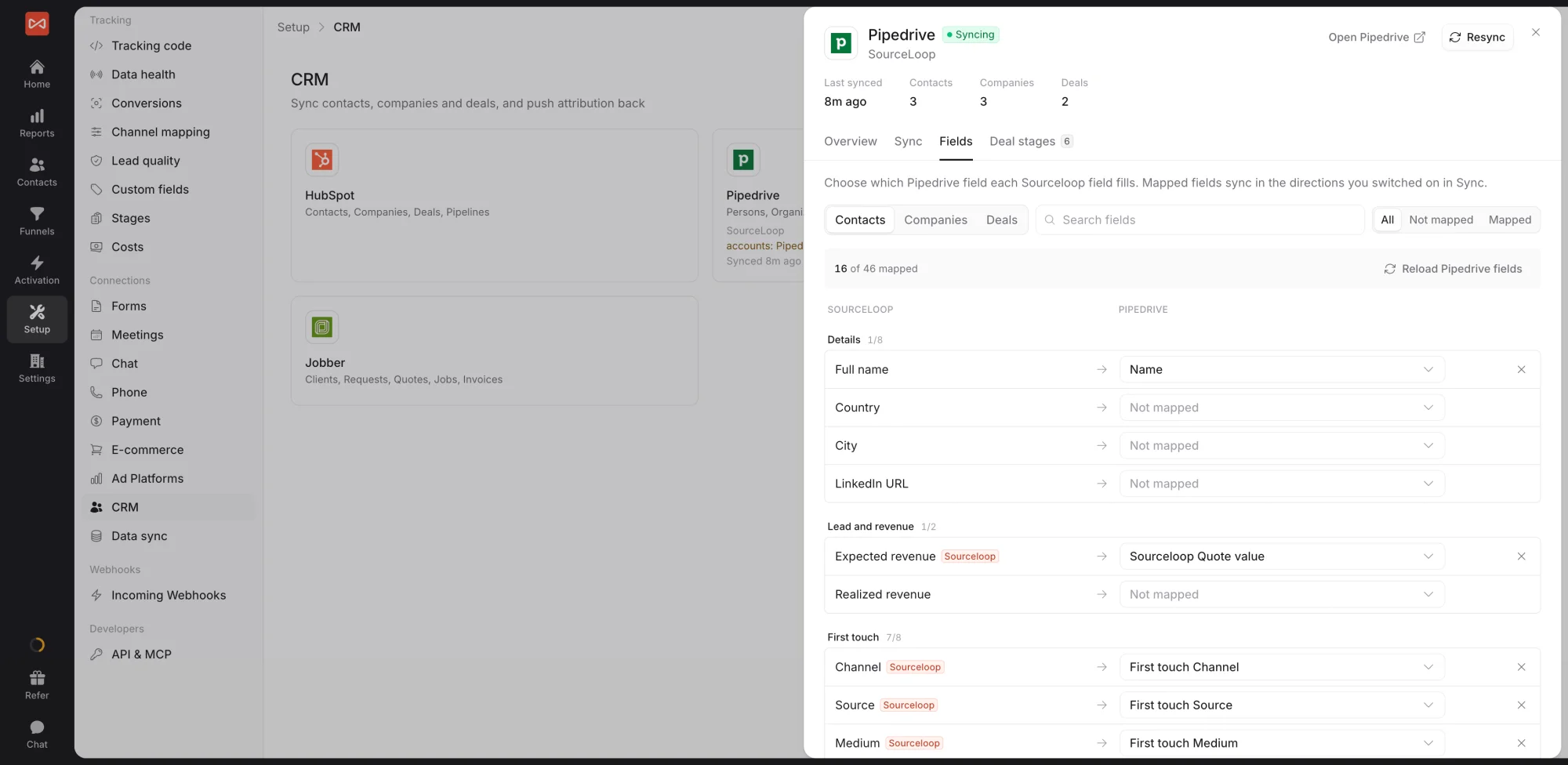
The Fields tab shows one object at a time. Use the tabs at the top to switch between Persons, Organizations, or Deals. Fields are grouped into Details, Lead and revenue, First touch, Latest touch, Ad click ids, and Custom fields, with a search box and a Not mapped filter. The count at the top shows how many fields are mapped.
Step 2: Map fields
- Use SourceLoop’s own fields: click Create N Sourceloop fields in Pipedrive to create every missing field at once and map it, or create a single field from its row.
- Use your own Pipedrive field: pick it in the row’s Pipedrive field picker. If you just added a field in Pipedrive, click Reload Pipedrive fields first.
Remove a mapping with the x on its row. Mappings save as you make them, and new leads and changes reach Pipedrive within minutes.
Step 3: Pick the right Pipedrive field type when creating new fields
If you’re creating a new Pipedrive custom field (instead of mapping to an existing one), use these field types for the best results:
- Text for UTM values, channels, landing pages under 255 chars
- Large text for full URLs or long campaign names over 255 chars
- Monetary for lead value (Pipedrive shows currency formatting)
- Single option for lead quality (so it shows as a dropdown in Pipedrive)
- Multiple options for tags or multi-value categorisations (rare for UTM data)
To create a field, in Pipedrive: Settings -> Company settings -> Data fields -> Person -> + Custom field.
Step 4: Verify the mapping is working
- Submit a test lead on your site and wait a few minutes.
- Open the Person in Pipedrive.
- Scroll to the custom fields section, the SourceLoop fields should show the values from the contact in SourceLoop’s Contacts.
If a field is blank, see Troubleshoot Pipedrive sync issues.
Deals
Deal fields are part of the same Fields tab: switch the object menu to Deals. Once mapped, each deal carries the first and latest channel, source, and campaign of the people on it, so your CRM’s revenue reports can group won deals by source.
Mapping to Pipedrive’s standard Lead Source field
Pipedrive’s Source channel field on Leads (Pipedrive’s leadbox feature) is a separate concept from custom-field mapping. SourceLoop doesn’t write to it directly because it’s part of the Leads inbox (a pre-Deal staging area). Instead, SourceLoop writes to Person-level custom fields, which give you the same data with more granularity.
If you specifically need data on the Leads inbox, send it with an outgoing webhook and write into Pipedrive’s Leads API on your side.
What’s next
After fields are mapped, the next step is aligning lifecycle stages with Pipedrive’s Person labels and Deal stages. See Map SourceLoop stages to Pipedrive labels.
Frequently asked questions
-
What Pipedrive field types should I use for UTM data?
Use **Text** (single-line) for UTM values like source, medium, campaign, content, term. Use **Text** for landing page (up to 255 chars) or **Large text** (256+ chars) for full URLs that might be longer. Use **Monetary** if you map quote_value or sales_value. Use **Date** for first-seen and last-seen timestamps if you push those.
-
Do I need to create the custom fields in Pipedrive first?
No. On the Fields tab, click Create Sourceloop fields in Pipedrive and SourceLoop creates and maps them on people and deals for you. Creating fields needs a Pipedrive admin.
-
Can I push UTMs to the Organization (company) record, not just the Person?
Yes. Add a mapping with entity type 'organization' and pick an Organization custom field as the target. SourceLoop aggregates UTM values across all Persons on the Organization and writes the consensus value.
-
What about Deal custom fields?
Yes, supported. On Deal entity mappings, SourceLoop writes the source data from the Person who opened the Deal. Useful for closed-won attribution reporting in Pipedrive's Insights builder.
-
How does Pipedrive's custom field API name look? Mine is just a long hash.
Pipedrive uses a 40-character hex string as each custom field's API key (e.g., `5e3a4b...`). SourceLoop's field picker on the Fields tab shows the human-readable label next to it so you don't have to memorise the hash. When you save a mapping, SourceLoop stores the hash so renaming the field in Pipedrive doesn't break the mapping.
-
Pipedrive limits the number of custom fields per object. Will SourceLoop hit it?
Pipedrive's limit is 80 custom fields per object on most plans (300 on Power and Enterprise). SourceLoop's default mapping creates about 12 custom fields on Person. You're nowhere near the limit unless you've already maxed out Pipedrive with other integrations.

 Paid Social


