
How to Create a Conversion Funnel Analysis
Build a conversion funnel in SourceLoop, covering naming, step types, scope and order, and saving, with live match counts at every step.
On this page
This guide walks through the exact mechanics of creating a funnel in SourceLoop. It assumes you already know what a funnel is and what you’ll use the results for, if not, start with How to Build and Analyse Conversion Funnels.
Before you start
You’ll need:
- A SourceLoop workspace with the tracking pixel installed
- At least 30 days of historical traffic so the live preview returns meaningful counts (or however much data you have, it just won’t be much)
- A clear idea of the conversion sequence you want to measure, sketch it on paper first if you’re unsure of the steps
- An Admin or Editor role in SourceLoop
Step 1: Open the funnel builder
- Sign in to SourceLoop.
- Click Funnels in the left sidebar.
- Click New funnel at the bottom of the funnels list, or Create your first funnel if you have none yet.
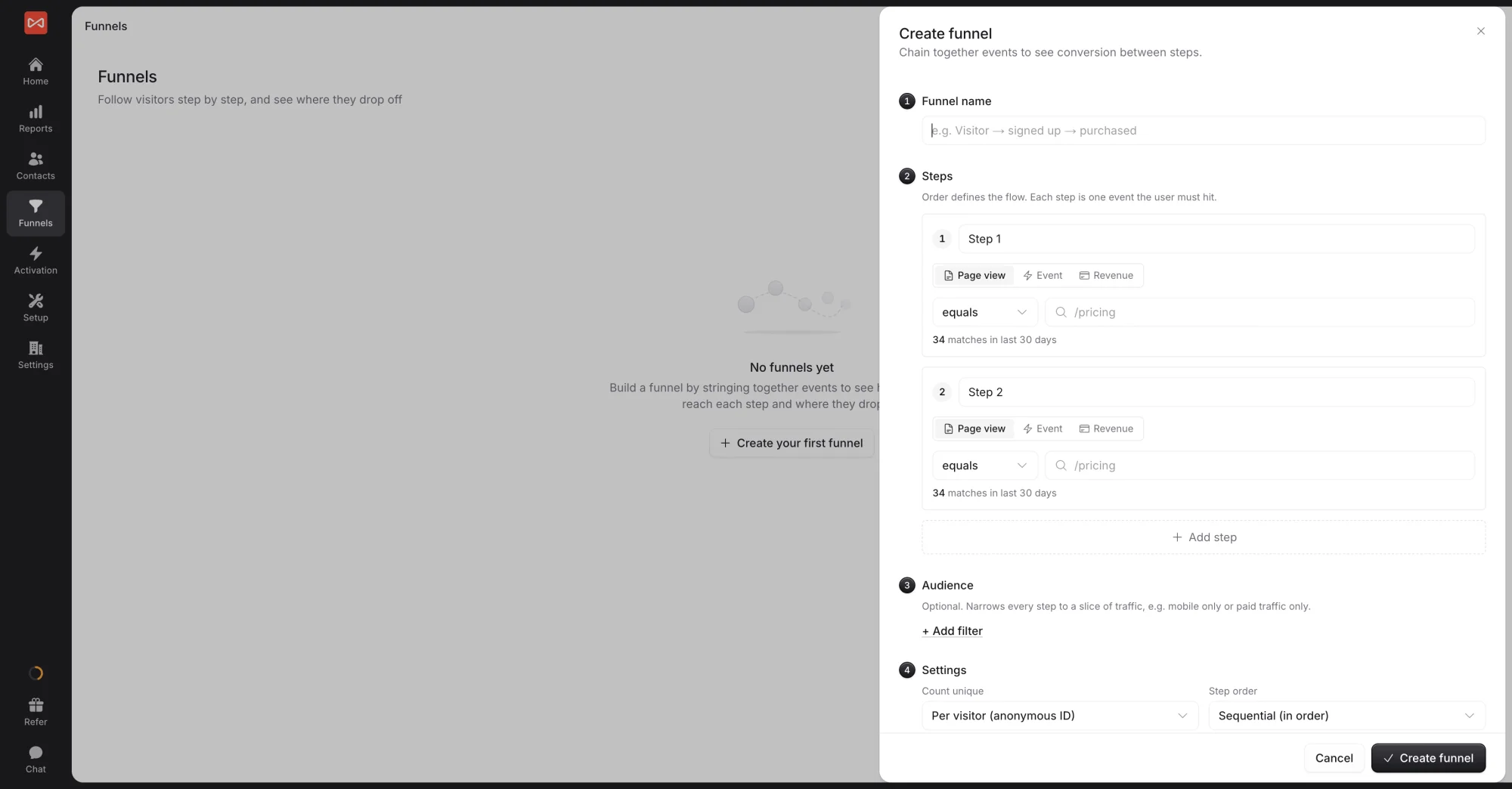
The Create funnel drawer opens on the right with four numbered sections: name, steps, audience, and settings.
Step 2: Name the funnel and add steps
Naming
Give the funnel a name that tells you the journey at a glance. Good names:
- “Pricing → Signup → Activated”
- “Home → Pricing → Demo Booked”
- “Blog → Newsletter Signup”
Bad names: “Funnel 1”, “Test”, “My funnel” (you’ll regret these in two weeks).
The placeholder text in the field suggests e.g. Visitor → signed up → purchased: that’s the right shape.
Steps
Click + Add step to add each step. For each one, decide:
Step type (top of the step card):
| Type | What it matches |
|---|---|
| Page view | A specific URL on your site being loaded |
| Event | An event your site sends (e.g., form_submitted), optionally narrowed to one element such as a “Start now” button |
| Revenue | A payment or subscription event from your billing tool, such as Trial started or Subscription started |
For Page view steps, pick a match operator:
| Operator | What it matches | Use when |
|---|---|---|
| equals | Exact URL match | You want only one specific page (e.g., /pricing and nothing else) |
| starts with | URL prefix match | You want a section of your site (e.g., /blog/ covers every blog post) |
| contains | Substring match | You want any URL containing a keyword (rarely needed; only use when equals and starts_with don’t fit) |
Type the URL path (e.g., /pricing) or event name (e.g., signup_completed).
Live match counter: SourceLoop fires a live query ~350ms after you finish typing and shows “X matches in last 30 days” below the field. Use this to confirm your pattern is right.
Step naming (optional): Each step shows as “Step 1”, “Step 2”, etc. by default. The funnel report uses these labels on the chart and table. If you’d rather see “Lands on pricing” instead of “Step 1, /pricing equals”, rename the step from the step card.
Add more steps: click Add step at the bottom of the Steps section. A funnel needs at least 2 steps. Mark a step as Optional step when people can skip it.
Audience (optional)
Click Add filter to narrow every step to a slice of traffic, such as mobile visitors or paid traffic only.
Step 3: Configure settings and save
The Settings section controls how the funnel counts.
Count unique
What gets counted as “one” visitor in the funnel:
| Option | What it means | Use when |
|---|---|---|
| Per visitor (anonymous ID) | Same anonymous browser identifier across sessions (the default) | Almost always; tracks the same person across visits even before they identify themselves |
| Per session | A single visit (new session after 30 minutes of inactivity or new referrer) | You want to measure single-visit completion (“did they finish checkout in one go?”) |
| Per identified user | A logged-in user identity | You’re tracking in-product behaviour after signup |
Step order
How strict the order requirement is:
| Option | Behaviour | Use when |
|---|---|---|
| Sequential (in order) | Steps must occur in temporal order (the default) | Standard linear funnels: pricing → signup → activation |
| Any order | Steps can happen in any sequence as long as all occur within the window | Research funnels where the order doesn’t matter (e.g., visit pricing + visit features + book demo, in any sequence) |
Advanced options
Click Advanced options to reveal the conversion window:
| Setting | Behaviour |
|---|---|
| No window (default) | Steps can be completed any time within the report’s date range |
| N days | All steps must be completed within N days of step 1 |
A typical pattern: set a 7-day window for trial-activation funnels (the visitor needs to activate during the trial), leave it open for B2B sales funnels that span months.
Description (optional)
Click Add description (optional) at the bottom to add a free-text note. Useful for documenting “why this funnel exists”, especially for funnels shared across the team.
Save
Click Create funnel in the bottom-right of the drawer.
SourceLoop computes the funnel against your historical data immediately. You’ll land on the funnel’s Overview report within a few seconds. From there, see How to Build and Analyse Conversion Funnels for reading the report.
A worked example
To make the wizard concrete, here’s a complete lead-capture funnel filled in:
| Field | Value |
|---|---|
| Funnel name | Pricing → Signup → Activated |
| Step 1 | Page view · equals · /pricing |
| Step 2 | Page view · equals · /signup |
| Step 3 | Event · signup_completed |
| Step 4 | Page view · starts with · /dashboard/ |
| Count unique | Per visitor (anonymous ID) |
| Step order | Sequential (in order) |
| Conversion window | (none, open) |
This funnel measures: of all visitors who hit /pricing, how many later visited /signup, then completed the signup, then made it to the dashboard. The Overview report will show drop-off percentages between each pair of steps.
What’s next
- Read the funnel report once it’s built: How to Build and Analyse Conversion Funnels
- Understand what’s happening under the hood when SourceLoop counts visitors through the funnel: How SourceLoop Computes Funnels
- Pick an attribution model for the Breakdown tab: 7 Types of Attribution Models
Frequently asked questions
-
How many steps does a funnel need?
At least 2, no more than 10. A 2-step funnel is just a conversion-rate measurement (e.g., "% of pricing-page visitors who reach checkout"). 3-5 steps is the sweet spot for diagnostic funnels. More than 5 starts compounding drop-off in ways that get hard to interpret.
-
What's the difference between a Page view step and an Event step?
A Page view step matches when a visitor loads a URL on your site (e.g., `/pricing`). An Event step matches a custom event your tracking pixel fires (e.g., `form_submitted` or `signup_completed`). Most funnels mix both, page views capture organic browsing, events capture actions like form submits.
-
Can I edit a funnel after I've created it?
Yes. Click the three-dot menu on the funnel from the list and pick Edit. The wizard reopens with all your previous settings filled in. Changes recompute against historical data immediately, so you'll see updated counts within a few seconds of saving.
-
What happens if my step URL pattern is wrong?
The live preview shows "0 matches in last 30 days" or a suspiciously low number. That's your sanity check, if a step shows no matches but you know the page gets traffic, the operator (equals vs starts_with) or the URL string is wrong.
-
Should I use 'equals' or 'starts with' for page-view steps?
Use 'equals' when there's only one URL that should match the step (e.g., `/pricing` exactly). Use 'starts with' when multiple URLs share a prefix and you want to count all of them (e.g., `/blog/` matches every blog post). Use 'contains' as a last resort when the matching string can appear anywhere in the URL.
-
What does the 'matches in last 30 days' counter actually measure?
It's a real, live preview of how many unique visitors matched this specific step's condition in the last 30 days, scoped to your current website. It updates ~350ms after you finish typing. If you're wondering whether your URL pattern is right, this is the fastest way to tell.

 Paid Social


