
How to use SourceLoop Outgoing Webhooks
Send new leads, deals, payments, scheduled digests, and number checks as signed JSON to Zapier, Make, n8n, or your own endpoint, the moment they happen.
On this page
Outgoing webhooks send SourceLoop’s events to any system that accepts JSON: Zapier, Make, n8n, a data warehouse loader, or your own backend. Each request carries the person, their source, and the campaign behind them, signed so your receiver can trust it.
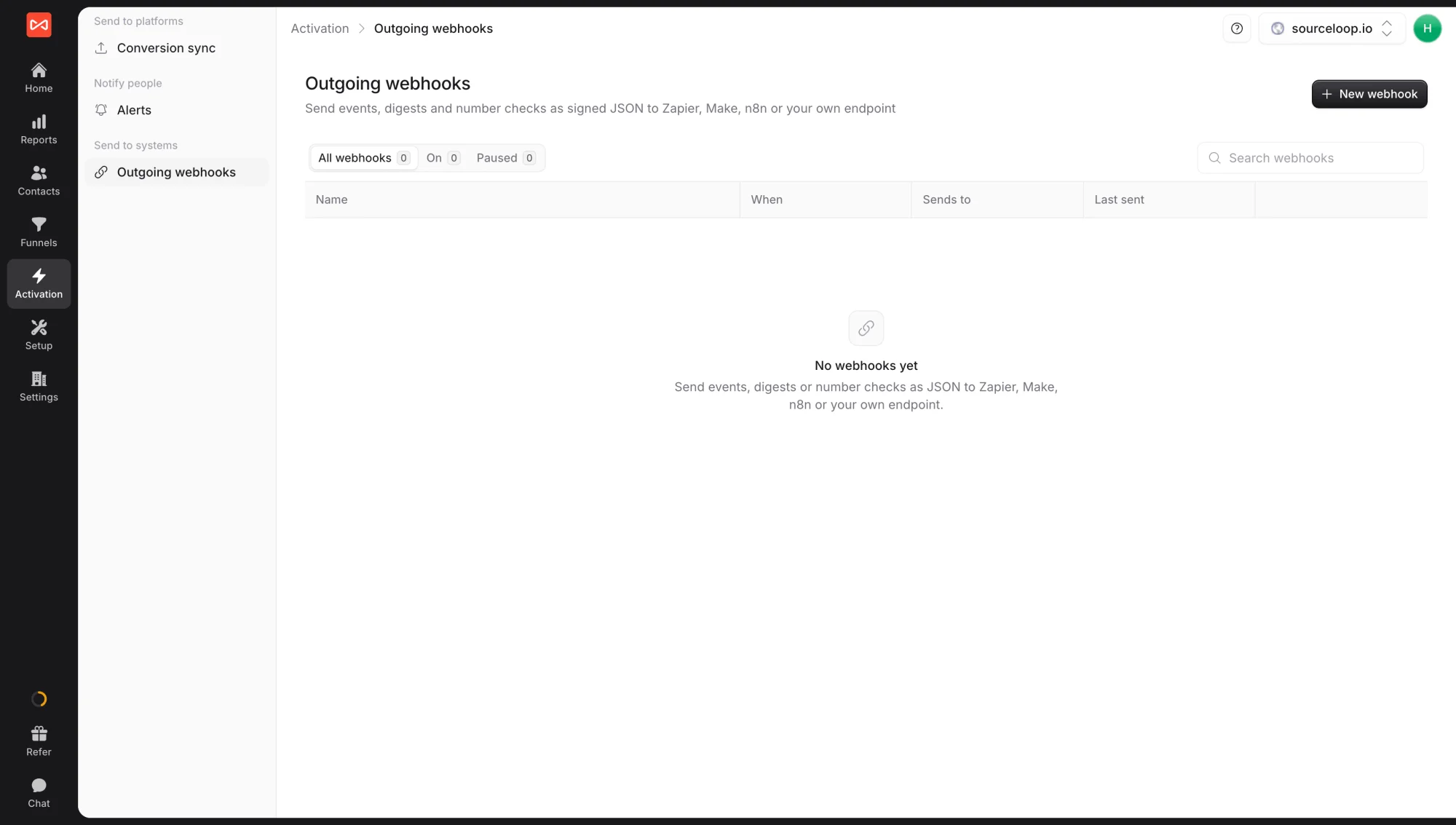
Outgoing webhooks live under Activation -> Outgoing webhooks. They use the same builder as Slack and email alerts, with an endpoint instead of a channel.
What you can send
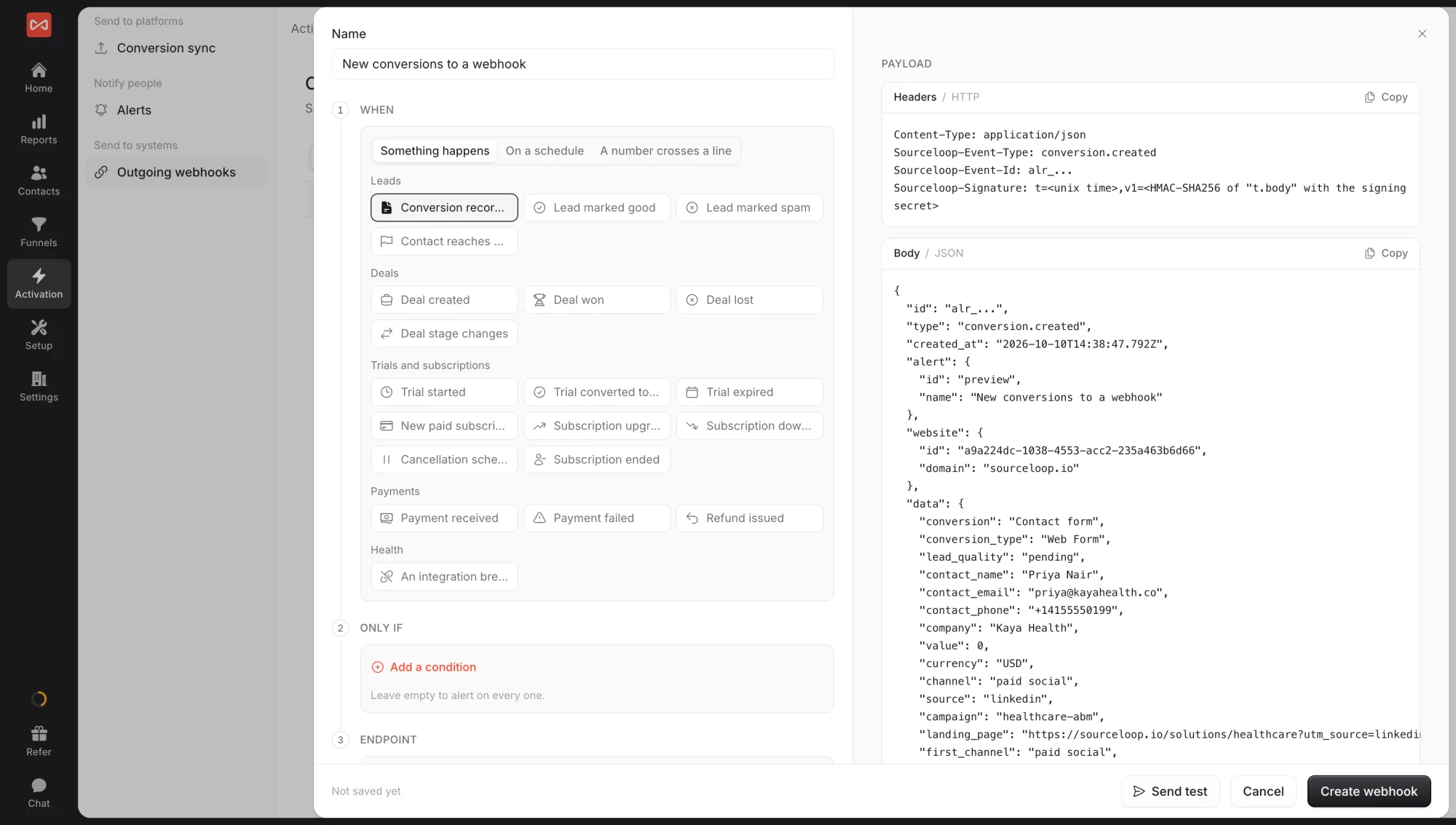
- Something happens: a conversion is recorded, a lead is marked Good or Spam, a contact reaches a stage, a deal is created, won, lost, or changes stage, a trial or subscription changes, a payment arrives, fails, or is refunded, or an integration breaks
- On a schedule: a digest every day, week, or month, such as yesterday’s leads
- A number crosses a line: a check on a number such as cost per lead, sent only when it passes the line you set
Before you start
- An HTTPS endpoint that accepts POST requests, such as a Zapier “Catch Hook” URL, a Make custom webhook, or your own server
- An Admin or Editor role in SourceLoop
Step 1: Create the webhook
- Open Activation, then Outgoing webhooks.
- Click New webhook and give it a Name, such as “New conversions to Make”.
- Under When, pick Something happens, On a schedule, or A number crosses a line, then the event or schedule.
- Under Only if, add any conditions. Leave it empty to send every event.
- Under Endpoint, paste your URL. It must start with
https://.
Step 2: Check the payload and test
The Payload panel shows the exact request your endpoint will receive, built from your latest real data.
Headers:
Content-Type: application/json
Sourceloop-Event-Type: conversion.created
Sourceloop-Event-Id: alr_...
Sourceloop-Signature: t=<unix time>,v1=<HMAC-SHA256 of "t.body" with the signing secret>
The body for an event looks like this, shortened:
{
  "id": "alr_...",
  "type": "conversion.created",
  "created_at": "2026-10-10T14:38:47.792Z",
  "alert": { "id": "...", "name": "New conversions to Make" },
  "website": { "id": "...", "domain": "yoursite.com" },
  "data": {
    "conversion": "Contact form",
    "conversion_type": "Web Form",
    "lead_quality": "pending",
    "contact_name": "Priya Nair",
    "contact_email": "[email protected]",
    "value": 0,
    "currency": "USD",
    "channel": "paid social",
    "source": "linkedin",
    "campaign": "healthcare-abm",
    "landing_page": "https://yoursite.com/solutions/healthcare",
    "first_channel": "paid social"
  }
}
data holds flat, ready-to-map fields, including any custom fields you collect from your forms. Scheduled digests and number checks send a message with the summary text and data with the rows behind it.
Click Send test to post a real request to your endpoint, then Create webhook.
Step 3: Verify the signature on your server
Copy the Signing secret shown on the webhook and store it with your receiver. Then verify each request:
Node.js:
import crypto from "node:crypto";

app.post("/sourceloop", express.raw({ type: "application/json" }), (req, res) => {
  const header = req.header("Sourceloop-Signature") || "";
  const { t, v1 } = Object.fromEntries(header.split(",").map((p) => p.split("=")));
  const expected = crypto
    .createHmac("sha256", process.env.SOURCELOOP_SIGNING_SECRET)
    .update(`${t}.${req.body}`)
    .digest("hex");
  const fresh = Math.abs(Date.now() / 1000 - Number(t)) < 300;
  const valid = v1 && v1.length === expected.length &&
    crypto.timingSafeEqual(Buffer.from(v1), Buffer.from(expected));
  if (!fresh || !valid) {
    return res.status(401).end();
  }
  const event = JSON.parse(req.body);
  // event.type, event.data ...
  res.status(200).end();
});
Python:
import hashlib, hmac, os, time

@app.post("/sourceloop")
def sourceloop():
    parts = dict(p.split("=", 1) for p in request.headers.get("Sourceloop-Signature", "").split(","))
    body = request.get_data(as_text=True)
    expected = hmac.new(os.environ["SOURCELOOP_SIGNING_SECRET"].encode(),
                        f"{parts.get('t')}.{body}".encode(), hashlib.sha256).hexdigest()
    fresh = abs(time.time() - int(parts.get("t", 0))) < 300
    if not fresh or not hmac.compare_digest(parts.get("v1", ""), expected):
        return "", 401
    event = request.get_json()
return "", 200Use Sourceloop-Event-Id to ignore a request you have already processed. Deliveries are retried after a failure, so a receiver can occasionally see the same event twice.
Step 4: Watch deliveries
Each webhook shows when it last sent. Use the switch on its row to pause it. If deliveries keep failing, SourceLoop turns that endpoint off, emails the creator, and shows the error on the webhook until you fix the endpoint and save.
What’s next
- Route events through Zapier or Make: Connect Zapier and Make
- Get the same events in Slack or email: Slack and email alerts
- Send leads into SourceLoop instead: Incoming webhooks
Frequently asked questions
-
How quickly are webhooks delivered?
Event webhooks are sent as each event happens, usually within a minute. Unlike Slack and email alerts, they are never bundled, so your receiver gets one request per event and can de-duplicate on its id.
-
How do I verify a request really came from SourceLoop?
Check the Sourceloop-Signature header. It holds a timestamp and an HMAC-SHA256 of the timestamp and the raw request body, signed with your webhook's signing secret. Recompute it on your side and compare, and reject requests with an old timestamp.
-
What happens if my endpoint is down?
Failed deliveries are retried with increasing gaps. If the endpoint keeps failing, or answers with 410 Gone, SourceLoop stops sending to it, emails the person who created the webhook, and shows the error on the webhook. Fix the endpoint and save the webhook to switch it back on.
-
Can I limit which events are sent?
Yes. Use the Only if step to add conditions, such as channel is paid search, value at least 1,000, or conversion type is Meeting. Every condition must hold.
-
Can I receive spam leads?
No. Leads marked Spam never trigger a webhook. If a lead quality rule is waiting on an Ask AI answer, the webhook waits for the decision too.
-
I set up a webhook before October 2026. Do I need to change anything?
No. Webhooks created with the earlier setup keep sending in their original format. New webhooks use the format described here, with the signature header.

 Paid Social


