
How to track lead source in Formstack
Capture the channel, campaign, and full journey behind every Formstack submission so you can credit the marketing efforts that produce real leads.


On this page
- What SourceLoop captures from Formstack
- Before you start
- Step 1: Install the SourceLoop tracking script
- Step 2: Add the sl_aid hidden field to your Formstack form
- Step 3: Embed the form on your website
- Step 4: Configure the Formstack webhook
- Where to see Formstack submissions in SourceLoop
- Contacts
- Traffic and Revenue report
- Funnel reports
Formstack is the form builder that businesses pick when they need enterprise capabilities, HIPAA-compliant configurations, payment integrations, conditional logic, audit trails, plus the polish of a SaaS-grade form tool. The blind spot remains the same as everywhere else: Formstack tells you what was submitted, but not which marketing investment drove the lead. This guide fills that in.
Four steps, around ten minutes total. The webhook step requires Formstack on the Silver plan or above.
What SourceLoop captures from Formstack
Each Formstack submission lands in SourceLoop alongside:
- Acquisition channel plus the visitor’s complete UTM parameter set
- Pages visited ahead of the form submission, in chronological order
- Cumulative time on site before the submission
- Number of sessions the respondent made before converting
- Email address captured directly from the Formstack form
- First landing page and the URL that referred them
- Source of the closing session, the one that ended in the submission
- Device type, country, and browser for segment analysis
Before you start
You’ll need:
- A SourceLoop workspace (free trial)
- Edit access to the website where the Formstack form will be embedded
- A Formstack account on the Silver plan or above (Free and Bronze plans don’t include webhooks, which this guide requires)
- At least one Formstack form built and published
Step 1: Install the SourceLoop tracking script
Sign in to SourceLoop, open Setup in the left sidebar, and click the Tracking code tab. Copy the snippet shown.

Paste the snippet into the <head> of every page on your site. Site-wide installation gives SourceLoop the full picture of each visitor’s journey before they reach the form.
Step 2: Add the sl_aid hidden field to your Formstack form
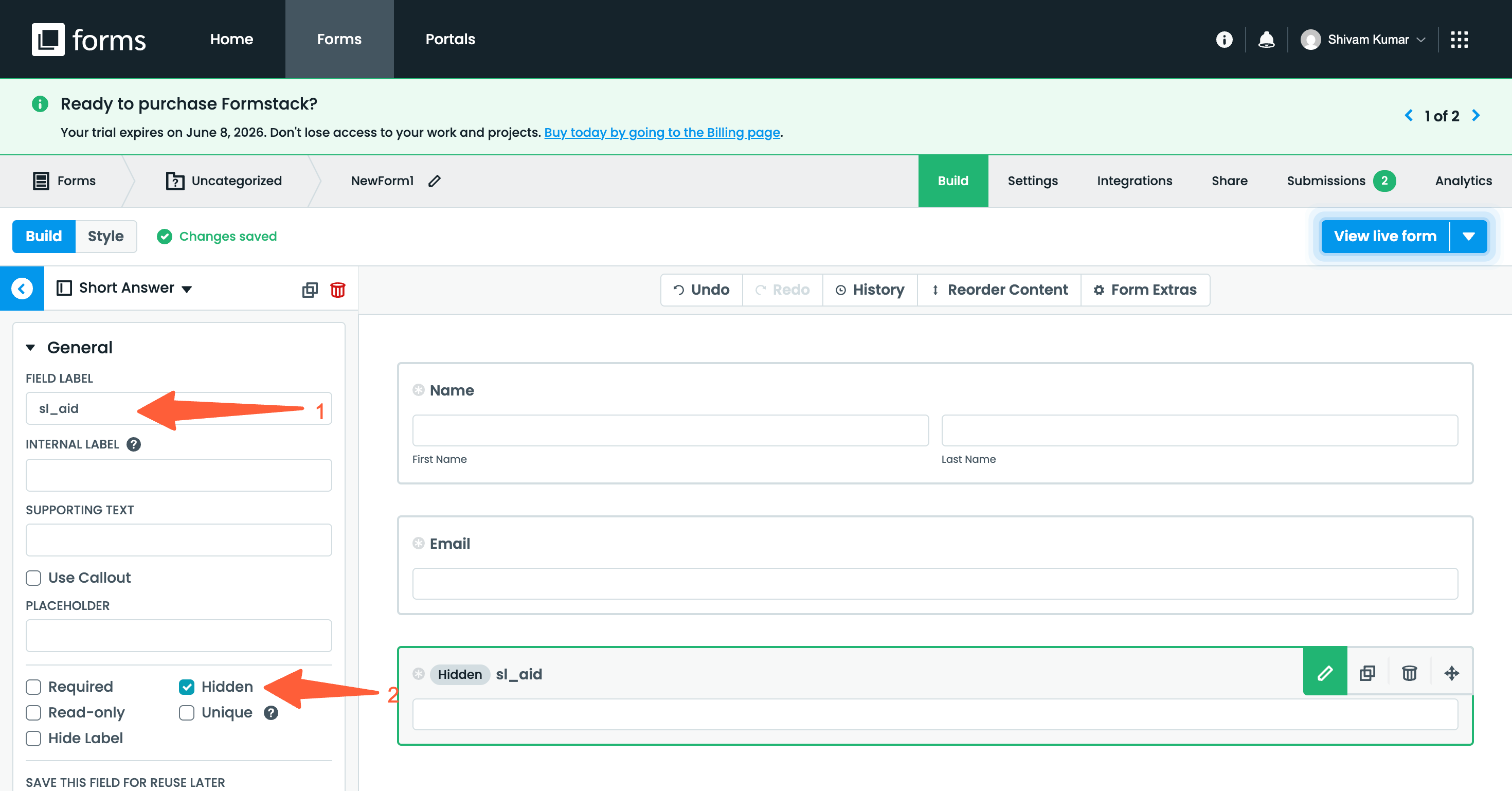
Formstack matches URL parameters against your form fields using the field label. Add a single hidden field labeled sl_aid so SourceLoop can identify each submission.
- Open your form in the Formstack builder.
- From the field palette, drag a Short answer field onto the form.
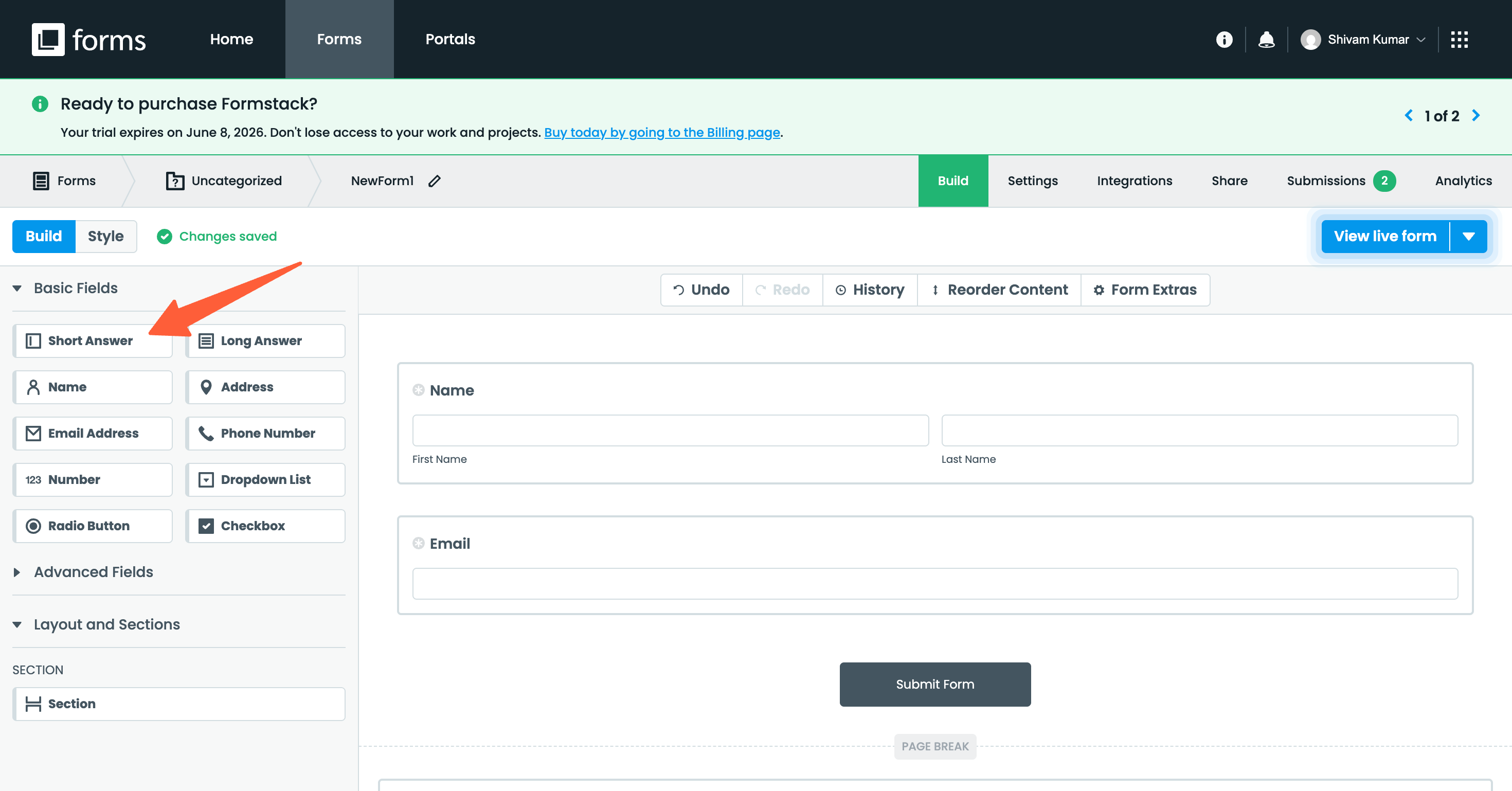
- Set the Label to exactly:
sl_aidThen check the Hidden checkbox.
- Save and publish the form.
Step 3: Embed the form on your website
The form needs to live on a page where the SourceLoop tracking script is also running.
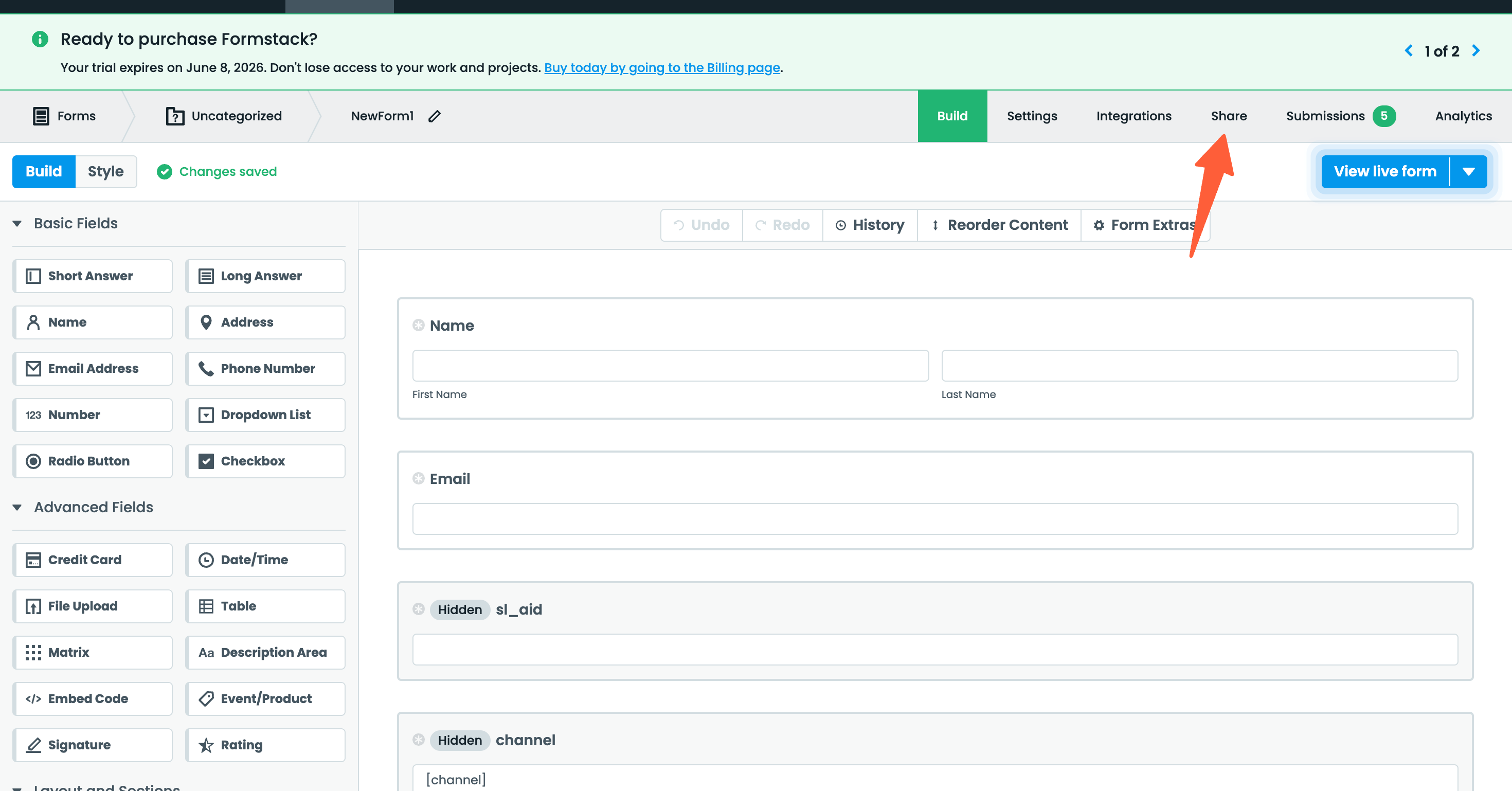
- Open your form and click the Share menu at the top.
- Choose either JavaScript or iframe embed and copy the embed code.
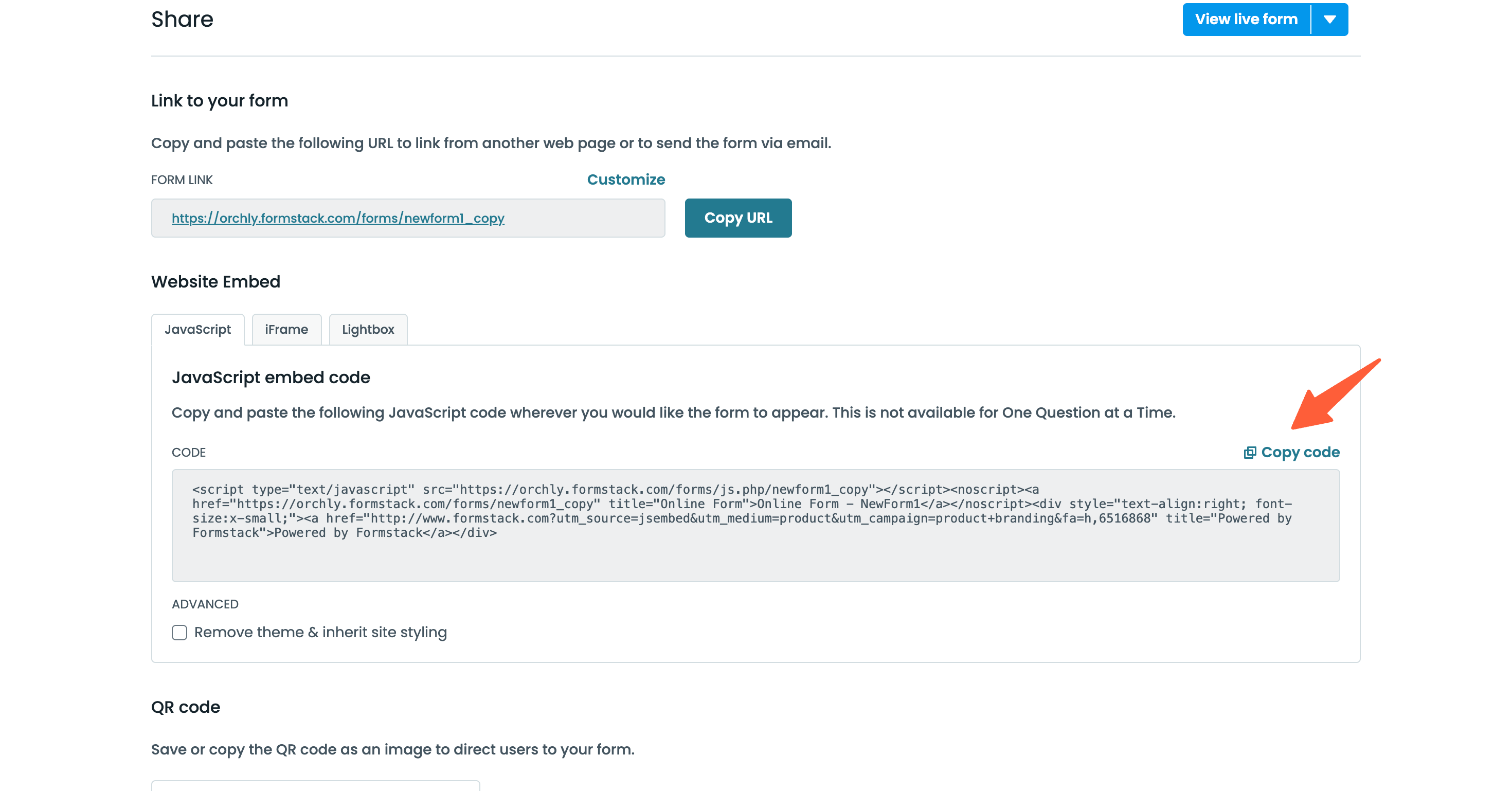
- Paste the embed code on your website where you want the form to appear.
Step 4: Configure the Formstack webhook
The webhook delivers each Formstack submission to SourceLoop, where it’s matched to the visitor’s journey and saved as a fully-attributed lead.
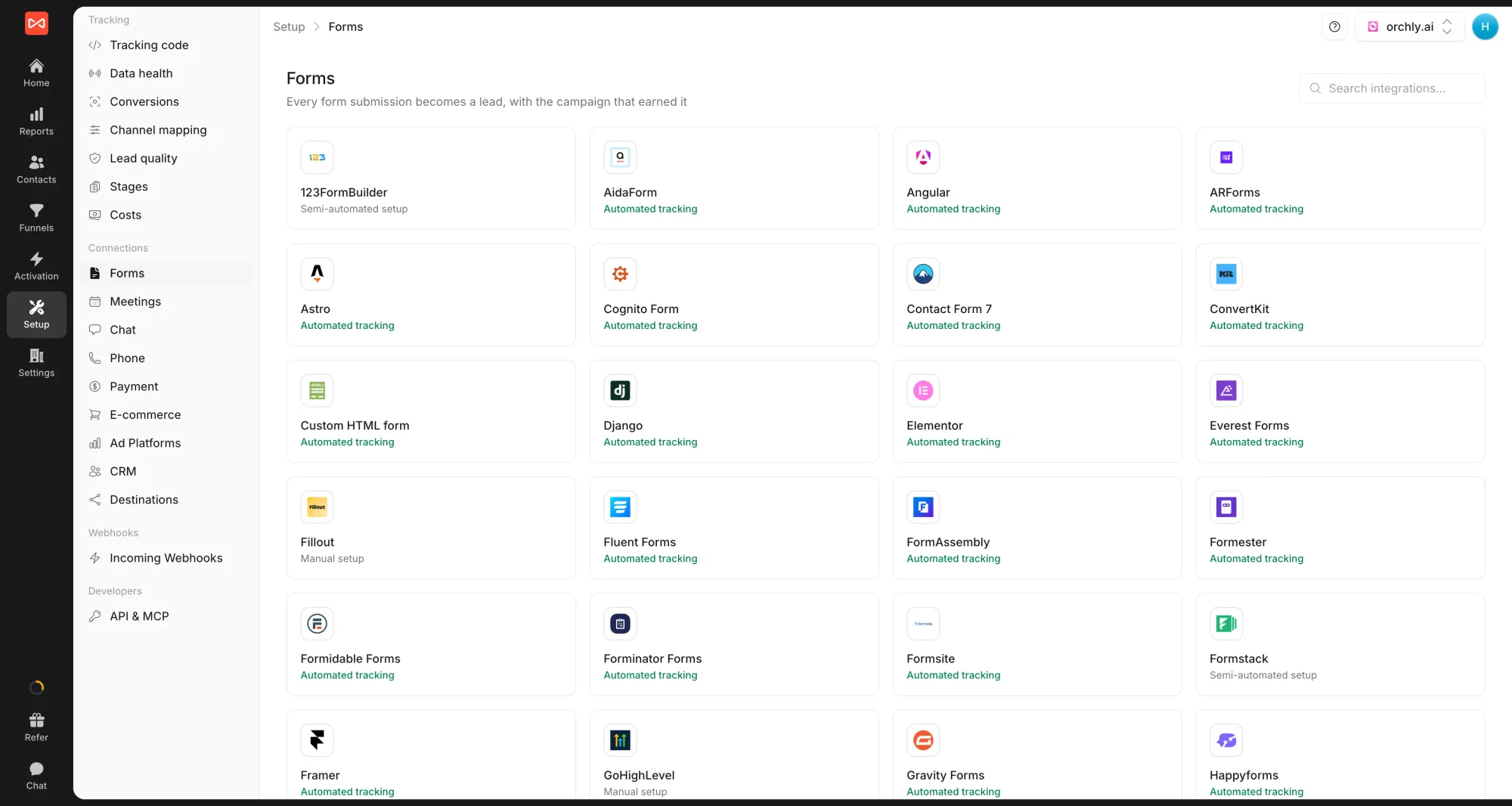
- In SourceLoop, open Setup -> Forms, click the Formstack card, and copy Your Formstack webhook URL from the drawer.
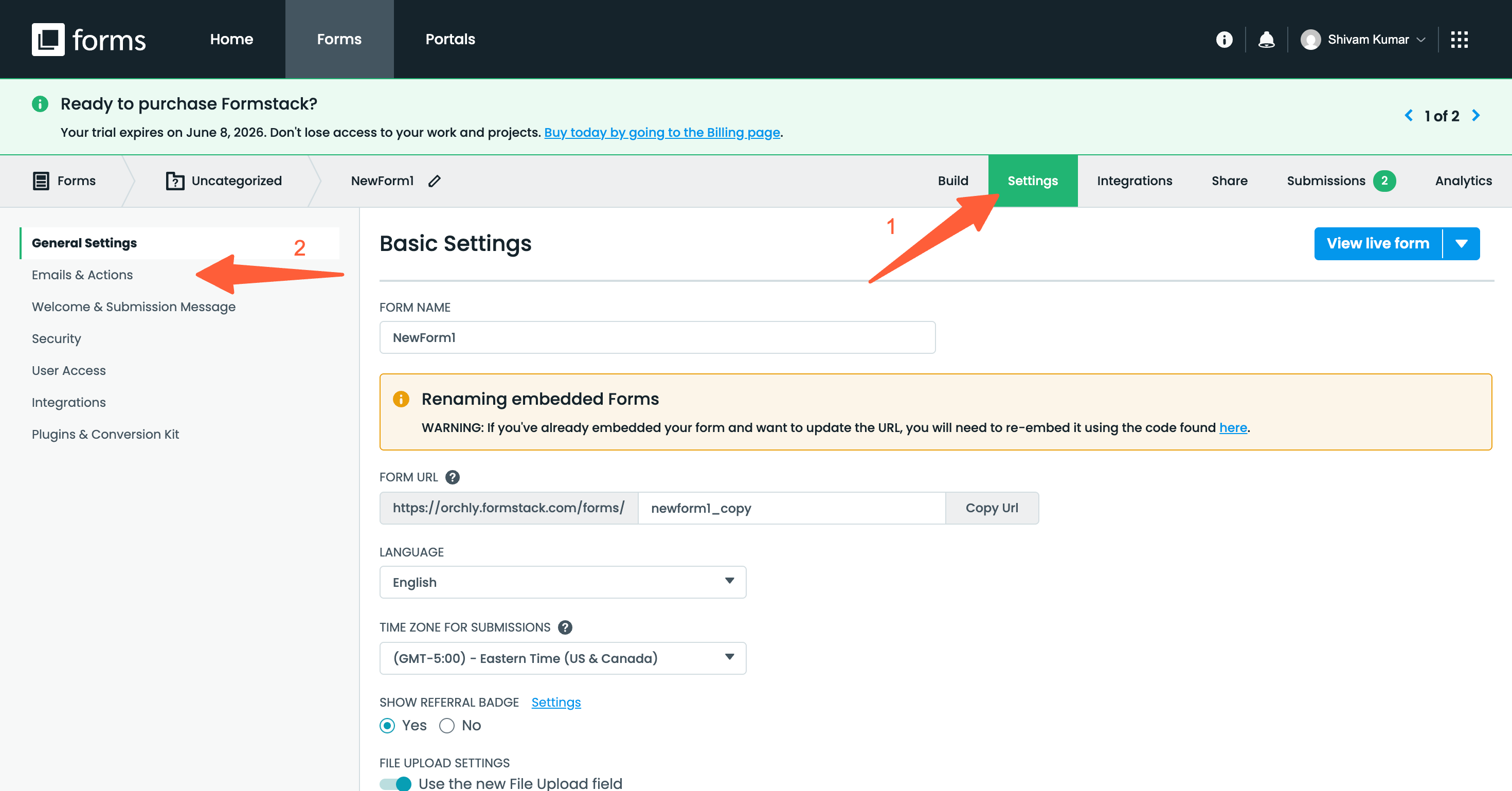
- In Formstack, open your form and go to Settings -> Emails & Actions.
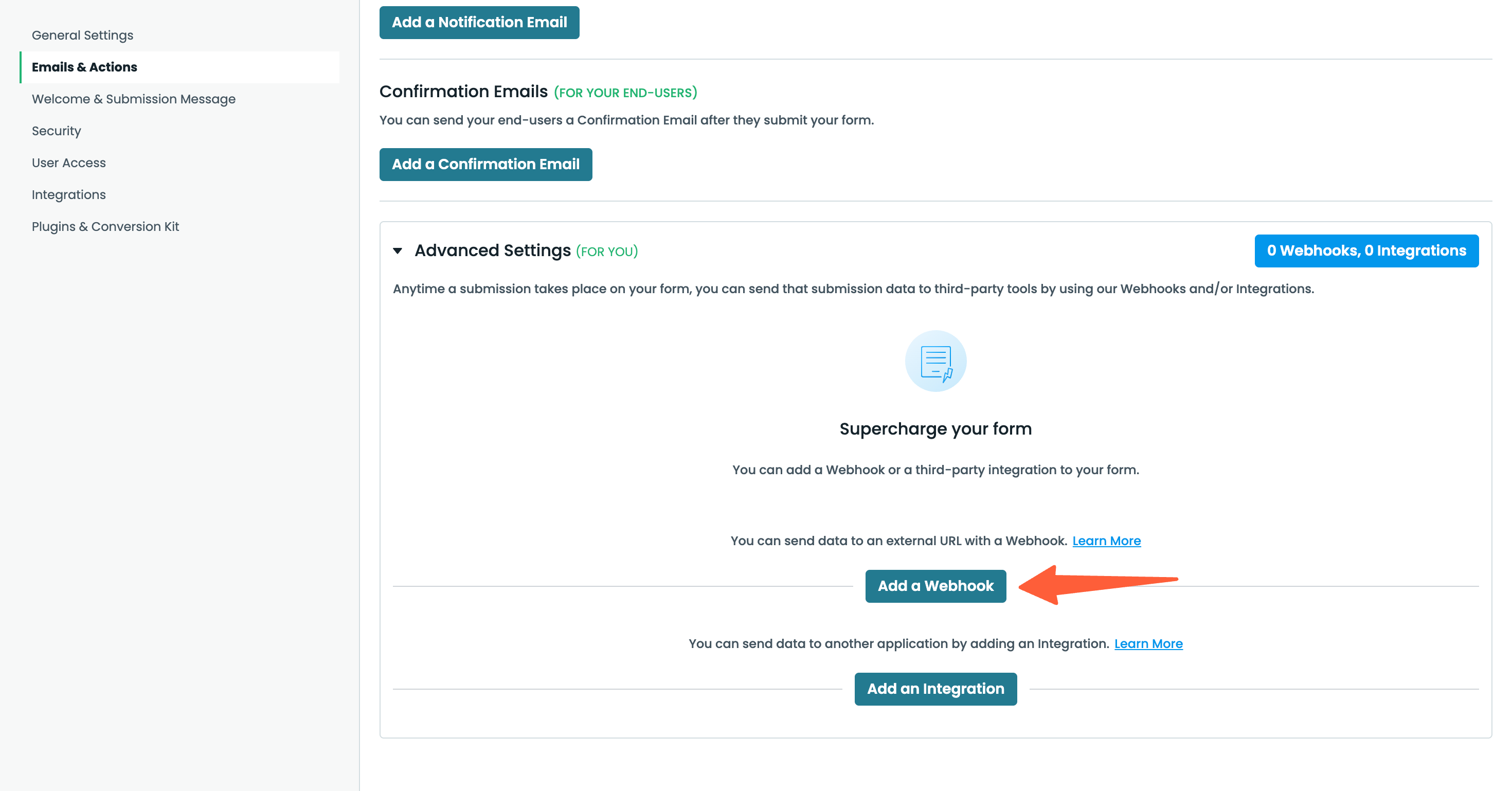
- Click Add Webhook.
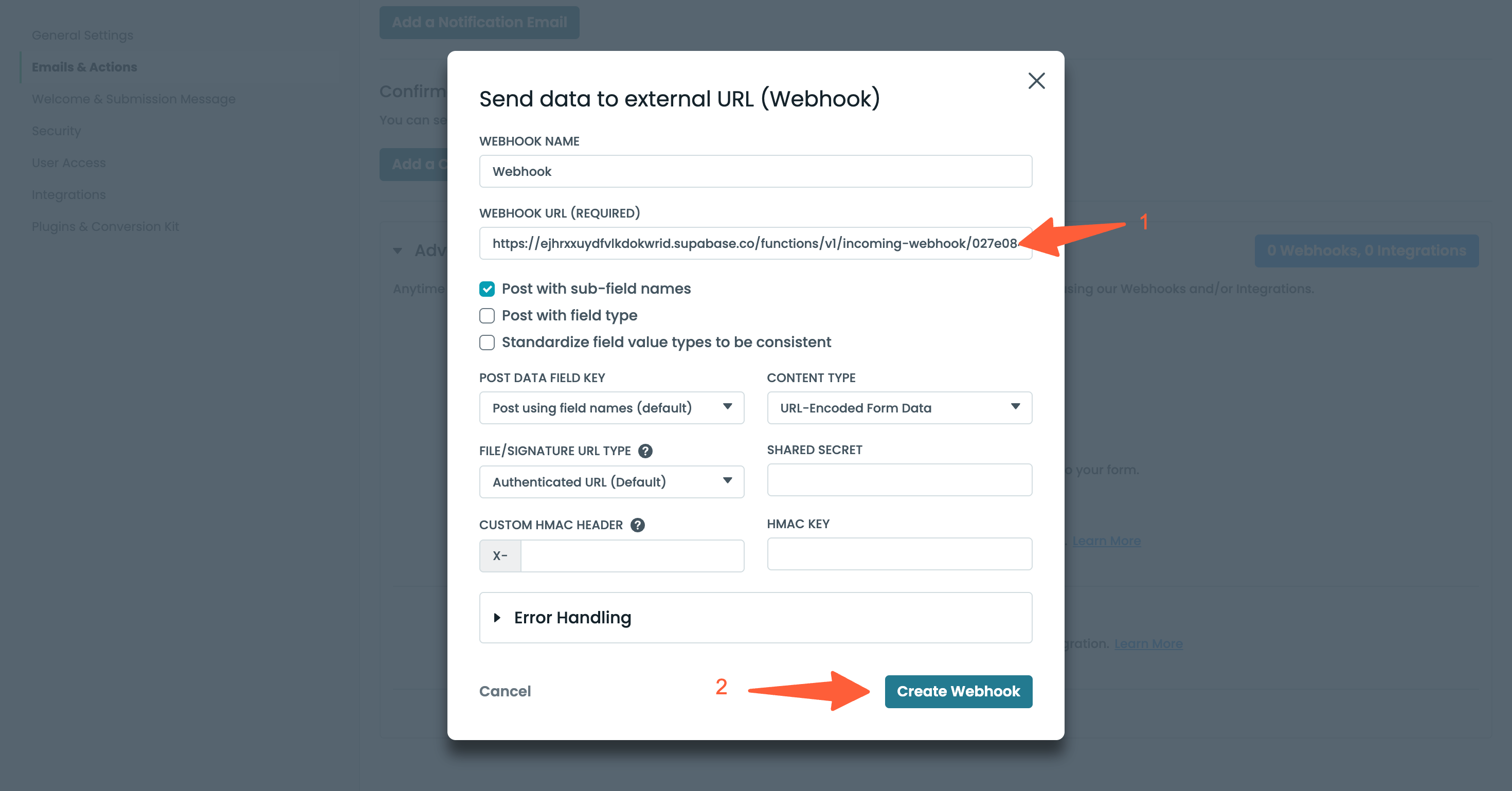
- Paste the SourceLoop webhook URL and click Create.
- Submit a test form on your embedded page to confirm the submission appears in SourceLoop with source, channel, and landing page populated.
Where to see Formstack submissions in SourceLoop
Three SourceLoop views give you complementary perspectives on your Formstack data:
Contacts
Every Formstack submission becomes a contact row in app.sourceloop.ai/contacts. Expand any row to reveal the visitor’s full pre-submission timeline, the channel that drove them, the content they browsed, and the sessions that led to the submit.

Traffic and Revenue report
Pull up app.sourceloop.ai/reports/traffic to see Formstack submissions grouped by source, medium, and campaign. The view answers “which channel is producing real leads?” at a glance.

Funnel reports
Build a funnel in app.sourceloop.ai/funnels ending in “Formstack submission”. Cut it by source, campaign, or landing page to find the most efficient paths from visit to submitted form.

If paid acquisition matters to your team, forward Formstack submissions to Google Ads and Meta as offline conversions so the bidding algorithms optimize for real lead capture instead of vanity clicks. The conversion sync guide covers the offline-conversion setup.
Frequently asked questions
-
Does this require a paid Formstack plan?
The hidden-field and embed steps work on every Formstack tier, but the webhook step requires the Silver plan or above. Free and Bronze plans don't include webhook integrations, so submissions can't reach SourceLoop without an upgrade.
-
Formstack capitalizes my hidden field's first letter automatically. Will that break tracking?
Formstack matches URL parameters using the field's label (spaces become underscores). Set the label to exactly `sl_aid`, lowercase, no spaces. If Formstack auto-capitalizes it on save, edit it back to lowercase.
-
Do I need to add separate hidden fields for each UTM parameter?
No. Just one field, `sl_aid`. SourceLoop fills in source, campaign, channel, landing page, and the rest on its side using that single identifier.
-
My Formstack form is set to redirect after submission. Will tracking still work?
Yes. The webhook fires from Formstack as soon as the submission is recorded, before any redirect. The thank-you page redirect on your form continues to work normally.
-
I share my Formstack direct link in client emails. Are those submissions captured?
No. Submissions made through a raw `<your-handle>.formstack.com` link won't carry attribution, because the visitor never lands on a tracked page first. Embed the form on a landing page that has the SourceLoop snippet for full attribution.

 Paid Social


