
How to track lead source in Jotform
Get full attribution on every Jotform submission, with channel, source, campaign, click ID, and landing page captured as hidden fields in the form.


On this page
- What SourceLoop captures from Jotform
- Before you start
- Step 1: Install the SourceLoop tracking script
- Step 2: Add latest-touch hidden fields to your Jotform
- Step 3: Track first-touch attribution (optional)
- Step 4: Embed the Jotform on your website
- Where to see Jotform submissions in SourceLoop
- Contacts
- Traffic and Revenue report
- Funnel reports
Jotform is the workhorse of online forms: HR intake, healthcare onboarding, education, government, you name it. It’s powerful and flexible, but the source data flowing to your downstream tools is usually just “Web Form Filled”, with no detail about which marketing channel actually produced the submission. This guide makes the attribution data part of every form submission itself.
Four steps, about ten minutes total. Works on every Jotform plan including Free.
What SourceLoop captures from Jotform
After setup, every Jotform submission arrives in your destination tools (and in SourceLoop) with these attribution values populated as hidden fields:
- Channel + Latest Source, Medium, Campaign, Term, Content (the closing session’s UTM details)
- Latest Landing Page (where the closing session began)
- Click IDs for paid ads (
gclid,fbclid,msclkid,li_fat_id,ttclid) - Optional First Channel / Source / Medium / Campaign / Term / Content / Landing Page for multi-touch attribution
- The respondent’s regular form fields (email, name, etc.) flow through unchanged
Before you start
You’ll need:
- A SourceLoop workspace (free trial)
- Edit access to the website where the Jotform will be embedded
- A Jotform account (any plan) with at least one form built
Step 1: Install the SourceLoop tracking script
Sign in to SourceLoop, open Setup from the left sidebar, and click the Tracking code tab. Copy the snippet on display.

Add the snippet to the <head> of every page on your site. Site-wide coverage gives SourceLoop the full picture of the respondent’s journey, not just their visit to the form page.
Step 2: Add latest-touch hidden fields to your Jotform
For each field below, repeat the same workflow: add a Short Text field, name it, mark it hidden, and set the Unique Name. The Unique Name is what matters, that’s how SourceLoop knows which attribution value to put where.
The repeatable workflow:
- Open your form in the Jotform Form Builder.
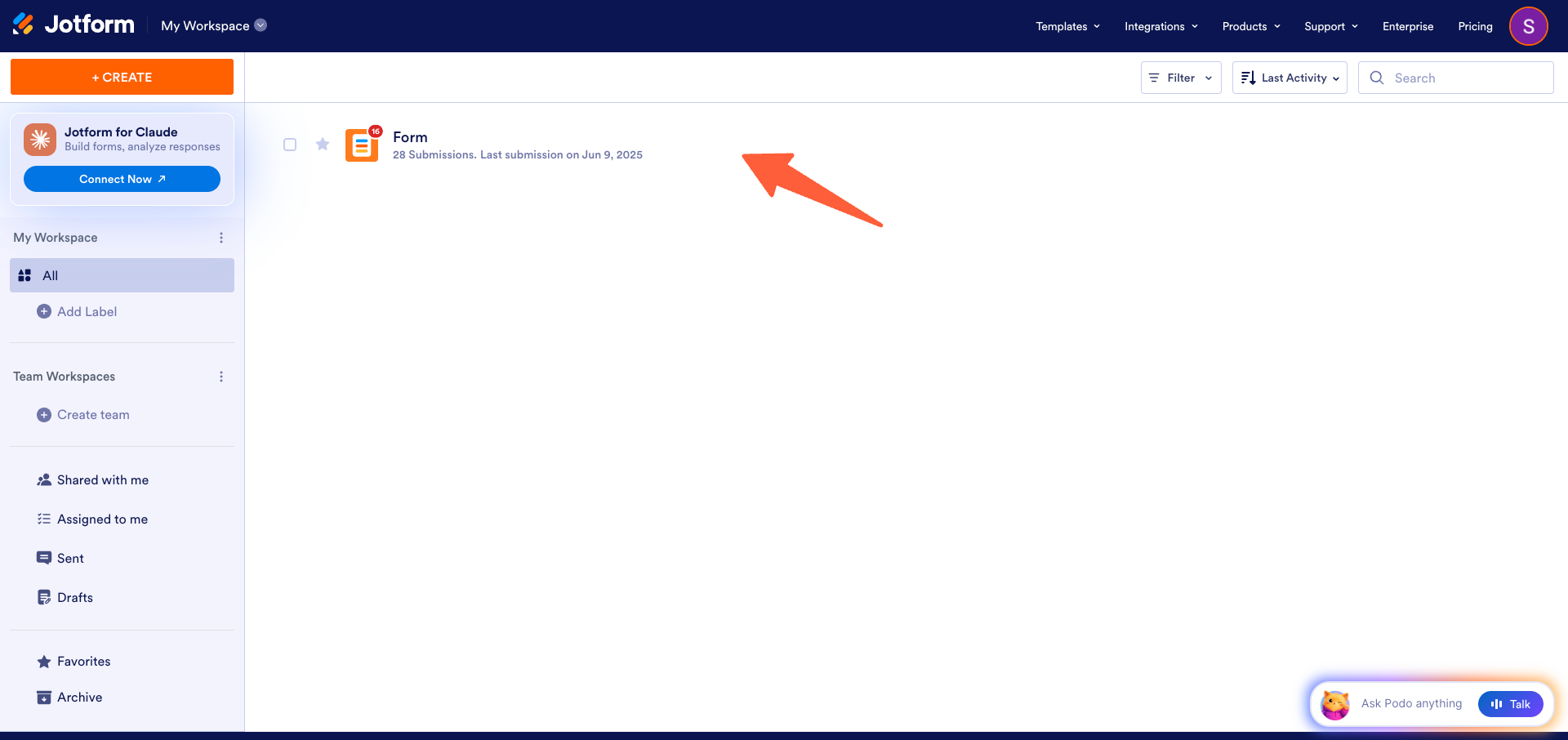
- Click Add Form Element on the left sidebar.
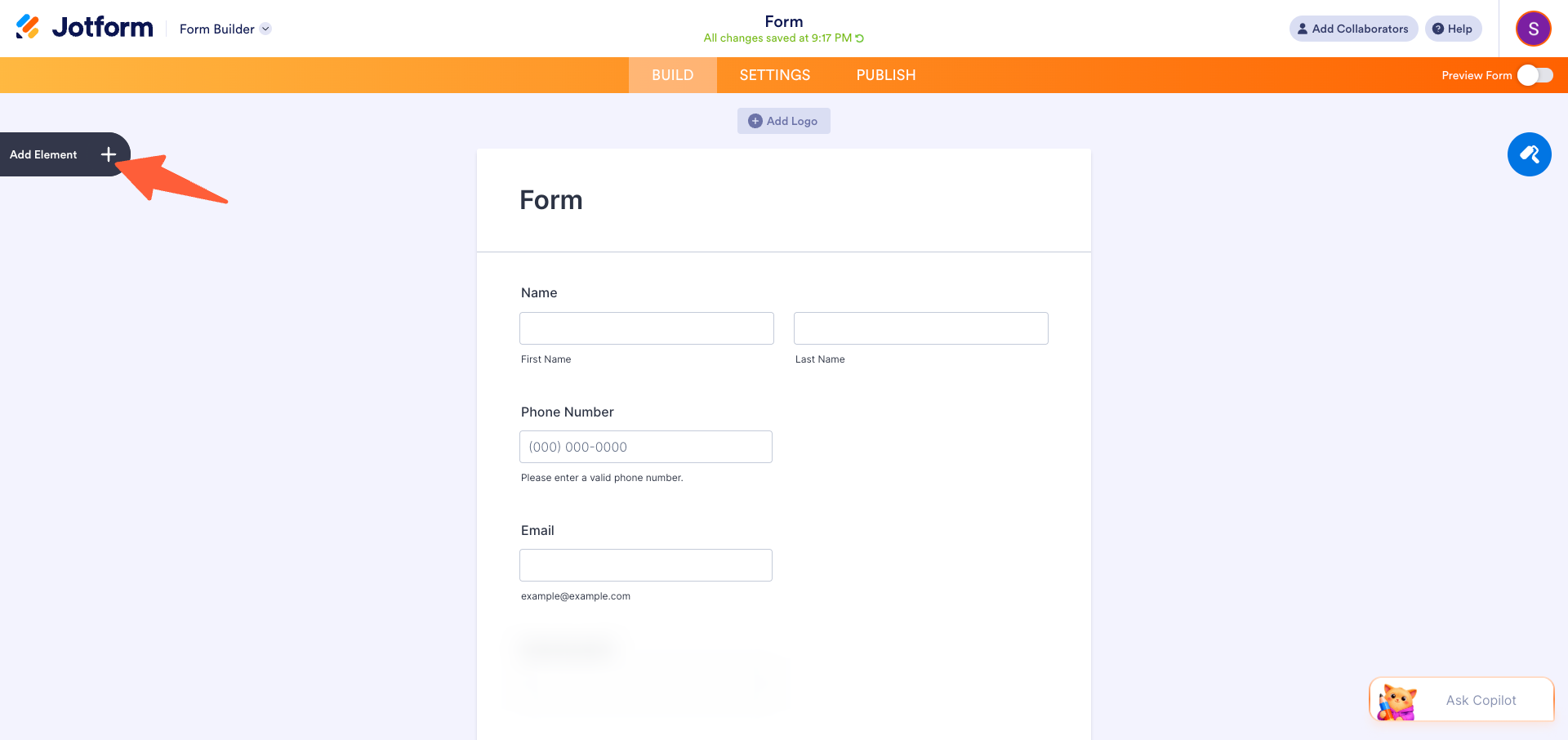
- Add a Short Text field.
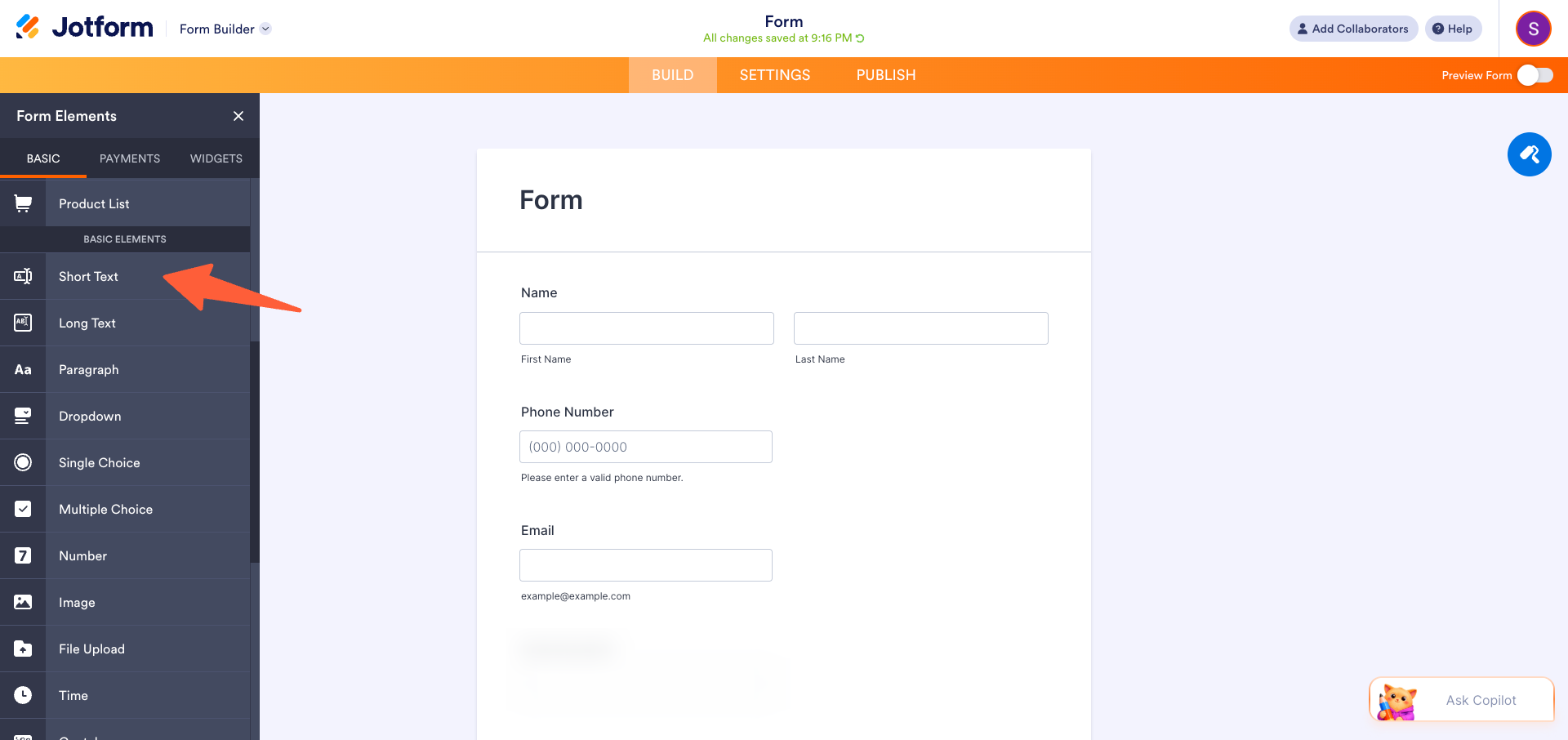
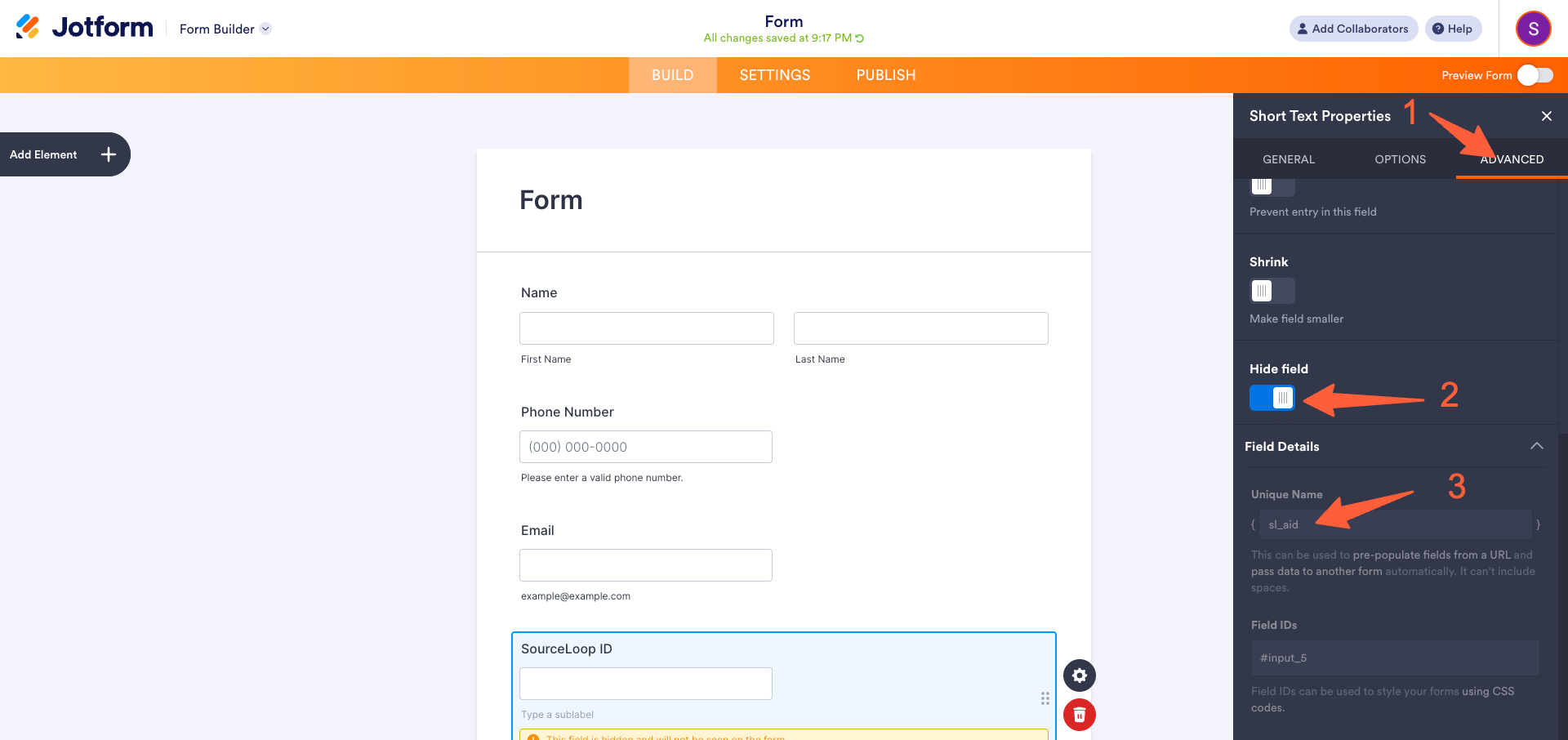
- Open the field’s Properties panel and name the field per the table below.
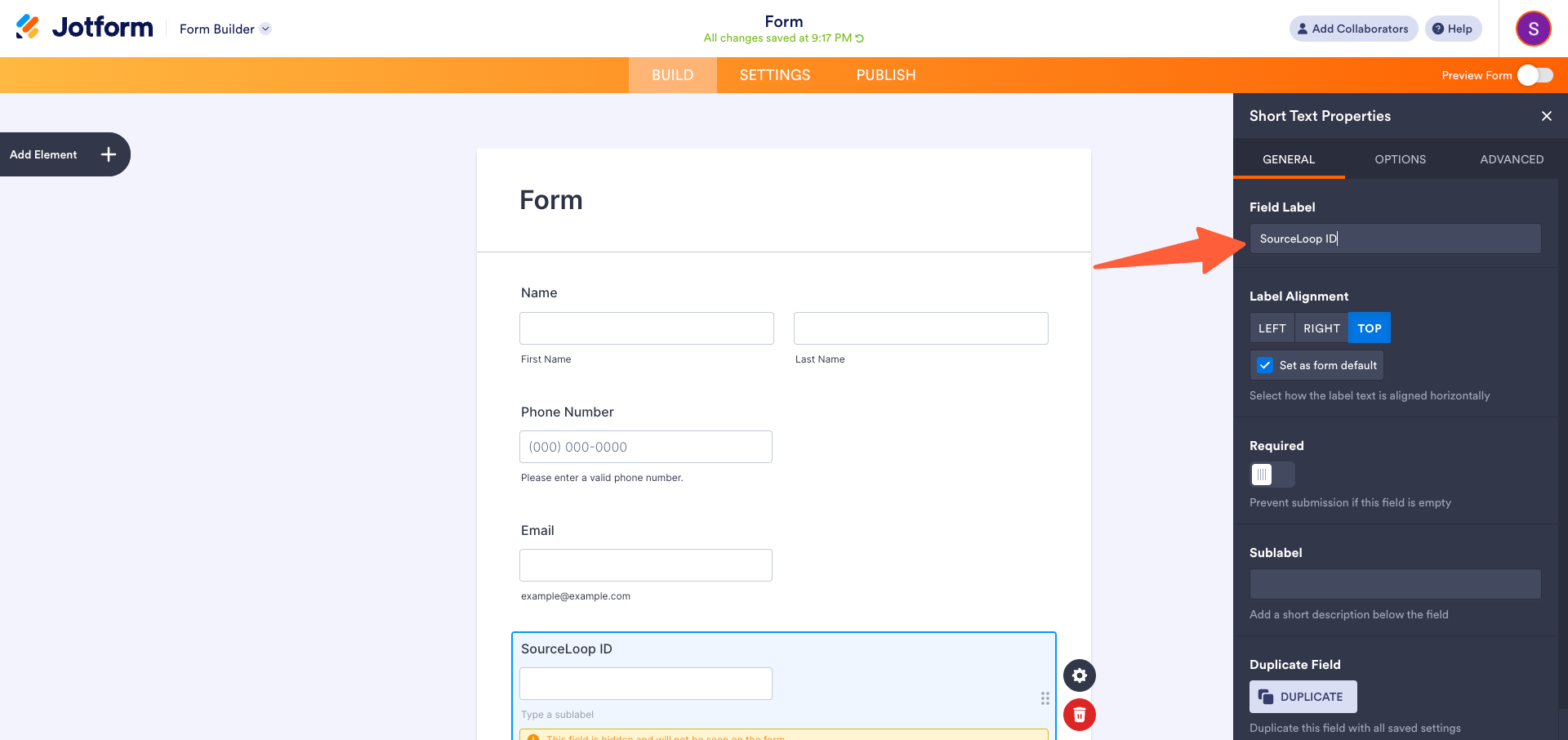
- Navigate to the Advanced tab, enable Hide Field so visitors don’t see it, then set the Unique Name per the table below.
Latest-touch fields (recommended baseline):
| Field Label | Unique Name |
|---|---|
| Channel | channel |
| Latest Source | attribution_source |
| Latest Medium | attribution_medium |
| Latest Campaign | attribution_campaign |
| Latest Term | attribution_term |
| Latest Content | attribution_content |
| Latest Landing Page | landingpage |
Click ID fields (only if you run paid ads on these networks):
| Field Label | Unique Name |
|---|---|
| Google Click ID | gclid |
| Facebook Click ID | fbclid |
| Microsoft Click ID | msclkid |
| LinkedIn Click ID | li_fat_id |
| TikTok Click ID | ttclid |
Step 3: Track first-touch attribution (optional)
Skip this step unless you want multi-touch attribution, the ability to compare the original acquisition channel against the most recent one. If you do, repeat the same workflow from step 2 for each field below:
| Field Label | Unique Name |
|---|---|
| First Channel | first_channel |
| First Source | first_source |
| First Medium | first_medium |
| First Campaign | first_campaign |
| First Term | first_term |
| First Content | first_content |
| First Landing Page | first_landingpage |
With both touch sets in place, your Jotform submissions carry the complete picture: which channel originally found the prospect, and which channel finally converted them.
Step 4: Embed the Jotform on your website
The form needs to live on a page where the SourceLoop tracking script is already running.
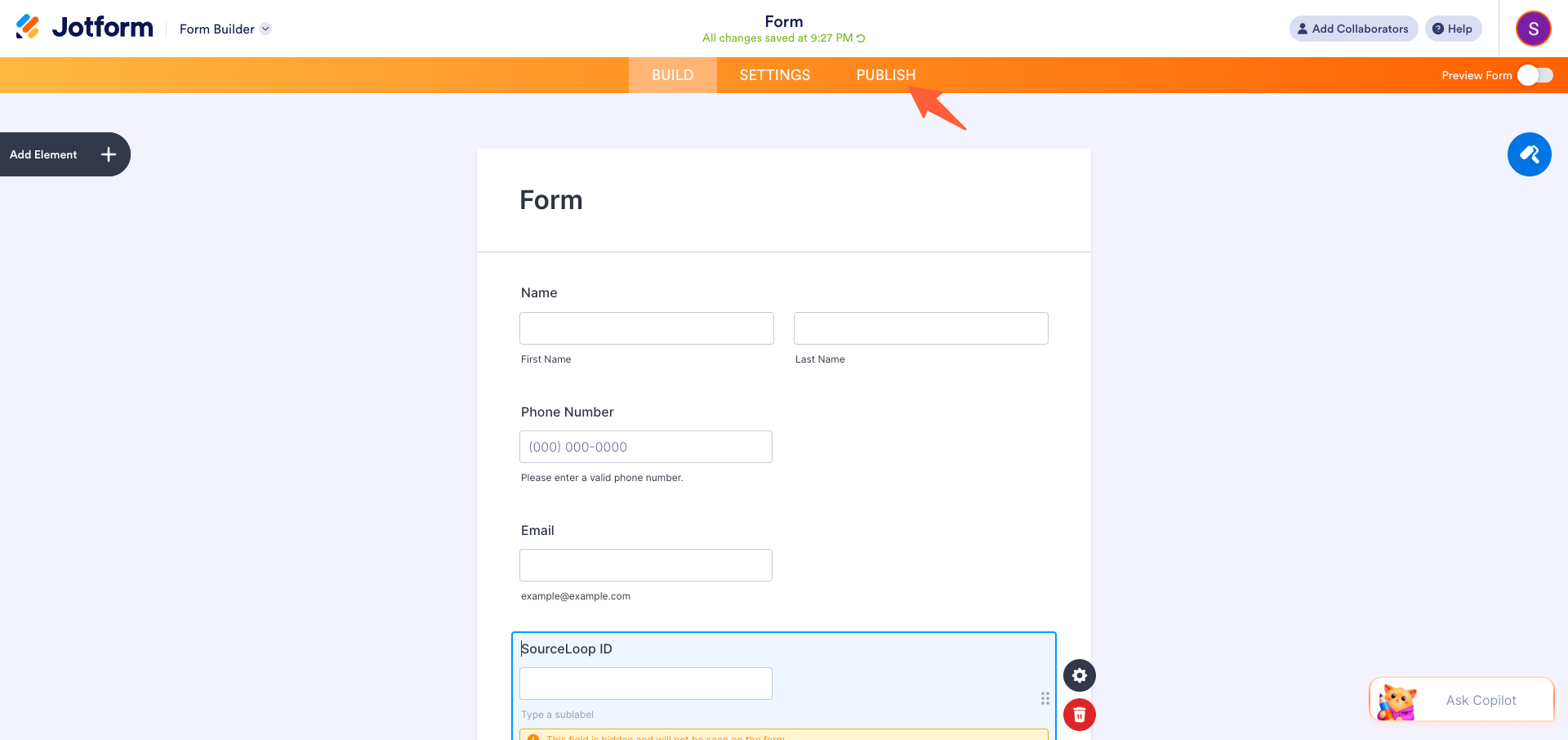
- In Jotform, click Publish at the top of the form builder.
- Select Embed from the left menu, then pick either iFrame or JavaScript.
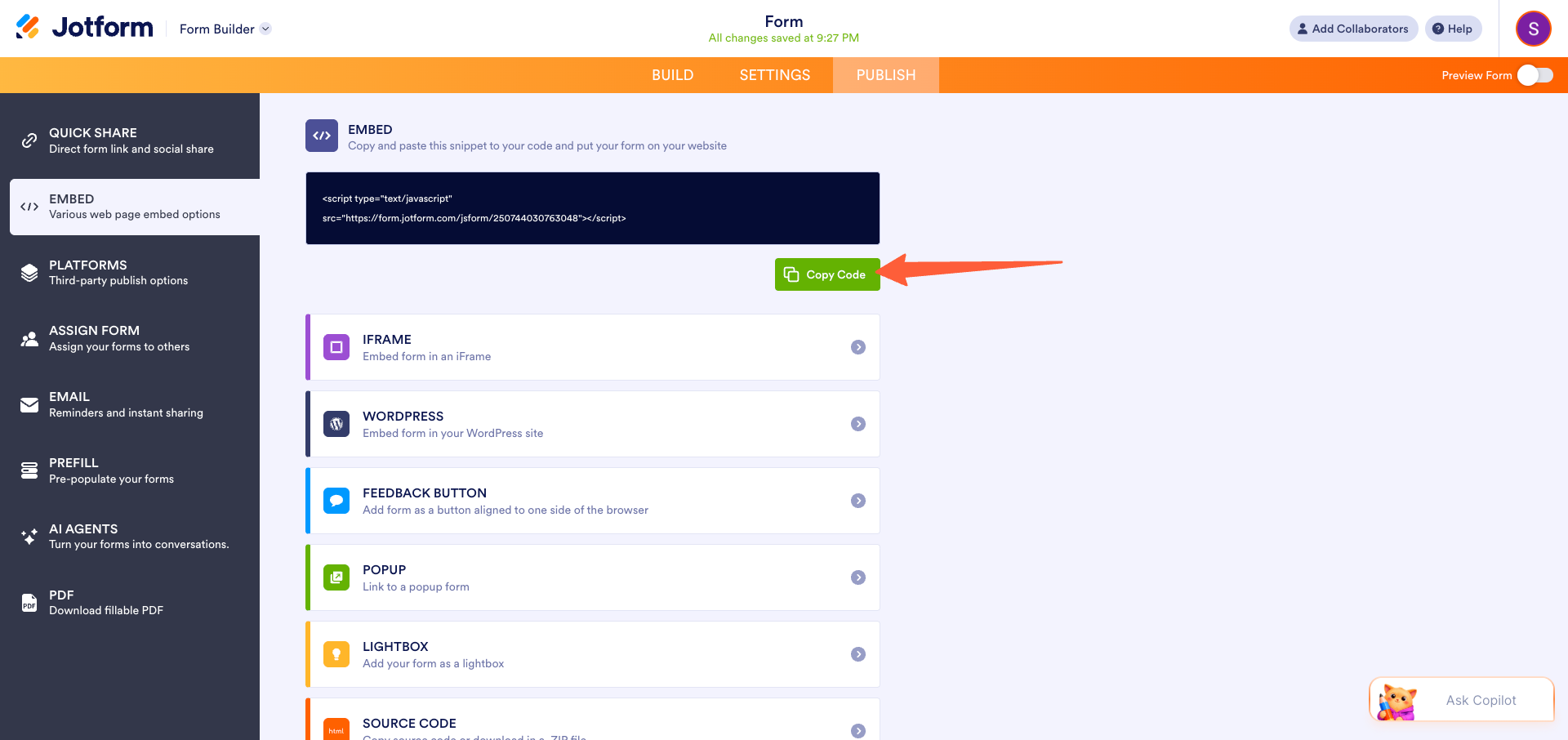
- Copy the embed code and paste it on your site where you want the form to appear.
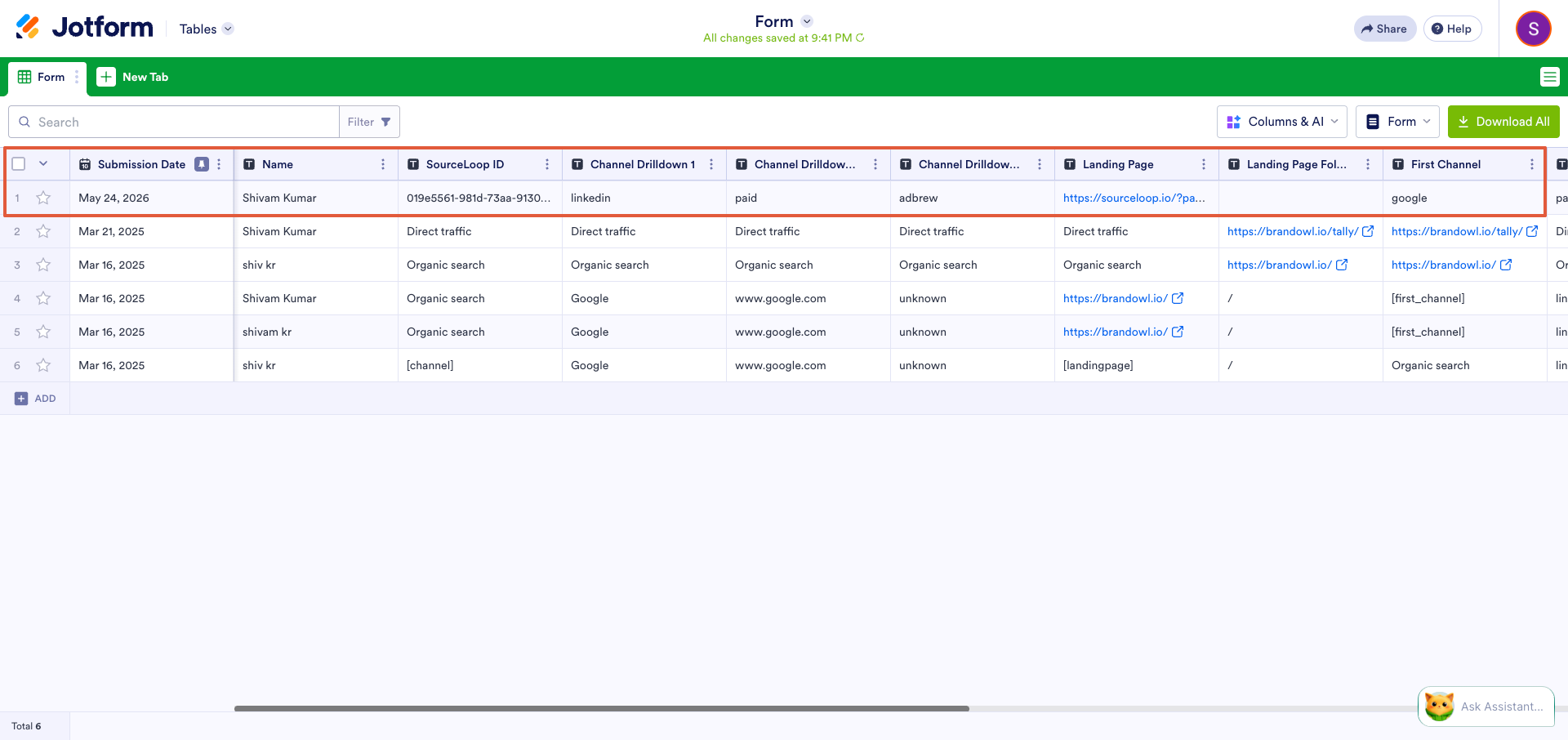
Now, every time someone completes the form, the attribution values appear alongside the rest of the answers in the form submission.
Where to see Jotform submissions in SourceLoop
Beyond the attribution data being inside each Jotform submission itself, SourceLoop also gives you three dedicated views:
Contacts
Each Jotform submission becomes a row in Contacts at app.sourceloop.ai/contacts. Expand a row to see the visitor’s full pre-submission timeline: the campaign that brought them in, the pages they browsed, and how long they took before submitting.

Traffic and Revenue report
Pull up app.sourceloop.ai/reports/traffic to see Jotform submissions grouped by source, campaign, and landing page. Great for spotting which channels generate qualified leads versus those that produce traffic but no conversions.

Funnel reports
Build a funnel in app.sourceloop.ai/funnels ending in “Jotform submission”. Cut it by source, campaign, or landing page to see your most-converting paths.

If paid acquisition is part of your strategy, forward the Jotform submissions to Google Ads and Meta as offline conversions so the bidding algorithms can optimize against real lead generation. The conversion sync guide walks through that setup.
Frequently asked questions
-
Does this work with Jotform's Free plan?
Yes. The setup is entirely on the form-builder side and on your website, no webhooks or API connections involved. Every Jotform plan supports hidden fields.
-
Why are the attribution values shown as hidden fields instead of being added separately?
This is the "manual" integration pattern, the attribution data lives directly on the Jotform submission. That way it flows automatically into whatever downstream system you've connected (CRM, Zapier, Make, email autoresponder) without needing a separate webhook for SourceLoop.
-
Do I have to add every field? That's a lot of hidden inputs.
No. The latest-touch fields in step 2 are recommended for a baseline view of attribution. The click-ID fields are only needed if you run paid ads on those networks. First-touch fields in step 3 are optional and only matter if you want multi-touch attribution. Skip what doesn't apply.
-
What happens to the hidden fields when someone fills the form?
They're populated automatically as soon as the form loads on a page where the SourceLoop tracker is running. The respondent never sees them, but the values come through on the submission alongside the visible answers.
-
I share my Jotform via its direct form.jotform.com link. Will those submissions carry attribution?
No. Submissions made through a raw `form.jotform.com/<form-id>` link won't carry attribution data, because the visitor never lands on a page with the tracker. To attribute that traffic, embed the form on a landing page that has the SourceLoop snippet.

 Paid Social


