
Update your payment method
Add, change, or replace the card on file for your SourceLoop subscription from the Polar customer portal, without waiting on support.
On this page
Your card on file lives with Polar, not with SourceLoop. Updating it is a one-click handoff from the SourceLoop Billing page into the Polar customer portal, then a card-replace form on Polar’s side.
The actual update takes about a minute.
Before you start
You’ll need:
- An active SourceLoop subscription (you can’t update payment during a trial because there’s no card on file yet, activate first via Activate a subscription after the trial)
- An Admin role on the workspace. Editors can manage billing only if an admin has allowed it.
- The new card details ready (number, expiry, CVV, billing address)
Step 1: Open the Billing page
-
Sign in to SourceLoop.
-
Click Settings at the bottom of the left sidebar.
-
Click Billing in the Settings sidebar.
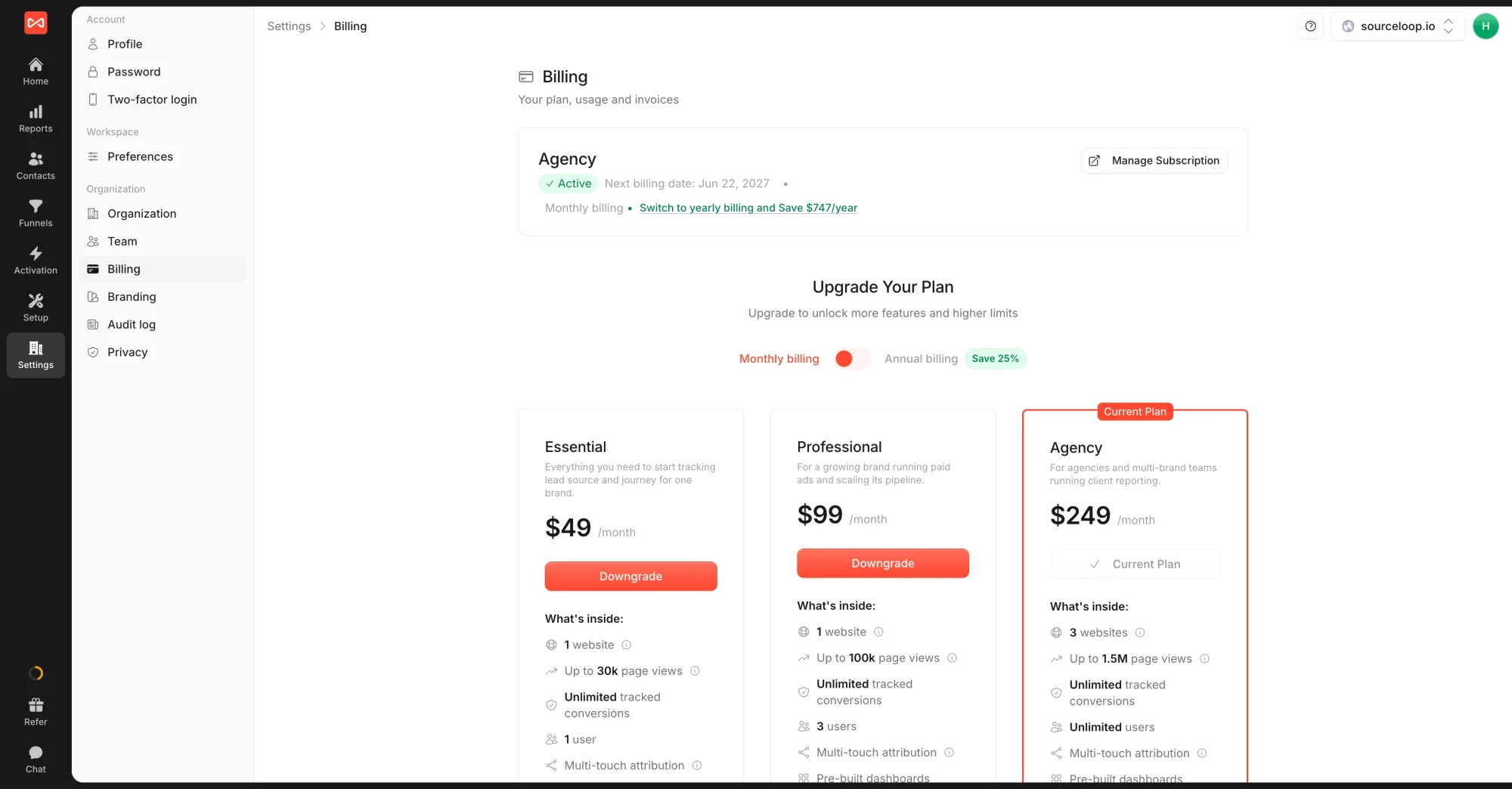
You’ll see your current subscription card at the top with a Manage Subscription button in the top-right.
Step 2: Open the Polar customer portal
- Click Manage Subscription on the current-plan card.
- A new tab opens, this is the Polar customer portal, where every billing action lives (payment method, invoices, cancellation).
Polar is our payment processor. SourceLoop hands you off to it for any change to your actual payment, your card, your invoices, and your cancellation flow are all owned by Polar.
Step 3: Update the card on Polar
- In the Polar customer portal, look for the Payment method section (sometimes labeled “Billing”).
- Click Update payment method (or Replace card, depending on Polar’s current UI).
- Enter the new card details: number, expiry, CVV, and billing address / postal code.
- Click Save or Update.
The new card replaces the old one immediately. The next renewal charge, plus any pending failed retries, will use the new card.
What happens after the update
- Active subscription: nothing visible changes. The next renewal charges the new card.
- Past-due subscription: Polar retries the failed charge. If it succeeds, you’re back to Active. If it fails again, you’ll get an email from Polar to try a different card.
- Subscription in trial: there shouldn’t be a card on file yet. Activate first via Activate a subscription after the trial.
You don’t need to do anything inside SourceLoop after the Polar update, the change syncs back automatically.
Frequently asked questions
-
My card is about to expire. What should I do?
Update it before the next billing date to avoid a failed payment. Polar emails you a reminder about a week before a card on file expires, but you can update it any time via the Manage Subscription button.
-
My last payment failed. What now?
Polar retries automatically a few times over several days. To resolve it faster, click Manage Subscription on the Billing page and update the card. The next retry will use the new card. If you wait too long, your subscription is paused, but no data is deleted, see [Cancel your subscription](/help/cancel-your-subscription/) for what a paused / cancelled state means.
-
Can I store multiple payment methods?
Polar keeps one card on file as the default. Replacing the card replaces the default. There's no concept of a backup card today.
-
Does SourceLoop see my card details?
No. The card lives entirely with Polar (our merchant of record). SourceLoop just sees the subscription status (active, past-due, cancelled) and the plan you're on. No card numbers, CVVs, or expiration dates touch our infrastructure.
-
Can I pay by bank transfer / ACH / invoice instead of a card?
Payment is by card through Polar's checkout. Email [email protected] if you need another arrangement for a larger contract.

 Paid Social


