
How to track lead source in YouCanBookMe
Connect every YouCanBookMe booking to the channel, content, or campaign that actually produced it, with the visitor's full pre-booking journey attached.


On this page
- What SourceLoop captures from YouCanBookMe
- Before you start
- Step 1: Install the SourceLoop tracking script
- Step 2: Add a hidden question to your YouCanBookMe form
- Step 3: Embed your booking page on your site
- Step 4: Configure the YouCanBookMe webhook
- Where to see YouCanBookMe bookings
- Contacts
- Traffic and Revenue report
- Funnel reports
YouCanBookMe is the booking tool of choice for coaches, educators, consultants, and small-business owners who want straightforward per-calendar pricing without the enterprise overhead. The blind spot most users hit: YouCanBookMe shows you when a booking happens, but not what brought the prospect to the calendar in the first place. This guide adds that layer.
The setup is four steps, around ten minutes start to finish. The webhook step requires YouCanBookMe Professional or Teams.
What SourceLoop captures from YouCanBookMe
After setup, each YouCanBookMe booking lands in SourceLoop alongside:
- Marketing channel origin plus the full UTM set captured on the visitor’s first session
- Page sequence visited before the booking, in chronological order
- Days since first visit at the moment the booking was made
- Session count prior to the conversion (handy for spotting nurture-heavy paths)
- Contact email, first name, last name, and phone pulled from the YouCanBookMe booking form
- Direct entry page and the referring URL from the original session
- Most recent session source right before the booking
- Device, location, and browser
Before you start
You’ll need:
- A SourceLoop workspace (free trial)
- Edit access to the website where the YouCanBookMe widget will be embedded
- A YouCanBookMe account on the Professional or Teams plan (Free and Personal plans don’t include webhooks, which this guide depends on)
- At least one booking page set up in YouCanBookMe
Step 1: Install the SourceLoop tracking script
Sign in to SourceLoop, open Setup from the left navigation, and click the Tracking code tab. Copy the snippet you see.

Add the snippet to the <head> of every page on your site. Site-wide installation gives SourceLoop the full picture of each visitor’s journey before they land on the page where you embed YouCanBookMe.
Step 2: Add a hidden question to your YouCanBookMe form
YouCanBookMe uses Hidden Questions with shorthand codes to capture URL parameters and attach them to bookings. Add one that SourceLoop can use to identify each visitor.
- In YouCanBookMe, open your booking page and click Booking Form in the left sidebar.
- Click Add Question.
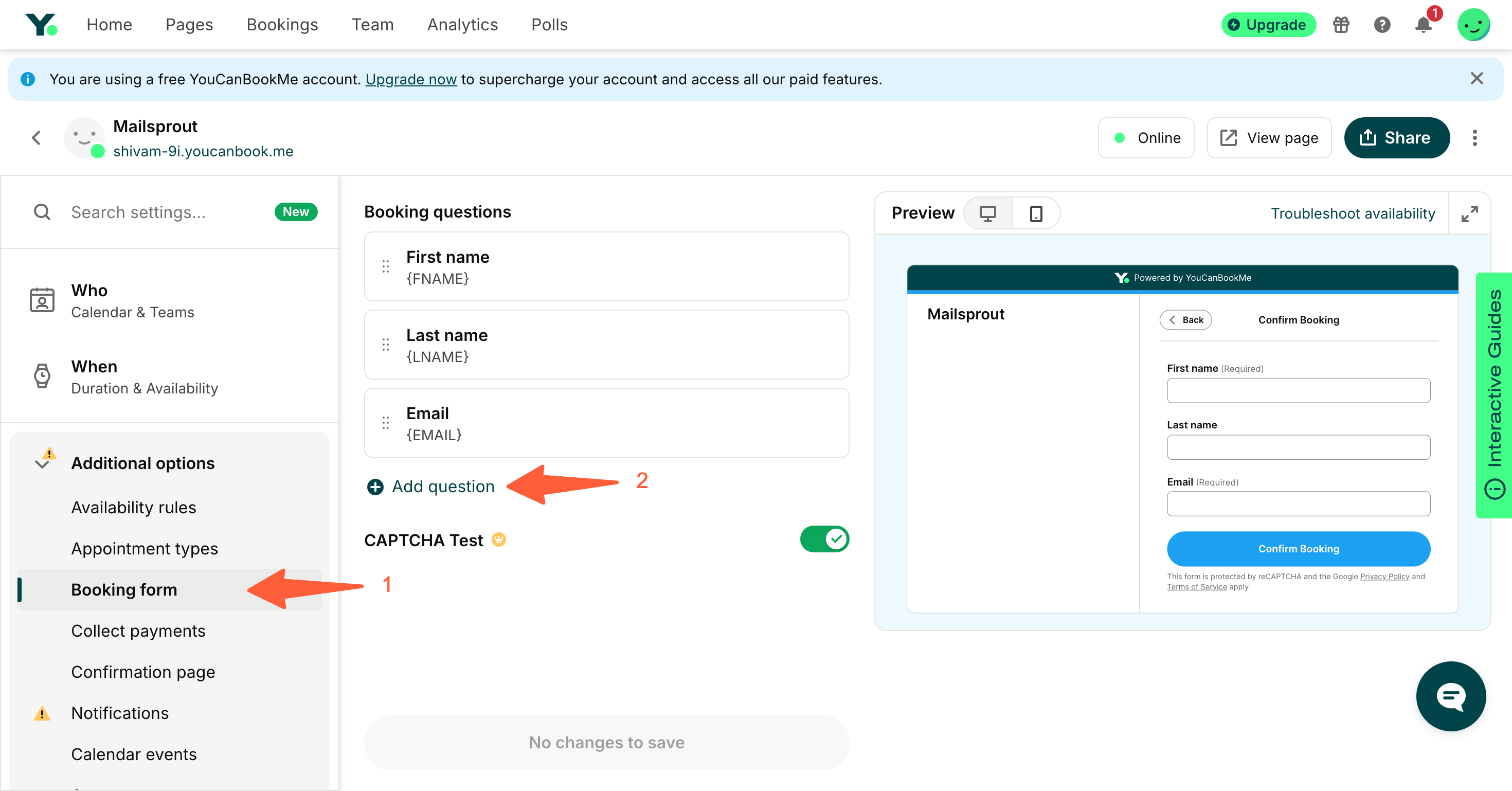
- Choose Hidden Question as the question type.
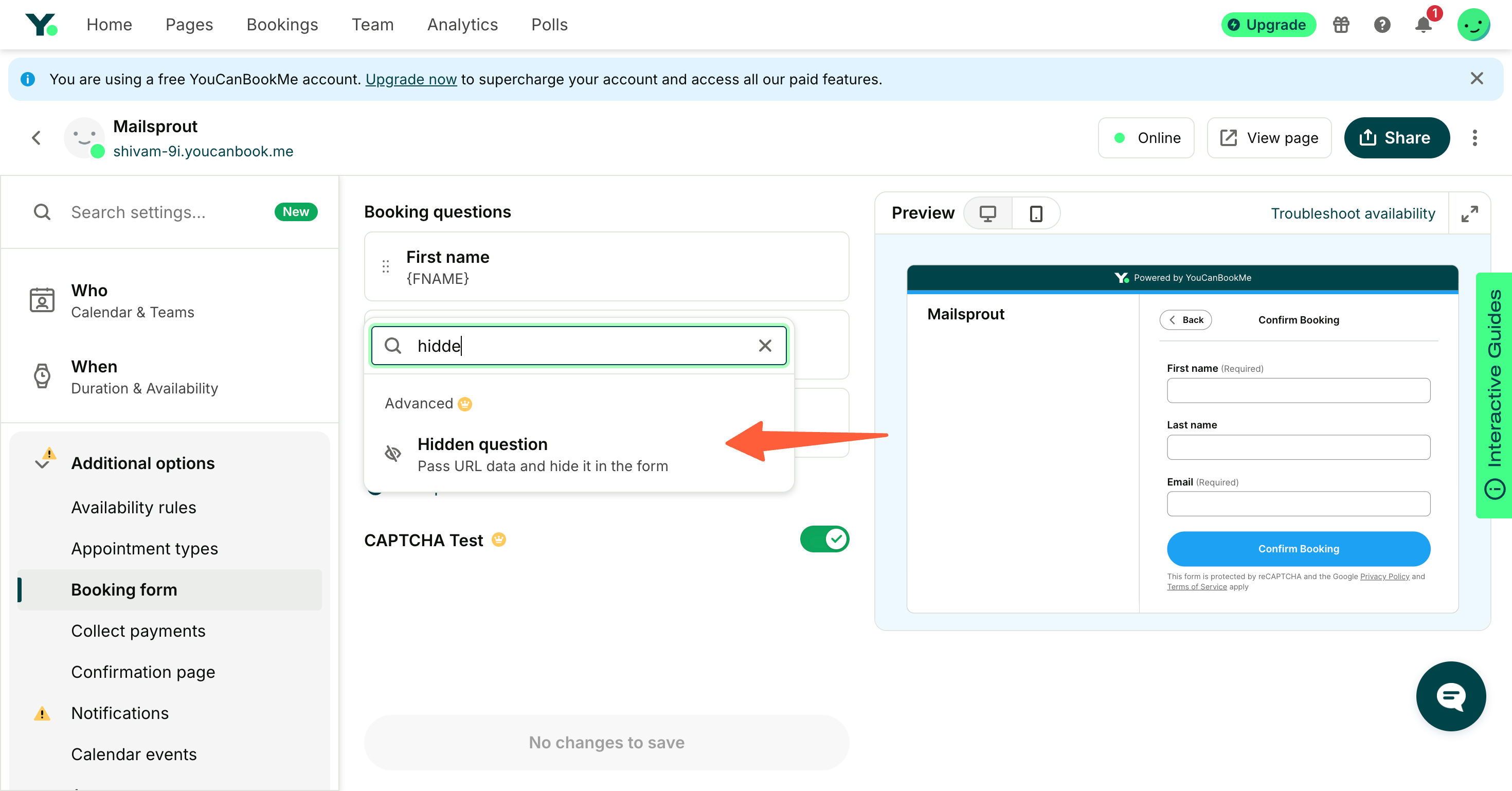
- Set the Shorthand to exactly:
SL_AID- Save the form.
That’s the only field you need to add. SourceLoop fills in the channel, source, journey, and other attribution details on its side using the value of this one identifier.
Step 3: Embed your booking page on your site
YouCanBookMe ships several embed flavors, any of them work:
- In YouCanBookMe, click the three-dot icon on your booking page and choose Share.
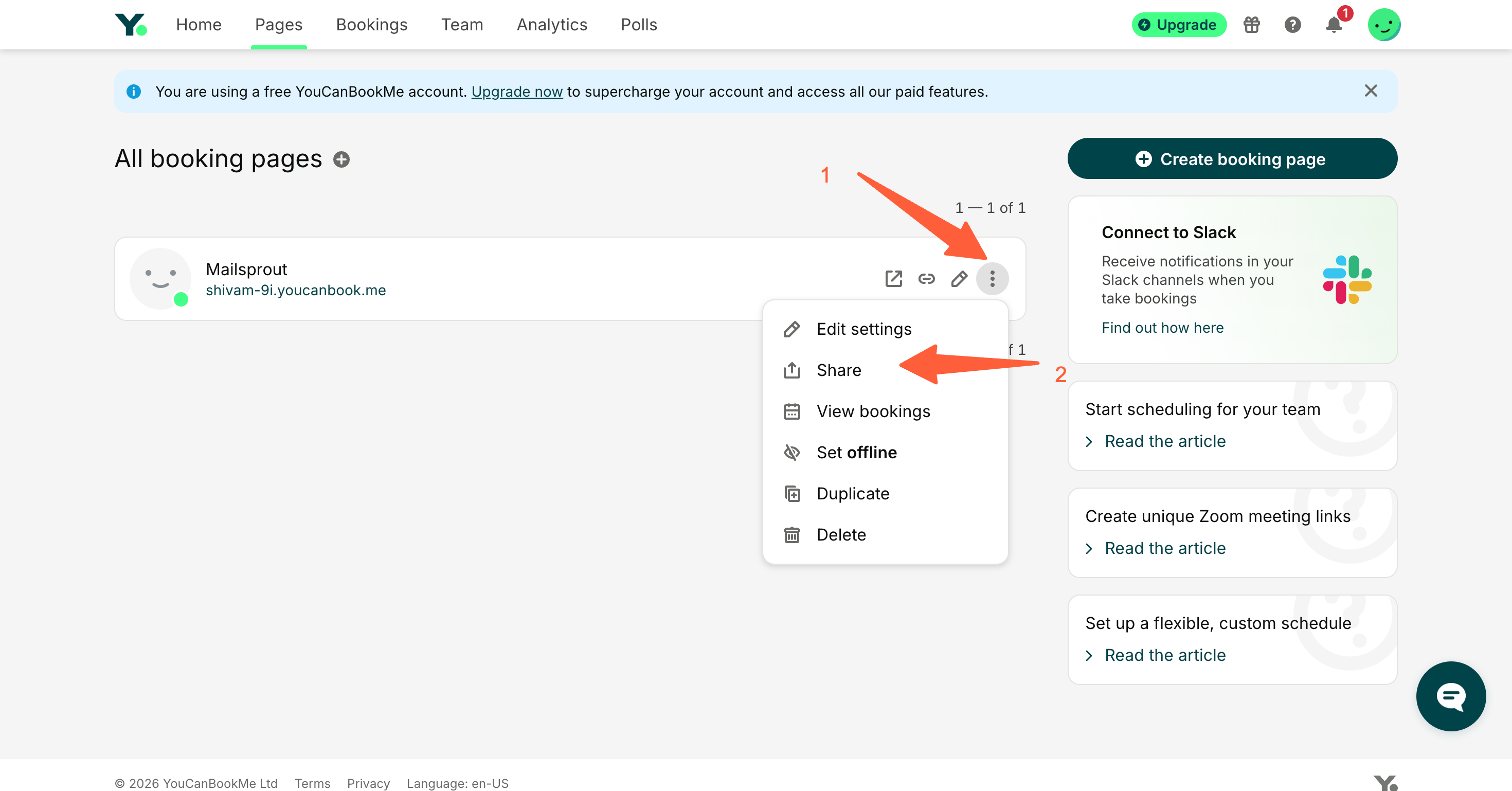
- Pick the embed style that fits your site, inline, button popup, or text-link popup.
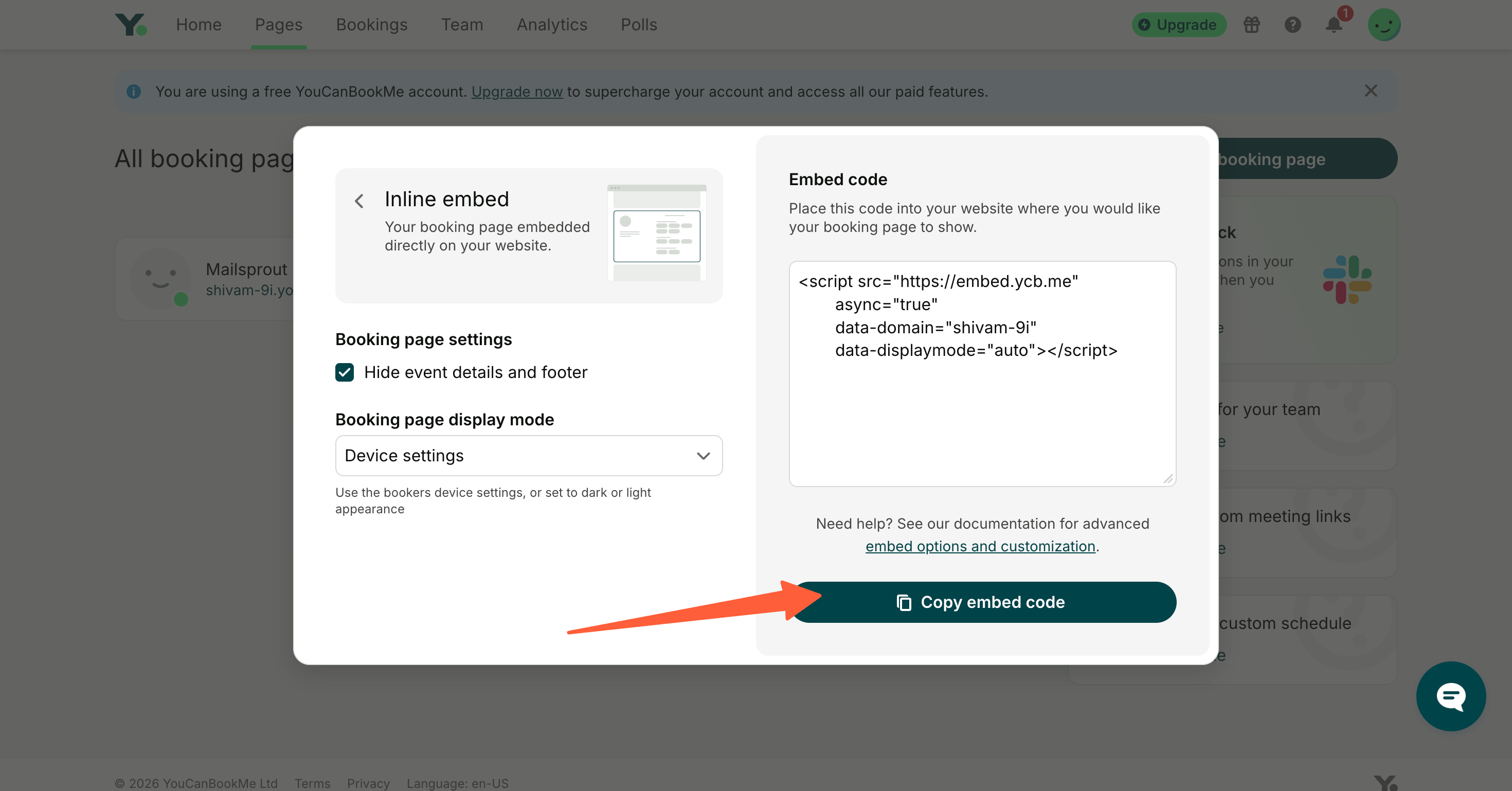
- Copy the embed code and paste it onto the page on your site where you want bookings to happen.
Step 4: Configure the YouCanBookMe webhook
The webhook is what delivers each new booking from YouCanBookMe to SourceLoop, where it gets matched to the visitor’s journey and turned into a fully-attributed lead.
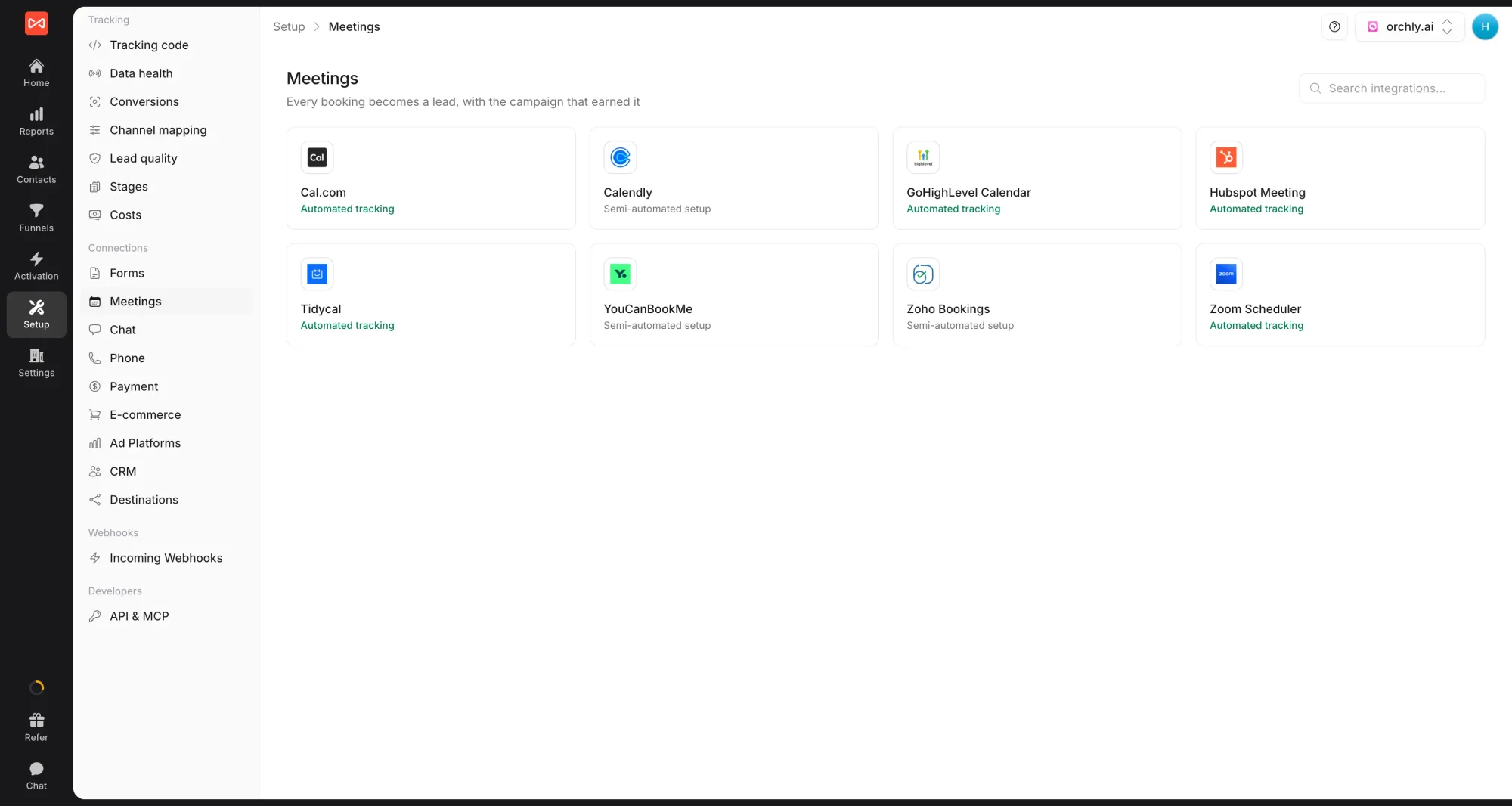
- In SourceLoop, open Setup -> Meetings, click the YouCanBookMe card, and copy Your YouCanBookMe webhook URL from the drawer.
- In YouCanBookMe, open your booking page and go to Integrations -> Webhooks.
- Click + Add Webhook.
- Configure it as follows:
- URL: the SourceLoop webhook URL from step 1
- Method:
POST - Content Type:
application/json
- For the request Body, paste this JSON template:
{
  "sl_aid": "{SL_AID}",
  "email": "{EMAIL}",
  "first_name": "{FNAME}",
  "last_name": "{LNAME}",
  "phone": "{PHONE}",
  "scheduled_date": "{START_DATE_TIME}",
  "meeting_title": "{TYPE-NAME}",
  "booking_id": "{BOOKING-ID}"
}
YouCanBookMe interpolates each {SHORTHAND} placeholder with the actual value from the booking. The Hidden Question shorthand you set up in step 2 ({SL_AID}) works the same way as the built-in ones.
- Set Trigger to Booked.
- Save.
Submit a test booking through your embedded page to confirm the conversion appears in SourceLoop as a Meeting with source, channel, and landing page populated.
Where to see YouCanBookMe bookings
Once the integration is live, three SourceLoop views give you complementary cuts of the same data:
Contacts
Visit app.sourceloop.ai/contacts and every YouCanBookMe booking appears as a contact row. Click into a row to unpack the prospect’s full pre-booking arc, the search term, the blog post, the case study, and finally the calendar booking.

Traffic and Revenue report
The Traffic and Revenue report at app.sourceloop.ai/reports/traffic rolls up your YouCanBookMe bookings by source, medium, and campaign. Useful when you need to defend a marketing spend, the dashboard shows exactly which channels translate into real bookings versus which only deliver traffic.

Funnel reports
Inside app.sourceloop.ai/funnels, configure a funnel ending in a “YouCanBookMe booking” step. Slice it by utm_source or landing page to see your most-efficient paths from first visit to booked call.

If paid acquisition is part of your mix, you can also push YouCanBookMe bookings as offline conversions to Google Ads and Meta so the bidding algorithms optimize for booked meetings instead of clicks. The conversion sync guide covers that setup.
Frequently asked questions
-
Does this require a paid YouCanBookMe plan?
The hidden-question and embed steps work on every YouCanBookMe plan including Free, but the webhook step in this guide requires the Professional or Teams plan. Without webhooks enabled, bookings won't reach SourceLoop and attribution can't be stitched.
-
Why does the Hidden Question shorthand need to be UPPERCASE?
YouCanBookMe is case-sensitive on shorthand codes and silently drops lowercase or mixed-case variants. Set the shorthand exactly to `SL_AID` (all uppercase, with the underscore) so the URL parameter is captured correctly.
-
I have a team YouCanBookMe account with several calendars. Do I need to set this up for each one?
The SourceLoop tracking script only needs to be installed once on your site. The Hidden Question and webhook, however, are configured per booking page, so each calendar your team books on needs its own setup.
-
I share my YouCanBookMe link in client emails. Will those bookings be captured?
No. When prospects click a `<your-handle>.youcanbook.me` link directly, they reach YouCanBookMe without first visiting your website, so there's no journey data for SourceLoop to attach. Embed the booking page on a landing page if you want those bookings tracked.
-
Does this support YouCanBookMe's group bookings?
Yes. Group sessions, one-on-one bookings, and multi-host appointments all flow into SourceLoop the same way, as long as the embed lives on a tracked page and the webhook is configured.

 Paid Social


