
How to invite team members to your SourceLoop workspace
Invite admins and editors to your SourceLoop workspace, scope their website access, and let them set up their account from a single email link.
On this page
SourceLoop is built for teams. Admins can invite Admins and Editors, Editors can invite other Editors, and every member gets access to only the websites you choose.
Invitations go out as a single email link. The invited person clicks it, sets a password if they’re new to SourceLoop, and lands in the workspace logged in. No manual provisioning, no shared logins.
Before you start
You’ll need:
- A SourceLoop workspace with an Admin role, or an Editor role to invite other Editors
- The email address of the person you want to invite
- A rough idea of their role (Admin or Editor) and which websites they should have access to
Step 1: Open the Team settings
-
Sign in to SourceLoop.
-
Click Settings in the bottom of the left sidebar.
-
Inside Settings, click Team under the Organization group.
You’ll see every active member, every pending invitation, and an Add Member button in the top-right.
Step 2: Send the invitation
- Click Add Member in the top-right. The Invite Team Member modal opens.
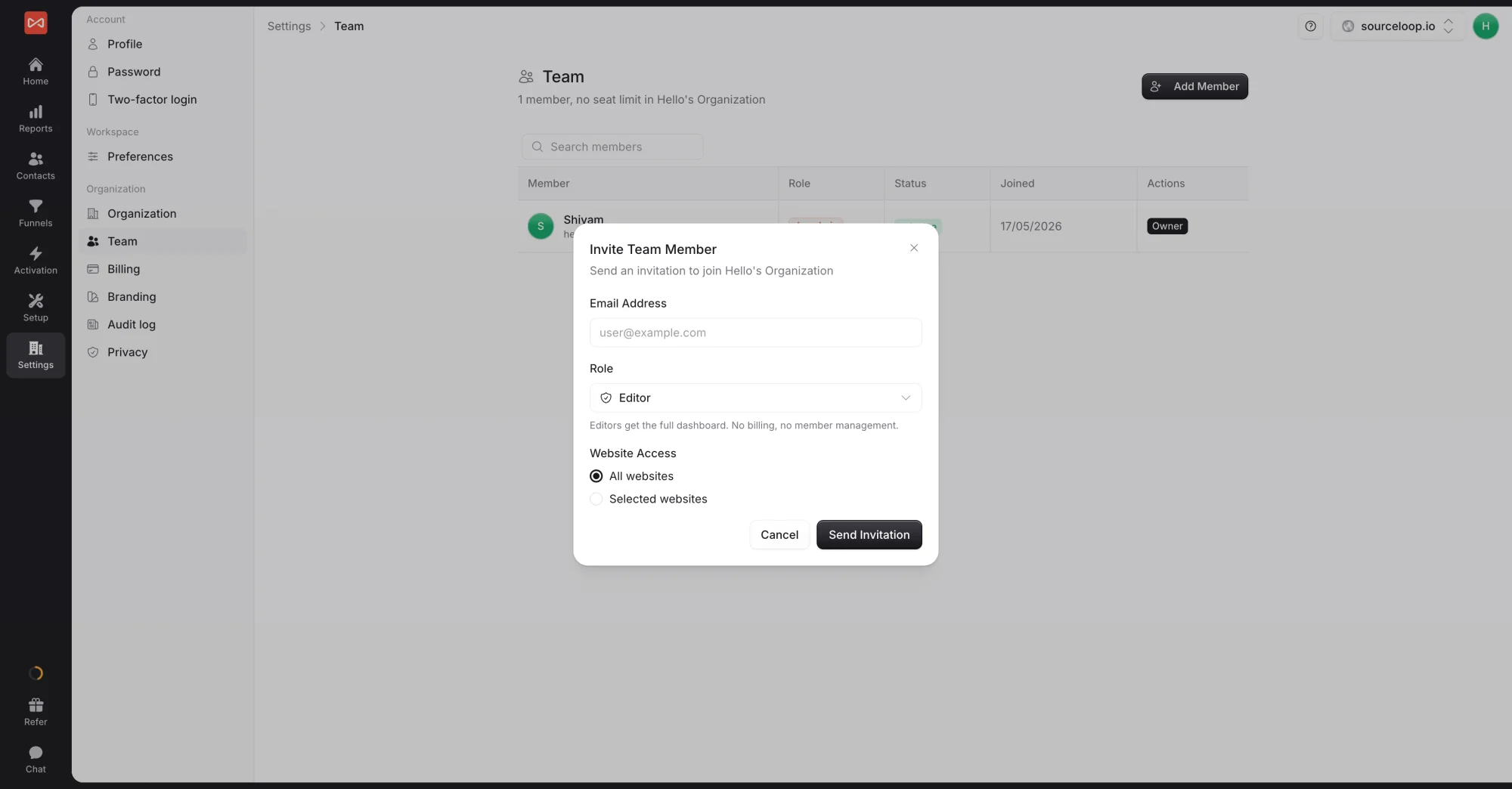
- Enter the email address of the person you want to invite.
- Pick a Role:
- Admin: full control. Can invite or remove teammates, change roles, manage billing, change integrations, and see the audit log.
- Editor: can use reports and edit workspace data such as websites, integrations, and leads, and can invite other Editors, but can’t change roles, remove members, or manage billing.
- Pick Website Access:
- All websites: they see and can act on every website in the workspace, including ones you add later.
- Selected websites: pick specific sites to grant access to. They won’t see any other workspace site in any view.
- Click Send Invitation.
The new member appears in the team list with a Pending status, and SourceLoop emails them an invitation link from your workspace.
Step 3: The invitee accepts and sets up
The person you invited receives an email titled “You’ve been invited to join Shivam’s Organization” (or your workspace name). What they do next depends on whether they already have a SourceLoop account.
(1) New to SourceLoop
- They click the link in the email.
- They land on SourceLoop with the invitation pre-filled.
- They set a password (or sign up with Google instead, same as the regular sign-up flow).
- They land in the workspace logged in, with the role and website access you assigned.
(2) Already has a SourceLoop account
- They click the link in the email.
- They sign in to their existing SourceLoop account.
- The new workspace appears in the workspace switcher in the top-left.
- They switch into the workspace and start working immediately.
In both cases, their status on your Team page flips from Pending to Active the moment they accept.
Managing the team after invites
The Team page is the home for everything ongoing:
- Edit a role: click the edit icon on a member row to switch them between Admin and Editor.
- Change website access: same edit icon, modify the All / Selected websites selection.
- Remove a member: trash icon. Their access is revoked on next page load. Historical attribution stays intact.
- Cancel a pending invite: trash icon on the pending row before they accept.
- Resend an invite: cancel the pending invite, then send a fresh one from Add Member.
Once your team is in, head back to installing the tracking pixel (if you haven’t already) so everyone can start seeing real data.
Frequently asked questions
-
Can an Editor invite teammates?
Yes, but only as Editors. Admins can invite both Admins and Editors, and only Admins can remove members or change roles.
-
What's the difference between Admin and Editor?
Admins can manage the whole workspace, invite or remove team members, change roles, update billing, and access every setting. Editors can use reports and edit workspace data (websites, integrations, leads) but can't manage team or billing. The workspace **Owner** is the original sign-up account and has full Admin permissions plus owner-only abilities like transferring the workspace.
-
Can I invite the same person to two different workspaces?
No. A person belongs to one SourceLoop organization at a time, so an invitation to someone already active in another organization is refused. Inside your organization, you can give them access to as many websites as you like.
-
The invited person never received the email. What now?
Ask them to check spam. SourceLoop sends from a transactional domain, but corporate spam filters sometimes catch it. If it's not in spam, re-send the invitation from the Team page (Cancel the pending invite and click Add Member again with the same email). You can also share the invitation link directly from the pending-invite row.
-
Can I limit which websites a teammate can see?
Yes. In the Add Member modal, pick **Selected websites** instead of **All websites** and check the boxes for the sites they should have access to. They won't see other workspace websites in any view, including reports.
-
How do I change someone's role after they've joined?
On the Team page, click the edit icon next to the member and switch their role between Admin and Editor. The change takes effect immediately.
-
How do I remove a team member?
On the Team page, click the trash icon next to the member. They're removed from the workspace immediately and lose access on their next page load. Their historical activity (changes they made, leads they touched) stays attributed to them, just marked as a removed user.

 Paid Social


