
How to track lead source in Paddle
Tie every Paddle transaction, subscription, and adjustment back to the channel that drove it. Revenue attribution for global SaaS, tax handled.


On this page
- Why this matters
- What SourceLoop captures from Paddle
- Before you start
- Step 1: Install the SourceLoop tracking script
- Step 2: Create a notification destination in Paddle
- Step 3: Paste the signing secret back into SourceLoop
- Step 4: Wire attribution into your checkout
- (1) Paddle.js Checkout
- (2) Transactions API
- Step 5: Run a test transaction to verify
- Where to see Paddle revenue in SourceLoop
- Contacts: revenue per contact
- Traffic and Revenue report: revenue by channel
Paddle is the merchant-of-record stack built for global SaaS, billing engine, tax compliance, subscription primitives, all consolidated. The piece it doesn’t surface is which marketing channel actually produced each subscriber, which is the number you need to know before you decide where to spend.
SourceLoop adds that layer. Every transaction, every subscription state change, every adjustment mapped back to the visitor’s first session, so Paddle’s “MRR by plan” report finally gets a companion: “MRR by channel”.
Five steps, around ten minutes. Works on every Paddle Billing account.
Why this matters
Paddle’s whole value proposition is subscription lifecycle. The math on subscription lifecycle is impossible without attribution that follows the customer through every event:
- A prospect arrives via a LinkedIn ad in February
- They sign up on the Starter plan at $29/mo
- They downgrade to Free in April after a layoff
- They upgrade to Pro at $99/mo in October
- They keep renewing for two more years
Without revenue tracking, LinkedIn gets credited with a “trial started” event and never sees the $2,400+ of lifetime value that came out the other side. With Paddle wired into SourceLoop, every transaction, every plan change, every adjustment hangs off the same lead, and channel-level reporting reflects actual MRR and lifetime value, not just first-touch counts.
What SourceLoop captures from Paddle
Each Paddle customer arrives in SourceLoop tagged with:
- Acquisition channel of the visitor at signup (paid, organic, social, referral, direct)
- UTM parameters from the landing URL of the converting session
- Pages browsed before the checkout was opened
- Time on site and return-visit count ahead of the purchase
- Email + name from Paddle’s customer record
- First-touch landing page plus the original referrer
- Source of the converting session (often distinct from first-touch)
- Full subscription lifecycle, transaction completed (initial + renewals), subscription created / activated (trial converted) / updated / canceled / paused, adjustments (refund, chargeback, credit)
- Device, country, browser
Before you start
You’ll need:
- A SourceLoop workspace (free trial)
- Edit access to the site that hosts your Paddle.js checkout trigger or backend API
- A Paddle Billing account with at least one Price live
- Admin access to your Paddle Dashboard, you’ll need it to add a notification destination
Step 1: Install the SourceLoop tracking script
Sign in to SourceLoop, open Setup -> Tracking code in the sidebar, and copy the snippet.

Paste it into the <head> of every page on your site, especially the pages that open Paddle Checkout. From this point on, every visitor session, UTM, and journey is being recorded. The next steps connect that data to the transactions Paddle will start sending.
Step 2: Create a notification destination in Paddle
Paddle sends transaction and subscription events through “Notifications” (Paddle’s term for webhooks). SourceLoop gives you a dedicated URL, you paste it into Paddle, and Paddle starts delivering events.
- In SourceLoop, open Setup -> Payment in the sidebar.
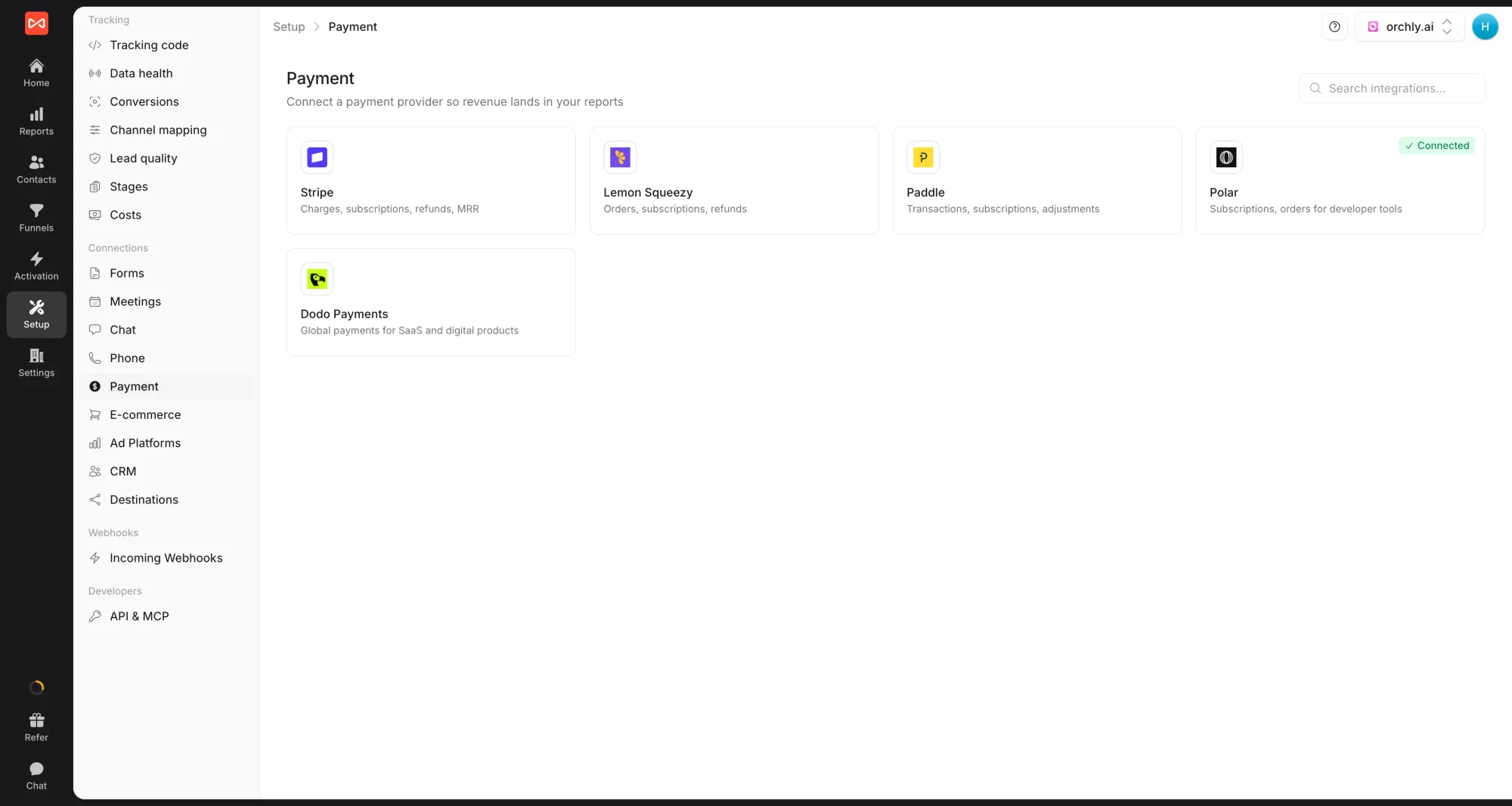
- Click the Paddle card. A drawer opens on the right with numbered setup steps. Under Create the webhook in Paddle, copy the webhook URL SourceLoop shows you.
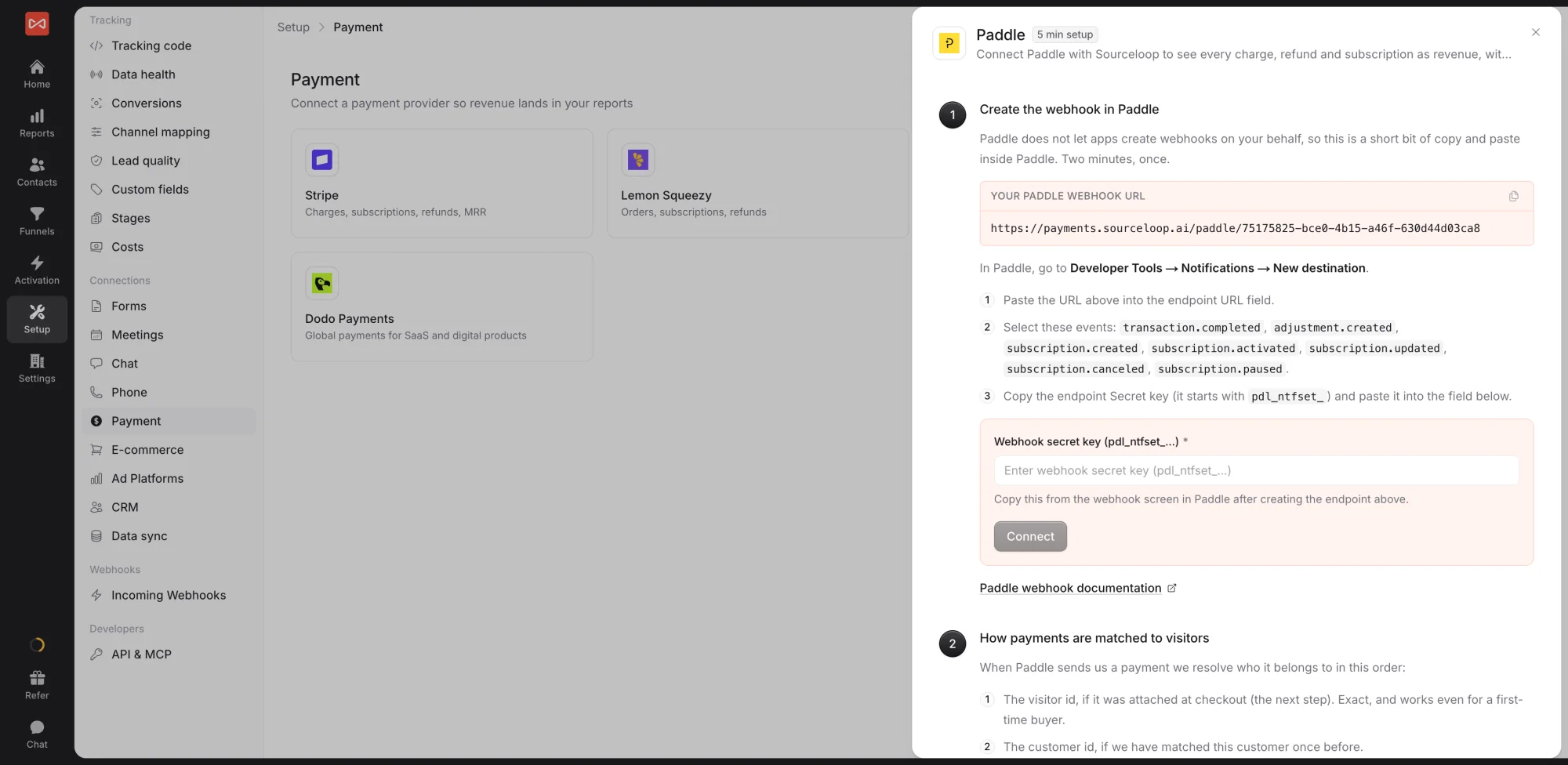
- Open the Paddle Dashboard, navigate to Developer Tools -> Notifications, and click New destination.
- Paste SourceLoop’s URL into the Endpoint URL field.
- Under Events, select the events SourceLoop needs to read. The recommended set:
transaction.completed,subscription.created,subscription.activated,subscription.updated,subscription.canceled,subscription.paused,adjustment.created. - Save the destination. Paddle generates an endpoint Secret key (prefixed
pdl_ntfset_...), copy it.
Step 3: Paste the signing secret back into SourceLoop
Paddle signs every notification with the endpoint secret key.
- Copy the
pdl_ntfset_...secret from the destination detail page in Paddle. - Back in the same SourceLoop drawer, paste it into the Webhook secret key field and click Connect.
SourceLoop’s connection status flips from pending to active the first time Paddle delivers a verified event through.
Step 4: Wire attribution into your checkout
The webhook tells SourceLoop a payment happened. The attribution wiring tells SourceLoop which visitor session that payment belongs to. Without it, events still flow in, but stitching falls back to matching by customer email, lower fidelity, especially when a visitor pays without signing up first.
Once the tracker is installed, it exposes a small helper on every page that returns the two stitching identifiers for the current visitor:
window.sourceloop.checkoutMetadata()
// returns { sourceloop_anonymous_id: '...', sourceloop_id: '...' }
Pass that object through to Paddle using the method that matches your checkout. Use this guide to pick:
- (1) Paddle.js Checkout: The default for most SaaS. If you open the Paddle checkout from the client by calling
Paddle.Checkout.open()(overlay or inline), this is you. Covers most marketing-site pricing pages and in-app upgrade flows. - (2) Transactions API: When you create the Paddle Transaction server-side and hand the resulting transaction id to Paddle.js to open the checkout. Recommended for production where you want server-validated prices, pre-applied discounts, or tamper-proof metadata.
Wire each one you use.
(1) Paddle.js Checkout
Pass the metadata into customData when opening the overlay. Paddle propagates it onto every transaction and subscription event that follows.
Paddle.Checkout.open({
  items: [{ priceId: 'pri_xxx', quantity: 1 }],
  customer: { email: userEmail },
  customData: window.sourceloop.checkoutMetadata(),
});
(2) Transactions API
Create the Transaction server-side with custom_data, then hand the transaction id off to Paddle.js on the client. This is the recommended production pattern.
Server (Node.js):
const txn = await fetch('https://api.paddle.com/transactions', {
  method: 'POST',
  headers: {
    Authorization:  'Bearer ' + process.env.PADDLE_API_KEY,
    'Content-Type': 'application/json',
  },
  body: JSON.stringify({
    items:       [{ price_id: 'pri_xxx', quantity: 1 }],
    custom_data: meta,
  }),
}).then(r => r.json());

return { txnId: txn.data.id };
Client:
Paddle.Checkout.open({ transactionId: txnId });Step 5: Run a test transaction to verify
Open the page with your Paddle.Checkout trigger in an incognito window, append ?utm_source=test&utm_medium=verify&utm_campaign=paddle-check to the URL, and complete a real transaction. Paddle sandbox is the safest path if you’d rather not move real money.
Within seconds of Paddle confirming the transaction, the customer should appear at the top of Contacts in SourceLoop with the test UTMs attached and a revenue event linked to the same contact.
Where to see Paddle revenue in SourceLoop
Contacts: revenue per contact
Every Paddle customer becomes a contact row at app.sourceloop.ai/contacts with a revenue column showing what they’ve paid you to date. Click a contact to expand the full revenue ledger, initial transaction, every renewal, every plan change, every refund or chargeback, alongside the visitor’s pre-purchase journey.
Filter, sort, or segment the hub by revenue to surface your highest-value customers, or by source to see which channels are bringing in paying users vs. just clicks.

Traffic and Revenue report: revenue by channel
app.sourceloop.ai/reports/traffic adds a revenue column alongside the breakdowns you already see: source, medium, campaign, landing page, content, term, device, country. So instead of “LinkedIn Ads drove 320 sessions”, you see “LinkedIn Ads drove 320 sessions and $6,800 in attributed Paddle revenue.”
Switch attribution models from the dropdown at the top to see how the numbers shift:
- Last Non-Direct (the default, matches Google Analytics)
- First Touch / First Non-Direct for top-of-funnel weighting
- Last Touch for closing-channel weighting
- Linear to split credit evenly across every touchpoint
- Position-Based (U-Shaped) for 40% first / 40% last / 20% middle
- Time Decay to weight recent touches higher (7-day half-life)
For long sales cycles (LinkedIn Ads → blog → demo → free trial → paid), Last Touch credits the demo while First Touch credits LinkedIn. Time Decay sits in between. Flip between models to see which one tells the truth.

Once Paddle revenue is flowing, push it back to Google Ads and Meta as offline conversions with revenue values so the bidding algorithms optimise toward real paying customers, not free-trial signups. The conversion sync guide covers the wiring.
Frequently asked questions
-
Does this work with Paddle.js Checkout and the Transactions API?
Yes. Both surfaces are covered. The webhook setup is identical for both, only the attribution wiring in step 4 differs. The article walks through each method.
-
Paddle is a merchant of record. Does that affect the revenue numbers SourceLoop reports?
No. Merchant-of-record handling (VAT, sales tax, payouts) sits entirely on Paddle's side. SourceLoop captures the gross transaction amount and the lifecycle events at face value.
-
Are subscription renewals attributed back to the original source?
Yes. Every `transaction.completed` event tied to a recurring billing cycle gets stitched onto the same contact that started the subscription, so MRR stays tied to the channel that earned the original signup.
-
How do refunds, chargebacks, and credits show up?
All three flow through Paddle's `adjustment.created` event with `action=refund | chargeback | credit`, and SourceLoop reports them as negative revenue tied back to the original lead. The Traffic and Revenue report nets them against the original source.
-
I use Paddle Billing's plan changes (upgrade, downgrade, pause, resume). Are those tracked?
Yes. Every subscription state change generates a `subscription.updated` event with the new status, and SourceLoop attaches it to the existing contact so the timeline reflects the full subscription lifecycle.
-
Will Paddle's existing notifications to Slack, my data warehouse, or my own backend still fire?
Yes. SourceLoop subscribes as its own notification destination. Every other destination you've configured continues to receive Paddle events independently.

 Paid Social


