
How to track lead source in Zoho Forms
Capture the marketing channel, campaign, and full pre-submission journey behind every Zoho Forms entry, with attribution flowing into each record.


On this page
- What SourceLoop captures from Zoho Forms
- Before you start
- Step 1: Install the SourceLoop tracking script
- Step 2: Add a hidden field with a Field Alias
- Step 3: Embed the form on your website
- Step 4: Configure the Zoho Forms webhook
- Where to see Zoho Forms entries in SourceLoop
- Contacts
- Traffic and Revenue report
- Funnel reports
Zoho Forms is the form builder of choice for businesses already running on the Zoho suite, especially when you need tight integration with Zoho CRM, Zoho Workplace, or any of Zoho’s other tools. The catch most users hit: form entries flow into Zoho with no marketing context attached, no idea which ad, post, or campaign brought the visitor to the form. This guide adds the missing layer.
Four steps, around fifteen minutes. The Field Alias step in step 2 is the one most people miss, watch for it. Webhook support requires a paid Zoho Forms plan.
What SourceLoop captures from Zoho Forms
Every Zoho Forms entry arrives in SourceLoop alongside:
- Acquisition channel plus the visitor’s complete UTM parameter set
- Browsing sequence before the entry, every page in chronological order
- Total time on site before the submission
- Session count before they converted
- Email and name from the Zoho Forms entry
- First-seen landing page and the URL that referred the visitor
- Source of the closing session, the one that produced the entry
- Device, country, and browser
Before you start
You’ll need:
- A SourceLoop workspace (free trial)
- Edit access to the website where the Zoho Forms widget will be embedded
- A Zoho Forms account on a paid plan (Basic or above for webhook support)
- At least one Zoho Forms form built and published
Step 1: Install the SourceLoop tracking script
Log in to SourceLoop, open Setup from the left sidebar, and choose the Tracking code tab. Copy the snippet shown.

Drop the snippet inside the <head> of every page on your site, including the page where the Zoho Forms widget will live.
Step 2: Add a hidden field with a Field Alias
Zoho Forms uses Field Alias as the URL parameter name. You’ll need both a hidden field on the form AND an alias set to sl_aid for the integration to work.
- Open your form inside Zoho Forms.
- Add a new field of type Single Line. Label it anything you like, “SourceLoop Id” works fine.
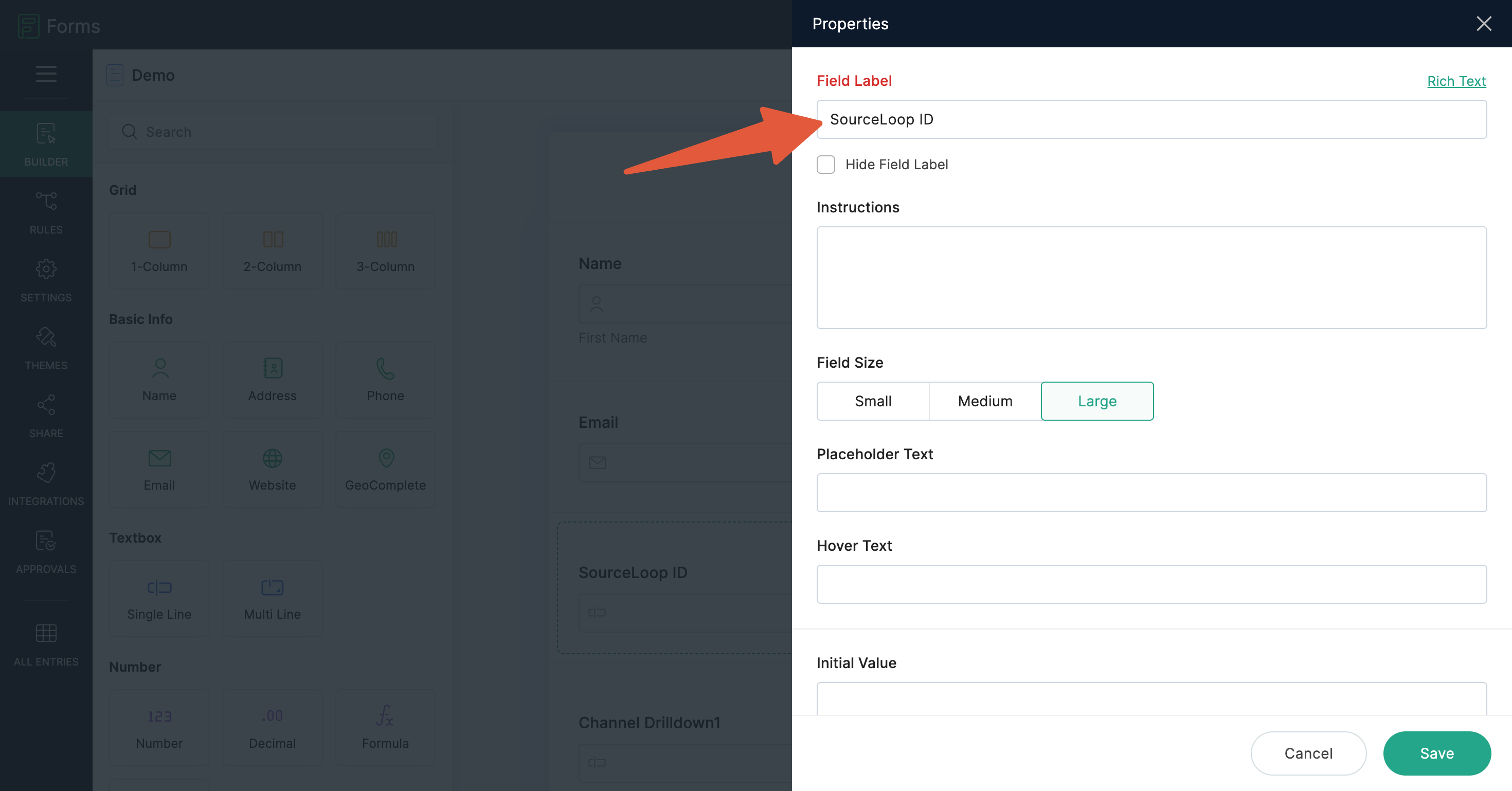
- Open the field’s Field Properties panel.
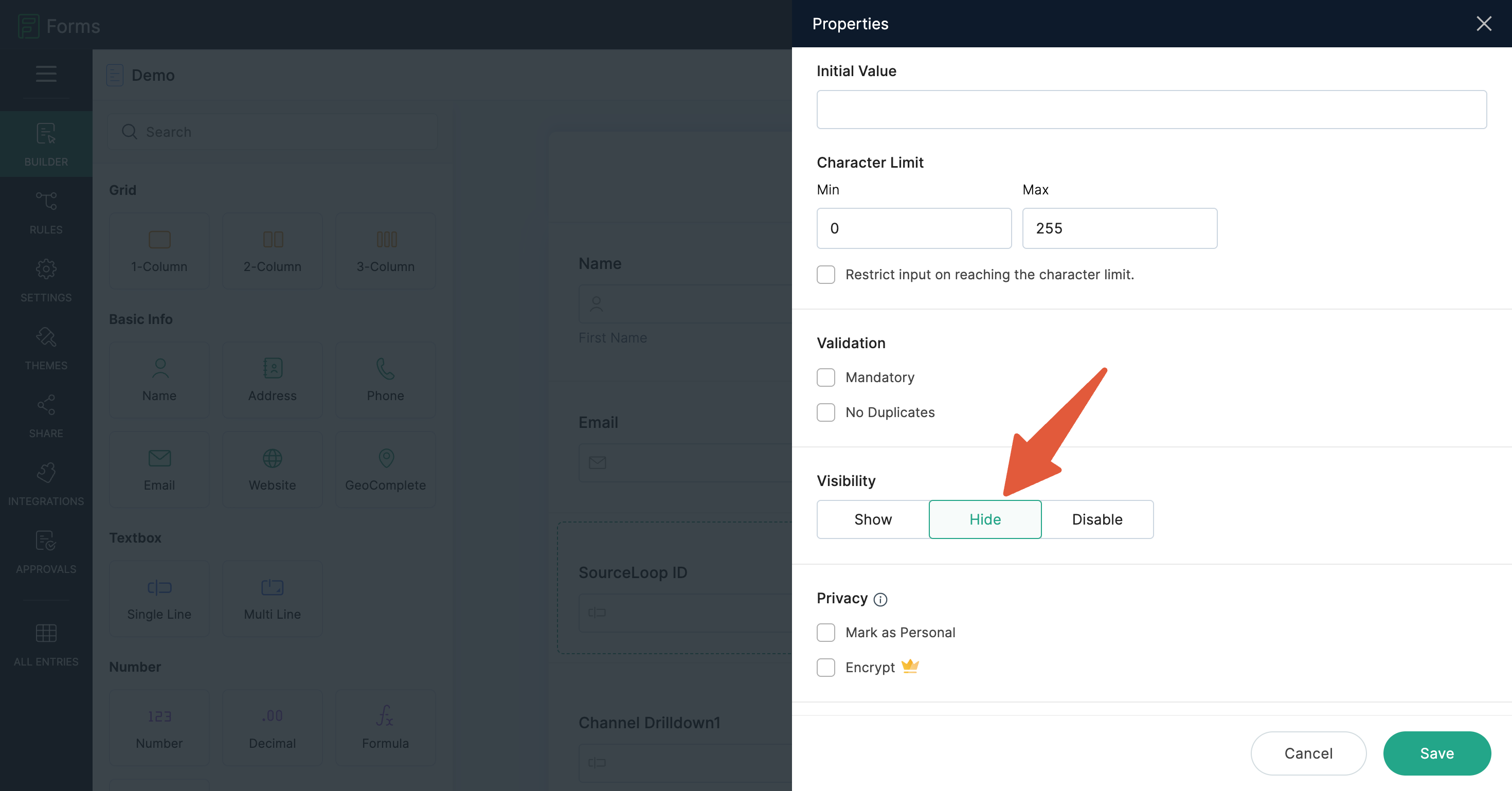
- Under Field Visibility, mark the field as Hide and save.
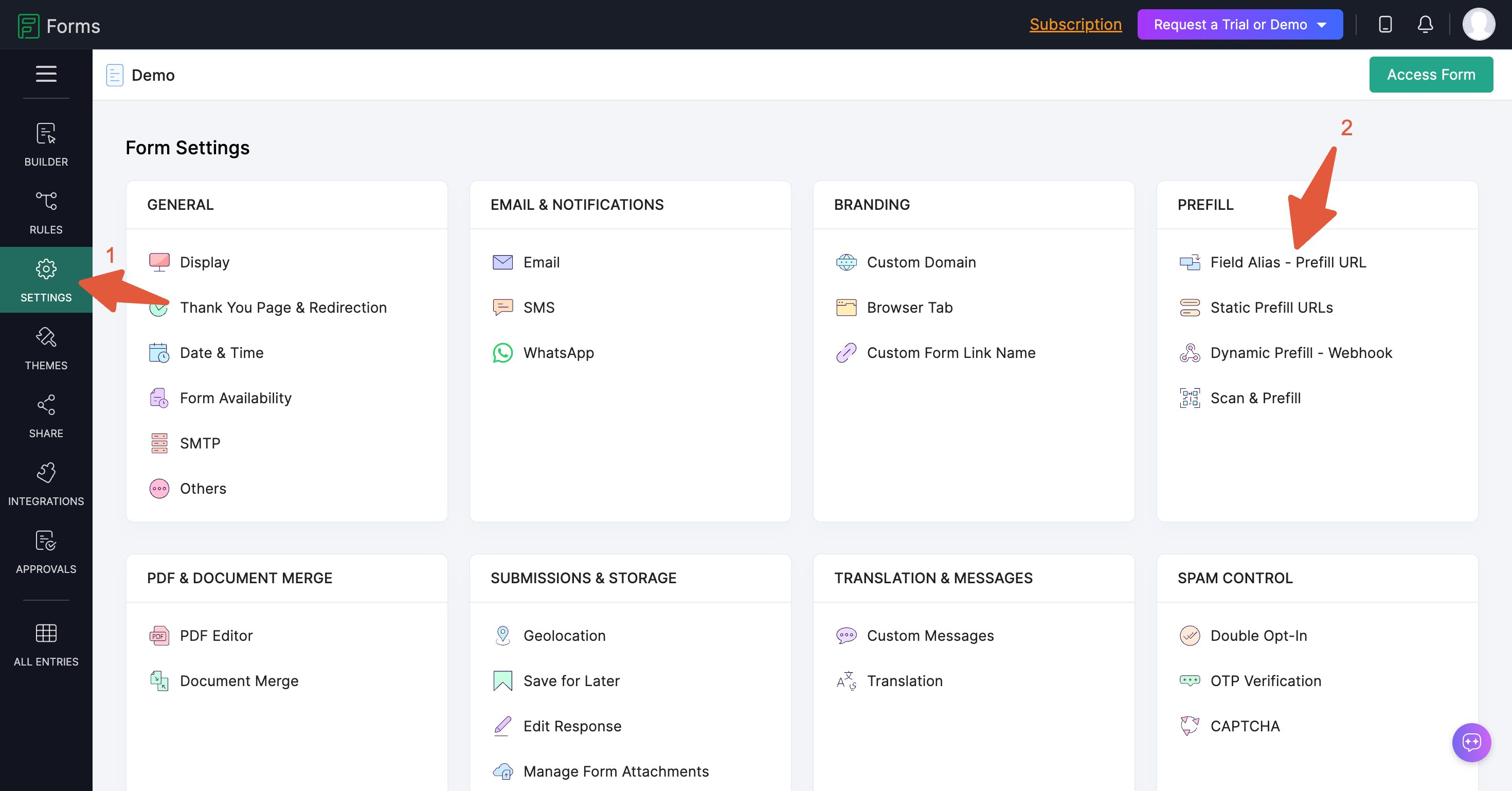
- From the form builder’s left sidebar, navigate to Settings -> Field Alias - Prefill URL.
- Find your new field in the alias list and set its alias to exactly:
sl_aid(lowercase, no spaces, aliases are case-sensitive).
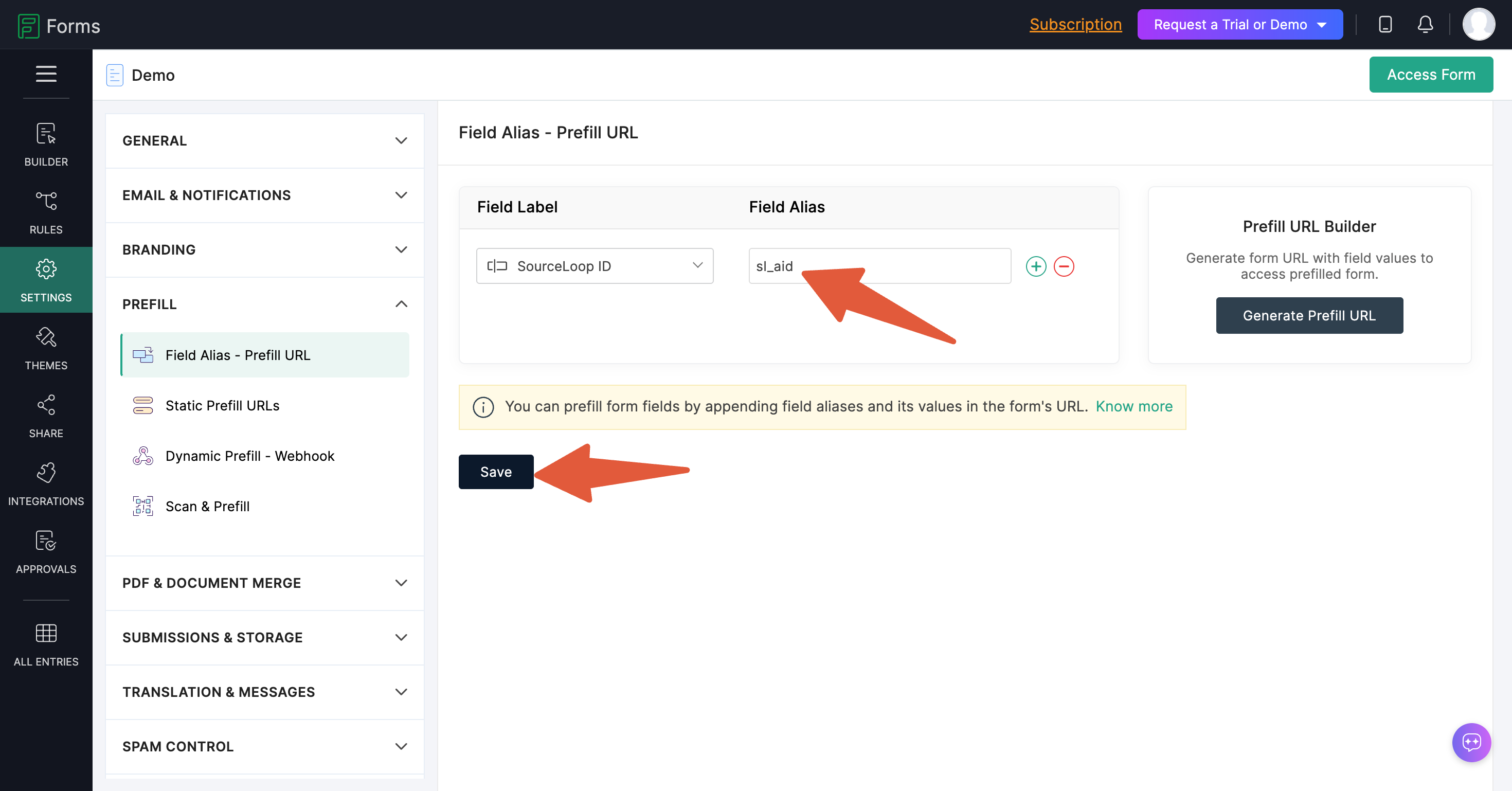
- Click Save.
Quick verify: open your form’s standalone URL with ?sl_aid=test123 appended (e.g. https://forms.zohopublic.com/yourname/form/YourForm/formperma/HASH?sl_aid=test123) and submit. The resulting entry should show the field populated with test123. If yes, the alias is wired correctly.
Step 3: Embed the form on your website
Once the form has the hidden field and alias, get it onto your site.
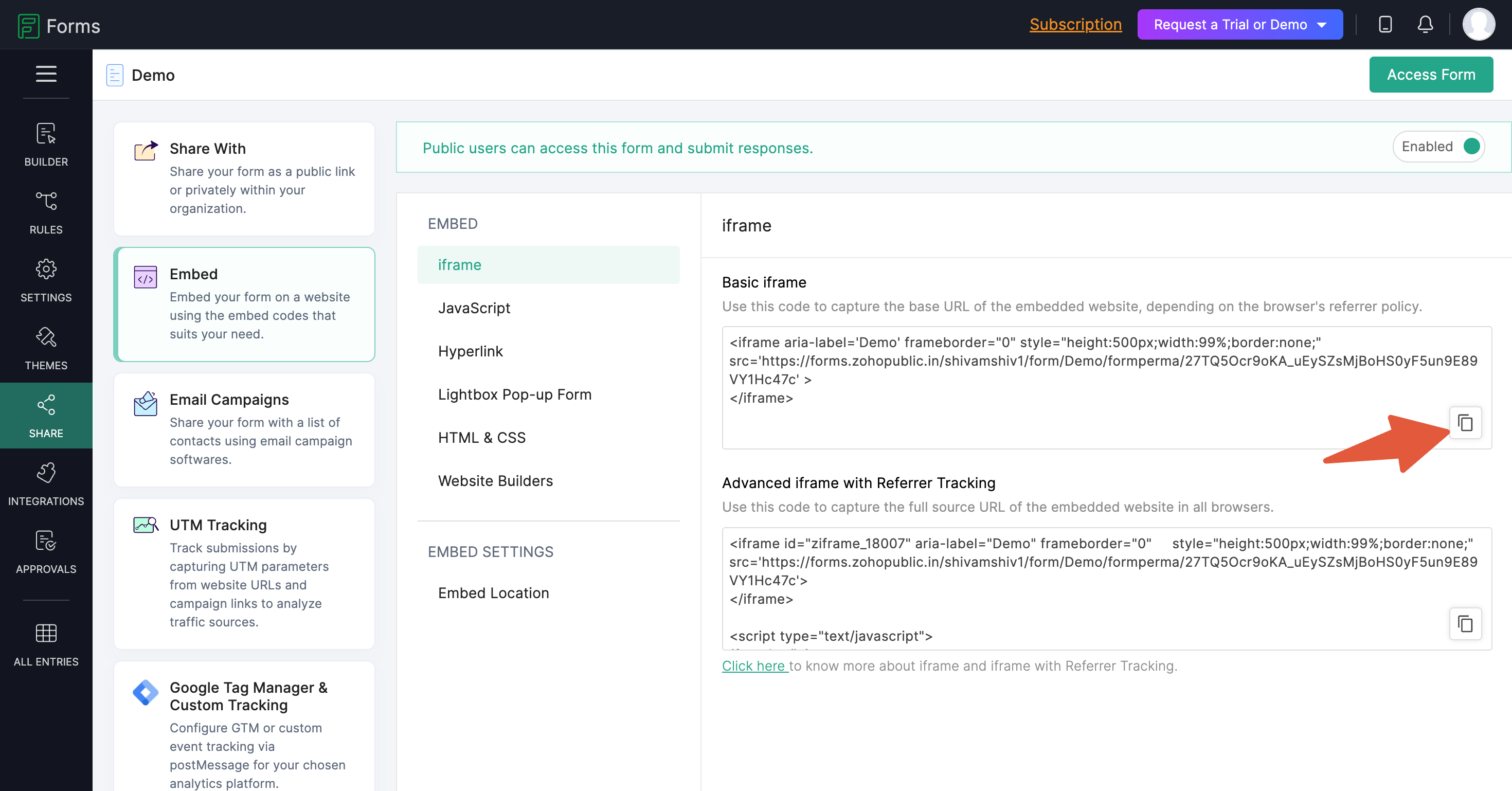
- From your Zoho Forms Share tab, choose Embed.
- Select Iframe or JavaScript embed (either works).
- Copy the embed code and paste it onto your website where the form should appear.
Step 4: Configure the Zoho Forms webhook
The webhook delivers each entry to SourceLoop, where it’s matched to the visitor’s journey and saved as an attributed lead.
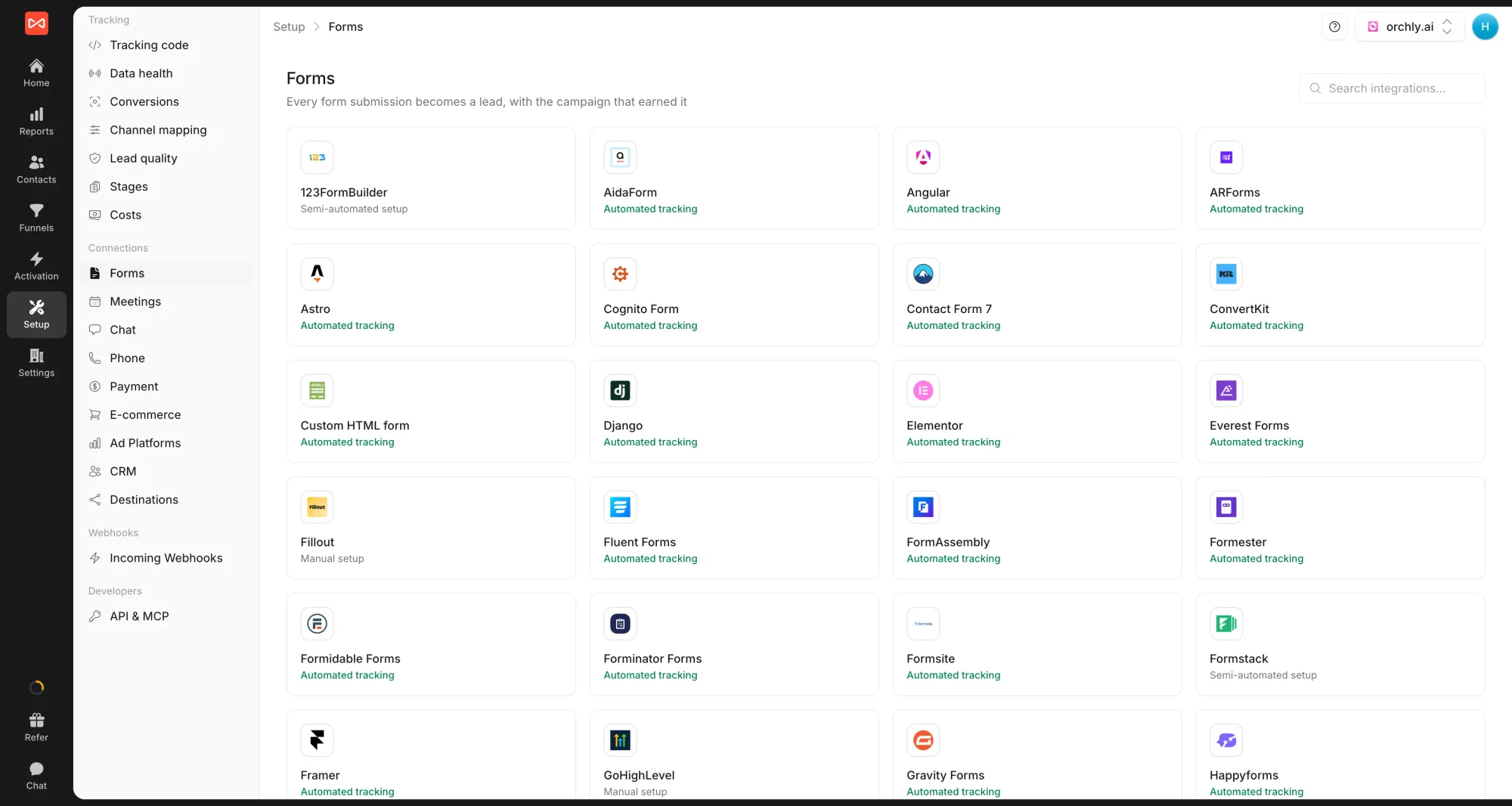
- In SourceLoop, open Setup -> Forms, click the Zoho Forms card, and copy Your Zoho Forms webhook URL from the drawer.
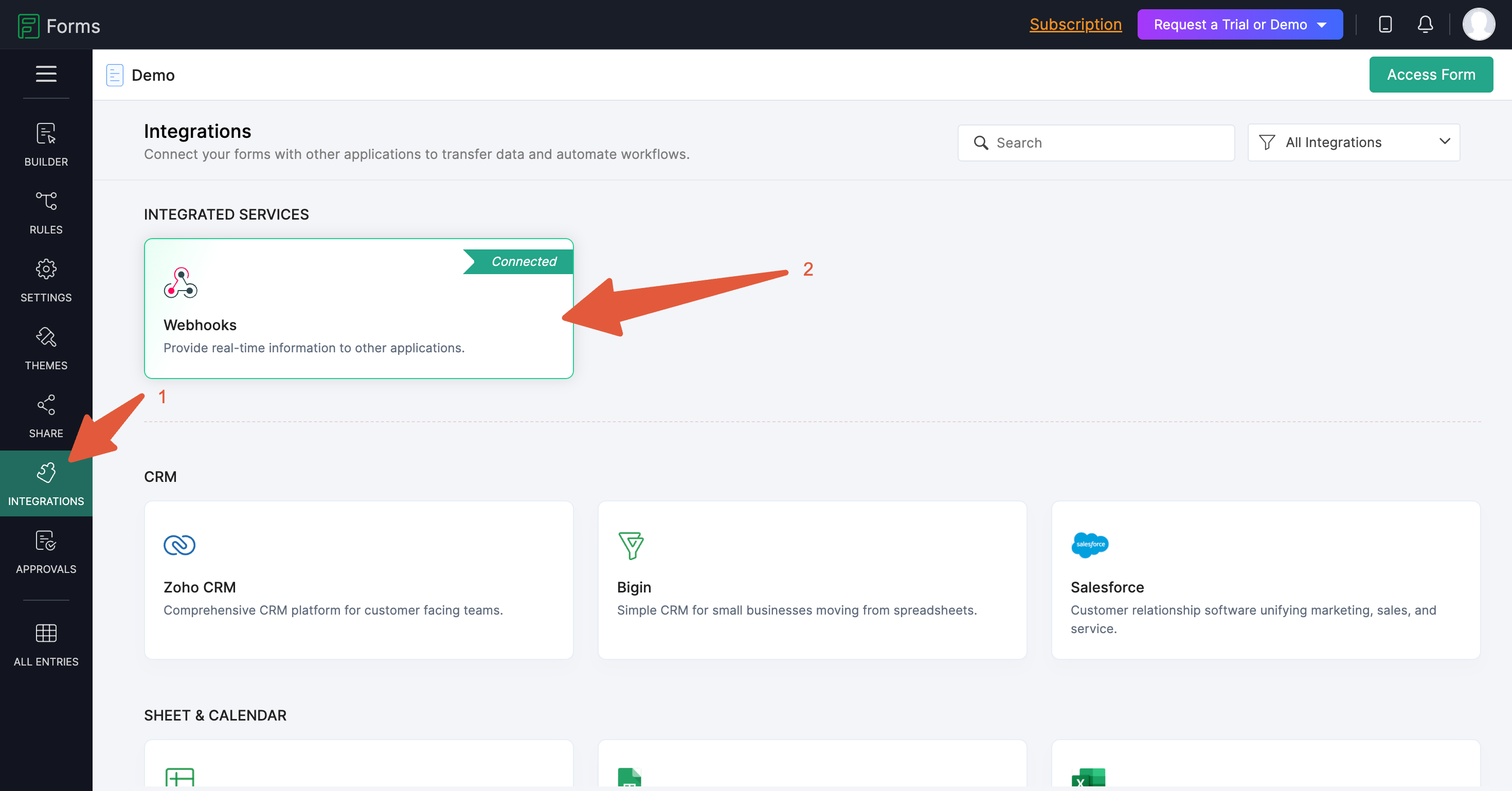
- In Zoho Forms, open your form, go to Integrations -> Webhook, and add a new webhook with the SourceLoop URL.
- Set the content type to application/json.
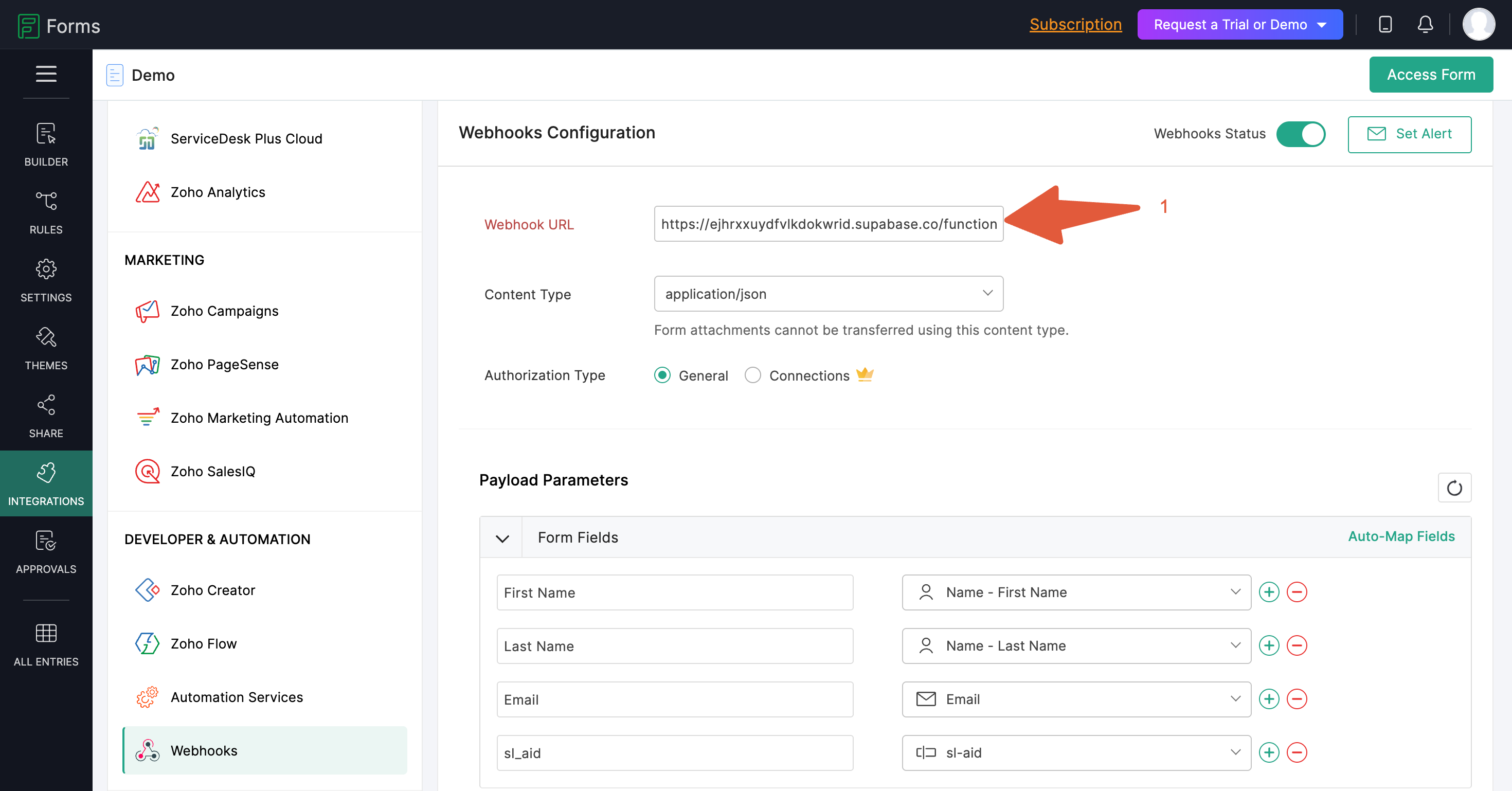
- Configure the payload parameters. At minimum, send
name,email, andsl_aid. Keep the parameter names exactly as shown below so SourceLoop can read them.
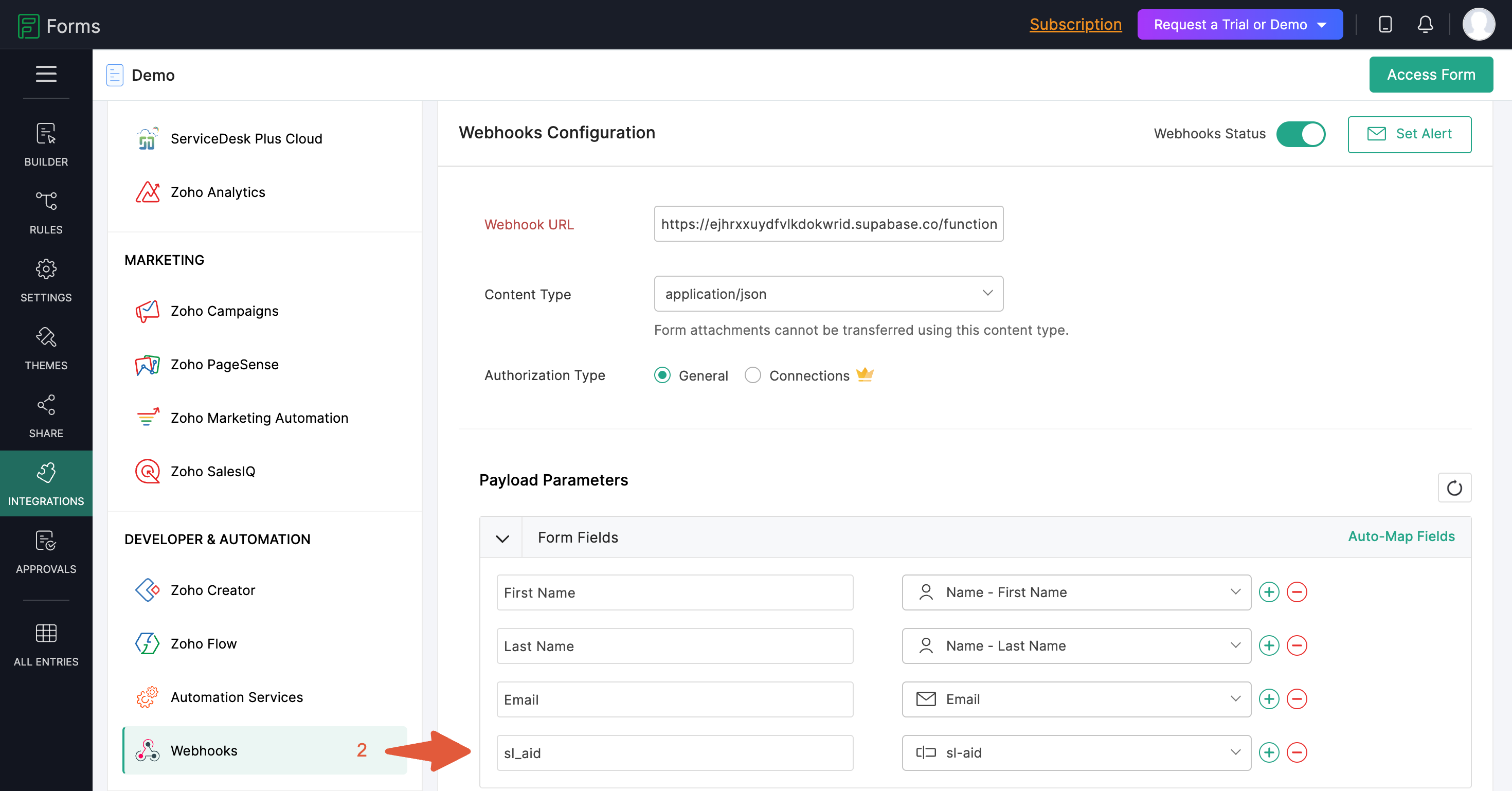
- Save.
Submit a test form on your embedded page to confirm the entry appears in SourceLoop with source, channel, and landing page populated.
Where to see Zoho Forms entries in SourceLoop
Three SourceLoop views give different cuts of your Zoho Forms data:
Contacts
Every Zoho Forms entry shows up as a contact row at app.sourceloop.ai/contacts. Click a row to expand the visitor’s full pre-submission timeline.

Traffic and Revenue report
app.sourceloop.ai/reports/traffic groups your Zoho Forms entries by source, medium, and campaign. Useful when you need to see which acquisition channels actually turn into qualified leads.

Funnel reports
Build a funnel in app.sourceloop.ai/funnels ending in “Zoho Forms entry”. Slice by source or landing page to find the best paths from first visit to submitted form.

For paid acquisition, push Zoho Forms entries to Google Ads and Meta as offline conversions so the bidding algorithms learn from real lead generation. The conversion sync guide covers the offline-conversion setup.
Frequently asked questions
-
Why does the field need both a Hidden setting AND a Field Alias?
Zoho Forms uses Hidden visibility to keep the field off the public form, but it uses Field Alias as the URL parameter name. Without a Field Alias set to `sl_aid`, Zoho ignores the incoming URL parameter and the field stays empty even though it's there. Both settings are required.
-
I set the field as Hidden but skipped the Field Alias step. Why isn't tracking working?
That's the most common mistake on this integration. Zoho requires the explicit alias to map URL parameters into fields. Add the alias `sl_aid` under Settings -> Field Alias - Prefill URL, save, and try again.
-
Can I use the existing fields on my form instead of adding a new one?
You can, but you'd need to set the Field Alias of one of your existing fields to `sl_aid`. Adding a dedicated hidden field is cleaner and won't affect your form's UI or data structure for visible fields.
-
Do I need any Zoho plan in particular?
Webhooks in Zoho Forms are available on paid plans (Basic and above). Free plans don't include webhooks, so submissions won't reach SourceLoop without an upgrade. The hidden-field and Field Alias steps work on any plan.
-
I share my Zoho Forms direct link in client emails. Will those entries be tracked?
No. Submissions through a raw `forms.zohopublic.com/<your-handle>/form/...` link won't carry attribution because the visitor never lands on a tracked page first. Embed the form on a landing page that has the SourceLoop snippet.

 Paid Social


