
How to track lead source in HubSpot Chat
Track lead source in HubSpot Chat via the same OAuth connection behind CRM sync. Every chat captures attribution, UTMs, and the prior journey.

On this page
HubSpot Chat (Conversations) is the conversational layer on top of HubSpot’s CRM, every chat creates or updates a contact in your HubSpot portal. What’s missing from the native experience is which marketing channel earned each conversation, the source data that connects an inbound message back to the campaign that drove it.
SourceLoop closes that gap through HubSpot’s existing OAuth connection. Every chat that captures an email lands in the SourceLoop Contacts with full first-touch and last-touch attribution, UTMs, landing page, and the entire pre-chat journey, automatically.
Two steps, about three minutes. Works on every HubSpot tier.
What SourceLoop captures from HubSpot Chat
For every HubSpot conversation that surfaces an email or phone, SourceLoop attaches:
- First-touch source (e.g.,
google / cpc,linkedin / organic) - Last-touch source of the converting session
- UTM parameters from the landing URL (source, medium, campaign, content, term)
- First-touch landing page plus the referrer chain
- Pages browsed before the chat started
- Time on site and return-visit count
- Contact details from the HubSpot contact record (email, name, phone, company)
- HubSpot conversation ID for cross-reference back to the chat thread
- Device, country, browser of the converting session
Because chat and CRM share the same HubSpot OAuth connection, the captured contact also flows through the regular HubSpot CRM sync, so SourceLoop’s UTM, channel, and journey fields land on the matching HubSpot contact record alongside everything else you track.
Before you start
You’ll need:
- A SourceLoop workspace (free trial)
- A SourceLoop tracker installed on every page where the HubSpot chat widget appears
- A HubSpot account (any tier, including Free) with Conversations enabled and at least one chatflow live
- HubSpot Super Admin or Account Access permission for the user authorising the connection
- An Admin or Editor role in SourceLoop
Step 1: Connect HubSpot via OAuth
If you’ve already connected HubSpot to SourceLoop for CRM syncing, you only need to reconnect once so HubSpot grants the additional conversations.read permission. SourceLoop will prompt you on the Chat tab if you do.
If you haven’t connected HubSpot yet:
- Sign in to SourceLoop.
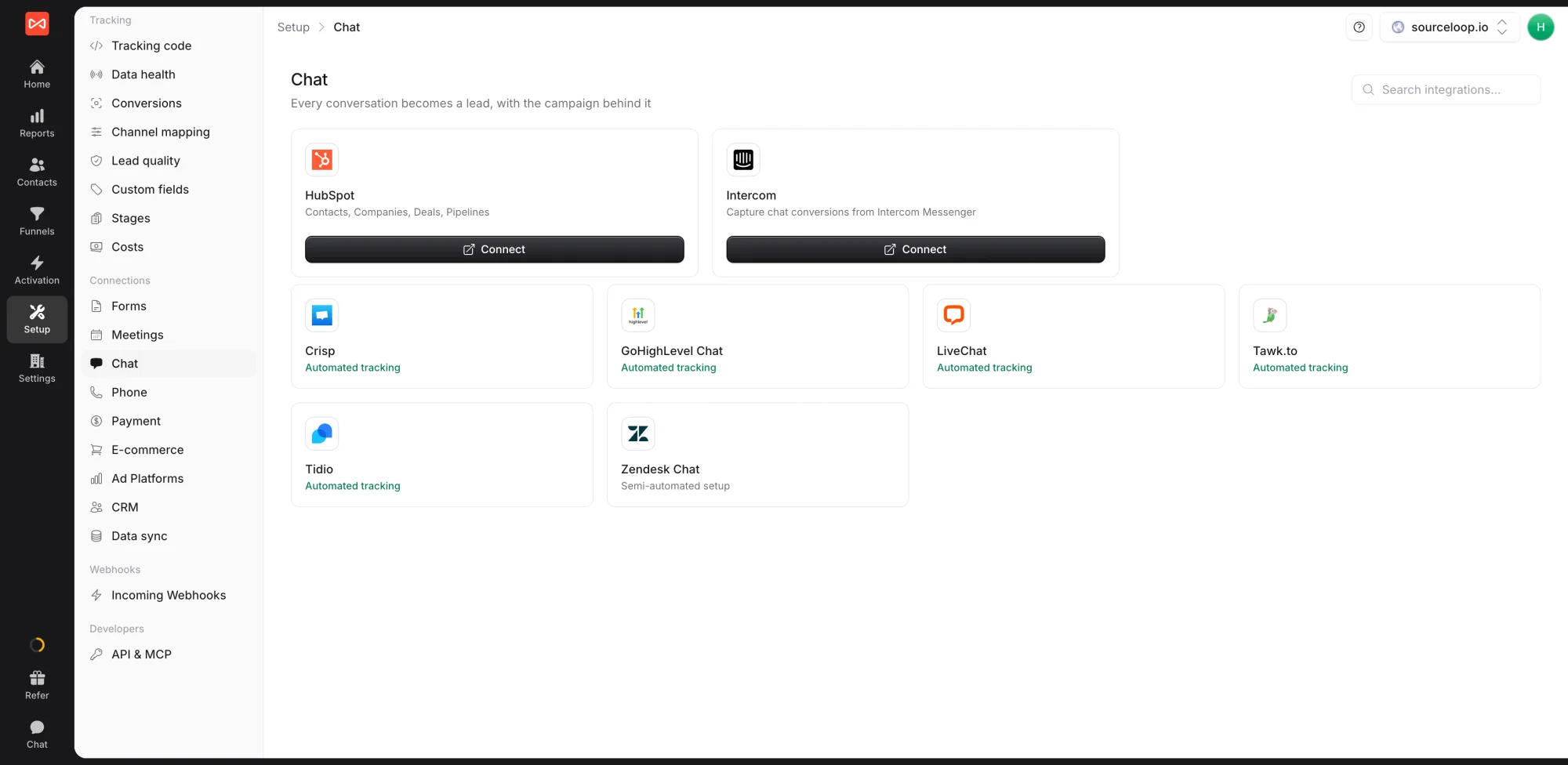
- Open Setup -> Chat in the left sidebar.
- Find the HubSpot card under OAuth chat integrations and click Connect.
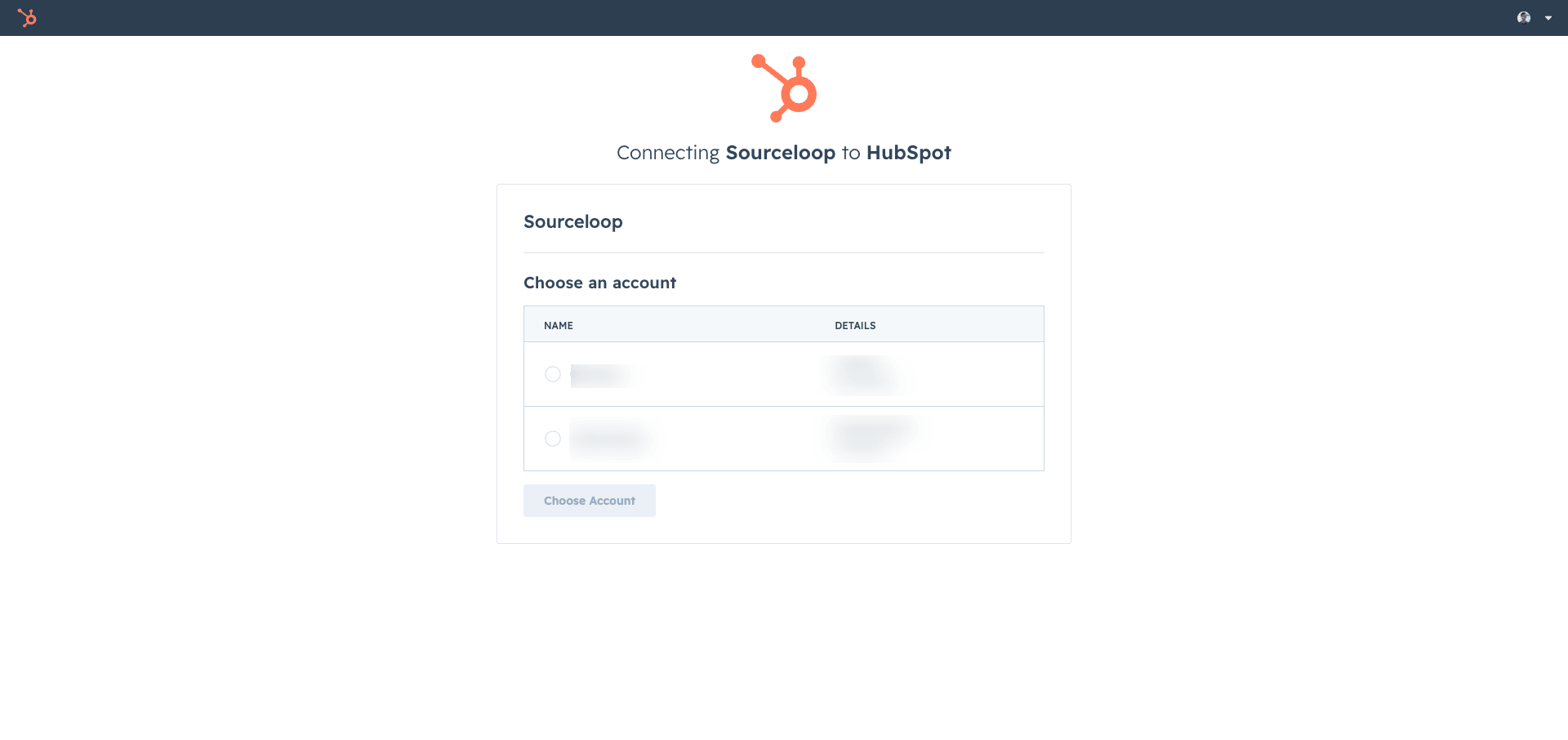
- You’ll be redirected to HubSpot’s account picker. Sign in if prompted, select the HubSpot account you want to connect, and click Choose Account.
- HubSpot walks you through its consent screen for the requested scopes, then redirects you back to SourceLoop. The card flips to Connected with the portal name displayed.
What SourceLoop does in the background, automatically:
- Stores the OAuth access token and refresh token, encrypted at rest, and rotates tokens as HubSpot’s 30-minute access tokens expire
- Subscribes to the HubSpot webhook events that fire when a contact is created, when a contact’s email is updated, and when a chat conversation is started
- Activates the chat capture flow so every conversation started on a tracked page gets stitched to its visitor’s pre-chat journey
No further configuration needed. Conversations on tracked pages start flowing into SourceLoop on the next chat.
Step 2: Verify it’s working
Open your site in an incognito window, append ?utm_source=test&utm_medium=verify&utm_campaign=hubspot-chat-check to the URL, click the HubSpot chat widget, and start a real conversation. Share an email you can access (either via HubSpot’s pre-chat form, if you have one configured, or mid-conversation when the bot asks for it).
Within seconds of the email landing:
- A pending chat conversion appears in Contacts at the moment you open the chat, anonymous but with the test UTMs already attached
- That row gets enriched with the real email and name as soon as HubSpot fires the contact webhook
- The same contact appears in your HubSpot inbox with its SourceLoop-stitched attribution preserved on the linked contact properties (assuming you’ve also wired the HubSpot CRM sync, which uses the same connection)
How the stitching works
A quick read on what’s happening under the hood, useful for diagnosing edge cases:
| Moment | What SourceLoop does |
|---|---|
| Visitor opens the chat widget | The tracker records a pending Chat conversion with the visitor’s anonymous identifier (sourceloop_id), the HubSpot conversation ID, and the full first-touch / last-touch attribution from the visitor’s session. |
| Visitor enters their email | HubSpot fires a webhook for the contact creation (or email property change). SourceLoop fetches the contact, finds the pending Chat conversion by conversation ID, and merges the real email and name into the row. |
| Visitor finishes the conversation | The conversion row is now fully enriched, real email, attribution, journey, all in one row in Contacts. |
This two-phase stitching is why a chat-attributed lead briefly appears as a pending row before flipping to its real email. If you ever see a stuck [email protected] placeholder email, that means HubSpot never fired the contact webhook for that conversation, usually because the visitor never shared an email.
Where to see HubSpot chats in SourceLoop
Contacts
Every HubSpot conversation that captures an email becomes a contact row at app.sourceloop.ai/contacts. Open a contact for the visitor’s complete pre-chat journey, every page they viewed, every ad they clicked, every session they had.

Traffic and Revenue report
For the channel-level rollup, app.sourceloop.ai/reports/traffic groups HubSpot chats by source, medium, and campaign. Useful for spotting which paid campaigns are actually feeding the chat queue with qualified inbound interest.

Funnel reports
Build a funnel at app.sourceloop.ai/funnels ending in “HubSpot chat”. Slice by source, landing page, or device to find the highest-converting paths from first visit to chat opened.

For paid acquisition feeding the chat queue, forward HubSpot chats back to Google Ads and Meta as offline conversions so the bidding algorithms train on real qualified conversations rather than vanity clicks. The conversion sync guide covers the wiring.
Need to disconnect HubSpot? Because Chat and CRM share one OAuth connection, the same flow covers both. See How to disconnect HubSpot from SourceLoop for the full breakdown of what stops, what’s retained, and how to request GDPR data removal.
Frequently asked questions
-
Do I need to connect HubSpot twice, once for CRM and once for Chat?
No. One OAuth connection covers both. If you've already connected HubSpot to SourceLoop for CRM syncing, chat capture starts working as soon as you reconnect once to grant the additional conversations.read permission. If you're connecting for the first time, the single OAuth flow grants both capabilities together.
-
Do I need a paid HubSpot plan?
No. HubSpot Chat (Conversations) works on every HubSpot tier including Free, and the OAuth connection is the same on every tier. The only requirement is that the HubSpot user authorising the connection has Super Admin or Account Access permission.
-
How does SourceLoop know which chat belongs to which visitor?
The SourceLoop tracker fires a chat conversion the moment the visitor starts a HubSpot conversation, tagging it with the visitor's sourceloop_id (their anonymous identifier) and the conversation ID. When HubSpot fires the webhook telling us a contact was created or got an email, SourceLoop merges the real email and name into the pending conversion, keeping the full pre-chat attribution intact.
-
What's the visitor's journey like before the conversion is finalised?
As soon as the visitor opens the HubSpot chat widget on a tracked page, SourceLoop records a pending Chat conversion with the visitor's marketing attribution. When the visitor provides their email (either via HubSpot's pre-chat form or mid-conversation), HubSpot fires a webhook to SourceLoop, which merges the email and name into the pending row. The whole stitch happens within seconds.
-
What about visitors who chat but never share an email?
They stay anonymous in the SourceLoop Visitors view, with the conversation marked as a chat session but without an identified contact. You can still see the pre-chat journey for everyone in the Visitors view; only contacts who shared an email graduate to the Leads view.
-
Does this conflict with HubSpot's native Original Source attribution?
No. SourceLoop writes to its own UTM and journey properties on the HubSpot contact (configured in your field mapping), separately from HubSpot's built-in Original Source field. Both can coexist, and SourceLoop's data is multi-touch and per-touchpoint, while HubSpot's Original Source is single-touch only.
-
Will my existing HubSpot chatflows, bots, and routing still work?
Yes. SourceLoop subscribes to webhooks only and writes back via the standard contact-properties API. Every chatflow, custom bot, routing rule, ticket pipeline, and workflow you have configured continues to fire unchanged.
-
How do I disconnect HubSpot Chat?
Disconnecting HubSpot removes both CRM and Chat capture at once, since they share one OAuth connection. Open Setup -> CRM or Setup -> Chat in SourceLoop, click Disconnect on the HubSpot card. The OAuth token is revoked immediately and no further webhooks are processed. Previously captured leads stay in your Contacts.

 Paid Social


