
How to sign up for SourceLoop
Two ways to create your SourceLoop account in under a minute, Google or email + password. No credit card needed for the free trial.
On this page
Signing up for SourceLoop takes about thirty seconds. There’s a free trial that starts the moment you create the account, no credit card asked, no auto-charge, and the dashboard is live the instant you finish, no email confirmation step in the way.
You have two options for creating the account. Pick whichever fits your team’s auth habits.
Before you start
Nothing to prepare. Just have an inbox you can access (and your Google login, if you’d rather skip the password step).
Step 1: Open the sign-up page
Head to app.sourceloop.ai/sign-up.
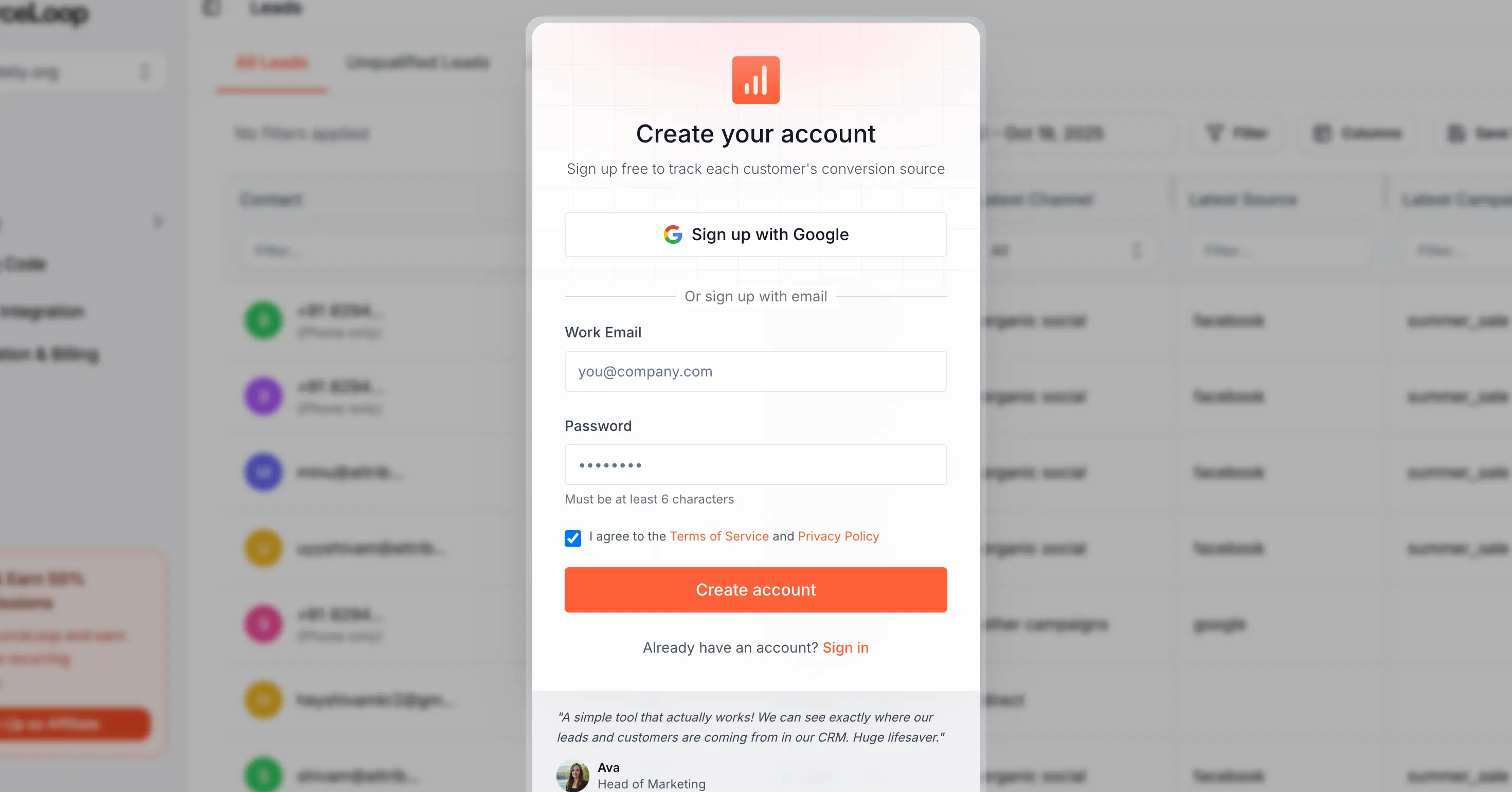
You’ll see two options stacked on the page:
- Sign up with Google (top button)
- Or sign up with email (form below the divider)
Pick one.
Step 2: Create the account
(1) Sign up with Google
Click Sign up with Google. You’ll be redirected to Google’s consent screen, pick the Google account you want to use, approve the standard read-only profile scopes, and Google sends you straight back to SourceLoop. No password, no email confirmation, you land in the dashboard logged in.
This is the fastest path if you (or your team) already use Google Workspace.
(2) Sign up with email + password
Below the divider, fill in:
- Email: use the address you’d want password resets and product updates sent to. Most teams use a work email, but a personal email works fine for solo accounts.
- Password: pick something strong. A password manager is the simplest way.
Click the sign-up button. The account is created immediately and you’re logged in, no confirmation email to click, the dashboard opens straight away.
What happens next
After you sign up, a short setup guide opens over the app. It walks you through:
- A few quick questions, so SourceLoop can set things up for you
- How you found SourceLoop
- Your website: the site you want to track conversions on
- Your tracking code: copy the snippet and add it to your site. See Install the tracking pixel for platform-by-platform steps.
- Your lead capture tool: where your forms, bookings, chats, and calls come from
- A test: one test submission proves the whole path works
- Your plan: choose a plan and start your 7-day free trial
After setup, the Getting started checklist at the bottom of the sidebar keeps track of what’s left, checked against real data from your site. See Verify tracking is working.
New to SourceLoop? What is SourceLoop? is a one-minute read.
Frequently asked questions
-
Do I need a credit card to sign up?
Not to create your account. At the end of setup you pick a plan and start a 7-day free trial through Polar's checkout, which asks for a card. You're not charged until the trial ends, and you can cancel before then.
-
Which option should I pick, Google or email + password?
Google is faster (one click, no email verification needed) and uses your existing Google identity, so there's no password to manage. Email + password works fine too if you'd rather keep auth providers separate.
-
Do I have to confirm my email after signing up?
No. The account is active immediately, you'll land in the dashboard right after sign-up.
-
I signed up with Google but now want to use email + password (or vice versa). Can I switch?
Email and Google sign-ins are tied to the same email address. If your Google account uses the same email you'd register with, you can sign in either way. If you want to change the email on your account, contact support, we can migrate it for you.
-
I work with a team. Should everyone sign up separately or share one login?
Each teammate signs up with their own account, then the workspace owner invites them. Shared logins lose every workspace permission, audit-log, and per-user role benefit. See [Invite teammates to your workspace](/help/) once your workspace is up.
-
My sign-up failed with "User already exists". What now?
Someone (likely past you, or a teammate) has already created an account with that email. Head to [app.sourceloop.ai/sign-in](https://app.sourceloop.ai/sign-in) and use **Forgot password** to recover it, or sign in with Google if you originally used Google.

 Paid Social


