
How to track lead source in Pipedrive
Push UTMs and lead source into Pipedrive Person, Organization, and Deal records. Native OAuth that handles regional API domains automatically.
On this page
Pipedrive is the pipeline-first CRM most growing sales teams reach for. Its native fields cover the pipeline state well; what they don’t cover is which marketing channel produced each Person. SourceLoop adds: first-touch and last-touch source on every Person, the full UTM trail, the visitor’s pre-conversion journey, and multi-touch attribution models that follow Persons through to closed-won Deals.
This article covers the OAuth connect flow only. After connecting, see:
- Push UTMs and lead source to Pipedrive Person fields
- Map SourceLoop stages to Pipedrive labels and statuses
Why connect Pipedrive to SourceLoop?
Pipedrive’s native attribution is limited. SourceLoop adds:
- First-touch and last-touch source on every Person, not a single Source field
- Full UTM trail (source, medium, campaign, content, term) per touchpoint
- Multi-touch attribution models (first, last, linear, position-based, time-decay)
- Visitor journey viewable on the Person record (every page browsed pre-conversion)
- Revenue-by-channel when payment integrations are connected, attributed back to the original Person
All of this lives on Pipedrive Person, Organization, and Deal custom fields, so it shows up in Pipedrive list views, filters, and the Insights builder.
Before you start
You’ll need:
- A SourceLoop workspace with the tracking pixel installed
- A Pipedrive company account (any plan)
- A Pipedrive Admin user (required for OAuth + creating custom fields)
- An Admin or Editor role in SourceLoop
Step 1: Open the CRM integrations page
-
Sign in to SourceLoop.
-
Click Setup in the left sidebar.
-
Click the CRM tab inside Setup.
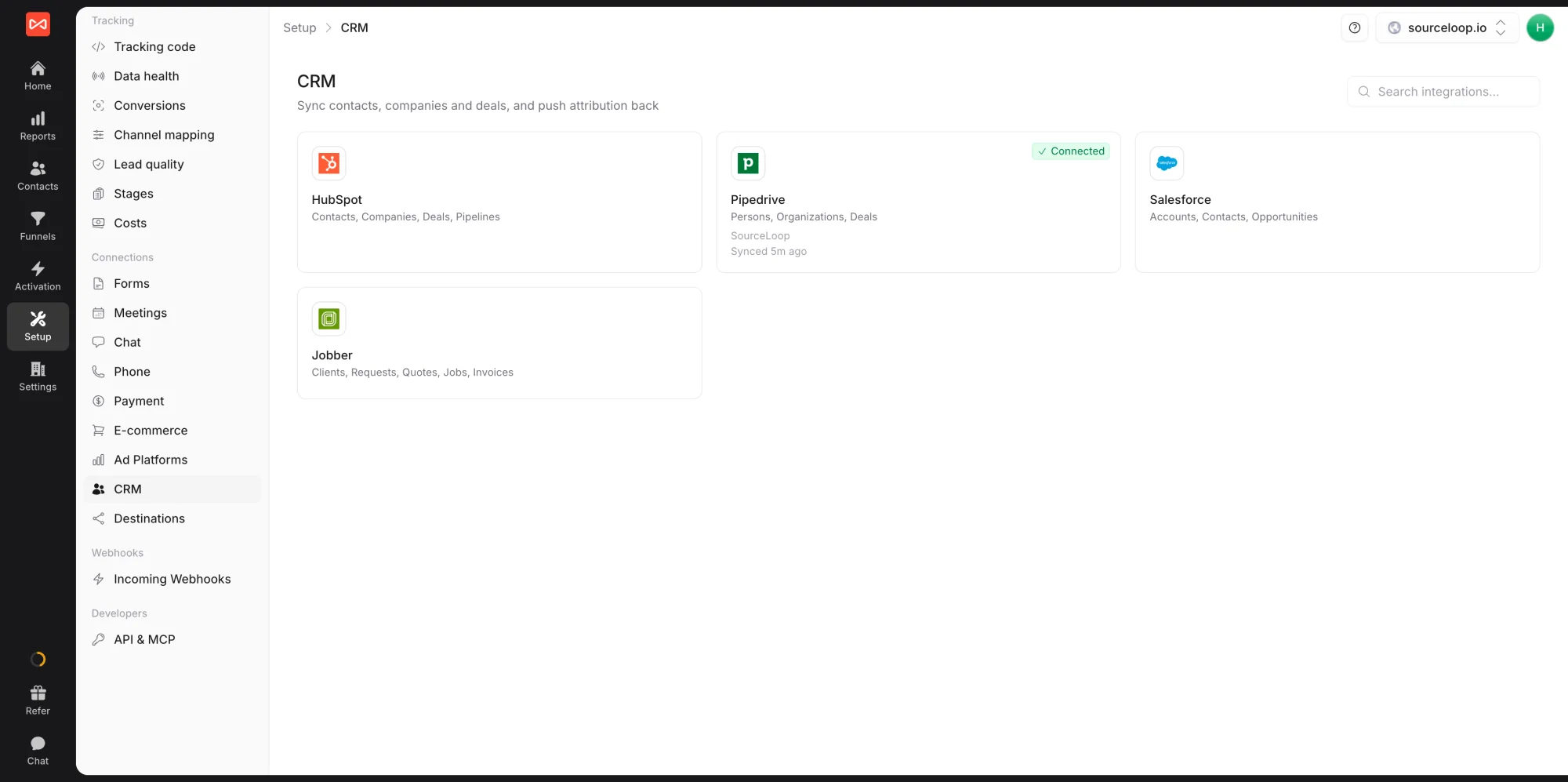
- Click the Pipedrive card, then Connect Pipedrive in the drawer.
You’ll be redirected to Pipedrive’s OAuth consent screen.
Step 2: Authorise SourceLoop on Pipedrive
- Sign in to Pipedrive if you aren’t already.
- Pick the Pipedrive company you want to connect (if you have multiple).
- Review the scopes SourceLoop is requesting (read/write on Persons, Organizations, Deals, Pipelines, Stages, Users, plus custom field management).
- Click Allow and install.
Pipedrive redirects you back to SourceLoop, and the Pipedrive card shows Connected.
You can also install SourceLoop from the Pipedrive Marketplace. You’ll be asked to sign in to SourceLoop and pick the workspace.
Step 3: Choose what syncs
After connecting, the Pipedrive drawer opens on the Sync tab. Each direction has its own switch, and both start switched off, so nothing is read from or written to Pipedrive until you turn them on.
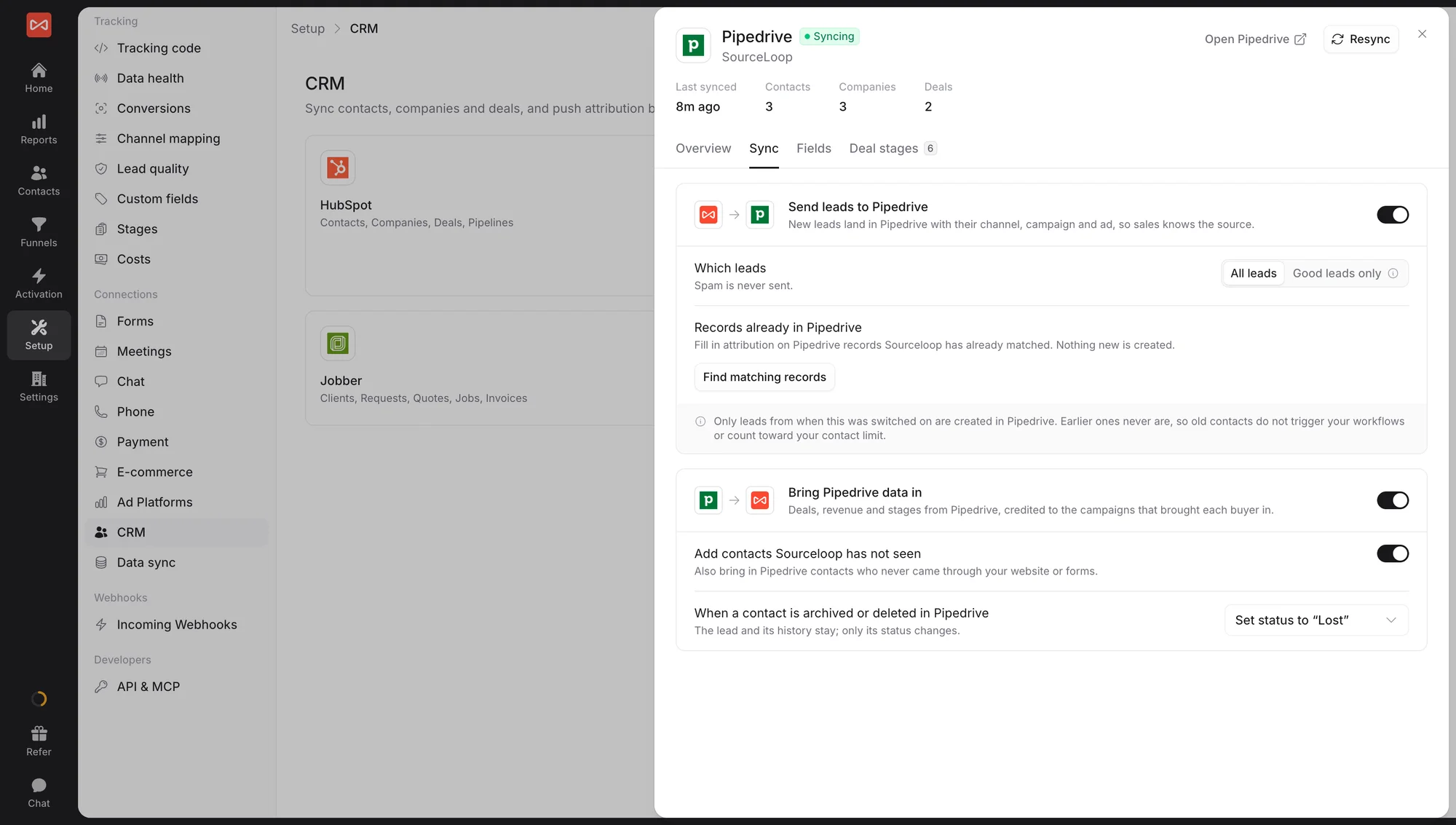
Send leads to Pipedrive:
- New leads land in Pipedrive with their channel, campaign, and ad, so sales knows the source.
- Which leads: All leads, or Good leads only. Spam is never sent.
- Records already in Pipedrive: click Find matching records to fill in attribution on Pipedrive records SourceLoop has already matched. Nothing new is created.
Only leads from the moment you switch this on are created in Pipedrive, so it never fills up with old leads.
Bring Pipedrive data in:
- Deals, revenue, and stages from Pipedrive, credited to the campaigns that brought each buyer.
- Add contacts Sourceloop has not seen: also bring in Pipedrive people who never came through your website or forms.
- When a contact is archived or deleted in Pipedrive: choose what happens to them in SourceLoop, such as setting their status to Lost.
Step 4: Mark won and lost stages
On the Deal stages tab, check which stages in each pipeline mean won and lost. SourceLoop uses this to credit closed revenue to the right campaigns.
Step 5: Map fields
On the Fields tab, SourceLoop can create its attribution fields in Pipedrive for you, on people and on deals, such as first and latest channel, source, and campaign, lead quality, and lead value. Creating fields in Pipedrive needs a Pipedrive admin. You can also map your own Pipedrive fields. See Push UTMs to Pipedrive.
What happens next
- The first sync reads your pipelines, deals, and matched people in the background.
- After that, changes in Pipedrive reach SourceLoop as they happen, with a full check every 15 minutes, and new SourceLoop leads reach Pipedrive within minutes.
- Labels and statuses: map Pipedrive values to SourceLoop’s stages and statuses under Setup -> Stages. See Map Pipedrive labels.
- Troubleshooting: see Troubleshoot Pipedrive sync.
What gets written to Pipedrive
- On people: first and latest touch channel, source, medium, campaign, and landing page, ad click IDs, lead quality, lead value, and any custom fields you map
- On deals: first and latest touch channel, source, and campaign, the number of visits before the deal, and a link to the deal’s journey in SourceLoop
SourceLoop never changes a deal’s own title, value, or stage. Pipedrive owns those.
Frequently asked questions
-
Do I need Pipedrive Professional or higher?
No. The OAuth integration works on every Pipedrive plan including Essential. Some advanced features like automation triggers based on the UTM fields require Pipedrive Advanced or higher, but the sync itself doesn't.
-
Pipedrive separates Persons and Organizations. How does SourceLoop handle that?
Leads become Persons, linked to their Organization when SourceLoop knows the company. Attribution is written to Persons and to Deals, and Organizations in Pipedrive appear as companies in SourceLoop.
-
Does this sync historic Persons or only new ones?
History comes in, but doesn't go out as new records. The first sync reads your existing pipelines, deals, and matched people. New Pipedrive people are only created for leads from the moment you switch on Send leads to Pipedrive. To add attribution to people already in Pipedrive, use Find matching records on the Sync tab.
-
What if my Pipedrive company is on a different region (e.g., EU)?
SourceLoop handles regional API domains automatically. The OAuth response includes your company-specific Pipedrive domain (e.g., `acme.pipedrive.com` or `acme-eu.pipedrive.com`), which SourceLoop stores per connection. All API calls route through the correct regional endpoint.
-
Can I sync multiple Pipedrive companies?
One Pipedrive company per SourceLoop website. For multiple Pipedrive accounts, create a separate SourceLoop website for each and connect them independently.
-
Does this work with the Pipedrive Marketplace?
Yes. You can connect from SourceLoop's Setup -> CRM page, or install SourceLoop from the Pipedrive Marketplace and pick your SourceLoop workspace when asked. Either way you can revoke access any time from Pipedrive's settings.

 Paid Social


