
How to set up marketing attribution tracking for Shopify
Tie every Shopify order back to the ad, campaign, and channel that drove it. Real revenue attribution, ROAS and AOV by source, no theme.liquid edits.


On this page
- Why Shopify needs a separate path
- What SourceLoop captures from Shopify
- Before you start
- Step 1: Open the Shopify card in SourceLoop
- Step 2: Connect your store
- Step 3: Turn on the app embed
- Step 4: Place a test order to verify
- Where to see Shopify revenue in SourceLoop
- Contacts Hub: revenue per customer
- Attribution dashboard: orders and revenue by channel
- Paths dashboard: the full journey to each order
Shopify is excellent at running checkout and recording who paid. What it cannot tell you is which marketing channel produced each order, which is the question that actually matters when you are deciding where next month’s ad budget goes.
SourceLoop closes that loop. Every order, every repeat purchase, every refund mapped back to the shopper’s original source, so “we did $X in revenue” becomes “we did $X, most of it from the Meta prospecting campaign and organic search, with the retargeting set barely breaking even.”
Shopify uses its own connect flow, not the manual tracking snippet. Four steps, around ten minutes, no theme edits.
Why Shopify needs a separate path
On a normal website you paste the SourceLoop snippet into the page <head> yourself. Shopify is different in two ways that make a dedicated flow the right approach:
- Storefront tracking is a toggle, not code. Rather than editing
theme.liquid(which breaks on theme updates and is fragile across Shopify 2.0 sections), you turn on a single app embed in your theme editor. It is a switch, not a snippet, so there is nothing to paste and nothing to maintain. - Orders sync straight from Shopify. Instead of reading a payment webhook you configure by hand, SourceLoop connects to your store over Shopify’s official app authorization and receives orders, customers, and checkouts directly, then stitches each one to the visitor session that drove it.
The result is the same as every other SourceLoop integration, full source-to-revenue attribution, but with a setup built specifically for how Shopify apps are meant to work. For an overview of what ecommerce tracking covers across stores and email platforms, see the feature page.
What SourceLoop captures from Shopify
Each Shopify order arrives in SourceLoop tied to:
- Acquisition channel of the shopper at the session that led to the order (paid, organic, social, referral, direct)
- UTM parameters and ad click IDs from the landing URL of the converting journey
- First-touch landing page plus the original referrer
- Pages and products browsed before checkout, plus time on site and return-visit count
- Email and name from Shopify’s customer record
- Full order economics, order value, line items, discounts, currency, and order status
- Repeat purchase and subscription history, so LTV rolls up by original source
- Refunds and cancellations, netted against the original order
- Device, country, browser
Before you start
You will need:
- A SourceLoop workspace (free trial)
- A Shopify store where you are the owner or a staff member with permission to install apps
- A few minutes at your storefront to place a test order at the end
Step 1: Open the Shopify card in SourceLoop
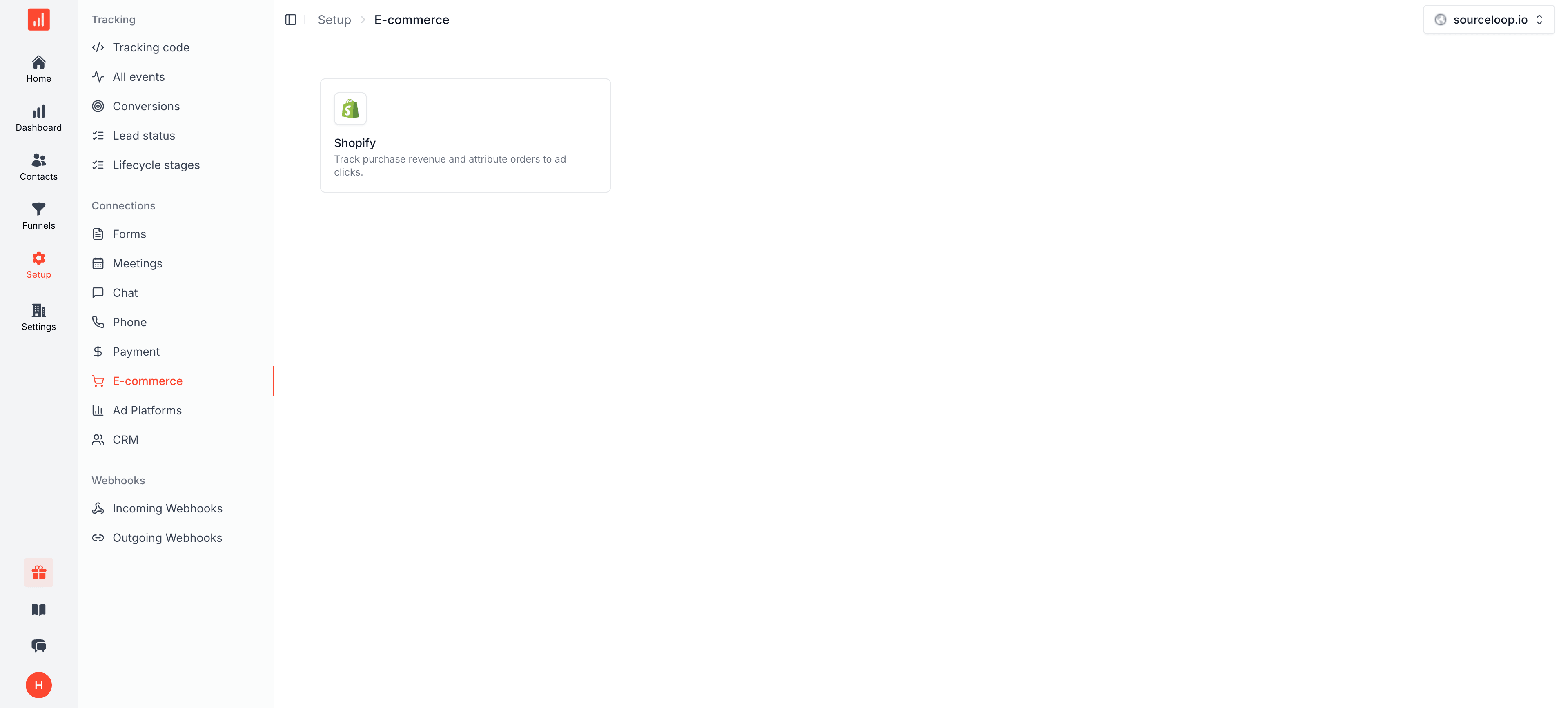
Sign in to SourceLoop and open Setup -> E-commerce in the left sidebar. You’ll see the Shopify card (“Track purchase revenue and attribute orders to ad clicks”). Click it.
Step 2: Connect your store
A drawer slides in from the right with a Store domain field and a Connect button, followed by a short setup checklist.
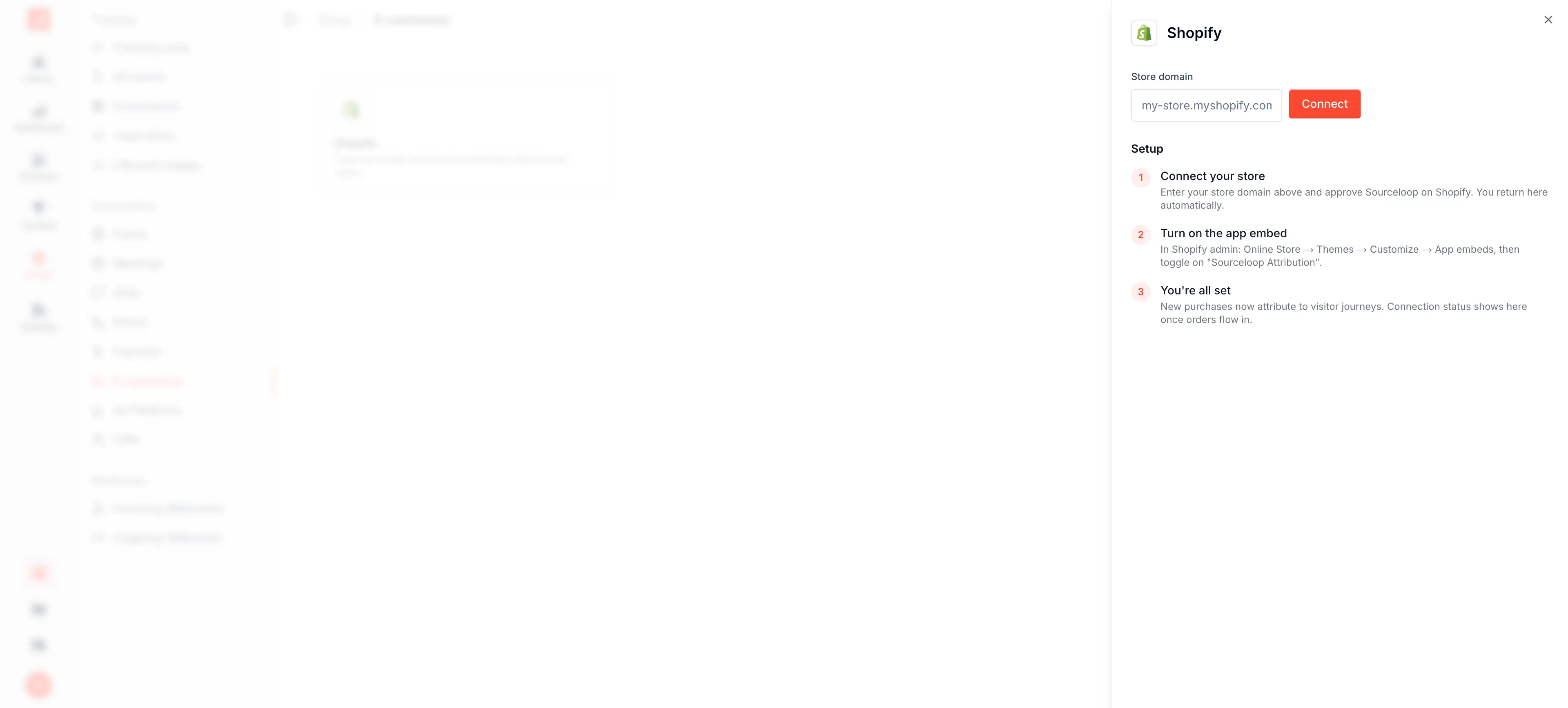
- Enter your store domain (for example
your-brand.myshopify.com) and click Connect. - SourceLoop hands you to Shopify’s official app authorization screen, where Shopify lists what SourceLoop is requesting: read access to orders, customers, and checkouts. It requests read access only, and never asks to modify products, prices, inventory, or fulfillment.
- Click Install app to approve. Shopify returns you to SourceLoop automatically.
Step 3: Turn on the app embed
For storefront tracking to run, switch on SourceLoop’s app embed in your theme. This is a toggle, not a code edit:
- In your Shopify admin, go to Online Store -> Themes -> Customize.
- Open the App embeds panel (the puzzle-piece icon in the theme editor sidebar).
- Toggle on Sourceloop Attribution, then click Save.
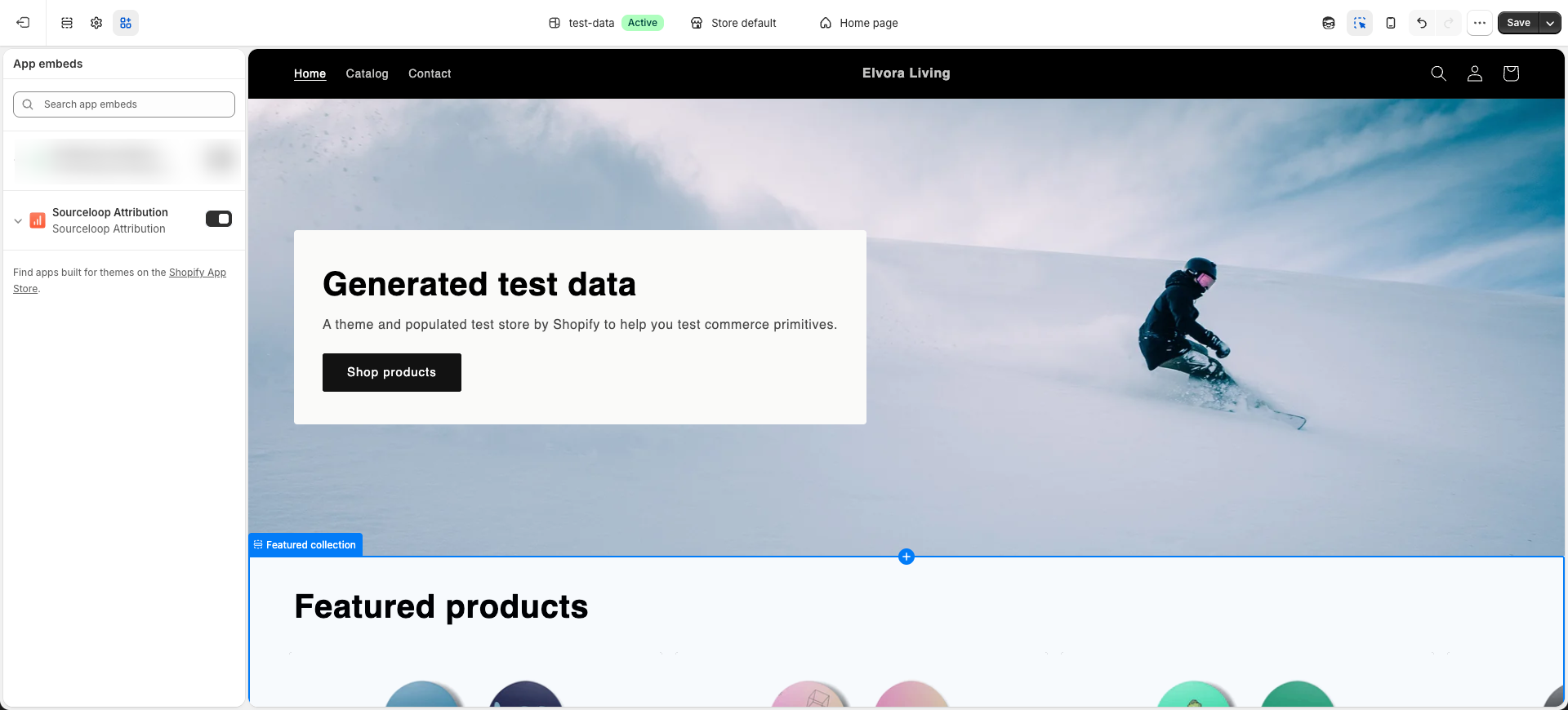
That’s it, no theme.liquid editing and nothing to paste. Because it’s an app embed, it survives theme updates and Shopify 2.0 section changes. From here on, every storefront visitor’s session, UTM, referrer, and browsing journey is recorded, ready to be stitched onto the order they place.
Step 4: Place a test order to verify
Open your storefront in an incognito window, append ?utm_source=test&utm_medium=verify&utm_campaign=shopify-check to the URL, browse a product, and complete a checkout. Shopify’s own Bogus Gateway or test-mode payments let you do this without moving real money.
Within seconds of Shopify confirming the order, the customer should appear at the top of the Contacts Hub in SourceLoop with the test UTMs attached and a revenue event linked to the same contact.
Where to see Shopify revenue in SourceLoop
Contacts Hub: revenue per customer
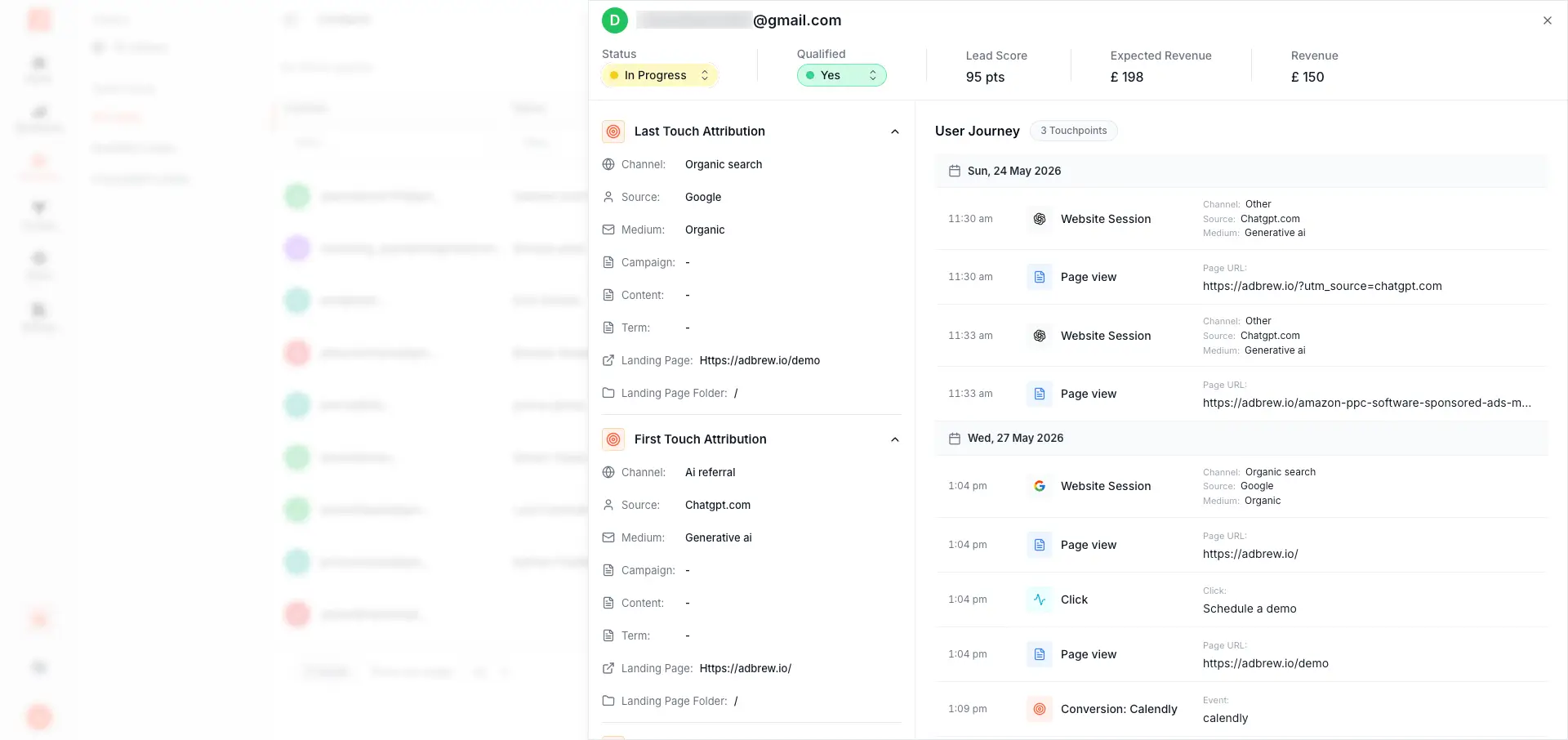
Every Shopify customer becomes a contact row at app.sourceloop.ai/contacts with a revenue column showing what they have spent to date. Click a contact to expand the full order ledger, first order, every repeat purchase, every refund, next to the shopper’s pre-purchase journey.
Sort or segment the hub by revenue to find your highest-value customers, or by source to see which channels bring in buyers versus browsers.
Attribution dashboard: orders and revenue by channel
app.sourceloop.ai/dashboards/traffic breaks your storefront traffic down by Channel, Source, Medium, Campaign, UTM Term, UTM Content, and Referrer, with conversions and conversion rate on every row. So instead of “Meta drove 900 sessions,” you see which channels actually turn into orders.
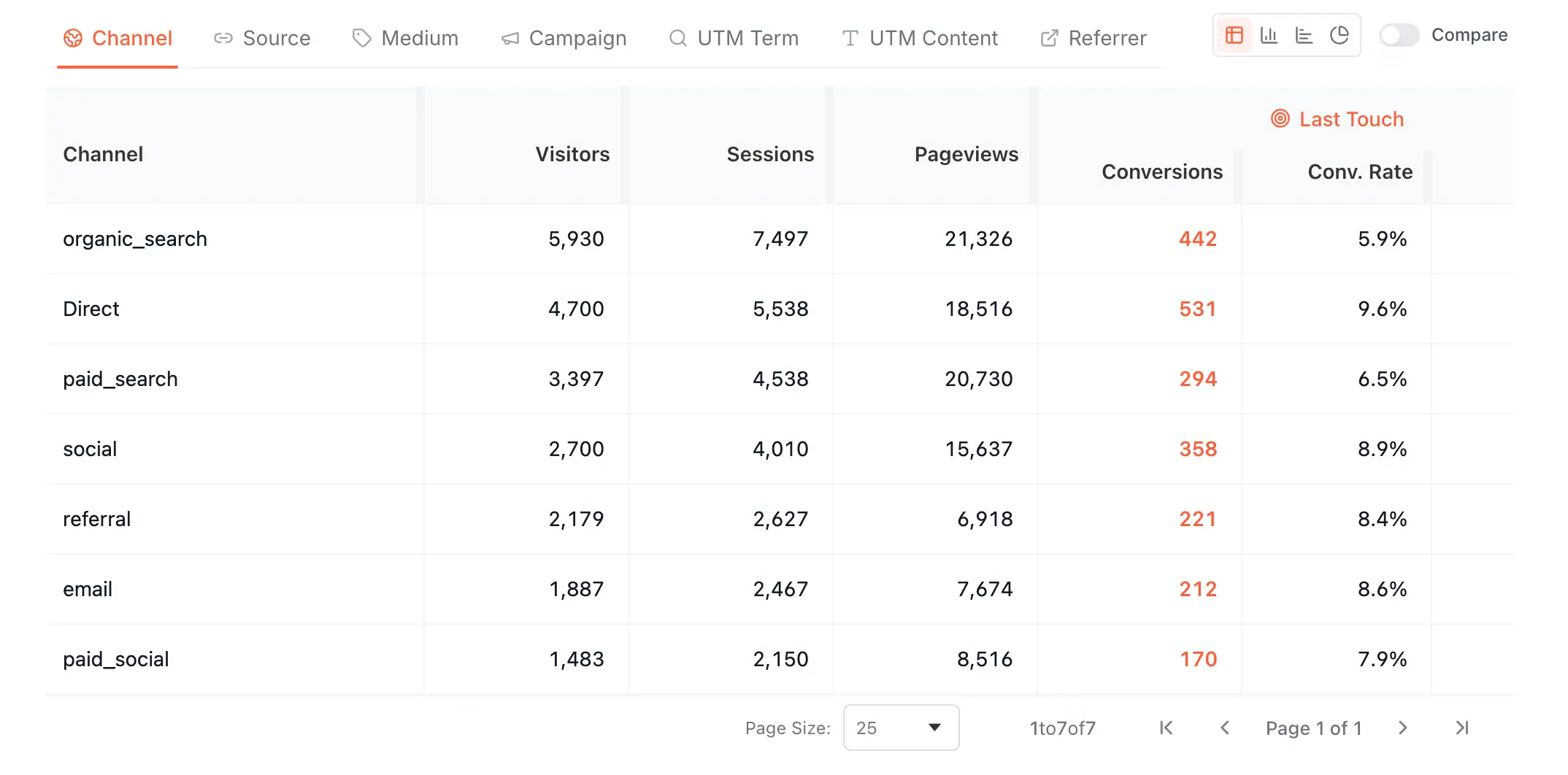
Switch attribution models from the dropdown at the top to see how credit shifts:
- Last Non-Direct (the default, matches Google Analytics)
- First Touch / First Non-Direct for top-of-funnel weighting
- Last Touch for closing-channel weighting
- Linear, Position-Based (U-Shaped), and Time Decay for multi-touch views
Paths dashboard: the full journey to each order
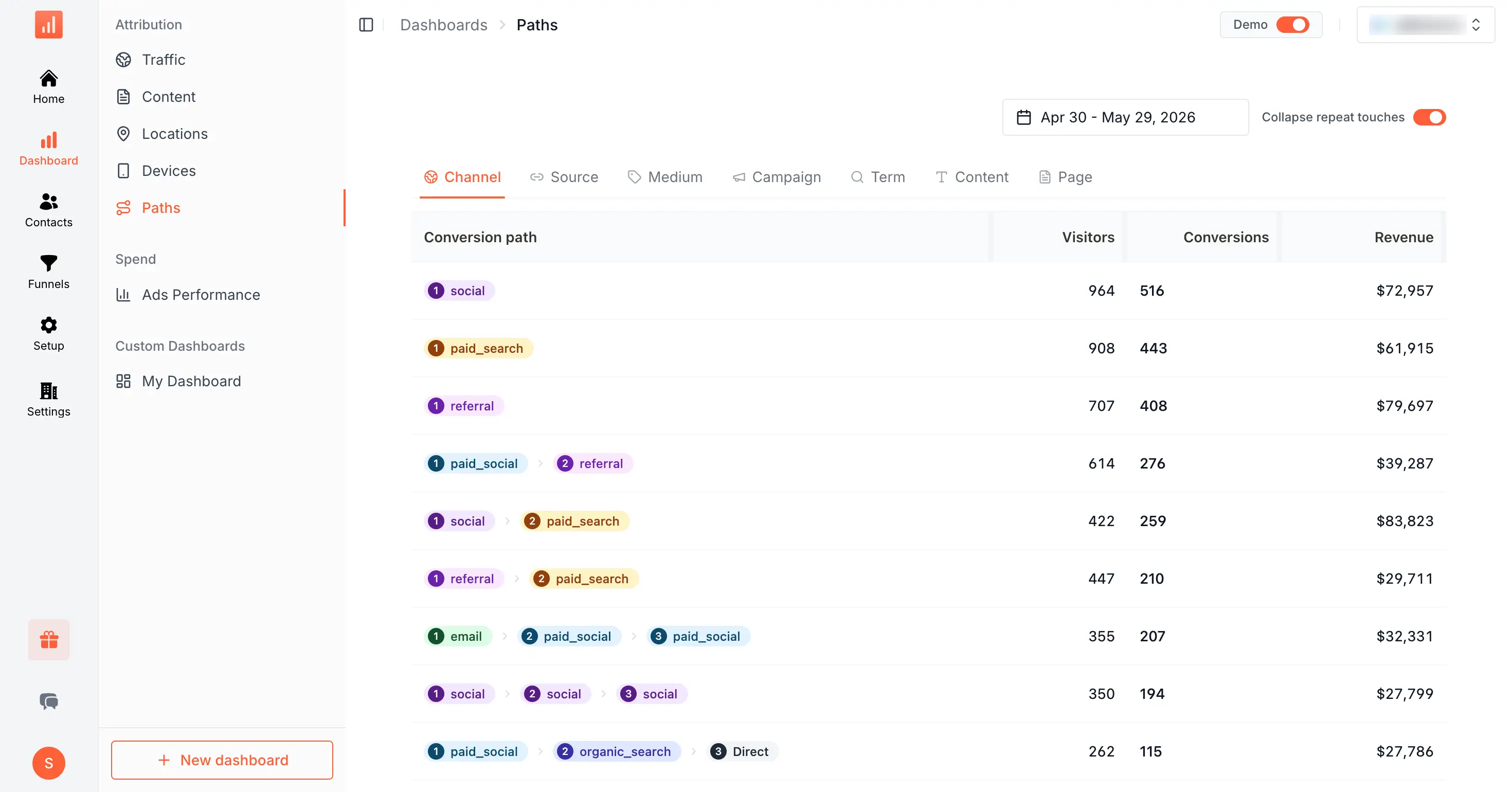
Most Shopify orders take more than one touch. app.sourceloop.ai/dashboards/paths lays out the actual conversion paths (for example social -> paid_search) with visitors, conversions, and attributed revenue on each path, so you can see which channel combinations drive the most store revenue, not just which one gets last-click credit.
Once Shopify revenue is flowing, push it back to Google Ads, Meta, and TikTok as conversions with order values so the bidding algorithms optimise toward real buyers, not add-to-carts. Connect your Google Ads account covers the wiring.
When you are ready to remove the integration, or need to answer a data-protection question about it, see What Shopify data SourceLoop stores and deletes.
Frequently asked questions
-
Do I need to edit my theme.liquid or paste any code?
No code. Shopify uses a dedicated connect flow, not the manual snippet. After you approve access, you flip on a single app-embed toggle ("Sourceloop Attribution") in your theme editor. It is a switch, not a code edit, so theme updates and Shopify 2.0 sections do not break it, and there is nothing to paste into theme.liquid.
-
Why do my Shopify orders arrive without a source today?
Shopify only sees the checkout, not the shopper's journey. By the time someone clicks an ad, browses, adds to cart, and checks out (often days later from a different device), the original UTM is long gone from the URL. SourceLoop captures the source on the first page view, persists it across the whole buying journey, and stitches it onto the order the moment it is placed.
-
Are repeat purchases and subscriptions attributed back to the first source?
Yes. Source is tied to the customer, not just the first order. Repeat purchases, Recharge and other subscription renewals all roll up under the original acquisition channel, so AOV, LTV, and repeat-rate reports stay tied to the channel that earned the customer.
-
Does this replace the pixel I install on non-Shopify sites?
For your Shopify storefront, the app handles storefront tracking for you, so you do not add the manual snippet there. If you also run a marketing site, blog, or landing pages on a separate domain, install the standard tracking snippet on those pages so pre-checkout journeys that start off-Shopify are captured too.
-
What Shopify permissions does SourceLoop request, and can I revoke them?
Read access to orders, customers, and checkouts, so it can match each sale to a visitor session and attach source data. It never requests write access to your catalog, prices, or fulfillment. You can revoke access any time from Shopify Settings, Apps and sales channels, by uninstalling SourceLoop, which immediately stops all access.
-
How is refund and cancellation revenue handled?
Refunds and cancellations flow in as negative revenue tied back to the original order and source. The attribution dashboard nets them against the channel that drove the sale, so reported channel revenue stays accurate even weeks after the order.
-
Where does the imported data go, and what happens if I uninstall?
Order and customer data synced from Shopify lives only in your own SourceLoop workspace. Uninstalling the app revokes access immediately and triggers our data-deletion process. See the companion guide, What Shopify data SourceLoop stores and deletes, for exactly what is removed and when.

 Paid Social


