
How to Track Marketing Attribution for Multiple Client Websites
See every client website on one screen with leads, good leads, spend, cost per lead, revenue, and tracking health, and reuse your rules across clients.
On this page
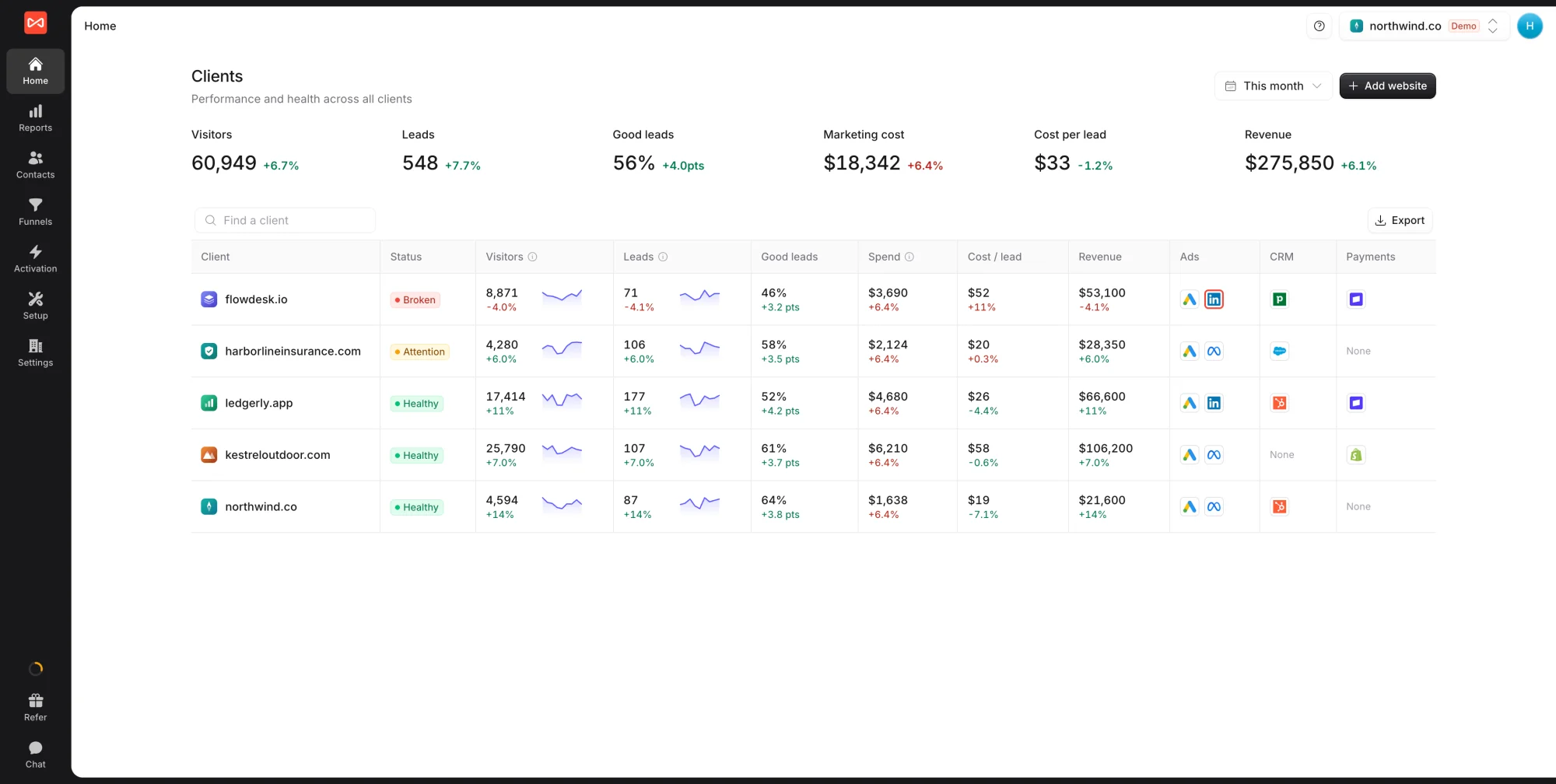
Running SourceLoop for many clients means each one needs checking, and broken tracking is easy to miss until a client asks why leads dropped. The Clients overview puts every client on one screen with its results, its connections, and whether it needs attention.
Click Home in the left sidebar. With three or more websites in your account, Home becomes Clients.
Step 1: Read the totals
The cards across the top add up every client for the period, picked at the top right:
- Visitors and Leads
- Good leads: the share of leads marked Good by lead quality rules or your team
- Marketing cost, Cost per lead, and Revenue
Step 2: Scan the clients table
Each client gets one row:
- Status: Healthy, Attention, or Broken. Clients that need you sort to the top.
- Visitors and Leads, each with a daily trend line
- Good leads, Spend, Cost / lead, and Revenue, each with its change on the previous period. A rise in cost per lead shows in red.
- Ads, CRM, and Payments: logos for what is connected. A dot on a logo means that connection has a problem. Hover to see which account and what’s wrong.
Click a row to open that client. Use Export to download the table.
What the statuses mean
- Broken: no visits for more than a week, visits that stopped in the last two days, or a connection that is failing
- Attention: a connection that has gone quiet, an ad sign-in expiring within 7 days, or no leads in the last day for a client that usually gets several
- Setting up: a new site still waiting for its first visits
Open the client’s Setup -> Data health page to see exactly what needs fixing.
Step 3: Add a client
Click Add website, enter the client’s domain, and install their tracking code. Each website keeps its own data, connections, and rules.
Step 4: Copy rules from one client to others
Set up channel mapping and lead rules once, then reuse them:
- On the client whose rules you want to reuse, click the copy icon at the end of its row.
- Pick Channel rules, Lead rules, or both.
- Pick the clients to copy them to. The preview shows what each one gets, for example “replaces 2 lead rules with 6”.
- Confirm.
The rules land in each client’s draft. Review and publish them on each client when you’re ready. Statuses used by lead rules are matched by name, and the preview tells you about any that don’t exist on a client.
What’s next
- Send each client a branded report: White-label branding and Share a report
- Watch every client with one alert: set Applies to to All clients in Slack and email alerts
- Decide which leads count: Lead quality rules
Frequently asked questions
-
When does Home turn into the Clients overview?
Once your account has three or more websites. With fewer, Home shows the same table titled Your websites.
-
How is cost per lead worked out?
All marketing cost for the client, ad spend plus any costs added under Setup -> Costs, divided by all of the client's leads. It is a blended figure, not only leads from ad clicks.
-
What counts as a lead here?
Form fills, bookings, chats, calls, signups, and leads sent by API or webhook. Payments count under Revenue instead, never as leads.
-
Why don't the money totals add up across clients?
Totals only add up when every client uses the same currency. With mixed currencies the cards say Mixed currencies rather than converting.
-
Does copying rules change the other client's reports straight away?
No. Copied rules land in each client's draft. Nothing changes until someone reviews and publishes the rules on that client.

 Paid Social


